







Content
Page Table of Contents
About the Author
Hot Topics
Buying a used hard drive or SSD can save money, but because storage devices wear out, a used hard disk may fail much sooner if it isn't tested properly. What seems like a cheap deal can quickly lead to data loss.
This guide from EaseUS Software shows what to do/test when buy used HDD/SSD and how to use second-hand storage safely, so your next hard drive purchase is based on reliable information rather than luck.
What to Look For When Buying a Used SSD | 4 Factors
Buying second-hand may seem straightforward, but it's important to check a few key details first to ensure you're getting a worthwhile deal. Below are four important points to consider.
Factor 1. Compatibility with Your Hardware
Before buying a used drive, make sure it works with your laptop or PC. Check whether it uses SATA or NVMe, as these interfaces are not interchangeable. SATA is widely supported and affordable, while NVMe is newer and much faster but requires a compatible slot. You can confirm this by checking your system's specs or looking at the physical connectors.
Another thing to consider is the drive's form factor, which refers to its physical size and shape. There are three main types:
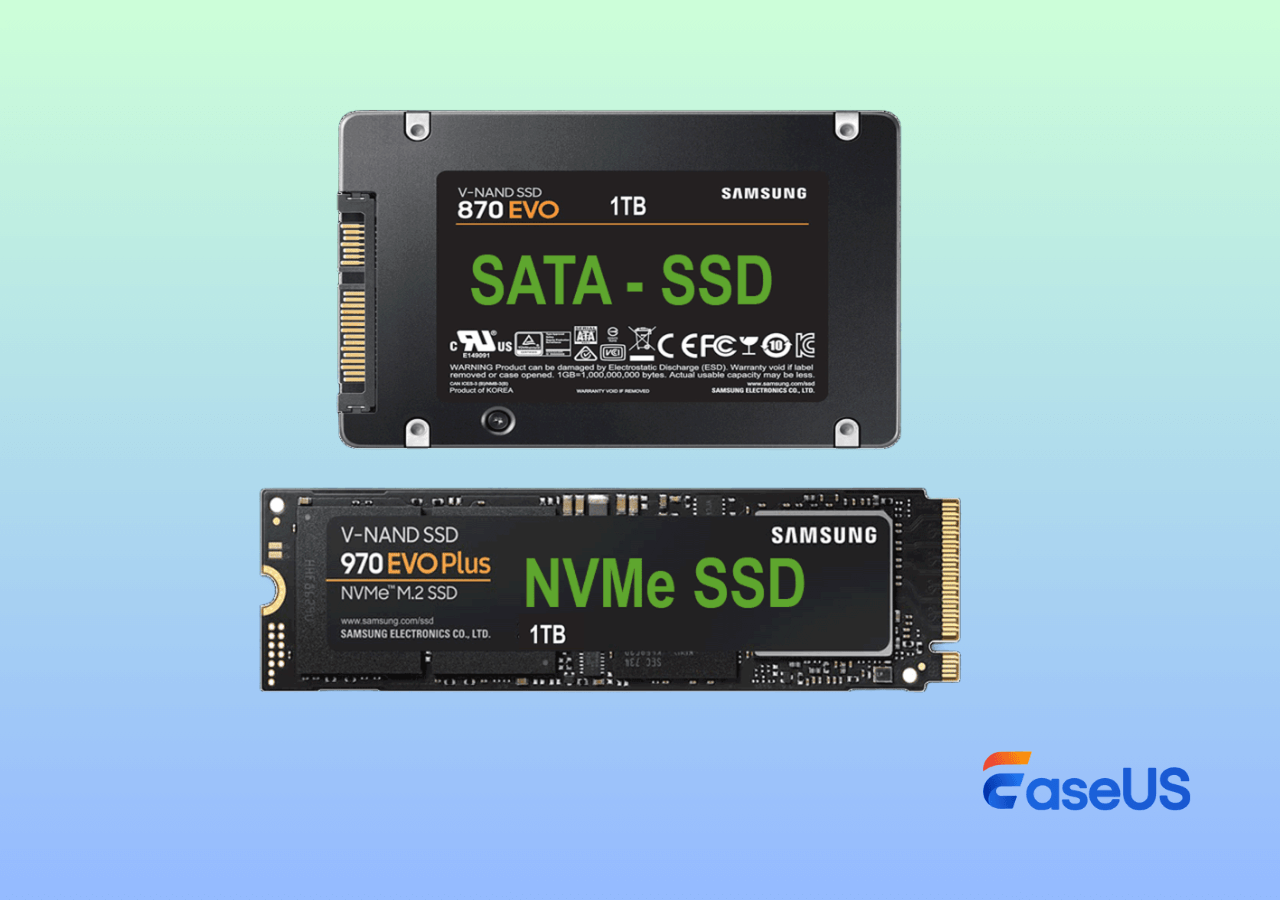
- 2.5-inch: Common in laptops and some desktops
- 3.5-inch: Mostly used in desktop computers
- M.2: A small, modern format used mainly by SSDs
Always check your computer's specifications or measure the drive bay or slot to make sure the drive will fit. If you're buying an external drive, remember you may need extra adapters or an enclosure.
Matching both the hard drive interface type and form factor is essential. Otherwise, you could end up with a used drive that simply won't work with your system.
Factor 2. What Will You Use the Used HDD/SSD for
When buying second-hand, the most important question is how you plan to use the drive - whether for backups, an operating system, or everyday storage. Let's look at a simple table to compare these uses.
|
Criteria |
HDD |
SSD |
|
Purpose |
🗂️Large file storage 🎥Ideal for media collections, backups, and general data 💰More affordable when you need lots of space |
💻Running software or an operating system ⚡Delivers quicker startup and faster file loading ✔️Built without moving parts, making it more reliable for heavy use |
|
Capacity |
Large capacities of multiple terabytes at a lower price |
Usually between 256GB and 2TB, with a higher cost per gigabyte |
|
Durability |
Its lifespan depends on its age and level of use |
SSDs typically last longer and are less vulnerable to physical impact |
From everything discussed above, one thing is clear: HDDs tend to wear out over time, while SSDs are generally more dependable. There are some points that deserve your attention.
- Used SSDs are usually a safer choice than used HDDs because HDDs rely on moving parts that can fail.
- No matter which type you choose, second-hand drives should not be used for important data or as your main system drive, as the risk is simply too high.
- Used HDDs/SSDs are better suited for backups or storing large files, and any valuable data should always be protected with multiple backups, including cloud storage.
Factor 3. Value and Prices
Used hard drives can cost a fraction of new ones, making them attractive for large storage needs. However, testing shows that some used drives fail while others work fine, so checking SMART data and usage hours is essential. In the end, buying used comes down to how much risk you're willing to accept – just be sure to protect your data with proper backups.
Factor 4. Wipe Your Drive to Protect Your Data Security
Sellers usually wipe used drives before selling, but this does not remove SMART data. SMART is a built-in system that records a drive's health and usage, and it remains even after formatting. This makes it extremely useful for checking the condition and reliability of a used drive before you trust it with your data.
Please share this post to help more users learn what they need to know when buying a used SSD!

How to Test a Second Hand SSD/HDD | 2 Phases
What to do/test when buy used HDD/SSD? It's best to test a drive before buying it, or at least as soon as you receive it. This helps you catch hidden issues early and avoid being stuck with a faulty product. If you can't inspect it in person, ask the seller for test results and clear photos so you can verify the drive's condition before committing to the purchase.
Phase 1. Does the Used HDD/SSD Look Right
When buying any used electronic device, the first thing you should do is check for physical damage. A storage drive is no different, and careful inspection can reveal a lot about how it was treated.
💾Physical condition: Look closely at the drive's casing for dents, cracks, or deep scratches. Major damage often means the drive was dropped or handled roughly, which is especially dangerous for HDDs. Also, inspect the connectors for bent pins, rust, or other signs of damage, since faulty connectors can cause unstable connections and performance problems.
✅Labels and stickers: A reliable used drive should still have its original manufacturer labels. These show key details like the model, capacity, and serial number, which also help confirm the drive's age. Broken or missing tamper seals may indicate that the drive was opened or repaired, which is a red flag.
‼️Other wear indicators: Small signs of heavy use, such as worn screw holes or marks around mounting points, can suggest the drive was installed and removed many times. This kind of wear often points to intensive use, which increases the risk of failure.
Phase 2. Use SMART Diagnostic Software
As mentioned earlier, this information reflects the drive's actual usage and shouldn't be overlooked. Fortunately, SMART data can be easily examined with the right diagnostic tools.
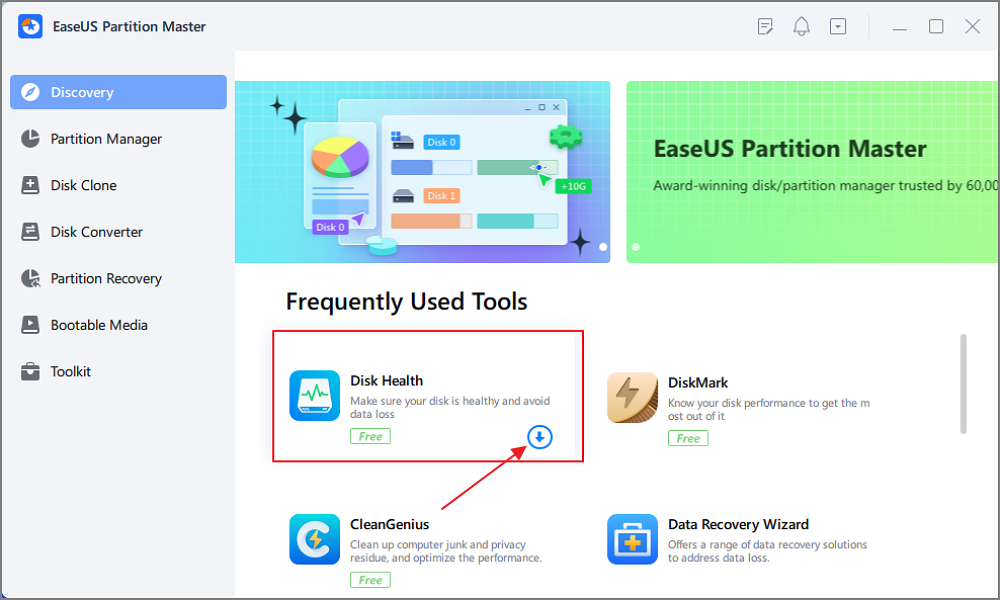
EaseUS Partition Master provides a convenient way to check and manage SMART data on SSDs. With its Disk Health feature, you can review key health metrics and determine whether the drive is reliable or requires further action.
Step 1. Launch EaseUS Partition Master and click the blue arrow to activate the "Disk Health" feature under the "Discovery" section.
Step 2. Select the target disk and click the "Refresh" button. Then, you can see the health condition of your disk.
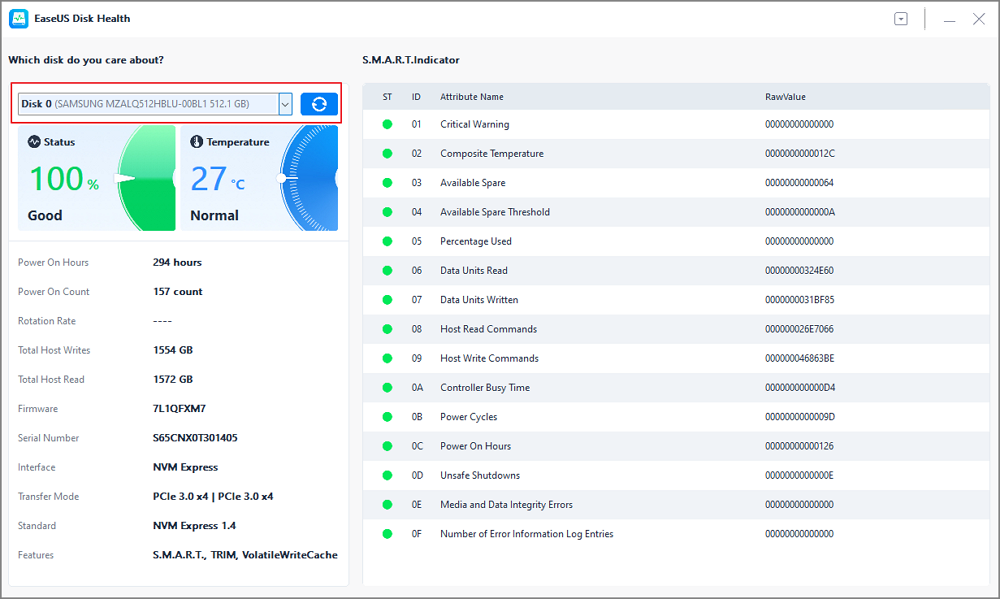
One common problem when using third-party tools is misunderstanding the results. Reading the status incorrectly can lead to serious mistakes, so it's important to know what each indicator means. The key below explains how to interpret the health information for your storage device.
- Status: The drive will be marked as Good, Caution, Bad, or Unknown.
- Temperature: A temperature below 60°C is considered safe, while anything above that may indicate a problem.
- Indicator Colors: Green indicates a healthy drive, while red signals a serious issue.
If the drive shows a good status, you can continue using it. If the SMART result is bad, the SSD should be replaced to avoid data loss.
If you found these tips helpful for checking SSD SMART status, consider sharing this guide so others can better monitor their drive health.
Bonus Tips: What Should I Check before Buying a Used Laptop
We also considered what happens when you buy a used laptop or desktop - after all, its internal hard drive faces the same age and usage-related risks as an external one.
1️⃣How Do You Check the Drive's Health and Performance
Since the drive is built into a used computer, you usually can't inspect it physically. Instead, listen for unusual HDD noises and use tools like EaseUS Partition Master or CrystalDiskInfo to review SMART data and performance, which reveal the drive's health and usage history.
2️⃣Should I Throw Away My Old Hard Drive
After reviewing all the key points in this guide, here's a quick way to decide what to do with a used drive:
- Check its health and age: If the drive shows a Caution or Bad SMART status, has many reallocated sectors, or has more than 10,000–20,000 power-on hours (roughly 1–2.5 years of constant use), it's best to replace it.
- Match it to your needs: If the system has an HDD, upgrading to an SSD will greatly improve speed and reliability. For simple secondary storage, an older HDD may still be acceptable.
- Look at performance: If the PC or laptop feels slow, the drive could be the bottleneck. Replacing it can noticeably boost read/write speeds and overall responsiveness.
No matter what you choose, always keep reliable backups to protect your data.
Want to make sure your hard disk is working as expected? Follow these [Disk Health and Diagnostic Checks] to identify potential issues early.
Conclusion
What to do/test when buy used HDD/SSD? After reading the above content, you may find a feasible answer. Used drives can save money, but they come with higher risk, especially for HDDs. Always check SMART data and usage history before trusting one. They're fine for backups, games, or non-critical files if you also keep multiple backups, but for important data or your main system drive, a new drive is the safer and smarter choice.
FAQs
In addition, here are a few related tips you may find helpful. Please take a look if you're interested.
1. How to use CrystalDiskMark to test SSD?
Step 1. Go to the official CrystalDiskMark page > download and install the Standard Edition.
Step 2. Type CMD in the search bar > select Run as Administrator to open it.
Step 3. Locate the disk you want to test > choose the Test Count > select the Test Size > select your SSD > click All to test all items.
Step 4. After running the test, you'll see the disk's benchmark results. These numbers can vary depending on your system, software version, and the specific drive being tested.
2. Does CrystalDiskMark damage or wear out an SSD?
No. CrystalDiskMark performs read and write tests, but the amount of data written is small and will not noticeably affect an SSD's lifespan when used occasionally.
3. What is a good SSD speed in CrystalDiskMark?
For SATA SSDs, sequential read/write speeds around 450–550 MB/s are normal. For NVMe SSDs, speeds can range from 2,000 MB/s to over 7,000 MB/s, depending on the model and PCIe version.
4. Why are my CrystalDiskMark results lower than advertised speeds?
Real-world results can be lower due to system limitations, background processes, thermal throttling, or using an older interface like SATA or PCIe 3.0 instead of PCIe 4.0 or 5.0.
How Can We Help You
About the Author

Sherly joined EaseUS in 2022 and she has always loved writing articles and enjoys the fun they bring. She receives professional training here, focusing on product performance and other relative knowledge. She has written over 200 articles to help people overcome computing issues.

Cici is the junior editor of the writing team of EaseUS. She accepted the systematic training on computers at EaseUS for over one year. Now, she wrote a lot of professional articles to help people resolve the issues of hard drive corruption, computer boot errors, and disk partition problems.
Product Reviews
-
I love that the changes you make with EaseUS Partition Master Free aren't immediately applied to the disks. It makes it way easier to play out what will happen after you've made all the changes. I also think the overall look and feel of EaseUS Partition Master Free makes whatever you're doing with your computer's partitions easy.
Read More -
Partition Master Free can Resize, Move, Merge, Migrate, and Copy disks or partitions; convert to local, change label, defragment, check and explore partition; and much more. A premium upgrade adds free tech support and the ability to resize dynamic volumes.
Read More -
It won't hot image your drives or align them, but since it's coupled with a partition manager, it allows you do perform many tasks at once, instead of just cloning drives. You can move partitions around, resize them, defragment, and more, along with the other tools you'd expect from a cloning tool.
Read More
Related Articles
-
How to Merge D and E Drive (No Data Loss)
![author icon]() Oliver/2026/09/28
Oliver/2026/09/28 -
How to Convert a Bootable USB Drive to Normal【2026 Guide】
![author icon]() Cici/2026/09/28
Cici/2026/09/28 -
Computer Won't Boot? Causes & Fixes for PC Not Turning On
![author icon]() Tracy King/2026/09/23
Tracy King/2026/09/23 -
Download Partition Magic Server Software for Windows Server 2012/2012 R2
![author icon]() Tracy King/2026/09/23
Tracy King/2026/09/23
 Oliver/2026/09/28
  Tracy King/2026/09/23









