







Content
Page Table of Contents
About the Author
Hot Topics
- Why Does Windows 11 26H2 Say There Isn't Enough Space?
- First, Check What Is Taking Up Space on Your C: Drive
- How to Free Up C Drive Space for Windows 11 26H2 Update
- Still Not Enough Space? Check Your Partition Layout
- When Should You Upgrade to a Larger SSD?
- Frequently Asked Questions About Not Enough Space for Windows 11 26H2
If Windows 11 26H2 says "You need more space" or "Not enough disk space", you do not necessarily need a larger SSD. In many cases, removing temporary files, unused apps, and large personal files is enough to get the update moving again.
Start by checking how much free space Windows says you need and what is using your C: drive. If a cleanup does not free enough room, you may be able to extend the C: partition using unused space elsewhere on the same disk. Only when the entire drive is too small does replacing the SSD become the more practical solution.
This guide walks through each option, from the safest cleanup methods to partition resizing and SSD upgrades, so you can free enough space for Windows 11 26H2 without deleting important system files.
Why Does Windows 11 26H2 Say There Isn't Enough Space?
A Windows 11 feature update needs more than just the space occupied by the downloaded update package. Windows may need additional storage to download the update, update optional features and language resources, apply the installation, and temporarily keep files that allow the update to be removed if something goes wrong. Microsoft says that feature updates typically require 6 GB–11 GB or more of free space, but the actual requirement varies between PCs.
That variation matters. One PC might have plenty of free space for the same update while another shows a low-storage warning because it has more optional features, language packs, driver updates, or other pending updates.
Is 20 GB of Free Space Enough for Windows 11 26H2?
It can be, but 20 GB is not a universal requirement for Windows 11 26H2. Microsoft's current guidance gives different examples depending on how Windows performs the feature update. For systems with minimal optional content, the amount of free space required can be much lower when Windows optimizes the installation for disk-space usage. Systems with more optional features, languages, and updates can require considerably more.
So instead of relying on a generic "20 GB" or "30 GB" rule, check the Fix issues message in Windows Update. If Windows tells you that another 12 GB is needed, that is the immediate storage gap you need to address.
Keeping additional free space is still a good idea, especially if your C: drive is regularly close to full.
Why Does a Windows Update Need Extra Storage?
During a feature update, Windows may use space for:
- Update download files
- Temporary installation files
- Optional Windows features
- Installed language resources
- Updated device drivers
- Additional quality updates
- Files needed to support rollback
Microsoft also explains that additional space can be temporarily required to support removing the update, typically for about 10 days.
This is why seeing several gigabytes free in File Explorer does not always mean that Windows Update has enough working space.
Windows 11's 64 GB minimum storage requirement is not the same thing as the amount of free space required for a particular feature update.
Microsoft lists 64 GB or larger as the minimum storage-device capacity for Windows 11, but available storage also depends on installed applications, updates, and other content. Share this post to help people learn more about the Windows 11 26H2 update.

First, Check What Is Taking Up Space on Your C: Drive
Don't start deleting files at random. First, find out what is actually filling your system drive. A few minutes of checking can tell you whether you have a temporary-file problem, an oversized app library, too many personal files, or simply a C: partition that is too small.
The quickest way to check is:
- Open File Explorer.
- Select This PC.
- Find Local Disk (C:).
- Check the free space shown below the drive.
If Windows Update has already told you how much additional space it needs, note that number before you start cleaning.
Check Storage Usage in Windows 11
Windows 11 provides a more useful breakdown of your storage.
Go to: Settings > System > Storage. Here you can see categories such as:
- Installed apps
- Temporary files
- System & reserved
- Documents
- Pictures
- Videos
- Other
Microsoft's Storage settings are designed to show how disk space is being consumed, while reserved storage helps Windows maintain space for temporary files and other system processes.
- If Temporary files is unusually large, start there.
- If Installed apps is the largest category, uninstalling or moving a few large programs may make a bigger difference.
- And if personal files dominate the list, cleaning Windows itself will not solve the underlying problem.
How to Free Up Space for Windows 11 26H2 Update
Once you know where the space is going, work through the following methods. You don't have to perform every step. Check the available space after each major cleanup and stop when you have enough room for the update.
You can use EaseUS Partition Master to find and free up C drive space without manually checking multiple locations.
- Open EaseUS Partition Master and select Clean.
- Use Space Analysis to identify what is taking up the most space.
- Scan for and remove unnecessary junk files.
- Find and uninstall large or unwanted applications.
- Use Data Migration to move supported large apps or files from C drive to another drive, such as D drive.
- Check the available C drive space again after cleanup.
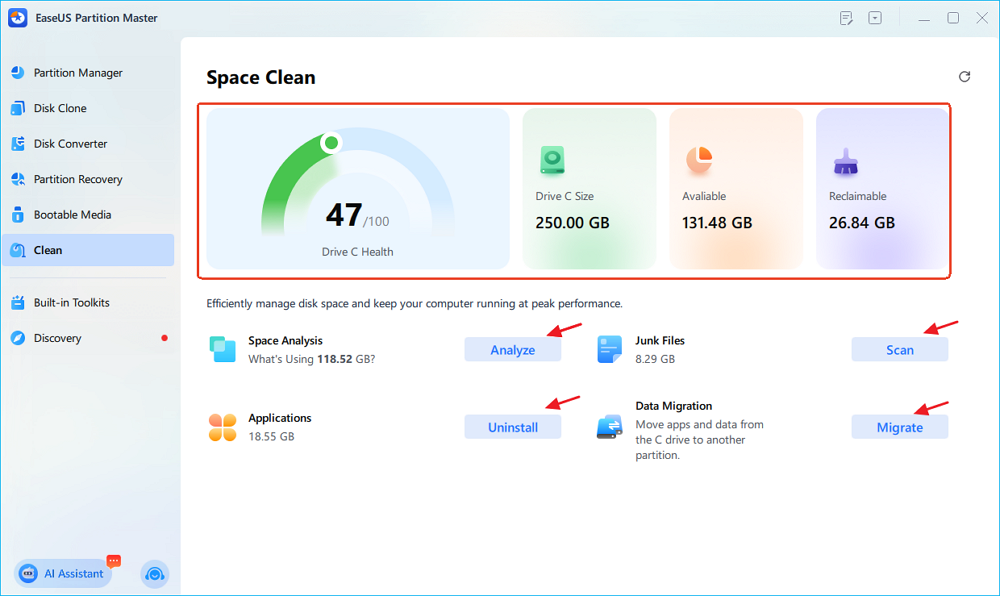
This feature lets you analyze disk usage and free up space through cleanup, app removal, and data migration from a single interface.
Or, you can use the following methods to clean the C drive manually.
1. Remove Temporary Files From Windows 11
Temporary files are usually the first place to look because Windows provides built-in tools for reviewing and removing them.
Step 1. Go to: Settings > System > Storage > Cleanup recommendations
Step 2. Review the categories Windows lists before selecting Clean up.
Step 3. Depending on your system, you may see:
- Temporary files
- Windows Update Cleanup
- Delivery Optimization Files
- Recycle Bin
- Previous Windows installation(s)
This is safer than manually browsing system folders and deleting files based on their size. Microsoft specifically recommends Storage Sense and Cleanup recommendations for freeing storage needed by Windows updates.
Be careful with Previous Windows installation(s). If Windows offers a previous installation for removal, don't select it automatically. Those files can consume a substantial amount of disk space, but they can also be used to return to the previous Windows installation. Once you remove them, that rollback option may no longer be available.
If your priority is getting Windows 11 26H2 installed and you are certain you will not need the previous installation, removing it can reclaim useful space.
2. Run Disk Cleanup and Clean System Files
The classic Disk Cleanup utility is still useful when a Windows installation has accumulated update and system cleanup files.
- Press Windows + S. Search for Disk Cleanup.
- Open the application > Select C: > Click Clean up system files.
- Review the available categories and select the files you want to remove.
- Click OK.
The important part is Clean up system files. A standard Disk Cleanup scan may not expose all the system-level cleanup categories you are looking for.
Don't select every checkbox just because you want to free as much space as possible. Read the category names first, particularly when previous Windows installation or recovery-related files are involved.
3. Turn On Storage Sense
If your C: drive repeatedly becomes full, consider enabling Storage Sense rather than treating every Windows update as a separate cleanup emergency.
Go to: Settings > System > Storage > Storage Sense
Turn it on and review its settings.
Storage Sense can automatically remove certain unnecessary temporary files and help manage low disk space. By default, it focuses on the system drive, normally C:.
One important detail: Storage Sense does not automatically delete everything in your Downloads folder simply because it is large. Its behavior depends on the settings you configure.
That makes it useful for ongoing storage maintenance, but you should still inspect large personal files yourself.
4. Uninstall Large Apps and Games You No Longer Use
If Installed apps is one of the largest categories in Storage settings, look there next.
- Go to: Settings > Apps > Installed apps
- Sort the list by size and look for programs or games you no longer need.
This can be much more effective than deleting a few temporary files. A single large game, video editor, virtual machine, or development environment may occupy tens or even hundreds of gigabytes.
Before uninstalling anything, make sure you recognize it. Do not remove a driver, Microsoft component, or system utility simply because its name is unfamiliar or because it appears in a large-file list.
If an application supports moving its installation to another drive, moving it may be preferable to uninstalling it.
5. Move Large Personal Files Off the C: Drive
Your Windows installation may not be the main reason the system drive is full. Check these locations:
- Downloads
- Desktop
- Documents
- Pictures
- Videos
- Game recordings
- ISO files
- ZIP and RAR archives
- Large project folders
- Virtual machine files
Sort files by size where possible. A few large files are often easier to deal with than thousands of small ones. You can move files you still need to:
- Another internal drive
- An external SSD
- An external HDD
- A network drive
- Cloud storage
If you move personal files, open a few of them from the new location before deleting the originals. Once you have confirmed that the files are intact, you can remove the old copies from C:.
Do not move Windows, Program Files, or other system directories manually just to create free space.
Still Not Enough Space? Check Your Partition Layout
Suppose you have cleaned temporary files, removed unused apps, and moved large personal files—but Windows 11 26H2 still won't install.
At this point, ask a different question: Is C: actually too small, even though the disk has unused capacity elsewhere? In this case, you can extend the C: drive with EaseUS Partition Master.
It can allocate space from the D drive to the C drive or extend the C drive with nonadjacent unallocated space.
Extend System C drive with unallocated space
- 1. Right-click on the System C: drive and select "Resize/Move".
- 2. Drag the system partition end into the unallocated space so to add it to the C: drive. And click "OK".
- 3. Click "Execute Task" and "Apply" to execute the operations and extend the C drive.
When Should You Upgrade to a Larger SSD?
A larger SSD makes more sense when:
- The system drive is consistently close to full.
- You have almost no unused capacity on other partitions.
- Windows updates repeatedly run into storage problems.
- Large applications and games need more space.
- You regularly have to move files just to keep C: usable.
- The current SSD is simply too small for the way you use the PC.
In other words, don't buy a larger SSD just because one Windows update needs a few extra gigabytes. Consider it when insufficient capacity is a recurring problem. Share this post if you found it helpful.
Frequently Asked Questions About Not Enough Space for Windows 11 26H2
1. How much space does Windows 11 26H2 need?
There is no single fixed amount that applies to every PC. Microsoft says Windows feature updates typically require 6 GB–11 GB or more of free space, but the actual requirement varies according to the update path, optional features, language resources, drivers, and other updates installed on the device.
2. Is 20 GB enough to install Windows 11 26H2?
It may be, but 20 GB should not be presented as a mandatory requirement for every Windows 11 26H2 installation. Microsoft provides different storage-use scenarios, with some systems requiring substantially less and others requiring 20 GB or more.
If Windows Update tells you that additional space is needed, use its reported requirement as your immediate target.
3. Why does Windows 11 say I don't have enough space when I still have free space?
The update needs working space in addition to the size of the update itself. Windows may need room for downloaded files, optional features, language resources, drivers, the installation process, and temporary rollback support.
4. How do I free up space for Windows 11 26H2?
Start with Settings > System > Storage > Cleanup recommendations. Then remove unnecessary temporary files, run Disk Cleanup, uninstall unused large applications, and move large personal files away from C:.
If that is still not enough, check whether another partition has unused capacity that can be allocated to C:.
5. Can I use an external hard drive to install the Windows 11 26H2 update?
Windows can use external storage to reduce the amount of free space required on the internal system drive. Microsoft currently documents an update workflow using an external storage device with at least 10 GB of free space.
However, Windows may still require some additional free space on the internal drive.
6. Why can't I extend my C: drive even though I have unallocated space?
Usually, the unallocated space is not in a position that Windows Disk Management can use to extend C:.
For example: C: | Recovery | D: | Unallocated
Windows Disk Management cannot simply move the Recovery or D: partition out of the way.
7. Should I delete Windows.old before upgrading to Windows 11 26H2?
Only if you are sure you no longer need the previous Windows installation for rollback. Previous Windows installation files can occupy a significant amount of space, but deleting them can remove the ability to return to the previous installation.
8. Is it safe to delete files from C:\Windows to make room for Windows 11 26H2?
No. Do not manually delete files from Windows system directories such as C:\Windows, System32, or WinSxS simply because they are large. Use Windows'built-in storage and cleanup tools instead.
9. Should I upgrade my SSD if Windows 11 26H2 says there isn't enough space?
Not necessarily. If you can free enough space by cleaning the drive or moving files, there is no need to replace the SSD just for this update.
If the entire drive is consistently full and there is no unused capacity to redistribute, moving to a larger SSD is the more sustainable solution.
10. Does Windows 11 26H2 use a full OS installation?
For supported Windows 11 devices on the relevant servicing branch, Microsoft describes 26H2 as being delivered through an enablement package rather than a traditional full operating-system replacement. The enablement package activates functionality that is already serviced into the system.
However, that does not mean a PC can install 26H2 with almost no free storage. Windows Update still needs working space to complete the update process.
Final Takeaway
Do not worry if there is no disk space to install Windows 11 26H2. First, check C: and identify what is consuming the storage. Remove unnecessary temporary files, clean up Windows Update files, uninstall apps you no longer use, and move large personal files. If C: is simply too small while another partition has available capacity, extend the C: drive instead.
- If the whole SSD is nearly full, then a larger drive is the long-term fix.
- In most cases, the decision comes down to four steps: Check what is using the space → Clean up unnecessary data → Extend C: if the disk has unused capacity → Upgrade the SSD if the physical drive is too small.
And before deleting anything manually, remember: a few extra gigabytes are never worth risking your Windows installation or important data.
How Can We Help You
About the Author

Updated by Joey Albert
Joey is an enthusiast of science and technology. With a passion for uncovering the latest tech innovations, she creates clear, engaging how-to guides that make technology accessible and enjoyable for all.

Sherly joined EaseUS in 2022 and she has always loved writing articles and enjoys the fun they bring. She receives professional training here, focusing on product performance and other relative knowledge. She has written over 200 articles to help people overcome computing issues.
Product Reviews
-
I love that the changes you make with EaseUS Partition Master Free aren't immediately applied to the disks. It makes it way easier to play out what will happen after you've made all the changes. I also think the overall look and feel of EaseUS Partition Master Free makes whatever you're doing with your computer's partitions easy.
Read More -
Partition Master Free can Resize, Move, Merge, Migrate, and Copy disks or partitions; convert to local, change label, defragment, check and explore partition; and much more. A premium upgrade adds free tech support and the ability to resize dynamic volumes.
Read More -
It won't hot image your drives or align them, but since it's coupled with a partition manager, it allows you do perform many tasks at once, instead of just cloning drives. You can move partitions around, resize them, defragment, and more, along with the other tools you'd expect from a cloning tool.
Read More
Related Articles
-
How to Merge Partitions on SSD in Windows 11/10 [Step-by-Step Guide]
![author icon]() Sherly/2026/10/23
Sherly/2026/10/23 -
Can't Run Call of Duty: Black Ops 7 Beta on PC? How to Fix
![author icon]() Sherly/2026/10/23
Sherly/2026/10/23 -
How to Fix Disk Management Console Is Not Up to Date Error
![author icon]() Sherly/2026/10/23
Sherly/2026/10/23 -
How to Format a New SSD in Windows 11/10
![author icon]() Joey Albert/2026/10/22
Joey Albert/2026/10/22










