
Content
Page Table of Contents
About the Author
Hot Topics

Updated on Nov 05, 2026
Do you need to check if TRIM is enabled on your SSD? Maybe your SSD is running slower than before, or you just want to make sure Windows is maintaining your drive properly. Is TRIM enabled or disabled?
You may not know where to check or what the command results mean. In this guide, I'll show you two easy ways to check TRIM on Windows 11/10. You'll also learn how to enable TRIM and use EaseUS Partition Master to optimize your SSD.
How do I check if I have TRIM and when it was last used?
by u/Aeromorpher in techsupport
What Is TRIM and Why Is It Important for SSDs?
TRIM is a feature that helps Windows communicate with an SSD when you delete files. It tells the drive which data blocks are no longer in use, so the SSD can prepare them for future write operations.
- When TRIM is enabled, your SSD can manage deleted data more efficiently. This helps maintain write performance and supports the drive's garbage collection process.
- If TRIM is disabled, the SSD may need to do more work when writing new data. Over time, this could affect write performance, especially when the drive is under heavy use.
That's why it is worth checking whether TRIM is enabled on your SSD.
How to Check If TRIM Is Enabled
There are two ways to check TRIM on Windows 11/10. Command Prompt gives you the exact Windows TRIM notification setting, while the Optimize Drives utility lets you view and manage SSD optimization.
| Method | Best for | Key advantage |
|---|---|---|
| Users who want a direct TRIM status check | Shows whether Windows allows TRIM notifications | |
| Users who prefer a graphical interface | Lets you view SSD optimization and run Retrim |
Method 1. Check If TRIM Is Enabled with Command Prompt
Command Prompt is the quickest way to check if TRIM is enabled on Windows. You only need to enter one command to see the current setting.
Here is how to check TRIM status with CMD.
Step 1. Open the Start menu.
Step 2. Type "cmd" in the search box.
Step 3. Right-click Command Prompt and choose "Run as administrator."
Step 4. Enter the following command:
- fsutil behavior query DisableDeleteNotify
Step 5. Press Enter.
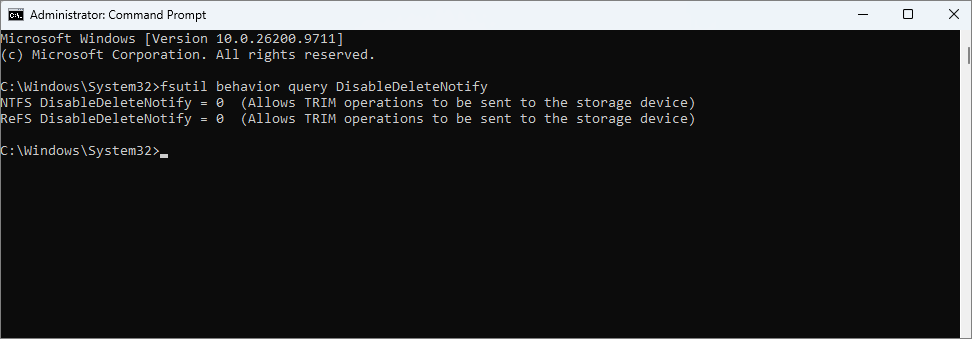
Windows will display the DisableDeleteNotify status. You may see an output like this:
- NTFS DisableDeleteNotify = 0
- ReFS DisableDeleteNotify = 0
How to tell if TRIM is enabled or disabled:
- If the result is "DisableDeleteNotify = 0", TRIM notifications are enabled. Windows allows delete notifications to be sent to supported storage devices.
- If the result is "DisableDeleteNotify = 1", TRIM notifications are disabled. Windows is not sending these notifications through the file system.
The command uses a negative setting name, so the result can be confusing. A value of 0 means that delete notifications are not disabled. A value of 1 means they are disabled.
Pro tip: This command checks the Windows TRIM notification setting. It does not confirm that your SSD, storage controller, or driver has successfully processed TRIM commands.
Method 2. Check TRIM with Optimize Drives
If you don't want to use Command Prompt, you can check your SSD through the Windows Optimize Drives utility. This method is useful if you want to see how Windows recognizes your drive and whether scheduled optimization is enabled.
Here is how to check your SSD with Optimize Drives.
Step 1. Open File Explorer.
Step 2. Click This PC and find the SSD you want to check.
Step 3. Right-click the SSD and select Properties.
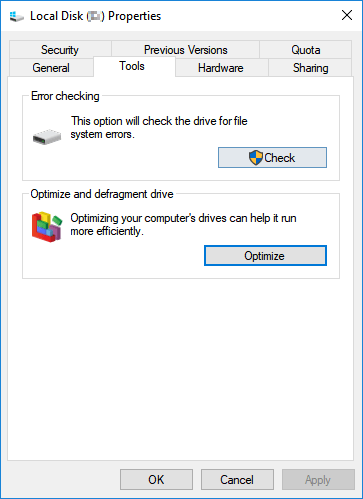
Step 4. Open the Tools tab and click Optimize under Optimize and defragment drive.
Step 5. Find your SSD in the Optimize Drives window.
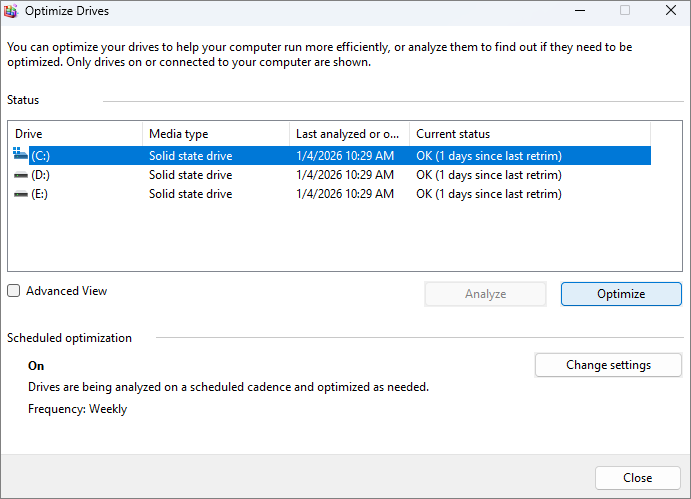
Check the following information:
- Media type: Make sure Windows identifies the drive as a Solid state drive.
- Current status: View the last optimization status.
- Scheduled optimization: Check whether automatic drive optimization is turned on.
You can also select the SSD and click "Optimize" to run the optimization manually.
For SSDs, Windows uses Retrim during drive optimization. Retrim sends information about unused data blocks to the SSD, helping it manage storage more efficiently.
Pro tip: Optimize Drives does not show a direct TRIM enabled/disabled status. If you want to confirm the Windows TRIM setting, use Method 1. You can use this GUI method to check and run SSD optimization.
How to Enable TRIM on Windows 11/10
If you find that TRIM notifications are disabled, you can turn them on with Command Prompt. Windows provides a built-in command for this.
Follow these steps to enable TRIM on your SSD.
Step 1. Open the Start menu, type "cmd", and select Run as administrator.
Step 2. Enter the following command:
- fsutil behavior set DisableDeleteNotify 0
Step 3. Press Enter.
Windows will update the TRIM notification setting. You don't need to restart your computer.
Step 4. Run the check command again:
- fsutil behavior query DisableDeleteNotify
If the result shows "DisableDeleteNotify = 0," Windows now allows TRIM notifications.
Pro tip: TRIM is normally enabled by default for NTFS volumes in Windows 10/11. If your result is already "0", you don't need to change anything.
If TRIM still doesn't appear to work, check whether your SSD supports TRIM. You should also consider the storage driver, controller, RAID configuration, or external USB enclosure, as these components can affect TRIM command pass-through.
All-in-one Tool to Optimize SSD
If you want to do more than check TRIM, you may need an SSD management tool. Windows has built-in drive optimization features, but it doesn't provide all the tools you need to check SSD health, test disk speed, and manage partitions in one place.
EaseUS Partition Master is an all-in-one disk management tool that helps you monitor SSD health and optimize disk performance. It offers several useful features:
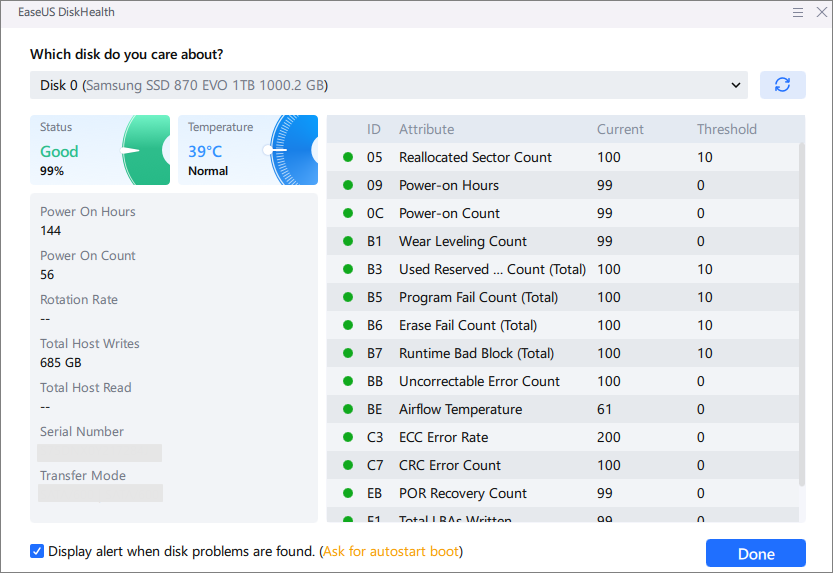
- SSD Health Check: View SSD health information and SMART attributes, including temperature, power-on time, and wear indicators.
- Disk Speed Test: Test SSD read and write speeds to check its current performance.
- 4K Alignment: Align SSD partitions to improve data access efficiency.
- File System Check: Scan and repair supported file system errors.
- Disk Surface Test: Check your SSD for bad sectors and identify potential disk problems.
- Partition Management: Resize, move, merge, and manage partitions to make better use of disk space.
If you want a convenient way to check SSD health and manage disk performance, EaseUS Partition Master brings these tools together in one interface.
Here is how to check SSD health with EaseUS Partition Master.
Step 1. Download and launch EaseUS Partition Master.
Step 2. Click the disk icon in the upper-right corner of your SSD.
Step 3. Here, you can check the SSD health information and SMART attributes.
Conclusion
If you want to check whether TRIM is enabled on your SSD, you can use Command Prompt or Windows Optimize Drives. CMD provides the most direct way to check the TRIM notification setting, while Optimize Drives lets you view and run SSD optimization.
If the command returns 0, Windows allows TRIM notifications. If it returns 1, you can use the fsutil command to enable them.
For more complete SSD maintenance, EaseUS Partition Master also helps you check SSD health, test disk speed, align partitions, and manage storage.
FAQs
1. Is TRIM enabled by default on Windows 11/10?
Yes. TRIM is normally enabled by default for NTFS volumes on Windows 11/10. Windows also schedules regular drive optimization for supported storage devices.
2. Does TRIM improve SSD performance?
Yes. TRIM helps an SSD identify data blocks that are no longer in use. This allows the drive to prepare those blocks for future write operations and reduces unnecessary work during data management.
It helps maintain SSD write performance over time, but it does not increase the drive's rated read or write speed.
3. Should I run TRIM manually?
Most users don't need to run TRIM manually because Windows automatically schedules drive optimization. If you want to run Retrim manually, open the Optimize Drives utility, select your SSD, and click Optimize.
4. Does TRIM permanently delete files?
No. TRIM itself does not delete files. It tells the SSD which data blocks are no longer needed after files have been deleted. However, the SSD may reclaim these blocks during garbage collection. This can make deleted data much harder to recover. If you accidentally delete important files from an SSD, stop using the drive and avoid writing new data to it.
How Can We Help You
About the Author
Updated by Joey Albert
Joey is an enthusiast of science and technology. With a passion for uncovering the latest tech innovations, she creates clear, engaging how-to guides that make technology accessible and enjoyable for all.
Product Reviews
-
I love that the changes you make with EaseUS Partition Master Free aren't immediately applied to the disks. It makes it way easier to play out what will happen after you've made all the changes. I also think the overall look and feel of EaseUS Partition Master Free makes whatever you're doing with your computer's partitions easy.
Read More -
Partition Master Free can Resize, Move, Merge, Migrate, and Copy disks or partitions; convert to local, change label, defragment, check and explore partition; and much more. A premium upgrade adds free tech support and the ability to resize dynamic volumes.
Read More -
It won't hot image your drives or align them, but since it's coupled with a partition manager, it allows you do perform many tasks at once, instead of just cloning drives. You can move partitions around, resize them, defragment, and more, along with the other tools you'd expect from a cloning tool.
Read More
Related Articles
-
Free Cloning Software for Windows 11 with a Guide
![Tracy King]() Tracy King/2026/10/30
-
MBR2GPT Cannot Find Room for the EFI System Partition
![Cici]() Cici/2026/10/30
-
Detailed Guide: Get Toshiba Laptop to Boot From USB
![Sherly]() Sherly/2026/10/30
-
How to Install Windows 11/10 on External Hard Drive [2 Ways]
![Jean]() Jean/2026/10/31
 Tracy King/2026/10/30
 Cici/2026/10/30
 Sherly/2026/10/30
 Jean/2026/10/31