







Content
Page Table of Contents
About the Author
Hot Topics
When formatting a USB flash drive, SD card, or external storage device on Windows, many users encounter the frustrating issue where FAT32 not available only exFAT appears as the only option. This usually occurs when working with drives larger than 32GB, leaving users unable to select FAT32 even when they need it for compatibility.
This guide from EaseUS Software explains why FAT32 disappears, how Windows handles modern file systems, and most importantly, how to format a drive to FAT32 step by step, even when Windows refuses to show the FAT32 format option.
Why FAT32 not available only exFAT Happens
The FAT32 not available only exFAT issue is mainly caused by Windows-imposed limitations rather than a hardware failure.
I'm trying to format a USB flash drive to FAT32 or FAT16 on Windows 10, but the default Windows formatting tool only offers NTFS and exFAT. I need FAT32/FAT16 for compatibility with older devices (e.g., retro gaming consoles, embedded systems, or some car stereos). When right-clicking the USB drive in File Explorer and selecting Format, no FAT32/FAT16 option is available. And the Disk Management also doesn't show FAT32/FAT16 for my USB drive. My question is: Is there a built-in Windows 10 method to format a USB drive to FAT32? If not, what safe & reliable third-party tools do you recommend? For FAT16, is there a special approach since it's quite old? Thanks for any help!
- from the Microsoft Community
I am trying to format an external hard disk to FAT32 (I need it to work with some hardware that requires FAT32). When I try to format it in Windows, the only option I see is NTFS. When I am trying to format one of my own partitions (on the hard disk that is running the OS) I can do it only in NTFS while another partition my OS can format in both NTFS and FAT32. What could be causing this behavior, and how can I format the external hard disk to FAT32?
- from the Super User
There are some possible reasons! Please check them out below!
- Drive larger than 32GB: Windows File Explorer and Disk Management restrict FAT32 formatting to 32GB partitions.
- File size limit: FAT32 has a 4GB file size limit, while exFAT supports much larger files.
- Modern operating systems: Windows prioritizes exFAT for large flash drives and SD cards.
- Storage device type: High-capacity USB flash drives and SD cards are optimized for exFAT by default.
Despite this, the FAT32 file system is still required on many devices, including older consoles, cameras, car infotainment systems, and embedded hardware.
Please share this post across the social platforms to help your friends figure out why is FAT32 not available only exFAT!

How to Fix Fat32 Not Available only exFAT | 3 Ways
Below are the most reliable methods to choose FAT32 when Windows doesn't show the option. Please have a closer look at them below.
Method 1. Format FAT32 via EaseUS Partition Master🔥
- 🔎Best for: Drives larger than 32GB, beginners, avoiding errors
- ❓Why it works: Third-party tools remove Windows' artificial size limit
- 💡Tips: Please always back up data first to avoid data loss
A reliable third-party FAT32 formatting tool like EaseUS Partition Master can make formatting your USB drive simple, fast, and secure by offering an easy-to-use Format feature. In addition to FAT32, it supports NTFS, EXT2, EXT3, and ReFS, making it a versatile tool for all your storage devices.
Step 1. Open EaseUS Partition Master, navigate to "Partition Manager," right-click target NTFS partition and select "Format."
Step 2. Click and change the File System from NTFS to FAT32.
Step 3. Click "OK" and the warning message will prompt, click "Yes" to confirm.
Step 4. Select "Execute 1 disk" and "Apply" to keep all the changes.
Method 2. Convert NTFS to FAT32 using DiskPart
- 🔎Best for: Users comfortable with commands
- ❓Why it works: Command-line tools bypass the File Explorer restriction
- 💡Tips: Please always back up data first to avoid data loss
Using DiskPart to convert NTFS to FAT32 is a common way to bypass Windows' 32 GB limit. This method enables larger drives to use the widely compatible FAT32 file system, ensuring compatibility with older devices such as gaming consoles, car stereos, and legacy operating systems like Linux or macOS. It's also an efficient choice for smaller USB drives that require broad compatibility.
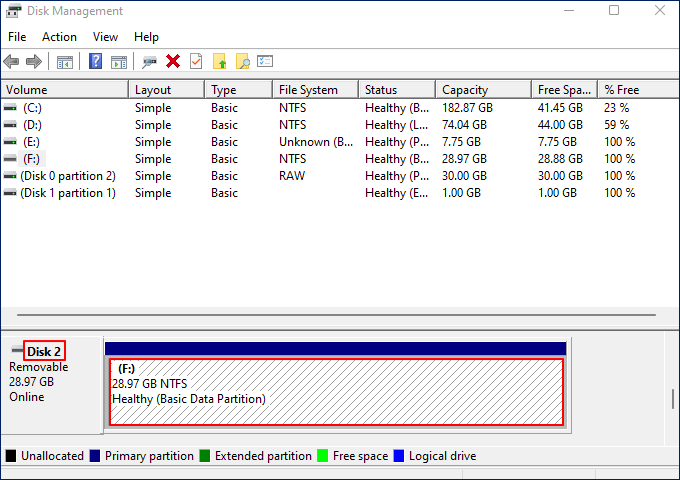
Step 1. Connect the USB drive to your PC > press Windows + X > select Disk Management to open it > locate the USB drive.
As shown in the following picture, you can check the following information.
- The disk that includes my USB drive is disk 2.
- The file system of my USB drive is NTFS.
- The whole size of my disk 2 is 28.97GB.
Step 2. Type cmd in the search bar > click Run as administrator to open the Command Prompt window.
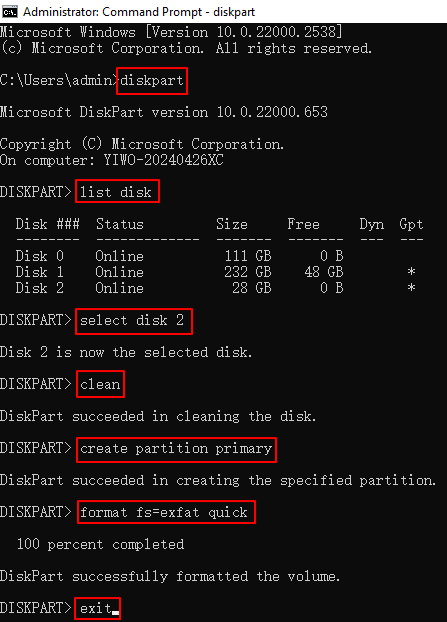
Step 3. Type the following command lines in the window.
- diskpart > press Enter
- list disk > press Enter
- select disk 2 > press Enter (You can replace your real disk number with the letter 2.)
- clean > press Enter
- create partition primary > press Enter
- format fs=exfat quick
- assign > press Enter
- exit > press Enter
You'll receive each command line after executing your input command line.
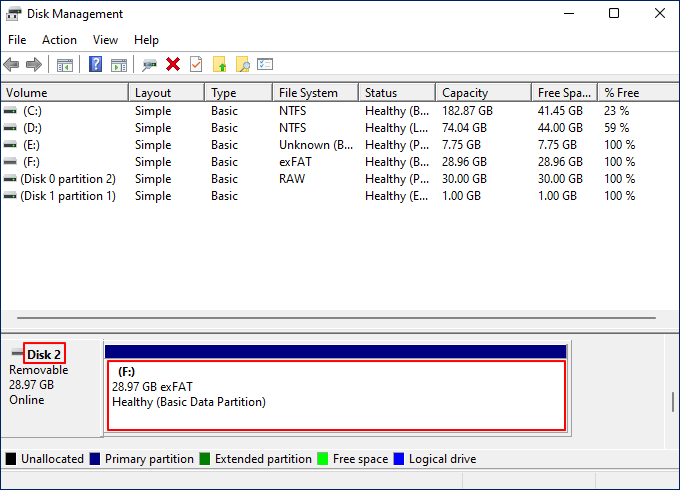
Step 4. Finally, you can reopen Disk Management to recheck the new file system on your USB drive. As you can see, the file system on my USB drive has been set to exFAT.
Method 3. Format NTFS to FAT32 using Disk Management
- 🔎Best for: Small partitions (32GB or less)
- ❓Why it works: Disk Management allows FAT32 only on smaller volumes
- 💡Tips: Please always back up data first to avoid data loss
Formatting NTFS to FAT32 using Disk Management is often done to maximize cross-platform compatibility. This allows drives, especially small USB flash drives and SD cards, to be read and written by older systems, game consoles, and devices that don't support NTFS. With its simple, lightweight structure, FAT32 is ideal for smaller drives and ensures broad device compatibility.
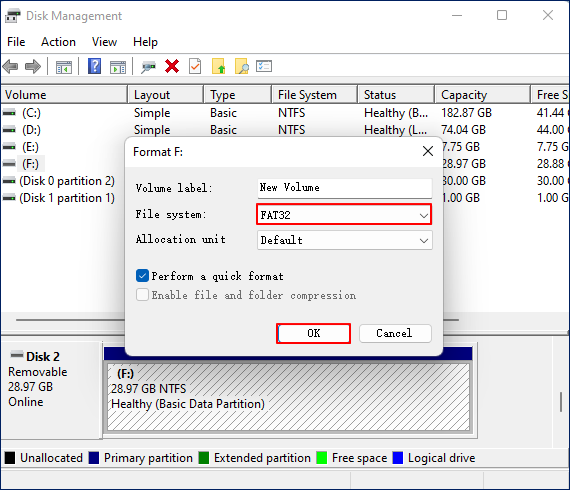
Step 1. Connect the USB drive to your PC > press Windows + X > select Disk Management to open it > locate the USB drive.
Step 2. Right-click on the small USB drive > select FAT32 > click OK.
Please share this post across the social platforms to help your friends convert a local storage device to an exFAT file system!
Conclusion
The FAT32 not available only exFAT message is not a system error, it's a limitation intentionally built into Windows. While exFAT is better suited to large files and modern storage devices, FAT32 remains essential for legacy hardware and cross-platform compatibility.
By using third-party formatting tools like EaseUS Partition Master, command-line methods, or File Explorer, you can successfully format a USB flash drive or SD card to FAT32, even when the option is missing.
FAQs
In addition, this section includes helpful tips related to this topic. If you're interested, review them below for more practical guidance and insights.
1. Why is there no FAT32 Format option?
However, Windows' built-in formatting tools only support FAT32 on drives up to 32GB. If your USB flash drive is larger than 32 GB, the FAT32 format option won't appear in the standard format menu. In this case, you'll need to use a third-party formatting tool to format larger drives to FAT32.
2. Why do I only have exFAT and not FAT32?
Keep in mind that the FAT32 file system has a 4GB file size limit, which can be problematic for large or high-resolution video files. For this reason, Windows automatically formats drives larger than 32GB as exFAT by default. However, you can still override this limitation and format a drive to FAT32 using PowerShell or Command Prompt.
3. Why can't I change my USB Format to FAT32?
You can't format a USB drive to FAT32 in Windows if it's over 32GB or has complex partitions. To fix this, use DiskPart, a third-party formatting tool, or Disk Management to recreate a smaller volume, or format the drive as FAT32 using macOS Disk Utility.
How Can We Help You
About the Author

Sherly joined EaseUS in 2022 and she has always loved writing articles and enjoys the fun they bring. She receives professional training here, focusing on product performance and other relative knowledge. She has written over 200 articles to help people overcome computing issues.

Cici is the junior editor of the writing team of EaseUS. She accepted the systematic training on computers at EaseUS for over one year. Now, she wrote a lot of professional articles to help people resolve the issues of hard drive corruption, computer boot errors, and disk partition problems.
Product Reviews
-
I love that the changes you make with EaseUS Partition Master Free aren't immediately applied to the disks. It makes it way easier to play out what will happen after you've made all the changes. I also think the overall look and feel of EaseUS Partition Master Free makes whatever you're doing with your computer's partitions easy.
Read More -
Partition Master Free can Resize, Move, Merge, Migrate, and Copy disks or partitions; convert to local, change label, defragment, check and explore partition; and much more. A premium upgrade adds free tech support and the ability to resize dynamic volumes.
Read More -
It won't hot image your drives or align them, but since it's coupled with a partition manager, it allows you do perform many tasks at once, instead of just cloning drives. You can move partitions around, resize them, defragment, and more, along with the other tools you'd expect from a cloning tool.
Read More
Related Articles
-
How to Fix USB Drive Incorrect Size Problem
![author icon]() Brithny/2026/10/22
Brithny/2026/10/22 -
How to Check MBR or GPT in BIOS | 2026 Easy Guide
![author icon]() Cici/2026/10/22
Cici/2026/10/22 -
How to Format SSD for Xbox One? Check and Learn How-To [2026 Tutorial]
![author icon]() Tracy King/2026/10/22
Tracy King/2026/10/22 -
How to Fix PC Won't Boot After Installing M2 SSD - Full Guide
![author icon]() Sherly/2026/10/22
Sherly/2026/10/22
 Brithny/2026/10/22
  Tracy King/2026/10/22









