







Content
Page Table of Contents
About the Author
Hot Topics
Can't resize exFAT partition with Unallocated space? Of course, you cannot easily resize an exFAT partition in Windows Disk Management because it offers far fewer native features than NTFS, limiting resize and advanced partition operations. Moreover, the unallocated space must be directly adjacent to the partition.
To resize or move an exFAT partition, users usually try partition management software such as EaseUS Partition Master. Please remember to always back up precious data using Windows' built-in backup features or free backup software first to avoid potential data loss.
Why Can't I Resize an exFAT Partition with Unallocated Space
Below are five key reasons behind this issue - go through them first before moving on.
- Limited exFAT support in Windows Disk Management: Windows built-in tools can format or delete exFAT volumes, but cannot extend or shrink them, leaving resize options unavailable even with Unallocated space.
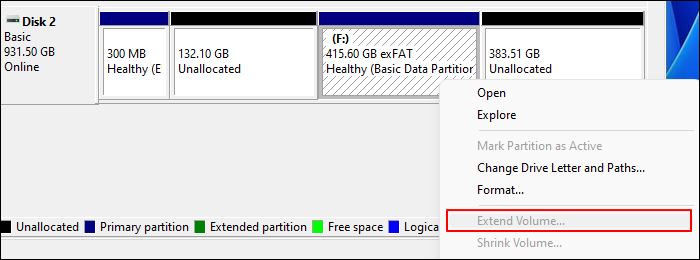
- Unallocated space is not contiguous: To extend an exFAT partition, the Unallocated space must be directly adjacent to the partition. Similarly, if you can't extend the C drive with Unallocated space, this is usually the underlying cause.
- exFAT is optimized for removable storage: Designed for USB drives, SD cards, and external disks, exFAT lacks native support for advanced partition resizing.
- Operating system restrictions on exFAT resizing: Many systems intentionally limit exFAT partition management to reduce compatibility and stability issues.
- Disk partition layout conflicts: Other partitions, mixed partition styles, or unsupported disk structures can block exFAT partition resizing.
Please share this guide to help more friends figure out why they can't resize exFAT partition with Unallocated space!

Does exFAT Partition Support Resizing Shrinking
The answer is Yes. While the exFAT file system itself allows size adjustments, most built-in operating system utilities do not support extending or shrinking exFAT partitions.
To resize an exFAT partition without formatting or data loss, a third-party partition manager with exFAT support is usually required. In this case, EaseUS Partition Master is one of the best tools available for resizing exFAT partitions quickly and safely.
EaseUS Partition Master provides comprehensive exFAT support and features that enable safe, flexible management of exFAT partitions on USB drives, SD cards, external hard drives, and PCs. Let's check them out below.
- Resize or move exFAT partitions without data loss
- Format and create exFAT partitions
- Merge or split exFAT partitions easily
- Allocate partitions to exFAT volumes
- Check and repair exFAT file system errors
How to Resize exFAT Partition Efficiently🔥
🔖The key to resizing an exFAT partition is to check the location of Unallocated space and ensure it is adjacent to the exFAT partition.
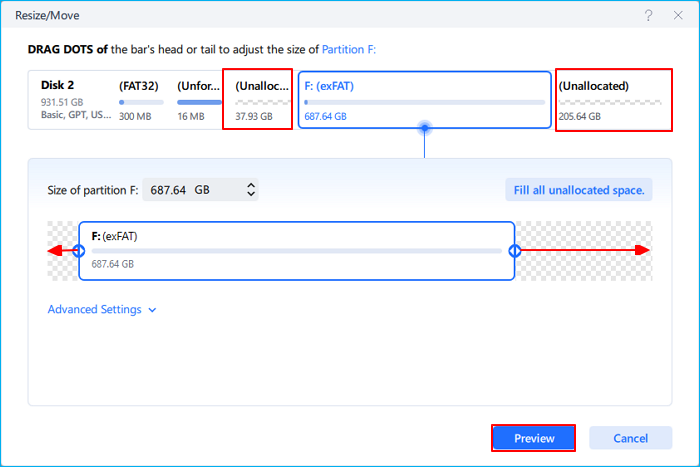
Scenario 1️⃣. If there exists an Unallocated space on the left or right of your targeted exFAT partition.
- After launching EaseUS Partition Master, right-click on the exFAT partition > choose Resize/ Move > expand exFAT partition by dragging the slot to the right or left end > click Preview > click Execute 1 Task(s) > click OK > Apply it.
Scenario 2️⃣. If there is no adjacent unallocated space next to the exFAT partition, follow the steps below to resolve the issue.
🎈You'd better back up the important data on the adjacent partition you want to shrink, then free up some space by shrinking that partition first. Then, extend exFAT volume by merging the released Unallocated space.
The following steps depict how to resize exFAT partition via EaseUS Partition Master.
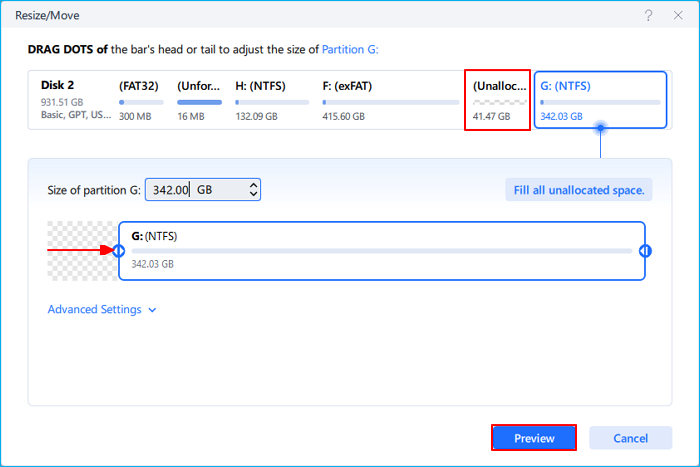
- In the following picture, I right-click on the G partition > select Resize/Move to shrink it > click Preview > click Execute 1 Task(s) > click OK > Apply it. As you can see, the released Unallocated space is 31.47GB beside the F: (exFAT) partition.
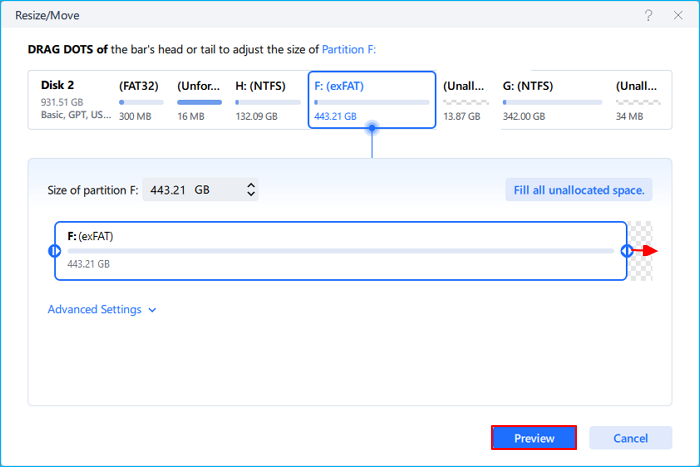
- Right-click on the exFAT partition > choose Resize/Move to enlarge volumes from the newly released Unallocated space > click Preview > click Execute 1 Task(s) > click OK > Apply it. After the process, the F: (exFAT) partition is enlarged to 443.21 GB.
Want to help your friends resize exFAT partitions easily? Don't hesitate to share this post on your social media!
Conclusion
If you can't resize exFAT partition even with Unallocated space, the issue is usually caused by tool limitations, non-adjacent Unallocated space, or operating system restrictions on exFAT. While the exFAT file system itself supports resizing and shrinking, most built-in disk utilities do not offer full exFAT partition management. By using a reliable partition manager, such as EaseUS Partition Master, that supports exFAT, you can safely move, extend, or shrink exFAT partitions without formatting or data loss.
FAQs
In addition, this section offers useful tips and insights about the exFAT file system - read on for a quick overview if you're interested.
1. Which local disk storage device uses the exFAT file system?
Local storage devices formatted with the exFAT file system are mainly used for portable and cross-platform storage, thanks to exFAT’s wide compatibility with Windows, macOS, and Linux and its ability to handle large files beyond FAT32 limits. Common exFAT storage devices include:
- USB flash drives (thumb drives): Widely used for fast and easy file transfer between Windows, Mac, and Linux systems.
- SDXC and microSD cards: Common in digital cameras, drones, action cameras, and smartphones that require high-capacity storage.
- Portable external hard drives and SSDs: Ideal for large media libraries, backups, and cross-platform data sharing between operating systems.
- Consumer electronics: Many smart TVs, game consoles, and media players support exFAT for smooth media playback.
This broad device support makes exFAT a popular choice for removable storage and cross-platform data exchange.
2. Which is better exFAT or NTFS?
Neither exFAT nor NTFS is universally better - they are designed for different use cases.
- exFAT is best for cross-platform compatibility, supporting large files on Windows, macOS, and Linux, making it ideal for USB flash drives, SD cards, and other portable storage devices.
- NTFS, on the other hand, delivers better performance, advanced security features (such as permissions, encryption, and journaling), and improved reliability, making it the preferred file system for internal Windows drives or external drives used exclusively on Windows.
3. Can exFAT have files over 4GB?
The exFAT file system supports individual files larger than 4 GB, making it ideal for long, uninterrupted HD or 4K video recording. In contrast, cameras using FAT32 are limited to a 4 GB file size and automatically split recordings into multiple 2 GB or 4 GB segments.
4. Can GParted resize an exFAT partition?
GParted generally cannot resize exFAT partitions safely because it lacks built-in tools for dynamic exFAT resizing, making the process unreliable. The recommended approach is to back up your data, delete the exFAT partition, resize it to a larger size, and then restore the data, or, if you're on Windows, use a dedicated tool like EaseUS Partition Master that supports resizing exFAT partitions without reformatting.
How Can We Help You
About the Author

Sherly joined EaseUS in 2022 and she has always loved writing articles and enjoys the fun they bring. She receives professional training here, focusing on product performance and other relative knowledge. She has written over 200 articles to help people overcome computing issues.

Cici is the junior editor of the writing team of EaseUS. She accepted the systematic training on computers at EaseUS for over one year. Now, she wrote a lot of professional articles to help people resolve the issues of hard drive corruption, computer boot errors, and disk partition problems.
Product Reviews
-
I love that the changes you make with EaseUS Partition Master Free aren't immediately applied to the disks. It makes it way easier to play out what will happen after you've made all the changes. I also think the overall look and feel of EaseUS Partition Master Free makes whatever you're doing with your computer's partitions easy.
Read More -
Partition Master Free can Resize, Move, Merge, Migrate, and Copy disks or partitions; convert to local, change label, defragment, check and explore partition; and much more. A premium upgrade adds free tech support and the ability to resize dynamic volumes.
Read More -
It won't hot image your drives or align them, but since it's coupled with a partition manager, it allows you do perform many tasks at once, instead of just cloning drives. You can move partitions around, resize them, defragment, and more, along with the other tools you'd expect from a cloning tool.
Read More
Related Articles
-
Lenovo Laptop Stuck on Lenovo Screen? 9 Easy Fixes Here!
![author icon]() Sherly/2026/09/23
Sherly/2026/09/23 -
Best Free Hard Drive Erase Software
![author icon]() Brithny/2026/09/22
Brithny/2026/09/22 -
How to Disable PIN on Windows 11? 2026 Guide
![author icon]() Tracy King/2026/09/24
Tracy King/2026/09/24 -
Get EaseUS Partition Master Key (v18.2) in 2026 | No Cracking
![author icon]() Tracy King/2026/09/27
Tracy King/2026/09/27
 Brithny/2026/09/22
  Tracy King/2026/09/24









