







Content
Page Table of Contents
About the Author
Hot Topics
On an Acer laptop, a BSOD typically appears as a blue screen with a sad face icon. There are messages such as "Your PC ran into a problem and needs to restart." This frustrating issue usually hits Acer users across models like Aspire, Nitro, Swift, and Predator series.
| Windows said it would restart my Computer - nothing happened - the death screen said I had an 'ACPI BIOS Error'. - From r/AcerOfficial. |
|
Just purchased the laptop not more than 6 months ago and experience the blue screen of death today. The computer was not able to fix the error and it kept going into a loop of restarting and a blue screen. - From Acer Community. |
A blue screen may be caused by corrupted or outdated drivers, failing RAM or storage, overheating components, or damaged Windows system files. In this guide, we will walk through the signs and practical steps to fix a blue screen on an Acer laptop.
Common BSOD Signs and Symptoms on Acer Laptops
When you encounter the BSOD issue, your screen turns solid blue, displaying an error message, a stop code, and sometimes a QR code. Your laptop might restart automatically afterward, or loop back into the BSOD every few minutes.
Before the blue screen appears, your Acer may show a few warning signs. You might notice random freezes, applications crashing with no clear reason, or the fan ramping up aggressively even when you're not doing much. In some cases, the laptop gets stuck when opening large files or starting games, then suddenly goes to a blue screen. These early symptoms often point to hardware stress, driver instability, or disk problems that will eventually surface as BSODs.
Possible error codes on a blue screen:
- HAL_INITIALIZATION_FAILED
- CRITICAL_PROCESS_DIED
- PAGE_FAULT_IN_NONPAGED_AREA
- INACCESSIBLE_BOOT_DEVICE
- MEMORY_MANAGEMENT
Fixes for Acer Laptop Blue Screen of Death
You can six Acer laptop blue screen of death with some basic troubleshooting methods. This section also offers advanced fixes to this issue. Please start with the simplest steps.
1. Remove Incompatible Peripherals
This step is especially important if you recently added a new peripheral. External devices like USB hubs, docks, or non-official chargers may trigger conflicts. Many blue screens occur because Windows tries to load a faulty driver for an external device during boot. With only the essential components attached, restart your Acer and see if the blue screen still appears.
2. Hardware Test
Next, check whether your Acer's hardware is in healthy shape. Overheating or bad hardware often causes BSODs on Acer laptops.
- Clean vents and fans with compressed air.
- Use a cooling pad for gaming sessions.
- Make sure the laptop sits on a hard, flat surface.
- Listen for abnormal sounds from the internal drive on models with HDDs.
3. Quick Restart + Safe Mode Boot
Sometimes a simple restart can clear a temporary glitch. Shut down your Acer completely, wait 20 seconds, and then power it back on. If Windows still crashes, try booting into Safe Mode. To enter Safe Mode:
Step 1. Turn on the laptop, and when you see the Windows logo, hold the power button to interrupt boot.
Step 2. Repeat this interruption until "Preparing Automatic Repair" appears.
Step 3. Choose: Troubleshoot > Advanced options > Startup Settings >Restart.
Step 4. Press the key for "Safe Mode" or "Safe Mode with Networking."
If your Acer runs fine in Safe Mode, the cause is very likely a driver, startup program, or recent software change.
4. Update All Acer Drivers
Outdated or corrupted drivers are one of the most common reasons for a blue screen on Acer laptops. Update the drivers to their latest stable versions, preferably downloaded from Acer's official support site or from the hardware manufacturer's page.
Go to Acer's official support site, enter your model number, and download the latest chipset, graphics, audio, and network drivers.
5. Use the Boot Repair Tool
For stubborn boot issues that simple repairs don't fix, a dedicated boot repair tool can be helpful. EaseUS Partition Master is a professional tool to fix corrupted boot configuration data and startup‑related problems.
Typically, you create a bootable media with the tool. Start your laptop from it, and choose the boot repair option for your system disk. The tool will scan for common boot errors and apply automatic fixes.
- Extend the system drive to free up insufficient disk space.
- Check the hard drive for errors.
- Rebuild MBR to fix the blue screen.
- Fix boot issues on Windows.
Follow the steps to fix blue screen with EaseUS Partition Master.
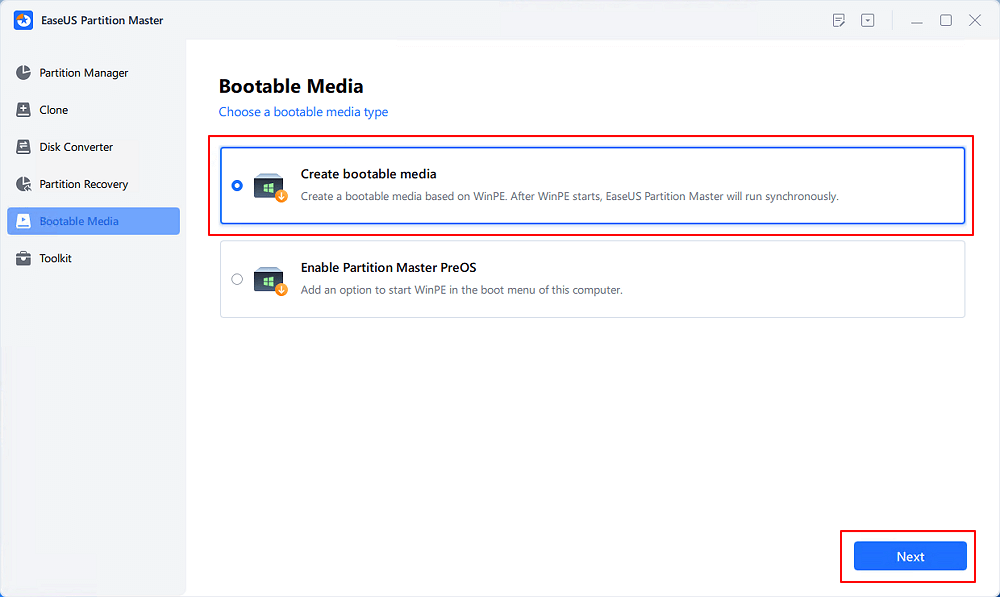
Step 1. Start EaseUS Partition Master after connecting the external drive/USB to your computer, go to "Bootable Media," and click "Create bootable media."
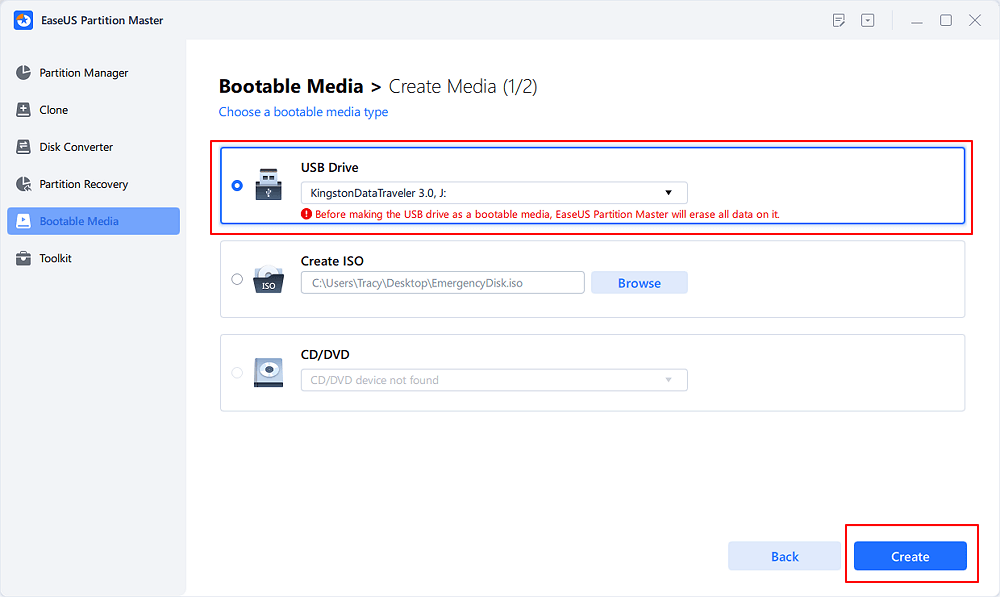
Step 2. Select an available USB Drive or CD/DVD and click "Create." You can also burn the Windows ISO file to the storage media.
Step 3. Connect the created bootable drive to the new computer and reboot the computer by pressing and holding F2/Del to enter the BIOS. Then, set the WinPE bootable drive as the boot disk and press F10 to exit.
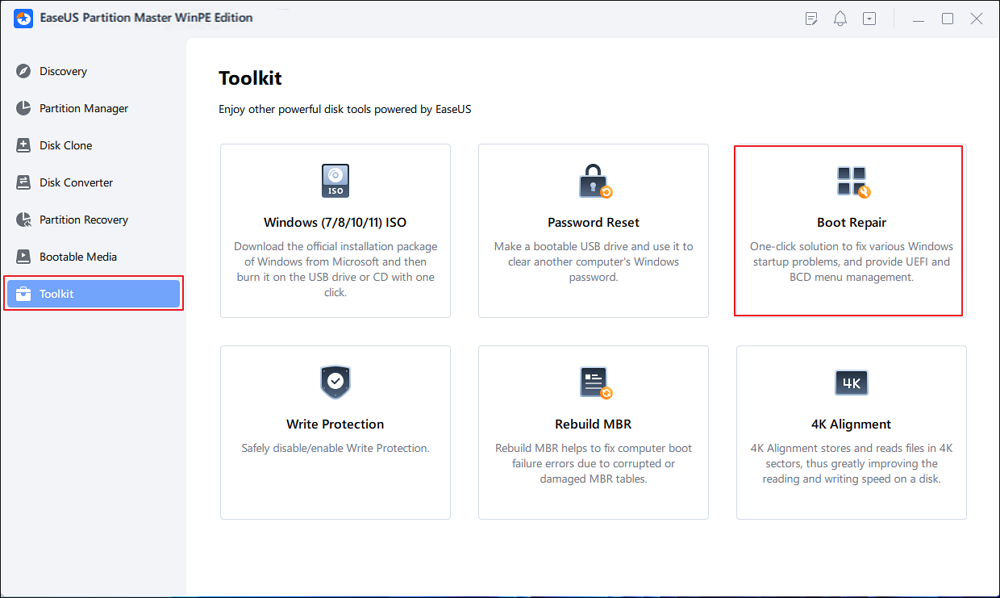
Step 4. Boot the computer again and enter the WinPE interface. Then, open EaseUS Partition Master and click "Boot Repair" under the "Toolkit" option.
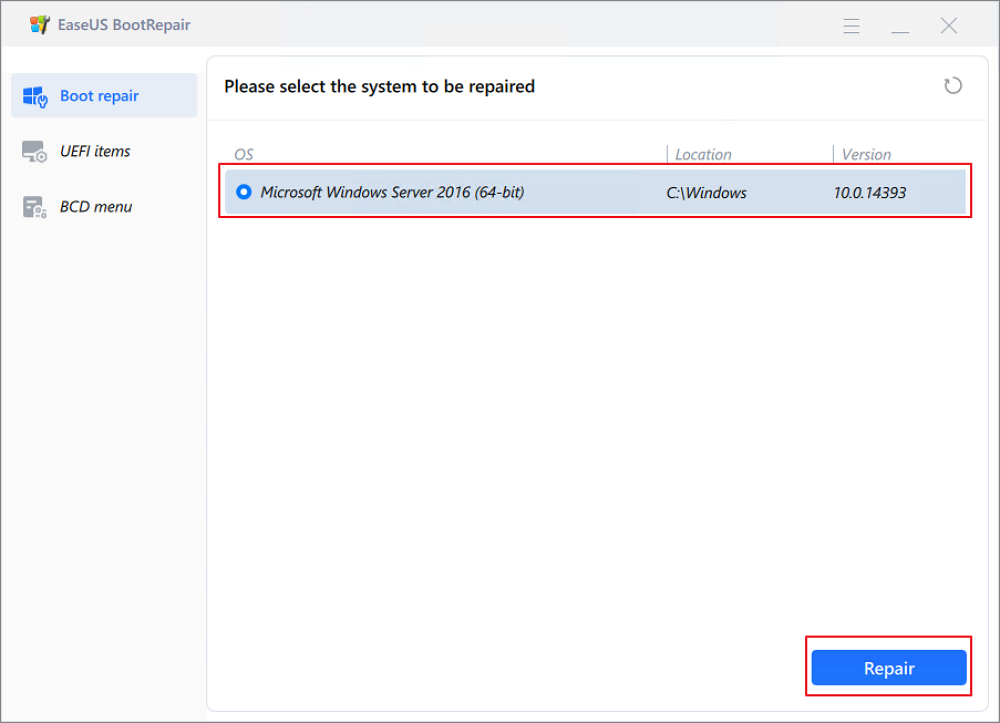
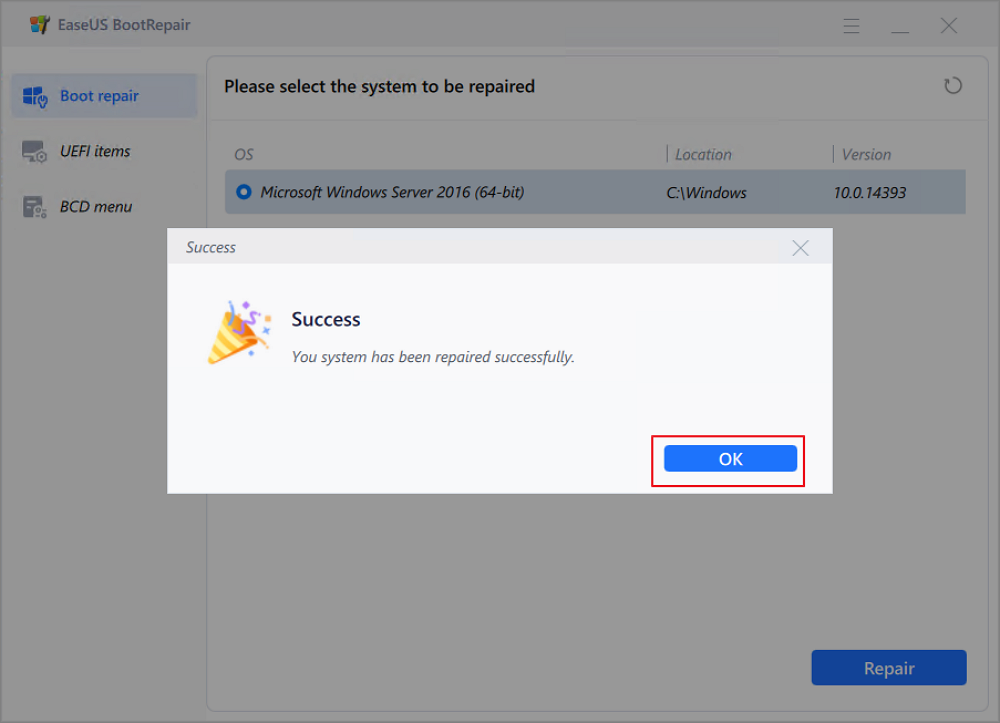
Step 5: Select the system you want to repair and click "Repair."
Step 6. Wait a moment, and you will receive an alert that the system has been successfully repaired. Click "OK" to complete the boot repair process.
6. Run Windows Memory Diagnostic
In Windows, use the built‑in Memory Diagnostic tool to check for errors in your Acer's memory. The test will run during reboot and may take some time, depending on how much RAM you have installed. If the diagnostic tool reports problems, you've likely found a major cause of your blue screens.
- On models with removable RAM, you can try reseating the modules to identify which stick is failing.
- On newer Acer laptops with soldered memory, you'll generally need professional repair if the RAM is defective.
7. Update/Reinstall Graphics Drivers
Graphics drivers often cause BSODs during gaming, video playback, or creative work.
Step 1. Boot into Safe Mode with Networking.
Step 2. Open Device Manager > Display adapters.
Step 3. Right‑click your GPU > Uninstall device, and choose to remove driver software if prompted.
Step 4. Restart the laptop.
Step 5. Download the latest stable driver from Acer or the GPU vendor's website.
Install the driver and reboot again.
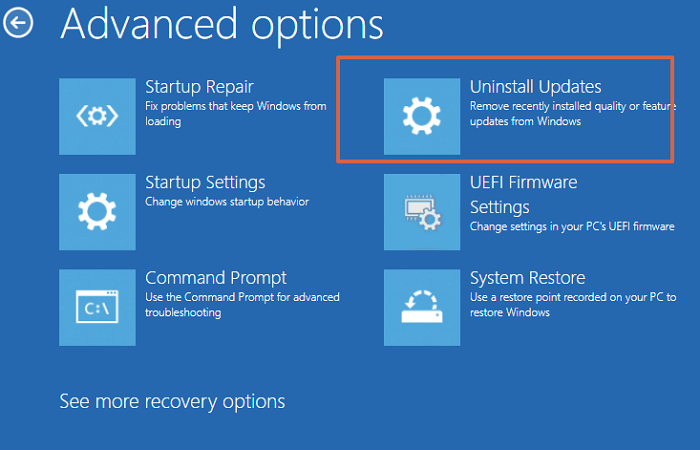
8. Uninstall Recent Windows Updates
If the blue screen started right after a Windows update. Follow the steps to uninstall recent Windwos update.
Step 1. Boot to Safe Mode or recovery.
Step 2. Go to Settings > Update & Security > Windows Update > View update history > Uninstall updates.
Step 3. Remove the latest ones and pause updates.
9. Check Disk & CHKDSK
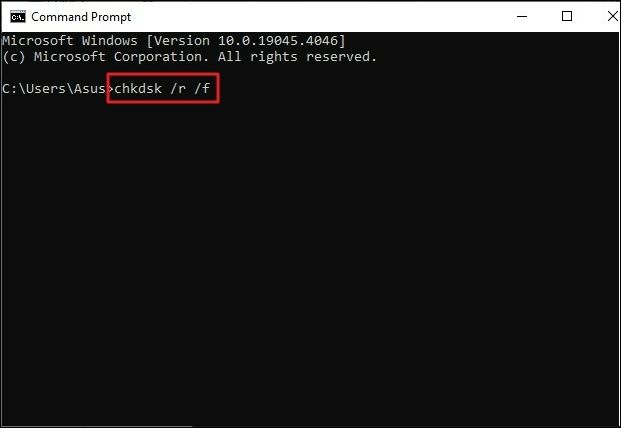
Corrupted sectors or file system errors on your Acer's hard drive or SSD can also trigger BSODs. Run a disk check on your system drive to look for and repair logical file system issues.
Step 1. In Command Prompt, type "chkdsk C: /f /r" and restart.
Step 2. It scans and fixes disk errors.
10. Reset Windows (Keep Files)
Resetting Windows is often helpful for solving software conflicts. This process reinstalls the system, removes installed applications, and refreshes configuration settings.
Note: Before starting a reset, confirm that your important data is backed up, in case something goes wrong.
- From recovery: Troubleshoot > Reset this PC > Keep my files.
- This reinstalls Windows while preserving personal data (apps reinstall needed).
Tips to Prevent Acer BSOD in the Future
Once your Acer laptop is stable again, take a few preventive steps to reduce the chances of future BSODs.
- Keep drivers and BIOS updated via Acer's site (check quarterly).
- Use a cooling pad and clean the dust every 6 months.
- Avoid third-party "optimizer" software that messes with drivers.
- Run regular Windows updates, but pause if issues arise after one.
- Monitor the temperatures of the Acer laptop.
- Stick to official peripherals and avoid overclocking unless experienced.
Conclusion
A blue screen of death on an Acer laptop is frustrating. The BSOD issue is usually related to drivers, updates, heat, or minor hardware glitches rather than total failure. Start with basic troubleshooting steps like removing peripherals, booting to Safe Mode, and updating drivers.
It is recommended to use EaseUS Partition Master as the top boot repair tool. It combines partition management, MBR rebuild, and automated boot repair in one interface. This tool is especially helpful when your Acer keeps crashing during startup or cannot load Windows.
FAQs on Acer Laptop Blue Screen of Death
1. Will I lose my files if my Acer keeps showing a blue screen?
In most cases, your files are still on the drive even if Windows can't start. Data loss occurs only if the disk itself is failing or keeps getting written to during crashes. Stop forcing reboots. Try backing up data in Safe Mode or with a bootable USB drive.
2. Is it safe to keep using my Acer laptop after an occasional blue screen?
If a blue screen happens once and never returns, it might be a one‑off glitch and is usually safe to keep using the laptop. However, treat it as a warning: check for driver updates, run basic disk and memory tests, and back up important data. If BSODs start happening more than once, you should troubleshoot immediately and avoid heavy workloads until it's stable.
3. Why does my Acer laptop blue-screen only when gaming?
Gaming BSODs are often caused by GPU driver conflicts, overheating, or power limits. Update/reinstall NVIDIA/AMD/Intel graphics drivers cleanly, monitor temps, use a cooling pad, and set the power plan to High Performance.
Share this post to help more users fix Acer laptop blue screen of death:

How Can We Help You
About the Author

Sherly joined EaseUS in 2022 and she has always loved writing articles and enjoys the fun they bring. She receives professional training here, focusing on product performance and other relative knowledge. She has written over 200 articles to help people overcome computing issues.

Written by Joey Albert
Joey is an enthusiast of science and technology. With a passion for uncovering the latest tech innovations, she creates clear, engaging how-to guides that make technology accessible and enjoyable for all.
Product Reviews
-
I love that the changes you make with EaseUS Partition Master Free aren't immediately applied to the disks. It makes it way easier to play out what will happen after you've made all the changes. I also think the overall look and feel of EaseUS Partition Master Free makes whatever you're doing with your computer's partitions easy.
Read More -
Partition Master Free can Resize, Move, Merge, Migrate, and Copy disks or partitions; convert to local, change label, defragment, check and explore partition; and much more. A premium upgrade adds free tech support and the ability to resize dynamic volumes.
Read More -
It won't hot image your drives or align them, but since it's coupled with a partition manager, it allows you do perform many tasks at once, instead of just cloning drives. You can move partitions around, resize them, defragment, and more, along with the other tools you'd expect from a cloning tool.
Read More
Related Articles
-
DiskPart Format: How to Format Hard Drive Using DiskPart [Free]
![author icon]() Jean/2026/09/21
Jean/2026/09/21 -
5 Methods to Fix Bootrec /Fixboot Access Is Denied Windows 11
![author icon]() Oliver/2026/09/23
Oliver/2026/09/23 -
FIXED: DISM /Online/Cleanup-Image/Restorehealth Stuck🔥
![author icon]() Cici/2026/09/24
Cici/2026/09/24 -
FIX: SSD Not Showing up in BIOS Boot Priority
![author icon]() Oliver/2026/09/06
Oliver/2026/09/06
 Jean/2026/09/21
  Oliver/2026/09/23
  Cici/2026/09/24









