







Content
Page Table of Contents
About the Author
Hot Topics
Overview – Windows 11 25H2/24H2 Update Triggers BitLocker Recovery
Microsoft has documented an issue affecting some Windows devices after installing certain October 2025 cumulative updates. On affected systems, especially devices with BitLocker and TPM security enabled, Windows may unexpectedly enter the BitLocker Recovery screen after reboot.
Microsoft warns Windows 11 25H2, 24H2 October update triggers BitLocker recovery on PCs for businesses
byu/Ha8lpo321 inpcmasterrace
This happens especially on business or enterprise devices with BitLocker encryption and TPM security enabled. If you cannot find your BitLocker recovery key, you may be unable to access the encrypted drive until the key is recovered.
The good news? BitLocker recovery keys are usually backed up to your Microsoft Account (MSA), Azure AD, or Active Directory.
What Is BitLocker and Why Does It Matter?
BitLocker is a built-in disk encryption tool in Windows 11 and Windows 10. It encrypts your entire drive to protect against unauthorized access if your PC is lost, stolen, or if hardware changes are detected. In Windows 11 24H2 and 25H2, BitLocker or Device Encryption is often enabled by default, especially on modern laptops with Secure Boot, TPM, and Modern Standby.
If the system detects a hardware or firmware change, or, in this case, after the October update, it may trigger a BitLocker Recovery screen asking for a 48-digit key. To learn more about BitLocker, refer to this link: BitLocker Troubleshooting Center.
Affected Windows Versions & Updates
| Windows Version | Patch Causing the Issue |
|---|---|
| Windows 11 25H2 | KB5066835 |
| Windows 11 24H2 | KB5066835 |
| Windows 10 22H2 | KB5066791 |
These updates can force certain devices to enter BitLocker recovery loop during reboot or startup, especially on devices with TPM-based security features enabled.
Common Symptoms of the Windows Update BitLocker Recovery Issue
- Your PC asks for a 48-digit BitLocker recovery key after installing a Windows update.
- Windows boots normally before the update but enters BitLocker Recovery after the restart.
- The BitLocker recovery screen appears repeatedly after every reboot.
- You are unable to continue startup because the recovery key cannot be found.
- The issue occurs after installing a Windows 11 24H2/25H2 update, firmware update, BIOS update, or other system-level changes.
Feel free to share this post and let more users learn what's happening during the Windows 11 KB5066835 update.

How to Fix BitLocker Recovery Screen and Unlock Your PC
If your PC shows the blue BitLocker Recovery screen, don't panic. You can find your BitLocker recovery key to bypass the BitLocker recovery screen. You can retrieve your key from:
- Microsoft Account: https://account.microsoft.com/devices/recoverykey
- Work/School PC: Azure AD or your organization's admin portal
- Printed copy/USB/Saved .txt file
Enter the 48-digit recovery key, and your PC should bypass this screen and boot normally after restarting.
If entering the key doesn't work, or you can't find the key, you should use professional BitLocker manager software. Stuck at the BitLocker recovery screen? No worries. EaseUS Partition Master can create a rescue USB on another working PC and help retrieve BitLocker recovery information and access your locked PC.
Follow these steps to create a bootable USB on another PC and unlock the current PC:
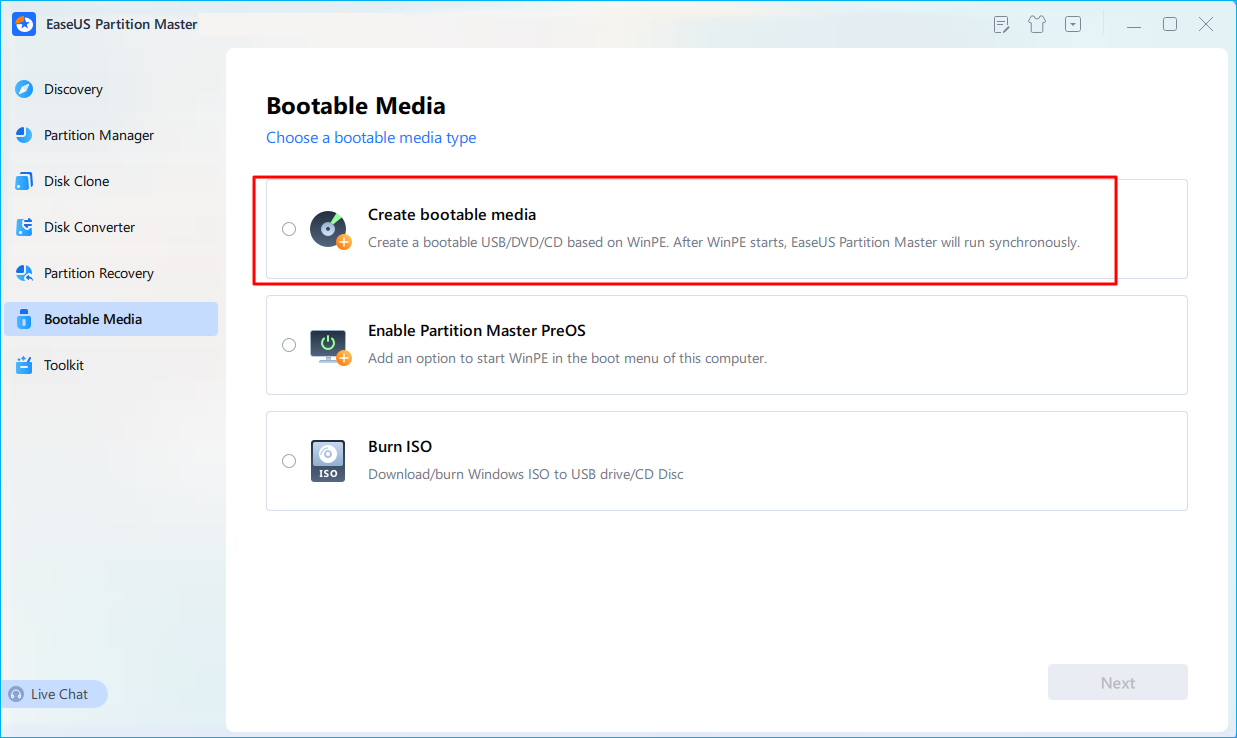
Step 1. First, connect a USB to the PC running properly. Launch EaseUS Partition Master, navigate to "Bootable Media" section, and click "Create bootable media" option. Click "Next" to continue.
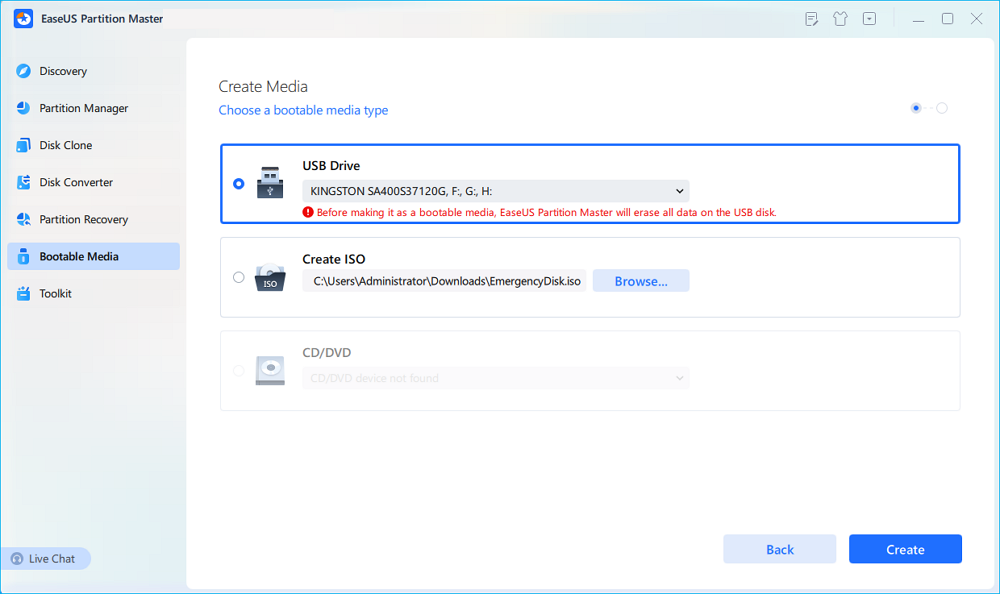
Step 2. Select the target USB drive and click "Create" to continue. Please back up your data in advance since this will erase all data on the USB drive. Then, click "yes" to confirm when you see the warning. Do not exit EaseUS Partition Master until it's done.
Step 3. Connect the bootable USB to the BitLocker encrypted PC and restart PC. During the reboot, press the BIOS key (F2/F8/F12/DEL/ESC) to access BIOS and set the bootable USB as the boot drive. This PC will automatically boot from the USB disk.
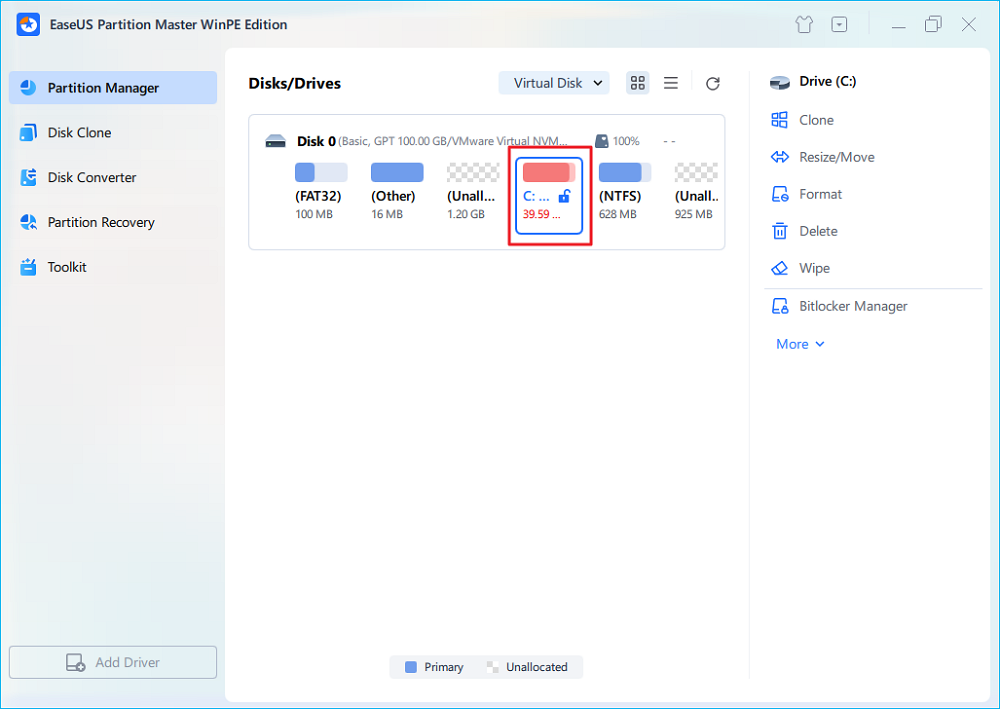
Step 4. EaseUS Partition Master will automatically unlock the BitLocker encrypted drive and you can see a "unlock" icon.
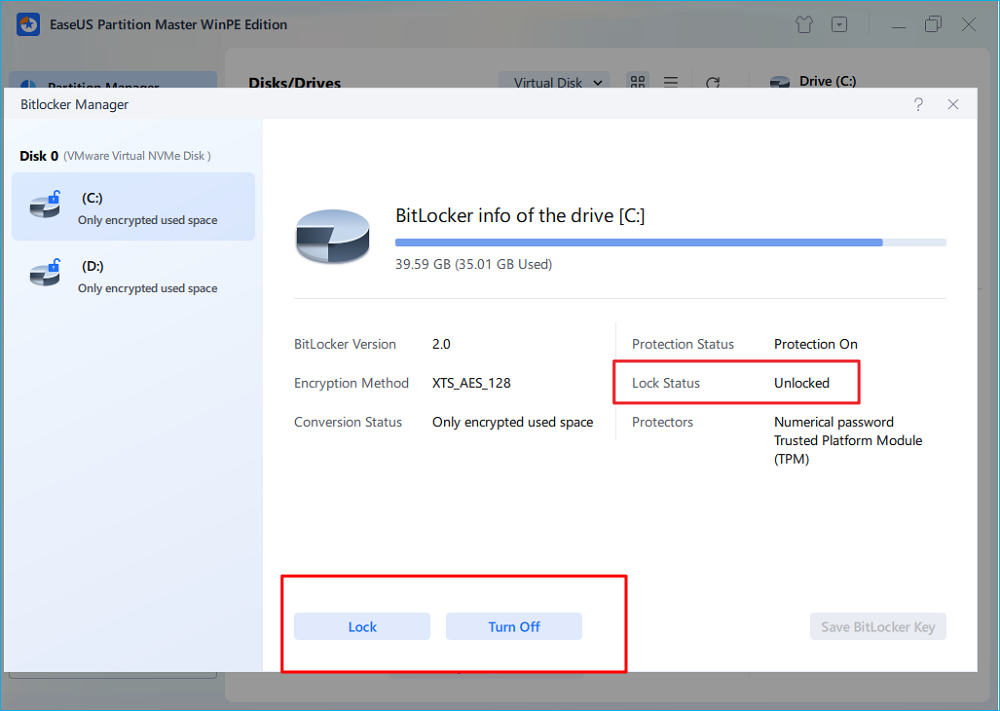
Step 5. Hover the mouse on the BitLocker partition; you can see more info of this partition and manage the BitLocker partition such as locking it or turning off BitLocker.
Aside from fixing BitLocker recovery screen issue, this software also works to resolve other more BitLocker issues, such as:
How to Prevent This Issue From Happening Again
The recent Windows 11 October update proves that even an official system patch can unexpectedly trigger BitLocker Recovery. To make sure you never get locked out of your PC again, follow these essential steps:
Step 1: Check If BitLocker Is Already Enabled Before Updating Windows
Since this update only affects devices with BitLocker or Device Encryption enabled, the first thing you should do is verify whether your system is currently encrypted. Many users don't even realize BitLocker was automatically turned on during setup, especially on Windows 11 24H2/25H2 laptops with TPM and Secure Boot.
Here are 4 ways to check the BitLocker status:
- Open File Explorer, right-click C:, and select Manage BitLocker
- Open Control Panel > Click System & Security > Click BitLocker Drive Encryption
- Type in Command Prompt: manage-bde -status
- Open Settings> Go to Privacy & security > Device encryption > Check whether Device Encryption is turned on
Step 2: Back Up Your BitLocker Recovery Key
The October update highlights an important lesson: without a BitLocker recovery key, accessing an encrypted drive can become extremely difficult when recovery is triggered. Even if your PC is working fine now, backing up the recovery key is the most important step you can take to avoid a complete lockout.
You can save your recovery key by:
- Logging into your Microsoft Account and checking "Devices > BitLocker recovery keys"
- Exporting or printing the key manually
Step 3: Decide Whether You Should Suspend BitLocker Temporarily (Before Updating Again)
If you don't absolutely need encryption, you may want to temporarily suspend BitLocker before installing future cumulative updates. This update-triggered recovery event proves that encrypted drives are more likely to face boot interruptions.
How to turn it off safely: Go to Control Panel > Select BitLocker Drive Encryption > Turn Off BitLocker
Tip:
If the "Turn off" option is greyed out, this could be caused by TPM restrictions or Group Policy. Check the advanced tutorial if that happens.
Alternatively, you can use EaseUS BitLocker Manager for one-click disable without data loss:
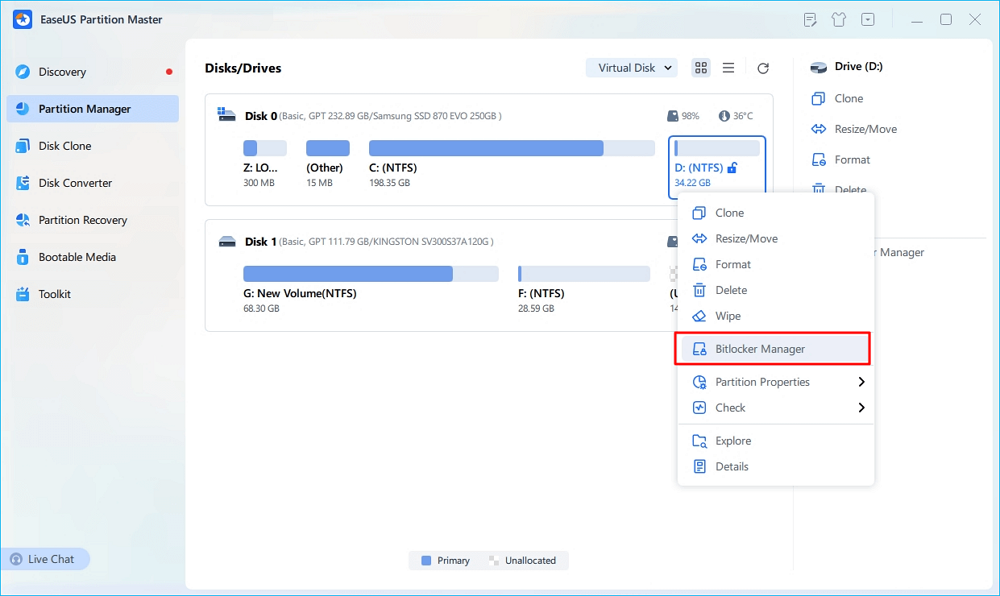
Step 1. Open EaseUS Partition Master and right-click on the BitLocker-encrypted drive.
Step 2. Select "BitLocker Manager," and you will see a new window that allows you to perform BitLocker-relevant ops.
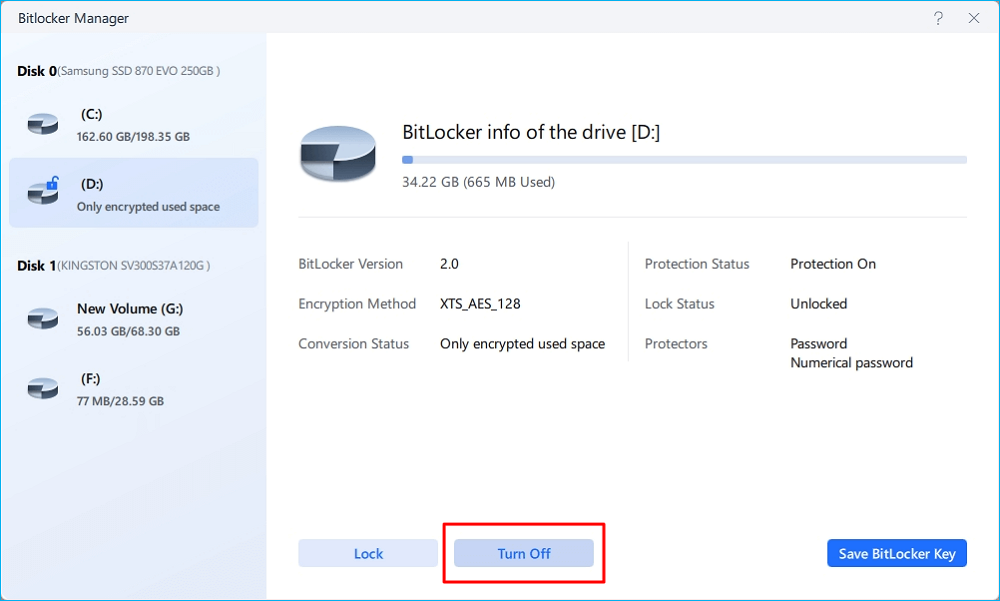
Step 3. Click "Turn Off" for your target drive, click "Yes" to confirm you want to turn off BitLocker on your partition, and wait patiently until it's done.
Step 4: Create a Rescue USB Drive
Even with your key backed up, a bootable rescue USB can save you when Windows won't start or keeps asking for a recovery key. This is especially important after seeing how a simple update can lock users out of their systems.
With tools like EaseUS Partition Master, you can create a WinPE rescue USB before anything goes wrong and boot from it when Windows fails or requires a recovery key. Here is how to create a rescue USB in advance:
Step 1. To create a bootable disk of EaseUS Partition Master, you should prepare a storage media, like a USB drive, flash drive or a CD/DVD disc. Then, correctly connect the drive to your computer.
Step 2. Launch EaseUS Partition Master, and find the "Bootable Media" feature on the left. Click on it.
Step 3. You can choose the USB or CD/DVD when the drive is available. However, if you do not have a storage device at hand, you can also save the ISO file to a local drive, and later burn it to a storage media. Once made the option, click the "Create" button to begin.
- Check the Warning message and click "Yes".
Step 4. When the process finishes, you'll see a pop up window, asking if you want to restart computer from the bootable USB.
- Reboot Now: it means you want to restart the current PC and enter EaseUS Bootable Media to manage your disk partitions without OS.
- Done: it means you don't want to restart the current PC but to use the bootable USB on a new PC.
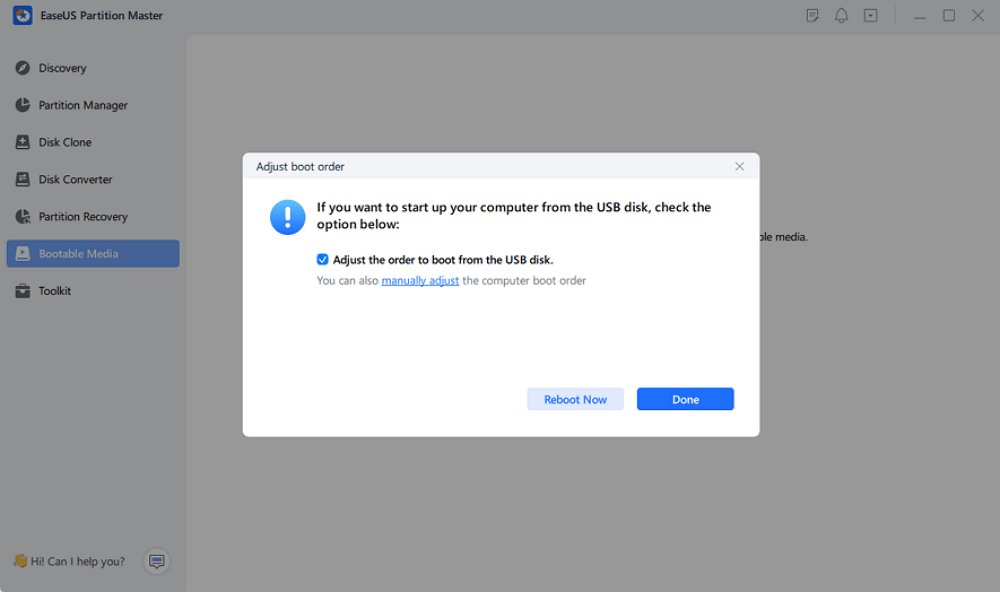
Note: To use the bootable disk on a new PC, you need to resart the target computer and press F2/F8/Del key to enter BIOS, and set the USB bootable disk as the first boot disk.
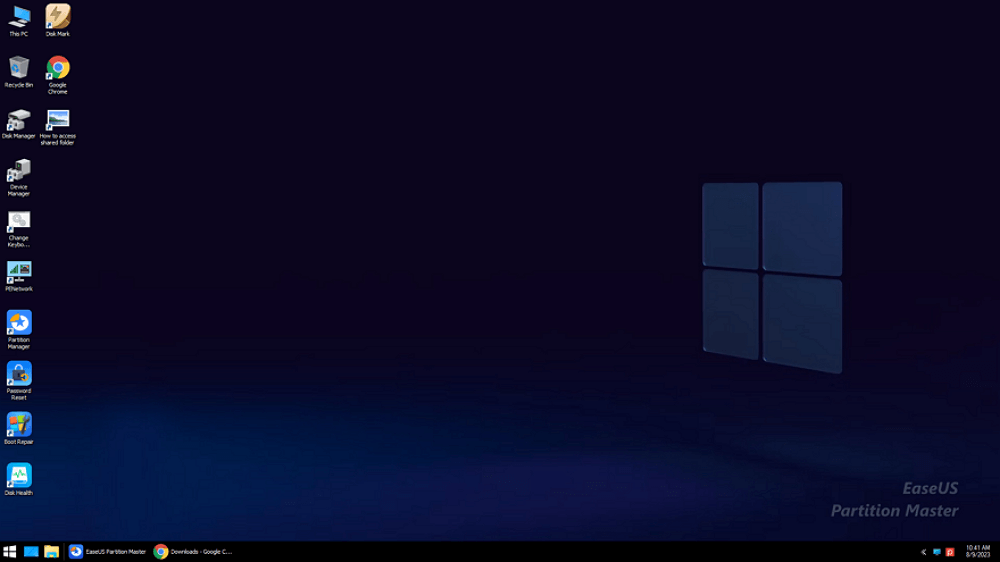
Wait patitiently and your computer will automatically boot up from the USB bootable media and enter EaseUS WinPE desktop.
Common BitLocker Recovery Error Codes After Windows Updates
On Windows 11 24H2 and later versions, the BitLocker Recovery screen may display additional error information that helps identify why recovery was triggered. These codes usually indicate changes related to boot files, TPM measurements, or startup configuration.
Here are some common BitLocker recovery-related error codes you may encounter:
| Error Code | Meaning | Possible Cause |
|---|---|---|
| E_FVE_BAD_CODE_ID | A trusted boot component has changed. | Windows updates, bootloader changes, or system file updates. |
| E_FVE_BAD_CODE_OPTION | Windows detected an unexpected change in boot configuration. | Changes to Boot Configuration Data (BCD) or startup settings. |
| 0x80310000 (FVE_E_LOCKED_VOLUME) | The BitLocker-protected drive is locked. | Windows can't access the encrypted drive without unlocking it first. |
Conclusion
The recent Windows 11 and Windows 10 updates prove that BitLocker is both a powerful protection tool and a potential risk if users aren't prepared. A simple system update can trigger recovery mode, and without the recovery key, access to your data is completely blocked. That's why checking BitLocker status, backing up your recovery key, and creating a rescue USB are no longer optional; they're essential. Taking a few minutes now can prevent hours of panic and potential data loss later. Stay updated, stay encrypted, but most importantly, stay in control of your data.
FAQs About BitLocker Recovery After Windows Updates
1. Why is Windows asking for a BitLocker recovery key after an update?
Windows may ask for a BitLocker recovery key after an update because it detects changes to the system startup environment. Major Windows updates, BIOS updates, firmware updates, Secure Boot changes, or TPM-related changes can cause BitLocker to enter recovery mode as a security measure.
This does not mean your files are damaged. BitLocker is simply verifying that the person trying to access the encrypted drive is authorized.
2. Why did BitLocker turn on if I never enabled it?
Many users do not manually enable BitLocker. On supported Windows 10 and Windows 11 devices, Device Encryption may be enabled automatically when the device meets certain hardware requirements and a Microsoft account is used.
Because Device Encryption works in the background, some users only discover BitLocker is active when Windows asks for a recovery key after a system change.
3. Does entering the BitLocker recovery key delete my files?
No. Entering the correct BitLocker recovery key does not delete your files or remove encryption. It only verifies your identity and unlocks the encrypted drive so Windows can start normally. Your data remains protected and accessible after successful recovery.
4. What should I do if Windows keeps asking for the BitLocker recovery key after every restart?
If BitLocker Recovery appears repeatedly after every reboot, the issue may be related to TPM, Secure Boot, BIOS settings, or a damaged startup configuration.
You can try the following steps:
- Confirm that you are using the correct 48-digit recovery key.
- Install pending Windows updates and firmware updates.
- Check TPM and Secure Boot settings in BIOS/UEFI.
- Suspend and resume BitLocker protection if you can access Windows.
- Repair Windows startup settings if the system can't boot normally.
If the recovery loop continues, creating a bootable recovery USB or using a BitLocker management tool may help access and repair the system.
5. Where can I find my BitLocker recovery key?
You can usually find your BitLocker recovery key in one of these locations:
- Your Microsoft account
- Your work or school account managed by your organization
- A saved text file or printed copy
- A USB drive where the key was previously backed up
If you can't find the recovery key, you may need a professional recovery solution to help locate available recovery information or regain access to the encrypted drive.
6. Can I prevent BitLocker Recovery from happening after future Windows updates?
You can't completely prevent BitLocker Recovery because it is designed to protect your data when Windows detects unexpected changes. However, you can reduce the chance of recovery prompts by:
- Backing up your BitLocker recovery key before major updates.
- Keeping BIOS, TPM firmware, and Windows updates current.
- Avoiding unnecessary TPM clearing or Secure Boot changes.
- Suspending BitLocker protection before major firmware updates.
- Preparing your recovery key in advance is the best way to avoid being locked out of your PC after a system update.
How Can We Help You
About the Author

Updated by Tracy King
Tracy became a member of the EaseUS content team in 2013. Being a technical writer for over 10 years, she is enthusiastic about sharing tips to assist readers in resolving complex issues in disk management, file transfer, PC & Mac performance optimization, etc., like an expert.

Sherly joined EaseUS in 2022 and she has always loved writing articles and enjoys the fun they bring. She receives professional training here, focusing on product performance and other relative knowledge. She has written over 200 articles to help people overcome computing issues.
Product Reviews
-
I love that the changes you make with EaseUS Partition Master Free aren't immediately applied to the disks. It makes it way easier to play out what will happen after you've made all the changes. I also think the overall look and feel of EaseUS Partition Master Free makes whatever you're doing with your computer's partitions easy.
Read More -
Partition Master Free can Resize, Move, Merge, Migrate, and Copy disks or partitions; convert to local, change label, defragment, check and explore partition; and much more. A premium upgrade adds free tech support and the ability to resize dynamic volumes.
Read More -
It won't hot image your drives or align them, but since it's coupled with a partition manager, it allows you do perform many tasks at once, instead of just cloning drives. You can move partitions around, resize them, defragment, and more, along with the other tools you'd expect from a cloning tool.
Read More
Related Articles
-
How to Unlock Your Surface Tablet When Forget the Password
![author icon]() Sherly/2026/06/17
Sherly/2026/06/17 -
Windows 8 Password Reset USB Free Download - 2026
![author icon]() Joey Albert/2026/06/17
Joey Albert/2026/06/17 -
How to Reset Samsung Laptop Without Password - Tutorial
![author icon]() Cici/2026/06/17
Cici/2026/06/17 -
How to Create WinPE Bootable Disk for All Windows - 2 Ways
![author icon]() Brithny/2026/08/14
Brithny/2026/08/14
 Joey Albert/2026/06/17
  Cici/2026/06/17
  Brithny/2026/08/14









