> EaseUS MobiSaver for mac > Online Help
Data Recovery Software
iPhone Recovery Software
Data Recovery for Mac
Windows Products
Mac Products
Partner
Data Recovery Tips
Awards

EaseUS MobiSaver for Mac Online Help
Welcome to the user manual for the EaseUS MobiSaver. EaseUS MobiSaver is a powerful data recovery tool. It supports two recovery methods, recovery from iOS device and recovery from iTunes & iCloud backup for all iOS devices, such as iPhone, iPad,iPod touch etc.
EaseUS MobiSaver is a fast and safe solution for your lost data recovery from iOS device. This recovery software provides easy and quick data recovery solutions to recover lost files from iPhone or iTunes backup. With the help of the tool, you can recover data and files in a few easy steps.
Tech Spec
Supported operating systems
- Mac OSX 10.6
- Mac OSX 10.7
- Mac OSX 10.8
- Mac OSX 10.9
- Mac OSX 10.10
Supported iOS
iOS 4, iOS 5, iOS 6, iOS 7, iOS 8
Registration
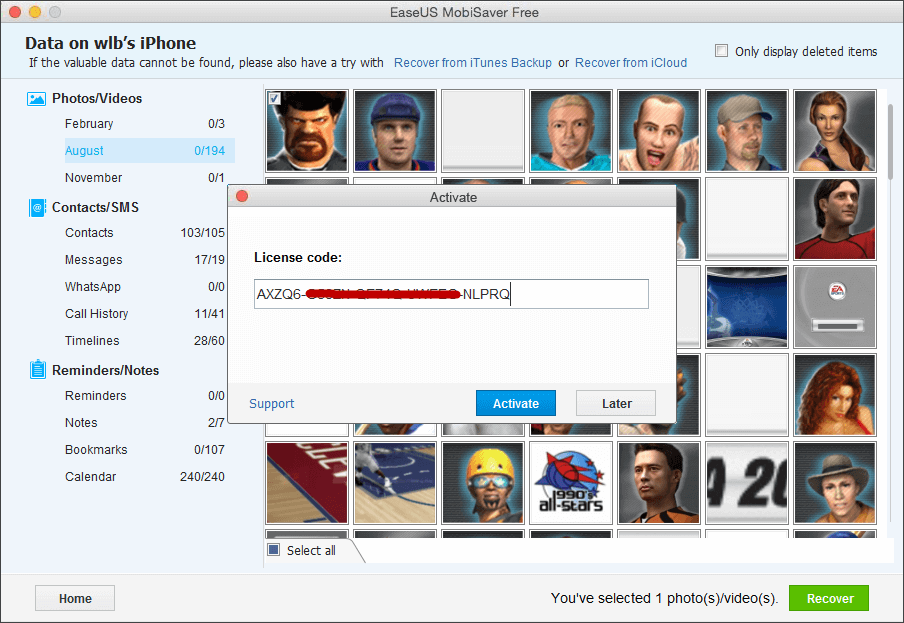
You can directly to click the upgrade button on top left corner to activate the progam.
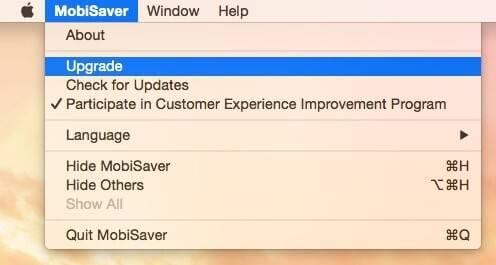
If you scan and find the data with the Free or trial version, when selecting data to recover, there will be an activation window pop up. Please enter the license code to register the software.
Recovering data
Start EaseUS MobiSaver and follow the steps below to recover your valuable data:
- Option 1: Recover Data from iOS Device
- Option 2: Recover Data from iTunes Backup
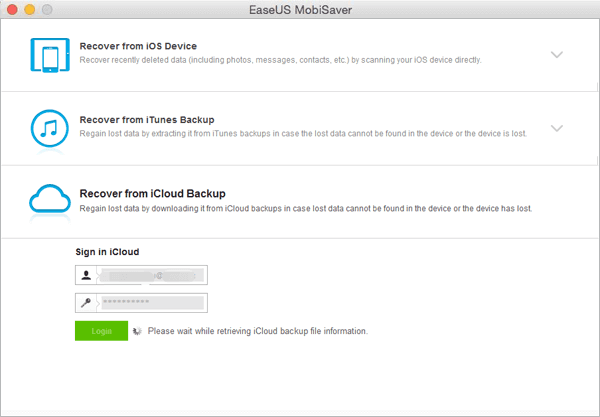
- Option 3: Recover Data from iCloud Backup
Option 1: Recover Data from iOS Device
Step 1. Connect Device to PC and Select Recovery Mode
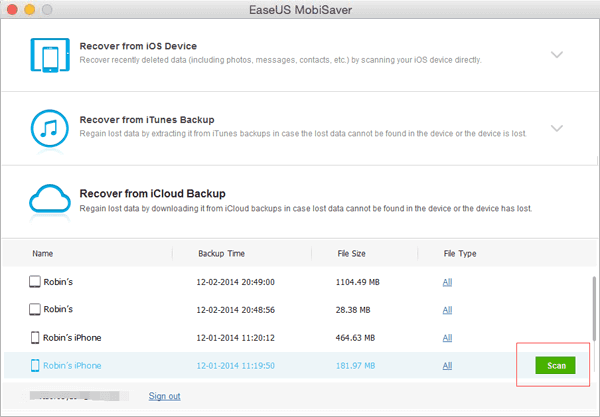
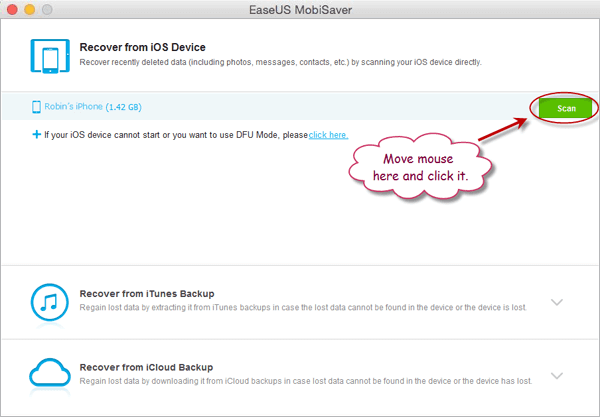
Run EaseUS MobiSaver and connect your iOS device to the computer. Soon you will see the three recovery modes the software offers in its main window. Choose "Recover from iOS Device" mode and click "Scan" button on the right side.
Step 2. Scan the Device to Find Lost Data
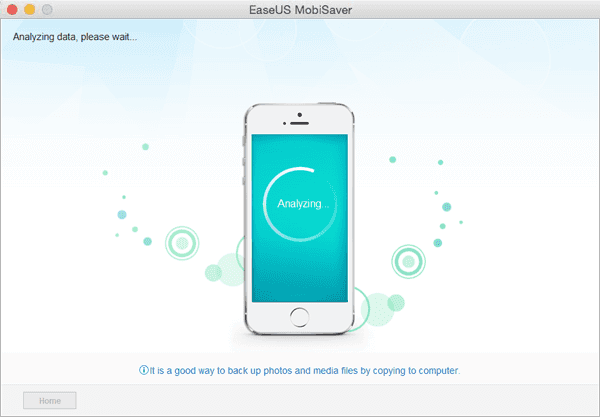
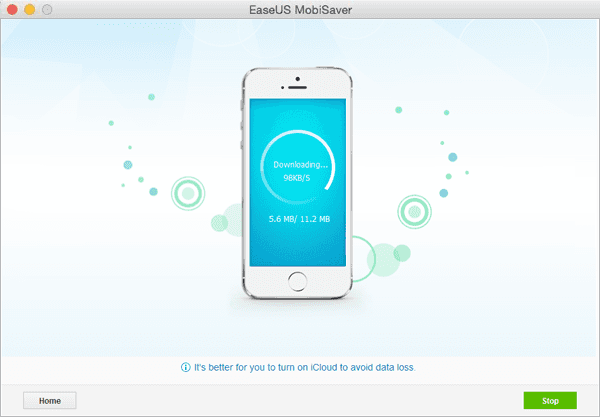
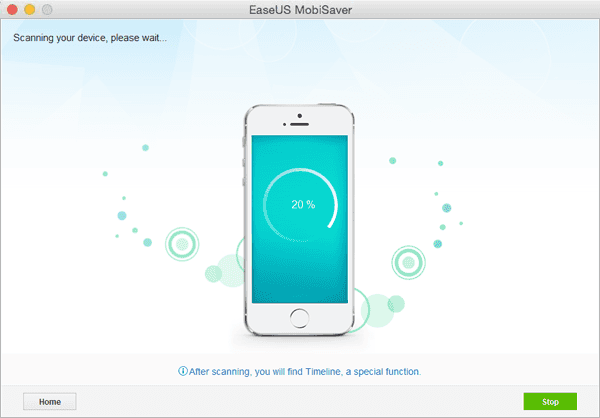
Finish step 1, EaseUS MobiSaver will automatically scan your iOS device to find out and analyze all the existing and deleted files. The length of the time spend in scanning depends on the number of the file you stored on your device. So if there are lots of data on your device, please wait patiently till the software finish the scanning task. You can also click "Stop" button to cancel the scanning task and try to find lost data from current scan result.
Step 3. Preview and Recover The Lost Data
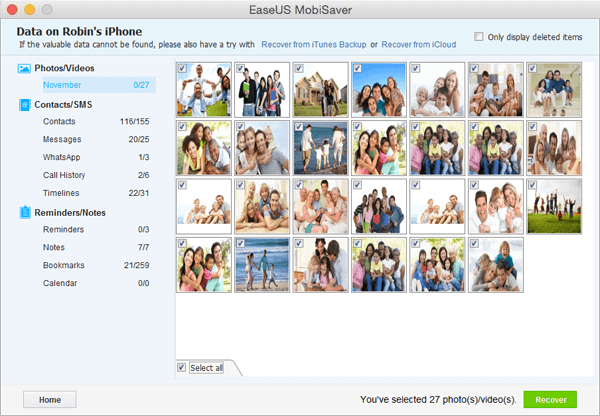
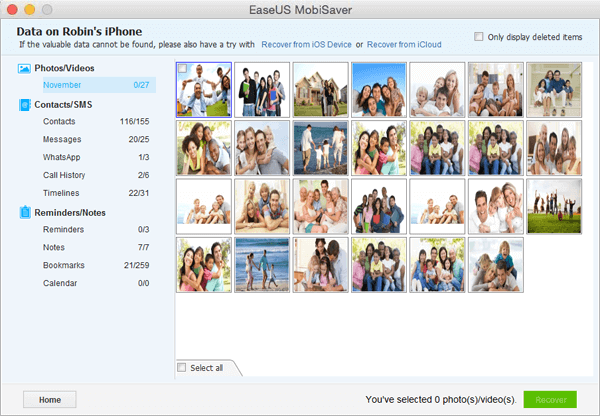
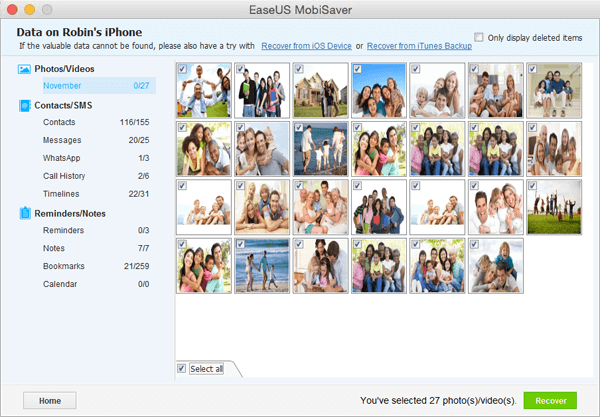
After scanning, all the recoverable files on the iOS device found by EaseUS MobiSaver will be displayed on the left side in well-organized categories. You can easily find and preview the exact type of file by clicking the correct category. Finally, you can select out all the iOS data you desire and get them back with one click on "Recover" button. Here you need to specify a folder to save the recovered files on your computer.