
Content
Page Table of Contents
About the Author
Hot Topics
Many people may know that BitLocker can encrypt internal disks on your computer, but they will wonder if BitLocker can encrypt an external hard drive. The answer is YES. In this post, we will guide you on how to encrypt and decrypt BitLocker on an external hard drive. Besides, if you forget the recovery key, we also mention a BitLocker data recovery tool to fix it!
Is it Possible to Encrypt an External Hard Drive with BitLocker
You can encrypt your external hard drive, SSD, USB flash drive, SD card, etc., with BitLocker. However, you should notice that your external hard drive isn't formatted using the NTFS, FAT16, FAT32, or exFAT file system, and you need to reformat it with one of them to use BitLocker. Then, you can take the steps below to encrypt your external drive with BitLocker on a Windows PC.
How to Encrypt an External Hard Drive with BitLocker
Attach the hard drive you want to encrypt. Check its system format first to ensure BitLocker can encrypt it (you may need to reform it. ⚠️Note: Don't forget to back up your essential data before formatting.) Then, check out the following steps:
Step 1. Insert the external drive you want to encrypt into your PC.
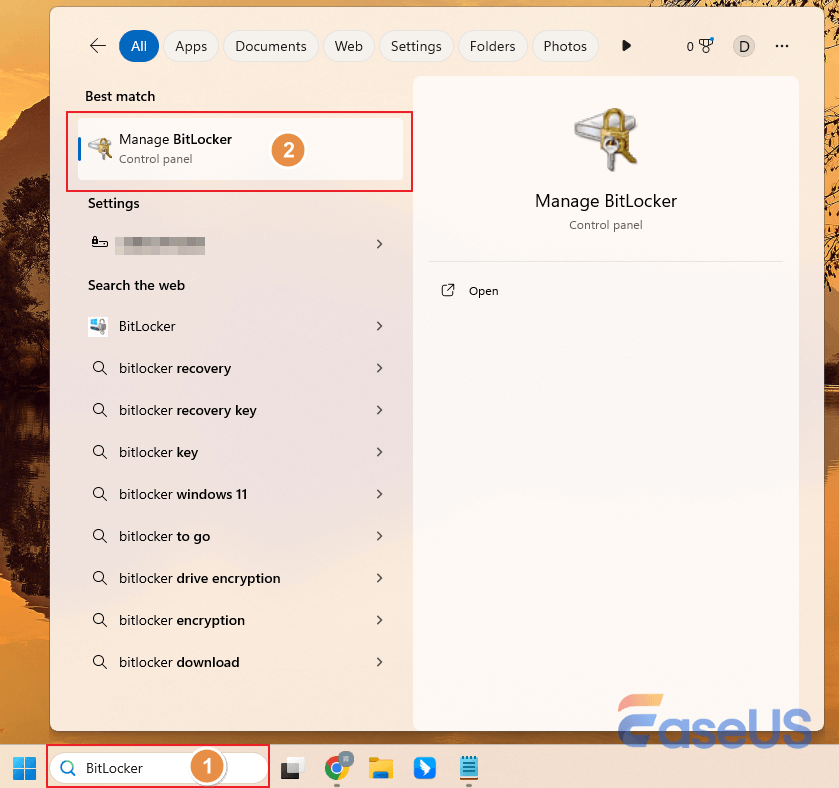
Step 2. Type BitLocker in the Windows search bar, then click "Manage BitLocker."
Step 3. Under "Removable data drives - BitLocker To Go," select your external drive and click "Turn on BitLocker."
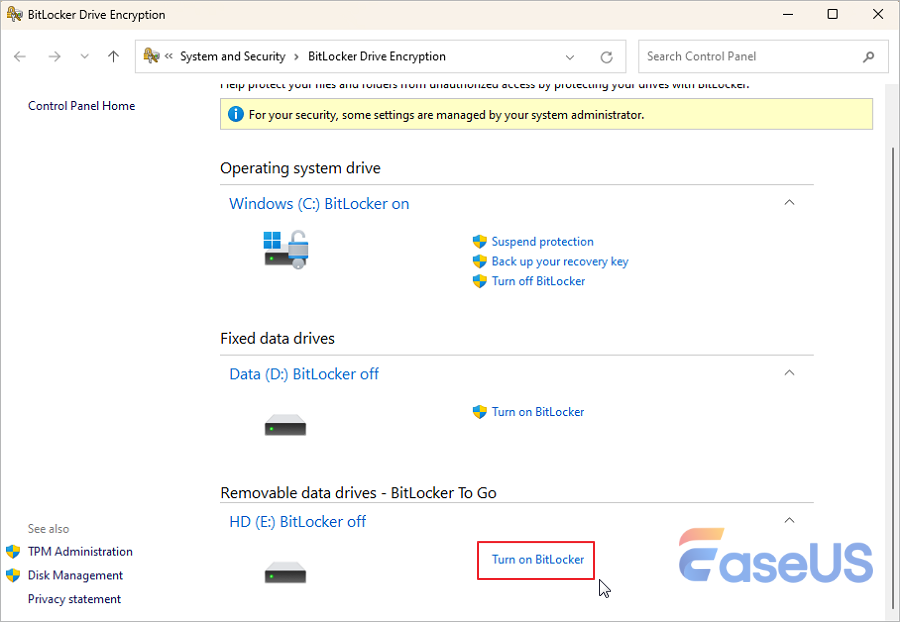
BitLocker will initiate your external hard drive, which may take a few minutes.
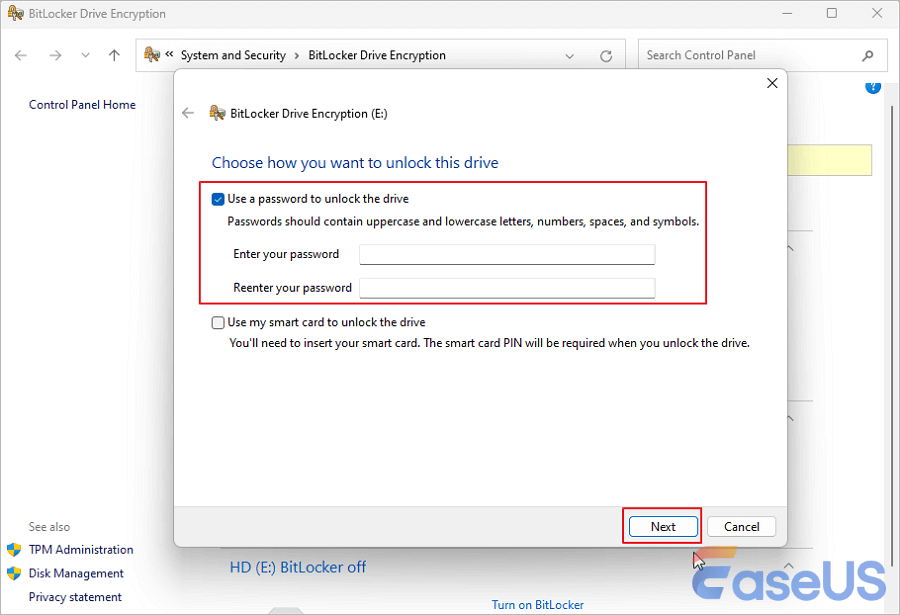
Step 4. Tick "Use a password to unlock the drive," then enter and confirm your password and click "Next."
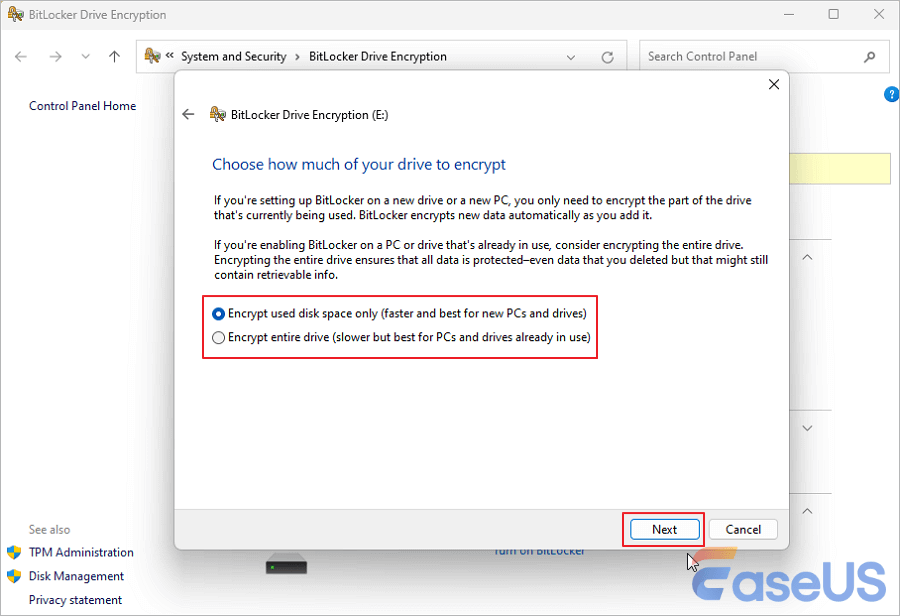
Step 5. Choose how you want to back up the recovery key. Decide how much of your drive to encrypt.
- Select "Encrypt used disk space only" if it's a new drive containing no documents or files.
- Select "Encrypt entire drive" if the drive already contains files.
Have you ever accidentally deleted your essential files on your BitLocker-encrypted hard drive? Don't worry! This article will introduce professional BitLocker data recovery software to solve your problem!

BitLocker Data Recovery Software: Recover Data from BitLocker Drive Encryption
This post will introduce effective and powerful BitLocker data recovery software that helps you restore your inaccessible data from a BitLocker encrypted hard drive. Read more >>
How to Decrypt an External Hard Drive with BitLocker
You should find the BitLocker recovery key or password to decrypt an encrypted external hard drive on your Windows PC. If you forget the password, you can find your recovery key on your MS account website once you set up your system and enable BitLocker yourself.
Then, you can easily unlock a removable drive encrypted with BitLocker via a recovery key or password. Just put in the password and click the "Unlock" button.
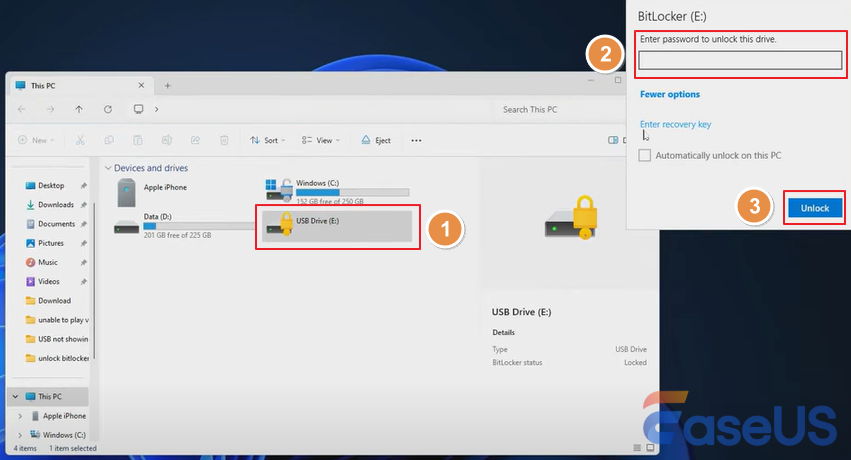
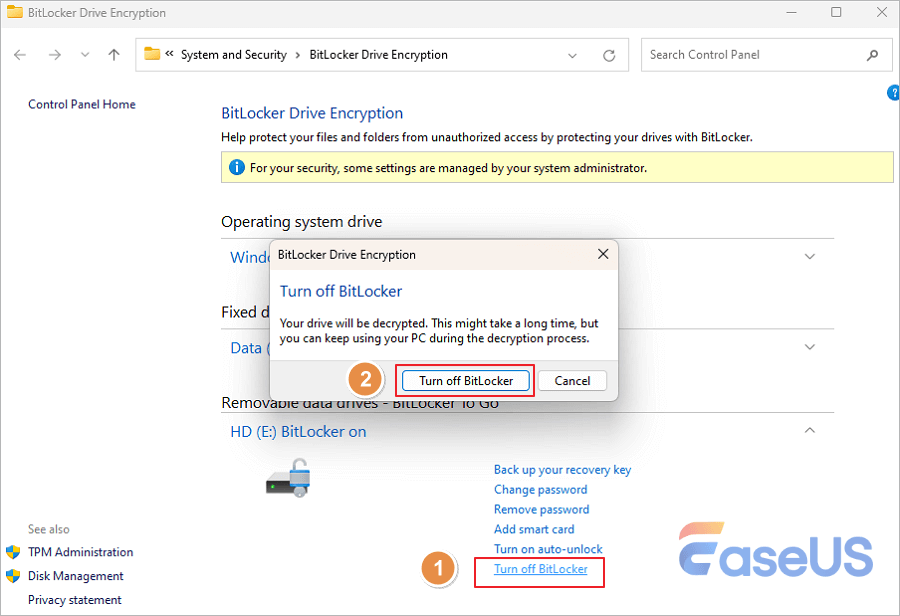
To turn off the BitLocker encryption on your external hard drive, follow the steps below:
Step 1. Right-click on the external hard drive and choose the "Manage BitLocker" option.

Step 2. Click "Turn off BitLocker" and wait for the process to complete.
Share this post with your friends on SNS and help them learn more about BitLocker on an external hard drive!
Bonus Tip: Retrieve BitLocker Recovery Key If It's Lost
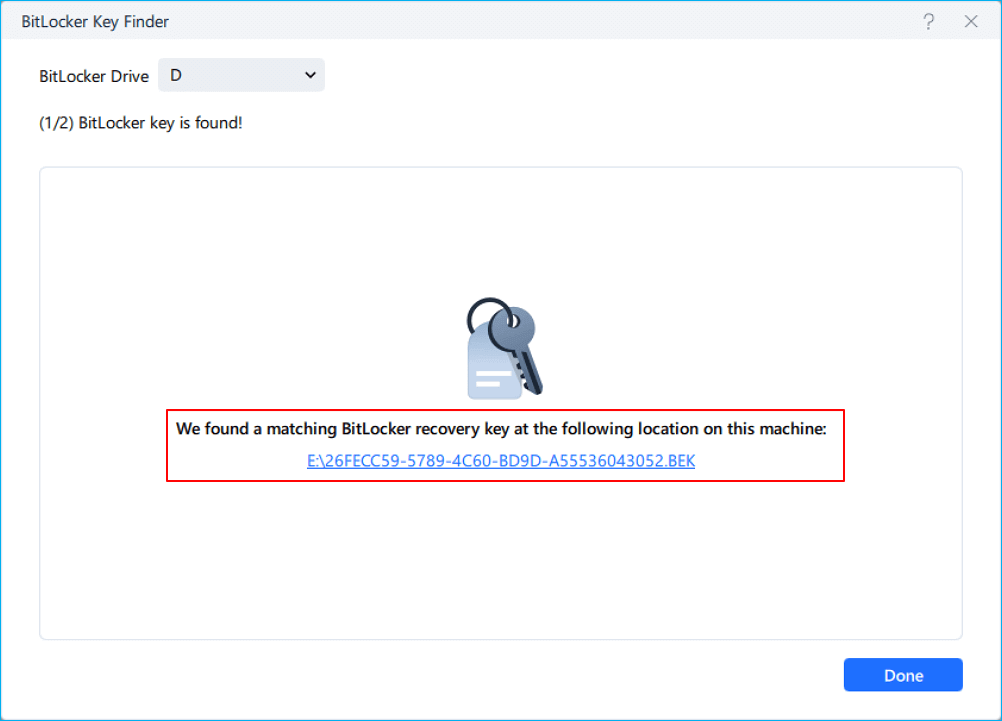
However, suppose you lost BitLocker recovery key and forgot your password; don't worry! You still have a chance to restore data from the locked external hard drive! Read on to learn how to unlock BitLocker drives without passwords and recovery keys! EaseUS Partition Master can find BitLocker recovery automatically from local disks and Microsoft Account. Check the following steps to find the BitLocker recovery key for the encrypted external hard drive.
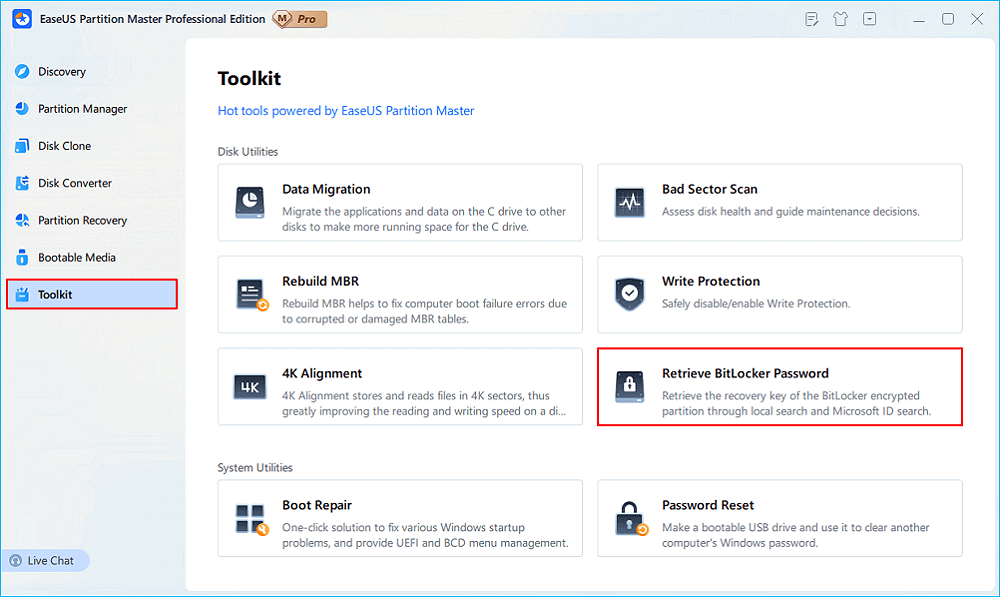
Step 1. Install and launch EaseUS Partition Master. Under the Toolkit tab, select the "Retrieve BitLocker Password" option.
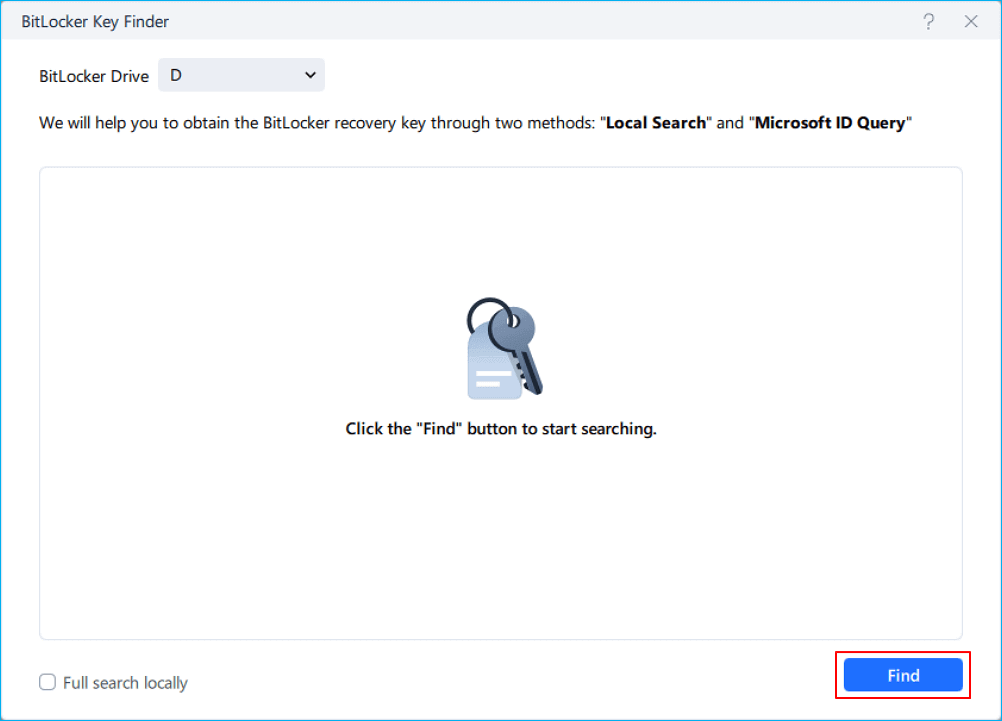
Step 2. It'll automatically detect your encrypted drive. Please click the "Find" button to search the BitLocker recovery key on your encrypted drive.
Step 3. In the next window, you'll see the retrieved BitLocker recovery key.
BitLocker on External Hard Drive FAQs
Here are questions related to BitLocker on the external hard drive; read to learn more information!
1. Can I use BitLocker on an external drive?
You can encrypt an external hard drive or USB flash drive with BitLocker. Insert the external drive that you want to encrypt. In the Windows search bar, type BitLocker, and then click Manage BitLocker. Under Removable data drives – BitLocker To Go, locate and select the removable drive that you want to encrypt.
2. How to unlock BitLocker external hard drive?
You should find the BitLocker recovery key or password to decrypt an encrypted external hard drive on your Windows PC. If you forget the password, you can find your recovery key on your MS account website once you set up your system and enable BitLocker yourself.
Then, you can easily unlock a removable drive encrypted with BitLocker via a recovery key or password. Just put in the password and click the "Unlock" button.
3. How do I disable BitLocker on my external hard drive?
Here's how to disable BitLocker encryption on an external hard drive:
Step 1. Right-click on the external hard drive and choose the "Manage BitLocker" option.
Step 2. Click "Turn off BitLocker" and wait for the process to complete.
Conclusion
This post discusses BitLocker on an external hard drive, including encrypting and decrypting an external hard drive with BitLocker. Besides, we also provide a powerful and trusted BitLocker data recovery tool that helps you retrieve data from a BitLocker encrypted hard drive, even without a recovery key!
How Can We Help You
About the Author

Sherly joined EaseUS in 2022 and she has always loved writing articles and enjoys the fun they bring. She receives professional training here, focusing on product performance and other relative knowledge. She has written over 200 articles to help people overcome computing issues.

Brithny is a technology enthusiast, aiming to make readers' tech lives easy and enjoyable. She loves exploring new technologies and writing technical how-to tips. In her spare time, she loves sharing things about her game experience on Facebook or Twitter.
Product Reviews
-
I love that the changes you make with EaseUS Partition Master Free aren't immediately applied to the disks. It makes it way easier to play out what will happen after you've made all the changes. I also think the overall look and feel of EaseUS Partition Master Free makes whatever you're doing with your computer's partitions easy.
Read More -
Partition Master Free can Resize, Move, Merge, Migrate, and Copy disks or partitions; convert to local, change label, defragment, check and explore partition; and much more. A premium upgrade adds free tech support and the ability to resize dynamic volumes.
Read More -
It won't hot image your drives or align them, but since it's coupled with a partition manager, it allows you do perform many tasks at once, instead of just cloning drives. You can move partitions around, resize them, defragment, and more, along with the other tools you'd expect from a cloning tool.
Read More
Related Articles
-
Clone BitLocker Drive with Clonezilla & Alternative [2026 Guide]
![Jean]() Jean/2026/11/17
-
No BitLocker Recovery Key Found for This Device? Fix Now
![Dany]() Dany/2026/11/18
-
M3 BitLocker Recovery Alternative Free Download
![Brithny]() Brithny/2026/11/18
-
BitLocker Drive Encryption, How to Unlock BitLocker Drive
![Brithny]() Brithny/2026/11/19
 Jean/2026/11/17
 Dany/2026/11/18