Page Table of Contents

Quick Answer: Is EaseUS Disk Copy Free and Worth It?
No, EaseUS Disk Copy is not completely free. While you can download and install the software for free, and experience the disk or partition cloning workflow. But if you want to clone a hard drive, migrate Windows to a new SSD, or access advanced cloning features, a paid, licensed version is required.
| Category | EaseUS Disk Copy |
| Completely Free to Use | ❌ |
| OS Migration | ✅ |
| HDD to SSD Cloning | ✅ |
| Sector-by-Sector Clone | ✅ |
| Create Bootable Media | ✅ |
| Clone to Image | ✅ |
| Clone to Multiple Disks | ✅ |
| Network Clone | ✅ |
That said, whether EaseUS Disk Copy is worth paying for depends on your needs. If you're upgrading from an HDD to an SSD, replacing an aging drive, migrating Windows to a larger disk, or deploying multiple computers, EaseUS Disk Copy can save significant time compared to manually reinstalling Windows and applications.
What Is EaseUS Disk Copy?
Unlike traditional backup software, EaseUS Disk Copy focuses exclusively on disk cloning. It creates a direct copy of your source drive, including the operating system, installed programs, settings, and personal files, allowing you to boot from the new drive immediately after cloning.
This approach is especially useful when upgrading to a faster SSD, replacing an old hard drive, moving Windows to a larger disk, or deploying identical system configurations across multiple computers.
Over the years, EaseUS Disk Copy has evolved beyond basic disk cloning. Recent versions have introduced advanced capabilities such as:
- 🎯Disk Clone to Image
- 🎯Clone to Multiple Destination Disks
- 🎯Internet Clone over a network
- 🎯Automatic partition resizing during cloning
- 🎯Bad sector handling
- 🎯WinPE bootable media creation
- 🎯Intelligent disk detection
These features make the software suitable for both home users performing a one-time SSD upgrade and IT professionals managing large-scale system deployments.
EaseUS Disk Copy Pricing
EaseUS Disk Copy offers several licensing options designed for individual users, technicians, and students. The software can be downloaded for free, but completing cloning tasks requires activation with a valid license.
The trial version allows users to explore the interface and understand the cloning workflow before making a purchase decision.
| Version | Price | Best for |
| Individual |
|
One license for one computer - Personal use |
| for 2PCs |
|
One license for two computers - Home users, business, IT support |
| Education |
|
One license for one computer - Students(Need to verify student status) |
💰Is EaseUS Disk Copy Worth the Price?
Compared with spending several hours reinstalling Windows, configuring applications, and manually restoring files, disk cloning is often the faster and less risky approach.
For users performing a one-time SSD upgrade, the value comes from convenience and reduced downtime. For IT teams, the value comes from scalability, deployment efficiency, and advanced cloning features that are not commonly found in free alternatives.
Share the post on social media to help others learn about the EaseUS Disk Copy review.

Key Features of EaseUS Disk Copy
The strength of EaseUS Disk Copy lies in its focus on cloning technology. Rather than trying to serve as a backup suite, partition manager, and recovery platform simultaneously, it is designed specifically for disk migration and duplication.
Below are the most important features available in the latest version.
1. Disk Clone
EaseUS Disk Clone creates an exact copy of an entire storage device, including the operating system, installed applications, user files, hidden partitions, and boot information. It is the most common method for upgrading from an HDD to an SSD or replacing a drive with a larger one.

Best For
- HDD to SSD migration
- Disk replacement
- Capacity upgrade
2. System Migration
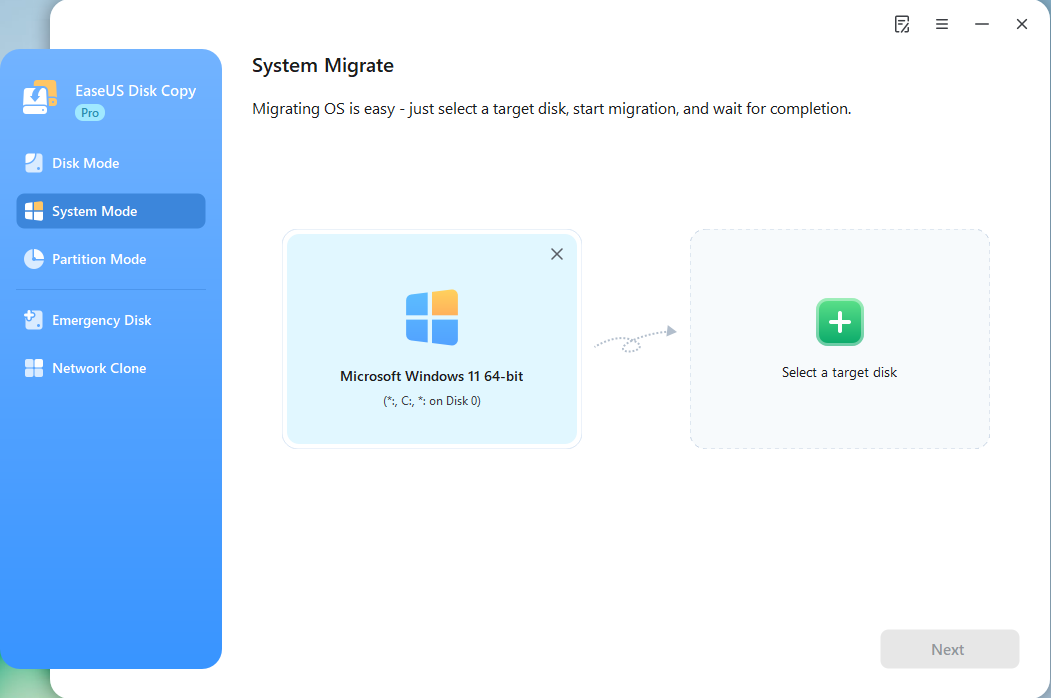
System Migration allows users to move the Windows OS to a new drive without reinstalling it. Instead of copying every partition manually, the software automatically identifies the required system partitions and transfers them to the destination disk.
Best For
- Moving Windows to an SSD
- Separating the operating system from data storage
- Accelerating system performance
3. Sector-by-Sector Clone
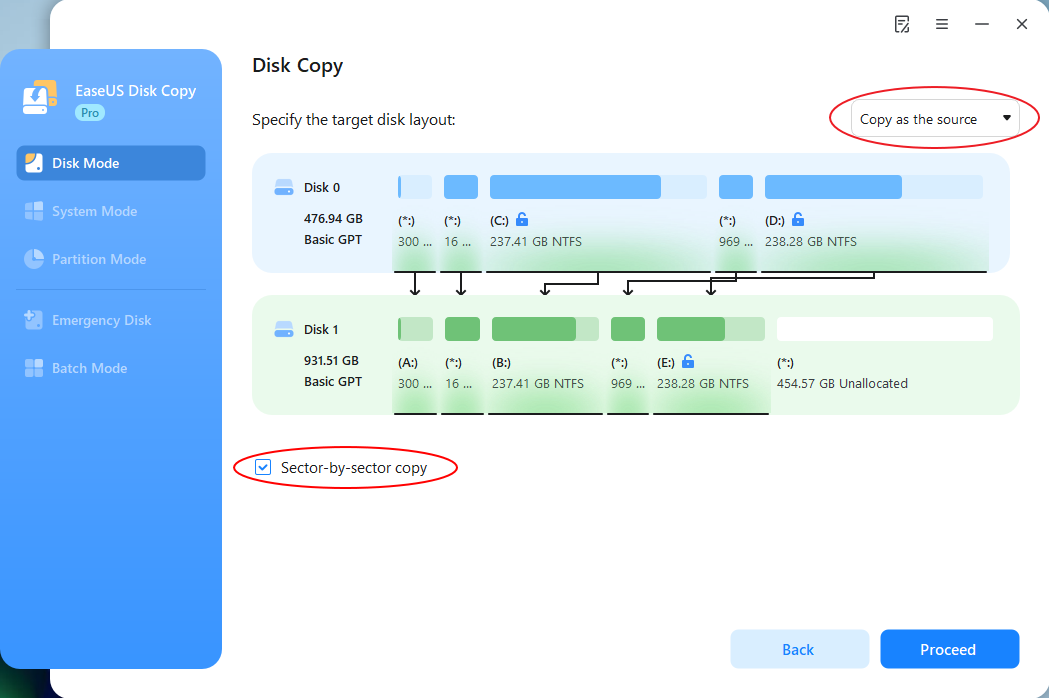
Sector-by-Sector Clone copies every sector from the source disk, including unused and hidden sectors. Because every bit of information is duplicated, the destination drive becomes an exact replica of the original disk.
Best For
- Legacy system migration
- Data recovery scenarios
- Specialized software environments
- Forensic duplication
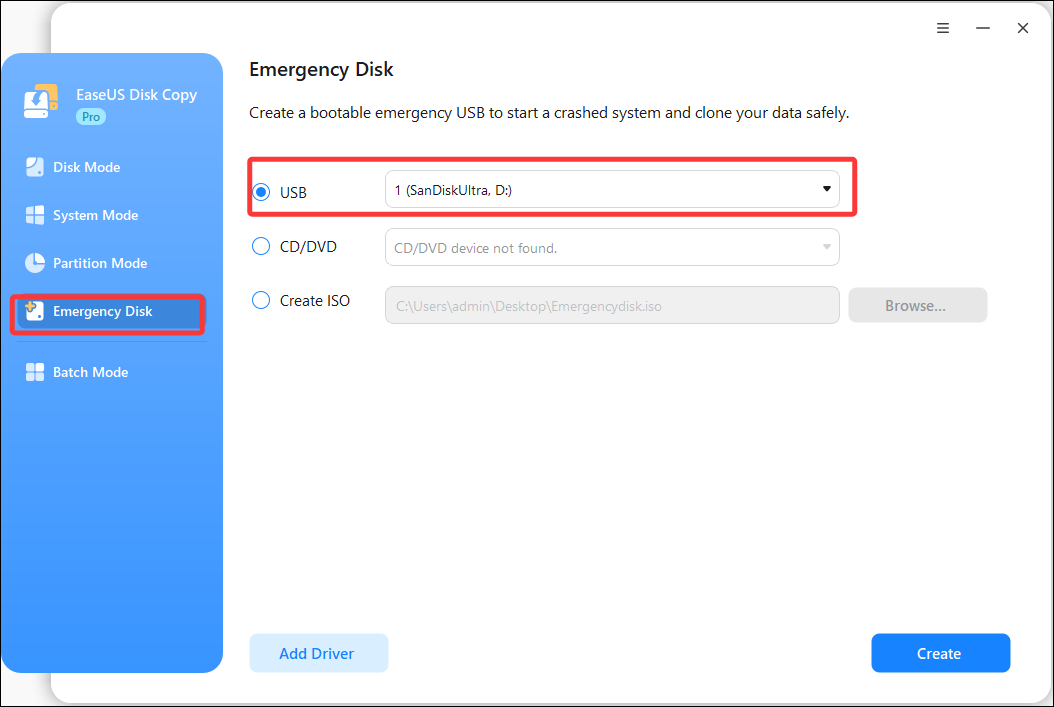
4. Create WinPE Bootable Media
The software can create a WinPE-based bootable disk or USB drive. This allows users to launch cloning operations even when Windows cannot boot normally.
Best For
- Unbootable computers
- System recovery
- Emergency disk replacement
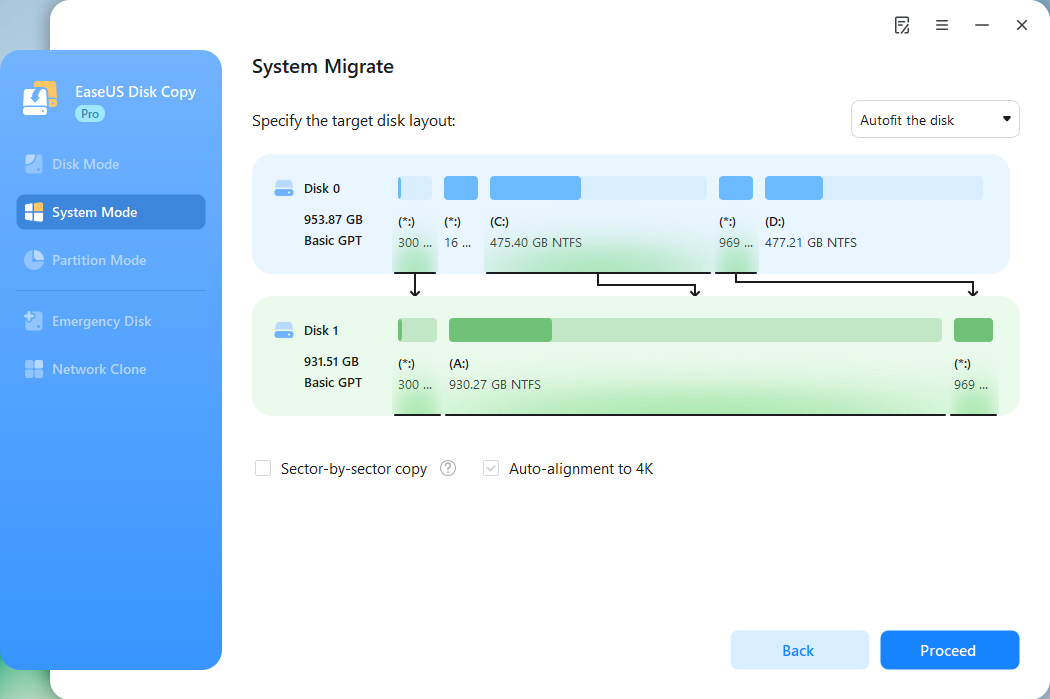
5. Automatic Partition Resize
When cloning to a larger drive, EaseUS Disk Copy can automatically adjust partition sizes to utilize the additional storage space. Users can also customize partition layouts before the cloning process begins.
Best For
- Upgrading to larger/smaller SSDs
- Maximizing available capacity
- Avoiding manual partition management
6. Clone Around Bad Sectors
A failing drive often contains unreadable sectors that can interrupt cloning operations. EaseUS Disk Copy intelligently skips problematic sectors when possible, helping users migrate data from aging drives more successfully.
Best For
- Aging HDDs
- Early-stage drive failures
- Data preservation
7. Smart Disk Detection
When a new storage device is connected, the software can automatically detect the disk and guide users through migration options. This simplifies the process for less experienced users who may not be familiar with partition structures or storage management concepts.
Best For
- First-time SSD upgrades
- Beginner users
- Simplified migration workflows
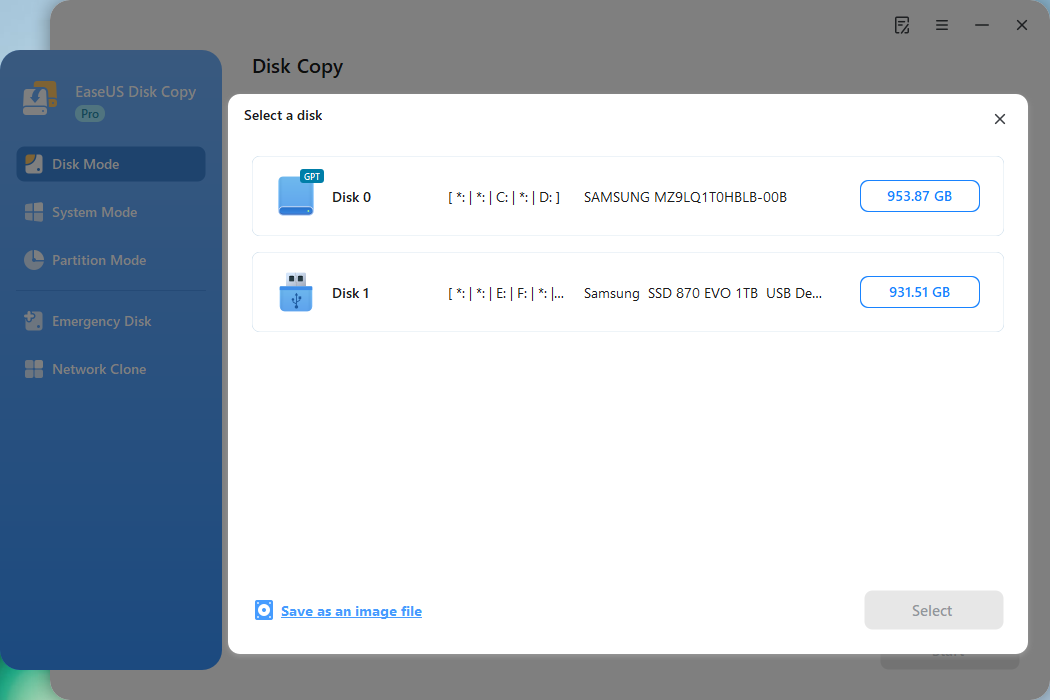
8. Clone Disk to Image
Clone Disk to Image allows users to create a disk image file instead of cloning directly to another drive. The image can later be restored to a target disk when needed.
Benefits
- Storage archiving
- Backup staging
- Flexible deployment workflows
- Hardware replacement preparation
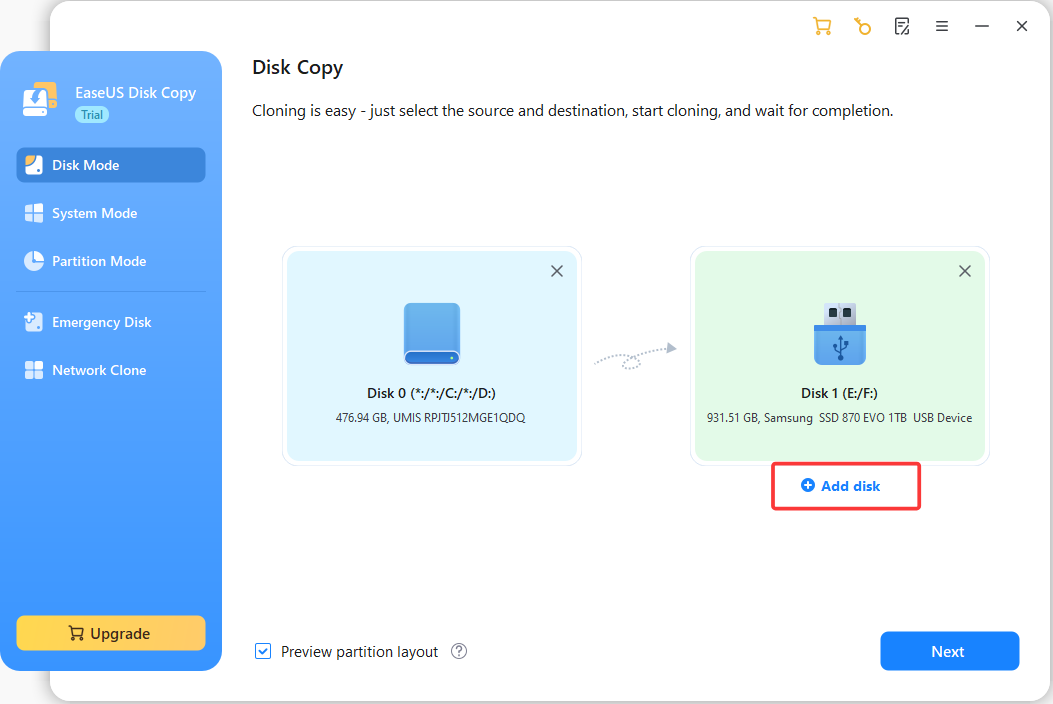
9. Clone to Multiple Destination Disks
Version 7.1 introduced the ability to clone one source disk to multiple destination drives simultaneously. This feature is particularly valuable in deployment environments where identical system configurations need to be distributed across many computers.
Benefits
- Reduced deployment time
- Consistent system configurations
- Efficient mass deployment
10. Network Clone
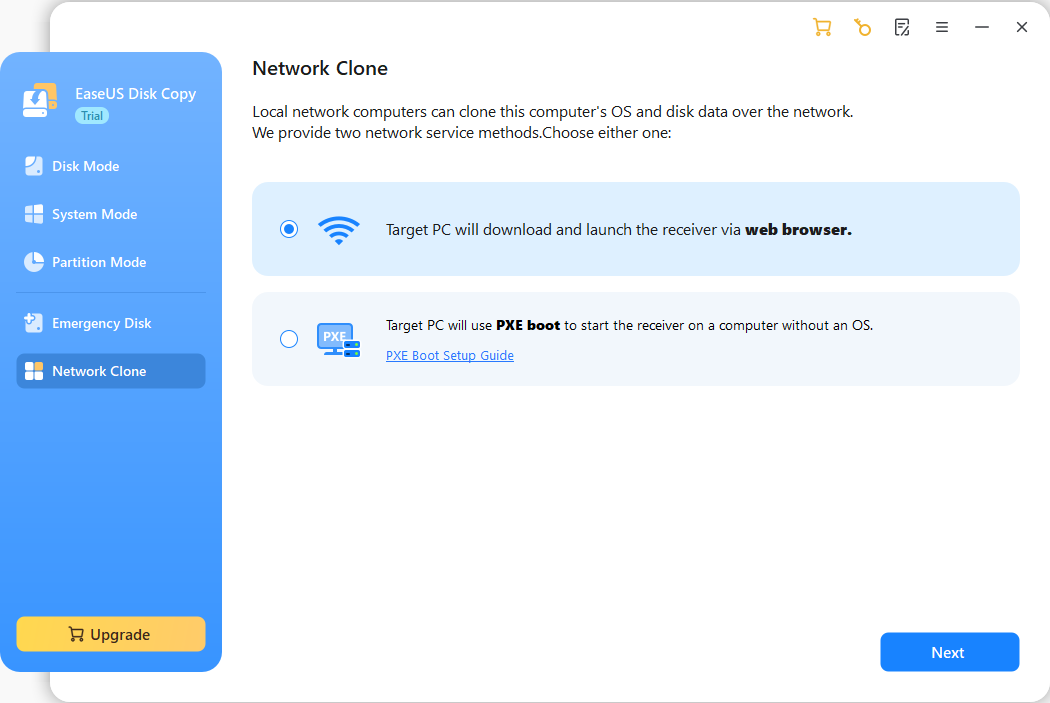
Network Clone is one of the most significant additions to EaseUS Disk Copy 7.2. Traditionally, cloning required both drives to be physically connected to the same computer. With Internet Clone, users can transfer data and system environments across a network without requiring a direct hardware connection.
Benefits
- Remote migration
- Cross-location deployment
- Reduced hardware requirements
- Faster device replacement workflows
How to Install EaseUS Disk Copy
Installing EaseUS Disk Copy is straightforward and typically takes only a few minutes. After downloading the installer from the official EaseUS website, launch the setup file and follow the on-screen instructions. The software supports modern Windows 11/10/8/7 operating systems and requires minimal configuration.
 Free Download
Windows 11/10/8/7
Once installation is complete, connect the destination drive if you're planning to clone a disk or migrate Windows. Upon startup, EaseUS Disk Copy automatically detects available storage devices and presents the available cloning options.
How to Clone a Hard Drive with EaseUS Disk Copy
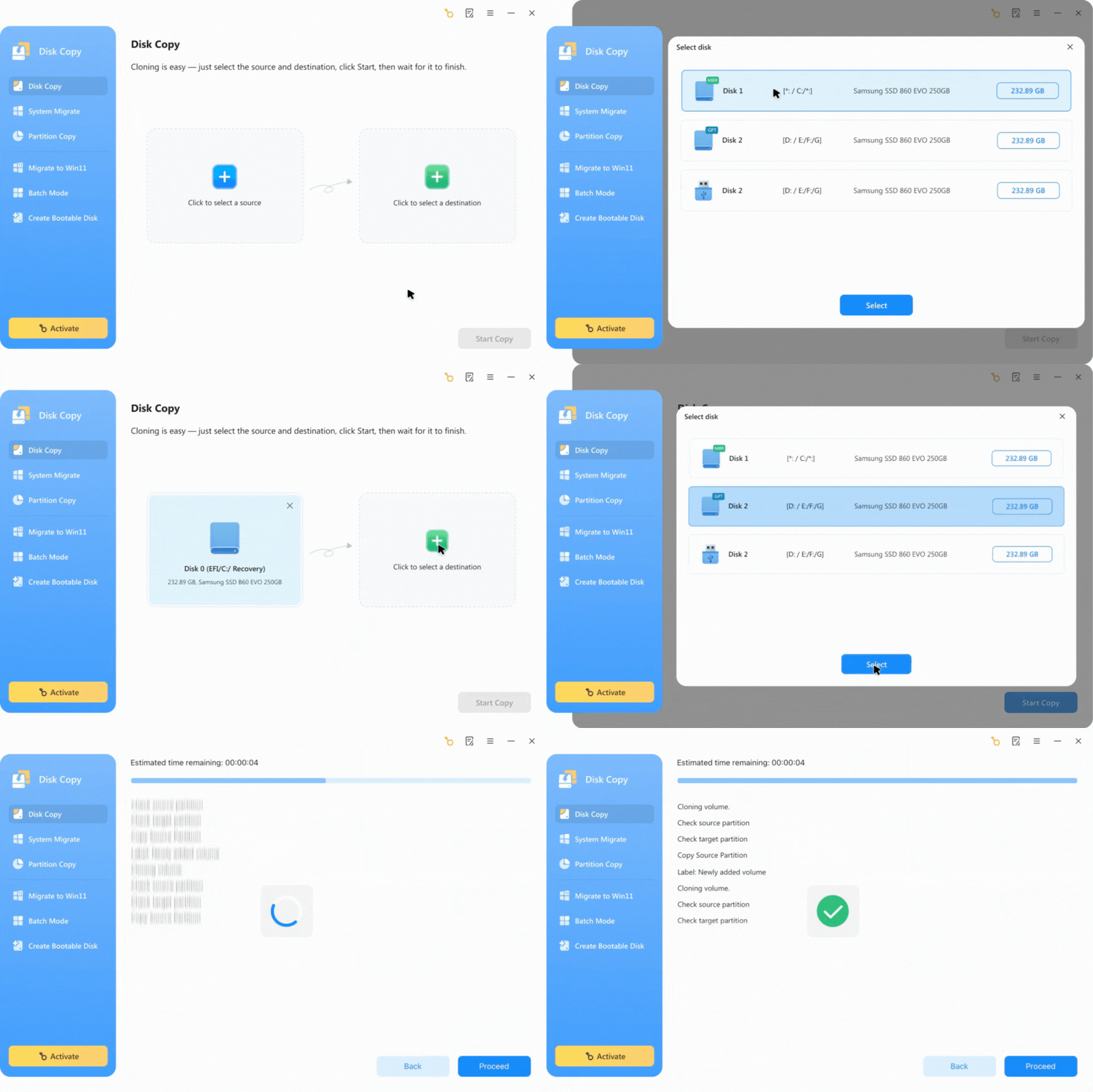
Replacing an old HDD or upgrading to a larger SSD is one of the most common use cases for EaseUS Disk Copy. The software can clone your entire disk.
Step 1. Connect the New Drive
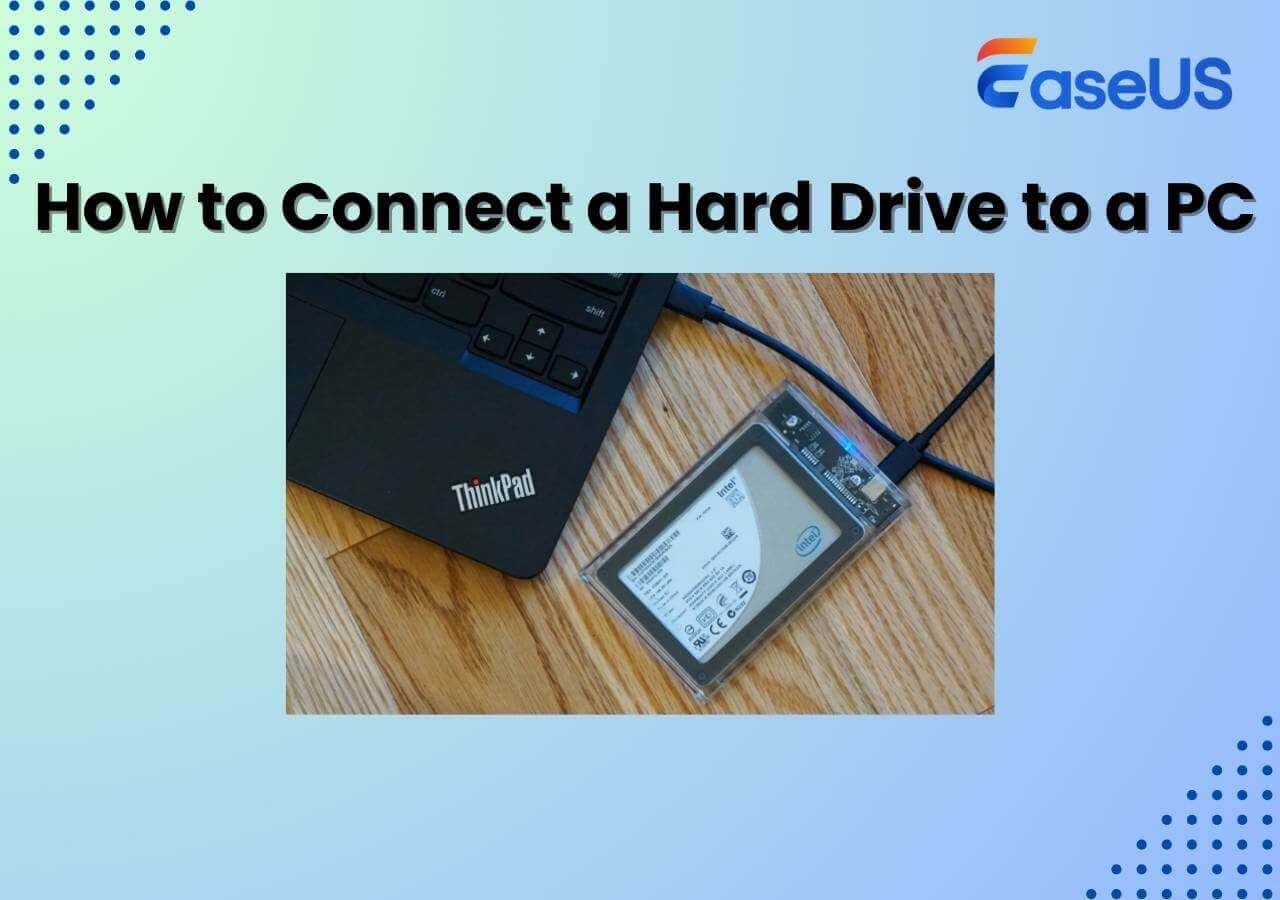
Install the new SSD internally or connect it via a SATA-to-USB adapter. Ensure Windows can detect the destination drive.
Step 2. Launch EaseUS Disk Copy
Open the software and select Disk Mode from the main interface.
Step 3. Select the Source Disk
Choose the disk you want to clone and click Next.
Step 4. Select the Destination Disk
Choose the new SSD or HDD as the destination drive. Warning: All existing data on the destination disk will be overwritten.
Step 5. Adjust Disk Layout
If you're cloning to a larger drive, select Autofit the Disk to automatically expand partitions and utilize the full capacity.
Step 6. Start Cloning
Review the settings and click Proceed to begin the cloning process. Once cloning is complete, shut down the PC, replace the old drive if necessary, and boot from the newly cloned disk.
How to Migrate Windows to SSD Without Reinstalling
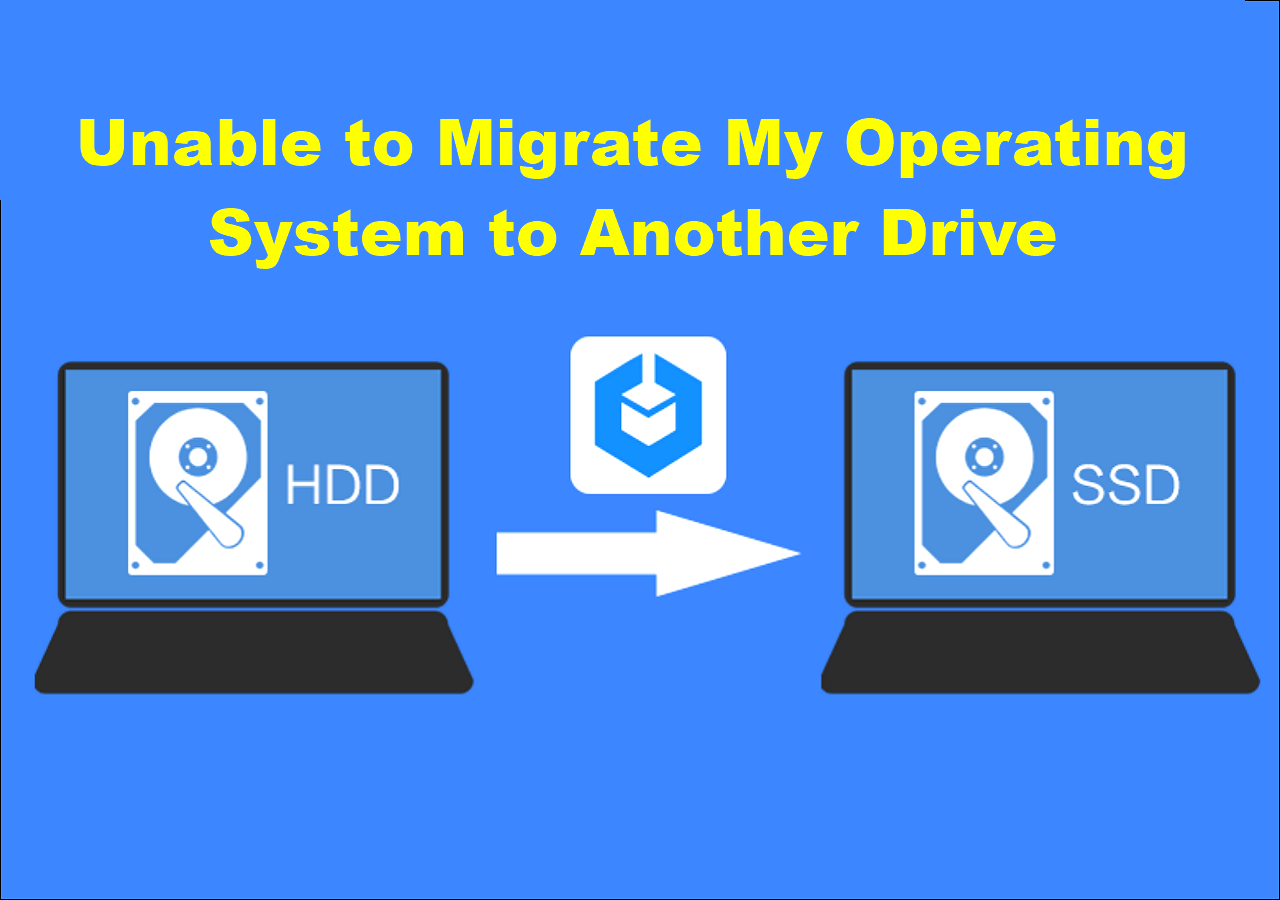
If your goal is simply to move Windows to a faster SSD, EaseUS Disk Copy can transfer the operating system, boot partitions, installed applications, and user settings without requiring a clean installation.
Step 1. Install or Connect the SSD
Connect the target SSD and verify that it appears in Windows Disk Management.
Step 2. Launch EaseUS Disk Copy
Open the software and choose System Mode.
Step 3. Select the Destination SSD
Choose the SSD as the migration target. The software will automatically identify the required system and boot partitions.
Step 4. Optimize for SSD
Enable SSD optimization options if available and review the partition layout before proceeding.
Step 5. Start Migration
Click Proceed and wait for the migration to complete.
Step 6. Boot from the New SSD
Restart the computer, enter BIOS/UEFI settings, and set the SSD as the primary boot device. After booting successfully, Windows should load exactly as before, but with significantly faster startup and application loading times.
Share the post on social media to help others learn about the EaseUS Disk Copy review.
EaseUS Disk Copy Performance Test
To evaluate real-world performance, we tested EaseUS Disk Copy using several common migration scenarios, including HDD-to-SSD upgrades and SSD-to-SSD cloning. Actual speeds will vary depending on hardware configuration, connection interface, and disk health, but the results were generally consistent and reliable.
Test Environment
- Windows 11 Pro
- Intel Core i7 Platform
- SATA SSD and PCIe NVMe SSD
- USB 3.2 External Adapter
| Test Scenario | Data Size | Time Required | Result |
| 500GB HDD → SATA SSD | 320GB Used | 42 Minutes | Successful |
| 1TB SATA SSD → NVMe SSD | 650GB Used | 36 Minutes | Successful |
| 2TB HDD → 2TB HDD | 1.3TB Used | 2 Hours 28 Minutes | Successful |
| System Migration to NVMe SSD | 180GB Used | 18 Minutes | Successful |
| Sector-by-Sector Clone (500GB SSD) | Full Disk | 57 Minutes | Successful |
During testing, the software maintained stable transfer speeds and successfully completed all cloning tasks without data corruption.
EaseUS Disk Copy vs Clonezilla vs Macrium Reflect
When it comes to disk cloning software, Clonezilla, EaseUS Disk Copy, and Macrium Reflect must be on the list. All three tools can clone disks and migrate Windows, but they have different functions and target different types of users.
| EaseUS Disk Copy | Clonezilla | Macrium Reflect | |
| Ease of Use | ⭐⭐⭐⭐⭐ | ⭐⭐ | ⭐⭐⭐⭐ |
| Graphical Interface | ✅ | Limited | Yes |
| Disk Clone | ✅ | ✅ | ✅ |
| System Migration | ✅ | ✅ | ✅ |
| Sector-by-Sector Clone | ✅ | ✅ | ✅ |
| Create Bootable Media | ✅ | ✅ | ✅ |
| Clone to Image | ✅ | Image-Based | Image-Based |
| Clone to Multiple Disks | ✅ | ✅ | ❌ |
| Internet Clone | ✅ | ❌ | ❌ |
| Bad Sector Handling | ✅ | Limited | Limited |
| Suitable for Beginners | Excellent | Poor | Good |
| Best For | Bignners & Experts | IT experts | Backup & Imaging |
Clonezilla remains a popular choice among IT professionals because it is free and highly customizable. However, its text-based workflow can be intimidating for beginners and often requires additional technical knowledge.
Macrium Reflect is better known as a backup and disk imaging solution. While it offers reliable cloning capabilities, its primary focus is system backup, recovery, and image management rather than dedicated disk migration.
📚Clonezilla vs Macrium Reflect: Which Is Better for SSD Upgrades and Windows Migration?
EaseUS Disk Copy focuses specifically on cloning and migration. Features such as automatic disk detection, bad-sector cloning, Clone to Image, Clone to Multiple Disks, and the new Internet Clone functionality provide a more streamlined experience for users upgrading storage devices or deploying systems at scale.
For most home users upgrading from an HDD to an SSD, EaseUS Disk Copy offers the simplest workflow. For IT teams managing large-scale deployments, its newer cloning technologies provide capabilities that are not currently available in either Clonezilla or Macrium Reflect.
Free Download
Windows 11/10/8/7
FAQ
1. Is EaseUS Disk Copy safe to use?
Yes. EaseUS Disk Copy performs read-and-copy operations on the source drive and is widely used for disk migration and SSD upgrades. You can use it with confidence.
2. Can EaseUS Disk Copy clone Windows 11?
Yes. The software supports Windows 11 and Windows 10, 8, and 7. It supports migrating the operating system to a new SSD without reinstalling Windows.
3. Does EaseUS Disk Copy support NVMe SSDs?
Yes, this tool is compatible with almost all types of disks, HDD, SSD(SATA or NVMe), USB, SD card, etc., provided the hardware is correctly detected by Windows.
-
Updated by
![]()
Larissa
Larissa has rich experience in writing technical articles and is now a professional editor at EaseUS. She is good at writing articles about data recovery, disk cloning, disk partitioning, data backup, and other related knowledge. Her detailed and ultimate guides help users find effective solutions to their problems. She is fond of traveling, reading, and riding in her spare time.…Read full bio