Page Table of Contents

Can you clone a hard drive that won't boot? Yes, in many cases. You can clone a hard drive that won't boot, as long as the drive is still detected and readable.
The key is to clone the drive from a separate boot environment, such as Windows Preinstallation Environment (WinPE), instead of trying to run cloning software inside the Windows installation that cannot start.
In this guide, we'll explain when you can clone a non-booting hard drive, how to clone it using a bootable USB, and how to troubleshoot a cloned drive that won't boot.
Can You Clone a Hard Drive That Won't Boot?
Yes. A hard drive that won't boot can often still be cloned if the drive is detected and readable. The important distinction is between a non-booting Windows installation and a physically failed hard drive.
For example, your computer may show a boot error because the Windows boot configuration is damaged. In this situation, the hard drive may still contain a perfectly usable copy of your files, applications, and Windows installation.
You don't necessarily need to repair Windows before making a clone. In fact, if the drive contains important data, creating a copy first can be a sensible precaution before attempting more invasive repairs. A simple way to assess the situation is:
| Situation | Can You Clone? | What to Try |
| Windows won't boot, but the drive is detected | ✅ | Clone from WinPE |
| Boot files are corrupted | ✅ | Clone from WinPE |
| Windows crashes during startup | ✅ | Clone from WinPE |
| File system errors are present | Possibly | Check the drive and clone carefully |
| The drive is not detected in BIOS/UEFI | Difficult | Check the connection and hardware |
| The drive has severe physical damage | Not guaranteed | Consider professional data recovery |
Why Can't You Clone It Normally When Windows Won't Boot?
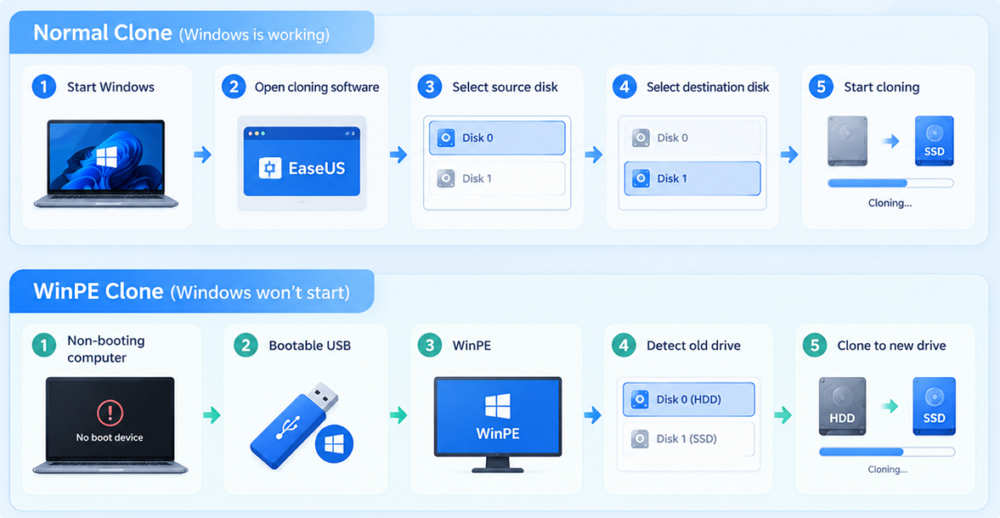
Normally, the cloning process looks something like this:
- Start Windows → Open cloning software → Select source disk → Select destination disk → Start cloning
When Windows won't start, you cannot launch the cloning software normally because the operating system itself is unavailable. So, you need another environment from which to access the disk. That's where WinPE can help.
WinPE is a lightweight Windows environment that can boot from external media without loading the Windows installation on the internal hard drive. This makes it useful for system recovery, maintenance, and disk cloning when the installed operating system cannot start.
The workflow becomes:
- Non-booting computer → Bootable USB → WinPE → Detect old drive → Clone to new drive
This approach is particularly useful when you want to preserve the existing Windows installation instead of immediately reinstalling Windows.
How to Clone a Hard Drive That Won't Boot
What You Need
Before you start, prepare:
- ✅The non-booting HDD or SSD
- ✅A new HDD or SSD for the clone
- ✅A USB flash drive
- ✅A working Windows computer to create the bootable USB
- ✅EaseUS Disk Copy (It has the WinPE bootable feature to allow you to create a bootable USB and clone hard drive fron WinPE without data loss.)
 Free Download
Windows 11/10/8/7
The destination drive should have enough capacity for the data you want to clone. Be especially careful when selecting the destination disk because the cloning process can overwrite existing data on it.
Step 1. Create an EaseUS Disk Copy Bootable USB
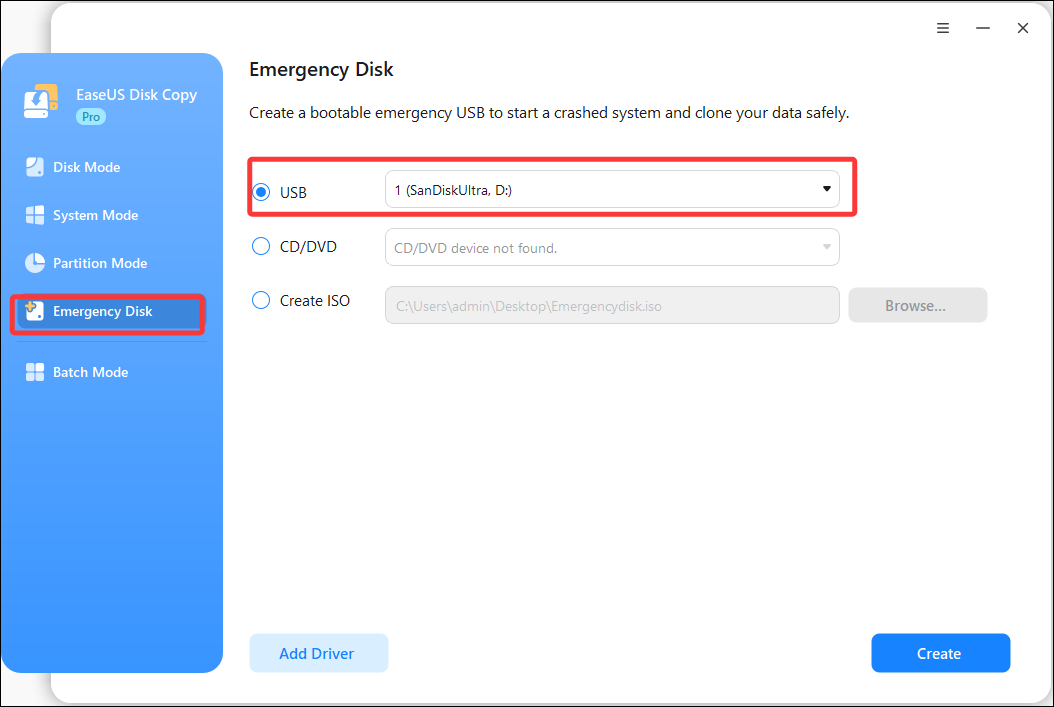
On a working Windows computer, install and launch EaseUS Disk Copy. Choose Emergency Disk and follow the on-screen instructions to create a WinPE bootable USB. This USB contains the cloning environment you will use to access the computer that cannot boot normally.
Tip: Back up any important files on the USB before creating the bootable media because the process may erase existing content on the USB drive.
Step 2. Connect the New HDD or SSD
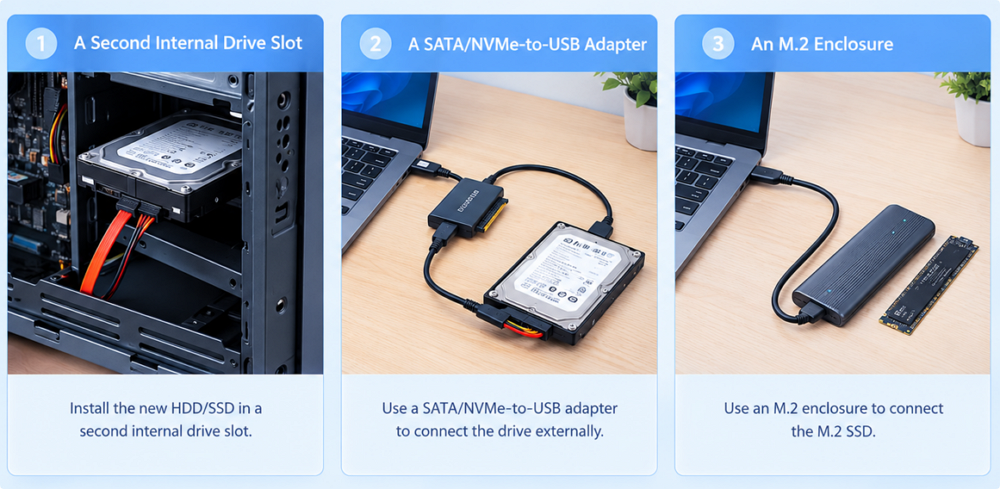
Connect the new destination drive to the computer containing the non-booting drive. Make sure the computer recognizes the new drive. Depending on your computer and the type of drive, you may need:
- A second internal drive slot
- A SATA-to-USB adapter
- An M.2 enclosure
Step 3. Boot the Computer From the USB
Connect the bootable EaseUS USB to the computer that cannot start Windows. Restart the computer and enter the BIOS/UEFI boot menu. Select the USB drive as the boot device. The exact key used to enter BIOS or the boot menu varies by computer manufacturer.
Once the computer successfully boots from the USB, EaseUS Disk Copy can run independently of the Windows installation on the original drive.
Step 4. Launch EaseUS Disk Copy and Select Disk Mode
After entering the EaseUS Disk Copy environment, choose Disk Mode.
Step 5. Select the Source & Target Disks
- Choose the non-booting hard drive as the source disk.
- Select the new HDD or SSD as the destination disk.
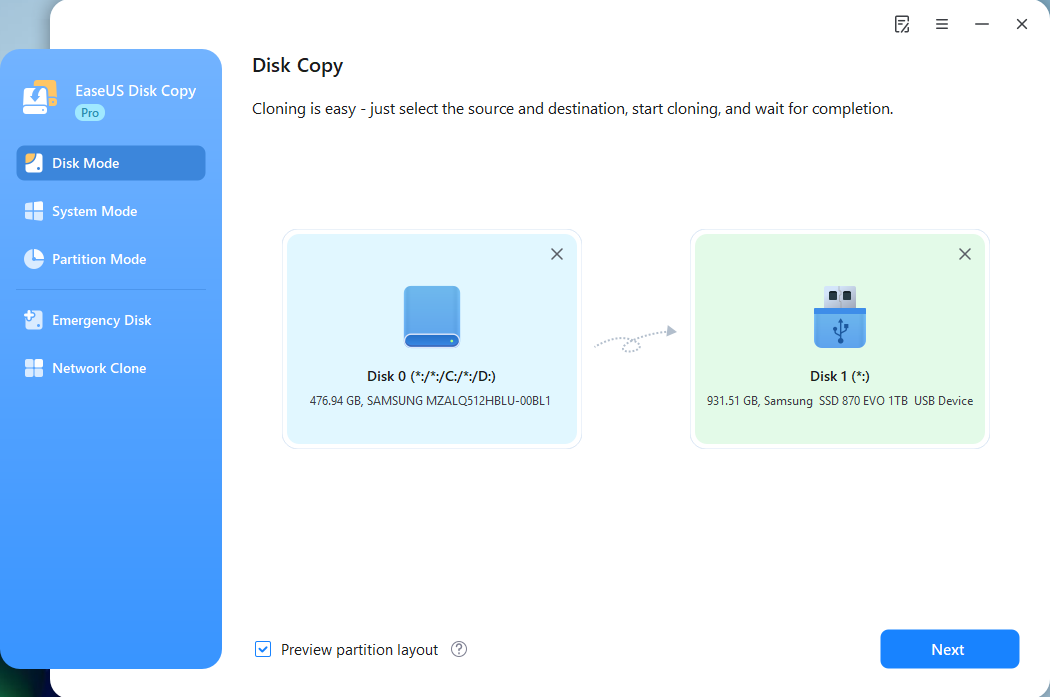
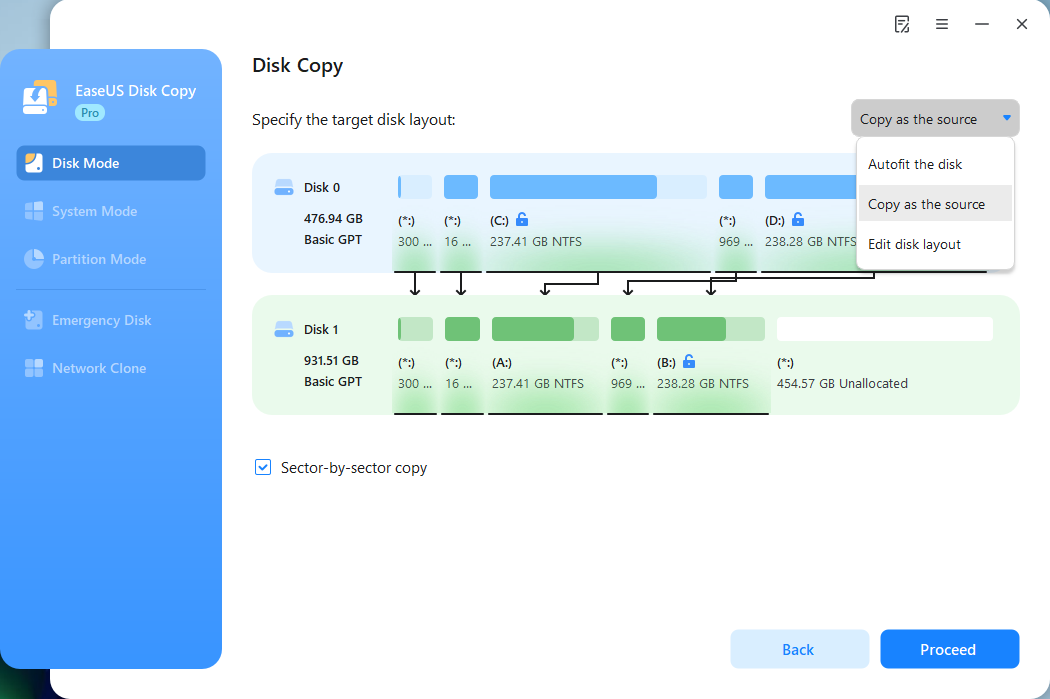
EaseUS Disk Copy provides options to let you adjust the target disk layout to your preference:
- Autofit the disk
- Copy as the source
- Edit disk layout
Step 6. Start the Clone
Review the source and destination disks one more time. If everything is correct, click Proceed and confirm the operation. Wait for the cloning process to finish. Do not disconnect either drive while the process is running.
Once cloning is complete, shut down the computer. If the new drive is intended to replace the old system drive, install it in the appropriate internal slot and try booting from it.
What If the Cloned Drive Won't Boot?
Suppose the cloning process finishes successfully, but the new SSD or HDD still won't boot. Don't assume that the cloning process necessarily failed. A cloned Windows drive can fail to start because of a boot configuration or firmware issue. Here are several things to check.
1. Check the Boot Order
If both the old and new drives are still connected, the computer may continue trying to boot from the original drive. Enter BIOS/UEFI and check the boot order. Make sure the new drive is selected as the boot device.
A simpler test is to shut down the computer, temporarily disconnect the original drive, and then start it again.
2. Check UEFI and Legacy Boot Mode
The firmware boot mode should be compatible with the way Windows was originally installed. For example, a modern Windows installation may use: GPT + UEFI.
If the firmware configuration does not match the cloned system, the new drive may not boot even though the cloning process completed successfully.
3. Make Sure the System Partitions Were Cloned
If you cloned only the Windows partition instead of the entire disk, required boot partitions may be missing. For a complete system migration, verify that the destination contains the necessary system and recovery partitions.
4. Check the EFI System Partition
For a UEFI-based Windows installation, the EFI System Partition contains files used during the boot process. If the EFI partition was not copied correctly, the destination drive may contain Windows but still fail to start.
5. Repair the Windows Boot Configuration
If the destination disk contains the expected partitions but Windows still does not start, you can use Windows recovery tools to diagnose the startup configuration.
📚For more information, read this page to get detailed instructions: I Cloned My Drive. It Won't Boot. Here's What Saved Me.
Can You Clone a Completely Dead Hard Drive?
Usually, not with ordinary disk cloning software. The phrase "won't boot" can describe very different situations.
Scenario 1: Windows Won't Boot, but the Drive Is Detected
Use a bootable WinPE environment to access the disk without starting Windows.
Scenario 2: The Drive Is Detected but Has Errors
Consider the condition of the drive and whether a sector-by-sector approach is appropriate.
Scenario 3: The Drive Is Not Detected in BIOS/UEFI
Software cloning may not work in this situation. First check:
- Power connections
- SATA or M.2 connection
- Adapter or enclosure
- BIOS/UEFI storage settings
- Whether the drive appears on another computer
Scenario 4: The Drive Has Severe Physical Damage
Professional data recovery may be necessary. If the drive is physically failing, repeatedly attempting to clone it may not be the best way to protect the data.
What to Do Before You Clone a Non-Booting Hard Drive
If the drive contains important files, take a few precautions before starting.
1. Determine Whether the Drive Is Detected - Check whether the drive appears in BIOS/UEFI or in the disk cloning environment. If it is visible and shows the expected capacity, that's a good sign.
2. Don't Reinstall Windows Immediately - If your main goal is to preserve the current system and data, consider cloning the drive before reinstalling Windows. A fresh installation can fix the boot problem, but it won't preserve the existing Windows environment the same way a disk clone does.
3. Don't Write Unnecessary Data to a Failing Drive - If you suspect hardware failure, minimize operations that modify the source drive.
FAQs
1. Can I clone a hard drive if Windows won't start?
Yes. Windows doesn't need to start for the cloning process. You can create a bootable USB on another working computer, boot the affected computer from it, and clone the internal drive from that environment.
2. What if my hard drive isn't detected in BIOS?
If the drive is not detected at the firmware level, first check the physical connection, power, adapter, and storage settings. If the drive remains completely undetected, ordinary cloning software may not be able to access it.
3. Should I repair Windows before cloning?
Not necessarily. If the drive contains important data and is still accessible, you may want to secure a clone before attempting major repairs. If the drive is physically failing, however, it may be better to minimize additional stress and consider professional recovery.
The Bottom Line
A computer that cannot start Windows doesn't automatically mean the hard drive cannot be cloned. If the drive is still detected, you can bypass the failed Windows installation by booting the computer from a WinPE-based USB and cloning the disk from there. EaseUS Disk Copy makes the process easier and more controllable.
Free Download
Windows 11/10/8/7
-
Updated by
![]()
Larissa
Larissa has rich experience in writing technical articles and is now a professional editor at EaseUS. She is good at writing articles about data recovery, disk cloning, disk partitioning, data backup, and other related knowledge. Her detailed and ultimate guides help users find effective solutions to their problems. She is fond of traveling, reading, and riding in her spare time.…Read full bio