Page Table of Contents

To clone a hard drive from WinPE, boot your computer into the Windows Preinstallation Environment (WinPE) and copy the entire disk instead of cloning from within your installed Windows system. EaseUS Disk Copy supports disk cloning through bootable media, allowing you to walk through the cloning process from a WinPE-based environment. We will tell you how to perform a WinPE clone of a hard drive on Windows 11/10/8/7. Let's begin!
What Is Disk Cloning in WinPE & When Do You Need It?
WinPE is a lightweight Windows environment designed for deploying, recovering, and maintaining Windows systems. It can run from bootable media without starting the installed Windows operating system.
Cloning a hard drive from WinPE can be useful in several situations:
- Windows will not boot: You can boot from external media and use a compatible disk cloning tool to clone the drive, provided the necessary storage devices and drivers are available.
- You are replacing a system drive: WinPE lets you clone system drive to a replacement drive before installing it in your computer.
- You need to clone a disk outside the running OS: Booting into a separate environment avoids running the cloning process within the installed Windows system, which can help reduce conflicts with files or applications in use.
WinPE is not required for every disk cloning task. If Windows runs normally and your cloning software supports the operation, cloning directly in Windows may be simpler.
What You Need Before Cloning a Hard Drive from WinPE
Before you begin, make sure you have the following:
- A working computer: If the target computer cannot boot into Windows, you may need another working computer to create bootable media.
- A USB drive: Prepare a USB drive for the bootable environment. Back up any important files first, as creating bootable media may erase existing data.
- Prepare the new drive: Connect the target drive internally or via an external disk enclosure or adapter. Also, ensure the target disk has enough capacity to hold the source drive's data.
- Download a reliable disk cloning tool: You need a cloning tool that supports WinPE disk cloning, because not all cloning programs let you create a bootable USB to clone a disk.
- Important
- Cloning may overwrite existing data on the destination disk. Carefully confirm the source and destination disk identities, and back up important files before starting.
Share this article on social media to help others clone a disk from WinPE!

EaseUS Disk Copy: Best WinPE Disk Cloning Software
If you need a reliable way to clone a hard drive from WinPE, EaseUS Disk Copy is an option to consider. Its Emergency Disk feature lets you create bootable media (USB, CD/DVD, or ISO file), boot into a separate environment, and clone the disk without starting the installed Windows system normally.
With EaseUS Disk Copy, you can clone an entire hard drive to another, making it useful for system migration, drive upgrades, and replacing an existing disk. Instead of reinstalling Windows and applications individually, disk cloning can transfer the existing system and data to the destination drive, provided the selected cloning mode and disk configuration support the operation.
EaseUS Disk Copy: Best WinPE Clone Tool
- Simple UI: Very easy-to-use interface for cloning a disk.
- Bootable Clone: Create a boot disk to clone a disk.
- Sector-by-sector clone: Clone a disk with bad sectors.
- Disk Mode: Clone the entire hard disk to another drive.
- System Mode: Clone Windows to SSD without reinstalling.
- SSD Alignment: Optimize SSD performance after cloning.
 Free Download
Windows 11/10/8/7
Overall, for safe and efficient hard drive cloning in WinPE, EaseUS Disk Copy is the best choice as it lets you bypass locked system files and safely clone a live boot drive.
How to Clone a Hard Drive in WinPE with EaseUS Disk Copy
EaseUS Disk Copy offers a practical approach to cloning a hard drive from WinPE. To get started, follow the steps below to create bootable media, boot your computer into the WinPE environment, and clone your disk to the target drive.
Preparations:
- Prepare a USB to create a bootable media.
- Prepare another working computer to clone the disk.
Step 1. Create a EaseUS Disk Copy bootable USB.
Download and install EaseUS Disk Copy on your Windows computer, launch it, and choose Emergency Disk.
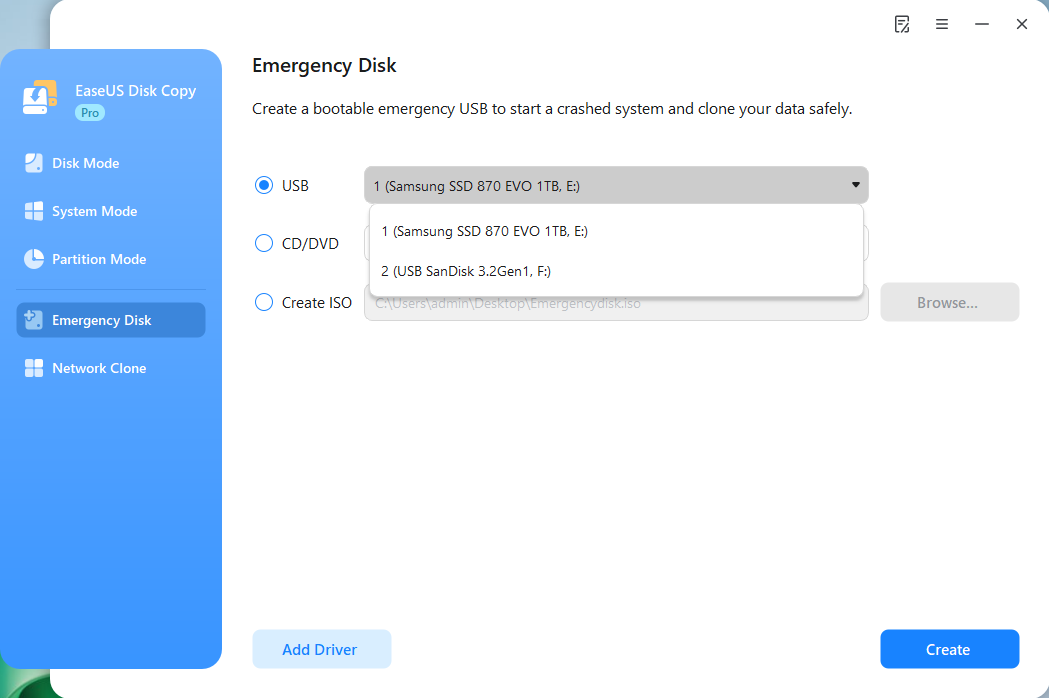
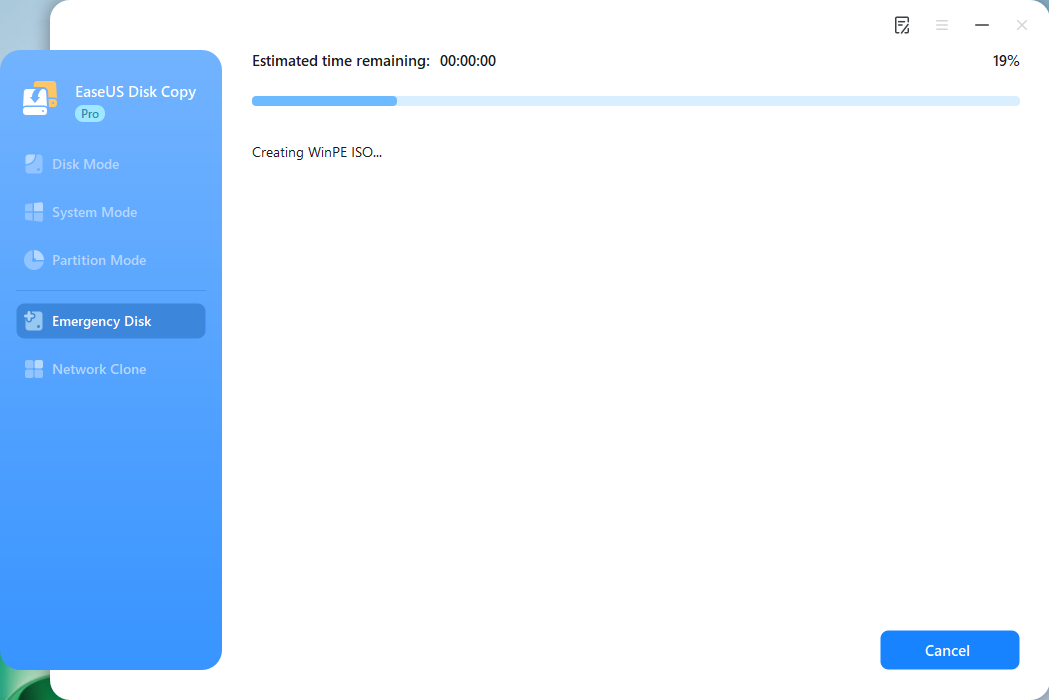
Click Create, wait for the process to complete, and then you'll get a bootable USB media.
Step 2. Boot another computer from the emergency USB.
Connect the bootable disk USB and a new SSD/HDD to the computer on which you want to clone the disk, and set the computer to boot from the bootable disk by changing the boot order in BIOS.
Step 3. Launch EaseUS Disk Copy and select Disk Mode.
Locate and launch EaseUS Disk Copy on the USB-booted computer, and click Disk Mode.
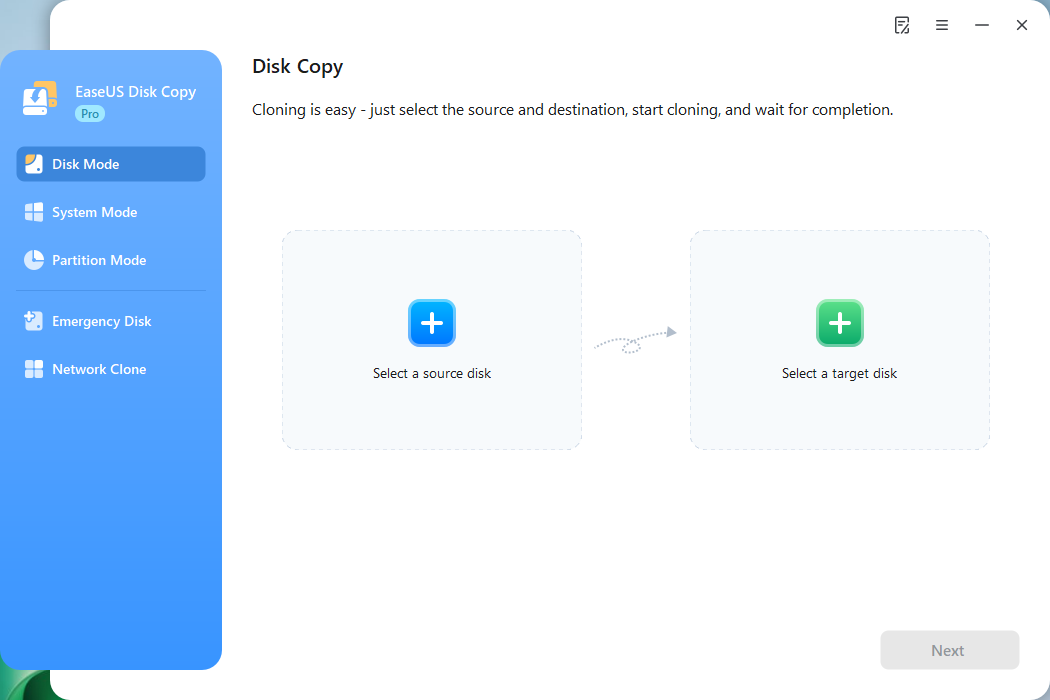
Step 4. Select source and target disks.
- Source - the disk you want to make a copy.
- Destination - the disk that you want to clone data to.
*Note that the used space of the source partition should be less than the target partition capacity.
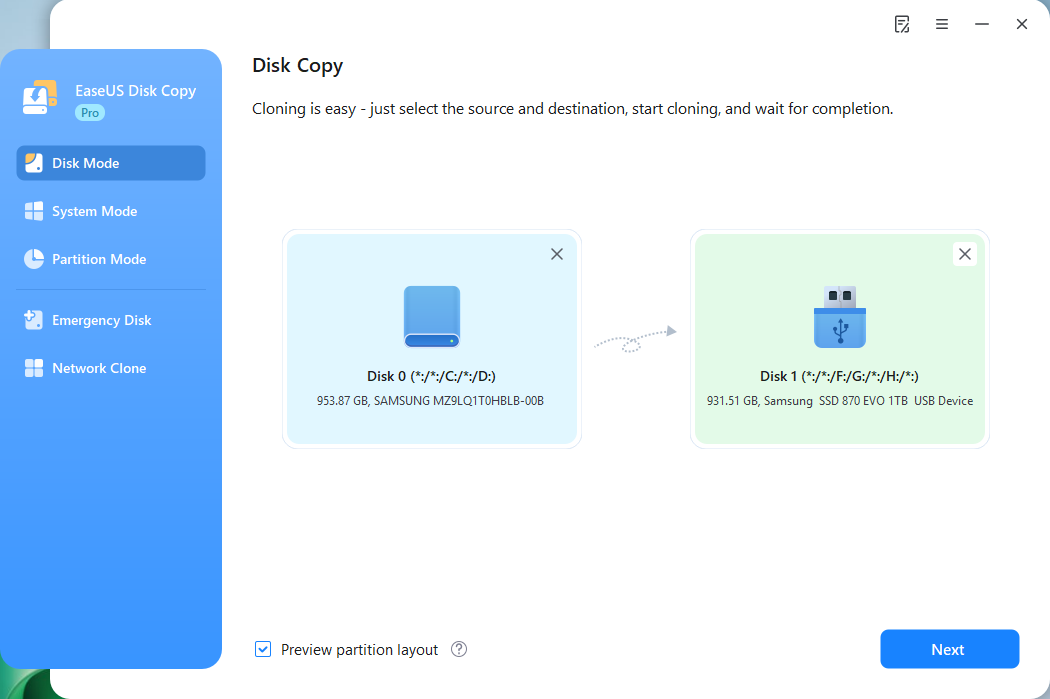
Step 5. Adjust target disk layout.
Specify the target disk layout as your preference. You can choose among:
- Autofit the disk: makes some changes by default on the destination disk layout so that it can work at its best.
- Copy as the source: create a 1-to-1 copy of your source disk; the layout is the same as the source disk.
- Edit disk layout: allows you to resize/move the layout on this destination disk manually.

Step 6. Start cloning.
Click Proceed, and a message will appear, warning you that data will be lost. Confirm the message by clicking Continue.

Now, it will start disk cloning.
After cloning finishes, shut down the computer and replace the original drive if needed. If you cloned a system disk, select the new drive as the boot device in BIOS/UEFI and check whether Windows starts normally. If both drives remain connected, verify the boot order. If the new drive fails to boot, check the boot mode, partition layout, and EFI System Partition (for UEFI systems). You may also need to repair the Windows boot configuration.
Share this article on social media to help others clone a disk from WinPE!
How to Fix Common WinPE Disk Cloning Problems
WinPE provides a separate working environment, but hardware compatibility and boot issues can still prevent disk cloning from working correctly.
| Problem | What to do |
| Computer won't boot from USB | Check the boot order, USB media, and firmware compatibility. |
| SSD or hard drive not detected | Check connections and whether WinPE has the required storage drivers. |
| Destination disk is too small | Check usable capacity and whether partition resizing is supported. |
| Cloning fails or stops | Check disk health, connections, available space, and error messages. |
| Cloned drive won't boot | Check system partitions, boot mode, and firmware boot order. |
Why Is My SSD Not Detected in WinPE?
First, check whether the SSD appears in BIOS/UEFI. If it appears in BIOS/UEFI but is missing in WinPE, a missing storage driver may be the cause. Some systems using Intel RST, VMD, or RAID configurations require additional driver support.
Check the computer or motherboard manufacturer's documentation before changing storage controller settings, as incorrect changes may prevent Windows from booting.
Why Won't the Cloned Drive Boot?
A cloned drive may fail to boot because of an incorrect boot order, missing system partitions, or mismatched firmware settings.
Check the destination disk's partition layout and confirm that the boot mode matches the original Windows installation. For UEFI systems, make sure the EFI System Partition and required boot files are present. If the problem persists, use Windows recovery tools to diagnose and repair the startup configuration.
WinPE Disk Cloning vs. Cloning in Windows
Both methods can clone a hard drive, but the right choice depends on your system and the cloning software you use.
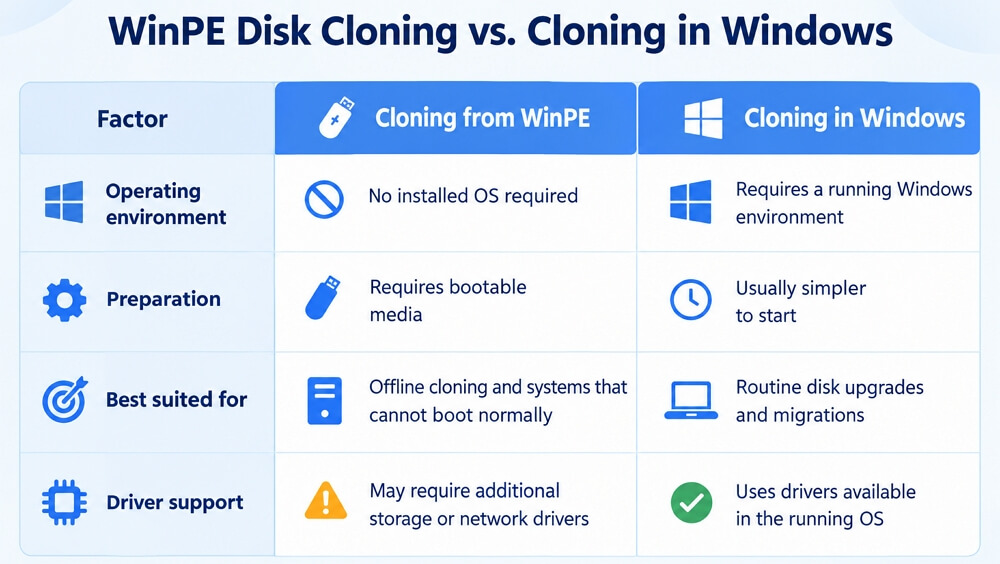
Choose WinPE when Windows cannot start, or you need to clone a disk outside the installed operating system. If Windows runs normally and your cloning software supports the operation, cloning directly in Windows is often more convenient.
Share this article on social media to help others clone a disk from WinPE!
Conclusion
Cloning a hard drive from WinPE is useful when Windows cannot boot normally or when you need to clone a disk outside the installed operating system. With a compatible tool such as EaseUS Disk Copy, you can boot from bootable media like USB or DVD/CD and clone your drive without starting Windows normally.
Before cloning, back up important data and confirm that WinPE can detect both drives. After cloning, verify the destination disk and boot configuration to ensure the new drive works as expected.
Free Download
Windows 11/10/8/7
FAQs on WinPE Clone Hard Drive
1. Can I clone a Windows system drive from WinPE?
Yes, if the cloning software supports cloning system disks and includes the necessary system partitions. After cloning, you may need to adjust the boot order or repair the boot configuration.
2. Can I clone a hard drive if Windows will not boot?
Yes. If you can boot into a compatible WinPE environment and the cloning software can access the required drives, you may be able to clone the disk without starting Windows. However, a failing source drive may cause read errors or prevent a complete clone.
3. Do I need to disable Secure Boot to use WinPE?
Not necessarily. This depends on the bootable media and your computer's firmware configuration. Check the software documentation before changing Secure Boot settings.
4. Can I clone a larger hard drive to a smaller SSD?
Yes, if the destination has sufficient usable space for the data and partitions being cloned and the software supports the required partition adjustments.
5. Will the cloned hard drive boot automatically?
Not always. Booting successfully depends on the cloned partitions, firmware settings, and hardware configuration. After cloning, verify the boot order and select the new drive if necessary.
-
Updated by
![Jerry]()
Jerry
"I hope my articles can help solve your technical problems. If you are interested in other articles, you can check the articles at the bottom of this page, and you can also check my Facebook to get additional help."…Read full bio