Page Table of Contents

PAGE CONTENT:
Unlike the basic copy command, Xcopy has advanced features for copying data from one place to another. Features like copying all subdirectories recursively and replicating the source directory when copying data from one drive to another make it more powerful. Do you still use Xcopy for clone Windows 11? EaseUS will offer what you can do to get better results.
How to Use Xcopy to Copy Data from One Drive to Another
Windows started rolling the Xcopy feature into the ecosystem from Windows 7, 8, 10, and more. It's more like an extension to the copy command, but Xcopy boasts a robust set of advanced features that help copy data from one drive to another. From copying the hidden files, file structures, directories, and subdirectories, XCopy quickly became an excellent copy alternative. Let us understand what Xcopy can do with an example.
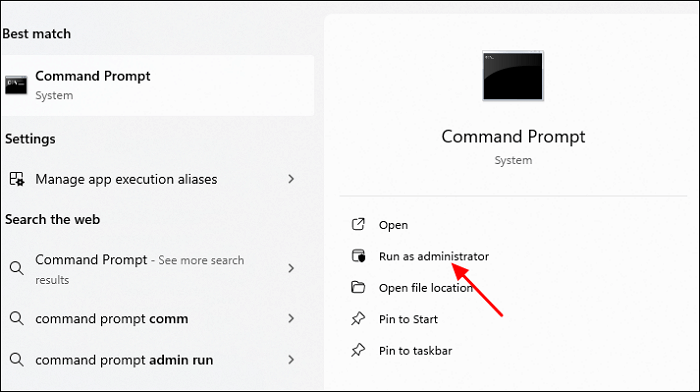
Step 1. Open Command Prompt on your Windows with Admin privileges by typing cmd in the search box.
Step 2. Use the Xcopy command below to copy data from one drive to another.
- xcopy e:\ f:\ /h/r/k/c/e/i/y
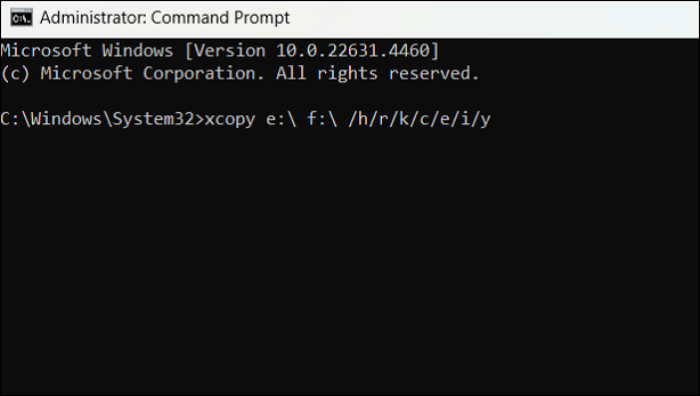
The above command will copy all files on E Drive to F Drive. The letters with the slash are the Xcopy options to specify how to copy the files. The e:\ and f:\ denote the source and destination drives, respectively. Here's what each letter in the copy command means:
- /h- copies and system files/folders are hidden.
- /r- overwrites read-only files in destination.
- /k- keeps the read-only attribute. With /k, all the read-only files retain the read-only file attributes after the data copy.
- /c- continues copying files even if an error occurs.
- /e- copies all directories, including the empty ones.
- /i- if in doubt, the Xcopy always assumes the destination is a folder. For example, when the destination folders do not exist.
- /y- assumes yes to all overwrites.
You can use all the parameters in combination to meet various requirements.
Share this article on social media to help others find an easy way to clone a hard drive!
What Are Limitations of Xcopy for Copying Disk
Xcopy is extremely powerful but works only for copying files and folders. Xcopy fails to copy the whole drive or partition if you want to clone one hard drive to another. Especially if you are trying to migrate a Windows operating system, boot files, or system files, you may need to get the desired results with the Xcopy command.
If the source and destination drives are not using the same file system (NTFS, FAT32, etc), you should change the entire file system before using the Xcopy command. In conclusion, Xcopy is a file/folder level copy rather than a partition/drive level copy. Additionally, people need help with Xcopy due to the command line interface.
Best Xcopy Alternative Free Download for Disk Cloning
If you want to clone a drive/partition, Xcopy does not work. So, to clone a hard drive safely, you need professional disk cloning software like EaseUS Disk Copy, which makes disk/partition cloning faster and safer with advanced algorithms.
 Free Download
Windows 11/10/8/7
With the bit-by-bit cloning process, you can safely copy the files, Windows, and boot files to the destination drive. Moreover, you can easily retain the exact folder and file structure without worrying about the file system type. Additionally, you can create WinPE disks and migrate data from one PC to another. Get Disk Copy now to clone Windows operating systems, partitions, or files.
Before cloning:
- If your computer has only one slot, connect the target disk to your machine via a USB-to-SATA/NVMe adapter.
- If your computer has an extra slot, install the target disk into the empty slot properly, and make sure it is compatible.
Step 1. Launch EaseUS Disk Copy and choose Disk Mode.
Install EaseUS Disk Copy cloning software on your Windows computer, then launch it and select Disk Mode from the left panel.

Step 2. Select the source drive.
Select the drive you want to copy, then click Select.
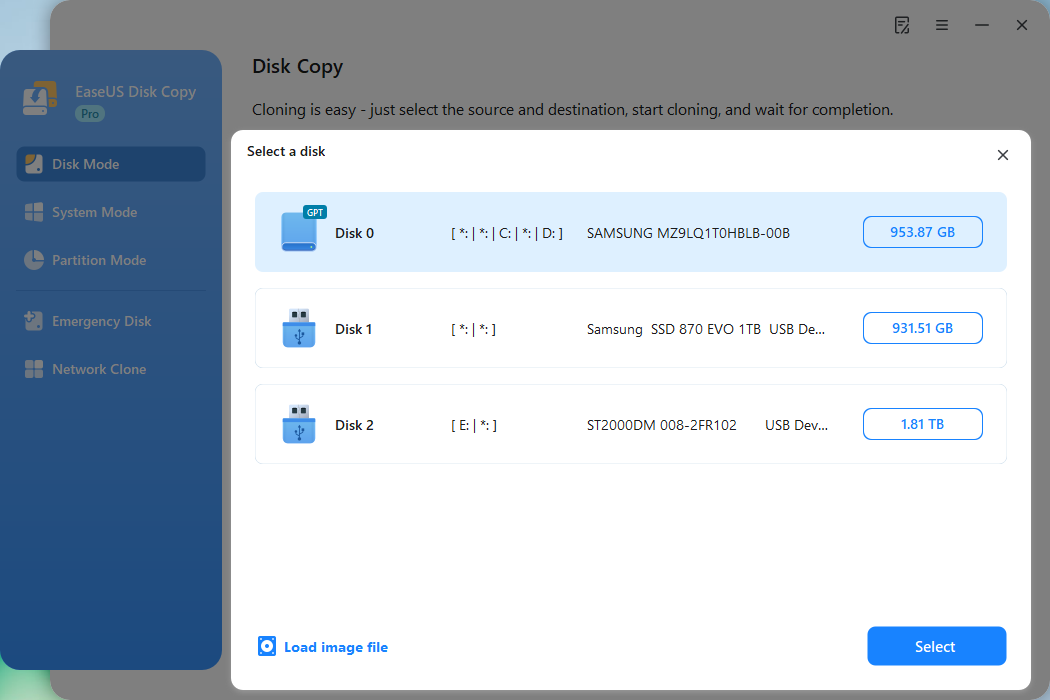
Step 3. Choose the target disk.
Choose the disk that you want to clone data to, and click Select. Note that the used space of the source disk should be less than the target disk capacity.
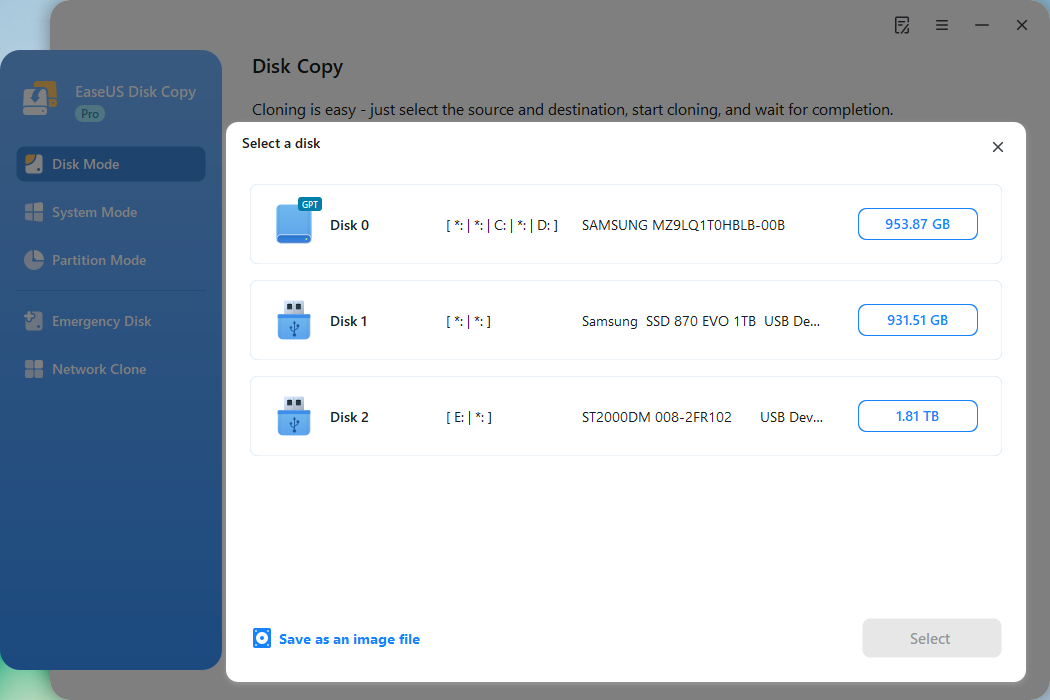
*At this step, you can also click the option "Save as an image file" to store your disk as a compressed image file, which can be restored without any data loss.
Step 4. Adjust disk layout.
Specify the target disk layout as your preference. You can choose among:
- Autofit the disk: makes some changes by default on the destination disk layout so that it can work at its best.
- Copy as the source: create a 1-to-1 copy of your source disk; the layout is the same as the source disk.
- Edit disk layout: allows you to manually resize/move the partition layout on this destination disk.
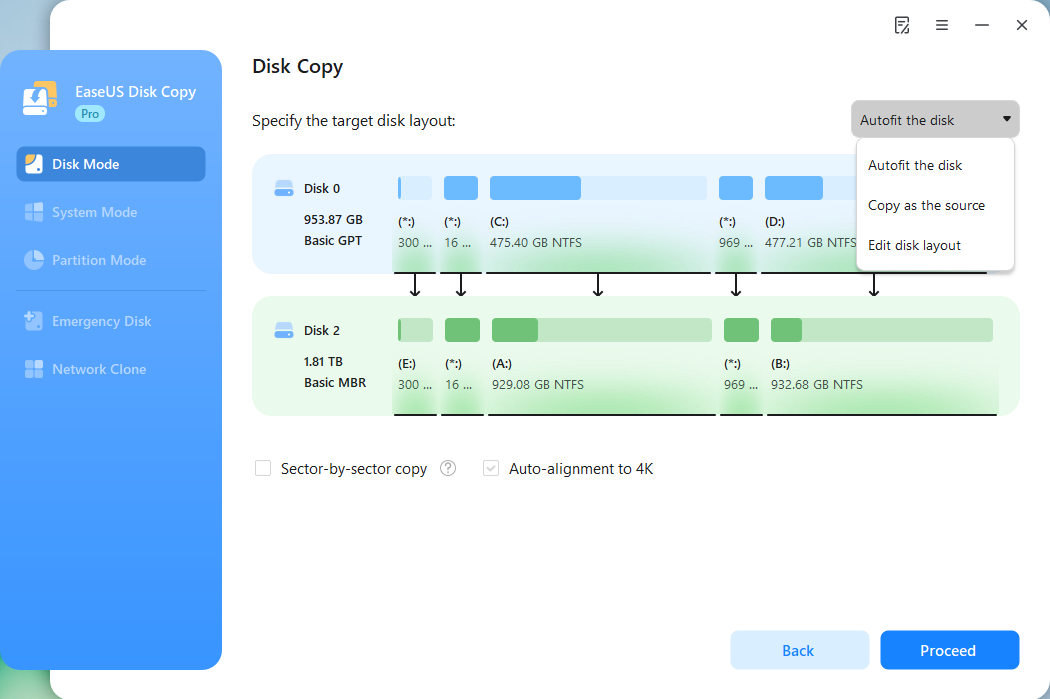
*If the target disk is an SSD, the option "Auto-alignment to 4K" will be checked automatically to optimize the performance of your SSD.
Step 5. Start cloning.
Click Proceed, and a message will appear, warning you that data will be lost. Confirm the message by clicking Continue.
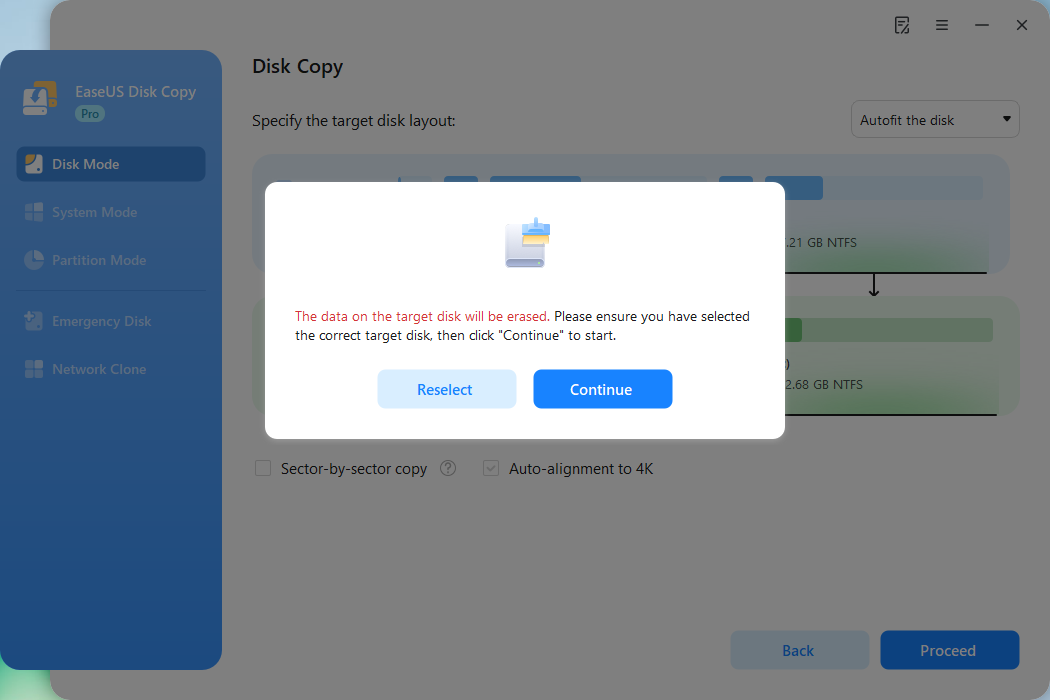
Now, it will start executing the cloning task.
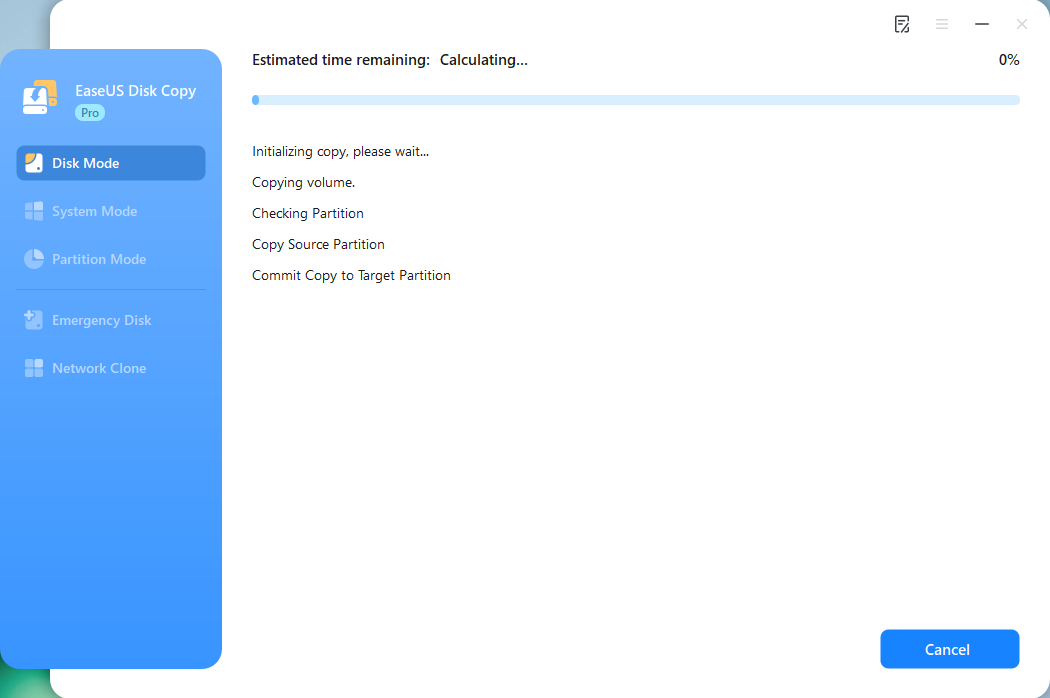
*The time it takes to clone a hard drive depends on how much data is on the source disk, and it will also be affected by the disk types, USB connection, etc.
To Sum Up
That's all about the "Do you still use Xcopy for clone Windows 11?" question. Although Xcopy is powerful enough to replicate the file and folder structure, it fails to clone one drive, Windows, partitions, or system files. Windows OS, data, and system files are crucial, and mismanagement may result in data loss. To avoid any loss and to ensure a safe copy of Windows 11, EaseUS Disk Copy is the ideal tool.
Free Download
Windows 11/10/8/7
FAQs on Do You Still Use Xcopy for HDD Clone
Here are some frequently asked questions "Do you still use Xcopy for cloning Windows 11?"
1. Is Xcopy obsolete?
Xcopy still works on Windows 10 but has been obsoleted in favor of Robocopy, a much better tool. Windows now ships Robocopy in all its servers and operating systems instead of Xcopy.
2. Does Xcopy and its switches still work in Windows 11?
Yes, Xcopy still works in Windows 11, and all its switches also work. Windows now ships Robocopy as the better Xcopy alternative; you can use Robocopy instead of Xcopy.
3. Can Xcopy make a bootable copy (clone) of Windows?
No, Xcopy can only copy data at the file/folder level. If you try to make a bootable clone, Xcopy is not suitable, as its capabilities are limited. You can try disk cloning software like EaseUS Disk Copy instead to create a bootable clone of Windows.
4. What's the best way to clone Windows 11?
The best option to clone Windows 11 safely is to use EaseUS Disk Copy. You can clone the entire hard drive to migrate Windows to another PC.
-
Updated by
![]()
Jerry
>"I hope my articles can help solve your technical problems. If you are interested in other articles, you can check the articles at the bottom of this page, and you can also check my Facebook to get additional help."…Read full bio