Page Table of Contents

PAGE CONTENT:
Acronis True Image is a professional tool for creating hard disk clones and images. It allows you to replicate operating systems, hard drives, and partitions and manage backup recovery. Additionally, it supports creating bootable USB drives or CDs/DVDs.
This EaseUS guide will show you how to use Acronis clone disk in detail and offer a more professional disk cloning tool for disk cloning!
Preparations for Cloning Disk with Acronis
Before cloning drive with Acronis, to ensure a foolproof cloning process, please pay attention to the following things:
1. OS: Windows
2. Disk: Both source and target disks are basic disks like MBR and GPT, not dynamic disks.
3. Compatibility: Drive compatibility, drive interface, file system, etc.
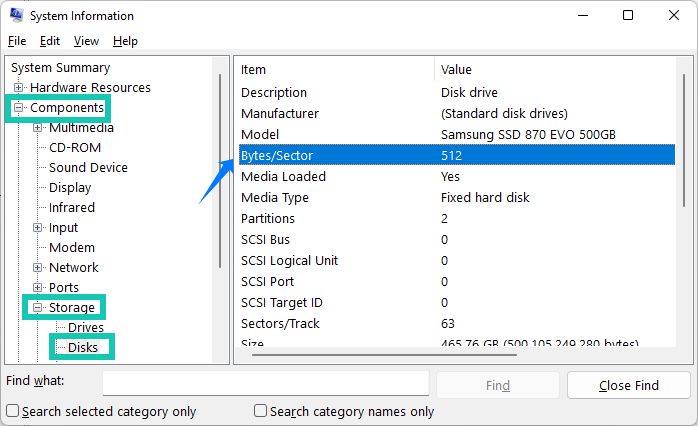
4. Sector size: The same logical sector size is necessary. Press Win+R to open the Run dialog box. Type msinfo32 and press Enter or click on the OK icon. Navigate to Components > Storage > Disks > Bytes/Sector.
5. Tools: A SATA port or a SATA-to-USB adapter to connect the drive
6. Back up data: Back up all the data on your drives to avoid losing data.
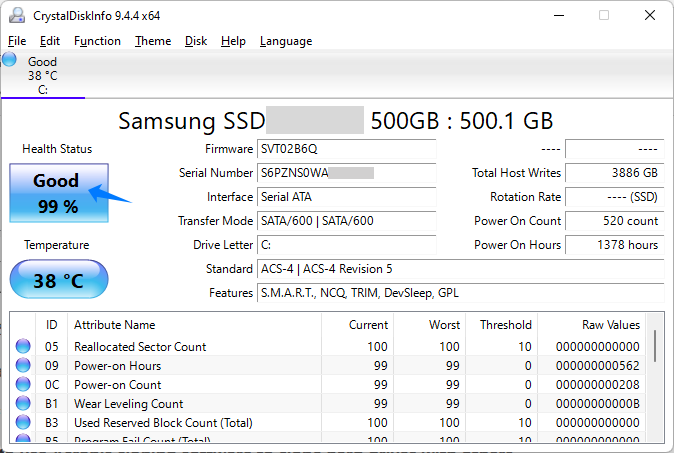
7. Check disk: Run disk detection and repair tools to ensure disk health.
Share this guide on how to use Acronis cloning software to clone hard drives with others.

How to Use Acronis to Clone a Hard Drive
This part will show you Acronis true image how to clone in detail. It's important to avoid interrupting the cloning process to prevent any potential data damage or loss. If you encounter any problems during the cloning process, please refer to the troubleshooting section in the Acronis documentation.
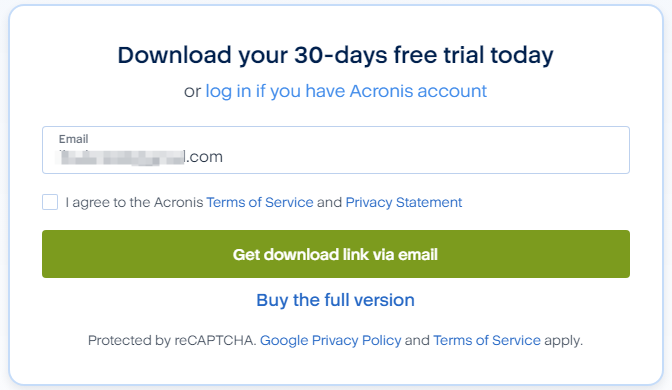
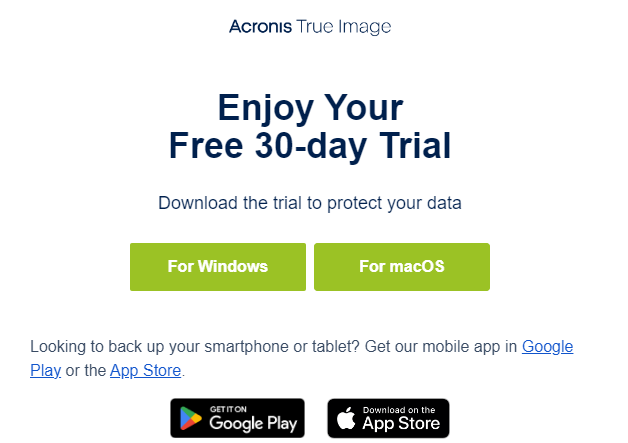
Step 1. Visit the Acronis official website and receive its download link via email.
Step 2. Download and install the Acronis app according to your device.
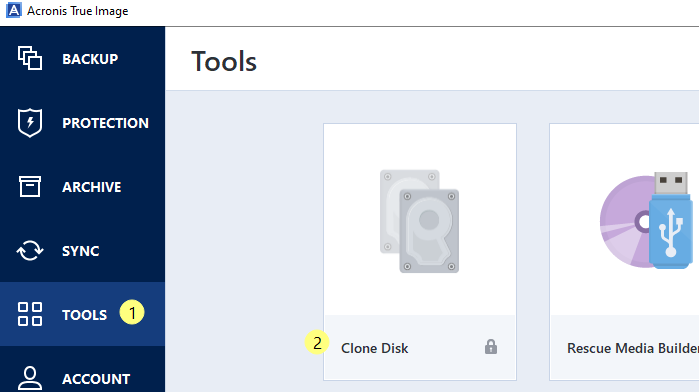
Step 3. Launch Acronis True Image and navigate to Tools > Clone Disk.
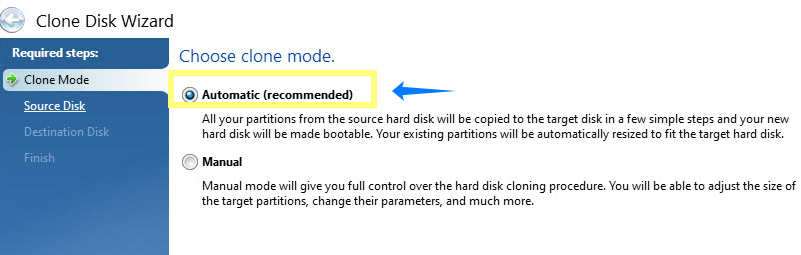
Step 4. Select the Automatic mode (recommended) or Manual mode as needed.
Step 5. Select the source disk and the destination disk.
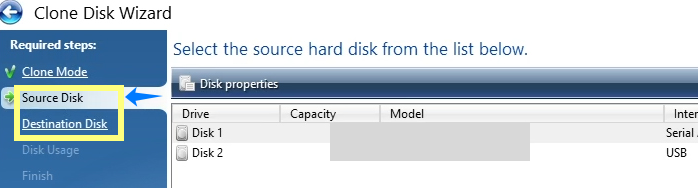
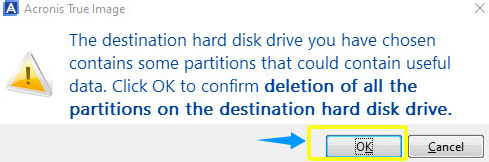
If the destination disk is partitioned, allow the software to erase all data on the destination disk.
Tip: Before deleting, make sure your data is backed up, otherwise it won't be repairable.
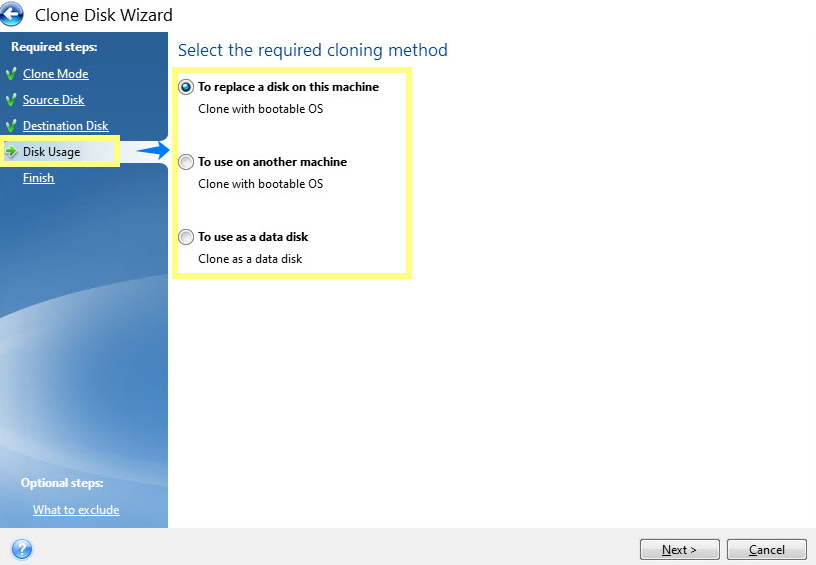
Step 6. Choose the corresponding cloning method based on your cloning goals.
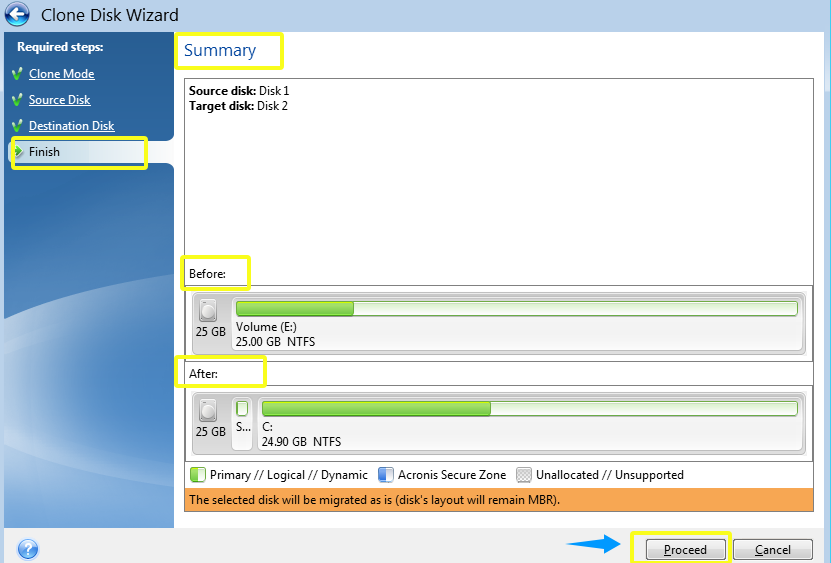
Step 7. Review the Summary of cloning information and click Proceed. If prompted to reboot, click Reboot to continue the cloning process.
Step 8. Once done, you can check the data you have transferred. If you clone the OS, please boot your system from the newly cloned disk to ensure everything is working well.
Share this guide on how to use Acronis cloning software to clone hard drives with others.
Use the Acronis True Image Alternative
Some users reported that Acronis may have compatibility issues with certain hardware configurations. To gain a seamless cloning experience, you can use disk cloning software alternative to Acronis True Image, such as EaseUS Disk Copy, to clone drives without losing data on your Windows PCs.
 Free Download
Windows 11/10/8/7
This disk cloning tool supports cloning HDD to SSD, HDD to HDD, SSD to M.2 SSD, and even cloning partitions. Additionally, this disk clone software can easily create a bootable disk for booting your new computer.
Highlights
- Simple to use and efficient disk cloning tool
- Transfer OS to a new hard drive without reinstalling OS
- Supports cloning small disk to large disk or large hard disk to small hard disk
- Clone disk with bad sectors, skipping error areas to minimize data loss
Meanwhile, it's worth noting that this cloning tool's download and installation time is shorter than that of Acronis.
Here are the steps on how to use this Acronis cloning software alternative to clone disks:
Before cloning:
- If your computer has only one slot, connect the target disk to your machine via a USB-to-SATA/NVMe adapter.
- If your computer has an extra slot, install the target disk into the empty slot properly, and make sure it is compatible.
Step 1. Launch EaseUS Disk Copy and choose Disk Mode.
Install EaseUS Disk Copy cloning software on your Windows computer, then launch it and select Disk Mode from the left panel.

Step 2. Select the source drive.
Select the drive you want to copy, then click Select.
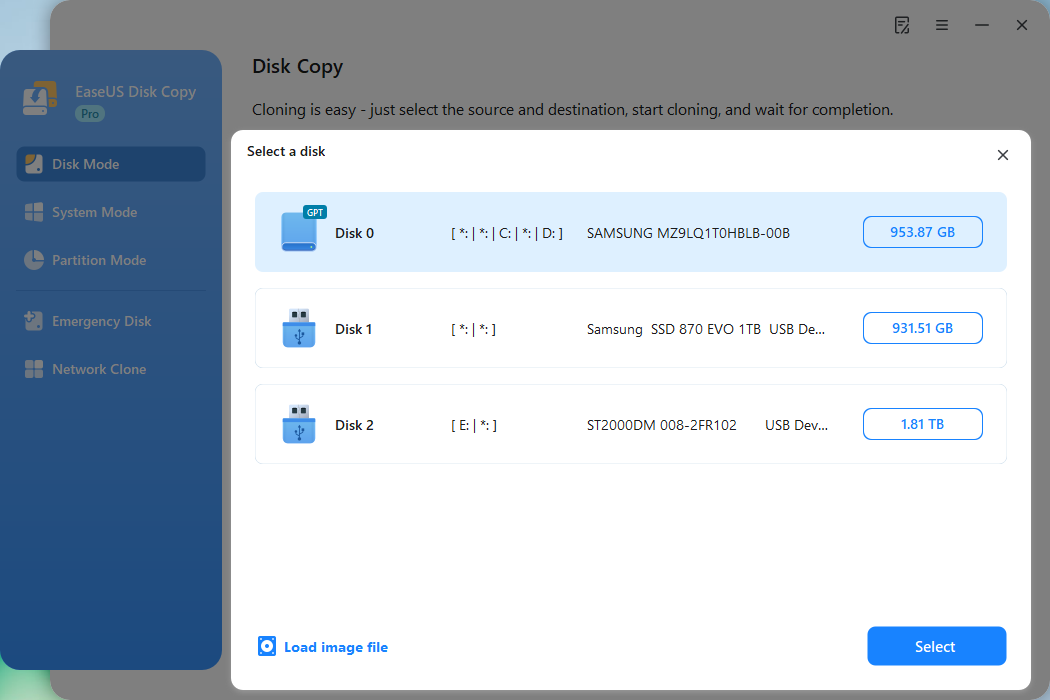
Step 3. Choose the target disk.
Choose the disk that you want to clone data to, and click Select. Note that the used space of the source disk should be less than the target disk capacity.
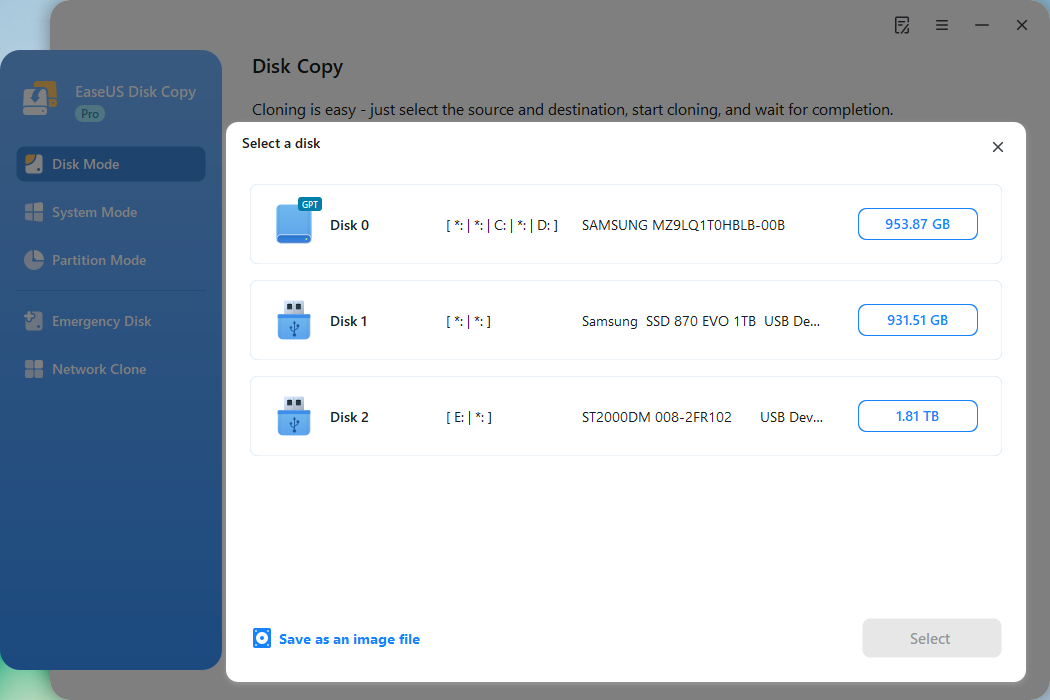
*At this step, you can also click the option "Save as an image file" to store your disk as a compressed image file, which can be restored without any data loss.
Step 4. Adjust disk layout.
Specify the target disk layout as your preference. You can choose among:
- Autofit the disk: makes some changes by default on the destination disk layout so that it can work at its best.
- Copy as the source: create a 1-to-1 copy of your source disk; the layout is the same as the source disk.
- Edit disk layout: allows you to manually resize/move the partition layout on this destination disk.
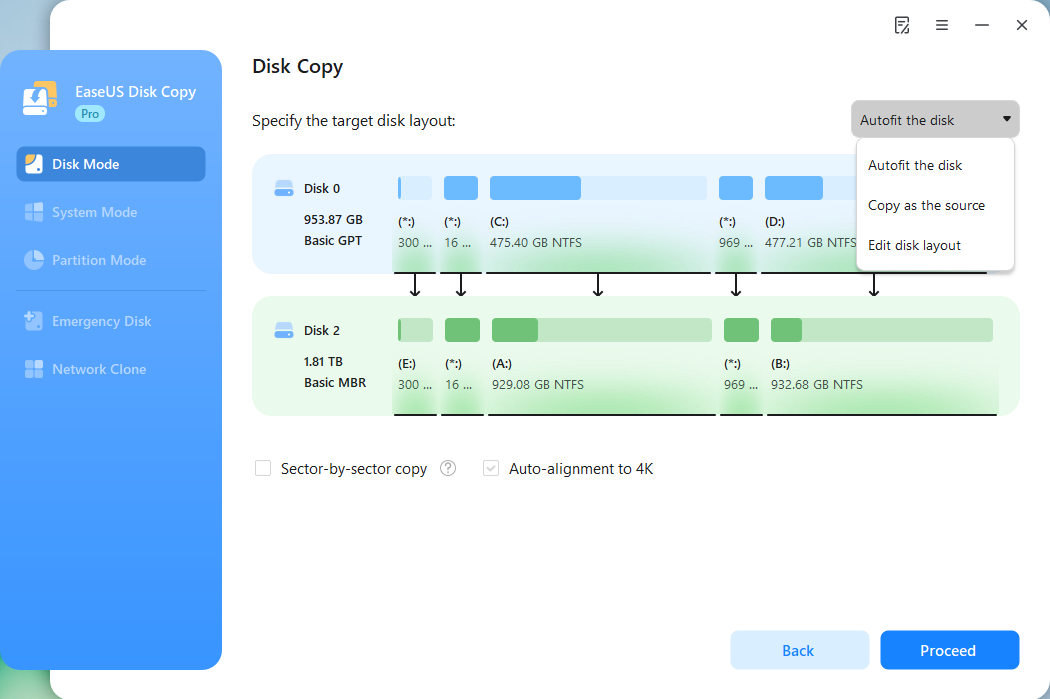
*If the target disk is an SSD, the option "Auto-alignment to 4K" will be checked automatically to optimize the performance of your SSD.
Step 5. Start cloning.
Click Proceed, and a message will appear, warning you that data will be lost. Confirm the message by clicking Continue.
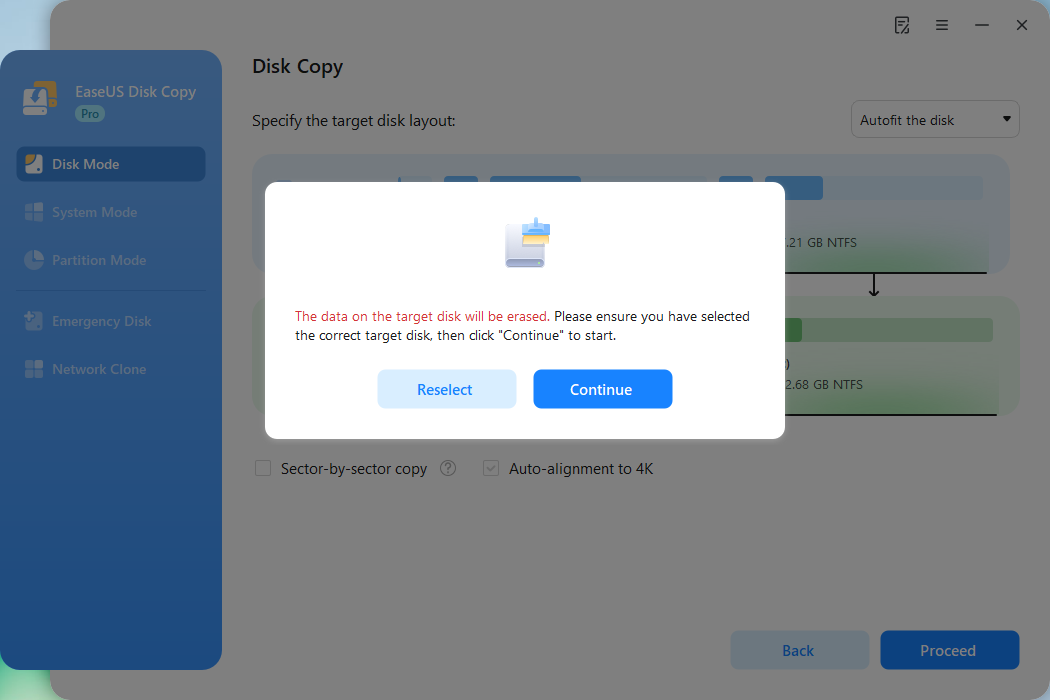
Now, it will start executing the cloning task.
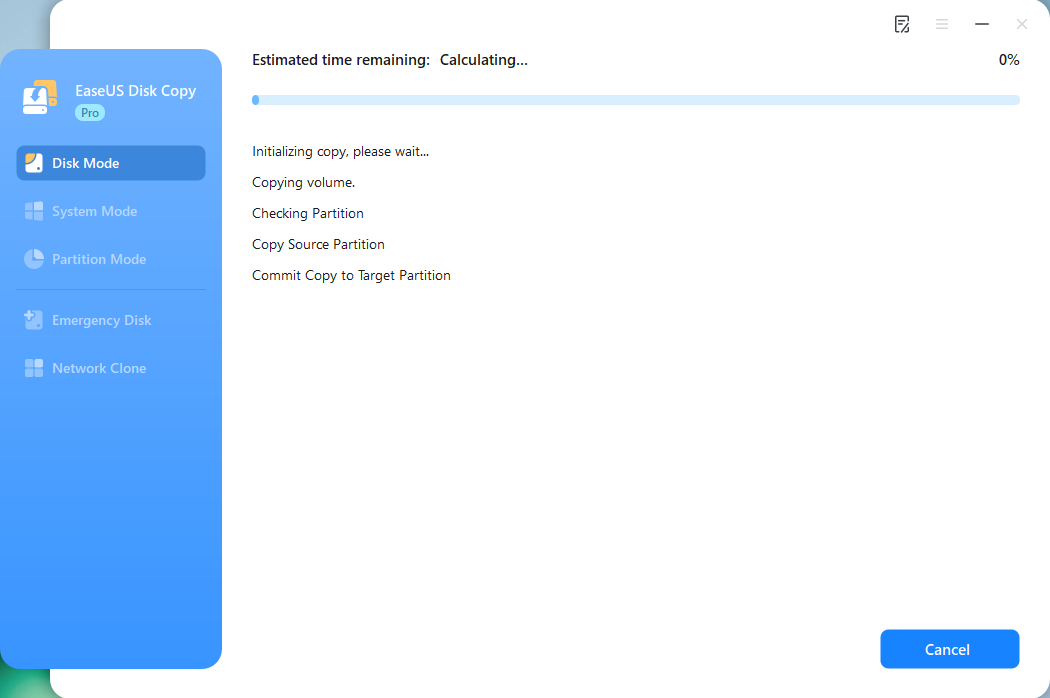
*The time it takes to clone a hard drive depends on how much data is on the source disk, and it will also be affected by the disk types, USB connection, etc.
Share this guide on how to use Acronis cloning software to clone hard drives with others.
Conclusion
This comprehensive guide tells you how to use Acronis cloning software to clone drives. At the same time, EaseUS Disk Copy, a more straightforward, easier-to-use, and professional cloning software, is also a better choice for cloning HDD to SSD, SSD to HDD, or cloning boot disk. Now, download this Acronis True Image Alternative to experience seamless cloning.
Free Download
Windows 11/10/8/7
How to Use Acronis to Clone Disk FAQs
1. How long does it take to clone a hard drive with Acronis?
The time to clone a hard drive with Acronis depends on the drive size and transfer speed. For example:
- A 500GB drive at 100MB/s may take about 1.5 hours.
- A 1TB drive could take 3 to 6 hours.
2. Can I use Acronis to clone to a smaller disk?
Yes, you can use Acronis to clone to a smaller disk. Acronis will automatically resize the partitions proportionally to fit the new disk.
3. Why is Acronis clone so slow?
The main reasons why Acronis cloning is slow include:
- The hard disk read and write speed is slow, or the overall system performance is insufficient.
- The hard disk data to be cloned is too large.
- The external hard drive connection is unstable, or the interface speed is limited.
- Interference from other programs or file permission issues cause cloning to be stuck.
If the issue persists, you can use another cloning tool like EaseUS Disk Copy, offering a more efficient cloning experience.
-
Updated by
![]()
Alin
Alin is an experienced technical blog writing editor. She knows the information about screen recording software on the market, and is also familiar with data cloning and data backup software. She is expert in writing posts about these products, aiming at providing users with effective solutions.…Read full bio