





-
![]() How to Fix Corrupted Video on Windows 10/Android/SD Card - 3 Ways
How to Fix Corrupted Video on Windows 10/Android/SD Card - 3 Ways October 29,2026
 6 min read
 -
![]()
-
![]()
-
![]() Lost BitLocker Recovery Key? Here's How to Get It Back EasilyOctober 29,20266 min read
Lost BitLocker Recovery Key? Here's How to Get It Back EasilyOctober 29,20266 min read -
![]()
-
![]() How to Recover Ghosted Image Data with Ghost Recovery Software [Easy]October 29,20266 min read
How to Recover Ghosted Image Data with Ghost Recovery Software [Easy]October 29,20266 min read -
![]()
-
![]() What Is the Best SSD Data Recovery Software? 6 Top SolutionsOctober 29,20266 min read
What Is the Best SSD Data Recovery Software? 6 Top SolutionsOctober 29,20266 min read -
![]()
-
![]()
Page Table of Contents
PAGE CONTENT:
What Is RAID Partition Recovery
Think of RAID partition recovery as regaining access to partitions in a RAID setup that have been deleted, lost, corrupted, or simply won't show up anymore. RAID, by its nature, strings multiple drives into a single system to boost speed or offer redundancy (or a mix of both), depending on your RAID level.
A RAID array usually appears as one or more big "volumes," which are divided into partitions and formatted (think NTFS, exFAT, etc.). If you accidentally delete a partition or the partition table gets trashed, the files might still linger physically on the disks, even if Windows or your OS can't reach them the usual way.
Now, let's untangle three similar terms people often mix up:
- RAID partition recovery: Undoes partition deletions or lets you get at the stuff inside one.
- RAID data recovery: Focuses more narrowly on pulling files out from a RAID, even if the file system or partition is gone.
- RAID repair: Fixes structural issues - config glitches, hardware controller issues, or physical disk failures.
They're all cousins, but they don't do the same thing. Sometimes you'll recover files without recreating the original partition, and sometimes repairing the array won't recover deleted photos.
Why Does a RAID Partition Get Lost or Become Inaccessible
You need to understand why the partition went missing. Sometimes, it's a tiny glitch; other times, the entire RAID is hosed, or the hardware's dying. The root cause determines your next move and keeps you from overwriting recoverable data.
1. Accidental Deletion
Maybe you were in Disk Management and deleted the wrong partition, or clicked a checkbox you didn't mean to in the RAID management software. Deleting a partition usually wipes the identifiers (the "map"), not the data, unless you create a new volume, format the space, or keep writing data, which can overwrite the files you were hoping to recover.
2. Partition Table or File System Corruption
Partition tables tell your system how to organize everything on disk. If you mess that up because of shutting down improperly, your OS may suddenly not see the partition anymore. Sometimes the drive shows up as "RAW," or you get an annoying message about formatting before you can use it. In lots of cases, the files are still there; they're just hidden behind a wall of gibberish.
3. RAID Controller Problems or Configuration Changes
The RAID controller is what keeps all your drives working together. If that piece breaks or you mess with the configuration (swapping RAID modes, switching controllers, or shuffling the disk order), the system might lose track of your volume, even though the data itself isn't gone.
Before you poke around in the controller settings, jot down your current setup. Even better, stop and get help if you aren't 150% sure what you're doing.
4. Physical Drive Failure or Rebuild Gone Wrong
If one or more disks start failing, clicking, overheating, or disconnecting randomly, your RAID can become toast fast, especially on levels that don't have true redundancy (like RAID 0). Trying an array rebuild without fixing the real broken drive can make things even worse.
If stuff starts to sound or smell "off" (literally), stop messing with the drives. Software fixes won't solve real hardware damage.
How to Recover a RAID Partition and Restore Lost Data
If you've lost a RAID partition but your array is still healthy enough to show up in Windows, data recovery is where you start. Repairing the RAID structure can wait; you need to get your files out first.
EaseUS Data Recovery Wizard is a recommended tool for this, especially when you're dealing with logical errors, accidental deletions, or something that didn't physically wreck the hardware. Whether this works or not depends on your array's state, the RAID level, and if anything important got overwritten.
Follow this guide to apply EaseUS partition recovery software to recover a RAID partition:
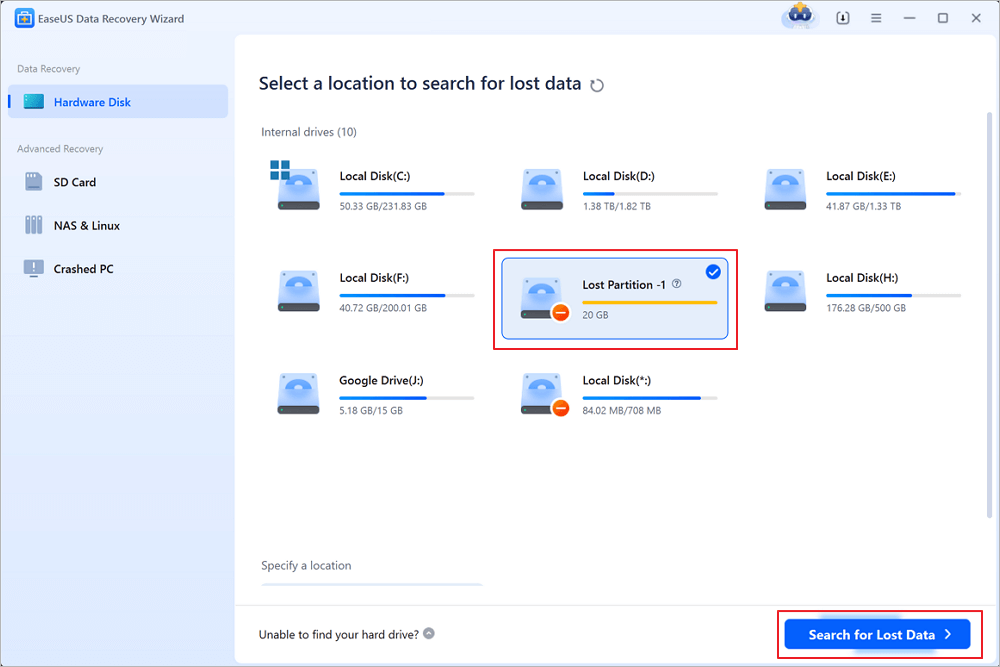
Step 1. Select and scan the lost partition
Launch EaseUS Data Recovery Wizard, select "Lost Partition" and click "Search for Lost Data" to search for all the lost data from your lost or deleted partition. If there are many lost partitions, you can identify them through its partition size.
Note: Since the Windows system doesn't support the Linux file system, the Ext2 or Ext3 partition will be recognized as lost partition with no drive letter in the software. If you want to recover data from Ext2/Ext3 partition, you can follow these steps.
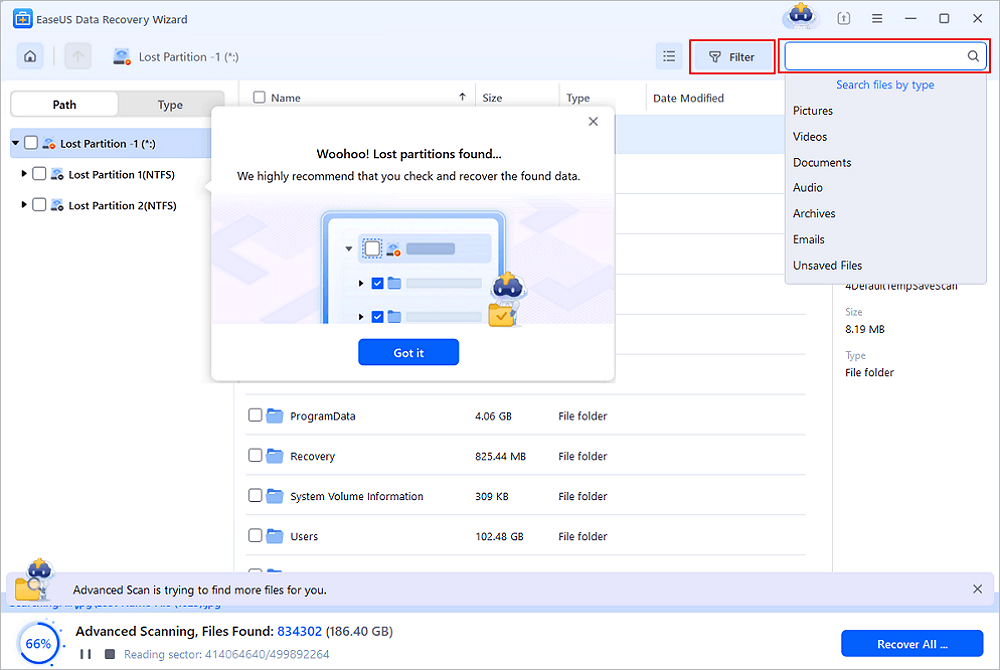
Step 2. Filter the scanned results
Because there will be a lot of scanned files, you can choose a file category for quick filtering, such as Pictures, Videos, Documents, Audio, and Others. Or if you remember the file name, you can just look it up in the search box in the upper right corner.
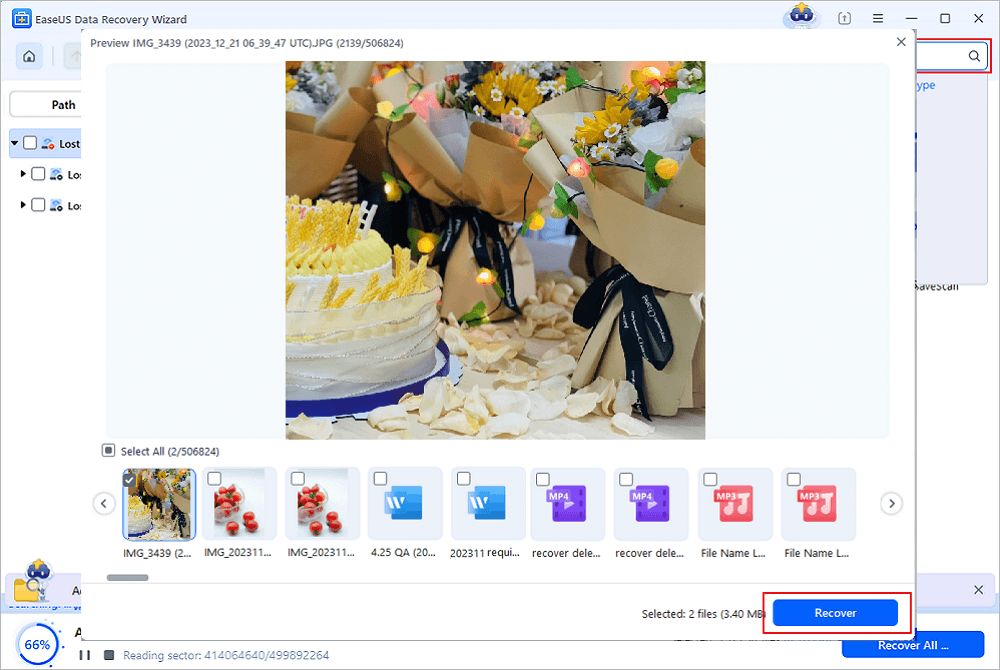
Step 3. Preview and recover data from the lost partition
Before recovery, you can preview the file to make sure it is the data you need. Choose all the files you need and click "Recover" to restore them. Choose a storage location (including cloud storage, such as OneDrive, Google Drive, etc.), and click "Save" to save your recovered files.
Feel free to share this RAID data recovery guide on social media and help more readers!

How to Prevent RAID Partition Loss in the Future
RAID isn't a magic shield. It's not a substitute for backups, and it won't protect you from yourself or from catastrophic hardware failure. Here's how to avoid getting burned again:
1. Back Up RAID Data Regularly
Never rely on RAID alone. Schedule real, independent backups - external drives, cloud, whatever fits your needs. Test those backups, too. RAID 1 and RAID 5 will not save you from accidental deletions or ransomware; they'll just dutifully mirror the disaster.
2. Watch Drive Health
Check for warning signs in your RAID management utility or health monitoring tools: bad sectors, repeated disconnects, and rising error counts. Swap failing drives as soon as you spot trouble, and always follow the proper rebuild procedure.
3. Minimize Risky Changes
Think twice before deleting partitions, playing with RAID modes, or swapping hardware. Always document your current configuration and make a backup first.
4. Guard Against Hardware Disasters
Use a UPS to prevent data corruption caused by power outages. Keep things cool and well-ventilated. Even simple steps can prevent hardware mishaps that topple an array.
5. Make a Recovery Plan
Know your RAID setup, controller details, backup locations, and exactly what to do if a drive fails. Make sure everyone who manages your storage knows when to stop tinkering and get expert help.
Conclusion
RAID partition recovery depends on what broke, your RAID level, whether the drives are healthy, and if the data is still there. Sometimes, you can grab your files with recovery tools. Other times, you'll need professional help, especially when hardware goes bad or the array just won't show up.
Don't rush into formatting, rebuilding, or changing things before saving your important data. Back up your stuff and treat RAID as a performance or redundancy tool, not your only line of defense.
RAID Partition Recovery FAQs
1. Can I recover a deleted RAID partition?
Absolutely, if the data hasn't been overwritten and the drives still work, you can probably recover files with data recovery software. There's no guarantee you'll get everything or that the structure will be perfect, but you stand a good chance as long as you act fast and don't keep writing new data.
2. What is the best software for RAID partition recovery?
The appropriate tool depends on the RAID level, the type of failure, and whether the array can be accessed. EaseUS Data Recovery Wizard is one good option to consider for recovering lost files from supported and accessible storage. If the array cannot be recognized or requires reconstruction, specialized RAID recovery tools or professional services may be necessary.
3. Can I recover a RAID partition that shows as RAW or unallocated?
Possibly. RAW status may indicate file system corruption or an unsupported file system, while unallocated space may indicate that partition information is missing. Avoid formatting or creating a new volume before attempting data recovery, because those operations may overwrite recoverable information.
Was this page helpful?
-
Dany is an editor of EaseUS who lives and works in Chengdu, China. She focuses on writing articles about data recovery on Mac devices and PCs. She is devoted to improving her writing skills and enriching her professional knowledge. Dany also enjoys reading detective novels in her spare time. …

 Why Trust EaseUS
 Editor Reviews

20+
Years of experience

160+
Countries and regions

72 Million+
Downloads

4.9 +
Trustpilot Score





