







Content
Page Table of Contents
About the Author
Hot Topics

Updated on Oct 31, 2026
Quick Answer: C Drive or D Drive for Games?
Both drives work for gaming. The better choice depends on the storage device and the space available.
- Choose C drive if it is a fast SSD with enough room for Windows and your games.
- Choose D drive if C is running low on space or D has more storage.
- Choose an SSD over an HDD when loading speed matters.
You don't need to install every game on C just because Windows is there. Many PC gamers keep Windows on C and install their games on D. This setup leaves more room for system files and Windows updates. Still, the drive letter doesn't tell the whole story. C might be an SSD, while D is an HDD. Some PCs also split one SSD into C and D partitions. Check your disk setup before moving your games.
This guide explains when to install games on the C drive or D drive. If you want more detail, let's dive in.
C Drive vs. D Drive for Gaming: What's the Difference?
Windows C Drive or Separate Drive for Games? Storing games on your C drive OR on a complete separate drive OR on drive partition? Personally, I like to store games and other stuff on a separate drive because of BSOD errors I lost my data a few times (restore point, system image nothing worked). Now, I just use Windows C drive for storing applications and programs. from Reddit
C usually holds Windows, along with drivers, applications, and system files. D is often used for games and personal files. The difference comes down to how each drive is set up.
| Factor | C Drive | D Drive |
|---|---|---|
| Common use | Windows, apps, and system files | Games, media, and personal files |
| Gaming speed | Depends on the SSD or HDD | Depends on the SSD or HDD |
| Free space | Shared by Windows, apps, and games | Often has more room for large game libraries |
| Windows updates | Needs free space for updates and temporary files | Extra space does not directly increase C drive capacity |
| Best use | Windows and games that fit comfortably | Large games and files that would crowd C |
One thing is easy to overlook: C and D might be partitions on the same physical SSD. Installing a game on D frees up space on C, but it doesn't give the game a separate drive or make it run faster.
To check your available space, open File Explorer and select This PC. For a closer look at your disks, right-click Start and open Disk Management. The disk layout shows which partitions belong to the same physical drive.
Does Installing Games on C or D Drive Affect Performance?
The storage device matters more than the drive letter. An SSD usually loads games faster than an HDD. Moving a game between two similar SSDs often makes little difference to loading times.
Here are the main things to consider.
- Loading times: Games installed on an SSD usually start faster. Levels and maps may also load more quickly. The difference depends on the game and the hardware.
- FPS: Installing a game on D instead of C doesn't automatically change its frame rate. The CPU and GPU usually have a much greater effect on FPS. Slow storage can still cause delays when a game loads assets.
- Windows performance: A nearly full C drive leaves less room for temporary files and updates. Freeing up space helps Windows manage these tasks. It won't fix every performance problem, but it removes one possible source of trouble.
- Game updates: Some updates need extra space to unpack or replace files. A game might fit on the drive and still fail to update if there isn't enough room for the update process.
For most gaming PCs, an internal SSD is a good choice for games with frequent loading screens or large environments. A second SSD works just as well when its performance is similar.
When to Install Games on the C Drive
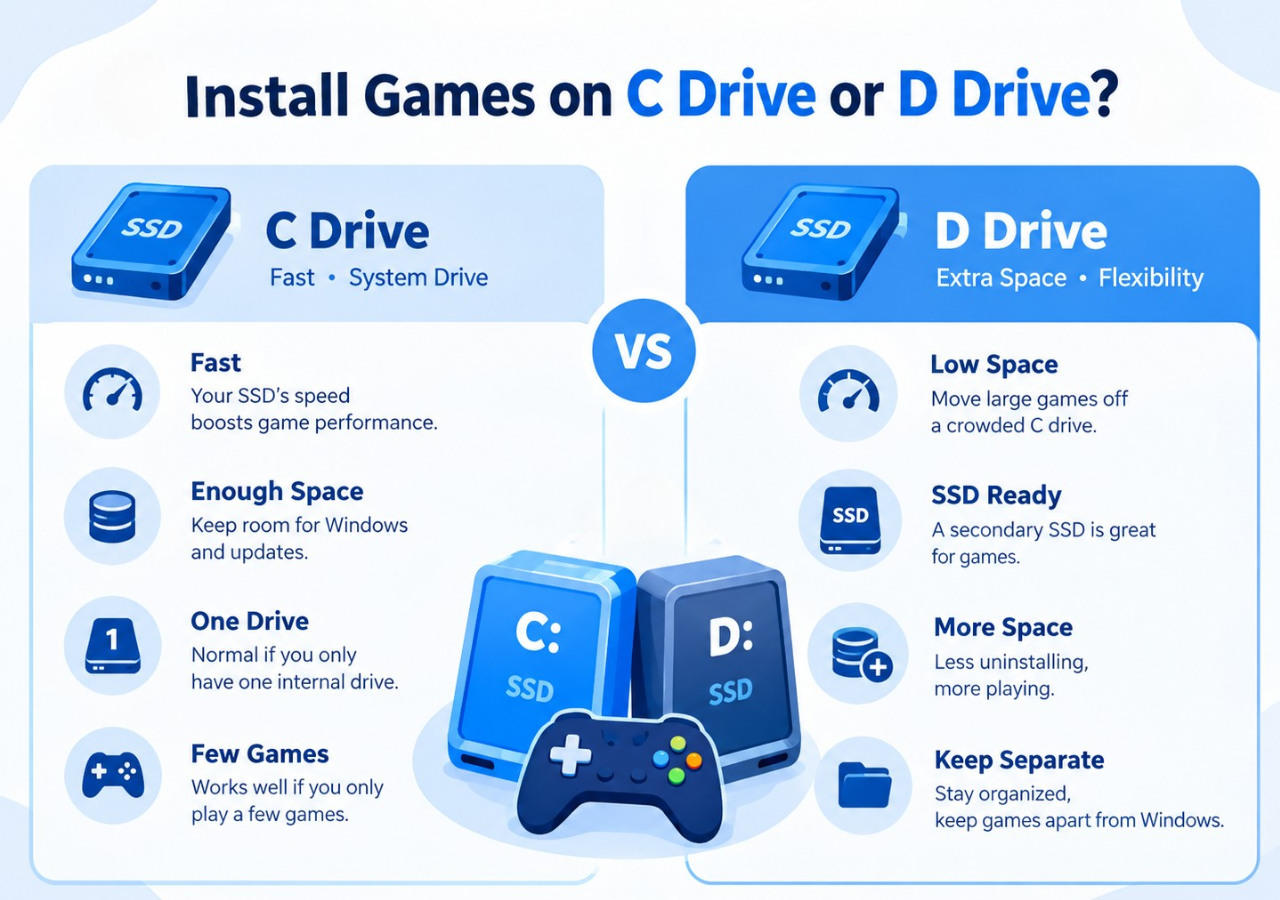
There's nothing wrong with installing games on C. It makes sense when the drive is fast and has enough room for Windows, applications, and game updates.
C is a good choice when:
- C is your fastest SSD. Keep games that benefit from fast storage on it.
- You have enough free space. Leave room for Windows and future game updates.
- Your PC has only one internal drive. Installing games on C is normal in this setup.
- You only play a few games. A small game library might fit comfortably alongside Windows.
The main problem starts when games take up most of the available space. Large installations and updates can quickly eat into the room Windows needs. If C is already nearly full, install your next game elsewhere if you have a suitable drive.
📖Further Reading: What to do if games are filling up the C drive? Click to learn how to move games, clean up space, and extend the C drive.
When to Install Games on the D Drive
D is often a convenient place for games, especially when you have a large library. You can keep your game installations together and leave more space on C for Windows.
Install games on D when:
- C is running out of space. Large games are often the first files worth moving off a crowded system drive.
- D is an SSD. A secondary SSD is a good choice for games, even when Windows is installed on another SSD.
- D has more free space. You won't need to keep uninstalling games to make room for new ones.
- You want to keep games separate from Windows. A dedicated game library makes storage easier to manage.
What if D is an HDD and C is an SSD? Keep your most-played games on C if space allows. Put older games or titles you rarely play on D. This gives you more room without sacrificing SSD loading speeds for every game.
Also check whether D is internal or external. An external drive's speed depends on the drive and its connection. Disconnecting it while a game is running can cause problems. An internal drive is usually more convenient for a permanent game library.
What to Do If Your C Drive Is Full
A full C drive doesn't always mean you need to uninstall your games. First, check what's using the space. You might only need to remove unnecessary files or move a few large installations. If C is too small for your needs, you can extend the partition.
1. Extend the C Drive with EaseUS Partition Master
If C keeps running out of space, giving it more capacity is worth considering. This is especially useful when D has plenty of free space but Windows still reports that C is nearly full.
Windows Disk Management has a limitation. It usually extends C drive only when unallocated space sits immediately to its right on the same physical disk. Free space inside D doesn't automatically meet this requirement. You might need to shrink or move a partition before extending C.
EaseUS Partition Master provides partition resizing and moving tools in one interface. You can check the disk layout and see how the partitions are arranged before making changes. When the layout allows it, you can allocate space from another partition to C without deleting your game library first.
What you can do with EaseUS Partition Master:
- Extend C drive: Add available space to the system partition.
- Resize or move D drive: Adjust the partition layout when free space isn't in the right place.
- Review your disk layout: Check partition sizes and positions before applying changes.
- Keep installed games: Increase C drive instead of removing games just to free up storage.
How to extend C drive with EaseUS Partition Master:
Extend System C drive with unallocated space
- 1. Right-click on the System C: drive and select "Resize/Move".
- 2. Drag the system partition end into the unallocated space so to add it to the C: drive. And click "OK".
- 3. Click "Execute Task" and "Apply" to execute the operations and extend the C drive.
2. Free Up Unnecessary Files
Games aren't always the biggest space users on C. Downloads, temporary files, and applications you no longer use can also take up room.
Step 1. Go to Settings > System > Storage.
Step 2. Check which categories use the most space. Start with temporary files and installed applications.
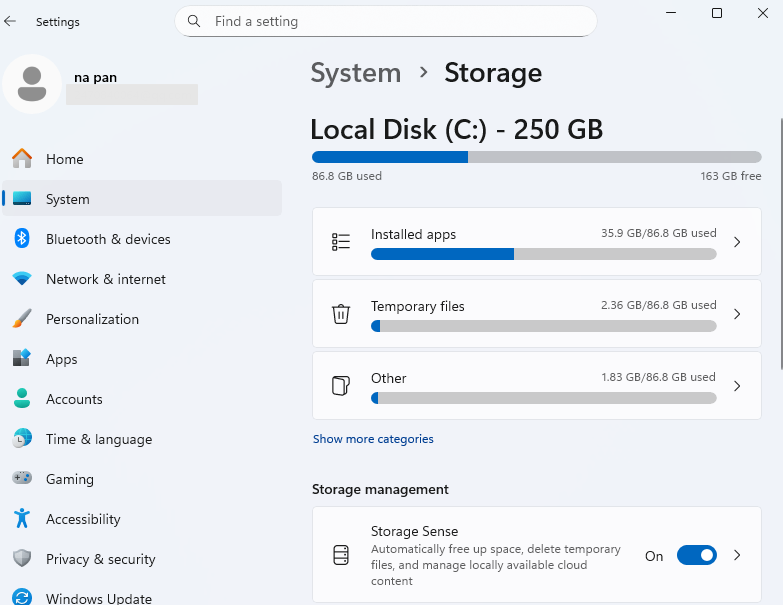
Step 3. Remove files you no longer need. Move large personal files, such as videos, to D if you want to keep them.
Step 4. Check the available space on C again.
Windows also has Storage Sense, which helps remove selected temporary files automatically. Check its settings before using it. Don't delete unfamiliar files from Windows or AppData folders manually. Some applications store settings and important data there.
3. Move Games to the D Drive
If D has enough free space, you can move a few large games to the D drive. Use the launcher to move an installation whenever possible. Manually dragging a game folder to another drive may break its file paths.
For example, Steam has a built-in option for moving games between library locations.
Step 1. Open Steam and go to Settings > Storage.
Step 2. Add a library location on D if one doesn't already exist.
Step 3. Select the drive containing the game. Choose the game and select the available Move option.
Step 4. Wait for the transfer to finish. Launch the game to make sure it works.
Other launchers use different procedures. Check their instructions before moving an installation. Game saves are often stored separately from the installation folder. Back up important saves if you're unsure where they are kept.
📖Further Reading: How to Move Games from C Drive to D Drive
Conclusion
For gaming, the best drive is the one with enough space and suitable performance. C works well when it has a fast SSD and plenty of free storage. D is a practical choice for a large game library or a system drive that's getting full.
If your PC has a second SSD, use it for games without worrying about the drive letter. An HDD still works for many games, but loading times are usually longer.
When C runs out of space, you can remove files you no longer need or move games to D. If the system partition is simply too small, EaseUS Partition Master helps you resize partitions and allocate available space to C when the disk layout supports it.
FAQs
1. Does installing games on D drive affect Windows updates?
Not directly. Windows updates need enough free space on the system drive and may require extra temporary storage. Moving games to D helps when it frees up space on C, but it doesn't guarantee that every update will install successfully.
2. Will I lose my game saves if I move a game to another drive?
Usually, moving a game through its launcher doesn't delete its save files. Many games also support cloud saves. However, local saves are sometimes kept in Documents, AppData, or another folder outside the game installation. Check the save location and make a backup before moving or reinstalling the game.
3. Can I install a game on D if Windows is installed on C?
Yes. Windows doesn't require games to use the same drive as the operating system. Choose D during installation or add a game library there through your launcher. Make sure the drive has enough free space and the game supports that location.
How Can We Help You
About the Author
Updated by Joey Albert
Joey is an enthusiast of science and technology. With a passion for uncovering the latest tech innovations, she creates clear, engaging how-to guides that make technology accessible and enjoyable for all.
Product Reviews
-
I love that the changes you make with EaseUS Partition Master Free aren't immediately applied to the disks. It makes it way easier to play out what will happen after you've made all the changes. I also think the overall look and feel of EaseUS Partition Master Free makes whatever you're doing with your computer's partitions easy.
Read More -
Partition Master Free can Resize, Move, Merge, Migrate, and Copy disks or partitions; convert to local, change label, defragment, check and explore partition; and much more. A premium upgrade adds free tech support and the ability to resize dynamic volumes.
Read More -
It won't hot image your drives or align them, but since it's coupled with a partition manager, it allows you do perform many tasks at once, instead of just cloning drives. You can move partitions around, resize them, defragment, and more, along with the other tools you'd expect from a cloning tool.
Read More
Related Articles
-
How to Decrypt and Format Encrypted SD Card [2026 Updated]
![Tracy King]() Tracy King/2026/10/30
Tracy King/2026/10/30 -
How to Repair MBR in Windows 11? Here Is Your Guide
![Tracy King]() Tracy King/2026/10/30
Tracy King/2026/10/30 -
How to Format USB Flash Drive to FAT32 (for 32/64/128GB...)
![Jean]() Jean/2026/10/30
Jean/2026/10/30 -
How to Install Windows on SSD via 2 Easy Ways 🏆
![Jean]() Jean/2026/10/30
Jean/2026/10/30
 Tracy King/2026/10/30
  Jean/2026/10/30









