
Content
Page Table of Contents
About the Author
Hot Topics

Updated on Nov 10, 2026
Is your C drive running out of space? You check the disk and find that the AppData folder takes up several gigabytes. This folder stores application settings, cache files, and other program data. It usually grows as you install and use more software.
Moving some application data to D drive is one way to free up C drive space. But AppData is different from an ordinary folder. Many programs use its original path to find their settings and saved files. Moving it incorrectly might cause applications to stop working. This guide covers two ways to move AppData from C drive to D drive in Windows 11/10.
Is there a way to reduce or move AppData to another drive? My User Appdata is taking up too much space and id like to move it to my D Drive. - From r/techsupport.
Can I move my Appdata folder somewhere else? Can I simply move it, or is there something specific I have to do? - From r/pcgaming.
What Is the AppData Folder?
The AppData folder is a hidden folder in your Windows user profile. It stores data created by installed programs, including application settings, browser profiles, cache files, and user-specific information.
The default AppData folder location is:
- C:\Users\YourUsername\AppData
Ther are three ways to open the folder:
- Press "Win + R", enter "%userprofile%\AppData", and press Enter. Windows will open the "AppData" folder.
- Press "Win + R", enter "%appdata%", and press Enter. Windows will open the "AppData\Roaming" folder.
- Press "Win + R", enter "%localappdata%", and press Enter. Windows will open the "AppData\Local" folder.
AppData usually contains three subfolders:
| Folder | Description |
|---|---|
| Local | Stores local application data, cache files, and other data tied to the current computer. |
| LocalLow | Keeps application data for programs running with restricted permissions. |
| Roaming | Stores user settings and data that can follow a user profile in supported Windows environments. |
Can I Move AppData from C Drive to D Drive?
Yes. You can move AppData from C drive to D drive to free up storage space. However, moving the entire AppData folder is risky. Windows and installed programs rely on its default location. Moving it incorrectly may cause apps to stop working, lose settings, or fail to load user data.
Which AppData folders can you move:
- AppData\Roaming: Some applications support changing where this data is saved.
- AppData\Local: Large application-specific folders can be redirected to the D drive using a Junction link or a specific tool.
- Entire AppData Folder: Moving the whole folder requires changing the Windows user profile structure. This carries a higher risk of application and system errors.
Before you start, keep these points in mind:
- Back up the AppData folder and important application files.
- Check the available space on D drive.
- Close running applications before moving their data.
- Do not move the active AppData folder while signed in to the account that uses it.
- Keep the original files until you have checked the new location.
If you only need to free up space, you can just move applications from C drive to D drive. If you still need to move AppData from the C drive to the D drive, see the next section, which includes two methods.
How to Move AppData from C Drive to D Drive Safely
You can move AppData to another drive in two ways. If you want to move the entire folder or selected application data, EaseUS Partition Master provides a dedicated Move Data feature. You can also use a Junction link to redirect the original folder to D drive manually.
Method 1. Move AppData with EaseUS Partition Master
EaseUS Partition Master is a disk management tool that helps you manage partitions and move data between drives. Its "Move Data" feature lets you transfer the entire AppData folder from C drive to D drive without manually copying files or creating Junction links.
Key benefits:
- Move the entire AppData folder: Transfer AppData to another drive instead of moving files one by one.
- Free up C drive space: Store application data on D drive to reduce storage usage on the system drive.
- Simple operation: Complete the migration through a guided interface without running command-line instructions.
- No need to move files manually: Let the tool handle the AppData transfer process.
Here is how to move AppData with EaseUS Partition Master.
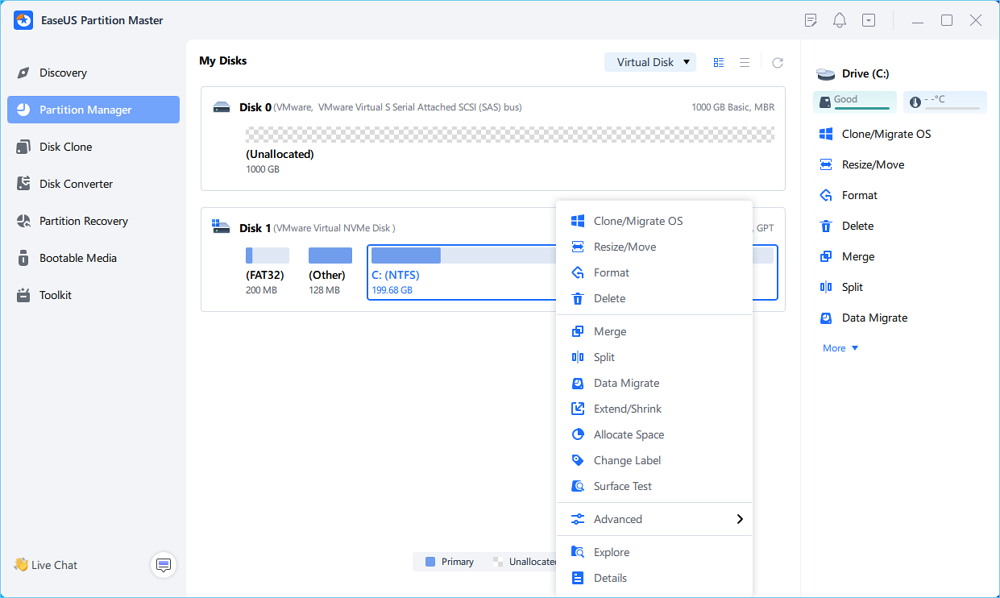
Step 1. Launch EaseUS Partition Master, navigate to "Partition Manager," right click the C drive, and select "Data Migration."
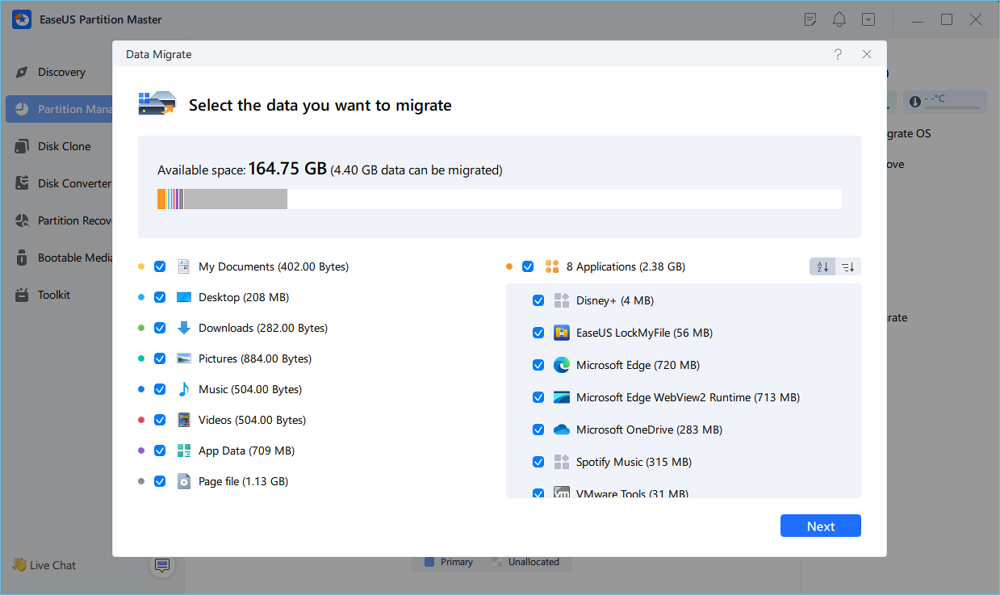
Step 2. Select the data you want to migrate and click "Next" to continue.
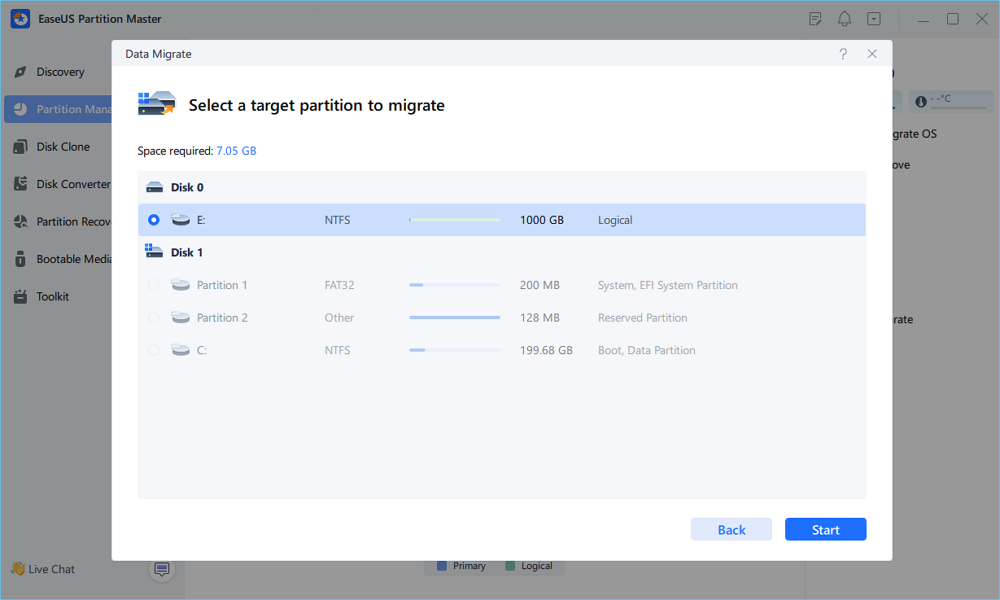
Step 3. Select a target partition to migrate and click "Start" to execute the task.
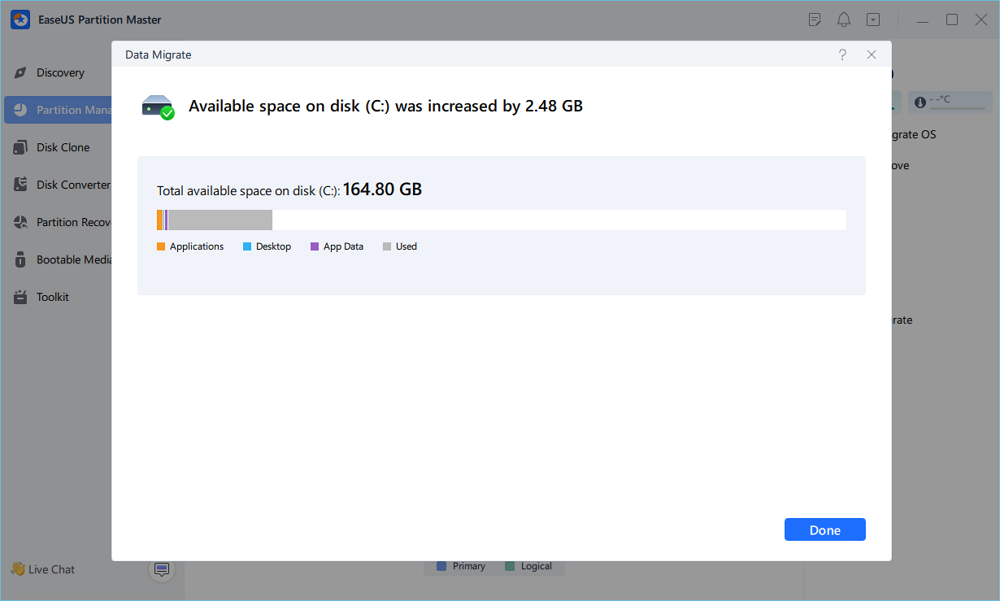
Step 4. After the migration, the available space on the C drive will be increased.
Method 2. Move AppData Manually Using a Junction Link
A Junction link redirects the original AppData folder to a new location on D drive. Windows and applications continue using the original folder path, while the files are stored on D drive.
Step 1. Back Up the AppData Folder.
Press Win + R, enter "%userprofile%", and press Enter. Copy the AppData folder to another safe location.
Step 2. Copy AppData to D Drive.
Create a folder named "AppData" on D drive. Sign out of the account whose AppData folder you want to move, then sign in to another administrator account. Copy the original AppData folder to "D:\AppData".
Step 3. Rename the Original Folder.
Go to "C:\Users\YourUsername\" and rename the original "AppData" folder to "AppData_backup".
Step 4. Create a Junction Link.
Open Command Prompt as administrator and run the following command:
- mklink /J "C:\Users\YourUsername\AppData" "D:\AppData"
Replace "YourUsername" with your Windows account name. Press Enter to create the Junction link.
Step 5. Check the New Location.
Sign in to your original Windows account. Open several applications and check whether they work normally. Keep "AppData_backup" until you confirm that all files and applications are working correctly.
- Tip
- Moving the entire AppData folder is not a standard Windows configuration change. Some Windows components and applications rely on the original user profile structure. A Junction link does not guarantee compatibility with every program. If Windows or your applications develop problems, restore the original AppData folder.
Conclusion
Moving AppData from C drive to D drive can help free up disk space, but choosing the right method matters. EaseUS Partition Master offers a dedicated Move AppData feature for transferring the entire folder. If you prefer a manual approach, a Junction link is another option, but it requires extra care and may cause compatibility issues. Always back up your data before moving AppData.
FAQs
1. Can I move AppData\Local to D drive?
Yes. You can redirect AppData\Local with a Junction link. Back up the folder first and close applications that use it. Some programs rely on the default folder location, so test them after the change.
2. Can I move AppData without reinstalling applications?
Yes. You do not need to reinstall applications when using a supported migration tool or a correctly configured Junction link. Back up application data before starting the process.
3. Can I delete the AppData folder to free up C drive space?
No. Do not delete the entire AppData folder. It stores application settings, user data, and other files required by installed programs. Remove only files you have identified as unnecessary, such as supported application caches and temporary files.
4. Why is the AppData folder so large?
The AppData folder grows as applications save cache files, temporary data, user profiles, and program settings. Browsers, game launchers, and other frequently used programs are common sources of large AppData folders.
How Can We Help You
About the Author
Updated by Joey Albert
Joey is an enthusiast of science and technology. With a passion for uncovering the latest tech innovations, she creates clear, engaging how-to guides that make technology accessible and enjoyable for all.
Product Reviews
-
I love that the changes you make with EaseUS Partition Master Free aren't immediately applied to the disks. It makes it way easier to play out what will happen after you've made all the changes. I also think the overall look and feel of EaseUS Partition Master Free makes whatever you're doing with your computer's partitions easy.
Read More -
Partition Master Free can Resize, Move, Merge, Migrate, and Copy disks or partitions; convert to local, change label, defragment, check and explore partition; and much more. A premium upgrade adds free tech support and the ability to resize dynamic volumes.
Read More -
It won't hot image your drives or align them, but since it's coupled with a partition manager, it allows you do perform many tasks at once, instead of just cloning drives. You can move partitions around, resize them, defragment, and more, along with the other tools you'd expect from a cloning tool.
Read More
Related Articles
-
SmartDisk FAT32 Format Utility Review: Features, Pros, Cons, and Alternative
![Sherly]() Sherly/2026/10/30
-
5 Best ISO Image Software Free Download [Pros & Cons]
![Tracy King]() Tracy King/2026/10/30
-
Best Alternative to TreeSize: Tools to Manage Disk Space
![Joey Albert]() Joey Albert/2026/10/30
-
Low Level Format Tool Download, 2026 Review [Pros & Cons]
![Jean]() Jean/2026/10/31
 Sherly/2026/10/30
 Tracy King/2026/10/30
 Jean/2026/10/31