Page Table of Contents

Looking for sector-by-sector cloning software? A standard disk clone may not be enough if you need an exact copy of a drive, including unused sectors or data that file-based cloning tools might skip.
The key difference is how each tool handles the source disk. Some clone only used sectors to save time and space, while others copy every sector, whether it contains active data. Full sector-by-sector cloning takes longer and may require a destination drive large enough to hold the entire source disk.
In this guide, we'll look at 4 cloning tools, including Windows applications and command-line utilities, and explain what each offers for different cloning needs.
What Is Sector-by-Sector Cloning?
Sector-by-sector cloning copies every sector of a source disk or partition to a destination, including sectors that are not currently used by the file system. It is also commonly called a bit-by-bit copy.
Standard disk cloning often takes a more selective approach. Depending on the software and cloning mode, it may copy only the sectors the file system identifies as in use, which can speed up the process. Sector-by-sector cloning, by contrast, copies used and unused sectors within the selected disk or partition, preserving more of the source's raw contents.
Sector-by-Sector Cloning vs Intelligent Cloning
Although both methods copy data from one disk to another, they differ in how they handle used and unused disk space, as well as in speed and flexibility. The comparison below highlights the key differences to help you choose the right cloning method for your needs.
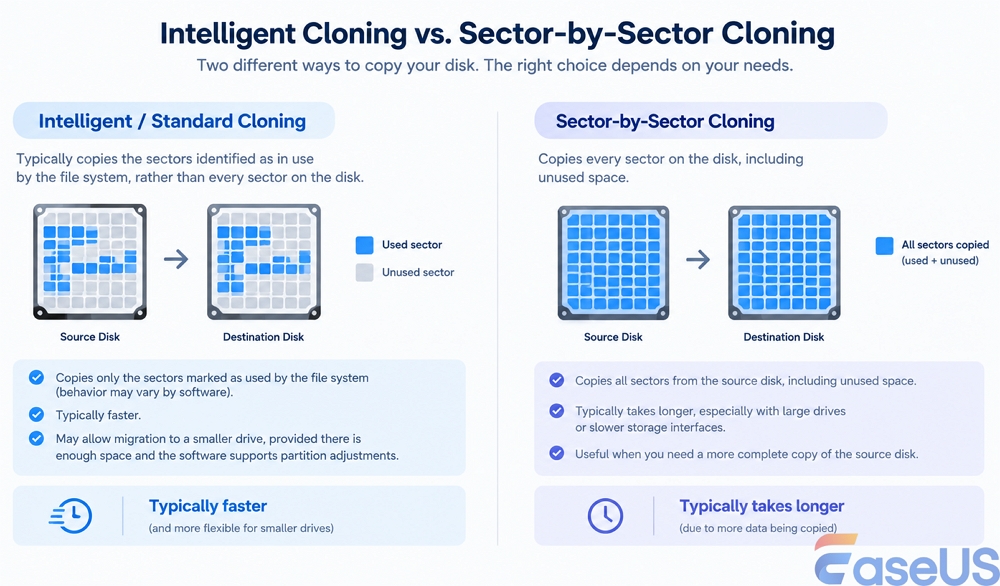
Sector-by-sector cloning cannot repair a failing drive. If some sectors are unreadable, the outcome depends on the cloning software's error-handling capabilities. Unreadable data cannot be reliably reproduced simply by selecting a sector-by-sector cloning mode.
4 Best Sector-by-Sector Cloning Software
These 4 tools cover different disk cloning needs, from straightforward Windows disk migration to more advanced cloning workflows. Here's what each tool offers and what to consider before choosing one.
1. EaseUS Disk Copy - Best for Windows Disk Cloning
EaseUS Disk Copy is a Windows-based disk cloning tool for users who want to replace an HDD, migrate Windows to a new SSD, or create a copy of an existing drive.
 Free Download
Windows 11/10/8/7
Its sector-by-sector copy option copies used and unused sectors within the selected disk or partition, making it useful when you need to preserve more of the source drive's contents than a standard clone typically copies.
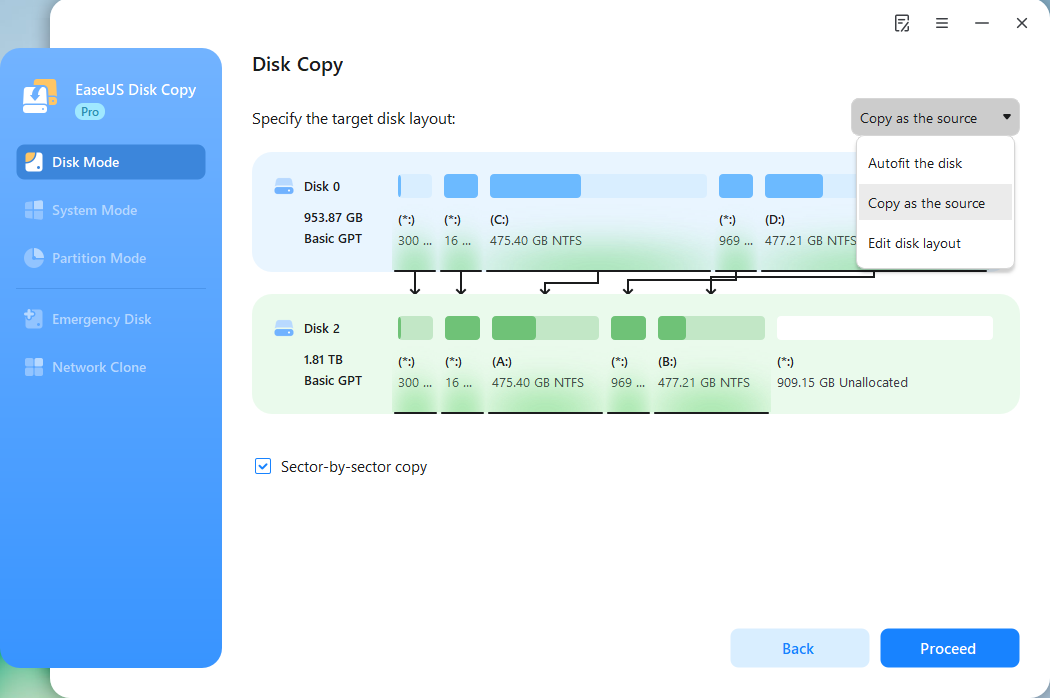
The cloning process uses a graphical interface, so you can select the source and destination drives and review the disk layout without using command-line tools. It also supports cloning from a bootable WinPE environment.
Pricing: $19.90/month
What stands out
- Supports disk, partition, and system cloning.
- Offers a dedicated sector-by-sector copy option.
- Supports cloning from a bootable WinPE environment.
- Provides a straightforward graphical interface.
Things to consider
Sector-by-sector cloning copies unused space as well as used data, so it can take longer than an intelligent clone. For a full-disk clone, the destination drive generally needs to be at least as large as the source. Back up any important files on the destination drive, as cloning will overwrite them. If the source drive has unreadable sectors or is showing signs of failure, this mode won't repair the drive or guarantee a complete copy of its data.
Best for: Windows users who want an easy-to-use disk cloning tool with an explicit sector-by-sector option.
Share this article on social media to help others find a reliable sector-by-sector cloning tool!

2. Macrium Reflect - Best for Advanced Cloning Workflows
Macrium Reflect is a disk imaging and cloning tool that offers detailed control over how it copies data. Consider it if you need more flexibility than a basic disk-to-disk clone provides.
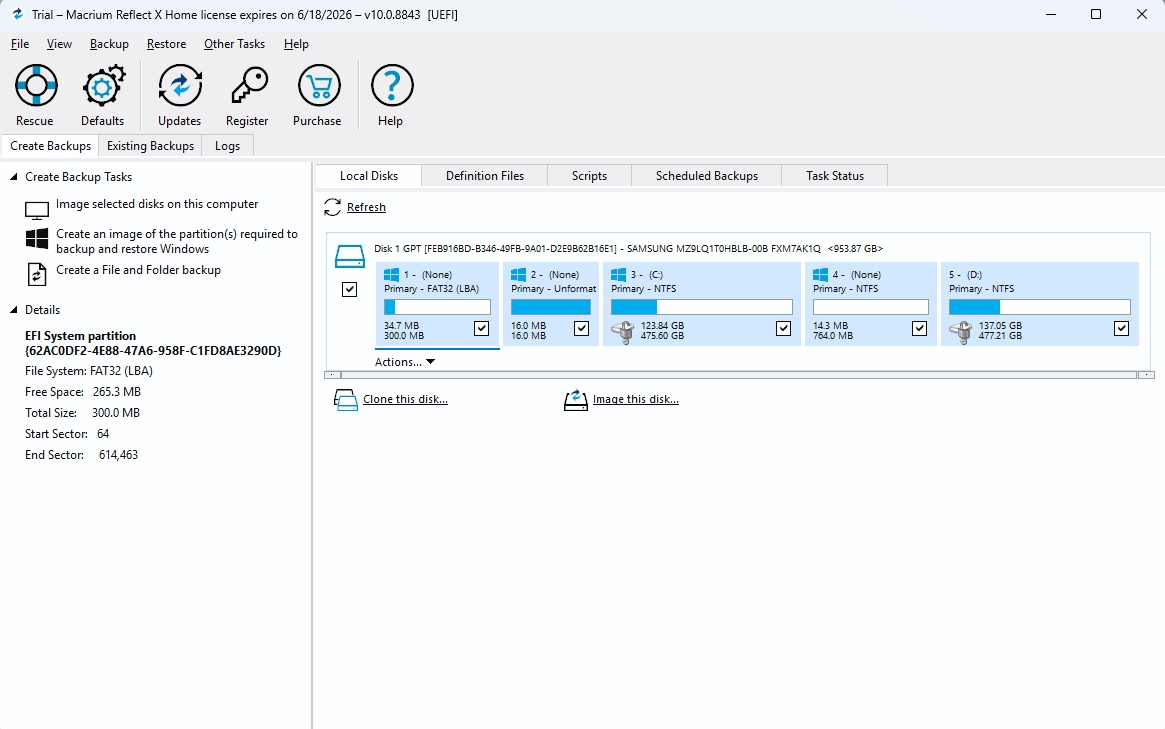
One key distinction is between Intelligent Sector Copy and Forensic Sector Copy. Intelligent Sector Copy skips unused file-system areas, while Forensic Sector Copy copies all data blocks, including unused space. This gives users a choice between faster cloning and a more complete sector-level copy.
Pricing: $49.99/year
What stands out
- Supports disk cloning and imaging.
- Offers both intelligent and forensic sector-copying modes.
- Includes options for verifying file systems and adjusting cloning behavior.
- Provides additional controls for advanced cloning workflows.
Things to consider
Macrium Reflect offers a range of cloning options that may take time to learn. Check the current edition's features and licensing before choosing it for your workflow.
Best for: Users who want detailed control over cloning behavior and are comfortable working with advanced settings.
3. Clonezilla - Best for Free, Bootable Disk Cloning
Clonezilla is a free, open-source disk imaging and cloning tool commonly used for disk migration, system deployment, and backup workflows.
Unlike Windows desktop cloning applications, Clonezilla runs from bootable media. You boot the computer from a USB drive, select the cloning operation, and follow the prompts to choose the source and destination.
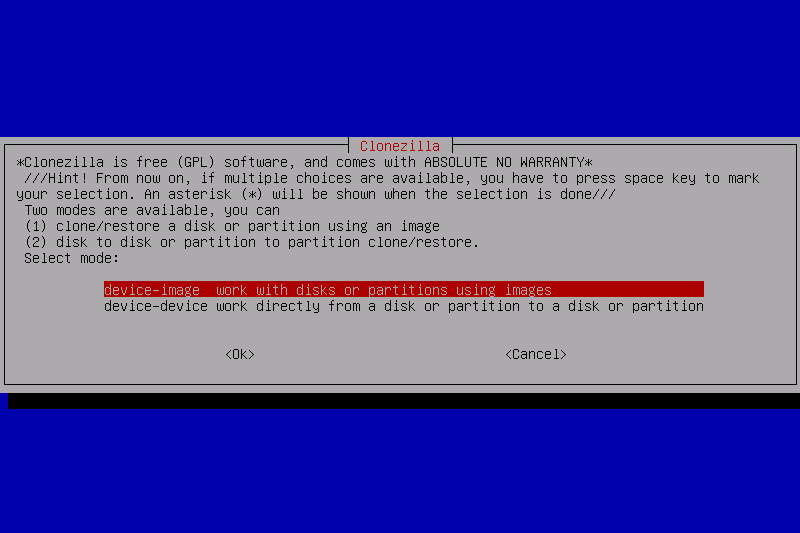
Clonezilla can perform sector-by-sector copying, but it does not use this method for every operation by default. It typically uses Partclone to copy used blocks on supported file systems, while a dd-based method can copy sectors regardless of the file system. You can select the appropriate method when configuring the cloning process.
Pricing: free
What stands out
- Free and open source.
- Supports disk and partition imaging and cloning.
- Supports a wide range of file systems.
- Runs from bootable media without requiring the cloning operation to run inside Windows.
Things to consider
Clonezilla has a more technical, menu-driven workflow than most Windows desktop cloning tools. On supported file systems, its default approach typically copies used blocks rather than every sector. If you need a full sector-by-sector copy, choose a method that supports it, such as a dd-based copy.
Best for: Users who want a free, bootable cloning tool and are comfortable with a more technical workflow.
Share this article on social media to help others find a reliable sector-by-sector cloning tool!
4. dd - Best for Users Who Want Direct, Low-Level Control
dd is a command-line utility available on Unix-like systems, including Linux. Rather than providing a dedicated cloning interface, it copies data from an input source to an output destination, such as another storage device or an image file.
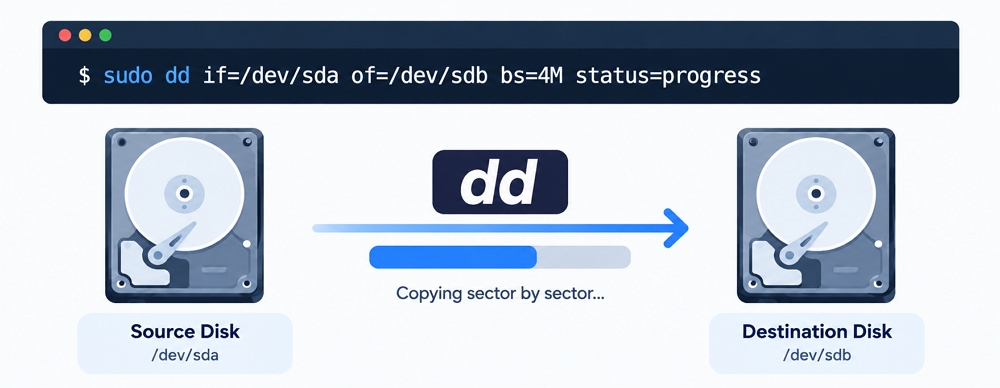
This makes dd useful for low-level disk copying. Experienced users can create raw disk images or copy data directly between devices without relying on file-system-level cloning.
Pricing: free
What stands out
- Available on many Unix-like systems.
- Can copy raw data between storage devices or to an image file.
- Supports configurable block sizes and read/write options.
- Useful for scripting and repeatable copying tasks.
Things to consider
dd requires careful handling of source and destination devices. Choosing the wrong output device can overwrite important data, and it offers no guided interface for tasks such as partition resizing or Windows system migration.
GNU dd supports options such as conv=noerror,sync to continue copying after read errors and pad incomplete input blocks with zeros. However, this does not recover unreadable data or guarantee a usable copy of a failing drive.
Best for: Experienced users who are comfortable working in a terminal and need direct control over raw disk copying.
How to Clone Sector-by-Sector via EaseUS Disk Copy
The following steps use EaseUS Disk Copy as an example. Here is how to sector-by-sector clone a disk using EaseUS Disk Copy:
Before cloning:
- If your computer has only one disk slot, connect the target disk to your machine via a USB-to-SATA/NVMe adapter.
- If your computer has an extra slot, install the target drive into the empty slot properly, and make sure it is compatible.
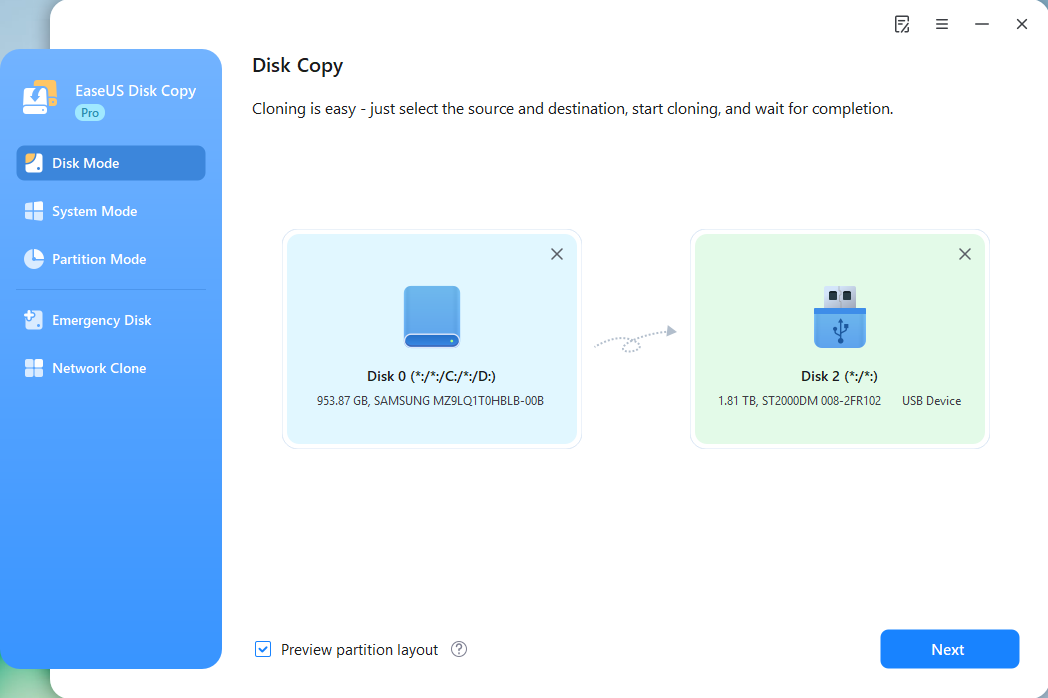
Step 1. Launch EaseUS Disk Copy and choose Disk Mode.
Install EaseUS Disk Copy SSD cloning software on your Windows computer, launch it, and choose Disk Mode.

Step 2. Select the source and target drives.
- Source - the old/smaller disk you want to make a copy.
- Destination - the new/larger disk that you want to clone data to.
*Note that the used space of the source disk should be less than the target disk capacity.
Step 3. Select 'Sector-by-sector' copy.
When specifying the target disk layout, choose 'Copy as the source' and check the 'Sector-by-sector copy' option.
Step 4. Start cloning.
Click Proceed, a message will appear, warning you that data will be lost. Confirm the message by clicking Continue.
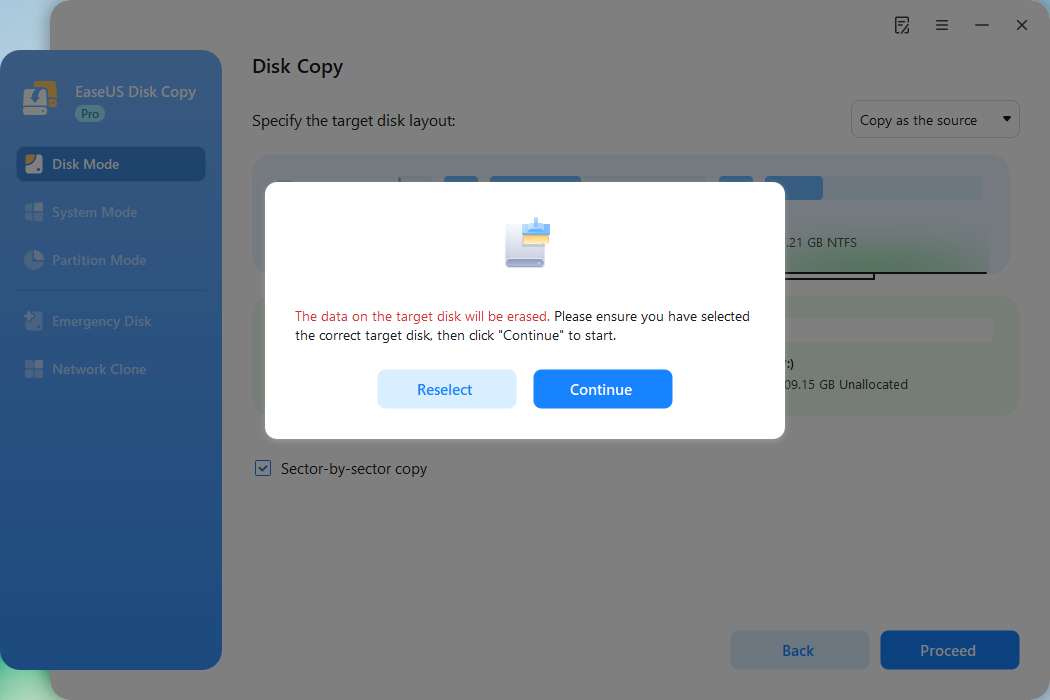
Now, it will start sector-by-sector disk cloning.
This video demonstrates how to clone a system disk sector by sector using EaseUS Disk Copy:
Is Sector-by-Sector Cloning Always Necessary?
No. For most everyday disk upgrades, a standard clone is sufficient.
For example, if you're moving Windows from an HDD to a larger SSD, you usually want to transfer the operating system, applications, and personal files. Copying every unused sector often adds time without providing a practical benefit.
Sector-by-sector cloning is more useful when you need to preserve the contents of both used and unused sectors on the selected disk or partition. Before choosing this method, keep a few limitations in mind:
- Longer cloning time: Copying unused space along with used data can take longer than an intelligent clone.
- Destination capacity: A full-disk sector-by-sector clone generally requires a destination drive at least as large as the source.
- Unreadable sectors: The method cannot repair a failing drive or guarantee that unreadable data will be copied successfully.
- Data recovery: If a drive is physically failing and its data is important, consider a recovery-focused approach rather than repeatedly attempting to clone it.
If your goal is simply to upgrade a drive or migrate Windows to an SSD, start with a standard clone. Choose sector-by-sector copying when preserving unused sector contents is an explicit requirement.
Share this article on social media to help others find a reliable sector-by-sector cloning tool!
Final Thoughts
Sector-by-sector cloning is not necessary for every disk upgrade. For a typical Windows-to-SSD migration, a standard clone will usually be enough. A full sector-by-sector copy is better when you need to preserve unused sectors along with used data.
For Windows users who need this option, EaseUS Disk Copy provides a graphical cloning workflow with a dedicated sector-by-sector setting. Before starting, check the destination drive's capacity, confirm the selected copy mode, and back up any important data on the target disk.
Free Download
Windows 11/10/8/7
FAQs about Sector Cloning Software
1. What is the best sector-by-sector cloning software?
The best sector-by-sector cloning software depends on your operating system, technical experience, and copying requirements.
EaseUS Disk Copy is worth considering if you want a Windows tool with a graphical interface and a dedicated sector-by-sector option. Macrium Reflect offers different sector-copying modes, while Clonezilla and dd provide alternatives for users comfortable with bootable environments or command-line tools. Before choosing, confirm that the software supports the specific copying method you need.
2. Is there any free sector-by-sector cloning software?
Yes. dd is a free command-line utility, and Clonezilla is free and open source. However, Clonezilla typically copies used blocks on supported file systems by default. If you need to copy every sector, select a method that supports full sector-by-sector copying.
3. Can I clone a larger HDD to a smaller SSD?
A full-disk sector-by-sector copy generally requires a destination disk at least as large as the source. A standard clone may work when moving to a smaller SSD, provided the software supports the operation and the required data and partitions fit on the destination.
4. Does sector-by-sector cloning copy bad sectors?
Sector-by-sector cloning attempts to copy the selected sectors, including those outside active file data. However, if the source contains unreadable sectors, the software may be unable to copy their original contents. Cloning does not repair damaged sectors or guarantee data recovery.
5. How long does sector-by-sector cloning take?
The time depends on the source disk's capacity, read speed, connection type, and condition. Because sector-by-sector cloning also copies unused space, it can take longer than a standard clone. For example, cloning a large HDD through a slower USB connection may take considerably longer than copying data from an SSD connected directly to the motherboard.
6. Can Rescuezilla perform a sector-by-sector disk clone?
Rescuezilla is a user-friendly disk imaging and cloning tool based on Clonezilla. It typically uses Partclone to copy data from supported file systems, which helps reduce cloning time by skipping unused data blocks.
Although Clonezilla supports sector-by-sector copying using the dd utility, Rescuezilla's graphical interface does not clearly document a dedicated option for this type of cloning.
If you need to copy every sector of a disk, including unused space, check whether your version of Rescuezilla supports this operation or consider an alternative disk cloning tool with an explicit sector-by-sector cloning mode.
-
Updated by
![Jerry]()
Jerry
"I hope my articles can help solve your technical problems. If you are interested in other articles, you can check the articles at the bottom of this page, and you can also check my Facebook to get additional help."…Read full bio