Page Table of Contents

- Key Takeaways
- EaseUS Disk Copy is safe and legit. It performs local sector-by-sector cloning without uploading personal data, is digitally signed and malware-free, and does not harm a healthy SSD. For best safety, download it from the official website and back up important data first.
If you're searching for Is EaseUS Disk Copy safe, you probably want to know whether it's safe to trust software with your hard drive and personal data. That's a reasonable concern.
Unlike ordinary applications, disk cloning software works at one of the lowest levels of your computer. It accesses physical disks directly, and can copy an entire operating system, including boot files and hidden partitions. For many users, those capabilities naturally raise questions like:
- Can it access my personal files?
- Does it upload my data to the Internet?
- Can cloning damage my SSD or Windows installation?
- Why do some antivirus programs flag disk cloning tools?
These aren't questions that can be answered with a simple "Yes, it's safe." This article explains exactly what EaseUS Disk Copy does and what it doesn't do when it runs on your computer. You'll also learn what risks actually exist during disk cloning, and how to verify that any disk cloning software is trustworthy before using it.
Whether you're upgrading to a larger SSD, replacing a failing hard drive, or migrating Windows to a new NVMe drive, understanding how disk cloning works is the best way to make an informed decision.
What Actually Happens When EaseUS Disk Copy Runs?
Many people imagine disk cloning software opening their files, reading documents, or scanning photos. That's not how disk cloning works. EaseUS Disk Copy operates at the disk sector level. A sector is the smallest physical storage unit on a drive. Rather than copying individual documents, the software copies the data blocks that make up the entire disk or partition.
A simplified cloning process looks like this:
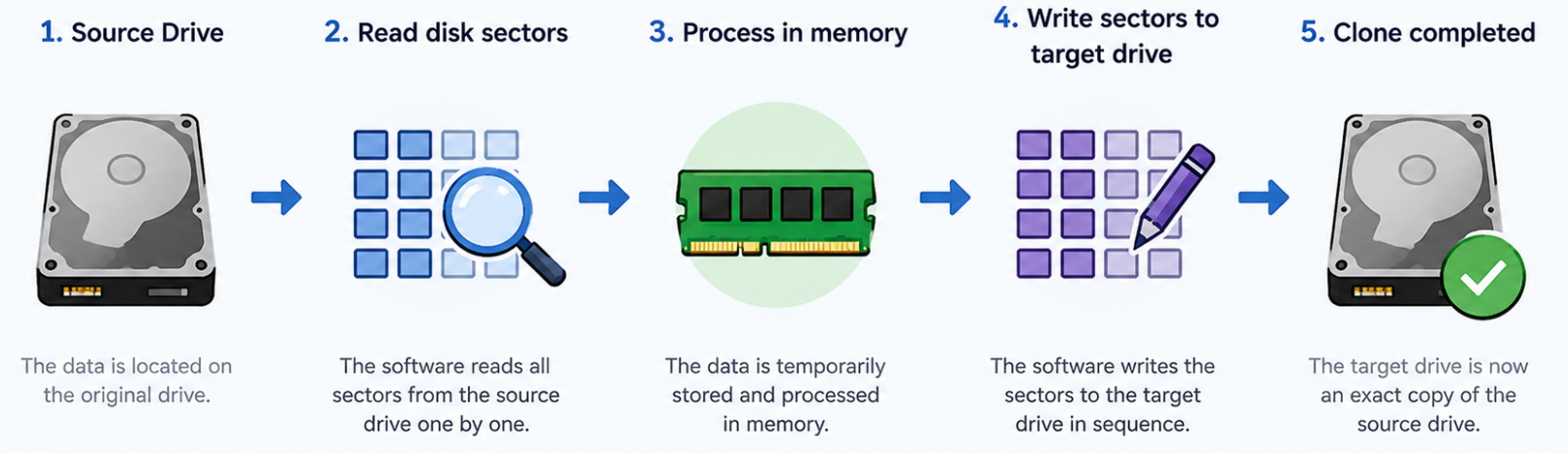
During this process, the software continuously reads data from the source drive and writes it to the destination drive. It does not interpret or analyze the contents of your files.
| ✅What EaseUS Disk Copy Does | ❌What EaseUS Disk Copy Does Not Do |
|
|
This distinction is important because many users confuse disk cloning with data synchronization, cloud backup, or file indexing.
What Permissions Does EaseUS Disk Copy Require?
Every professional disk cloning utility, including Clonezilla, Macrium Reflect, Acronis, and similar tools, requires elevated privileges to access physical storage devices. Here's why.
- Administrator Permission
Disk cloning involves direct communication with physical disks instead of ordinary files. Windows protects low-level storage operations from standard user accounts to prevent accidental or malicious changes.
Administrator permission allows the software to detect all connected drives, read protected system partitions, access boot records, and write data to the destination disk. Without administrator privileges, Windows would block these operations entirely.
- Direct Disk Access
Unlike copying files with File Explorer, cloning software communicates with storage devices through low-level disk I/O. Direct disk access is what makes a cloned drive bootable after migration.
- Access to BitLocker-Protected Drives
If your source drive is encrypted with BitLocker, Windows requires it to be unlocked before any cloning software, including EaseUS Disk Copy, can read its contents.
Why Does Windows Defender Sometimes Show a Warning?
Some users become concerned when Windows may sometimes display a security prompt or when antivirus software flags a disk cloning tool.
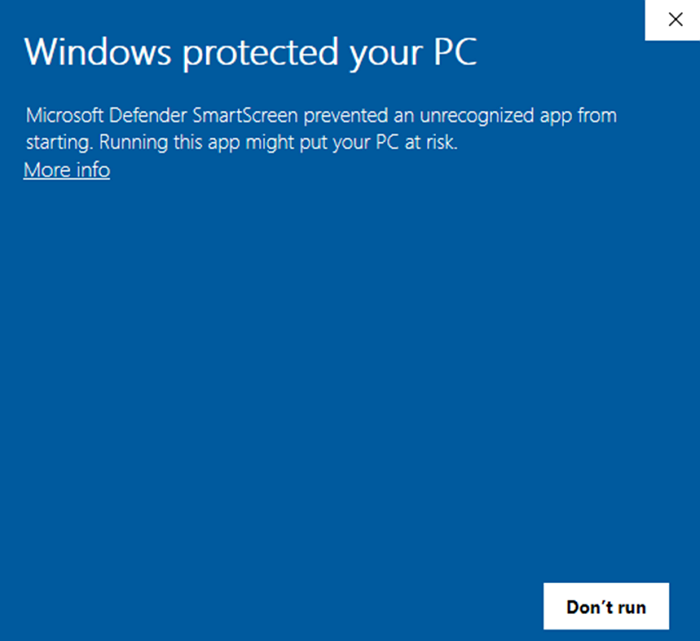
Seeing a warning doesn't automatically mean the software is malicious. In many cases, Windows is responding to this software without a digital signature. EaseUS Disk Copy pays much attention to this and frequently updates its signature to ensure every user can download the tool safely and smoothly.
According to user feedback, most users can download and install EaseUS Disk Copy without receiving this notification. If you occasionally get it, just click "More info" and choose install. If you're still concerned about its security, you can connect with our official support team([email protected]) for help, and they will provide professional assistance to help you complete the installation safely.
Will Disk Cloning Damage an SSD?
This is another question that appears frequently in forums and Reddit discussions. The short answer is: Disk cloning itself does not damage a healthy SSD. When users report issues after cloning, the root cause is usually one of these:
- selecting the wrong destination drive,
- cloning to a failing SSD,
- interrupting the cloning process,
- cloning a corrupted source disk,
- or hardware compatibility issues after migration.
In other words, these are migration risks, not evidence that cloning software damages SSDs.
How We Test EaseUS Disk Copy Before Every Release
Reliability comes from testing across real-world hardware and migration scenarios, not just a few virtual machines.
Before every new version of EaseUS Disk Copy is released, it goes through safety, compatibility, and functional testing designed to verify that common cloning tasks complete successfully across different Windows environments.
While the exact internal testing process evolves over time, every release is validated against scenarios that users encounter most frequently.
Typical Test Scenarios
| 💻Test Area | 🎯Why It Matters |
| Download and install | Users can download and install it securely without malware. |
| Windows migration | Ensures the cloned system can boot correctly. |
| HDD to SSD cloning | Verifies successful migration from mechanical drives to SSDs. |
| SSD to larger SSD | Confirms partitions can be migrated correctly when upgrading storage. |
| SATA and NVMe drives | Checks compatibility with different storage interfaces. |
| GPT and MBR disks | Validates both modern and legacy partition styles. |
| UEFI and Legacy BIOS | Ensures boot compatibility across different firmware modes. |
| Large-capacity drives | Confirms stable cloning on modern high-capacity disks. |
Beyond whether the cloning process completes, testing also focuses on what happens after cloning.
For example:
- Does Windows boot normally?
- Are EFI and Recovery partitions preserved?
- Are files accessible after migration?
- Is the partition structure intact?
- Can applications launch normally?
- Does the destination disk report the expected capacity?
These checks help verify that the cloned drive behaves like the original, not just that data was copied.
How to Verify Any Disk Cloning Software Is Safe
Whether you're considering EaseUS Disk Copy or another cloning utility, it's worth taking a few minutes to verify that the software is trustworthy before giving it access to your storage devices.
The following checklist applies to any disk cloning software.
1. Download from the Official Website
The safest version of any software is the one provided by its developer. Avoid downloading installers from unknown software portals. modified download packages, file-sharing websites, or unofficial mirrors.
 Free Download
Windows 11/10/8/7
2. Verify the Digital Signature
On Windows, you can verify whether an installer has been digitally signed. If a file has no publisher information when it should, treat it with caution.
3. Read Independent User Feedback
Official documentation explains how software is designed to work. Community discussions often reveal how it performs in real-world situations. Look for recurring themes instead of isolated comments.
4. Back Up Important Data First
Even when using reliable cloning software, unexpected events can happen. A current backup protects you from situations that no software can completely prevent.
FAQs: What Real Users Usually Worry About
1. Is EaseUS Disk Copy a virus?
No. EaseUS Disk Copy is legitimate disk cloning software designed to copy disks, partitions, and operating systems. Because it performs low-level storage operations, Windows or antivirus software may request confirmation before allowing it to run, but that isn't the same as identifying it as malware.
2. Does EaseUS Disk Copy upload my personal files?
No. The cloning engine copies data locally from the source drive to the destination drive. It doesn't upload your documents, photos, or other personal files as part of the cloning process.
3. Does cloning erase the original hard drive?
No.The source drive remains unchanged during a standard cloning operation. However, the destination drive will be overwritten, so make sure you've selected the correct target disk before starting.
4. Can cloning copy viruses or corrupted files?
Yes. Disk cloning creates a copy of the entire drive, including the operating system, installed applications, and existing data. If malware or corrupted files already exist on the source disk, they'll typically be copied as well.
5. Can I clone a failing hard drive?
It depends on the condition of the drive. If the drive still responds to read requests, cloning it as soon as possible is usually recommended. If the drive has severe physical damage or can no longer be detected by the system, professional data recovery may be required before cloning is possible.
6. Is an Internet connection required while cloning?
No. The cloning process itself runs locally. Internet access is only needed for functions such as software activation, updates, or online support.
7. Is disk cloning safer than reinstalling Windows?
The two approaches serve different purposes. Reinstalling Windows creates a clean operating system but requires reinstalling applications and restoring personal files. Disk cloning preserves your existing Windows installation, applications, settings, and data, making it a faster option when upgrading or replacing a drive.
Final Verdict: Is EaseUS Disk Copy Safe?
EaseUS Disk Copy requests administrator permissions to read sectors directly from your source drive and writes them to the destination drive so the new disk can function as a complete replacement.
It does not need cloud processing to clone a drive, and the cloning engine doesn't upload your personal files as part of the migration process.
The safest cloning experience comes from combining trusted software with good preparation:
When used correctly, EaseUS Disk Copy provides a reliable way to migrate Windows, upgrade to a larger SSD, or replace an aging hard drive, without reinstalling your operating system or manually moving your files.
Free Download
Windows 11/10/8/7
-
Updated by
![Larissa]()
Larissa
Larissa has rich experience in writing technical articles and is now a professional editor at EaseUS. She is good at writing articles about data recovery, disk cloning, disk partitioning, data backup, and other related knowledge. Her detailed and ultimate guides help users find effective solutions to their problems. She is fond of traveling, reading, and riding in her spare time.…Read full bio