Page Table of Contents

HDDs have become a major bottleneck in modern computer performance. In contrast, SSDs offer faster boot times, quicker application loading, and a smoother overall system experience. Migrating the operating system from an HDD to an SSD is one of the most effective ways to enhance your computer's performance, breathing new life into old machines. We will tell how to migrate OS to SSD from HDD without reinstalling Windows or losing data.
Can I Transfer Only OS from HDD to SSD
These are some hot topics from Reddit, Quora, and Microsoft Community about how to migrate only OS to SSD.
Is it possible to clone ONLY Windows to a larger SSD?
byu/Cute_Information_315 incloningsoftware
Compared with HDDs, SSDs are much faster in read and write speeds, quieter, and more durable. Therefore, if you do not want to buy a new computer, it makes sense to replace the HDD with SSD or migrate OS from HDD to SSD. However, you might need to migrate your OD and a large amount of data when doing so. At this time, you might wonder can I move only my OS to an SSD?
The answer is yes. You can migrate only OS from HDD to SSD while keeping data on HDD. You can migrate only the OS partition to another drive via cloning, which can help you copy data from one hard drive to another without data loss or OS reinstallation.
You need to migrate only OS to an SSD when the SSD is smaller than the original hard drive or when you want to use the SSD as the boot drive and the original drive as the storage device. Still, you must find a reliable disk cloning tool to help you.
Share this post on your social media to help others get out of this problem.
What to Prepare to Copy OS to New SSD Successfully
As mentioned above, you can move OS to SSD and keep files on HDD, but you need to make some preparations to make it successful.
- Choose the right SSD: Ensure the SSD has enough space to hold all data from your current system partition. It is recommended to use a 1TB SSD from reputable brands such as Samsung, Western Digital, or Kingston for better stability and compatibility. Also, check the SSD interface type supported by your motherboard (SATA, NVMe, etc.).
- Backup data on the target drive. Cloning will wipe all data on your target disk. If your destination SSD contains data, back up your data using free backup software like EaseUS Todo Backup to avoid data loss.
- Prepare a SATA-to-USB cable. A USB-to-SATA cable or an external disk enclosure can help connect your SSD to your laptop or PC when cloning.
- Download reliable OS cloning software. Undoubtedly, using the best disk cloning software can ensure the best results. EaseUS Disk Copy is one of the best cloning programs you can try.
How to Move OS to SSD Using EaseUS Disk Copy
As mentioned above, if you want to move just OS to an SSD, you need to use professional disk cloning software. EaseUS Disk Copy can suit your needs, including cloning, upgrading, migrating, transferring, and creating a WinPE bootable drive.
EaseUS Disk Copy lets you clone your systems and partitions, including cloning a hard drive with multiple partitions. You can use it to clone your OS partition to an HDD or SSD, and to easily and quickly clone a disk with bad sectors.
Download this OS clone software on your computer to help you clone OS to SSD.
 Free Download
Windows 11/10/8/7
Here is how to clone Windows to new SSD using EaseUS Disk Copy:
Step 1. Connect the new SSD
- For laptops with only 1 slot, use a SATA-to-USB cable or an external drive enclosure to connect the SSD externally.
- For desktops or laptops with more than 1 slot, install it internally.
Step 2. Run EaseUS OS cloning software
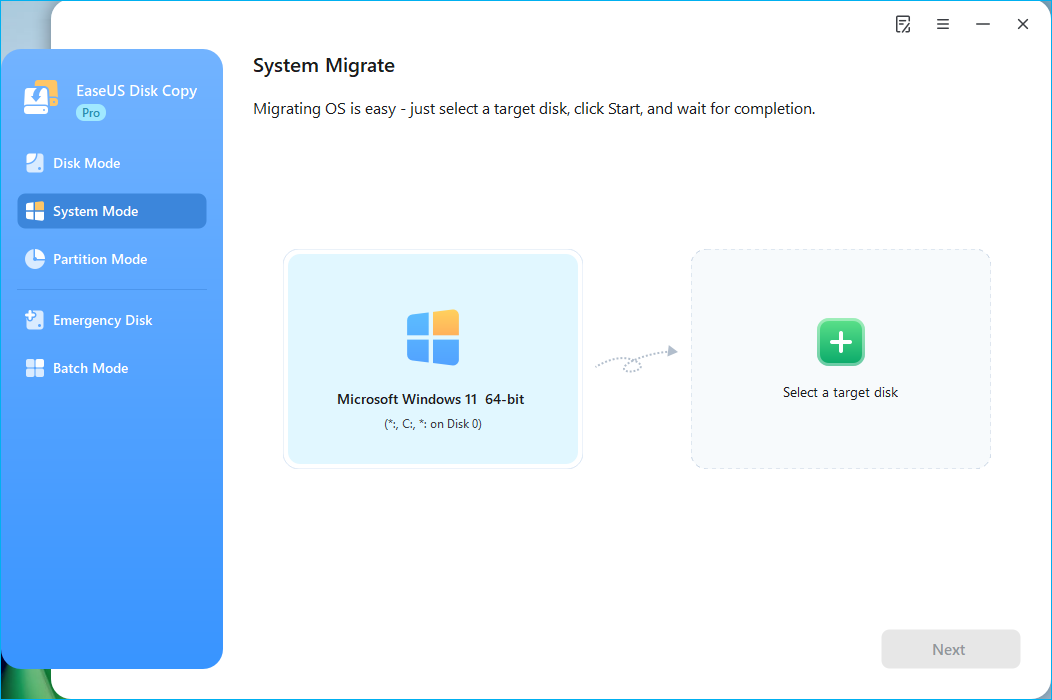
- Launch EaseUS Disk Copy, and choose System Mode.
- The software will automatically choose the system and its related partitions.
- You only need to choose the target SSD.
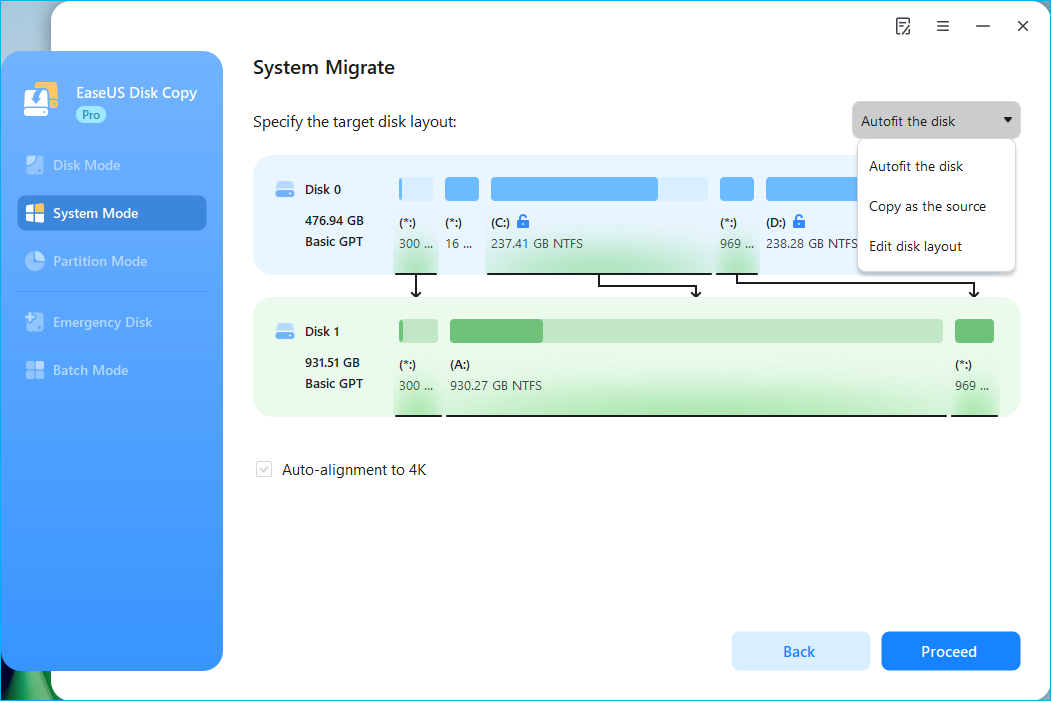
Adjust the target SSD layout if necessary.
- "Auto-fit the disk" ensures your Windows OS makes good use of the target SSD's larger capacity.
- "Copy as the source" makes a 1:1 copy of your source disk; the disk layout is identical to the source.
- "Edit disk layout" lets you manually resize the layout on the destination disk.
Step 3. Start cloning the OS
- Confirm the "data wiping" warning message, then start migrating OS from HDD to SSD
- The software will clone Windows system and its related partitions to the new disk.
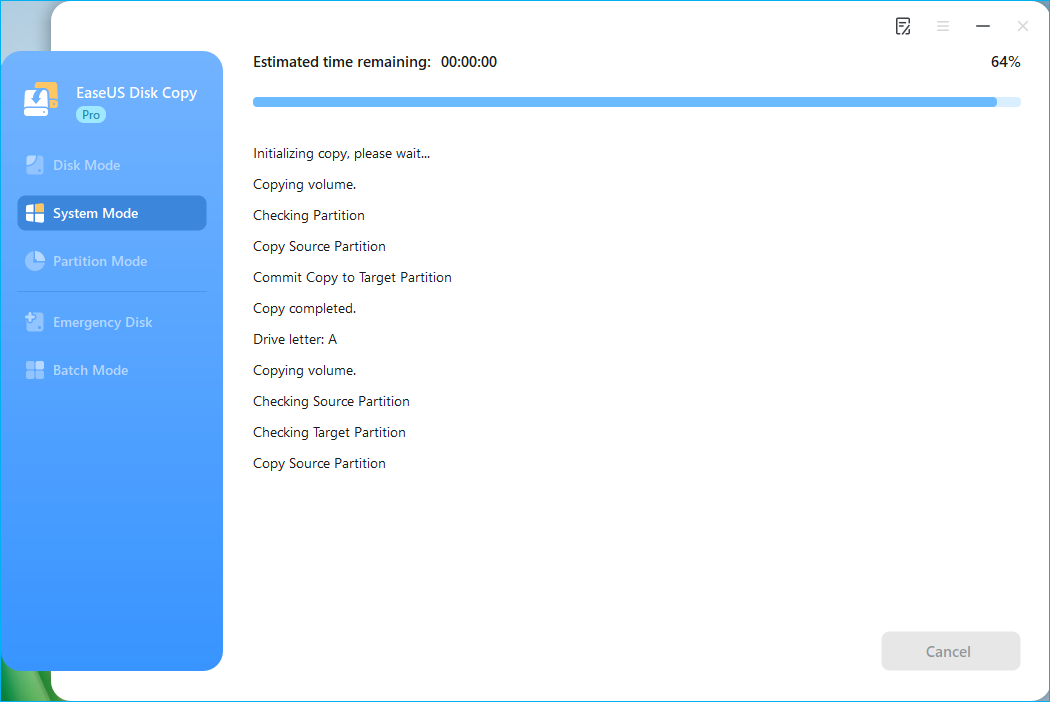
Step 4. Boot from the new SSD
After cloning the OS to the new SSD, shut down your computer, replace the old drive with the SSD, restart, and change the boot order in BIOS to boot from the new SSD. If your computer has only one OS drive, it can directly boot from the disk. You need to access the BIOS/UEFI only when your computer cannot boot from the new disk.
If you have some issues, refer to:
You can watch this video to see how to clone HDD to SSD using EaseUS Disk Copy:
Share this post on your social media to help others get out of this problem.
To Wrap Things Up
That is all about how to migrate only OS to SSD. How can I migrate just OS to an SSD? Have you got your answer now? If you want to move Windows only to SSD, you can find your answer in this post. With the help of EaseUS Disk Copy, you can transfer your OS partition to an SSD in just a few simple clicks.
It can help you resize the SSD disk partition during the cloning process to help you install your Windows on it. Furthermore, it can help solve the cloned hard drive showing the wrong size error after cloning. Download it and give it a try!
Free Download
Windows 11/10/8/7
FAQs on How to Migrate Only OS to SSD
1. How to move OS to SSD without cloning?
If you do not want to clone your OS to an SDD, you need to perform a clean installation. You must install a new copy of the Windows operating system on your new SSD. To do this, you need to download the Windows Media Creation Tool and Windows ISO file from the Microsoft official site and then use the Tool to help you clean install Windows on your SSD.
2. Will I lose my Windows 10 license if I change my SSD?
No, you generally will not lose your Windows 10 license when changing your SSD. A Windows license is typically tied to the motherboard, not the storage drive. As long as you don't change the motherboard, Windows will reactivate automatically.
3. How do I transfer Windows 10 from HDD to SSD without losing data?
You can transfer your Windows from HDD to SSD without losing data or reinstalling Windows, and cloning is the best way out. Cloning can help you transfer data from one hard drive to another without data loss, but you need to use third-party cloning tools, like EaseUS Disk Copy, to do so. This is because Windows has no built-in cloning software.
4. What if the SSD capacity is smaller than the original system drive?
You can clone to a smaller SSD as long as the total used data on the source drive is less than the capacity of the new SSD. Before cloning, you can:
- Clean up system junk files.
- Manually move non-system files to other storage.
- Delete seldom-used programs.
-
Updated by
![]()
Jerry
"I hope my articles can help solve your technical problems. If you are interested in other articles, you can check the articles at the bottom of this page, and you can also check my Facebook to get additional help."…Read full bio