Page Table of Contents

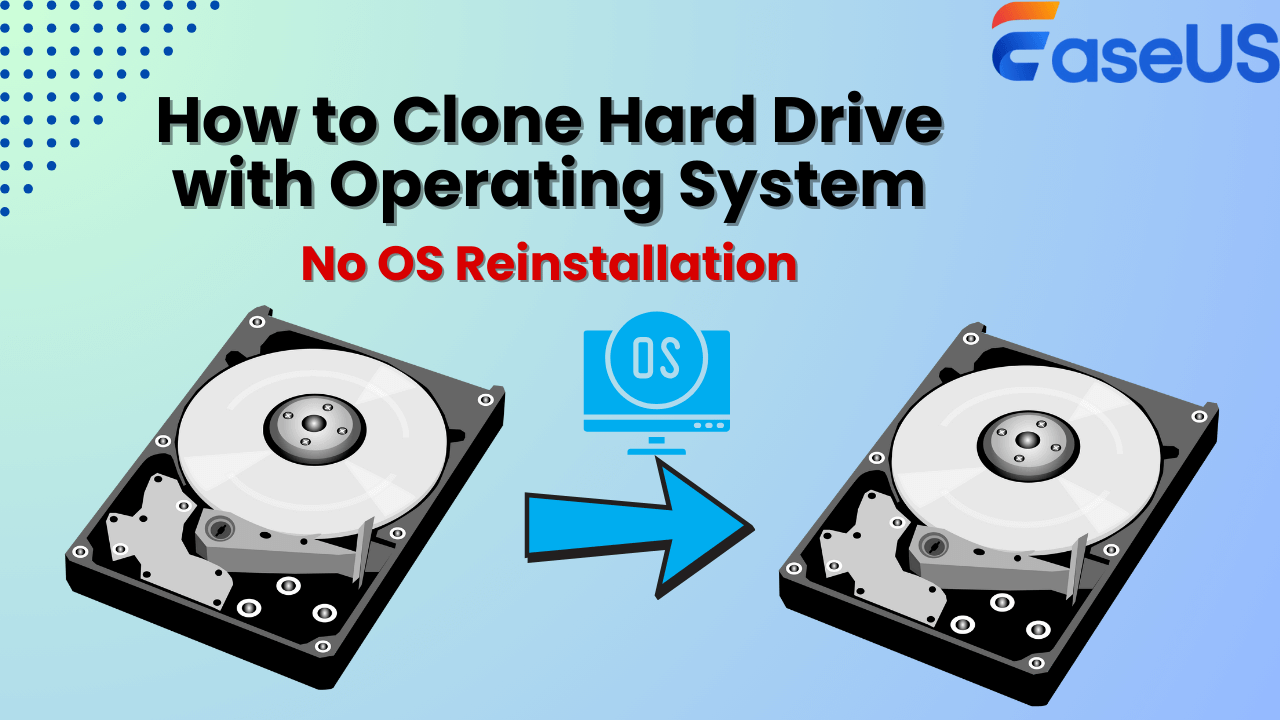
Cloning a hard drive is a process of duplicating all of the data and settings from one hard drive to another, which is commonly done to upgrade to a larger hard drive, replace a traditional hard drive with a faster SSD, replace a failing drive, or create a backup of important data. Before doing it, you may wonder if the cloned hard drive includes the operating system.
This guide from EaseUS will show you how to clone a hard drive with the operating system included by using a reliable disk cloning software, EaseUS Disk Copy. Keep reading and learn how.
PAGE CONTENT:
Can I Clone My Hard Drive Including the Operating System
❓Q: I want to migrate my current Windows 11 to a new SSD, so if I clone hard drive to the new SSD, will the operating system be migrated to SSD?
❗A: If you clone a hard drive with the operating system installed on it, the OS will also be copied to the new disk. Otherwise, if you choose the storage drive or other types of disk as the source disk, the OS won't be cloned to the new disk.
System Drive vs. Storage Drive
It is often the case that most computers nowadays are equipped with two drives: one is the system drive, and the other one is the storage drive. The main difference between a system drive and a storage drive is their respective purposes. The system drive is where the operating system and essential system files are stored, while the storage drive is used for storing data such as documents, photos, videos, and other files.
To distinguish between the two drives on the same computer, you can follow these steps:
- Check the drive letter: In Windows, you can open File Explorer and look for the drive letters assigned to each drive. The system drive is typically labeled as "C:" while the storage drive may be labeled as "D:" or another letter.
- Check the drive properties: Right-click on the drive and select "Properties." The system drive will usually have a smaller capacity than the storage drive, as it only needs to store the operating system and essential files.
- Check the contents: The system drive will contain folders such as "Windows," "Program Files," and "Users," while the storage drive will have folders containing your files.
Following these steps, you can easily distinguish between the system and storage drives on the same computer.
To clone a hard drive with the operating system, you must ensure that you choose the system drive as the source disk. Keep reading and learn how to do it with the steps in the following part.
Share the post on social media to help others clone hard drive with the operating system.
How to Clone Hard Drive with Operating System Included
In this part, we'll discuss how to clone a hard drive, including the operating system with step-by-step instructions.
1️⃣Connect the target disk to your computer.
First, you must prepare a new disk as the target disk to clone the old hard drive. There are tons of choices, and you can choose an HDD or an SSD from various manufacturers, like Samsung, WD, Crucial, Intel, etc. Besides, you need to check the disk types, format, interface, etc., to meet your requirements.
You can install the new disk if your computer has two disk slots. Otherwise, connect the new disk to your computer using an adapter or USB to SATA cable. Make sure that the new disk can be recognized correctly.
2️⃣Download and install hard drive cloning software.
The next step is to select a reliable disk cloning tool. Since Windows doesn't have an inbuilt disk cloning utility, you can seek help from third-party software, like EaseUS Disk Copy, which is a top-rated disk cloning software known for its user-friendly interface and powerful features. It allows users to easily clone entire hard drives or specific partitions, making it ideal for upgrading to a new drive or creating backups.
The software supports various disk types, including HDD, SSD, and USB drives, and offers options for sector-by-sector cloning, disk/partition resizing, and creating bootable media. With its intuitive design and comprehensive features, EaseUS Disk Copy is the best choice for anyone looking to clone their disks with the operating system efficiently and securely. In addition, it also supports cloning only the operating system to a new drive, which is very convenient to migrate OS to new disk when you swap to a new device but don't want to reinstall Windows from scratch.
 Free Download
Windows 11/10/8/7
3️⃣Clone hard drive with the operating system.
Now, download and follow the steps below to clone your hard drive. ❤️Remember to choose the system drive as the source disk while cloning.
Before cloning:
- If your computer has only one slot, connect the target disk to your machine via a USB-to-SATA/NVMe adapter.
- If your computer has an extra slot, install the target disk into the empty slot properly, and make sure it is compatible.
Step 1. Launch EaseUS Disk Copy and choose Disk Mode.
Install EaseUS Disk Copy cloning software on your Windows computer, then launch it and select Disk Mode from the left panel.

Step 2. Select the source drive.
Select the drive you want to copy, then click Select.
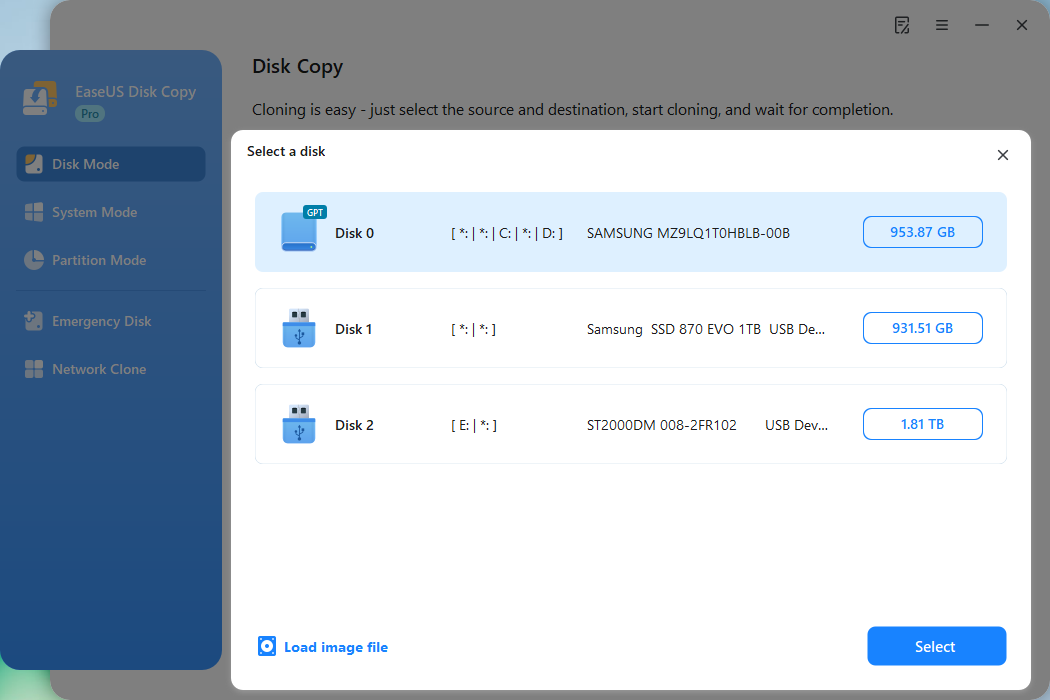
Step 3. Choose the target disk.
Choose the disk that you want to clone data to, and click Select. Note that the used space of the source disk should be less than the target disk capacity.
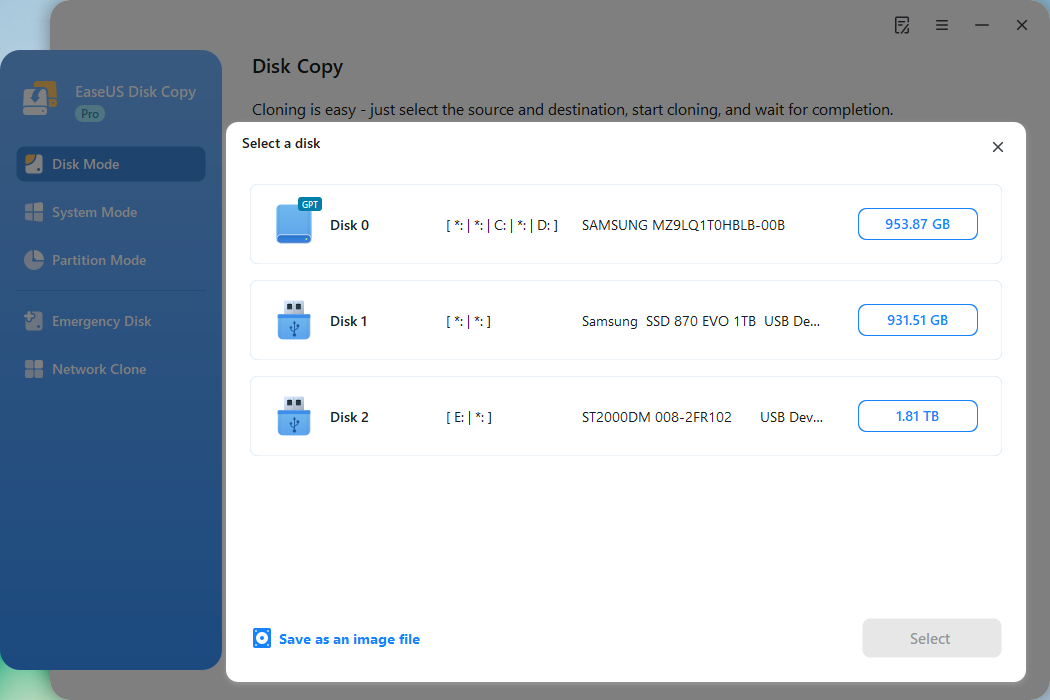
*At this step, you can also click the option "Save as an image file" to store your disk as a compressed image file, which can be restored without any data loss.
Step 4. Adjust disk layout.
Specify the target disk layout as your preference. You can choose among:
- Autofit the disk: makes some changes by default on the destination disk layout so that it can work at its best.
- Copy as the source: create a 1-to-1 copy of your source disk; the layout is the same as the source disk.
- Edit disk layout: allows you to manually resize/move the partition layout on this destination disk.
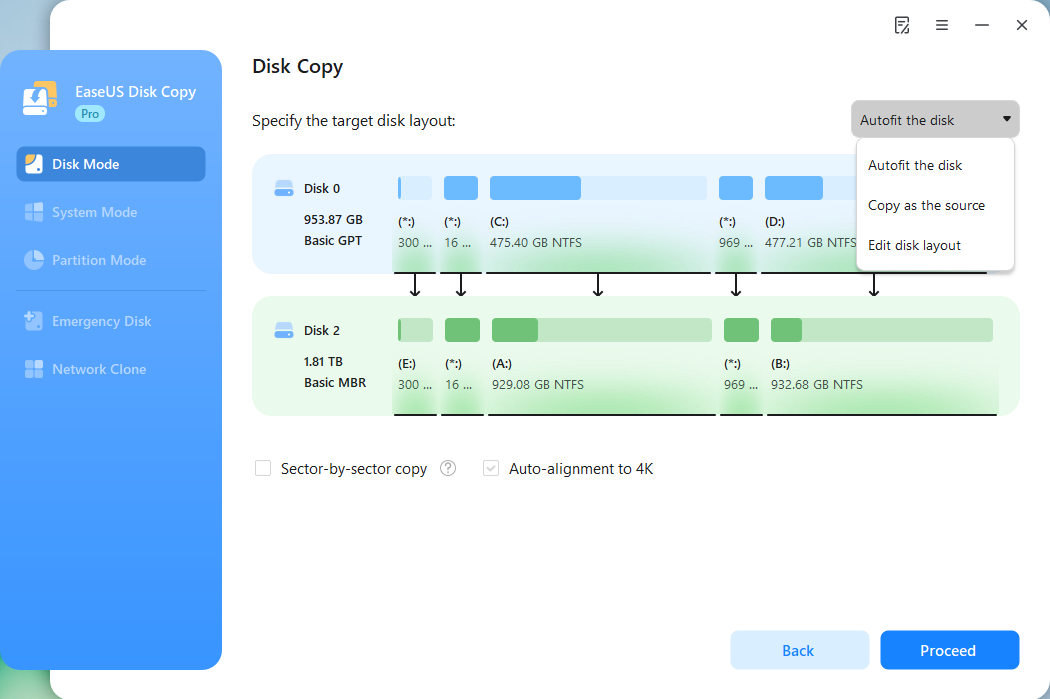
*If the target disk is an SSD, the option "Auto-alignment to 4K" will be checked automatically to optimize the performance of your SSD.
Step 5. Start cloning.
Click Proceed, and a message will appear, warning you that data will be lost. Confirm the message by clicking Continue.
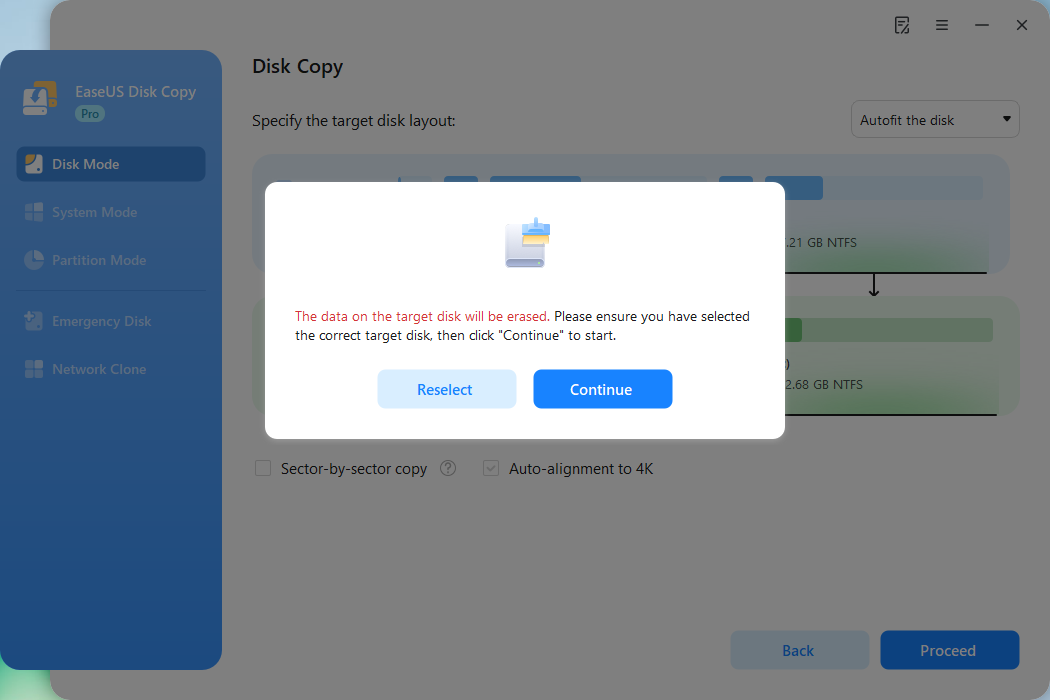
Now, it will start executing the cloning task.
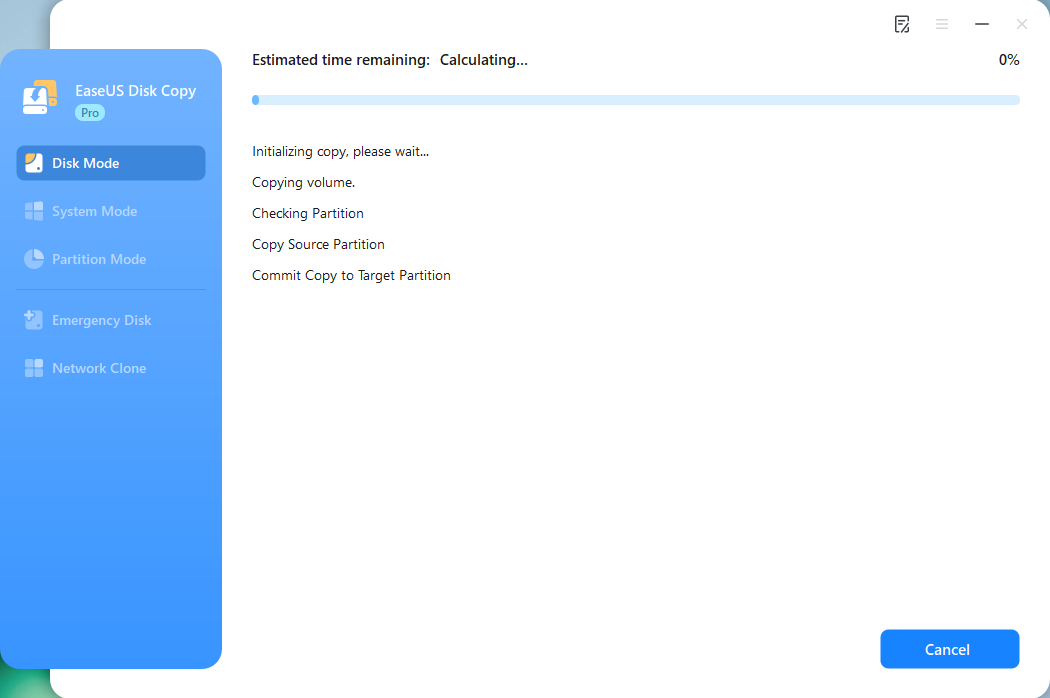
*The time it takes to clone a hard drive depends on how much data is on the source disk, and it will also be affected by the disk types, USB connection, etc.
Share the post on social media to help others clone hard drive with the operating system.
Written In the End
This is all about how to clone a hard drive with the operating system. If you choose the system drive as the cloning source drive, the OS will be cloned to the new disk, and you can boot successfully from the cloned disk with the original operating system.
EaseUS Disk Copy is an awesome disk cloning software with robust features. With it, you can clone a hard with the operating system intact on the new hard drive. Download and give it a try, and you won't be disappointed.
Free Download
Windows 11/10/8/7
FAQs Related to Cloning Hard Drive Including OS
1. How to clone a bootable hard drive?
To clone a bootable hard drive, you must select the boot drive as the source drive and use cloning software like EaseUS Disk Copy or Conezilla. Connect both the source and destination drives to your computer, select the source drive with the operating system, select the destination drive, and start the cloning process. Once complete, swap out the old drive for the new one to boot up your computer with all data and settings intact.
2. Can you clone a drive with Windows on it?
Of course, cloning a hard drive with Windows 10 is the same as cloning a general disk. You need to ensure that you choose the drive with Windows 10 on it as the source drive. After cloning, you can boot from the cloned hard drive and run Windows 10 seamlessly.
3. Can you clone an HDD while it is running?
Cloning a working operating system is feasible only if you use a reliable OS migration tool. You can use EaseUS Disk Copy because it has various cloning features, like system clone, partition clone, and disk clone, allowing you to clone a hard drive while it is in use. However, to avoid data loss, it is recommended not to use you disk while cloning.
-
Updated by
![]()
Larissa
Larissa has rich experience in writing technical articles and is now a professional editor at EaseUS. She is good at writing articles about data recovery, disk cloning, disk partitioning, data backup, and other related knowledge. Her detailed and ultimate guides help users find effective solutions to their problems. She is fond of traveling, reading, and riding in her spare time.…Read full bio