Page Table of Contents

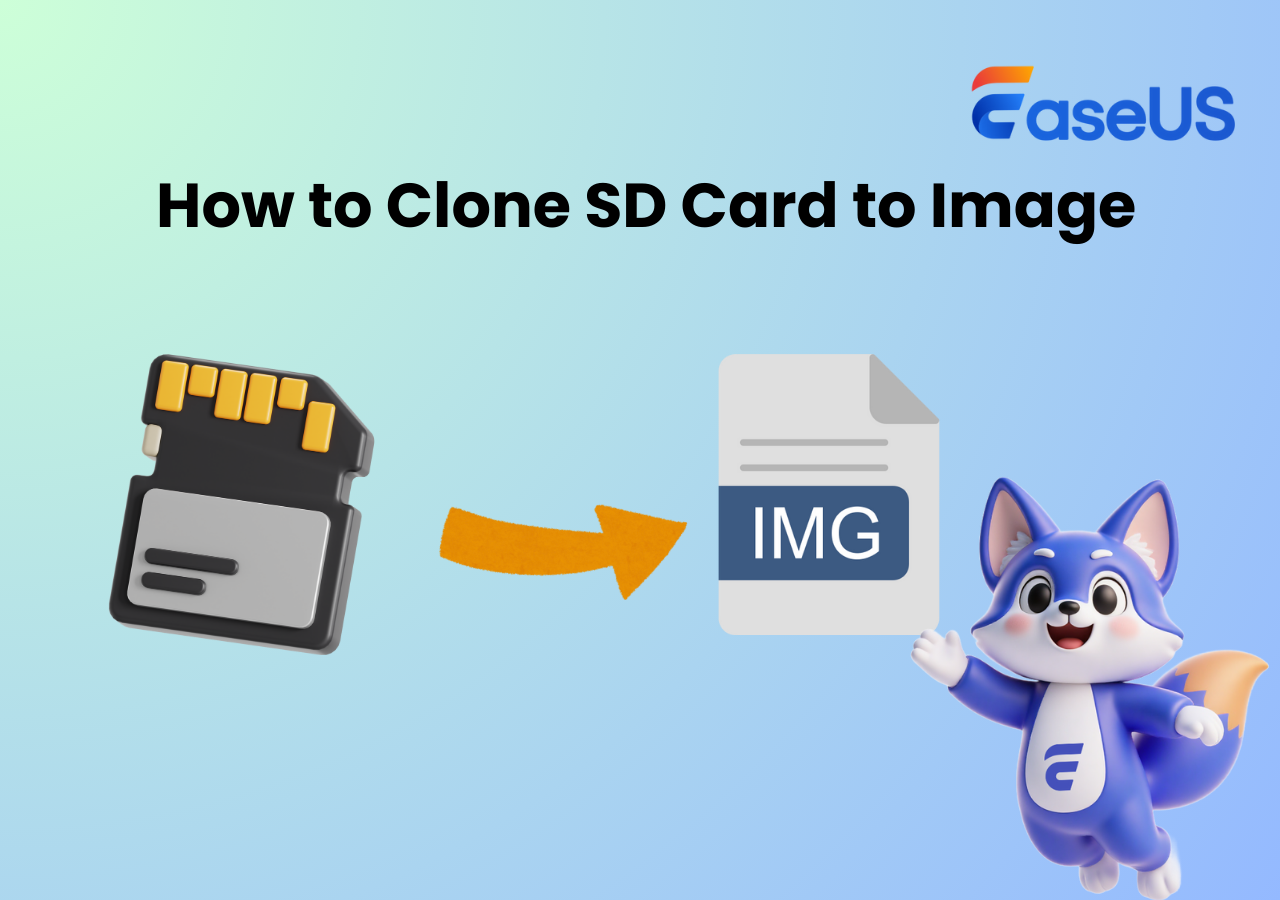
A bit copy of an SD card is essentially a duplicate of all the data stored on the SD card, including the file structure and contents. This process is commonly used to create backups or transfer data between devices. In this blog, we will explore the concept of bit copying an SD card, when you need it, and the tools and methods used to do so. Keep reading.
What Is Bit-by-Bit Copy & When You Need It
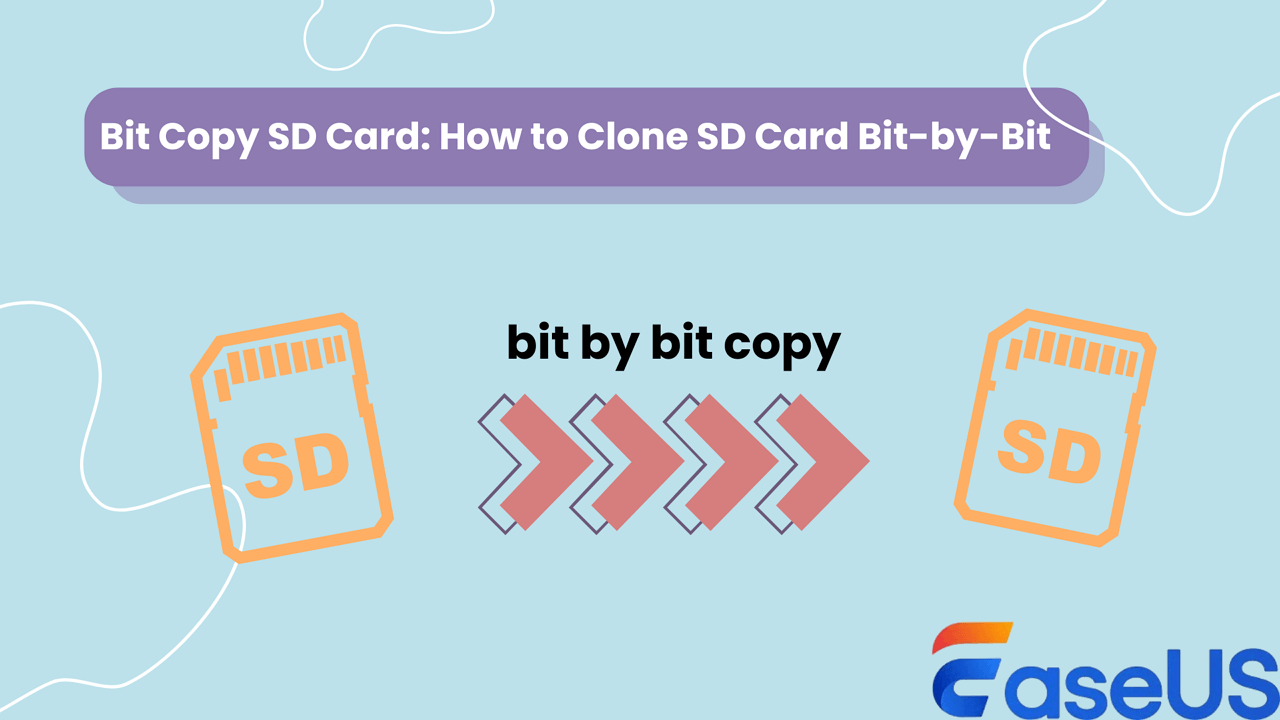
As the name shows, bit-by-bit copy, also known as sector-by-sector copy, is a method of cloning an SD card by copying every single bit of data from the source SD card to the target one, including empty space and system files. This type of cloning ensures that the new SD card is an exact replica of the original, with no data loss or corruption, and with all the structures identical.
You may need a bit copy of your SD card for the following situations:
- 🔖Data backup and recovery: If the original SD card is corrupted or damaged, you can use the sector-by-sector cloned SD card to restore the exact same one with the fastest speed.
- 💾Upgrade to a larger SD card: It is usually the case that with long-time use and continuous data accumulation, your SD card storage is full, and you need to replace it with a larger one. A sector-by-sector clone will copy all data, including hidden and system files, to the new card without any loss.
- 🔍Forensic copy analysis: Sector-by-sector copying is an excellent way to save the original data, and it is commonly used in forensic investigations to preserve digital evidence from an SD card without altering the original data.
Overall, sector-by-sector copying is a reliable method for cloning an SD card when you need to preserve every bit of data and ensure an exact replica of the original card.
Share the blog on your social media to help others clone SD cards bit by bit.
Download the Best Bit Copy Software on Windows
A reliable SD card cloning tool is required and necessary to create a bit-by-bit copy of your SD card. EaseUS Disk Copy is the choice for most Windows users due to its various cloning features, including the sector-by-sector clone. Here are some of the features that you can use with confidence:
|
Sector-by-sector clone |
If you want to clone a disk bit for bit, it offers a "Sector-by-sector clone" option; just check it, and the tool will perform the task automatically. |
| Compatible with various disks | It supports almost all types of disks (HDD, SSD, USB, SD card, etc.) and is compatible with disks from various manufacturers. |
| Fast & safe cloning | Supported by advanced technology, this cloning software will clone data at a very quick speed and ensure no data loss during the process. |
What are you waiting for? Download this awesome SD card cloning tool to copy your SD card bit by bit.
 Free Download
Windows 11/10/8/7
How to Copy SD Card Bit-by-Bit Using EaseUS Disk Copy
Since you know the best SD card cloning software for bit copy, you can follow the guide below to clone an SD card bit by bit. Ensure you have EaseUS Disk Copy installed on your Windows computer.
Before cloning:
- If your computer has only one disk slot, connect the target disk to your machine via a USB-to-SATA/NVMe adapter.
- If your computer has an extra slot, install the target drive into the empty slot properly, and make sure it is compatible.
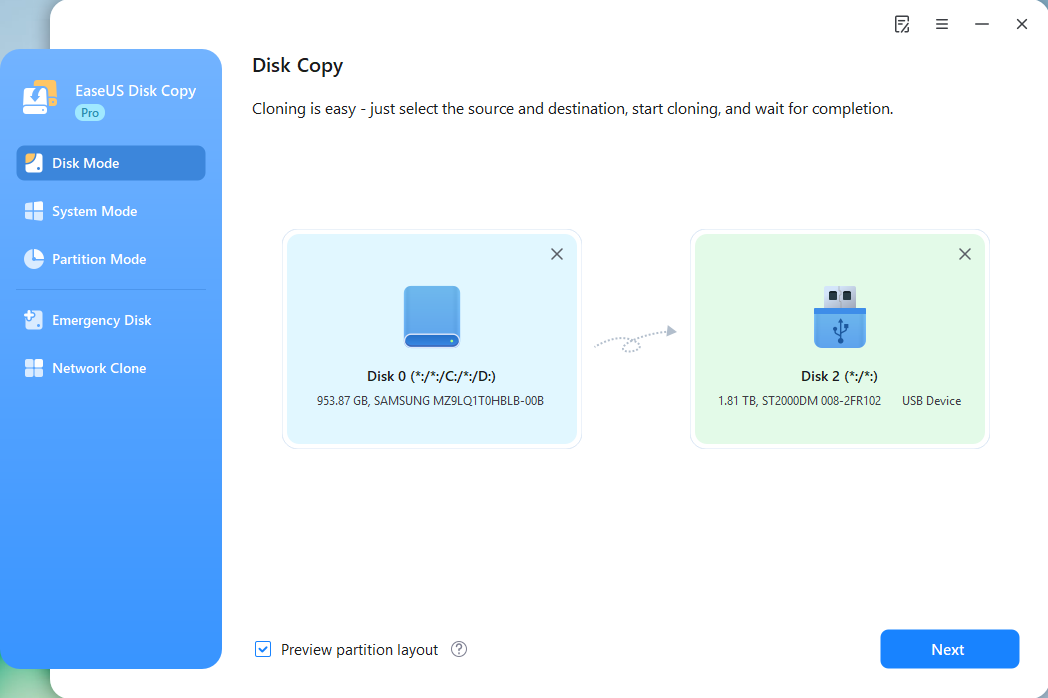
Step 1. Launch EaseUS Disk Copy and choose Disk Mode.
Install EaseUS Disk Copy SSD cloning software on your Windows computer, launch it, and choose Disk Mode.

Step 2. Select the source and target drives.
- Source - the old/smaller disk you want to make a copy.
- Destination - the new/larger disk that you want to clone data to.
*Note that the used space of the source disk should be less than the target disk capacity.
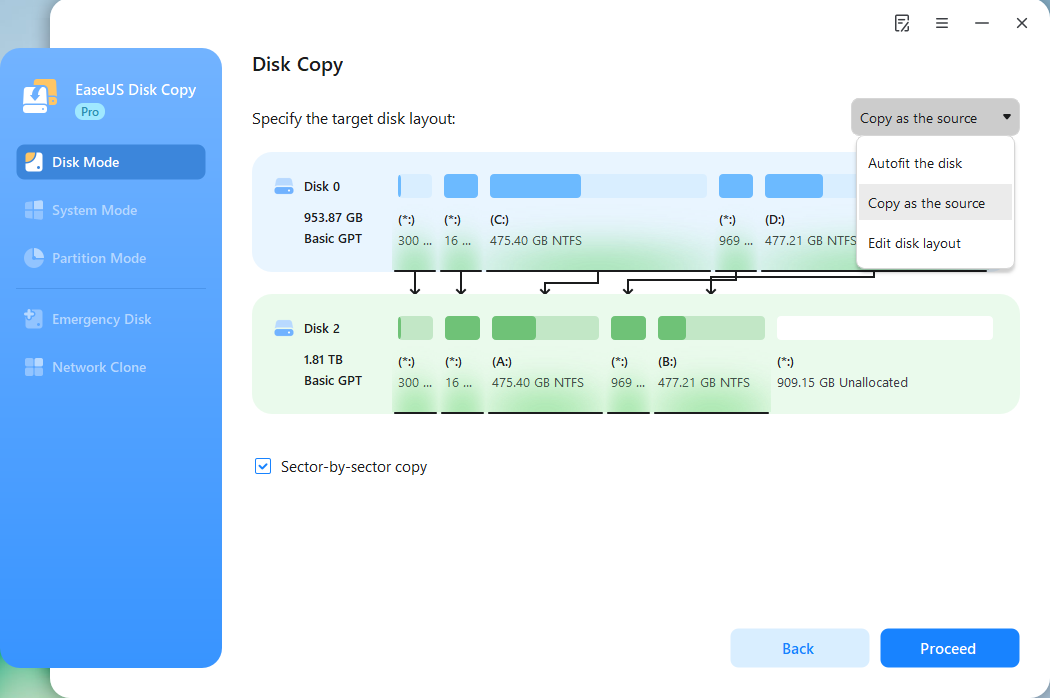
Step 3. Select 'Sector-by-sector' copy.
When specifying the target disk layout, choose 'Copy as the source' and check the 'Sector-by-sector copy' option.
Step 4. Start cloning.
Click Proceed, a message will appear, warning you that data will be lost. Confirm the message by clicking Continue.
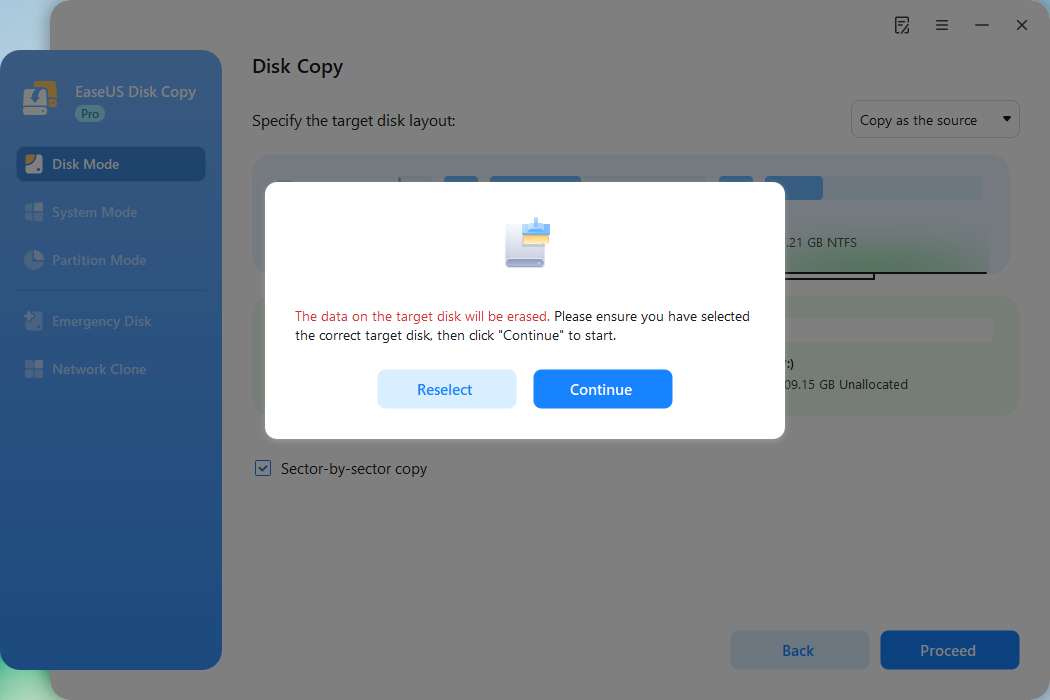
Now, it will start sector-by-sector disk cloning.
Share the blog on your social media to help others clone SD cards bit by bit.
Bonus Tips: Bit Copy SD Card Using Win32 Disk Imager
Win32 Disk Imager can also create a bit-for-bit (sector-by-sector) clone of an SD card. This method is ideal for Raspberry Pi or similar images.
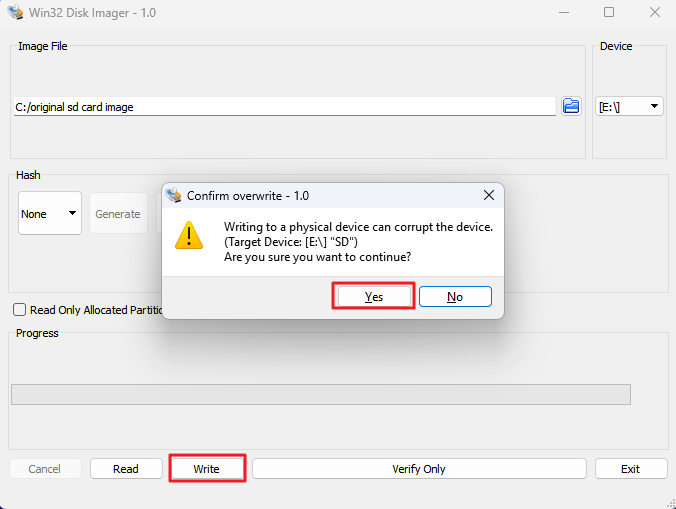
When you use the tool to "Read" an SD card, it captures every sector of the device and saves it as a single .img file on your computer. This image file has the same total size as the original SD card's capacity, regardless of how much space is actually used. The "Write" function then copies this raw image file, bit by bit, to another SD card.
Here is how to clone an SD card bit for bit using Win32 Disk Imager:
Step 1. Insert the source SD card using an SD card reader.
Step 2. Open Win32 Disk Imager and select the drive letter corresponding to your source SD card by clicking "Device".
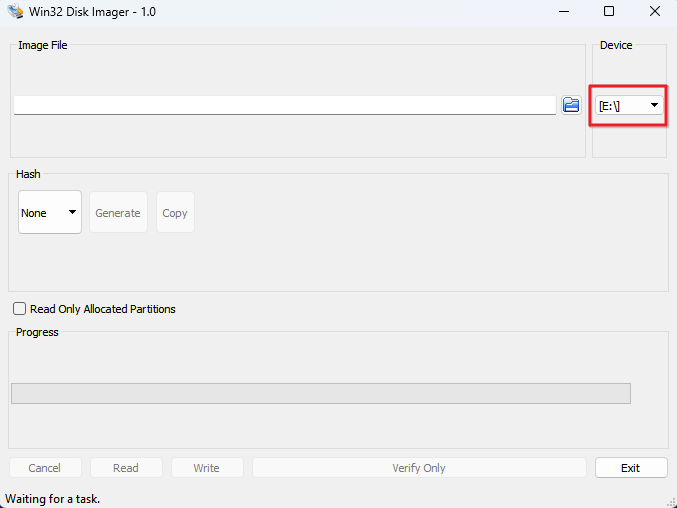
Step 3. Select a destination path, and name the file with a .img extension. Click "Read" to create an image of the card.
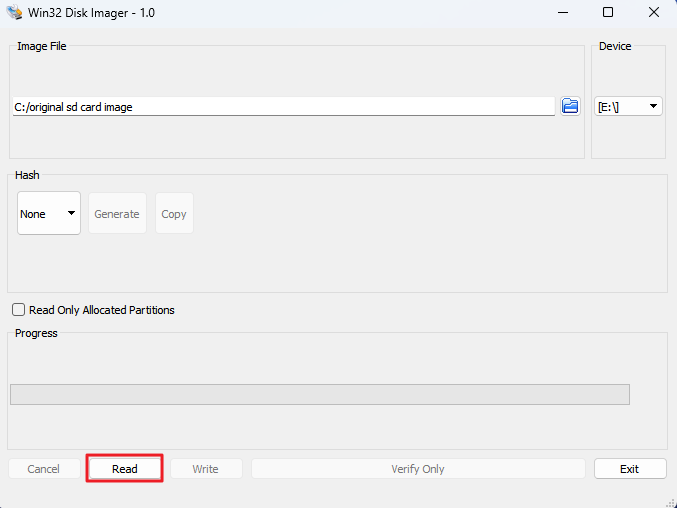
Step 4. Connect the destination SD card to your computer via the SD card reader, select the same .img file, and click "Write."
You can read this article to learn more about how to clone an SD card using Win32 Disk Imager:

Win32 Disk Imager Clone SD Card: Full Guide with Best Alternative
Win32 is Windows software that images SD cards onto another. Also, find a better Win32 Disk Image alternative for cloning an SD card. Read more >>
Final Words
Making a bit copy of an SD card is a great way to keep all the data transferred to the new card without any loss when you want to create a backup, upgrade to a larger SD card, or for forensic analysis. It ensures that all data and file structures are the same as the source card.
EaseUS Disk Copy is so convenient that it makes the sector-by-sector cloning process much easier. With its advanced features, you can copy everything to the new SD cards without any loss. Download and give it a try.
Free Download
Windows 11/10/8/7
FAQs Related to Bit Copy SD Card
1. Can Rufus clone SD card?
No, Rufus can't clone SD cards, but imaging. If you want a copy of the original SD card, you can choose to write the image to another SD card. To clone an SD card, you'd better use dedicated SD card cloning programs, like EaseUS Disk Copy, Clonezilla, or Rescuezilla.
2. Can an SD card be used as a bootable drive?
Yes, an SD card can be used as a bootable drive for certain devices, such as laptops, desktop computers, or Raspberry Pi. To use an SD card as a bootable drive, you will need to copy the necessary boot files and boot sectors onto the card and configure your device to boot from it. Additionally, not all devices support booting from an SD card, so it is important to check your device's specifications before attempting to do so.
3. Is it possible to transfer an SD card to another SD card?
Yes, it is feasible to transfer an SD card to another through cloning. You can do it with a professional SD card clone tool, like EaseUS Disk Copy:
- Connect both SD cards to your Windows computer through an SD card reader.
- Launch EaseUS Disk Copy and select Disk Mode.
- Select both source and target SD cards, and click Next.
- Adjust the disk layout, and click Proceed to start cloning.
4. What is the best way to clone or copy an SD card?
The best way to clone an SD card is by using disk cloning software or imaging software that creates an exact, sector-by-sector copy, especially for bootable SD cards or those with multiple partitions. Simply copying files via drag-and-drop will not work for these scenarios, especially bootable cards.
- For Windows: using Win32 Disk Imager or feature-rich options like EaseUS Disk Copy.
- For macOS: Built-in Disk Utility.
- For Linux: The built-in dd command, Clonezilla, or Rescuezilla.
- For Raspberry Pi: The "SD Card Copier" tool is built into the OS.
5. How to transfer data from one SD card to another without a computer?
Transferring data between SD cards without a computer can be done with a smartphone (Android or iPhone) and a USB-C/Lightning OTG card reader, or with a portable wireless storage hub.
-
Updated by
![]()
Larissa
Larissa has rich experience in writing technical articles and is now a professional editor at EaseUS. She is good at writing articles about data recovery, disk cloning, disk partitioning, data backup, and other related knowledge. Her detailed and ultimate guides help users find effective solutions to their problems. She is fond of traveling, reading, and riding in her spare time.…Read full bio