Page Table of Contents

Looking for the best SSD for Acer Nitro 5, like AN515-55, and more models for Acer Nitro 5 SSD upgrade? You're in the right place! A solid-state drive (SSD) can significantly boost your laptop's performance, reducing game load times and improving overall system speed.
In this guide from EaseUS, we'll explore the best SSDs, their compatibility, and how to upgrade without reinstalling everything from scratch.
Part 1. Acer Nitro 5 SSD Compatibility
Before deciding which SSD to buy, first know the compatibility of the SSD, such as the SSD interface types that your Acer gaming laptop supports.
- The number of SSD slots: Most Nitro 5 models support at least one SSD slot, with newer models having two SSD slots.
- The form factor of SSD: Newer Acer Nitro 5 laptops, like an515-57, support M.2 SSD, while some old computers may support SATA SSD.
- The protocol of SSD: Acer Nitro 5 gaming laptops support NVMe for higher performance.
- The SSD interface: Newer Nitro 5 models support PCIe 4.0 SSDs, while older models are limited to PCIe 3.0.
Generally speaking, an M.2 NVMe SSD can suit your needs. If you are unfamiliar with the SSD requirements of your Acer Nitro 5 model, check the user manual or Acer's official website to ensure compatibility.
Share this post to help more Acer users choose the right SSD!

Part 2. Best SSD for Acer Nitro 5 Gaming
The criteria for "best" can vary depending on specific usage. Here, we divide these SSDs into three groups, including read/write speed and price. Choose the options that suit you most.
#1. High-Performance SSDs (Top-end Gaming & Content Creation)
💡Ideal for 4K video editing, 3D rendering, high-end gamers seeking extreme speed and durability
|
SSD |
Interface & Specs |
Sequential Read/Write Speed |
Size |
Price |
|
Samsung 990 Pro |
PCIe 4.0 |
7,450/6,900 MB/s |
1TB/2TB/4TB |
$99.99/$167.99/$319.99 |
|
WD Black SN850X |
PCIe 4.0 |
7300/6600 MB/s |
1TB/2TB/4TB/8TB |
$93.99/$189.99/$279.99/$879.99 |
|
Seagate FireCuda 530 |
PCIe 4.0 |
7300/6900 MB/s |
500GB/1TB/2TB/4TB |
$89.75/$160.99/$289.55/$634.50 |
|
Crucial T700 |
PCIe 5.0 |
12400/ 11700 MB/s |
1TB/2TB/4TB |
$143.00/$256.99/$426.99 |
- Recommendation: If your Nitro 5 supports PCIe 4.0, prioritize the Samsung 990 Pro or WD Black SN850X. If you plan to upgrade to a PCIe 5.0-compatible device, consider the Crucial T700.
#2. Mid-Range SSDs (Mainstream Gaming & Multitasking)
💡Suitable for mainstream 1080p / 1440p gamers, daily office, multitasking, and price/performance ratio
|
SSD |
Interface & Specs |
Sequential Read/Write Speed |
Size |
Price |
|
Crucial P5 Plus |
PCIe 4.0 |
6600/5000 MB/s |
1TB |
$117.56 |
|
WD Black SN770 |
PCIe 4.0 |
5150/4900 MB/s |
250GB/500GB/1TB/2TB |
$50.75/$59.14/$69.99/$119.69 |
|
Kingston KC3000 |
PCIe 4.0 |
7000/6000 MB/s |
500GB/1TB/2TB/4TB |
$63.11/$92.99/$148.77/$299.77 |
|
ADATA XPG Gammix S70 |
PCIe 4.0 |
7400/ 6400 MB/s |
1TB/2TB/4TB |
$143.00/$256.99/$426.99 |
- Recommendations:
- If your Nitro 5 supports PCIe 4.0 but is on a budget, the Crucial P5 Plus and WD Black SN770 are great choices.
- If durability is a priority, go for the ADATA XPG Gammix S70.
#3. Budget SSDs (Regular Use & Light Gaming)
💡Best for general office, online courses, data storage, and general gaming, not pursuing extreme speed but cost-effective
|
SSD |
Interface & Specs |
Sequential Read/Write Speed |
Size |
Price |
|
WD Blue SN570 |
PCIe 3.0 |
3500/3000 MB/s |
250GB/500GB/1TB/2TB |
$39.19/$79.99/$132.95/$291.60 |
|
Crucial P3 Plus |
PCIe 4.0 |
5000/4200 MB/s |
500GB/1TB/2TB/4TB |
$39.99/$60.73/$117.37/$219.99 |
|
Kingston NV2 |
PCIe 4.0 |
3500/2100 MB/s |
250GB/500GB/1TB/2TB/4TB |
$***/$***/$59.77/$118.77/$238.70 |
|
Lexar NM620 |
PCIe 3.0 |
3300/3000 MB/s |
1TB |
$59.80 |
- Recommendation:
- If your Nitro 5 only supports PCIe 3.0, choose the WD Blue SN570.
-
If your Nitro 5 supports PCIe 4.0 but you want to save money, go for the Crucial P3 Plus, which is faster than PCIe 3.0 drives and more affordable
Share this post to help more Acer users choose the right SSD!
Part 3. Acer Nitro 5 SSD Upgrade
Upgrading your Acer Nitro 5's solid-state drive is a great way to boost performance, reduce load times, and expand storage for gaming, video editing, and daily tasks.
🚩Let's see how to upgrade your Acer Nitro 5 SSD in Windows:
⏩Stage 1. Preparation before upgrading.
- Make sure you have prepared the following items properly:
- Get a larger SSD to accommodate all old Acer Nitro 5 SSD data.
- Back up essential files on the source hard disk to maintain data integrity.
- Prepare a Philip screwdriver to open and close the laptop's back cover.
- Download professional disk cloning software to move everything, including the OS, without reinstalling anything from scratch.
 Free Download
Windows 11/10/8/7
⏩Stage 2. Install the new SSD on your Nitro computer.
Step 1. Power off your AC laptop completely. Remove the adapter, USB connector, or power cable if needed.
Step 2. Remover all screws on the cover with a Philip screwdriver. Release the plastic clips carefully.
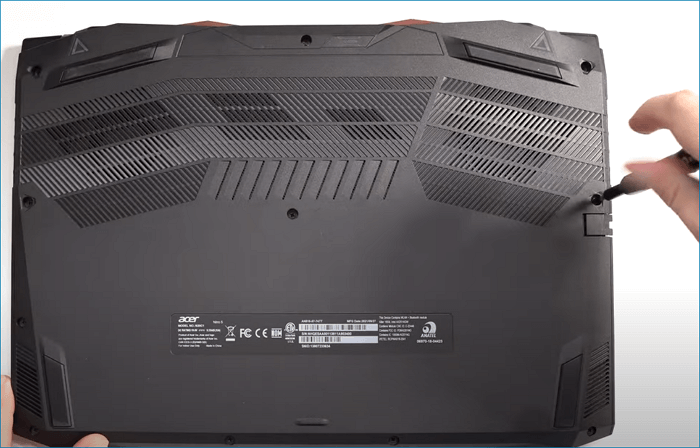
Step 3. Locate the SSD slots and remove the original SSD from the slot. Remove the screws securing the SSD if needed.
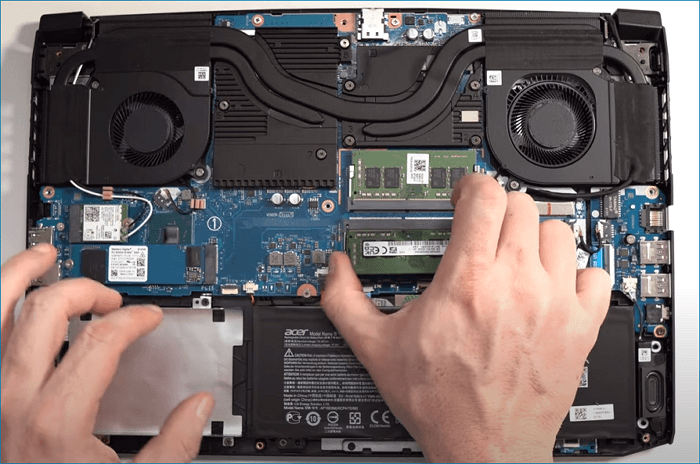
Step 4. Put the new SSD into the corresponding slot. Fix the screws if needed.
Step 5. Now, place the lowercase and plastic clips properly. Reinstall the screws.
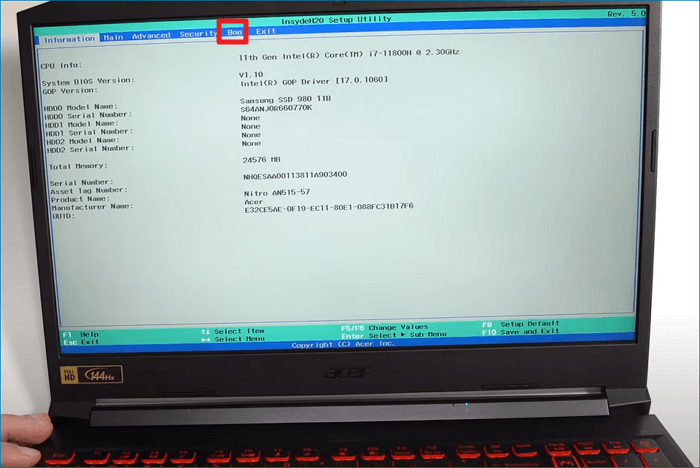
Step 6. Power on your Acer Nitro laptop to check if it boots properly.
⏩Stage 3. Clone OS, partition, or entire PC to the target M.2 NVMe PCIe SSD.
If you need to clone SSD to new SSD on your AC laptop, use EaseUS Disk Copy now. It lets you migrate all data, including OS, applications, installed games, and anything you want from the source drive to the target disk in a few clicks. No data loss, re-installation, or boot failure.
Free Download
Windows 11/10/8/7
🚩Follow the steps below to upgrade your Nitro 5 SSD now.
Before cloning:
- If your computer has only one slot, connect the target disk to your machine via a USB-to-SATA/NVMe adapter.
- If your computer has an extra slot, install the target disk into the empty slot properly, and make sure it is compatible.
Step 1. Launch EaseUS Disk Copy and choose Disk Mode.
Install EaseUS Disk Copy cloning software on your Windows computer, then launch it and select Disk Mode from the left panel.

Step 2. Select the source drive.
Select the drive you want to copy, then click Select.
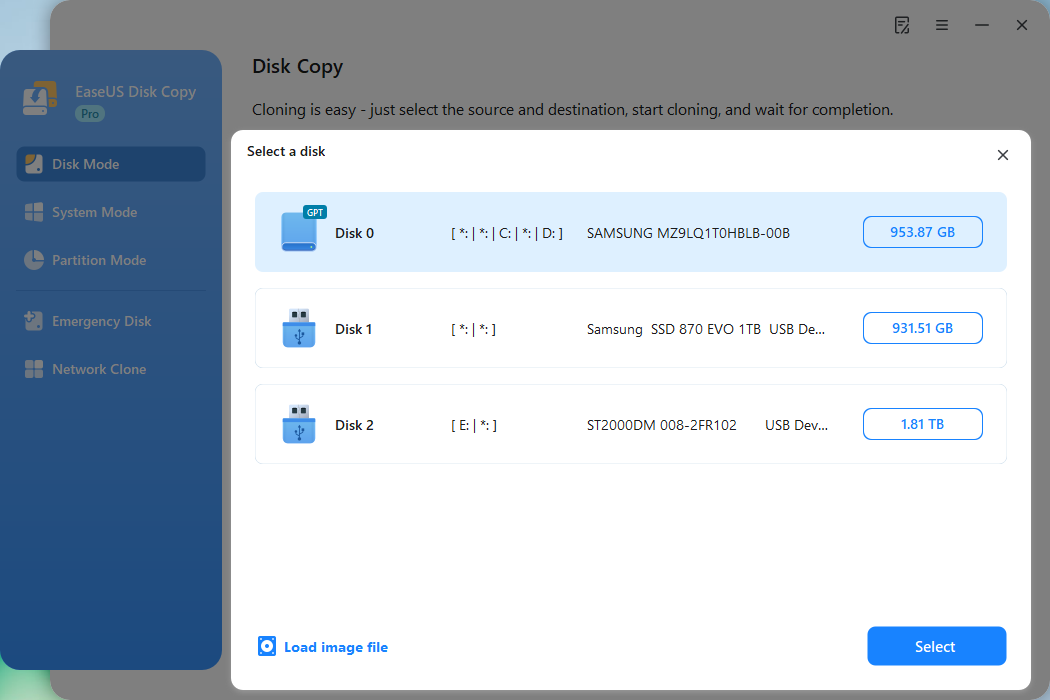
Step 3. Choose the target disk.
Choose the disk that you want to clone data to, and click Select. Note that the used space of the source disk should be less than the target disk capacity.
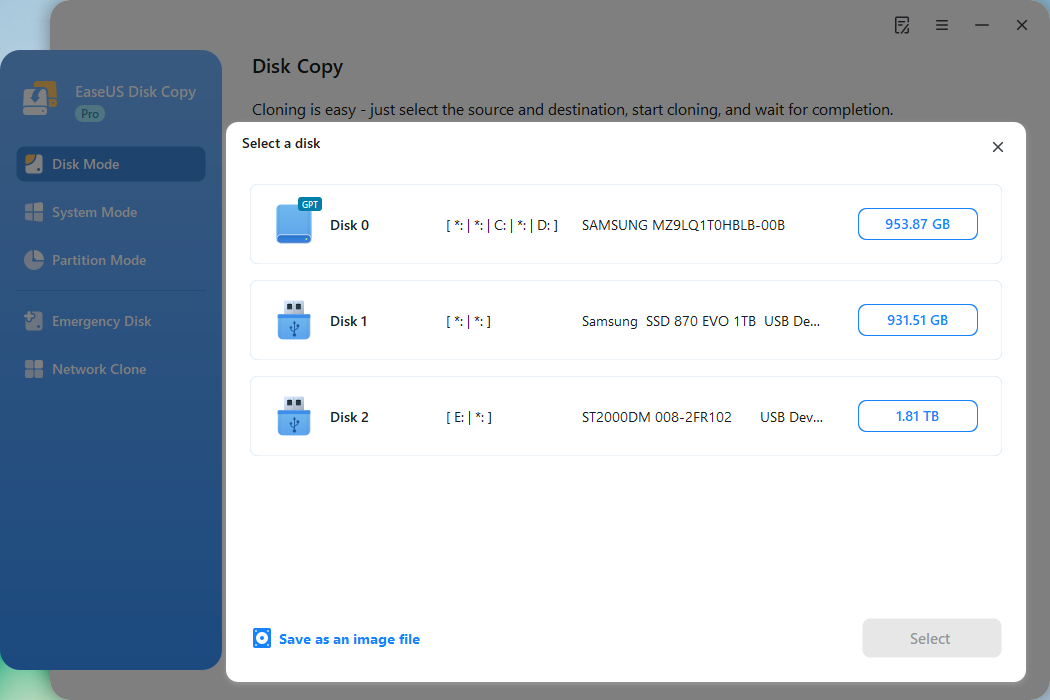
*At this step, you can also click the option "Save as an image file" to store your disk as a compressed image file, which can be restored without any data loss.
Step 4. Adjust disk layout.
Specify the target disk layout as your preference. You can choose among:
- Autofit the disk: makes some changes by default on the destination disk layout so that it can work at its best.
- Copy as the source: create a 1-to-1 copy of your source disk; the layout is the same as the source disk.
- Edit disk layout: allows you to manually resize/move the partition layout on this destination disk.
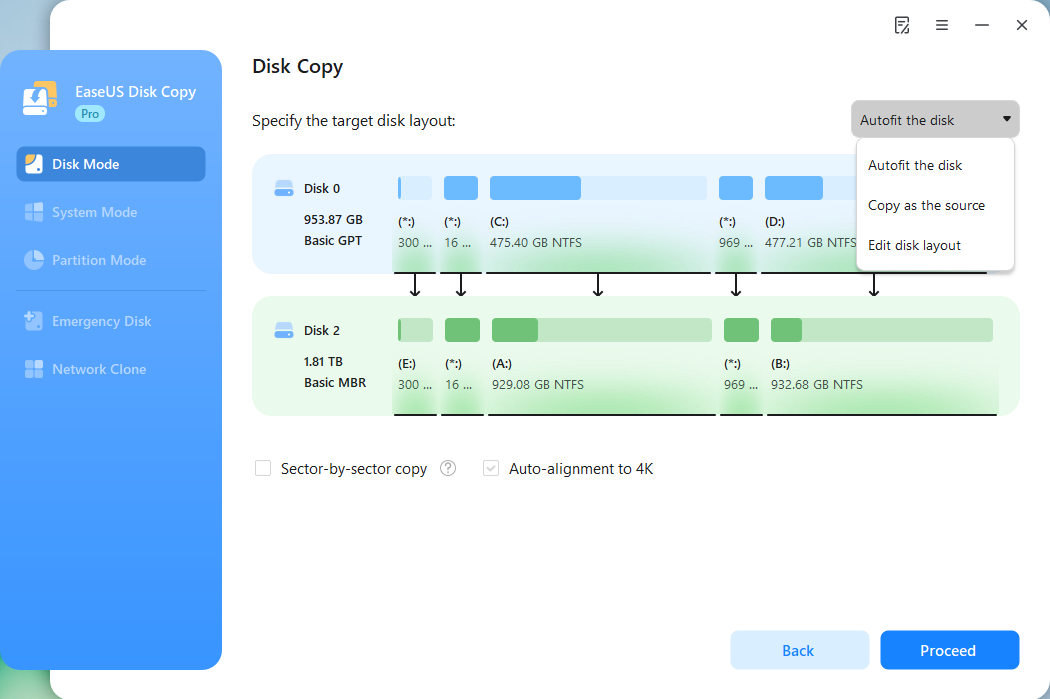
*If the target disk is an SSD, the option "Auto-alignment to 4K" will be checked automatically to optimize the performance of your SSD.
Step 5. Start cloning.
Click Proceed, and a message will appear, warning you that data will be lost. Confirm the message by clicking Continue.
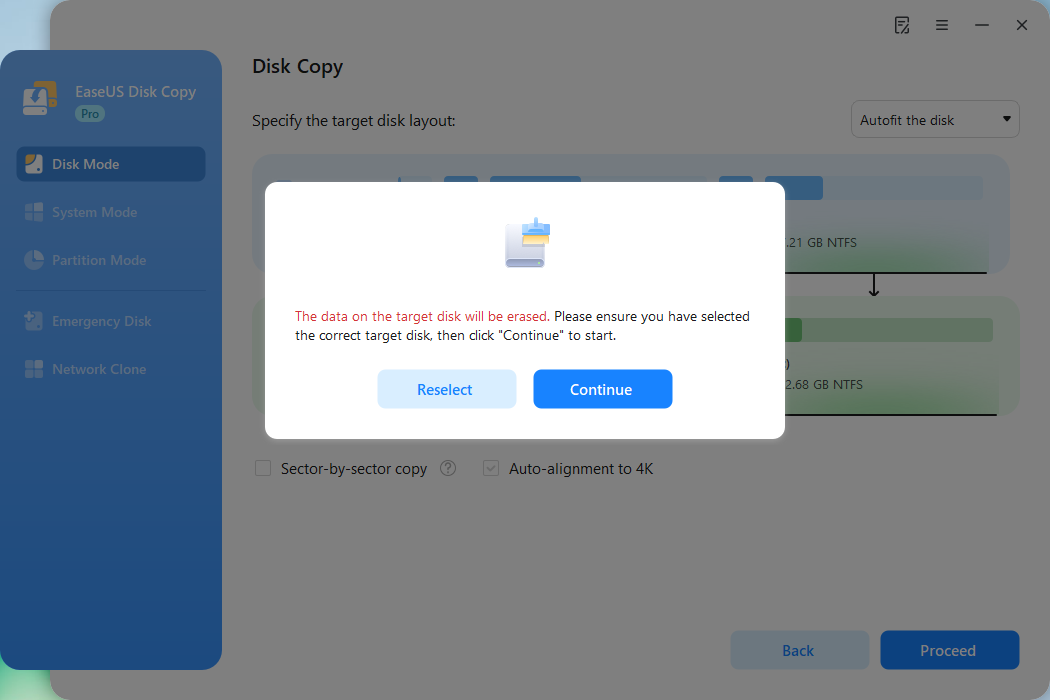
Now, it will start executing the cloning task.
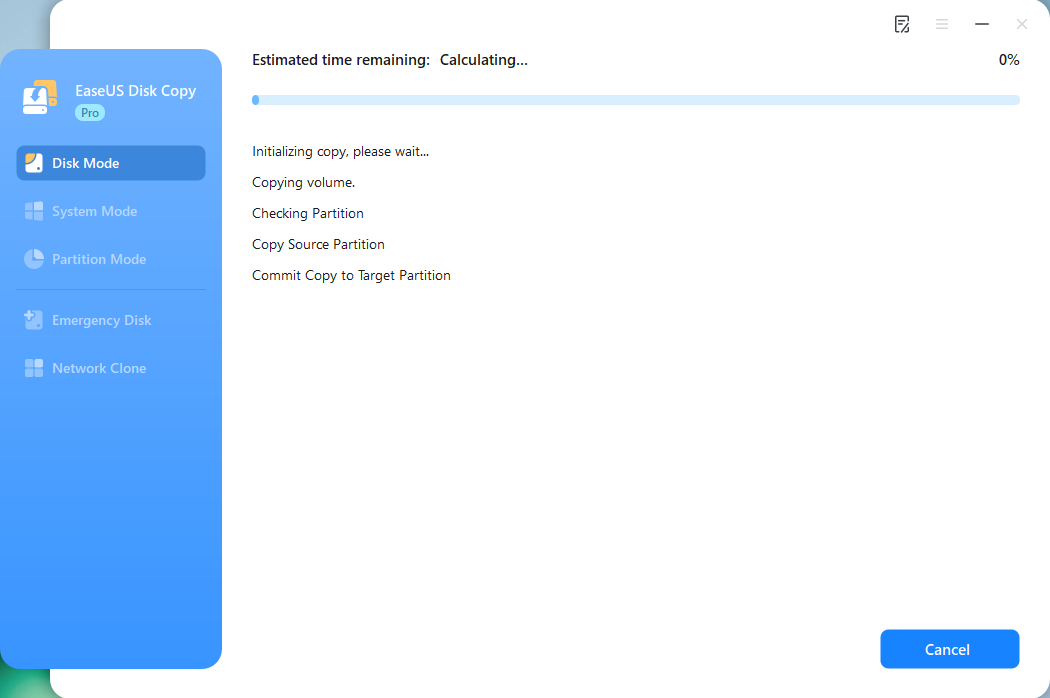
*The time it takes to clone a hard drive depends on how much data is on the source disk, and it will also be affected by the disk types, USB connection, etc.
Share this post to help more Acer users choose the right SSD!
Conclusion
Upgrading your Acer Nitro 5 with a fast SSD can drastically improve gaming and system performance. Whether you need high-end speed, balanced value, or budget-friendly options, there are the best SSD for Acer Nitro 5 that fit your needs. To summarize:
- Samsung 990 Pro, WD Black SN850X, Seagate FireCuda 530, and Crucial T700 for extreme speed & high endurance with generous budget
- Crucial P5 Plus, WD Black SN770, Kingston KC3000, and ADATA XPG Gammix S70 with balanced cost-performance & performance
- WD Blue SN570, Crucial P3 Plus, Kingston NV2, and Lexar NM620 for good performance while saving money
Follow the upgrade steps carefully, and enjoy a smoother gaming experience!
Free Download
Windows 11/10/8/7
Best SSD for Acer Nitro 5 Gaming FAQs
Here are answers to some common questions about upgrading your Nitro 5's SSD.
1. Does Acer Nitro 5 support 1TB SSD?
Acer Nitro 5 supports 1TB SSDs, including M.2 NVMe PCIe and SATA SSDs. Some models even support up to 2TB or more.
2. What is a good SSD size for gaming?
For gaming, 1TB is recommended as it provides enough space for modern games. If you play multiple AAA titles, consider 2TB for extra storage.
3. What type of SSD slot is the Nitro 5?
Acer Nitro 5 typically features at least one M.2 NVMe PCIe slot and, in some models, a 2.5-inch SATA bay for additional SSD or HDD storage.
-
Updated by
Jean is recognized as one of the most professional writers at EaseUS. She has continually improved her writing skills over the past 10 years and has helped millions of readers solve tech problems on PC, Mac, and iOS devices. …Read full bio