



-
![]()
-
![]() How to Recover Data from 2TB External Hard Drive in Windows 11/10/8/7
 November 18,2026
 6 min read
-
![]()
-
![]() How to Recover Lost Partition on External Hard Drive [Easy]November 18,20266 min read
-
![]()
-
![]()
-
![]() How to Recover Files from a Deleted exFAT Partition Without Data LossNovember 18,20266 min read
-
![]()
-
![]()
-
![]() Laptop Screen Black but Still Running of HP, Lenovo, Asus, DellOctober 29,20266 min read
Page Table of Contents
PAGE CONTENT:
Why Is Data Lost from a Seagate External Hard Drive
Seagate external hard drives like Expansion, Backup Plus, One Touch, and Portable models are everywhere. Maybe you accidentally delete files, format the disk without thinking, run into corrupted file systems, or your computer just stops seeing the drive.
Most of the time, your files aren't actually gone for good. With the right tools, a backup, or help from the pros, you can usually get them back.
Drives can lose data for all kinds of reasons. Sometimes it's as simple as deleting the wrong folder, and other times it's a messed-up file system, bad connections, or straight-up physical damage.
Here's what typically goes wrong:
- Accidental file deletion: You might delete stuff by mistake, especially when tidying up.
- Formatting gone wrong: Maybe you formatted the wrong drive, or tried to switch up the file system.
- Corrupted external hard drive: Pulling a drive without ejecting, losing power mid-transfer, or crashing your system can wreck the file system.
- Seagate hard drive not showing up: A busted USB cable, bad port, outdated drivers, or partition issues can make your computer ignore the drive.
- Virus or malware: Malicious software can hide, change, lock up, or delete files.
- Physical damage: Drops, spills, overheating, or just wear and tear can wreck drive components.
Why does this matter? Because software can usually fix logical problems: deletion, formatting, or file system errors. If the drive's physically damaged, you'll want to call in the data recovery experts.
How to Recover Data from Seagate External Hard Drive
There are several external hard drive recovery methods to get your stuff back. The best approach depends on whether you have a backup, can still see the drive, and if you're dealing with software or hardware issues.
Most folks start with professional Seagate data recovery software, especially for accidental deletion, formatting, or file system messes. If you have a backup, restoring it is way easier. For drives that are really busted, professional recovery is your safest bet.
Check out these three methods.
Fix 1. Restore Seagate External HDD with Data Recovery Software
Data recovery software is usually your best first move, especially for missing files, an empty Recycle Bin, formatted drives, or lost partitions.
EaseUS Data Recovery Wizard is a popular choice; it's user-friendly and works with Seagate drives, plus most other storage devices. Anyone can use it, even if tech isn't your thing.
Some standout features of this Seagate hard drive recovery software:
- Gets back deleted and formatted files: Covers accidental deletion, formatting, partition loss, all the usual disasters.
- Works with all Seagate models: If your drive shows up on your computer, it can scan it, including Expansion, Backup Plus, One Touch, Portable, whatever.
- Handles RAW/inaccessible partitions: If your drive turns RAW or the file system is broken, it scans for recoverable files without forcing you to format first.
Check the following steps to recover data from your Seagate external hard drive:
Step 1. Choose and scan the external hard drive
- Download and install EaseUS Data Recovery on your PC or laptop.
- Connect the external hard drive to your computer.
- Run EaseUS Data Recovery Wizard and choose the external drive from External drives list. Then, click "Search for Lost Data".
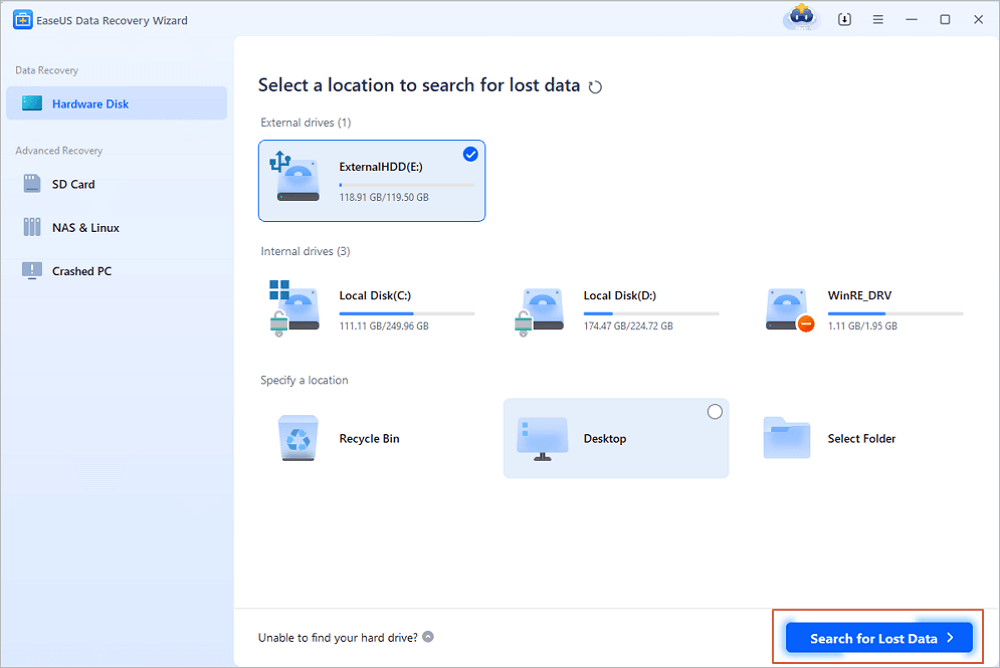
Step 2. Check the scan results
- EaseUS data recovery software will immediately scan the selected drive for all data, including deleted, corrupted, and existing data.
- You can use the Filter feature to quickly locate the files of one kind, such as Pictures, Word, Excel, PDF, videos, emails, etc.
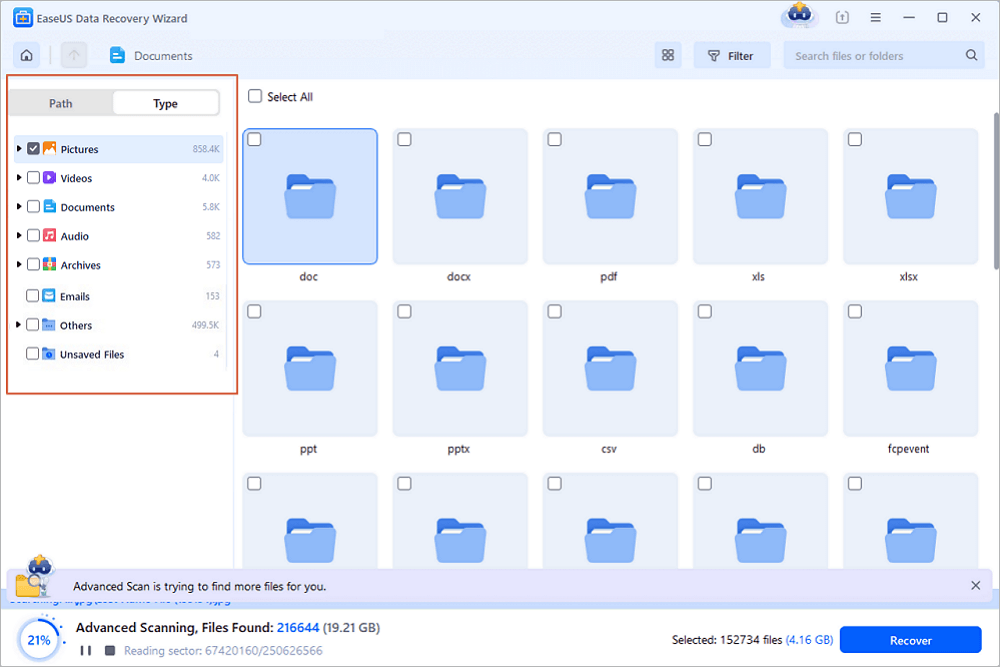
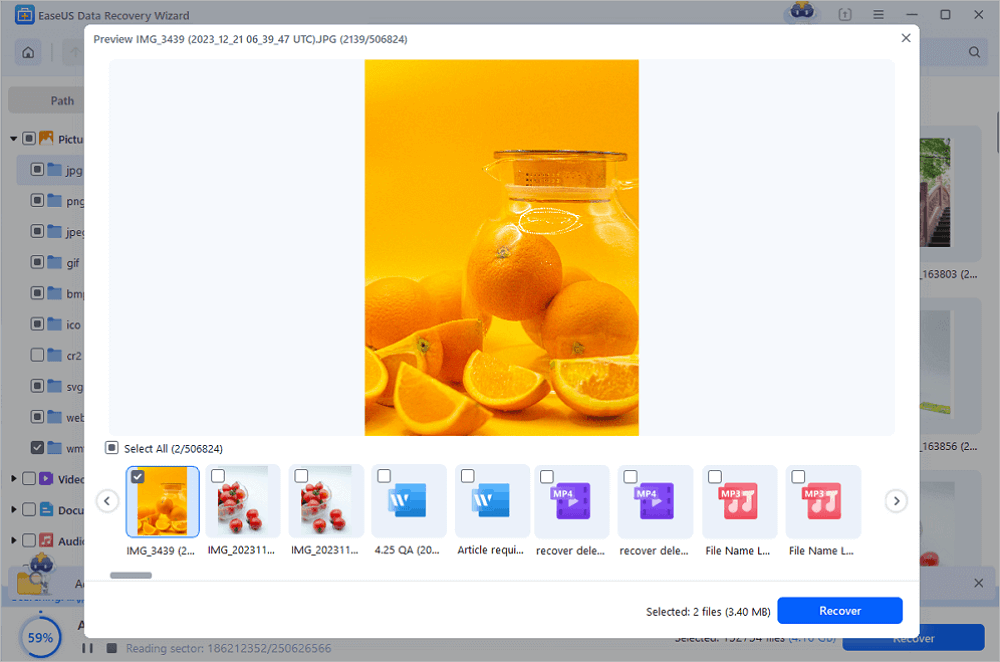
Step 3. Preview and recover data
- Double-clicking a file from the scanned results to preview.
- Choose the files you want and click "Recover".
- Select a different drive to save the recovered files instead of the original one.
💡Tip: You can restore data on the local disks, external hard drives, and also the cloud storage.
Just don't save recovered files back onto the same Seagate drive; you might overwrite other stuff you could still recover. Share this tip and recovery method on social media to help more users!

Fix 2. Restore Seagate Files from Backups
If you've been backing up, this is probably the simplest fix.
Option 1: Seagate Toolkit
Seagate's Toolkit software manages backups, so if you used it before, you can restore missing files.
Here's how:
- Plug in your Seagate drive where the original backup lives.
- Open Toolkit. If it's not installed, grab it from Seagate's support site.
- Find "Restore" on Toolkit's main screen.
- Pick your backup plan and version (if there's more than one).
- Hit "Next", check settings, and change the location if you want.
- Click Restore and wait for it to finish.
- Check the destination folder for your files.
Option 2: Windows File History
If you're on Windows and used File History, you can recover earlier file versions.
- Connect the Seagate drive with your backup.
- Go to Control Panel > System and Security > File History.
- Make sure File History is enabled and the drive is working.
- Click "Restore personal files".
- Find the files/folders you need. Use the arrows to switch dates.
- Select and click the green Restore button. To avoid overwriting, right-click and choose Restore to.
- Open restored files to verify.
This works only if you included those folders in your backup.
Fix 3. Contact Seagate External Hard Drive Recovery Services
If your Seagate drive is physically damaged, such as clicking, not spinning, not detected, or dropped, you need professional help. Regular recovery software can't fix hardware problems. Contact local data recovery labs to fix your physically damaged Seagate drives.
Seagate offers Rescue Data Recovery Services for drives with coverage. Lab experts will review your case.
If you encounter serious logical problems and software cannot fix them, contact online data recovery services and request manual recovery.
Consult with EaseUS data recovery experts for one-on-one manual recovery service. We could offer the following services after a FREE diagnosis
- Repair corrupted RAID structure, unbootable Windows OS, and corrupted virtual disk files
- Recover/repair lost partitions and re-partitioned drives
- Unformat hard drives and repair RAW drives(Bitlocker encrypted drives)
- Fix disks that become GPT-protected partitions
Summary
Losing files from your Seagate external hard drive sucks, especially if you're talking years of photos or work docs. But you usually have a good shot at getting them back.
For deletion, formatting, or file system glitches, EaseUS Data Recovery Wizard scans your Seagate drive and finds recoverable files. If you set up backups with Toolkit or File History, restoring is even easier.
FAQs About Recovering Data from Seagate External Hard Drive
1. What if my Seagate drive isn't showing up?
First, check Disk Management. Try a different USB port or cable, or another computer. If the drive shows up as RAW or has no letter, data might still be there; you should not format before recovery. If it won't show up at all or makes crazy noises, stop and seek professional help.
2. Does Seagate offer free data recovery?
Seagate's Rescue Data Recovery Services are included with certain drives and plans. It depends on your model, coverage, and region. Check your serial number on Seagate's site to find out, but don't assume every drive qualifies.
3. How do I recover deleted files without software?
If you don't want external hard drive data recovery software, check for a backup. Try Seagate Toolkit, Windows File History, or a cloud drive. If you don't have backups, software's your best bet.
Was this page helpful?
-
Dany is an editor of EaseUS who lives and works in Chengdu, China. She focuses on writing articles about data recovery on Mac devices and PCs. She is devoted to improving her writing skills and enriching her professional knowledge. Dany also enjoys reading detective novels in her spare time. …


 Why Trust EaseUS
 Editor Reviews

20+
Years of experience

160+
Countries and regions

72 Million+
Downloads

4.9 +
Trustpilot Score