








-
![]()
-
![]()
-
![]()
-
![]()
-
![]() EaseUS Data Recovery Wizard 19.2 Crack with License Code 2026
EaseUS Data Recovery Wizard 19.2 Crack with License Code 2026 October 22,2026
 6 min read
 -
![]()
-
![]()
-
![]()
-
![]()
-
![]()
Page Table of Contents
If you need to get files back from a deleted exFAT partition, stop using that drive right away, and don't save anything new on it. Grab some trustworthy recovery software, like EaseUS Data Recovery Wizard. These programs scan the empty space, find your missing partition, and let you pull out your files. Just make sure you save everything to a different drive so you don't risk messing up the data you're trying to recover.
PAGE CONTENT:
Can You Recover Files from a Deleted exFAT Partition
Yes, you can usually recover files from a deleted exFAT partition, assuming the old data hasn't been overwritten.
Here's what really happens: deleting a partition in Windows or macOS mostly just erases the partition's info from the table. Your files usually stay put until new stuff takes their spot.
Now, how well recovery works depends on a few things:
| Situation | Recovery Chance |
| Partition accidentally deleted | ★★★★★ Very High |
| No new files written after deletion | ★★★★★ Excellent |
| Partition formatted after deletion | ★★★★☆ High |
| New partition created on the same disk | ★★★☆☆ Moderate |
| Large amount of data overwritten | ★☆☆☆☆ Low |
If you haven't written anything new to the drive, you've got your best shot. As long as you stop using the drive right after deleting the partition, recovery software often finds a way to piece things back together and pull up your old files.
If you have deleted an exFAT partition on a TRIM-enabled SSD, it's not possible to recover files.
It also matters if your drive's physically okay. Recovering files from a logical partition deletion is far easier than trying to rescue data from a drive that's making strange noises or seems broken.
How to Recover Files from Deleted exFAT Partition
Getting your files back from a deleted exFAT partition or performing lost partition recovery isn't as simple as running a basic scan; you need software that can dig deeper and search for lost partitions, not just what's left on your drive. The best recovery tools actually check the disk at a low level, find traces of the deleted partition, and piece your files back together, even if nothing shows up in File Explorer or Finder.
EaseUS Data Recovery Wizard stands out here. It's user-friendly, works smoothly even if you've never tried data recovery before, and handles more than just deleted partitions. The tool supports formatted drives, RAW partitions, and can recover over a thousand different file types.
You can use it on exFAT partitions, external hard drives, USB flash drives, SD and microSD cards, HDDs, and SSDs. Pretty much covers everything you're likely to have. Check the following steps to recover files from a deleted exFAT partition.
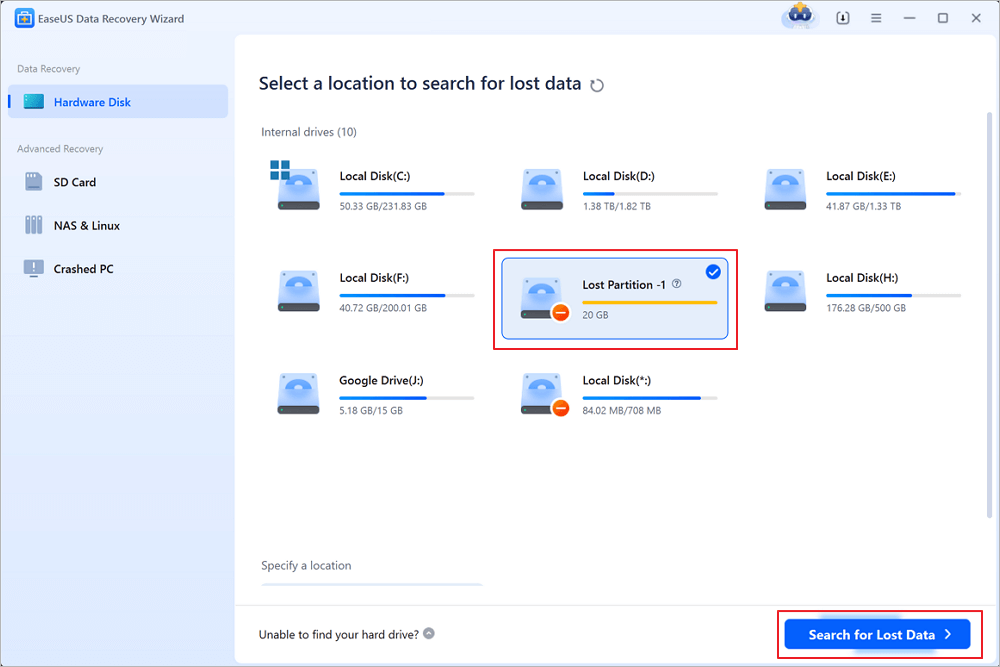
Step 1. Select and scan the lost partition
Launch EaseUS Data Recovery Wizard, select "Lost Partition" and click "Search for Lost Data" to search for all the lost data from your lost or deleted partition. If there are many lost partitions, you can identify them through its partition size.
Note: Since the Windows system doesn't support the Linux file system, the Ext2 or Ext3 partition will be recognized as lost partition with no drive letter in the software. If you want to recover data from Ext2/Ext3 partition, you can follow these steps.
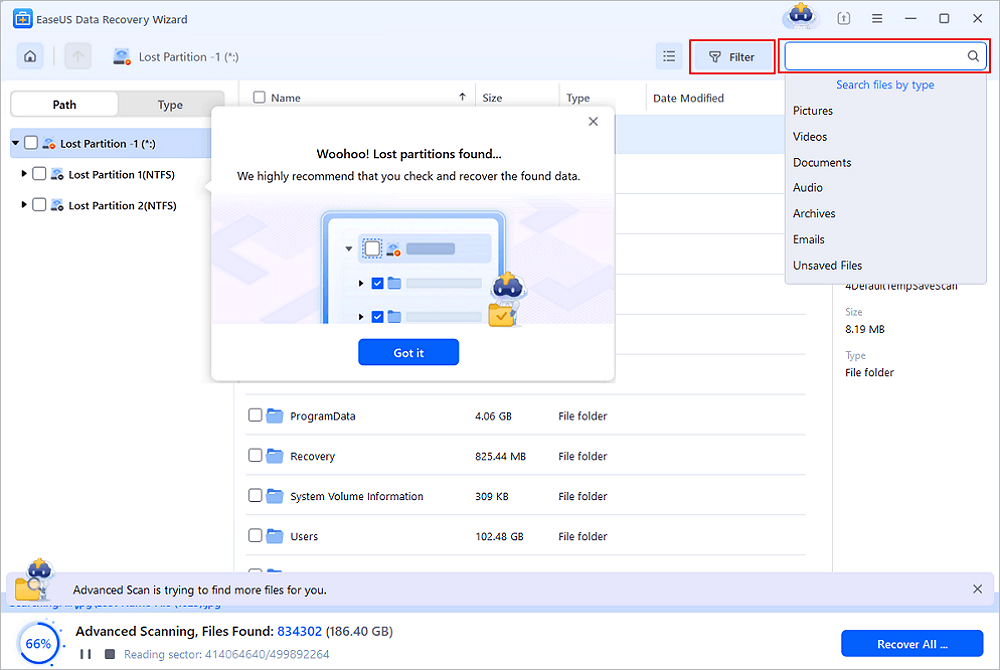
Step 2. Filter the scanned results
Because there will be a lot of scanned files, you can choose a file category for quick filtering, such as Pictures, Videos, Documents, Audio, and Others. Or if you remember the file name, you can just look it up in the search box in the upper right corner.
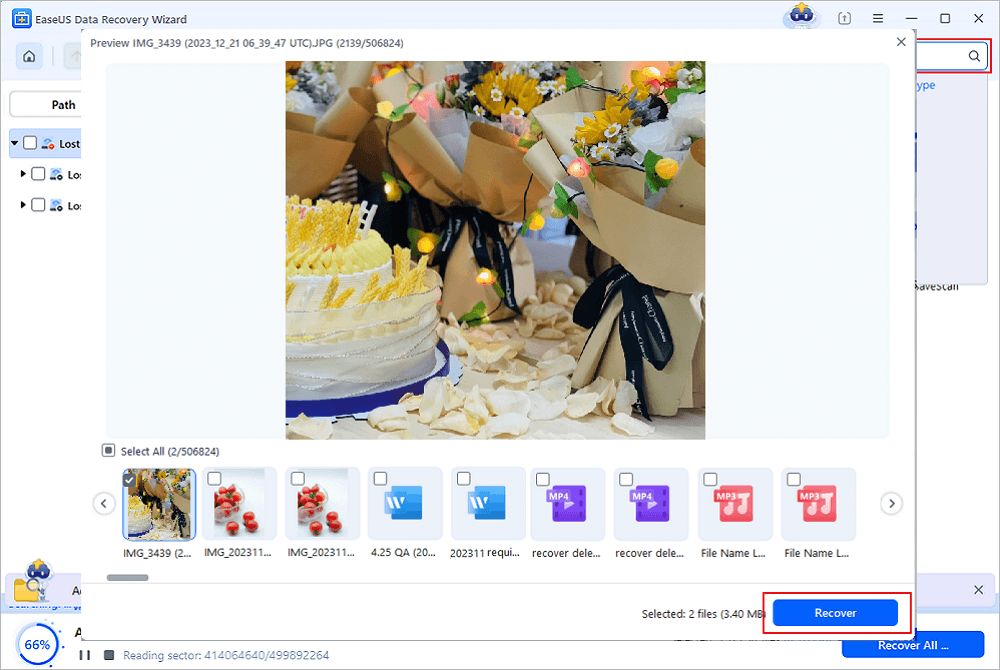
Step 3. Preview and recover data from the lost partition
Before recovery, you can preview the file to make sure it is the data you need. Choose all the files you need and click "Recover" to restore them. Choose a storage location (including cloud storage, such as OneDrive, Google Drive, etc.), and click "Save" to save your recovered files.
Don't forget to share this exFAT recovery software on social media to help more friends!

How to Restore the exFAT Partition After Recovering Your Files
Once you've got your files back, go ahead and recreate the deleted exFAT partition. Don't do this before recovering your data, or you risk wiping out anything you haven't saved yet.
Honestly, the quickest way to set things up again is through Windows Disk Management.
Step 1. Open Disk Management by right-clicking the Windows icon, and choose "Disk Management".
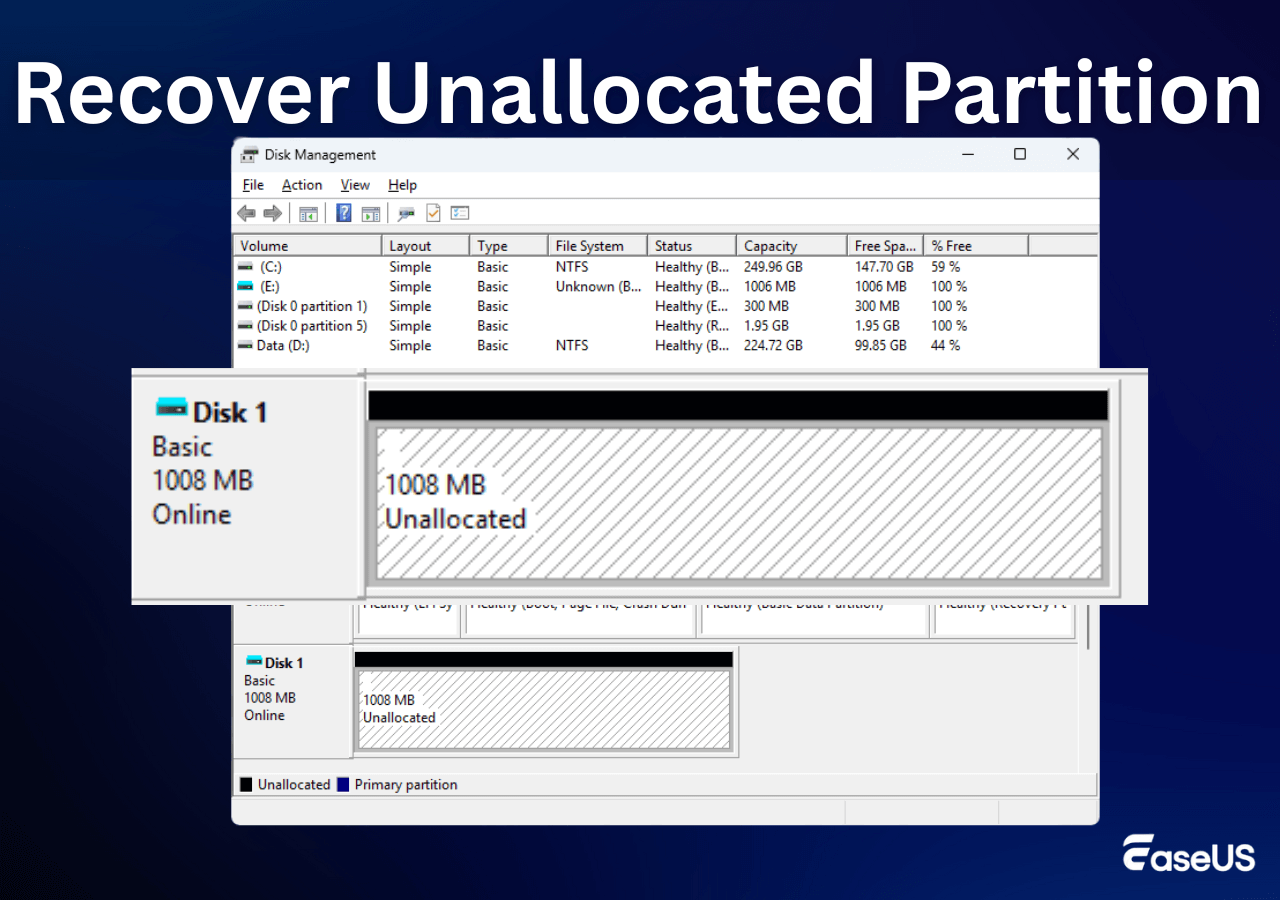
Step 2. Find your drive in the list, the one with the missing partition. You'll see some Unallocated space there.
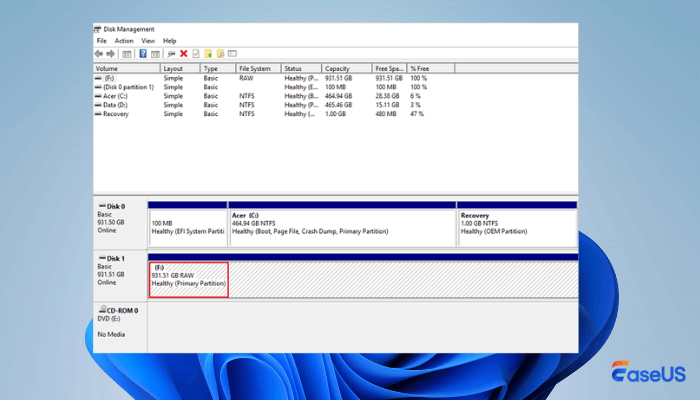
Step 3. Right-click that Unallocated space and choose "New Simple Volume". Then, click "Next".
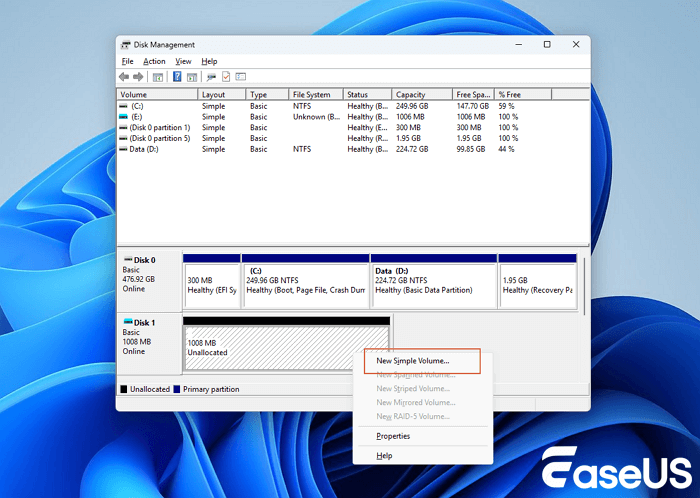
Step 4. Set the size for your new partition. Usually, you'll just stick with the full size unless you want more than one partition. Click "Next".
Step 5. Choose a letter for your new drive.
Step 6. Set these options:
- File System: exFAT
- Allocation Unit Size: Default
- Volume Label: Call it whatever you want (or leave it blank)
- Quick Format: Keep this checked
Hit "Next", then "Finish". Windows will get the partition ready in a few moments.
And that's it. Your drive's good to go and ready for everyday use again.
Conclusion
For most people, EaseUS Data Recovery Wizard is the go-to tool here. It's simple, reliable, and does all the heavy lifting for you. It can find lost partitions, run deep scans, preview what's actually recoverable, and pull back a huge range of file types from just about any drive, hard drives, SSDs, USB sticks, SD cards, etc.
exFAT Partition Data Recovery FAQs
Check the following frequently asked questions and answers about exFAT partition data recovery:
1. Can I recover a deleted exFAT partition?
It's possible to recover a deleted exFAT partition with professional partition recovery software. If you just need to recover data from a deleted exFAT partition, try data recovery tools instead.
2. Can I recover files from a deleted partition?
After deleting partitions on a disk, you can still recover files from the deleted partition with data recovery software like EaseUS Data Recovery Wizard. You should stop using the disk and move fast to rescue data.
3. Can I undo exFAT partition deletion?
There's no "Undo" option to undo an exFAT partition deletion. But you can use some free tools like TestDisk to scan the unallocated space and restore the lost partitions.
Was this page helpful?
-
![]()
Updated by
Jerry
"I hope my articles can help solve your technical problems. If you are interested in other articles, you can check the articles at the bottom of this page, and you can also check my Facebook to get additional help."… -
Dany is an editor of EaseUS who lives and works in Chengdu, China. She focuses on writing articles about data recovery on Mac devices and PCs. She is devoted to improving her writing skills and enriching her professional knowledge. Dany also enjoys reading detective novels in her spare time. …
 Why Trust EaseUS
 Editor Reviews

20+
Years of experience

160+
Countries and regions

72 Million+
Downloads

4.9 +
Trustpilot Score





