





Table of Contents
 About the Author
 Related Posts
In 2006, Sony and Panasonic developed the MTS video file format. Today, Sony, Panasonic, and Canon cameras are typically used to record MTS videos. MTS videos are susceptible to corruption for many of the same reasons as other video formats. If your MTS video is not playing properly, read on and repair corrupted MTS video files from camcorders/SD cards with free tools like VLC Media Player or dedicated repair software.
What Are MTS Video Files
MTS files, or high-definition videos, are mostly recorded by Panasonic and Sony cameras. Additionally, sharing or converting them on a computer is simple. AVCHD videos often use the MTS format on devices and support 720p and 1080p videos.
Many media players, such as Windows Media Player, VLC Media Player, and Roxio Popcorn, can play MTS video files.
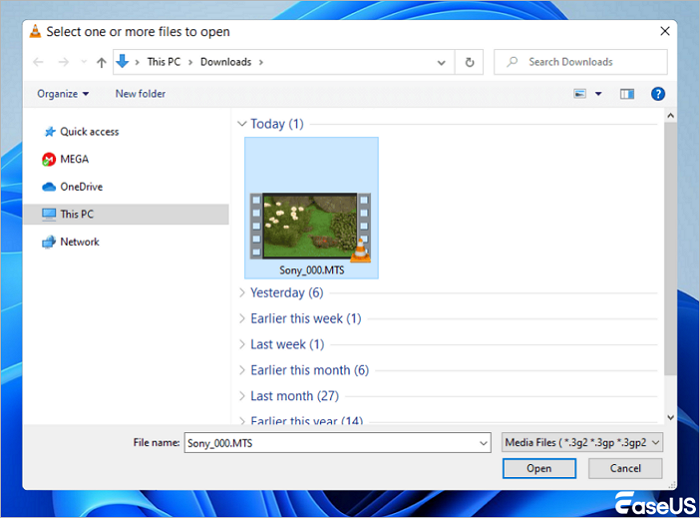
How to Repair MTS Video Files on Desktop
Video corruption is present if you repeatedly receive the following error messages when trying to play an MTS video file:
- 📍The.mts file could not be loaded.
- 📍The disk has not been formatted.
- 📍Cannot open the video file.
- 📍Problem with .mts file: incorrect length.
With EaseUS Fixo Video Repair, you may fix corrupted MTS videos regardless of the aforementioned causes or if the video was harmed during production, recording, transmission, editing, conversion, or processing.
To finish the operation, kindly adhere to the instructions listed below:
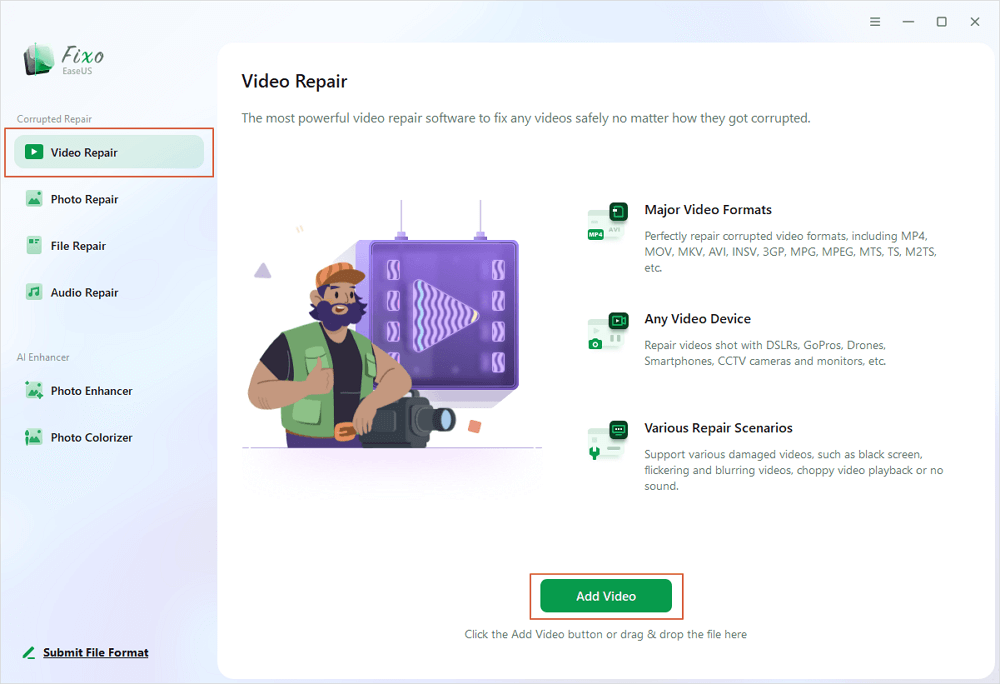
Step 1. Open Fixo on your local PC. Click "Video Repair" and add the corrupted MP4/MOV/AVI/MKV/3GP/FLV/MKV/WMV video files by clicking "Add Videos".
Step 2. Move the pointer to a video and click the "Repair" button to start the single video repairing process. If you want to repair all the videos, click "Repair All".

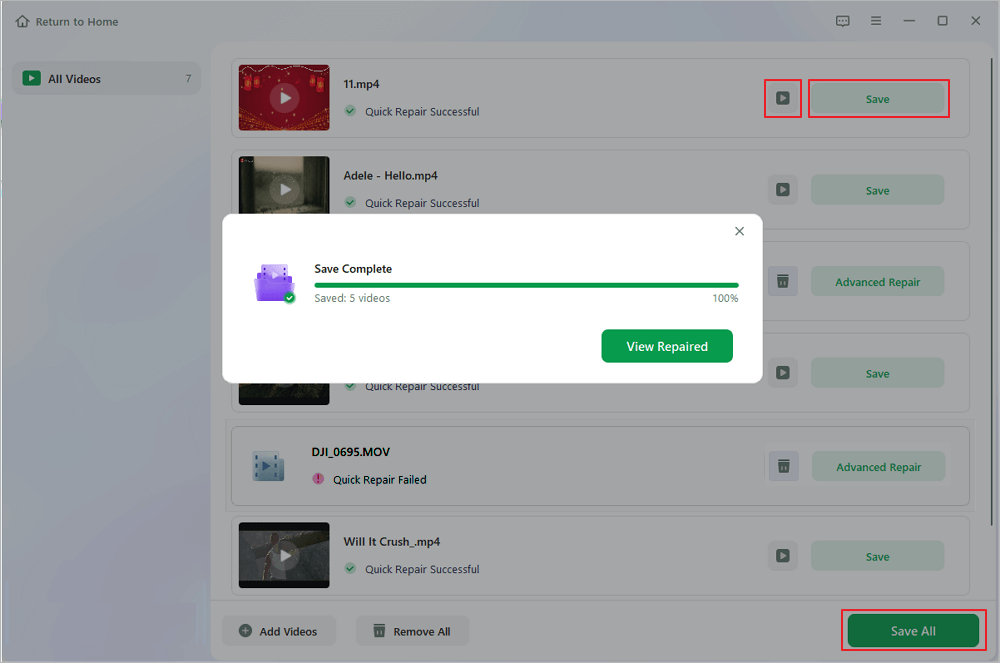
Step 3. Wait a few minutes, and the corrupted videos will be repaired. Click the play icon to preview the videos. You can save a single video by clicking the "Save" button next to the play icon. If you want to save all the repaired videos, choose "Save All".
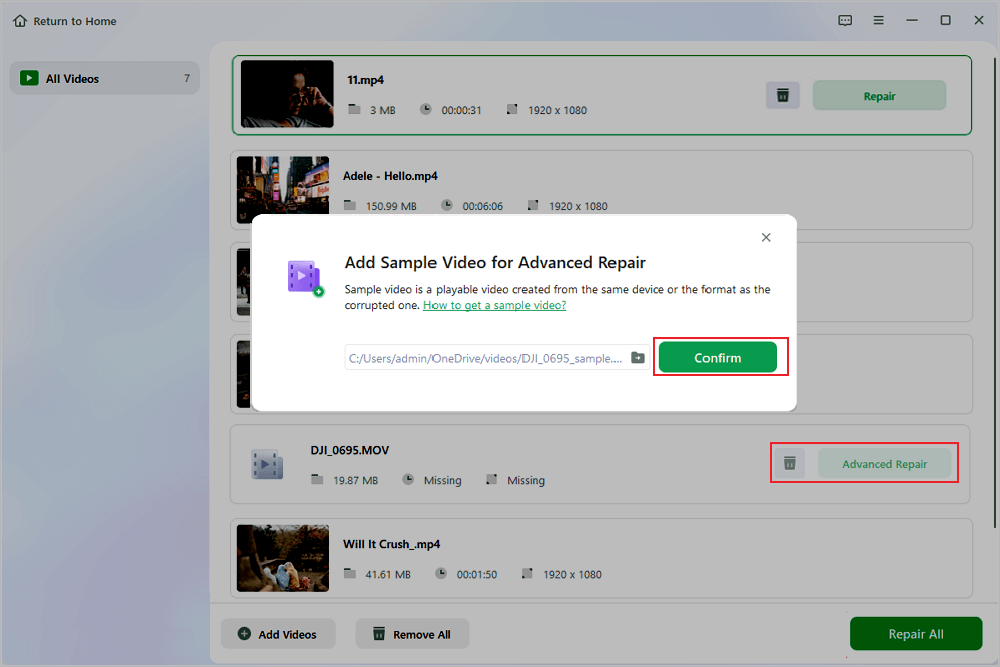
Step 4. If the quick repair fails, you should utilize the advanced repair mode. Click "Advanced Repair" and add a sample video. Choose "Confirm" to ensure.
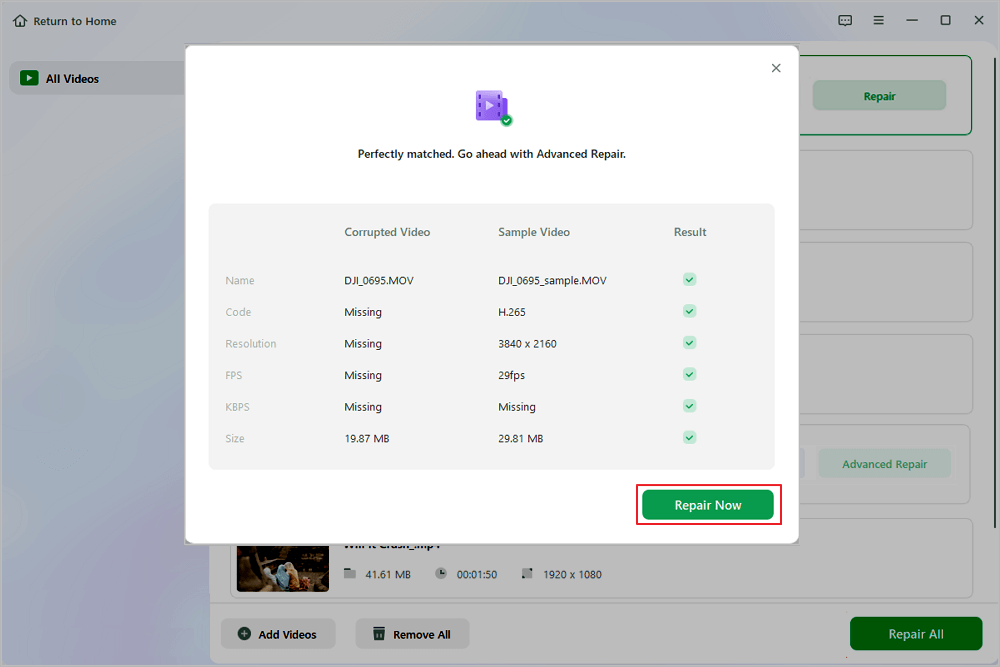
Step 5. A list of detailed information on corrupted and sample videos will show up. Click "Repair Now" to start the advanced video repair process. When the repair is complete, you can view the videos and click the "Save" button to save the repaired video files to an appropriate destination.
If you find this information helpful, please share it on social media to help others overcome this common challenge.
Repair MTS Files with VLC Media Player
Playing video files is VLC Media Player's main function. On the other hand, it can also be used to fix minor video corruption. Regrettably, VLC Media Player can only play AVI files.
Therefore, before using VLC to fix your MTS movie, convert it to an AVI format by following the instructions in Method 3 below. After you do, read up to learn how to use VLC Media Player to fix it:
Step 1. Launch VLC Media Player on your computer.
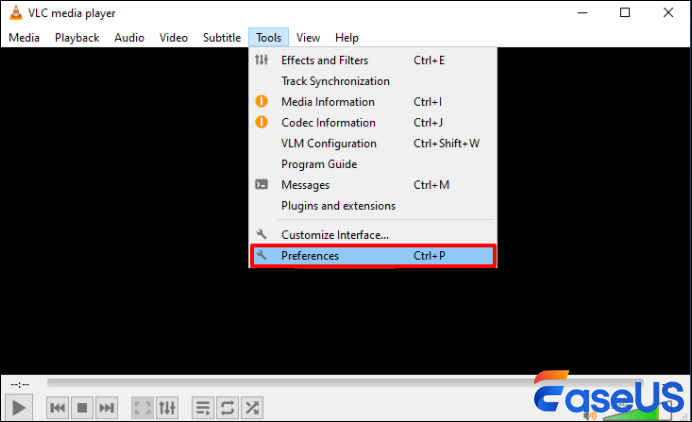
Step 2. Select "Preferences" under "Tools".
Step 3. The Simple Preferences window will appear. Navigate to the Input/Codecs area.
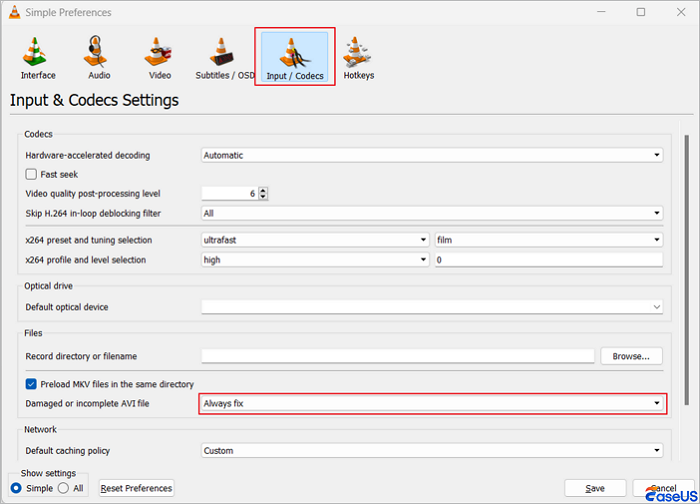
Step 4. Locate the option for an incomplete or damaged AVI file. Click the drop-down menu and choose "Always fix."
Step 5. To make the changes take effect, click "Save".
Other Ways to Repair MTS Videos
Other techniques for resolving corruption errors in MTS videos include the following:
- Try opening the MTS file using VLC, MX, MKV, or another media player if you can't access it with Windows Media Player.
- The data may be corrupted by an unexpected power outage during downloading or transferring MTS files from the camera. Therefore, if you could try downloading and transferring the movie file again, it would be beneficial.
- Most video players lack support for all video codecs. Installing codecs for the MTS file from the internet is therefore recommended.
LEARN MORE
Still curious? Click here to learn about Corrupted Video File Repair Online.
Repair MTS Video Files FAQs
Here are additional questions about repairing MTS video files. Check here for the answers.
1. Why do MTS video files become corrupted and unplayable?
MTS files get corrupted due to common recording, storage, and transfer issues, the most frequent being interrupted recording, improper SD card ejection, SD card corruption or bad blocks, incomplete file transfers, and media player incompatibility. Less common causes include malware infection on the storage device and physical damage to the SD card/hard drive storing MTS files.
2. Can I repair a partially corrupted or truncated MTS video file successfully?
Yes, partial/truncated MTS files can be repaired in most cases, depending on the extent of damage. If the file's core video codec and frame data are intact, a tool like EaseUS Data Recovery Wizard can reconstruct the damaged parts and restore full playback.
Conclusion
Repairing corrupted MTS files is necessary to preserve HD video content. Users can use the built-in feature of VLC Media Player or desktop programs such as EaseUS Fixo Video Repair. Smooth playback and video preservation are encouraged by understanding the MTS standard and how to resolve problems. We suggest using the repair tool to fix MTS files and improve viewing.
Was This Page Helpful?
About the Author

Jaden is one of the editors of EaseUS, who focuses on topics concerning PCs and Mac data recovery. Jaden is committed to enhancing professional IT knowledge and writing abilities. She is always keen on new and intelligent products.


