





Table of Contents
 About the Author
 Related Posts
Media file corruption in Digital Negative DNG photos and Insta360 INSV videos usually stems from damaged file headers, interrupted file transfers, or sudden camera shutdowns rather than total data destruction. When manual fixes fail or when encountering zero-byte files, specialized software like EaseUS Fixo offers advanced byte-level reconstruction. EaseUS Fixo rebuilds broken container headers, realigns missing frame indices, and restores full-resolution media without compromising original image quality or panoramic stitching data.
INSV is a special video file type made only for Insta360 360-degree cameras to store clear panoramic videos.
INSV files need two separate video clips and precise sensor data to stay in sync. Any interruption while recording or moving the video files can break the file's internal structure. If important data sections or basic file information get damaged, standard video players will fail to open the footage.
You do not have to worry that your panoramic shots are gone for good once corruption happens. If you learn the basic structure of INSV files and use matching repair solutions, you can fix broken Insta360 INSV videos without losing your content.
Why INSV Video Files Get Corrupted
Knowing why an INSV file becomes unplayable helps you select the proper repair path and prevent future footage loss. Due to the high-bitrate nature of dual-lens panoramic recording, several technical factors can cause structural damage to your raw media files.
- Zero-Byte INSV Files from Unexpected Camera Shutdown: Your camera may shut down suddenly if the battery runs out, power connections become loose, or the device overheats. The camera system cannot finish saving key file markers and index data when this happens. You will get an empty zero-byte file or an incomplete video file missing critical opening data that players need to load footage.
- Damaged File Headers: Every INSV file stores basic reading rules at its start. If storage card errors mess up this section, editing tools cannot properly read the two fisheye video clips inside the file.
- Broken File Copy Processes: If you pull out your micro SD card or unplug the USB cable while copying large 360-degree videos to your computer, the file will only save partial data and cannot play normally.
- Faulty Micro SD Cards: Low-quality, slow, or worn micro SD cards cannot keep up with fast recording speeds for 5.7K or 8K panoramic videos. These cards drop video frames and create damaged storage areas that break INSV footage.
- Playback Errors Inside Insta360 Studio: Small software bugs or missing hidden file data can stop the official Insta360 editing tool from working. The program may crash right after you open an INSV file or show a message saying it cannot recognize your video format during export.
Basic Methods to Repair INSV Video Files
Before turning to dedicated software algorithms, photographers can try several simple, zero-cost methods to regain access to damaged INSV media.
Method 1. Change the File Extension to MP4
Since the INSV container utilizes the standard MP4 underlying architecture, simple media players like VLC Media Player can often bypass basic extension checks if the underlying video streams are intact.
- Make a duplicate copy of your corrupted INSV file on your desktop to protect the original source data.
- Right-click the duplicated file and select Rename.
- Change the extension from .insv to .mp4 and press Enter to save changes.
- Open the renamed video inside VLC Media Player or another robust media application to see if the raw dual-fisheye video plays back correctly.
Method 2. Convert Corrupted INSV to MP4 Using Insta360 Studio
When you encounter an Insta360 Studio unplayable INSV file repair issue, utilizing the official processing engine to re-export the file can rebuild damaged stream paths.
- Launch the latest version of Insta360 Studio on your PC or Mac.
- Drag both corresponding INSV files for the front and rear lenses into the media library workspace.
- If the software manages to parse the file, adjust your stitch settings and frame preferences.
- Navigate to the Export panel and select a standard MP4 file format output to force the software to write a fresh container and clean system header.
Professional Repair: Fix Damaged INSV Files
When free tricks and software re-encoding fail to resolve severe file header corruption or zero-byte file index issues, a dedicated desktop application provides the most comprehensive recovery mechanism. This is when EaseUS Fixo Video Repair shines.
Follow the steps to repair your corrupted files and get your precious memory back:
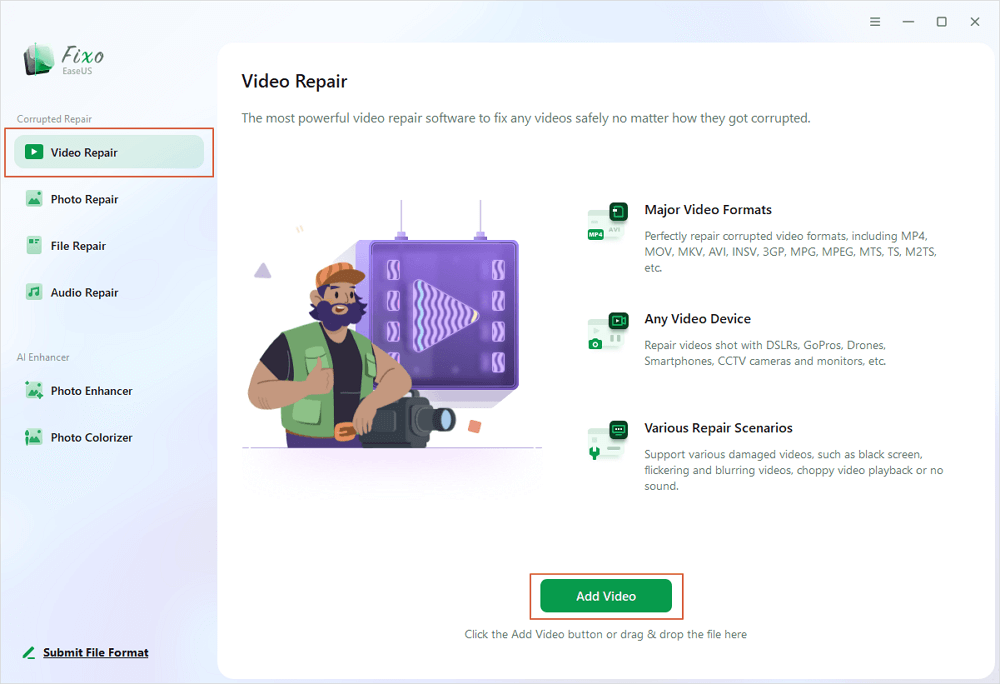
Step 1. Open Fixo on your local PC. Click "Video Repair" and add the corrupted MP4/MOV/AVI/MKV/3GP/FLV/MKV/WMV video files by clicking "Add Videos".
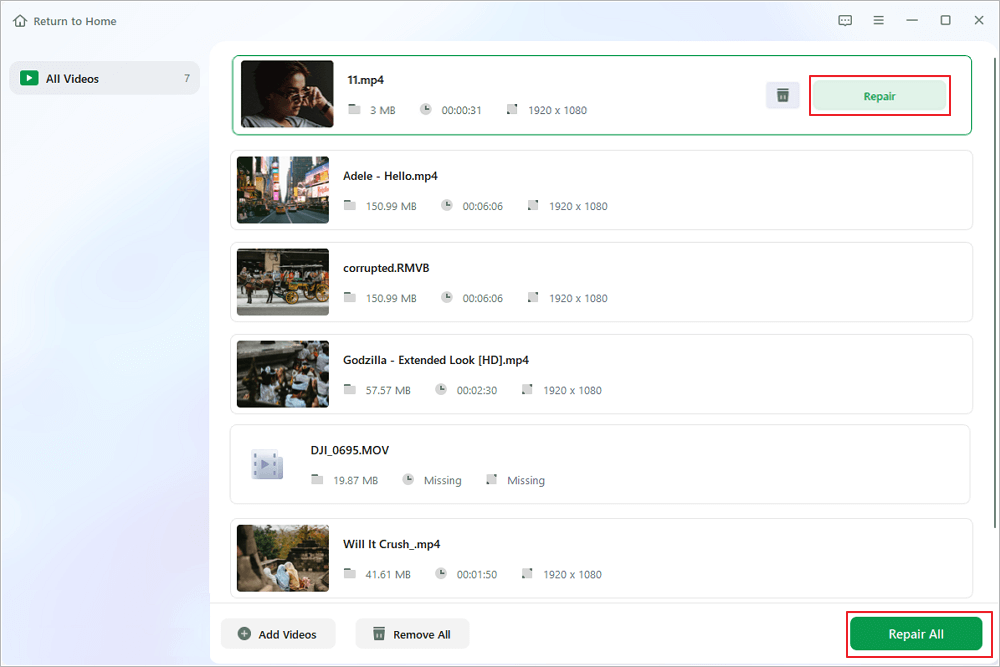
Step 2. Move the pointer to a video and click the "Repair" button to start the single video repairing process. If you want to repair all the videos, click "Repair All".
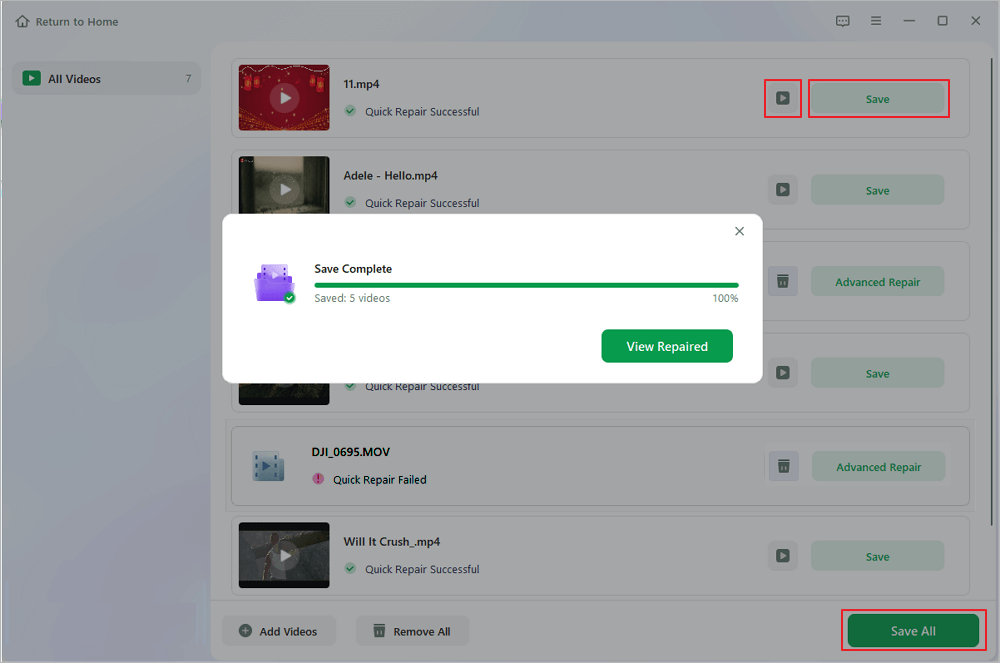
Step 3. Wait a few minutes, and the corrupted videos will be repaired. Click the play icon to preview the videos. You can save a single video by clicking the "Save" button next to the play icon. If you want to save all the repaired videos, choose "Save All".
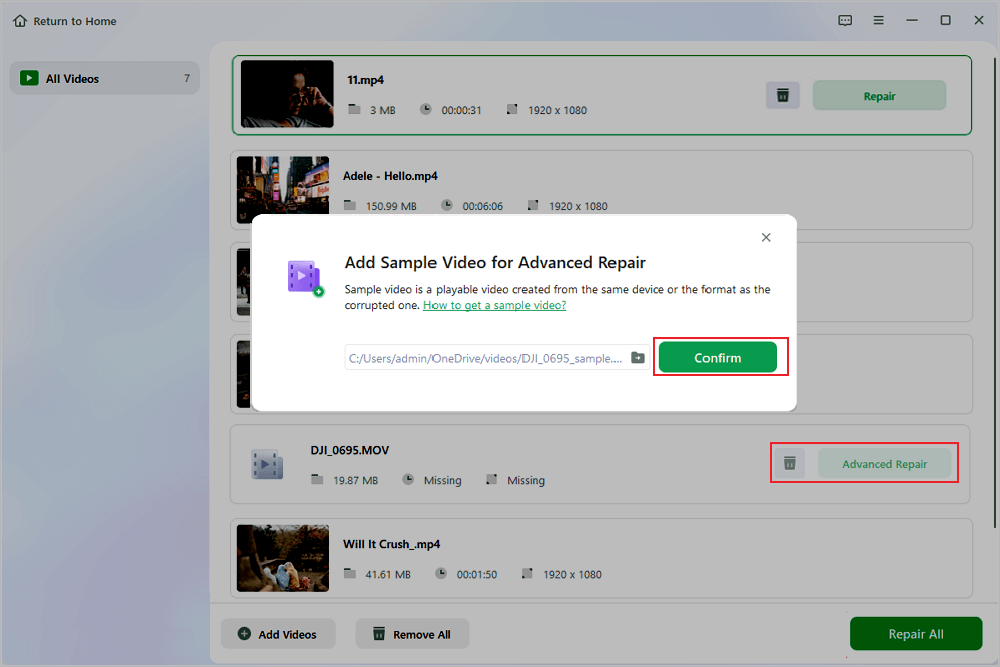
Step 4. If the quick repair fails, you should utilize the advanced repair mode. Click "Advanced Repair" and add a sample video. Choose "Confirm" to ensure.
Step 5. A list of detailed information on corrupted and sample videos will show up. Click "Repair Now" to start the advanced video repair process. When the repair is complete, you can view the videos and click the "Save" button to save the repaired video files to an appropriate destination.
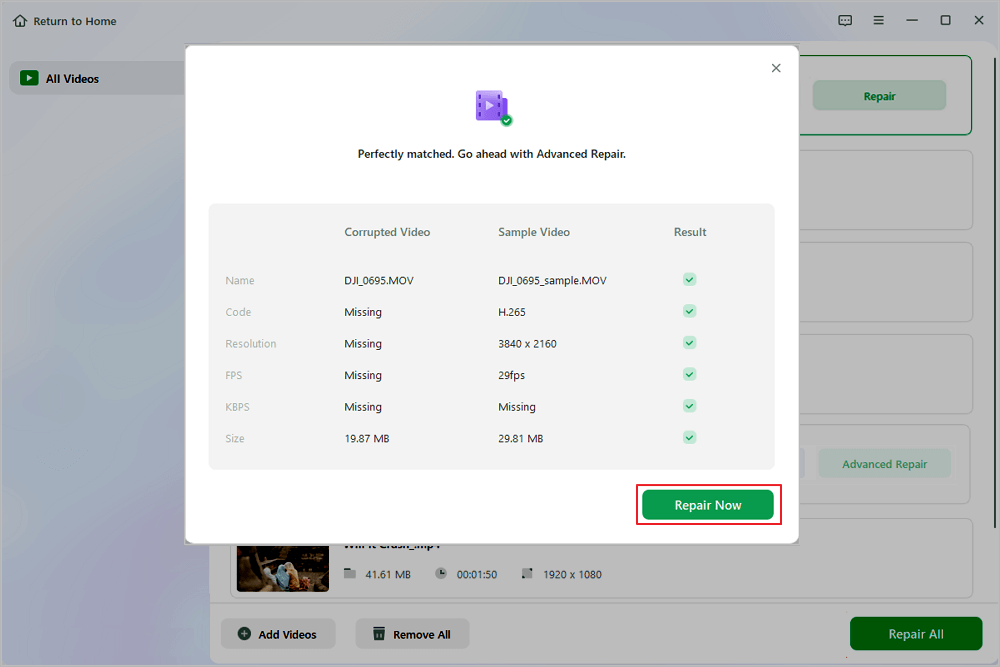
If the quick repair fails, you can utilize the advanced repair mode of this video repair tool. Just upload a video taken with the same device and at the same volume to fix your videos better.
Or, you can use the Insta Studio to repair corrupted INSV files:
- Open Insta360 Studio and import your corrupted video files.
- Drag the file to the timeline and right-click it. Choose "Fix Video".
- Select the "Repair" and wait for the process to finish.
Best Practices to Prevent INSV Video File Corruption
Adopting proper file handling habits and hardware setup routines drastically reduces the chances of encountering file corruption during important shoots.
- Use Recommended Micro SD Cards: Always use high-speed V30 or UHS-I A2 speed class micro SD cards tested and recommended by the camera manufacturer to prevent write buffer errors.
- Format Storage Cards inside the Camera: Format your micro SD card directly within the camera interface rather than through a computer operating system to ensure optimal file allocation structure.
- Monitor Battery Power Closely: Swap out depleted batteries before they drop below critical power levels to prevent sudden camera shutdowns during active recording.
- Safely Eject Removable Drives: Always execute the Safely Remove Hardware command in your operating system before pulling memory cards or disconnecting data cables from your computer.
- Keep Camera Firmware Up to Date: Regularly install official firmware updates to ensure stable system performance and reliable data writing routines.
Repair INSV Video Files FAQs
The following expert answers address common technical questions regarding INSV file processing and video restoration techniques.
1. Why does Insta360 record videos in the INSV format instead of standard MP4?
The INSV format allows the camera to record two separate high-bitrate video streams from opposing fish-eye lenses into a single unified container alongside crucial real-time gyroscope telemetry. This setup preserves raw sensor data necessary for flexible 360-degree reframing, stabilization, and stitching in post-production software.
2. Can I open an INSV video file directly in standard media players?
Standard media players like Windows Media Player or QuickTime viewers cannot render raw INSV files directly because they do not understand panoramic stitch parameters. Renaming the extension to MP4 allows basic playback of raw dual-fisheye angles, but official software like Insta360 Studio is required for full 360-degree reframing.
3. How do I fix a zero-byte INSV file after a camera sudden shutdown?
A zero-byte file occurs when the camera drops power before writing the index table. To fix zero-byte INSV file issues, use the Advanced Repair feature in EaseUS Fixo Video Repair with a healthy sample file from the same camera to reconstruct the missing metadata and retrieve unwritten data payload streams.
Conclusion
Dealing with damaged INSV video files can disrupt your creative workflow, but file corruption errors like broken headers, unplayable media alerts, or zero-byte files do not mean your panoramic footage is lost forever. Understanding the dual-stream structure of the INSV container gives you a clear path toward file recovery. While basic extension tricks and official software re-exports can fix minor container errors, dedicated desktop solutions like EaseUS Fixo Video Repair provide the most robust, reliable way to rebuild damaged system structures, preserve critical gyroscope metadata, and restore your valuable 360-degree memories safely.
Was This Page Helpful?
About the Author

Jaden is one of the editors of EaseUS, who focuses on topics concerning PCs and Mac data recovery. Jaden is committed to enhancing professional IT knowledge and writing abilities. She is always keen on new and intelligent products.


