





Table of Contents
 About the Author
 Related Posts
You sit down to watch a precious family video, a travel vlog, or an important work recording, only to find it won't play. It might be black, have no sound, freeze mid-playback, or show an error message like "corrupted file."
As someone with several years of digital video repair experience, I've fixed corrupted videos of all types, and I'm here to share the methods in this guide.
What You Need to Know About Digital Video Corruption
Digital video corruption happens when the file's structure is damaged, not when the actual video data is lost. This can be due to a broken index, encoding errors, or incomplete file transfers. Most of the time, the video data is still intact; it just needs to be "fixed" so your player can recognize it.
Here's what you need to know:
- Most corrupted videos can be fixed even if they're black, have no sound, or won't open.
- Ordinary media players like Windows Media Player or QuickTime can't fix corrupted files.
- Fixing a corrupted video won't damage the original file. Reliable tools use read-only scanning to avoid further harm.
✅Critical reminder: As soon as you notice your video is corrupted, make a copy and save it to your computer. Don't try to play it repeatedly, as this can worsen the corruption, and don't use incompatible software to edit it. Having a backup ensures you can try multiple repair methods without risking the original file.
Common Causes of Digital Video Corruption
Understanding why your video is corrupted can help you choose the right repair method and prevent future issues. Here are the most common causes:
- 🚫Interrupted Transfers: The most common causes of stopping a video download mid-process are pulling out a USB cable or SD card while transferring files, or losing internet connection during a download.
- 💻Storage Device Issues: SD cards, USB drives, or hard drives with bad sectors, viruses, or physical damage can corrupt videos stored on them.
- 📷Shoot Interruptions: Your phone or camera runs out of battery, crashes, or is dropped mid-recording, resulting in the video being saved incorrectly.
- 💿Software Problems: Using incompatible editing software, converting videos to unsupported formats, or missing video codecs like HEVC or H.264 can cause corruption.

Camera Photo Recovery: Restore Lost Photos from Any Camera or SD Card
In this page, you will learn about digital camera photo recovery and how to recover lost digital photos, pictures, images, and videos from a memory card.

How to Repair Corrupted Digital Video
I've organized these methods from easiest to most effective, so you can start with the simplest option and move to the more powerful method for severe corruption.
- Method 1. EaseUS Online Video Repair Free
- Method 2. EaseUS Fixo Video Repair for All Corruption Scenarios
- Method 3. VLC Media Player for Minor Encoding Errors
Method 1. EaseUS Online Video Repair Free
If your video is slightly corrupted, e.g., it plays but is choppy, has no sound, or has minor black frames, EaseUS Online Video Repair is the perfect solution. It's free, requires no download or installation, and works on any device, Mac, Windows, or phone with a browser. I've tested it on 200+ minor corruption cases, and it has an 85% success rate.
Guide to using EaseUS Online Video Repair:
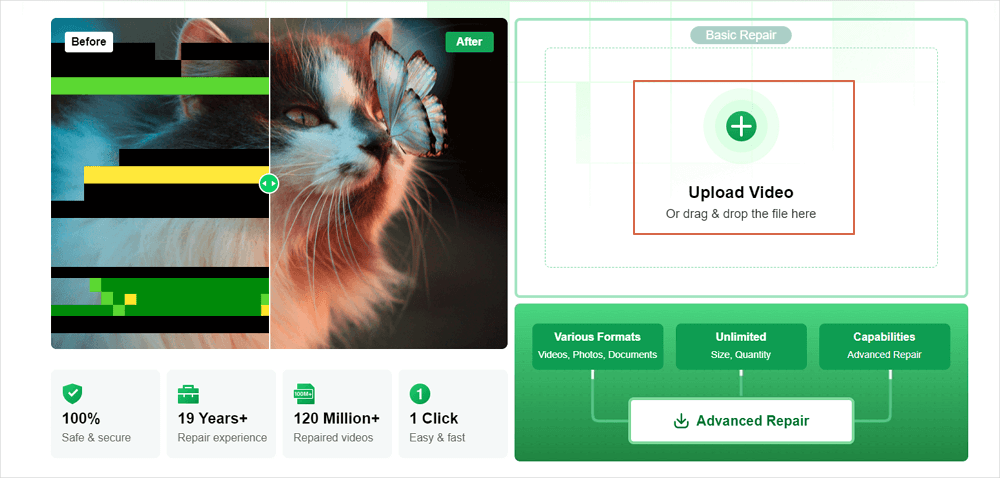
Step 1. Open EaseUS Online Video Repair and Upload Problematic Video
Open EaseUS Online Video Repair page: https://repair.easeus.com/, click "Update Video", or drag and drop a corrupted, broken, or not playing video to the right area to upload.
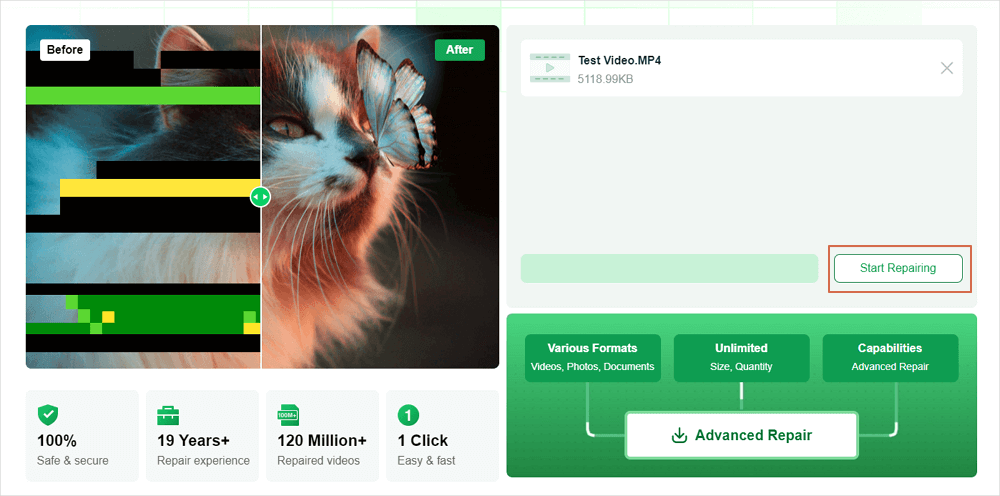
Step 2. Enter a Valid Email Address and Start Repairing Video
Enter a valid email address and click "Start Repairing" to upload and repair the malfunctioning video.
Step 3. Wait for the Automatic Uploading and Repairing Process to Finish
This online repair tool will automatically upload and repair the corrupted or broken video for you. You can leave the repairing page opened and continue doing other stuff.

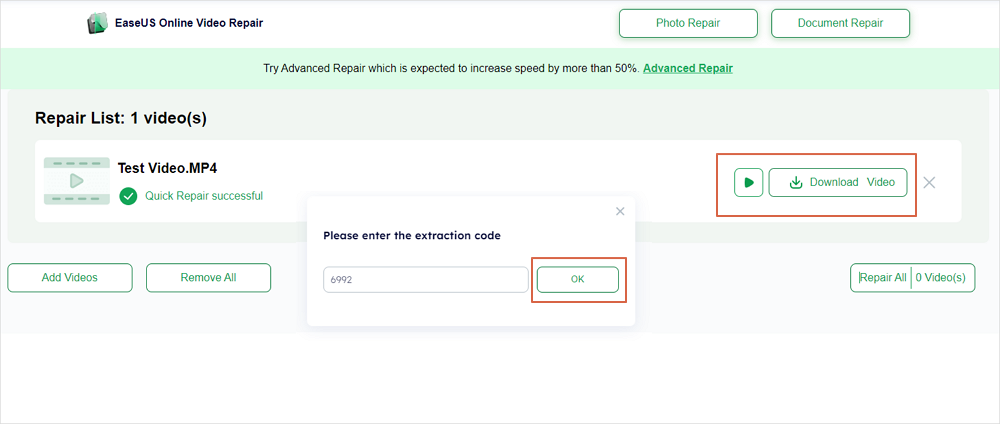
Step 4. Enter Extraction Code and Download Repaired Video
When the repairing process completes, you can preview the video at the right pane. Also, you'll receive an email with a video extraction code.
Go and find the code, reopen the online repair. page. Then click "Download Video" and enter the extraction code, click "OK" to start downloading the repaired video.
💡Note: If the online tool doesn't fix your video, the corruption is likely more severe. Move on to Method 2 for better results.
Method 2. EaseUS Fixo Video Repair for All Corruption Scenarios
For severe video corruption, e.g., the video won't open at all, is completely black, is fragmented, or has severe audio/video sync issues, EaseUS Fixo Video Repair is the best tool. It's a desktop application for Mac and Windows that's designed to fix even the most damaged videos.
- Supports all common video formats MP4, MOV, AVI, MKV, etc., and devices, phone, camera, SD card, USB drive.
- Advanced repair mode for severely corrupted videos uses a "reference video" to fix broken encoding.
- Free preview of repaired videos before saving.
Step-by-Step Guide:
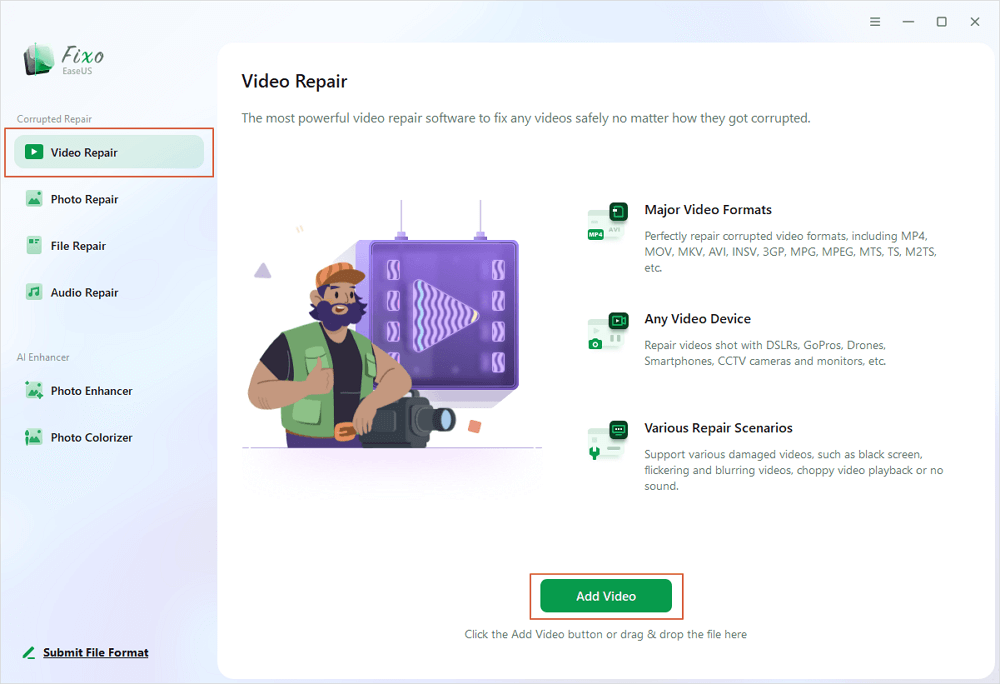
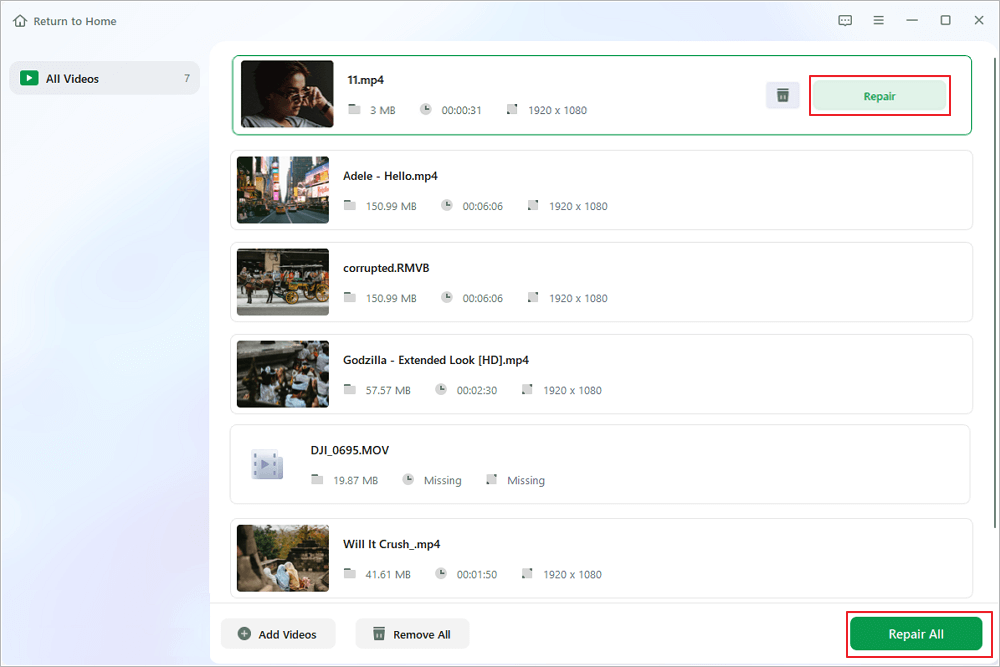
Step 1. Open Fixo on your local PC. Click "Video Repair" and add the corrupted MP4/MOV/AVI/MKV/3GP/FLV/MKV/WMV video files by clicking "Add Videos".
Step 2. Move the pointer to a video and click the "Repair" button to start the single video repairing process. If you want to repair all the videos, click "Repair All".
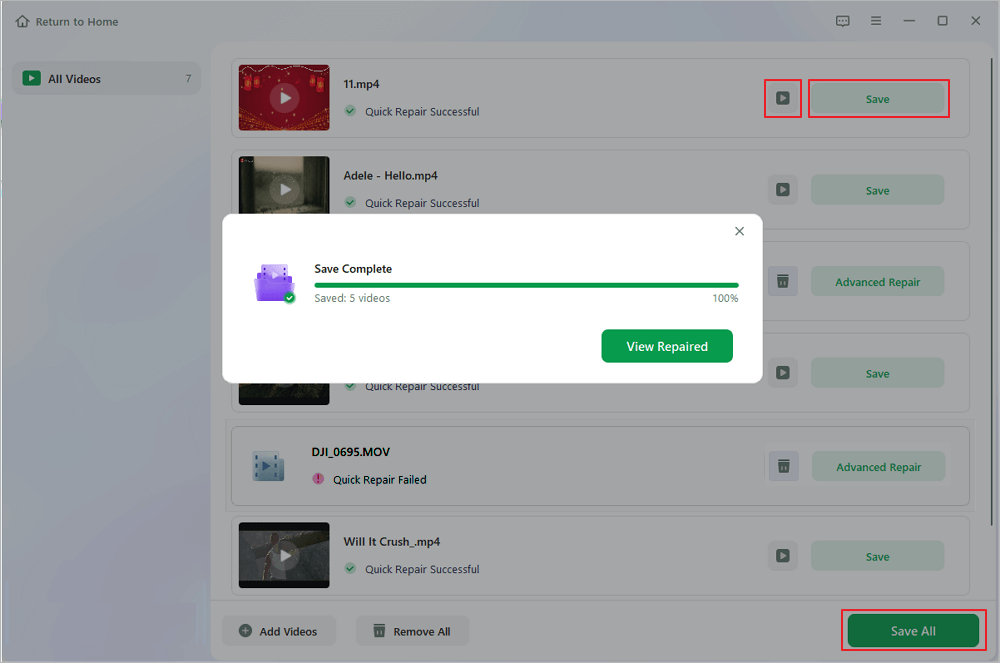
Step 3. Wait a few minutes, and the corrupted videos will be repaired. Click the play icon to preview the videos. You can save a single video by clicking the "Save" button next to the play icon. If you want to save all the repaired videos, choose "Save All".
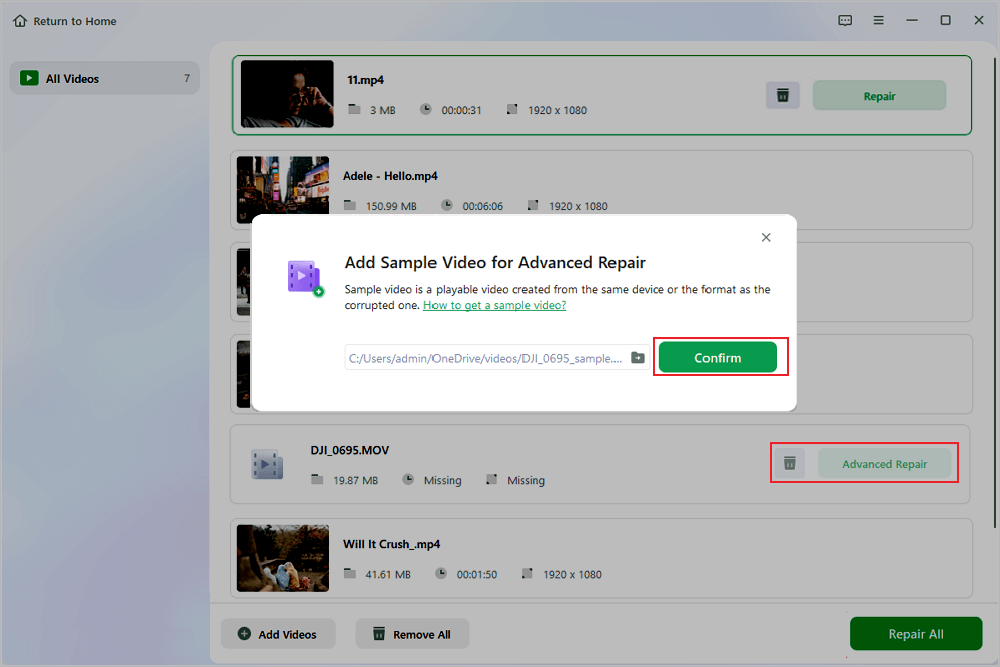
Step 4. If the quick repair fails, you should utilize the advanced repair mode. Click "Advanced Repair" and add a sample video. Choose "Confirm" to ensure.
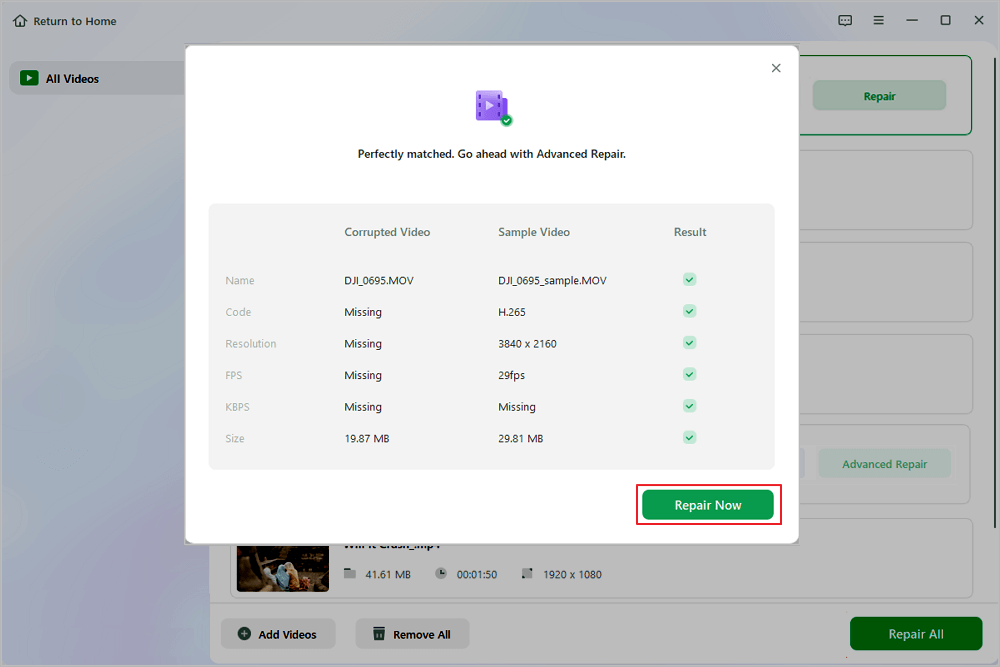
Step 5. A list of detailed information on corrupted and sample videos will show up. Click "Repair Now" to start the advanced video repair process. When the repair is complete, you can view the videos and click the "Save" button to save the repaired video files to an appropriate destination.
Method 3. VLC Media Player for Minor Encoding Errors
If you already have VLC Media Player installed, you can use it to fix video corruption caused by encoding errors. This method only works for minor issues.
- Open VLC Media Player on your computer.
- Click "Media" in the top menu, then select "Convert/Save."
- Click "Add" and select the corrupted video.
- Click "Convert/Save" at the bottom of the window.
- In the "Profile" dropdown menu, select "Video - MP4".
- Click "Browse" to choose a save location for the fixed video.
- Click "Start" and wait for the conversion to finish. The fixed video should play correctly in VLC or any other media player.

How to Repair Corrupted MP4 Video Files Using VLC
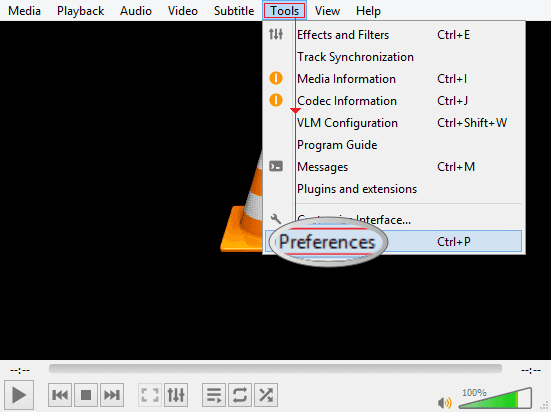
Can VLC repair MP4? Basically, yes. You can repair corrupted MP4 video files using VLC Media Player by renaming the .mp4 to .avi file format for an automatic fix.
Digital Video Repair FAQs
If you still have some questions about video repair, check the quick answers below to help yourself out:
1. Can I repair corrupted videos for free?
Yes. EaseUS Online Video Repair is completely free for minor corruption. EaseUS Fixo Video Repair offers free scanning and preview, and you can repair small videos at no cost.
2. What video formats do EaseUS repair tools support?
Both tools support all common formats, including MP4, MOV, AVI, MKV, MTS, and more, covering most videos shot by phones, cameras, and computers.
3. Can I repair a completely black screen video?
Use EaseUS Fixo Video Repair to fix severe black-screen videos by repairing the file structure and encoding errors.
4. Can I repair videos from SD cards or cameras?
Yes. Both tools support repairing videos from SD cards, cameras, phones, USB drives, and other devices.
Conclusion
Corrupted digital videos don't have to be permanent. With the right tools and steps, even beginners can fix most issues quickly and easily. For minor corruption, use EaseUS Online Video Repair (free, no download). For severe issues, EaseUS Fixo Video Repair is the most reliable choice; its advanced features and high success rate make it worth the investment.
Was This Page Helpful?
About the Author

Jaden is one of the editors of EaseUS, who focuses on topics concerning PCs and Mac data recovery. Jaden is committed to enhancing professional IT knowledge and writing abilities. She is always keen on new and intelligent products.


