





Table of Contents
 About the Author
 Related Posts
What Is a GoPro LRV File
LRV stands for Low Resolution Video. Basically, it's a smaller version of your main footage - useful for previews, less strain on your computer versus slogging through big files. Every time you record a video on some GoPro cameras, you'll see a bunch of files: the main MP4 video, an LRV file, and a THM thumbnail. Each file has its own job, so knowing which is which can save you some headaches.
GoPro LRV vs. MP4 vs. THM - What's the Difference?
Sure, the file names look similar, but don't get them mixed up. Here's a quick rundown:
- LRV: Low-res preview video.
- MP4: The full-quality original footage.
- THM: Thumbnail image so you get that little preview.
Say your memory card has "GH010123.MP4," "GH010123.LRV," and "GH010123.THM" - that's normal. If your LRV file is acting up, check if the MP4 is okay. If so, you might not even need to fix the LRV. If both are broken, focus on repairing the MP4; it's the real prize.
Can You Open GoPro LRV Files on Your Computer
Yes, but it depends on your software. Some media players don't like the .LRV extension, even if the video data inside is okay.
Try opening with a player that knows what to do with LRV. If that fails, make a copy and rename it to .MP4 - sometimes it works, sometimes it doesn't. Changing the extension doesn't magically fix a broken file or turn a preview into full-quality footage. If the file still won't play, it's probably incomplete or corrupted.
Why Are GoPro LRV Files Corrupted or Unplayable
Before you attempt any repairs, figure out what went wrong. It could be a bad recording, a damaged SD card, a botched file transfer, or a software hiccup. Pinning down the cause stops you from making things worse.
1. Interrupted Recording
Battery dies? Camera crashes? Anything that interrupts recording can leave your files unfinished or warped.
2. Broken SD Card
GoPros rely on memory cards. If your SD card has errors, broken sectors, or is giving up, files won't open. Yanking the card while it's writing can screw things up, too.
3. File Transfer Fails
Moving files needs a stable connection. Unplugging the card too soon or getting a transfer error means your file isn't complete.
4. Unsupported Software
Some players just don't recognize LRV files. If you see errors, try a different player or rename the file as .MP4 (on a backup, not the original). If nothing works, it's time for video repair.
5. Accidental Deletion or File System Problems
Maybe the LRV isn't corrupted - it's just plain missing. For deleted files, you'll need recovery tools first. For files you can't play, try repair software.
How to Repair GoPro LRV Files with Video Repair Tool
If your LRV file is present but won't play, a video repair tool is your best bet. EaseUS Fixo Video Repair tackles damaged video files, even GoPro footage. Success depends on how badly the file is corrupted and whether your software can actually handle LRV files.
What to Do Before Repairing GoPro LRV Files
Before messing with anything, take these steps:
- Backup: Always make a copy of the original.
- Check for the main MP4 file: this is where your best-quality video sits.
- Check the SD card: if lots of files are broken, it might be the card, not just a single file. Don't keep using a failing card, and avoid formatting it until you've rescued important stuff.
Then you can follow the guide to repair GoPro LRV files with the EaseUS video repair tool:
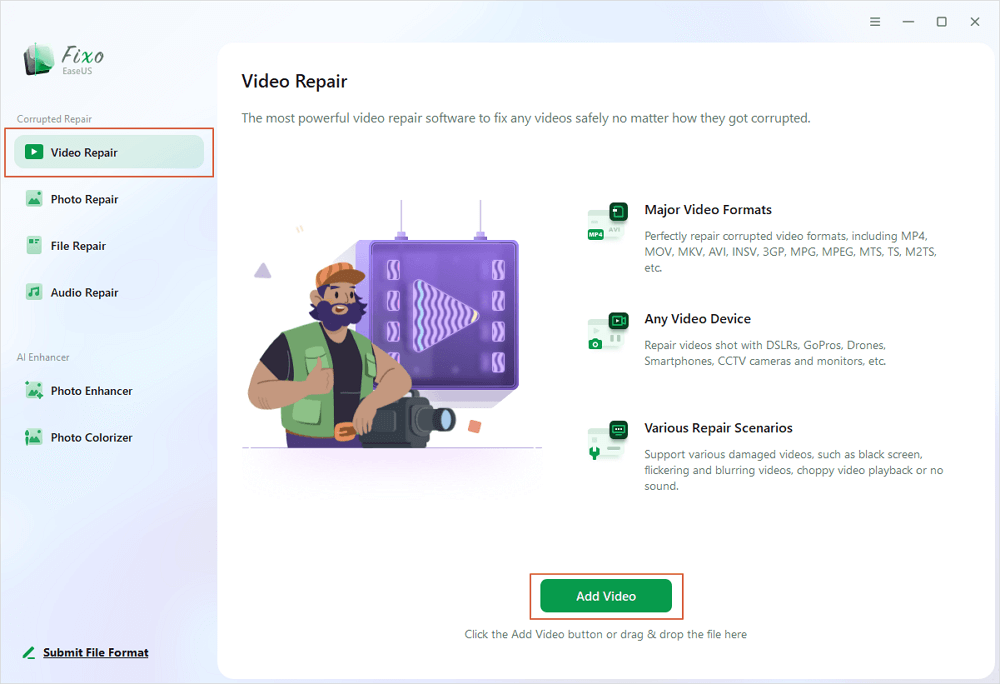
✨Step 1. Download, install, and launch EaseUS Fixo Video Repair
Click the download button or visit Fixo official website to download and install this video repair tool, In the interface, click "Video Repair" > "Add Videos" to upload movies, recordings, or other video files from various storage devices.
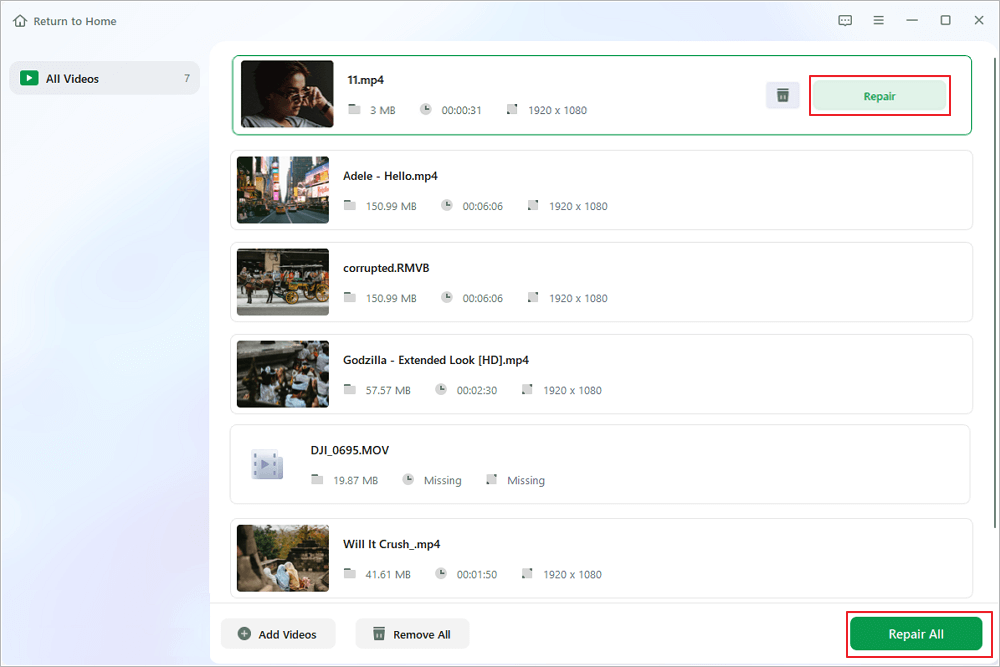
✨Step 2. Start the video repair now
If you don want to repair all the videos at once, you can select a singe one and choose "Repair". Click the trash button to remove the video from the repair list.
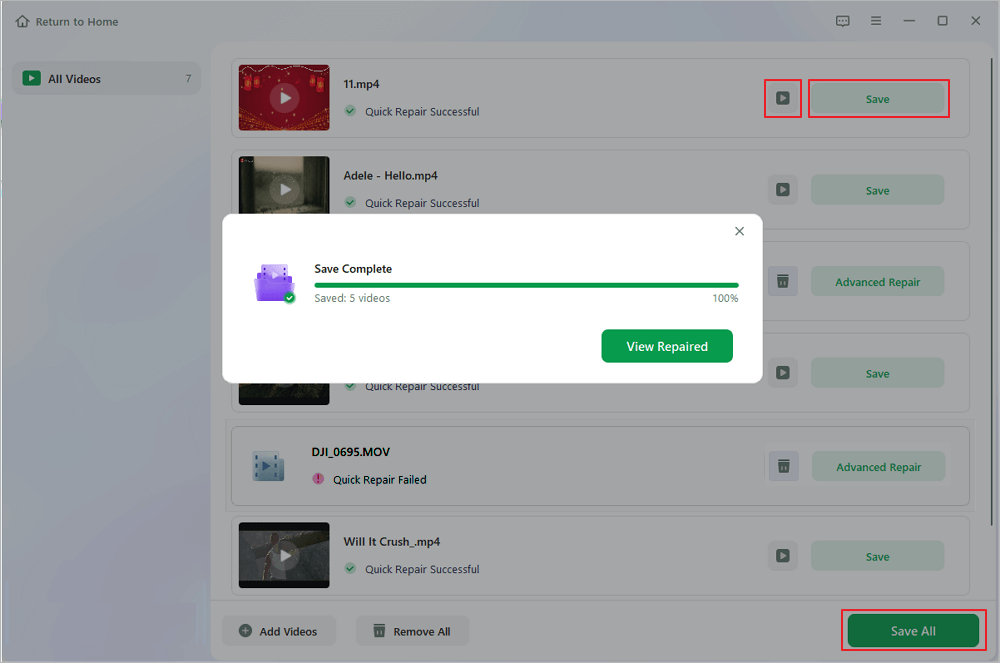
✨Step 3. Preview and save repaired videos
It may takes longer to repair large videos. Click the play icon to preview the repaired videos, and click "Save All" to save these video files. The "View Repaired" button will lead you to the repaired folder directly.
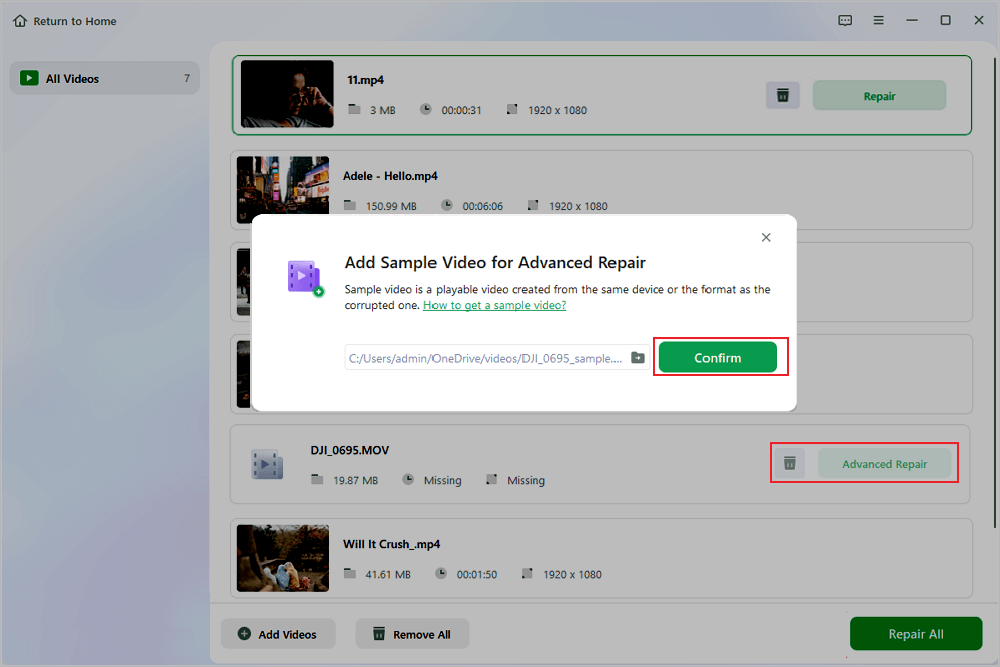
✨Step 4. Apply advanced repair if fails
If the video shows "Quick Repair Failed", that means the video is seriously damaged and it's better to utilize the advanced repair mode. Click "Advanced Repair" > the folder icon > "Confirm" to add a sample video.
✨Step 5. Check the match result
You'll know whether the sample video can help repair the corrupted videos or not in the pop-up window. A list of detailed information on corrupted and sample videos will show up. Click "Repair Now" to start the advanced video repair process.
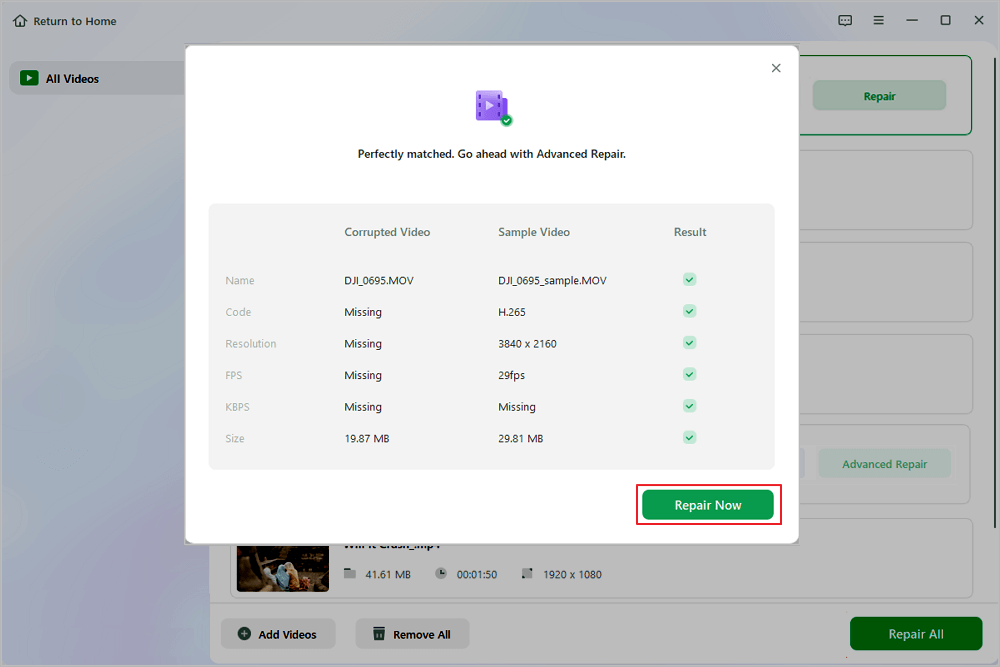
This video repair tool can fix many video issues, including GoPro videos not playing.

How to Prevent GoPro LRV Files from Becoming Corrupted
You might not be able to stop every issue, but you can make them a lot less likely:
- Use a good SD card. Don't cheap out. Buy from reputable sellers, and replace it if it starts acting up.
- Don't interrupt recording. Charge your GoPro beforehand, avoid removing the SD card mid-recording, and stop recording before turning off the camera.
- Transfer files carefully. Use sturdy card readers, check your files after copying, and keep backups.
- Back up your original files; the MP4 files matter most, but keep LRV files as previews.
- Safely eject storage devices. Always finish transfers, then safely remove cards or drives.
Summary
LRV files are previews, smaller and less crisp than the originals. When they're corrupted, check if the problem's with the file, the player, or the storage device. If you must repair, EaseUS Fixo Video Repair is a decent option, but always back up first and make sure your software supports the file. If it fails, the MP4 is what you really want to save.
Lost files or SD card errors? Try data recovery first, then repair attempts. To avoid these headaches, stick with good cards, don't interrupt recordings, and always keep backups.
Repair GoPro LRV Videos FAQs
1. Why does my LRV file have no sound?
Sometimes LRV files just don't have audio, depending on how your GoPro was set up. Try another player, or check if your MP4 has audio. If it's gone from both, repair software can't magically restore it.
2. What if my LRV file disappeared?
Look everywhere: SD card, computer, backups. If deleted, don't save new data to the card. Try recovery software before attempting repairs.
3. Can a damaged SD card cause LRV file corruption?
Absolutely. If your card's broken, files can become corrupted or erased. Replace faulty cards as soon as possible.
Was This Page Helpful?
About the Author

Dany is an editor of EaseUS who lives and works in Chengdu, China. She focuses on writing articles about data recovery on Mac devices and PCs. She is devoted to improving her writing skills and enriching her professional knowledge. Dany also enjoys reading detective novels in her spare time.


