





-
![]()
-
![]() Hard Drive Spinning but Not Detected? Here Are the Fixes
 November 18,2026
 6 min read
-
![]() How Long Do Hard Drives or External Hard Drives Last (If Unused)November 18,20266 min read
-
![]() 4 WD My Passport Repair Tools: Fix Drive Access ErrorsNovember 18,20266 min read
-
![]() How to Recover Data from Corrupted or Scratched CD/DVDNovember 18,20266 min read
-
![]() How to Permanently Delete Files from Hard Drive [Windows 11]November 18,20266 min read
-
![]()
-
![]() Fix the Fatal Device Hardware Error Without Losing Data [6 Ways]November 18,20266 min read
-
![]()
-
![]() How ro Fix Glyph External Hard Drive Not Showing UpNovember 18,20266 min read
Page Table of Contents
PAGE CONTENT:
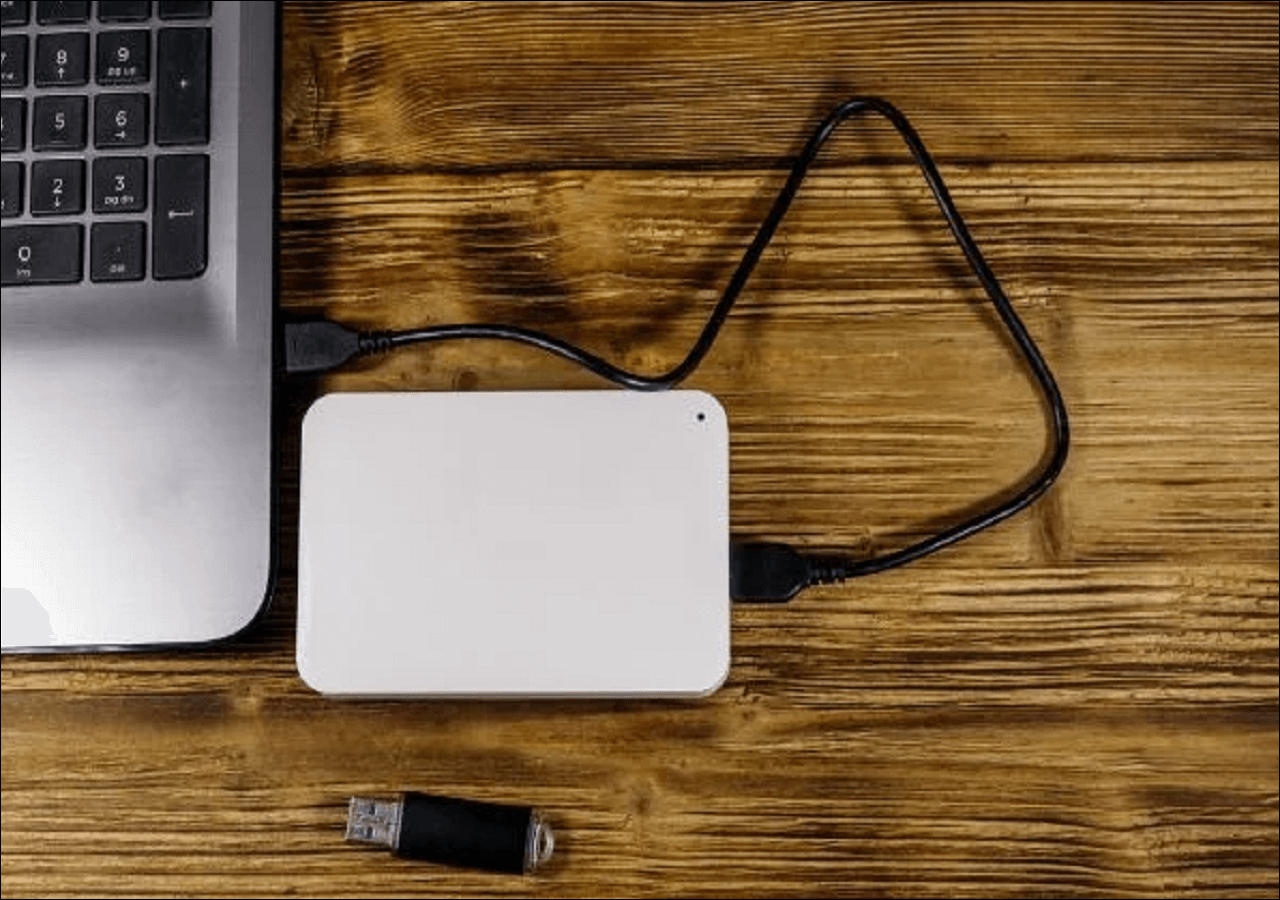
If your WD My Book Essential has suddenly stopped appearing in File Explorer, you're not alone. This is a common issue with external drives, and it can happen for a variety of reasons—from a loose cable to a corrupted file system. The good news is that the drive itself may still be perfectly fine, and your data may still be recoverable.
This guide walks you through the most effective fixes to fix WD My Book Essential not showing up, starting with the simplest checks and moving to more advanced solutions. We'll also cover what to do if you need to get your files back before repairing the drive.
Why Is Your WD My Book Essential Not Showing Up
Before diving into fixes, it helps to understand what might be causing the problem. Common culprits include:
- Cable or port issues. A damaged USB cable or a faulty port can prevent Windows from detecting the drive
- Missing or conflicting drive letter. Windows may see the drive but fail to assign it a letter, so it doesn't appear in File Explorer
- Outdated or corrupted drivers. The USB driver or the drive's own driver may be causing detection problems
- File system corruption. If the drive's file system is damaged or the drive shows as RAW, Windows may not be able to read it
- Hardware encryption. Some My Book models use hardware encryption in the enclosure, meaning the original USB board must be attached for the data to be readable
- Physical failure. In some cases, the drive itself may be failing, which is more serious
How to Fix WD My Book Essential Not Showing Up
Method 1: Assign a Drive Letter to Fix WD My Book Essential Not Showing Up
If Disk Management sees the drive but File Explorer doesn't, it likely just needs a letter assigned.
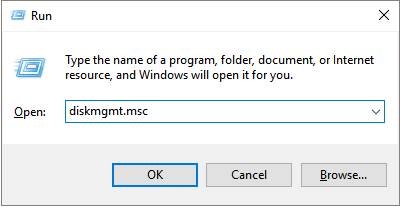
Step 1. In Disk Management, find your WD My Book Essential. It will likely show as "Healthy" but without a letter.
Step 2. Right-click on the drive and select "Change Drive Letter and Paths..." .
Step 3. Click "Add" , choose a letter that isn't already in use, and click OK .
Step 4. The drive should now appear in File Explorer .
Method 2: Update or Reinstall USB Drivers to Fix WD My Book Essential Not Showing Up
If the drive doesn't appear in Disk Management, a driver issue may be to blame.
Step 1. Right-click Start and select Device Manager.
Step 2. Expand "Universal Serial Bus controllers" .
Step 3. Right-click each USB Root Hub and select "Uninstall device" . Repeat for all entries under this category .
Step 4. Restart your computer. Windows will automatically reinstall the USB drivers.
Step 5. Reconnect your WD drive and check if it appears.
Method 3: Check for File System Errors to Fix WD My Book Essential Not Showing Up
If the drive appears but is inaccessible, the file system may be corrupted.
Step 1. Open Command Prompt as administrator (search "cmd," right-click, select "Run as administrator").
Step 2. Type chkdsk X: /f (replace X with your WD drive's letter) and press Enter.
Step 3. Wait for the scan to complete. If errors are found, CHKDSK will attempt to fix them.
Note: If CHKDSK cannot run or the drive shows as RAW, do not format it. Proceed to the data recovery section first.
Conclusion
A WD My Book Essential that isn't showing up is usually a fixable problem. Start with the basics—cables, ports, and drive letters—since these resolve the majority of cases. If the drive appears but is inaccessible, check for file system errors. And if you have important data on the drive, always recover it before formatting or running repairs. With the right steps, you can often get your drive working again without losing your files.
FAQ
Q1: Why does my WD My Book Essential show up in Disk Management but not in File Explorer?
A: This usually means the drive is detected but hasn't been assigned a drive letter. Open Disk Management, right-click the drive, and assign a new letter .
Q2: My WD My Book Essential has a blue light and is running, but Windows doesn't see it. What's wrong?
A: The drive is receiving power, but the data connection may be failing. Try a different USB cable and port, and check Disk Management to see if the drive appears without a letter .
Q3: Can I recover data from a WD My Book Essential that won't show up?
A: Often, yes. If the drive is detected in Disk Management (even without a letter) or shows as RAW, recovery software like EaseUS Data Recovery Wizard can scan it and retrieve your files. Always recover to a different drive .
Q4: Should I format my WD My Book Essential if it's not showing up?
A: No—not until you've recovered your data. Formatting can make files harder or impossible to recover. Try the fixes above first, and only format as a last resort after your data is safe.
Q5: What if none of these fixes work?
A: If the drive doesn't appear in Disk Management at all, makes unusual noises, or repeatedly disconnects, it may have a physical failure. In that case, consider contacting a professional data recovery service .
Was this page helpful?


 Why Trust EaseUS
 Editor Reviews