





-
![]() How to Fix Lacie Hard Drive Not Turning on [2026 New]
 November 18,2026
 6 min read
-
![]() How to Fix a Slow WD External Hard Drive Without Losing DataNovember 18,20266 min read
-
![]() SSD File Recovery | How to Recover Data from SATA SSDNovember 18,20266 min read
-
![]() Fix Seagate External Hard Drive Not Working Without Losing DataNovember 18,20266 min read
-
![]() How to Recover Data from Uninitialized Disk | 3 WaysNovember 18,20266 min read
-
![]() How to Repair Corrupted XD Card and Recover PhotosNovember 18,20266 min read
-
![]() Drive Is Not Accessible: Fix It Without Losing DataNovember 18,20266 min read
-
![]()
-
![]() [SOLVED] Hard Drive/External Hard Drive Only Shows Half CapacityNovember 18,20266 min read
-
![]() Free Download Lenovo Data Recovery Software [for Laptop & Mobile]November 18,20266 min read
Page Table of Contents
When folders turn into shortcuts on an external hard drive, your real folders and files are usually hidden or moved into system directories rather than permanently deleted. Do not double-click suspicious shortcut icons when your drive looks infected. Instead, check File Explorer's hidden item settings, run the attrib command in Command Prompt to reveal hidden folders, scan your PC with antivirus software, and safely recover hidden or lost files to a clean storage drive.
PAGE CONTENT:
Plugging in an external hard drive and seeing all your familiar folders replaced by shortcut icons can be alarming. Many users worry that a virus wiped their drive or that their data disappeared completely.
In most cases where folders turn into shortcuts on an external hard drive, your original data is still on the drive. Either a shortcut virus hid the real folders and created deceptive shortcut links, or a file system glitch changed folder attributes and directory visibility.
Why Do Folders Turn Into Shortcuts on an External Hard Drive
Knowing what causes shortcut behavior helps you choose the right fix without risking your files. Several everyday situations can trigger this problem on Windows computers.
- 👽Shortcut Virus or Malware Infection: The malware marks original folders as hidden and system files, then places shortcut files in their place to trick users into launching malicious scripts.
- ✍️Hidden and System Attribute Changes: File system glitches or improper disconnection can flip the hidden or system attributes on your folders so Windows File Explorer hides them by default.
- 📂File System Corruption: Unplugging a USB drive without safely ejecting it or experiencing a sudden power drop can damage file index records on NTFS, exFAT, or FAT32 drives.
- 😱Accidental User Actions or Sync Glitches: Moving folders by mistake or encountering sync errors between drives can leave stray shortcuts behind while hiding or displacing the true directories.
Before opening those shortcut icons or repairing the external hard drive, follow a few basic safety habits to protect your computer and files.
- Do Not Double-Click the Shortcut Icons: If a shortcut virus caused the problem, clicking a fake folder shortcut can trigger unwanted scripts or spread malware to your PC.
- Stop Saving New Files to the External Drive: Avoid copying new files onto the affected drive until you check your data and recover anything missing.
- Do Not Format the Drive Immediately: Formatting erases the file system structure and makes recovery harder. Only format a drive after your important files are safely saved elsewhere.
Fix 1. Recover Hidden and Lost Files Using EaseUS Data Recovery
When folders turn into shortcuts, file system glitches or malware cleanup can sometimes leave files hidden, scattered, or hard to find through normal browsing. Reliable data recovery software offers a safe, straightforward way to scan the drive and save clean copies of your documents, photos, videos, and archives to another location.
EaseUS Data Recovery Wizard is designed for everyday computer users who want a clear, guided way to recover lost files from external hard drives, USB flash drives, and memory cards. It scans storage sectors carefully so you can locate your real files and move them to a safe drive without risking further damage to the original storage device.
Download and install EaseUS Data Recovery Wizard on your computer's internal drive. Do not install it on the external hard drive with the shortcut issue. Then follow these steps:
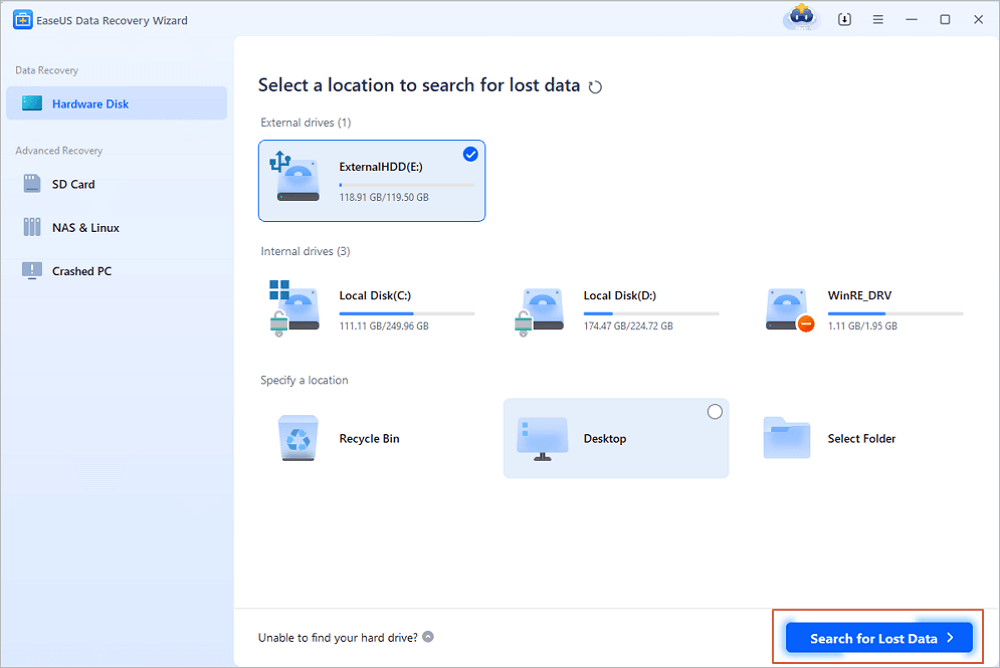
Step 1. Choose and scan the external hard drive
- Download and install EaseUS Data Recovery on your PC or laptop.
- Connect the external hard drive to your computer.
- Run EaseUS Data Recovery Wizard and choose the external drive from External drives list. Then, click "Search for Lost Data".
Step 2. Check the scan results
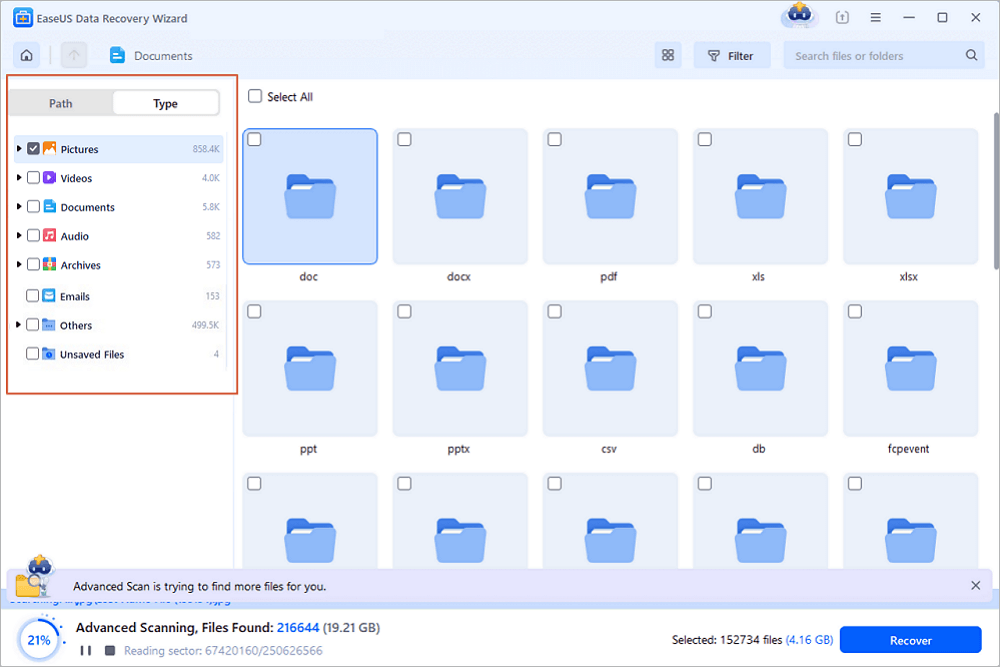
- EaseUS data recovery software will immediately scan the selected drive for all data, including deleted, corrupted, and existing data.
- You can use the Filter feature to quickly locate the files of one kind, such as Pictures, Word, Excel, PDF, videos, emails, etc.
Step 3. Preview and recover data
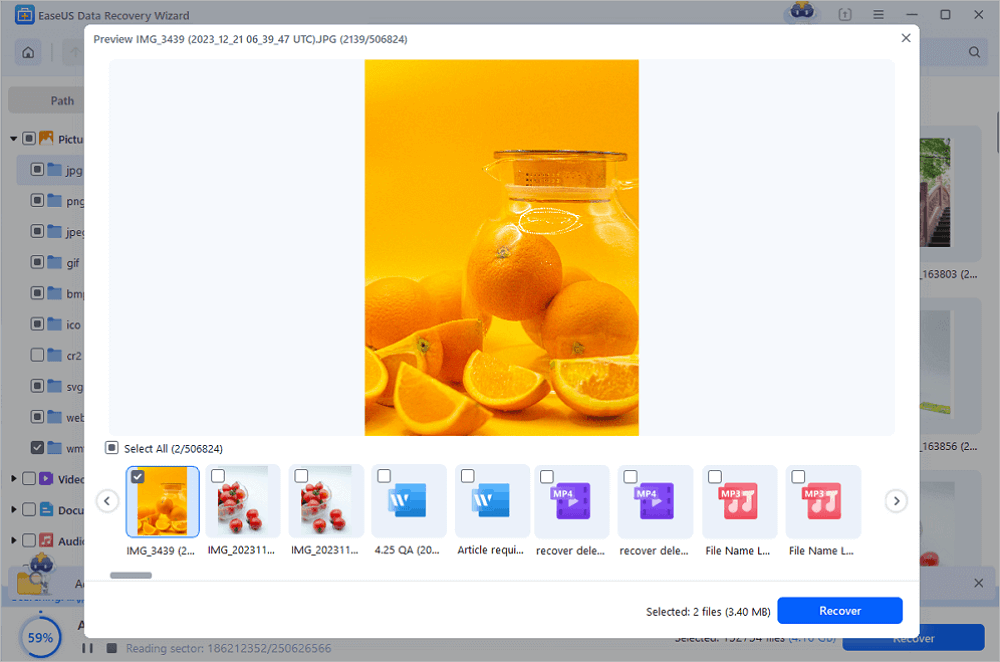
- Double-clicking a file from the scanned results to preview.
- Choose the files you want and click "Recover".
- Select a different drive to save the recovered files instead of the original one.
💡Tip: You can restore data on the local disks, external hard drives, and also the cloud storage.
If you find this information helpful, please share it on social media to help others overcome this common challenge.
Fix 2. Show Hidden Items in Windows File Explorer
Often, the original folders are still on your external hard drive, just marked as hidden. Show hidden files in File Explorer is the fastest way to check if your folders are still there.
Step 1. Plug in your external hard drive and open "File Explorer".
Step 2. Open the drive in the left sidebar to see its contents.
Step 3. In Windows 11, click "View" on the top toolbar, hover over "Show", and click "Hidden items". In Windows 10, click the "View" tab at the top and check the "Hidden items" box.

Step 4. Look for faded folder icons that represent your original folders.
Step 5. If you see your real folders, copy them to a safe folder on your computer right away, then delete the suspicious shortcut files.
If you find this information helpful, please share it with others on social media to assist them in overcoming this common challenge.
Fix 3. Unhide Folders Using the Attrib Command in CMD
If hidden folders also have system attributes attached, checking the Hidden items box in File Explorer may not show them. You can use Command Prompt and the attrib command to clear hidden and system attributes across the external drive.
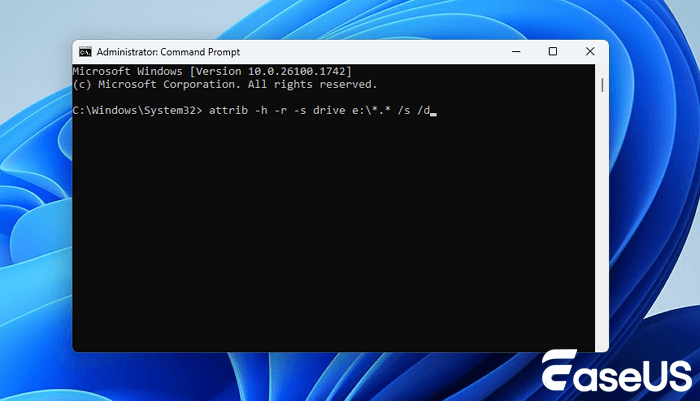
Step 1. Click the "Start" menu on Windows, type "cmd", right-click "Command Prompt", and choose "Run as administrator".
Step 2. Check your external hard drive letter in File Explorer, for example, drive "E:".
Step 3. Type the following command and press Enter to remove hidden, system, and read-only attributes from files and folders on drive E: attrib -h -r -s /s /d E:\*.*
Step 4. Replace "E:" with your actual external drive letter if it uses another letter.
Step 5. Wait for the command to finish, then open your external drive in File Explorer to see whether your original folders reappear.
Fix 4. Scan for Malware and Remove Shortcut Viruses
If shortcut files keep coming back after you delete them or unhide your folders, shortcut malware may still be active on your computer or inside the external drive. Running a thorough security scan helps remove harmful files before you keep using the storage device.
Step 1. Open "Windows Security" from the Start menu and select "Virus and threat protection".
Step 2. Click "Scan options", choose "Full scan" or "Microsoft Defender Offline scan", and click "Scan now".
Step 3. Let the scan check your system and connected drives for threats and quarantine or remove any detected items.
Step 4. Once the scan finishes, delete any remaining shortcut files on the external drive, and check whether your normal folders are still visible.
Free Shortcut Virus Remover Software/Tool
The shortcut virus infiltrates storage devices and replaces all files with shortcuts so that you cannot access the file content. Read more >>
Conclusion
Seeing folders turn into shortcuts on an external hard drive is stressful, especially when your important files seem out of reach. Fortunately, your real folders are often still on the drive, hidden by attributes or shortcut links. By avoiding risky shortcut clicks, checking hidden items in File Explorer, running the attrib command when needed, scanning for malware, and using EaseUS Data Recovery Wizard to recover and back up your files safely, you can regain control of your external drive and protect your data with confidence.
Fix Folders Turned Into Shortcuts in External Hard Drive FAQs
Here are clear answers to common questions users ask when folders on an external hard drive turn into shortcuts.
1. Are my real files deleted when folders turn into shortcuts on an external hard drive?
Usually no. In most cases, your real folders and files are still on the drive, either marked as hidden or moved into a hidden folder, while shortcut files appear in their place. Scanning the drive with EaseUS Data Recovery Wizard and checking hidden settings helps you locate and save your files safely.
2. What does the CMD attrib command do to fix shortcut folders?
The attrib command changes file and folder attributes on Windows. Running a command like attrib -h -r -s /s /d E:\*.* clears hidden, read only, and system attributes so hidden folders can show up normally again in File Explorer.
3. Should I delete the shortcut icons on my external hard drive?
First check whether your real folders are hidden on the drive or recover your files with EaseUS Data Recovery Wizard so you do not lose anything by mistake. Once your real folders and files are safe, you can delete the unwanted shortcut icons.
4. Can EaseUS Data Recovery Wizard help if a shortcut virus hid my folders?
Yes. EaseUS Data Recovery Wizard can scan your external hard drive and help you recover hidden or missing files and folders to a safe destination drive, especially after file system glitches or when files are hard to access normally.
Was this page helpful?
 Why Trust EaseUS
 Editor Reviews

20+
Years of experience

160+
Countries and regions

72 Million+
Downloads

4.9 +
Trustpilot Score