





-
![]()
-
![]() Memory Card Unlocker: How to Unlock SD Card Without Losing Data
Memory Card Unlocker: How to Unlock SD Card Without Losing Data October 14,2026
 6 min read
 -
![]() How to Recover Deleted/Lost Screenshots from Nintendo Switch 2October 14,20266 min read
How to Recover Deleted/Lost Screenshots from Nintendo Switch 2October 14,20266 min read -
![]() RSV File Recovery: Recover & Repair Corrupted Sony VideosOctober 14,20266 min read
RSV File Recovery: Recover & Repair Corrupted Sony VideosOctober 14,20266 min read -
![]()
-
![]()
-
![]()
-
![]()
-
![]()
-
![]()
Page Table of Contents
PAGE CONTENT:
How to recover files from SD card after virus attack? A virus attack on your SD card can be just as devastating as partition loss. One moment, your photos and documents are accessible; the next, files may be hidden or deleted, or the card may appear corrupted or empty. Fortunately, recovering files from an SD card after a virus attack is often possible because the virus typically damages the file system or hides files, rather than permanently erasing the underlying data.
This guide explains how to recover your data effectively, using reliable recovery software as the primary solution and drawing on proven methods similar to those used for partition-loss recovery.
Is It Possible to Recover Files from an SD Card After a Virus Attack
The answer is a big Yes. In most cases, recovery is possible. When a virus infects an SD card, it may:
- Hide your files and folders
- Change file attributes (making files "system" or "hidden")
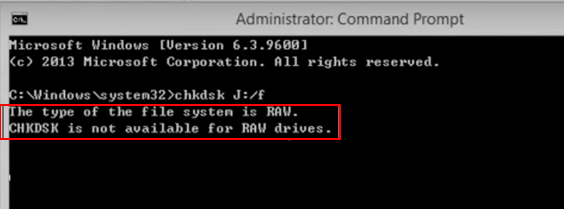
- Corrupt the file system (making the card show as RAW or unreadable)
- Delete files without actually overwriting the storage space
The key point: the actual file data often remains on the card until it is overwritten by new information. Recovery software can scan the raw storage space for recognizable file signatures (photos, videos, documents) and restore them.
Recovery is likely if you:
- Stop using the SD card immediately after noticing the infection
- Do not format the card
- Use a reputable data recovery tool that performs deep scanning
⚠️ Note: If the virus physically damaged the card's firmware or the card is physically broken, software cannot fix it. However, for logical damage (corrupted file system, hidden files, or deleted data), software recovery is the standard solution.
Preparation Before Recovering an SD Card After a Virus Attack
Your immediate actions are critical for a successful recovery. Follow these steps carefully:
1️⃣ Stop Using the SD Card Immediately
Remove the SD card from your phone, camera, or computer. Do not add, delete, or modify any files. Do not format the card, even if your device prompts you to do so. Formatting can overwrite the very data you want to recover.
2️⃣ Scan the SD Card for Viruses (Optional but Recommended)
Before recovering files, consider scanning the SD card with updated antivirus software to prevent the virus from spreading to your computer. However, ensure the antivirus does not delete or quarantine recoverable files. If in doubt, proceed directly to data recovery without writing anything to the card.
3️⃣ Connect the SD Card to a Computer
Use a dedicated SD card reader connected directly to a USB port. Avoid using the camera or phone as an intermediary, as these connections can be unstable and may not provide the low-level access required for recovery software.
4️⃣ Prepare a Safe Save Location
Ensure your computer's internal hard drive or an external drive has enough free space to save the recovered files. Do not save recovered files back onto the same SD card.
How to Recover Files from SD Card After Virus Attack in 3 Steps
A straightforward data recovery tool like EaseUS Data Recovery Wizard enables you to recover lost or hidden files from an SD card affected by a virus, whether the files are deleted, the card is corrupted, or the partition is damaged.
This SD card recovery software has a broad technical foundation and has been trusted by millions of users. It features specific algorithms for scanning virus-damaged storage, deep raw data recovery, and file signature analysis – making it ideal for this scenario.
- Specific for Virus Damage: Can detect and scan drives that show as RAW, unallocated, or have hidden/corrupted files.
- Comprehensive File Support: Recovers photos, videos, audio files, documents, emails, and more from various SD card file systems (FAT32, exFAT, NTFS).
- Versatile Recovery: Also applies to accidental deletion, formatting, partition loss, and corrupted devices.
Here is the complete process to recover data from an SD card:
Step 1. Connect the SD Card and Launch the Recovery Software
Connect your SD card to the computer via a card reader. Launch EaseUS Data Recovery Wizard. You will see your computer's drives listed. Look for your SD card – it may appear as a removable disk, possibly with a drive letter or labeled as "RAW" or "Unallocated."
Select your SD card and click "Search for Lost Data" (or "Scan" depending on version).
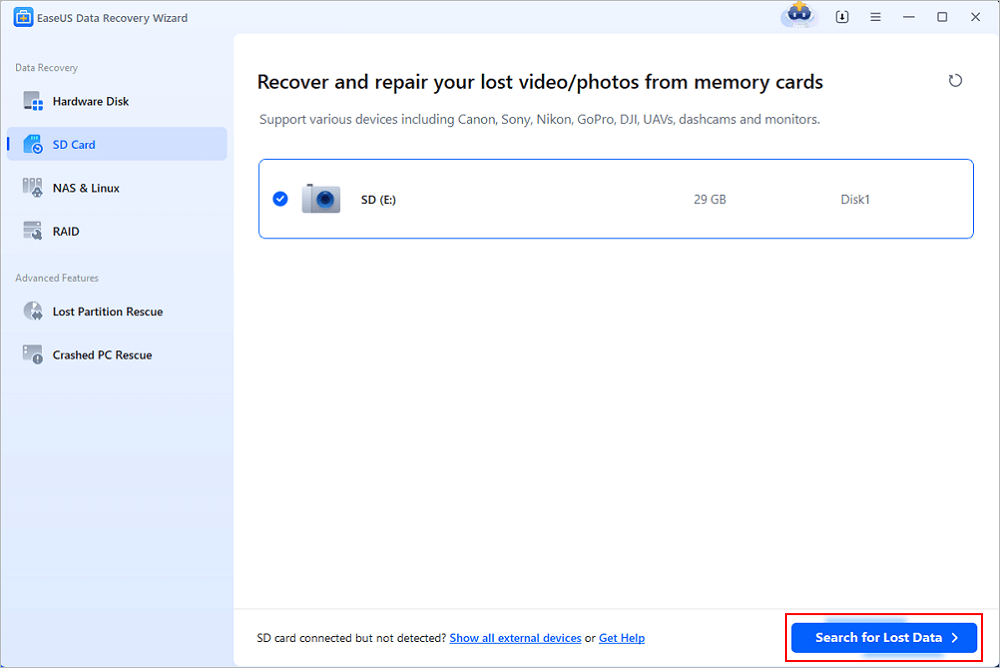
Step 2. Scan for Virus-Affected Files
The software will first perform a quick scan for recently deleted or hidden files. It will then automatically proceed to a deep scan, which searches the entire storage space sector by sector, looking for file signatures (headers and footers) of known file types (JPEG, PNG, DOCX, MP4, etc.).
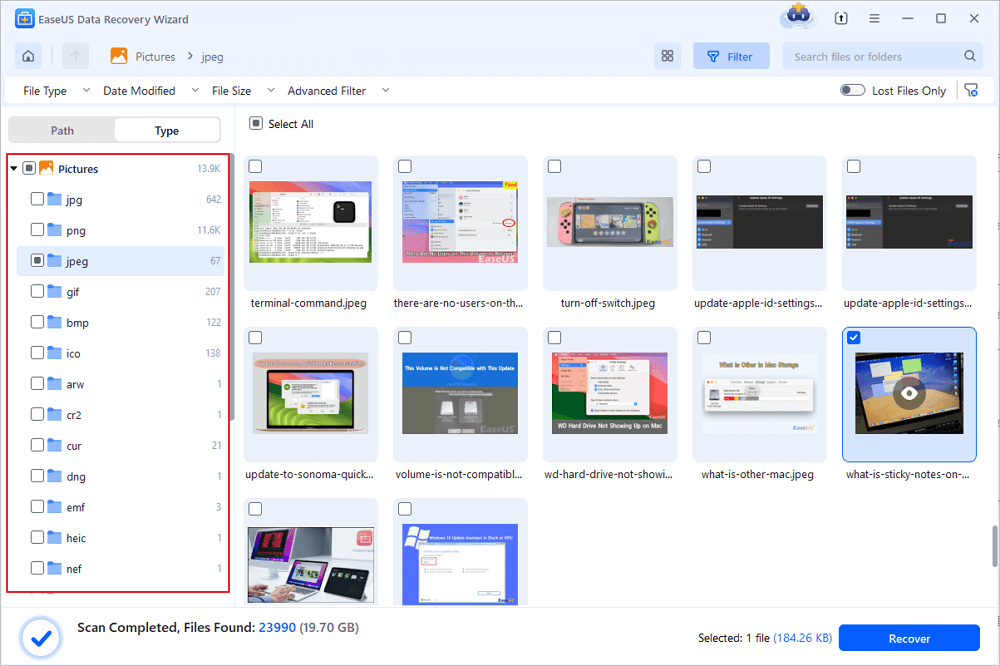
This process can take from a few minutes to half an hour, depending on the card's capacity. You can pause the scan if you find the files you need early.
💡 Pro Tip: During the scan, use the "Filter" feature (e.g., Pictures, Videos, Documents) or the search box to quickly locate specific files by name or format. This is especially helpful if the virus renamed or hid your files.
Step 3. Preview and Recover Files to a Safe Location
Once the scan is complete, go through the results. You can preview files (especially photos and documents) to verify they are intact and not corrupted. Select the files you want to recover and click the "Recover" button.
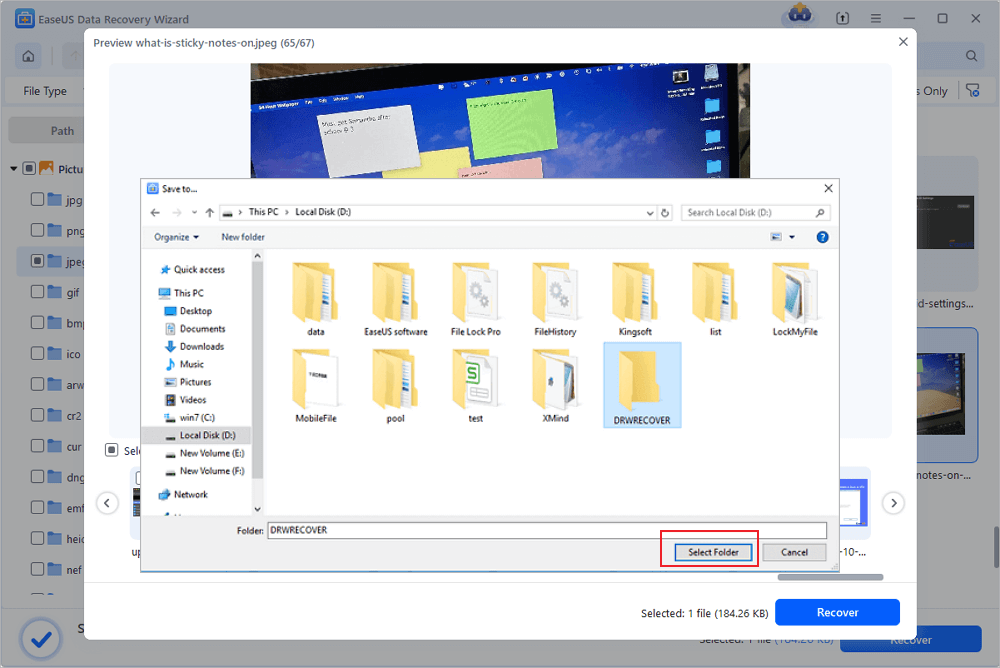
🔴 Crucial: Choose a save location on your computer's internal hard drive or another external drive. Do not save the files back to the same SD card. Click "OK" to restore your data.
✅ Pro Tip: If the standard scan does not find your files, EaseUS also includes a "Deep Scan" and "Raw Recovery" option. You can access these from the main menu to perform an even deeper, sector-by-sector scan specifically for severely corrupted or overwritten scenarios.
How to Prevent Virus Infection and Data Loss on SD Cards in the Future
While data recovery is effective, prevention is always better. Here are key tips to protect your SD card from viruses and data loss:
-
⭐ Tip 1. Scan Your SD Card Regularly for Viruses: Keep your antivirus software active and scan your SD card occasionally, especially if you use it in multiple public devices (like printers, photo kiosks, school computers, or gaming consoles). Consider using a dedicated USB antivirus tool.
-
⭐ Tip 2. Enable "Show Hidden Files" to Detect Virus Activity: Some viruses simply hide your files. Regularly check by enabling "Show hidden files and folders" in your operating system. If you see your files are only hidden, you can unhide them using command-line attributes (e.g.,
attrib -h -r -s /s /don Windows). However, be cautious as some viruses may still be present. -
⭐ Tip 3. Always Eject the SD Card Properly: Directly unplugging the card while data is being written can cause file system corruption, making it easier for viruses to cause damage. Always use the "Safely Remove Hardware" feature on Windows or "Eject" on Mac.
The Bottom Line
A virus attack on an SD card is a stressful but often solvable problem. The virus may have deleted, hidden, or corrupted your files, but your photos, videos, and documents are usually still recoverable as long as you stop using the card immediately and use the right recovery tools.
Being 100% secure, virus-free (the tool itself is safe), and efficient, EaseUS Data Recovery Wizard is a top choice for this recovery scenario. After successfully recovering your data, format the SD card to remove any virus remnants, then restore your files to the card from your backup or recovered folder. Implement regular backups and antivirus scans to avoid future data loss.
FAQs on Recovering Files from SD Card After a Virus Attack
Here are some frequently asked questions that you may be curious about:
1. Can a virus permanently delete files from an SD card?
Most common viruses do not permanently delete files – they either hide them, mark them as deleted, or corrupt the file system. The actual data often remains on the card until overwritten. However, some sophisticated ransomware or destructive viruses can overwrite data, making recovery impossible. In most consumer cases, recovery is possible.
2. Will formatting the SD card remove the virus?
Yes, formatting will remove most viruses by erasing the file system and partition data. However, formatting also erases your personal files. Always recover your files first using recovery software, then format the card to clean it. After formatting, you can safely copy your recovered files back.
3. How does a virus cause file loss on an SD card?
-
Hiding files: Changes file attributes to "hidden" or "system"
-
Corrupting the file system: Makes the card show as RAW or unreadable
-
Deleting files: Marks file space as available without overwriting data
-
Creating malicious files: Overwrites or encrypts data (less common on SD cards)
4. Can I recover files if my SD card shows as "RAW" after a virus?
Yes. A RAW drive means the file system is corrupted or missing. Recovery software that performs signature-based deep scanning can still read the raw data and recover files based on their internal structure, regardless of the missing file system.
5. Should I use antivirus software before or after data recovery?
After data recovery is generally safer. If you run antivirus software on the infected SD card first, it might delete or quarantine recoverable files, making them harder to retrieve with recovery tools. Instead, use recovery software directly, save the recovered files to a clean drive, then scan those recovered files with antivirus before opening them. Finally, format the original SD card.
Was this page helpful?
 Why Trust EaseUS
 Editor Reviews








