-
![]() SanDisk Memory Card Repair Tool Free Download for Windows/Mac
SanDisk Memory Card Repair Tool Free Download for Windows/Mac September 20,2026
 6 min read
 -
![]()
-
![]()
-
![]()
-
![]() How to Recover Files from SD Card with File System Errors [Easy]September 20,20266 min read
How to Recover Files from SD Card with File System Errors [Easy]September 20,20266 min read -
![]()
-
![]()
-
![]()
-
![]()
-
![]() FAT32 File Recovery: Recover Data from FAT32 Flash DriveSeptember 20,20266 min read
FAT32 File Recovery: Recover Data from FAT32 Flash DriveSeptember 20,20266 min read
Page Table of Contents
PAGE CONTENT:
Why Is My SD Card Not Showing Files But Storage Full
My X3 says it can't record because the sd cards storage space is full. Fair enough, but when I want to check my album on the X3 it says there are no files. Weird. When plugging in my sd card in my computer it says the sd card is full too. But also the same problem here: I wont see any files in the DCIM folder. This is really weird. – from Reddit
Finding space taken up on an SD card without seeing any files? That often means your files on the SD card are hidden, unreadable, or deleted. Here's what typically creates this situation:
- Files Are Hidden. Hidden files often cause confusion without warning. Even though you cannot see them in File Explorer, they remain on the drive; you just need to change the view settings to show hidden files.
- File System Corruption. When an SD card's file system is damaged, files might not appear properly on your device.
- Damaged File. Files stay put on the SD card even if the folder map gets broken; you may need file repair software to fix damaged files.
- Raw File System. A bit of confusion hits when an SD card turns into something the computer just does not recognize. A RAW SD card often happens after moving between different devices.
Finding out why it happened makes picking the right fix easier.
How to Fix SD Card Full But Not Showing Files
Before attempting complex repairs, you can try several simple troubleshooting steps:
Step 1. Remove your SD card and insert it again. You should check that it is seated properly. Try again if the system does not respond
Step 2. Start fresh with a different card reader, or you can change the USB port, or even try another computer to fix this issue.
Step 3. Restart your computer.
If these quick fixes do not work, you can try to work through each solution below.
Fix 1. Show Hidden Files on SD Card
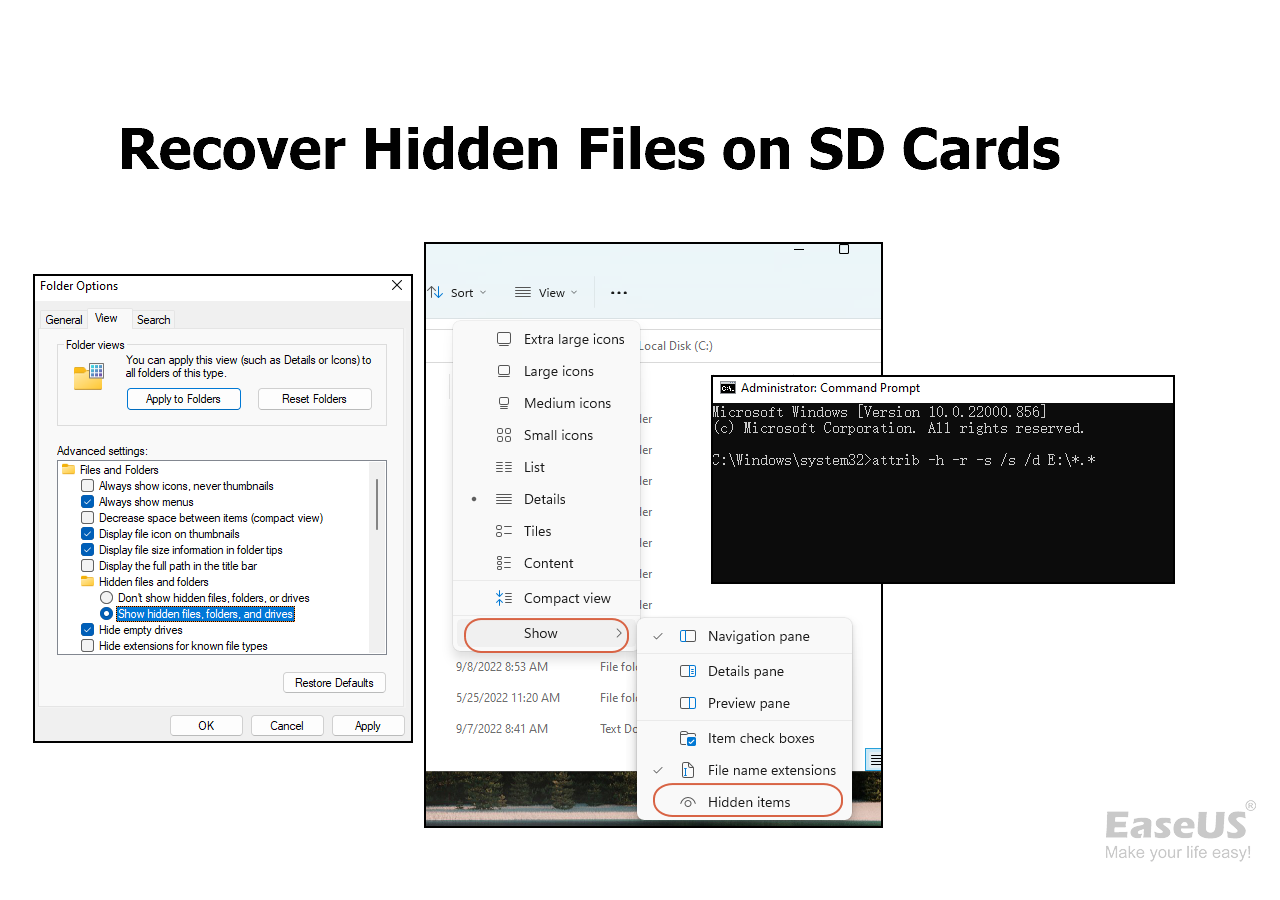
If the files are hidden, enabling the option to display hidden files may immediately solve the issue. Follow these steps and show hidden files in Windows 11:
Step 1. Insert the SD card into your computer.
Step 2. Open File Explorer, click the "View" tab, and enable "Hidden items".
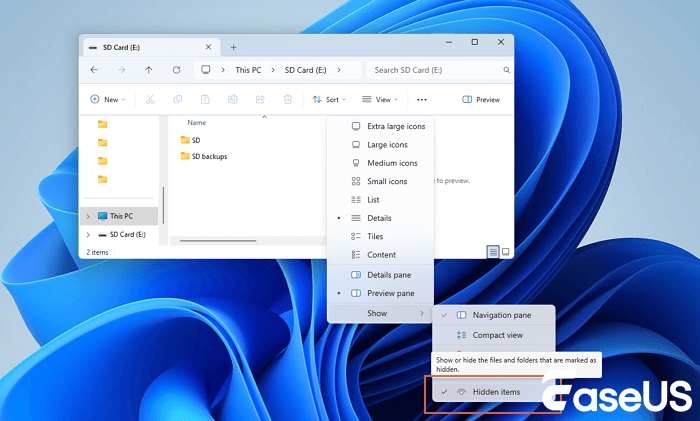
Once enabled, the hidden files on the SD card should appear.
Fix 2. Use CMD to Unhide Files on the SD Card
Hidden files might reappear through Command Prompt when malware or glitches cause them to vanish:
Step 1. Start by hitting the Windows key along with R. Type cmd into the box that appears, and press Enter.
Step 2. Type in attrib -h -r -s /s /d X:\*.* to unhide files using CMD.
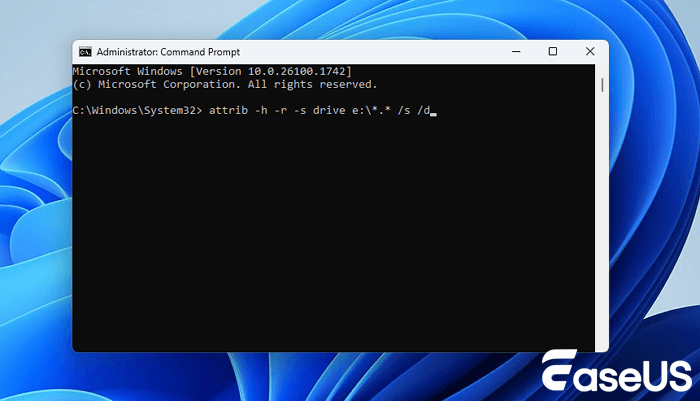
What This Command Does
- -h removes the hidden attribute
- -r removes read-only status
- -s removes system file attributes
Once it ends, open the SD card again to check whether the lost files show up. You can share this command line method on social media to help more users solve the SD card not showing files problem.
Fix 3. Run CHKDSK to Repair File System Errors
When SD card file system damage causes the problem, the CHKDSK command might fix broken structures inside the SD card. Running diagnostics could straighten out messy formatting issues silently piling up
Step 1. Start by plugging the SD card into your computer.
Step 2. Launch Command Prompt with admin rights in the Windows search box.
Step 3. Enter the following command to show hidden files: chkdsk X: /f /r /x. Use whatever letter shows up for your SD card instead of X.
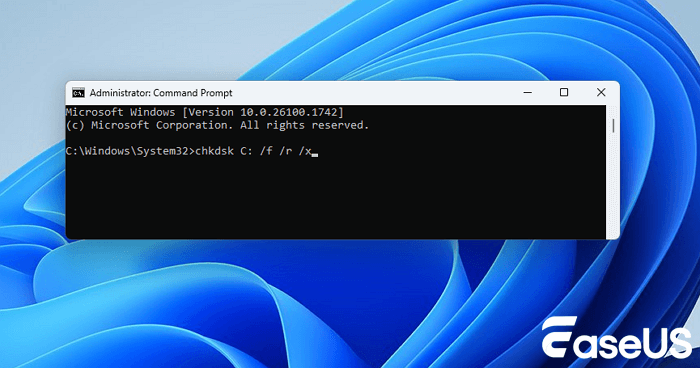
CHKDSK scans the storage device and repairs:
- File system inconsistencies
- Damaged directory structures
- Bad sectors
Once the scan finishes, open the SD card once more to see whether the files show up.
Fix 4. Format the SD Card to Fix Errors
Formatting the SD card might fix the "files not showing" error, but you'll lose everything on the card. It's recommended to back up your SD card in advance or use SD card recovery software after formatting.
When you are ready, follow the steps below and format your SD card:
Step 1. Open File Explorer. Click the SD card with the right mouse button.
Step 2. Then, select "Format".
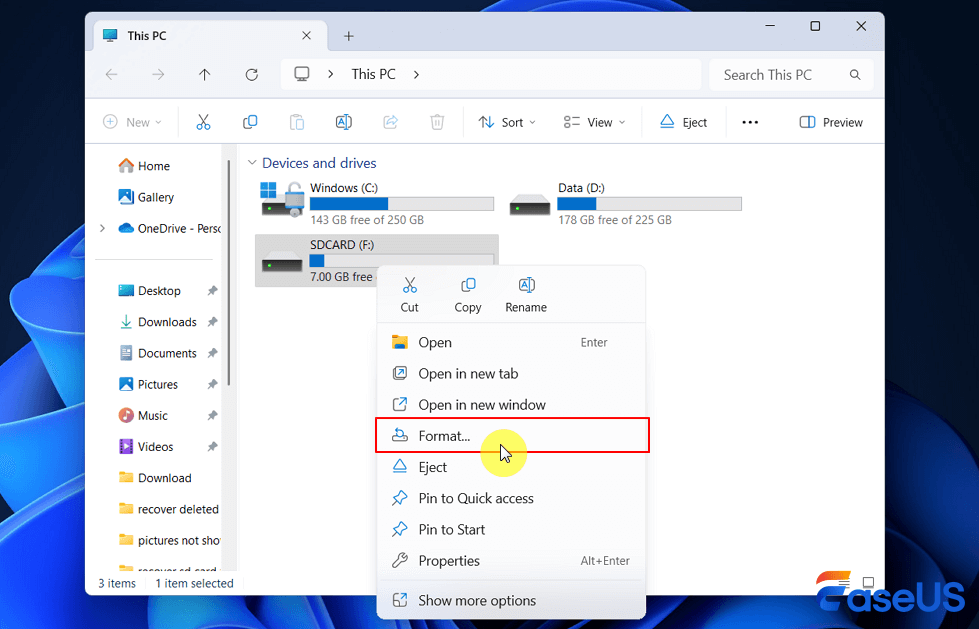
Step 3. Pick FAT32 if you prefer wider compatibility across older devices; otherwise, go with exFAT for handling larger files more smoothly. Click "Start".
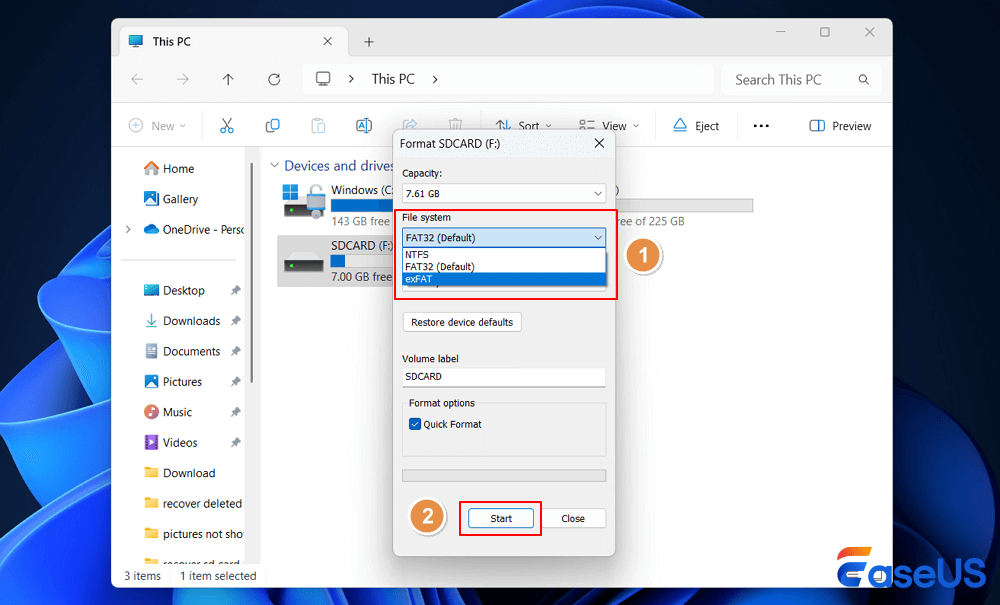
Formatting the SD card can sometimes fix a corrupted SD card that shows a RAW format, files remain inaccessible, or system errors persist.
Fix 5. Recover Files with SD Card Recovery Software
When an SD card says it's full but displays nothing, something might've scrambled the file structure. Recovery tools built for damaged memory cards often handle these situations best.
Finding lost files often leads people to choose EaseUS Data Recovery Wizard, a tool designed to search storage spaces where data may be hidden. Try this SD card recovery tool to recover missing files.
By applying this recovery tool, you can find missing files from a RAW SD card, and you can even bring back files that you think are permanently deleted. If you have formatted the SD card, this tool can also be very helpful.
Follow the lead and recover lost data from your SD card:
🏆 EaseUS SD card recovery leverages patented video fragment reconstruction technology to deeply repair video files lost due to accidental deletion, formatting, or corruption. Explicitly designed for cameras, action cameras, drones, and dashcams, it accurately restores complete and playable precious footage.
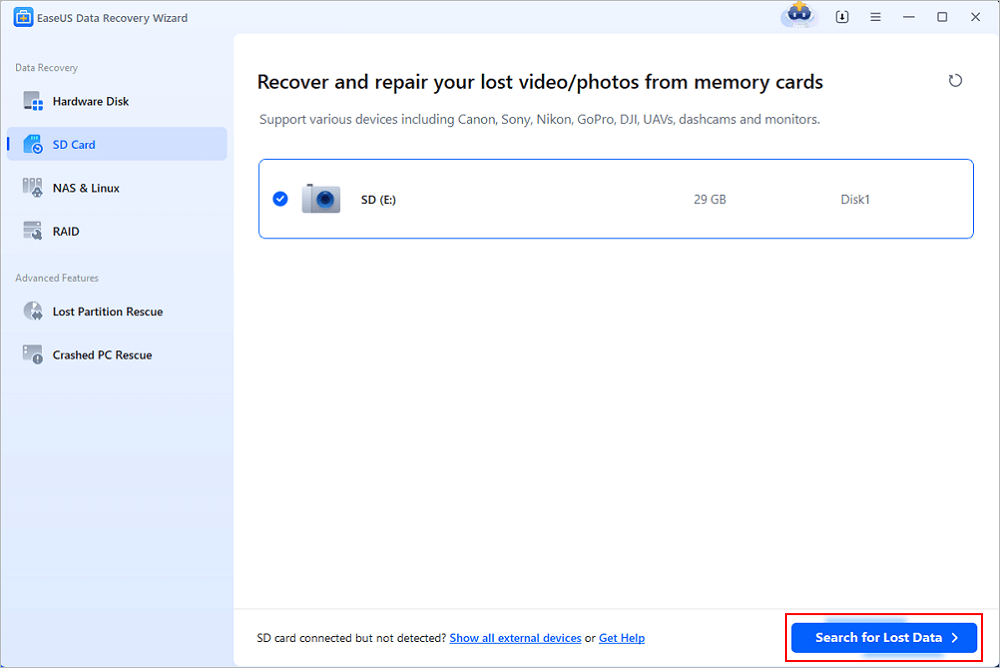
Step 1. Connect the SD card, memory card, or CF Card to your computer and launch EaseUS memory card recovery software on your PC. The SD card will be listed under the Devices section. Choose the SD card and click "Scan for lost data" to start looking for your lost data.
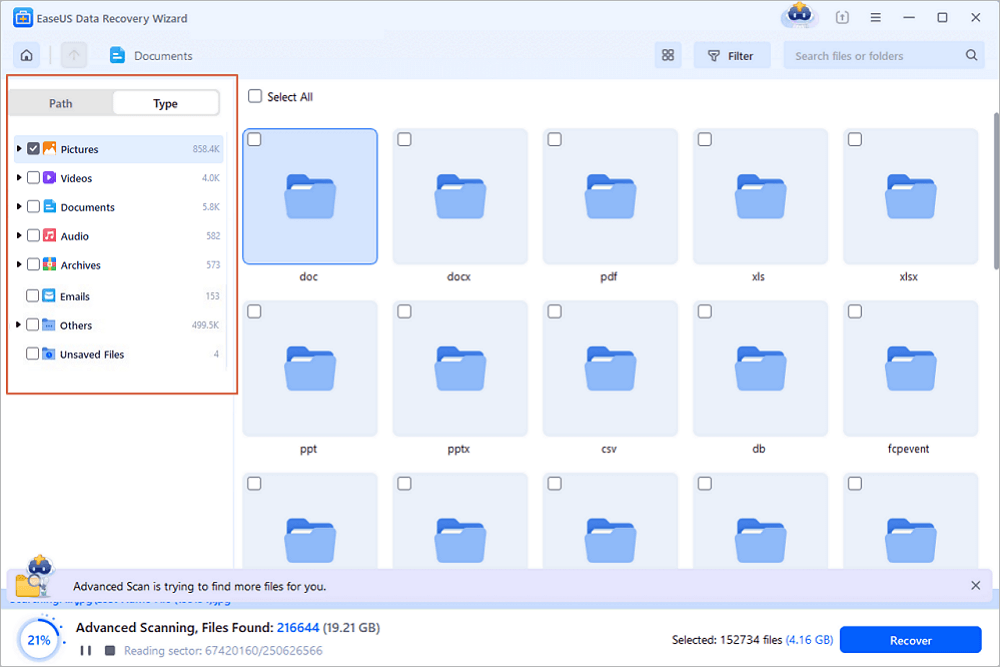
Step 2. The software will start a scan automatically. The scan is powerful enough to find all lost files that even lost file names. After the scanning process, you can find deleted items from the tree-view panel on the left. Then, click "Filter" if you are looking for a specific file type, like photos, documents, videos or emails.
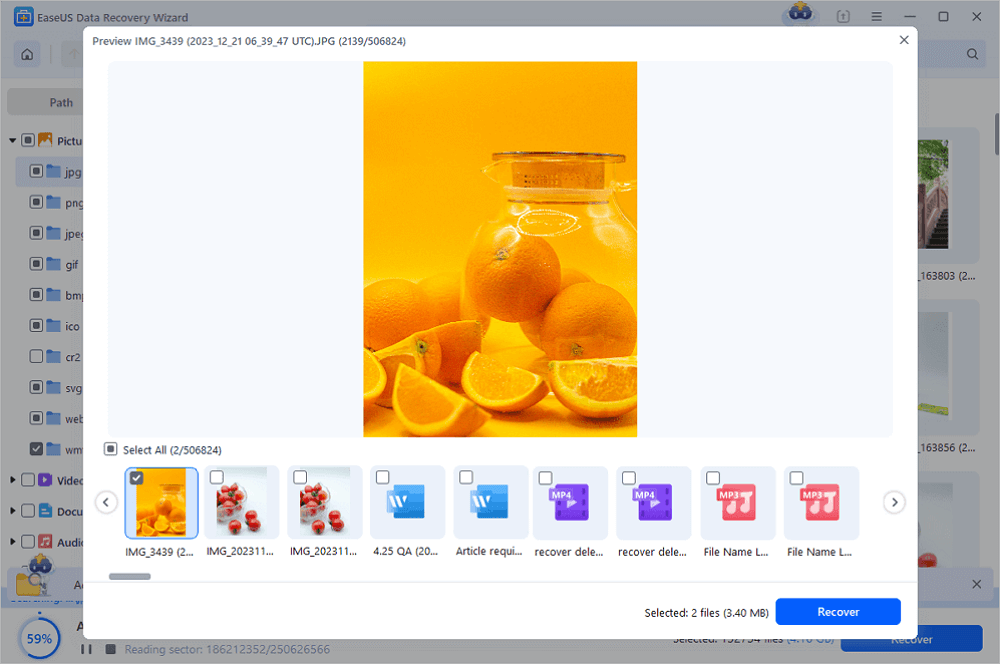
Step 3. You can directly double-click the files to preview the content. After this, you can choose wanted files and click "Recover" to restore them to a secure location on your PC or other external storage devices.
Tip: You can restore data on the local disks, external hard drives, and also the cloud storage.
💡Want to know more about SD card data recovery? For example, what is the best SD card data recovery software? How to recover a damaged SD card? How to recover data from an unreadable SD card...Go for SD Card Data Recovery FAQs and restore your precious lost files.
Feel free to share this recovery guide with more readers. It's time to help them fix the SD card not showing files issue.

Summary
Sometimes an SD card hides files even though the space looks used up; the photos or videos might seem gone, but they are still there. You can resolve the problem by showing hidden files, fixing SD card errors, or using professional SD card recovery software.
When you decide to format the SD card to fix errors, be careful and make sure you don't lose important files.
SD Card Says Full But Nothing on It FAQs
1. What happens when a SanDisk SD card is full?
When a SanDisk SD card becomes full, photos or videos won't save anymore. Devices may stop recording or display storage warnings. In some cases, file system errors may occur, causing files to appear missing or inaccessible.
2. Why is my SD card saying it's full when it's not?
An SD card may show full storage even when files are not visible due to hidden files, file system corruption, malware infections, or damaged directories. All these issues can cause your SD card to appear to have no more space left, even though it looks empty to the user.
3. How to fix the SD card not showing files?
You can fix this issue by enabling hidden files, using the CMD command to unhide files, running CHKDSK to repair file system errors, or scanning the SD card with reliable data recovery software to safely restore missing files.
Was this page helpful?
-
Dany is an editor of EaseUS who lives and works in Chengdu, China. She focuses on writing articles about data recovery on Mac devices and PCs. She is devoted to improving her writing skills and enriching her professional knowledge. Dany also enjoys reading detective novels in her spare time. …

 Why Trust EaseUS
 Editor Reviews

20+
Years of experience

160+
Countries and regions

72 Million+
Downloads

4.9 +
Trustpilot Score