-
![]()
-
![]()
-
![]()
-
![]() Image Database File Not Ready? 3 Effctive Solutions in 2026 [No Data Loss]
Image Database File Not Ready? 3 Effctive Solutions in 2026 [No Data Loss] September 23,2026
 6 min read
 -
![]() How to Fix Corrupted SD Card and Recover Data Without Losing FilesSeptember 22,20266 min read
How to Fix Corrupted SD Card and Recover Data Without Losing FilesSeptember 22,20266 min read -
![]()
-
![]() How to Recover Hard Drive Using CMD | Step-by-Step GuideSeptember 22,20266 min read
How to Recover Hard Drive Using CMD | Step-by-Step GuideSeptember 22,20266 min read -
![]() New EaseUS Report: Majority of SD Card Data Loss Cases (72%) Are Highly RecoverableSeptember 22,20266 min read
New EaseUS Report: Majority of SD Card Data Loss Cases (72%) Are Highly RecoverableSeptember 22,20266 min read -
![]()
-
![]()
Page Table of Contents
PAGE CONTENT:
When your SD card is not initialized on your PC or camera, don't worry! The first thing you should consider is how to recover lost files after the SD card error. This post will explain how to solve this problem step by step, beginning with this user's difficulty:
Recovering data from SD card saying 'not initialized'
byu/DragonZaid infujifilm
The "card not initialized" error means your camera, computer, or card reader cannot recognize a valid partition table or readable file system on the SD card. The device detects the card physically but cannot access its stored data, often showing the drive as RAW, unallocated, or unknown in system tools.
This frustrating SD card not initialized issue stems from multiple hardware and software factors. Check out the common failure and how to fix it:
What Does SD Card Not Initialized Mean
For the failed card, this delayed failure typically stems from:
- Long-term liquid damage: Moisture corroded internal contacts or logic chips, triggering failure months later
- File system corruption: Sudden disconnection during photo transfers broke the FAT32/exFAT structure
- Damaged partition table: Corrupted partition data makes the card appear "uninitialized."
- Interrupted write operations: Abortive file transfers damaged the card's logical structure.
- Physical bad sectors: Oxidation or wear created unreadable sections on the memory chip.
Unlike a simple "card error" or "SD card needs formatting" prompt, not initialized often points to deeper partition or file system damage—making priority data recovery non‑negotiable, especially for 500GB of photos.
Recover Lost Files After SD Card Error Card Not Initialized
For large‑capacity cards (500GB), use professional SD card recovery software that scans uninitialized drives and rebuilds lost photo/video structures. We recommend EaseUS Data Recovery Wizard, which works on Windows and macOS, and supports Fujifilm camera file formats (RAF, JPG, MP4).
Stop using the card immediately. Continuing to plug it in risks overwriting your data. If the card is physically intact (no cracks/burns), recovery software can often extract files:
🏆EaseUS SD card recovery leverages patented video fragment reconstruction technology to deeply repair video files lost due to accidental deletion, formatting, or corruption. Explicitly designed for cameras, action cameras, drones, and dashcams, it accurately restores complete and playable precious footage.
Step 1. Select the SD card to scan
- Download and install EaseUS Data Recovery Wizard on your Windows PC.
- Use the proper way to connect your SanDisk/Lexar/Transcend SD card to the computer.
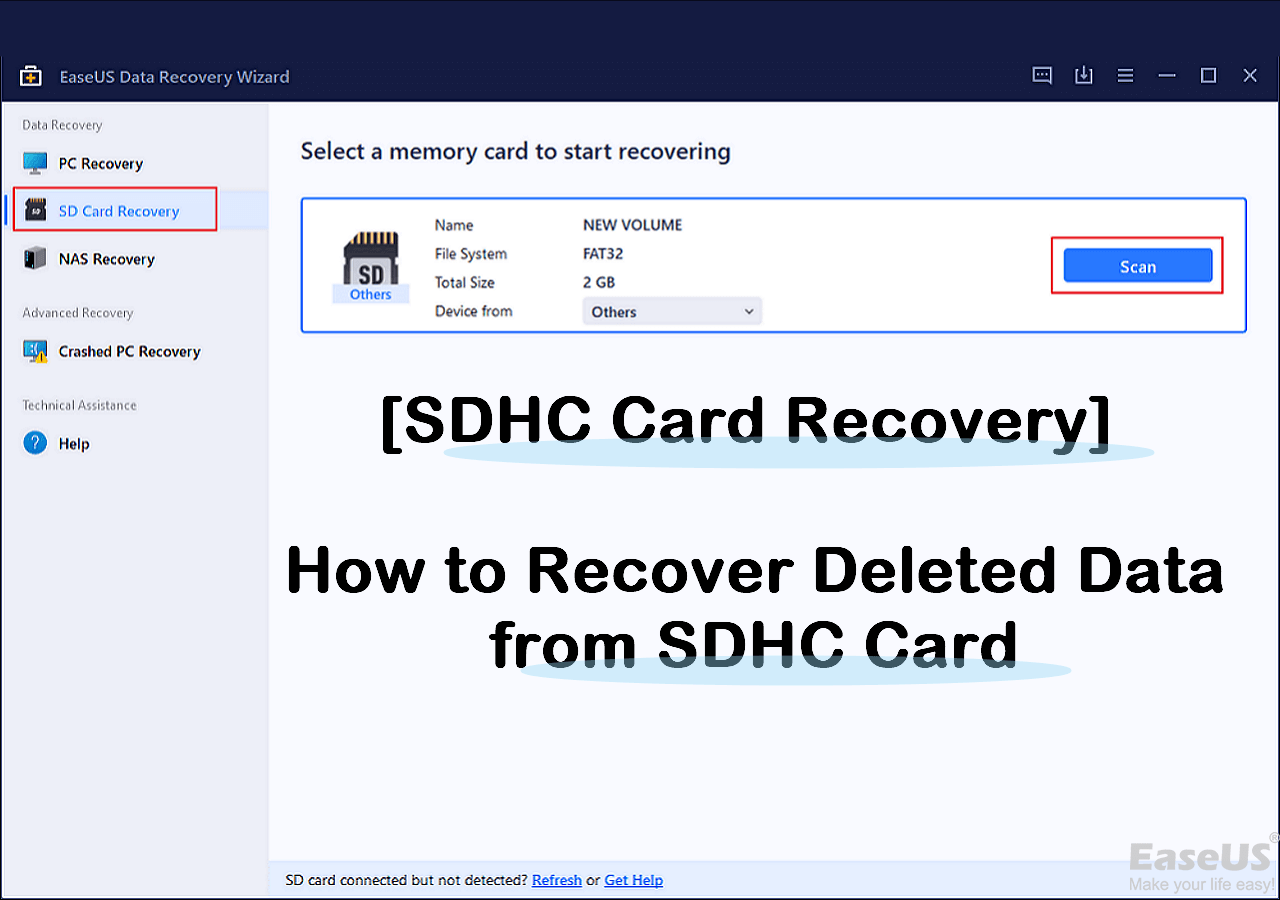
- Open EaseUS SD card recovery software and choose SD Card Recovery on the left panel. All connected drives will display here. Select your SD card and click "Scan for lost data".
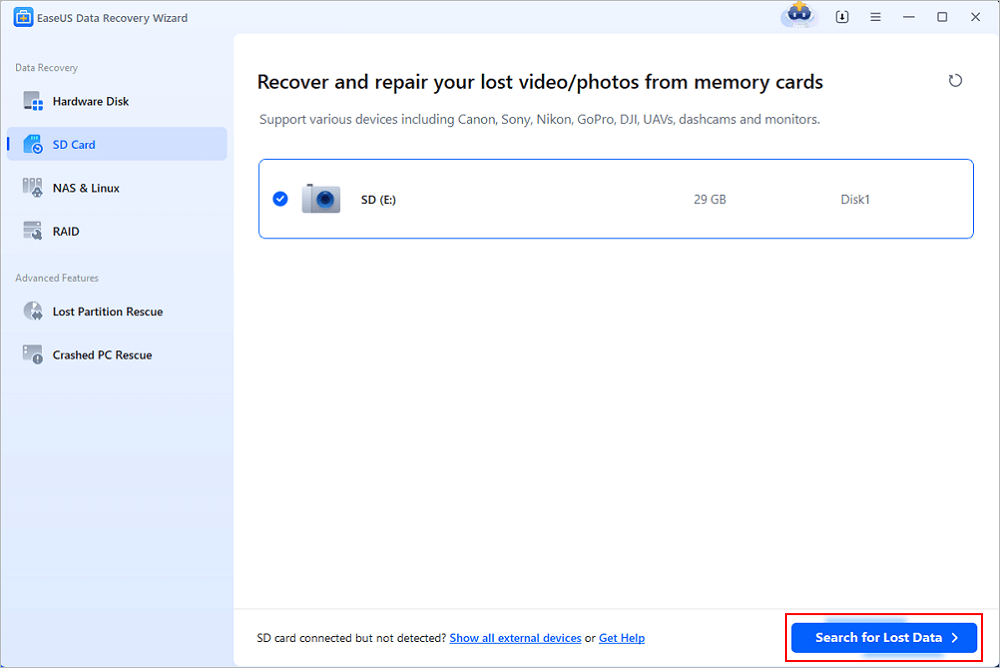
Step 2. Check for scan results
- Wait for the scanning process to complete.
- Specify one or several file types to show up, like Pictures or Videos.
- Click "Preview" to check if they are the wanted files.
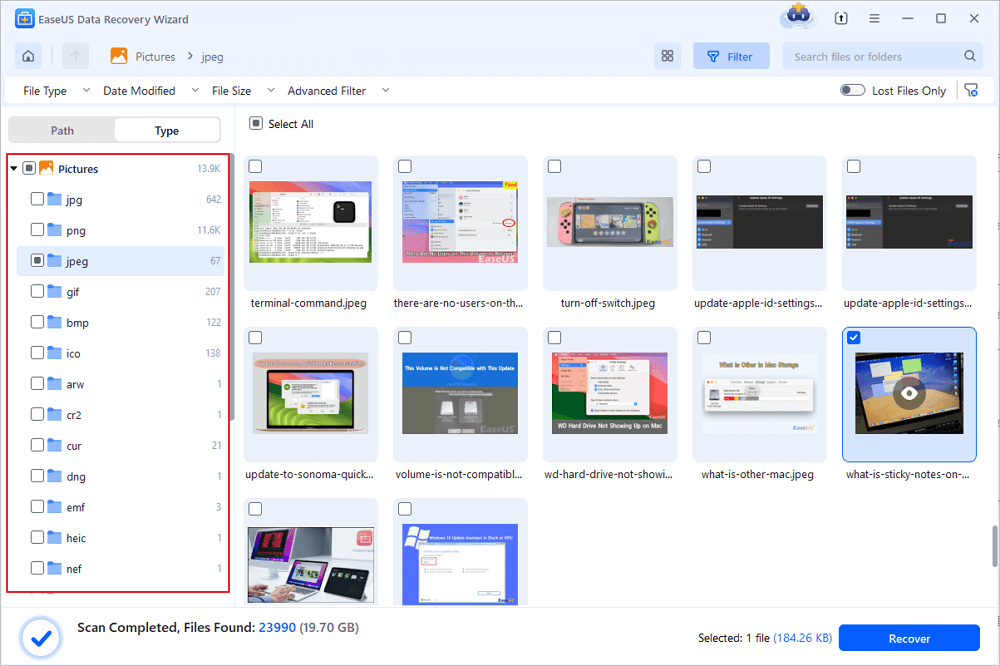
Step 3. Recover SD card data
- Preview the recovered files and click "Recover".
- Choose a different location to save the recovered files instead of the original SD card.
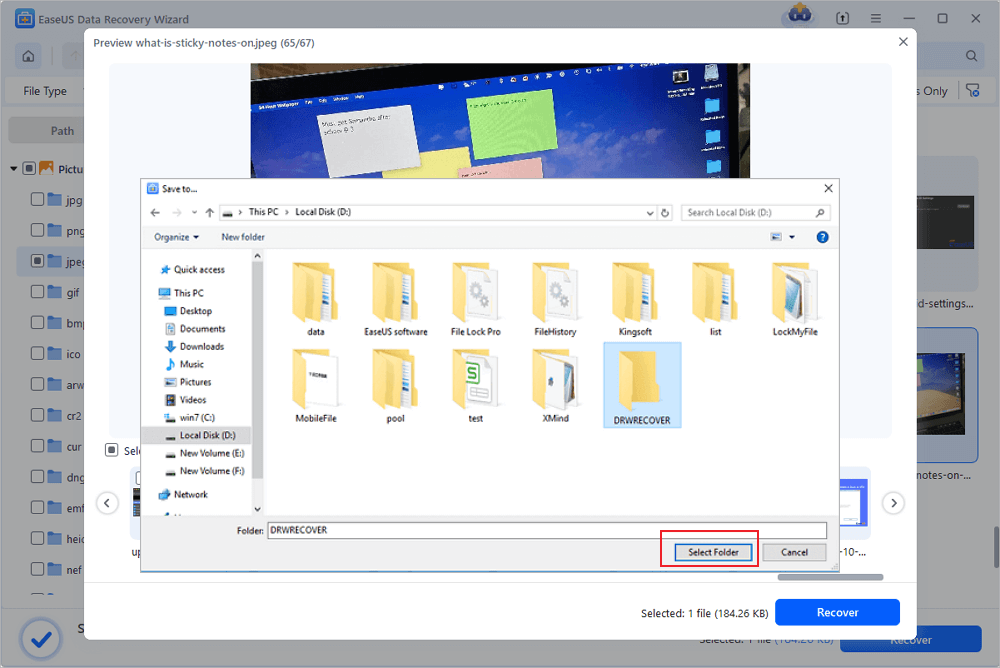
💡Want to know more about SD card data recovery? For example, what is the best SD card data recovery software? How to recover a damaged SD card? How to recover data from an unreadable SD card...Go for SD Card Data Recovery FAQs and restore your precious lost files.
Many users have proved the efficacy of the tool. If you are interested in resolving the SD card files recovery issue, share it on Facebook, Twitter, Linkedin, and other social media platforms!
Quick Fixes for Card Not Initialized After Data Recovery
Once your photos are safe, fix the error to reuse the card (if physically intact):
1. Assign a Drive Letter (Windows)
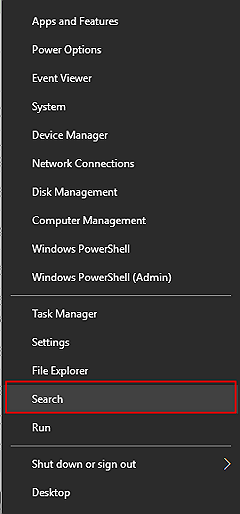
Open "Disk Management" > Right-click the SD card > Change Drive Letter and Paths > Assign a new letter
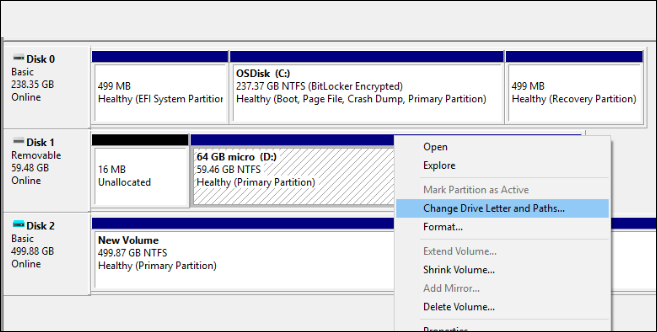
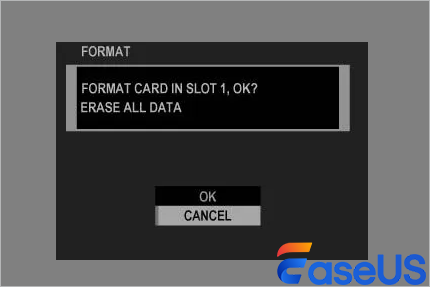
2. Format SD Card on the Camera
⚠️Before you finish formatting, please make sure you have restored the data to a safe hard drive or computer!
- Insert the cleaned SD card into the camera's SD card slot, then power on the camera.
- Press the "Menu/OK" button to enter the main menu, navigate to the "Setup Menu".
- Scroll down to find the "FORMAT" option, select it and press OK.
Conclusion
For best results: stop using the card immediately, clean contacts gently, use deep-scan recovery software, and save files to a separate drive. Once recovered, format the card to restore full compatibility.
If software recovery fails, contact a professional data recovery service that specializes in liquid-damaged camera memory cards.
Recover Lost Files After SD Card Not Initialized FAQs
Here are additional questions about recovering lost files after an SD card error: card not initialized. Check here for the answers.
1. Can a liquid-damaged SD card with "not initialized" error still be recovered?
Yes, most liquid-related failures are logical rather than total physical failure. As long as the chip isn't destroyed, professional recovery software can retrieve data, even in cases of delayed corrosion.
2. Why does my XT5 show "not initialized," but the card worked for months?
Liquid residue causes slow corrosion of internal components. The card functioned temporarily but failed during data transfer under heavy read/write load.
3. How long does recovering 500GB of photos take?
Expect half an hour for a deep scan and file recovery. Speed depends on your computer, card reader, and drive health.
Was this page helpful?


 Why Trust EaseUS
 Editor Reviews

20+
Years of experience

160+
Countries and regions

72 Million+
Downloads

4.9 +
Trustpilot Score