
-
![]()
-
![]() How to Recover Photos from a Sony Alpha 7 IV [Deleted/Lost/Formatted Photo Recovery]
How to Recover Photos from a Sony Alpha 7 IV [Deleted/Lost/Formatted Photo Recovery] September 20,2026
 6 min read
 -
![]()
-
![]()
-
![]() How to Recover SRF Files: Complete Sony Photo Restoration GuideSeptember 20,20266 min read
How to Recover SRF Files: Complete Sony Photo Restoration GuideSeptember 20,20266 min read -
![]()
-
![]() How to Recover Files from SD Card with File System Errors [Easy]September 20,20266 min read
How to Recover Files from SD Card with File System Errors [Easy]September 20,20266 min read -
![]() How to Recover Files From SD Card After Virus Attack NowSeptember 20,20266 min read
How to Recover Files From SD Card After Virus Attack NowSeptember 20,20266 min read -
![]() How to Recover Image DB on Sony Camera [Sony Alpha 7 III, Alpha 7 IV...]September 20,20266 min read
How to Recover Image DB on Sony Camera [Sony Alpha 7 III, Alpha 7 IV...]September 20,20266 min read -
![]()
Page Table of Contents
PAGE CONTENT:
Why Videos Get Lost on Canon R5 Mark II
Hi, i just made a video for the first time and didnt used canon utility software for download. I used my cable to download and now i have two video files (mp4) with 0 bytes on my desktop. Unfortunately the files are not on camera anymore and i cant upload the files from my desktop to the camera again. - from Reddit
Losing important videos from your Canon R5 Mark II can be frustrating, especially if you're working on professional projects or once-in-a-lifetime moments. Understanding the root causes of video loss helps improve recovery success and prevents future issues.
Here are the most common reasons:
- Accidental deletion. Files removed directly from the camera or SD/CFexpress card.
- Formatting errors. Quick formatting without backup wipes the directory structure.
- File system corruption. Improper ejection or interrupted recording damages storage.
- Memory card errors. Faulty or corrupted SD cards can become unreadable.
- Firmware glitches. Camera crashes during recording may corrupt video files.
- Virus or malware (via computer). When connected to infected systems.
In most cases, deleted videos are not immediately erased but remain on the storage device until overwritten. That's why acting quickly is critical. Now, move on and check the following recovery methods to rescue videos from your Canon R5 Mark II.
Best Method to Recover Video from Canon R5 Mark II
If you're after the best chance of getting your files back without too much hassle, go with a professional data recovery tool. EaseUS Data Recovery Wizard is a top pick here; it handles deep scans and can recover big video files, including 4K and 8K footage.
You can use this for microSD cards, CFexpress cards, SD cards, or any external drives you use with your camera.
A few things that make it stand out: It recovers deleted MP4, MOV, and camera RAW videos; the deep scan finds files that are fragmented or even corrupted; you can preview files before you recover them; and it still works even if you've formatted your storage.
Follow these steps and recover missing footage from Canon R5 Mark II:
🏆 EaseUS SD card recovery leverages patented video fragment reconstruction technology to deeply repair video files lost due to accidental deletion, formatting, or corruption. Explicitly designed for cameras, action cameras, drones, and dashcams, it accurately restores complete and playable precious footage.
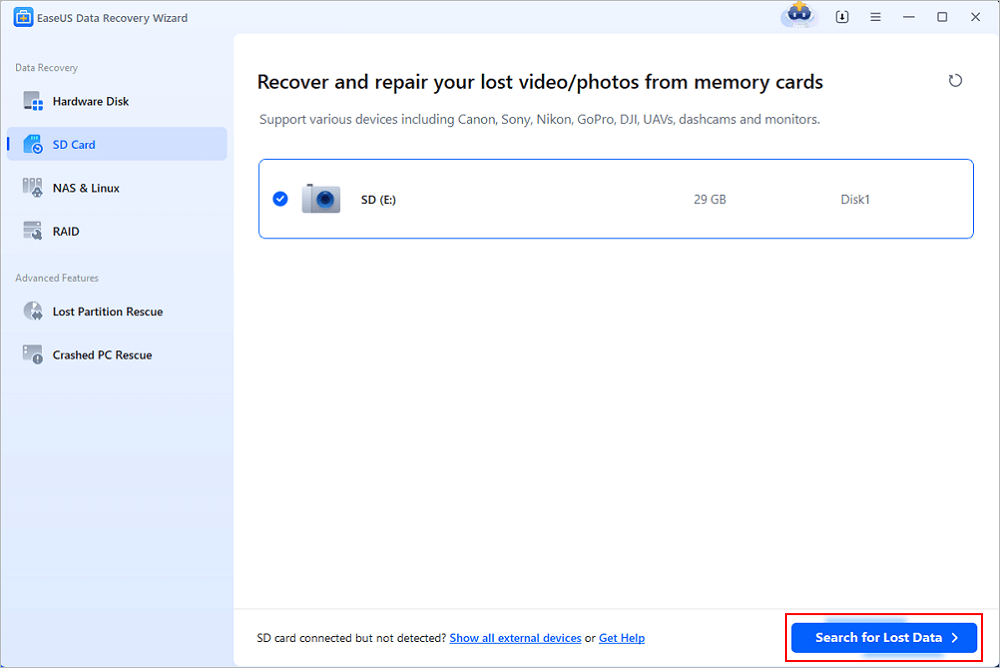
Step 1. Connect the SD card, memory card, or CF Card to your computer and launch EaseUS memory card recovery software on your PC. The SD card will be listed under the Devices section. Choose the SD card and click "Scan for lost data" to start looking for your lost data.
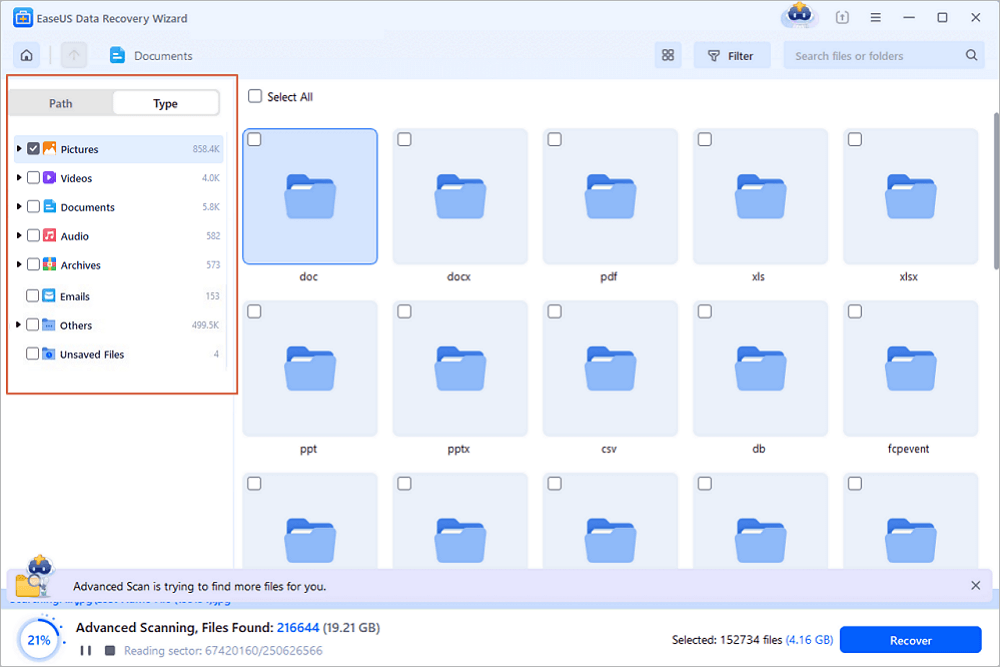
Step 2. The software will start a scan automatically. The scan is powerful enough to find all lost files that even lost file names. After the scanning process, you can find deleted items from the tree-view panel on the left. Then, click "Filter" if you are looking for a specific file type, like photos, documents, videos or emails.
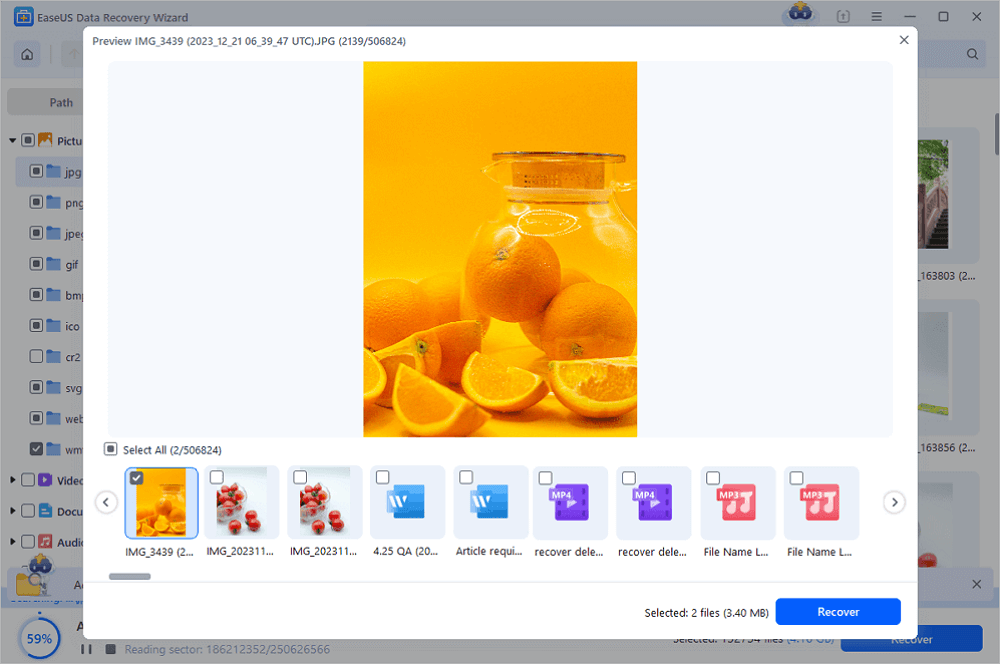
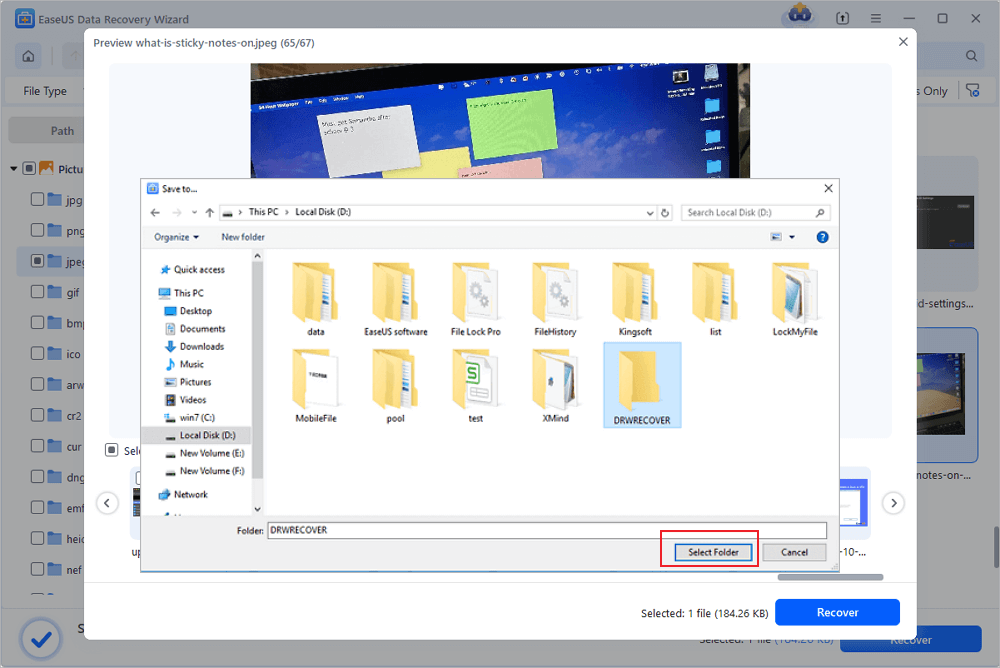
Step 3. You can directly double-click the files to preview the content. After this, you can choose wanted files and click "Recover" to restore them to a secure location on your PC or other external storage devices.
Tip: You can restore data on the local disks, external hard drives, and also the cloud storage.
💡Want to know more about SD card data recovery? For example, what is the best SD card data recovery software? How to recover a damaged SD card? How to recover data from an unreadable SD card...Go for SD Card Data Recovery FAQs and restore your precious lost files.
Many users like you have recovered important files from SD cards, check their experience:
👤I had a really stressful situation with my SD card where my camera suddenly stopped recognizing it and a large part of my photos seemed to be gone. EaseUS helped me recover files that I thought were completely lost. – from Trustpilot
👤I spent time downloading & testing apps purporting to recover lost camera photos from an SD card. The one that impressed me the most from its simple user interface, free recovery of up to 2GB of data and fast support was EaseUS Data Recovery Free Version. Highly recommended. – from Trustpilot
You can share this reliable Canon camera video recovery method on social media to help more Canon users!

Alternative Ways to Recover Canon R5 Mark II Videos
While SD card recovery software is the most effective approach, there are alternative methods depending on your situation.
Method 1. Restore Canon R5 Mark II Videos from Backup
Backing up your footage regularly makes recovery simple and way less stressful.
If you're storing videos on the cloud or an external drive. Maybe you've set up automatic backups or moved your files before tossing them:
Step 1. Check your external hard drives, NAS devices, or any cloud service you use, like Google Drive or Dropbox.
Step 2. Try looking them up by name, type (.MP4, .MOV), or even by the date they were saved.
Step 3. Just download or copy those files back to where you want them; do not copy them to your Canon SD card directly to avoid data being overwritten.
Step 4. Play each video to check that nothing's broken and each one works as it should.
Method 2. Use Professional Data Recovery Services
If your memory card's physically damaged or an SD card does not show up on your computer, don't waste time with recovery software; they won't help here. This is when you want to call in the pros.
Here's when to think about using a recovery service:
- Your computer won't detect the card at all
- The card's been through water, heat, or is bent
- You hear clicking, or it's acting really weird
Step 1. Stop using the card; don't even try to read or write from it. That can make things worse.
Step 2. Find a recovery service that knows their way around camera memory cards.
Step 3. Pack up your card so it's safe. Follow any instructions for shipping to avoid more damage.
Step 4. Wait for their evaluation and price estimate. Most places will check the card and let you know what's possible before they do anything.
Besides local data recovery services, you can also try EaseUS data recovery services, an online service where data recovery experts will answer your chat request at any time.
Consult with EaseUS data recovery experts for one-on-one manual recovery service. We could offer the following services after a FREE diagnosis
- Repair corrupted RAID structure, unbootable Windows OS, and corrupted virtual disk files
- Recover/repair lost partitions and re-partitioned drives
- Unformat hard drives and repair RAW drives(BitLocker encrypted drives)
- Fix disks that become GPT-protected partitions
Method 3. Check Hidden or Temporary Files
Sometimes your videos aren't actually gone; they're just hidden because of a system glitch or file corruption.
When this might happen:
- You connected your memory card to a computer, and the files vanished
- You think your device got attacked by a virus
- The file system starts acting weird
Here's how to get those videos back:
Step 1. Show hidden files on your computer
- For Windows: Open File Explorer, hit "View," go to "Show," and tick "Hidden items."
- For Mac: Hold Command + Shift + . (period) to make hidden files visible.
Step 2. Check for any strange-looking folders or file names that weren't there before.
Step 3. Most cameras save videos in folders named DCIM, MISC, or PRIVATE. Check those first.
Step 4. Open Command Prompt and type: attrib -h -r -s /s /d X:\*.* (Replace X with your drive letter)
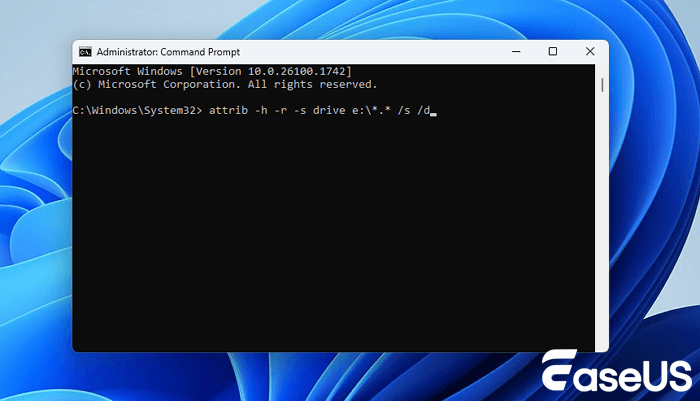
Step 5. If your videos show up, copy them somewhere safe right away.
Conclusion
You can still get your videos back from a Canon R5 Mark II if you move fast and pick the right approach. For most people, a dependable program like EaseUS Data Recovery Wizard does the trick; it's easy, pretty quick, and usually gets the job done.
If that doesn't work, check your backups or call in a data recovery service. Sometimes your footage isn't really gone at all, and maybe it's just hidden somewhere on your card.
FAQs About Canon R5 Mark II Video Recovery
Here are some frequently asked questions about Canon R5 Mark II video recovery:
1. Can I recover deleted videos from a Canon camera for free?
Yes, if you don't want to download some paid data recovery software to restore videos, you can try freeware like Recuva and other open-source software. Or, try the free version of paid recovery programs.
2. Can I fix a corrupted video on the Canon R5 camera?
If you encounter video corruption on your Canon R5, try professional video repair software to fix 4K or 8K footage recorded by your Canon R5.
3. Why can't my recovered Canon videos open?
The recovered Canon videos may not open due to file corruption, header damage, or incorrect file extensions. EaseUS Data Recovery Wizard has a built-in utility that can automatically repair corrupted videos.
Was this page helpful?
-
Updated by
… -
Dany is an editor of EaseUS who lives and works in Chengdu, China. She focuses on writing articles about data recovery on Mac devices and PCs. She is devoted to improving her writing skills and enriching her professional knowledge. Dany also enjoys reading detective novels in her spare time. …



 Why Trust EaseUS
 Editor Reviews

20+
Years of experience

160+
Countries and regions

72 Million+
Downloads

4.9 +
Trustpilot Score