






-
![]()
-
![]() SD Card Video Recovery: Recover Videos from SD Card (Fixed)
SD Card Video Recovery: Recover Videos from SD Card (Fixed) October 20,2026
 6 min read
 -
![]()
-
![]() How to Repair Not Working SanDisk Memory Card without Losing Data | NEWOctober 20,20266 min read
How to Repair Not Working SanDisk Memory Card without Losing Data | NEWOctober 20,20266 min read -
![]()
-
![]() How to Solve Can't Format SD Card on Android Phone, Camera, and Windows PCOctober 20,20266 min read
How to Solve Can't Format SD Card on Android Phone, Camera, and Windows PCOctober 20,20266 min read -
![]()
-
![]()
-
![]()
-
![]()
Page Table of Contents
PAGE CONTENT:
What Are Bad Sectors
A bad sector, also called a bad block, is a region on a storage device that has become damaged and can no longer reliably store or retrieve data. Think of an SD card as a large grid of tiny storage sectors. When one of those compartments gets damaged, that's a bad sector.
A bad sector is a tiny damaged area on your SD card where data can no longer be reliably read or written. But not all bad sectors are created equal. Understanding the difference between the two types is the first step toward recovering files from an SD card with bad sectors:
🔍Hard Bad Sectors vs. Soft Bad Sectors
This distinction matters because a card with soft bad sectors has a much higher chance of full data recovery. Even with hard, bad sectors, however, you can often recover files that weren't stored in those damaged regions.
| Type | Cause | Recoverability |
| Soft bad sectors | Logical errors (file system corruption, improper ejection, power failure) | ✅Often recoverable |
| Hard bad sectors | Physical damage (wear, heat, moisture, poor manufacturing) | ⚠️Data inside is lost, but other files may be saved |
Critical Distinction: Data Recovery vs. Repair
Before we go any further, understand this crucial distinction: Data recovery and repair are not the same thing.
Repair tools, such as CHKDSK with repair flags or disk formatting utilities, attempt to fix a corrupted SD card itself by marking bad sectors as unusable and possibly relocating data. Repair can delete or overwrite your files.
SD card data recovery, on the other hand, focuses exclusively on extracting your files before any repair work is attempted.
- Important
- Always attempt data recovery first. Only after you've successfully recovered your files should you consider repairing or reformatting the SD card. With this golden rule in mind, let's move to the first critical step.
Method 1. Use Software to Recover Files from an SD Card with Bad Sectors
This is the most effective approach for most users. Professional SD card data recovery software is specifically designed to handle bad sectors - it can skip damaged areas and extract whatever data remains readable.
Part 1. Create a Disk Image First
If the card freezes or disconnects during recovery, use sector-by-sector imaging.
Why it works:
You read the card once (safely) and then work from the image file. No further stress on the failing card.
After imaging, mount the image and run a reliable SD card data recovery software on it.
Part 2. Recover Files Using EaseUS Data Recovery Wizard
Why choose EaseUS SD card recovery tool? EaseUS Data Recovery Wizard provides SmartSector Rebuild (SSR) Engine technology, which recovers fragmented files with up to 30% higher success rates on worn SD cards, especially for photographers and users with heavily used FAT32/exFAT cards.
Install this powerful SD card recovery software on your computer and follow the steps below to recover files from an SD card with bad sectors:
🏆EaseUS SD card recovery leverages patented video fragment reconstruction technology to deeply repair video files lost due to accidental deletion, formatting, or corruption. Explicitly designed for cameras, action cameras, drones, and dashcams, it accurately restores complete and playable precious footage.
Step 1. Select the SD card to scan
- Download and install EaseUS Data Recovery Wizard on your Windows PC.
- Use the proper way to connect your SanDisk/Lexar/Transcend SD card to the computer.
- Open EaseUS SD card recovery software and choose SD Card Recovery on the left panel. All connected drives will display here. Select your SD card and click "Scan for lost data".
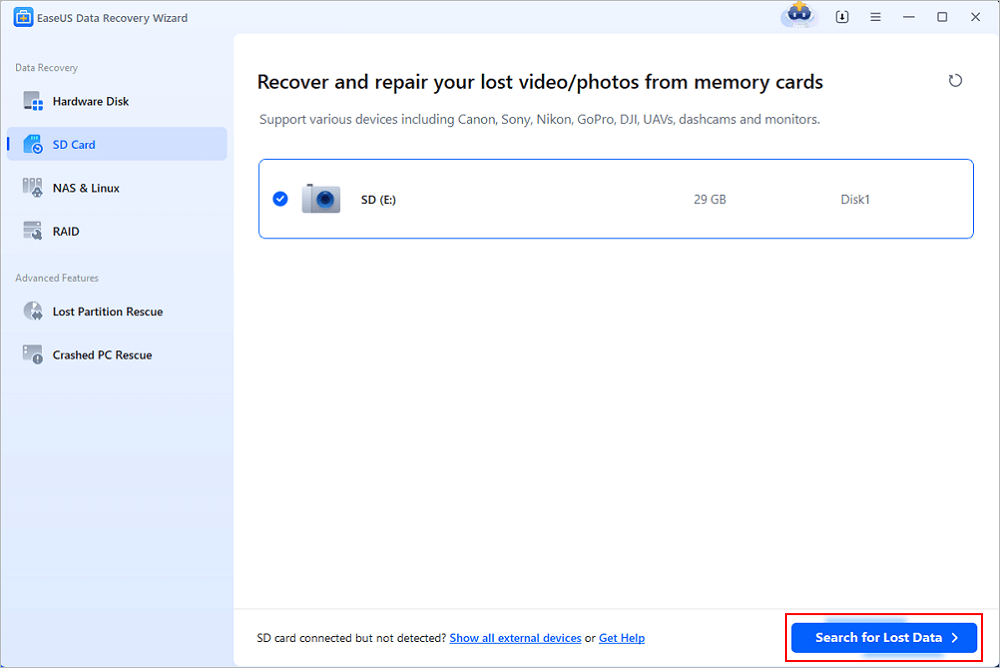
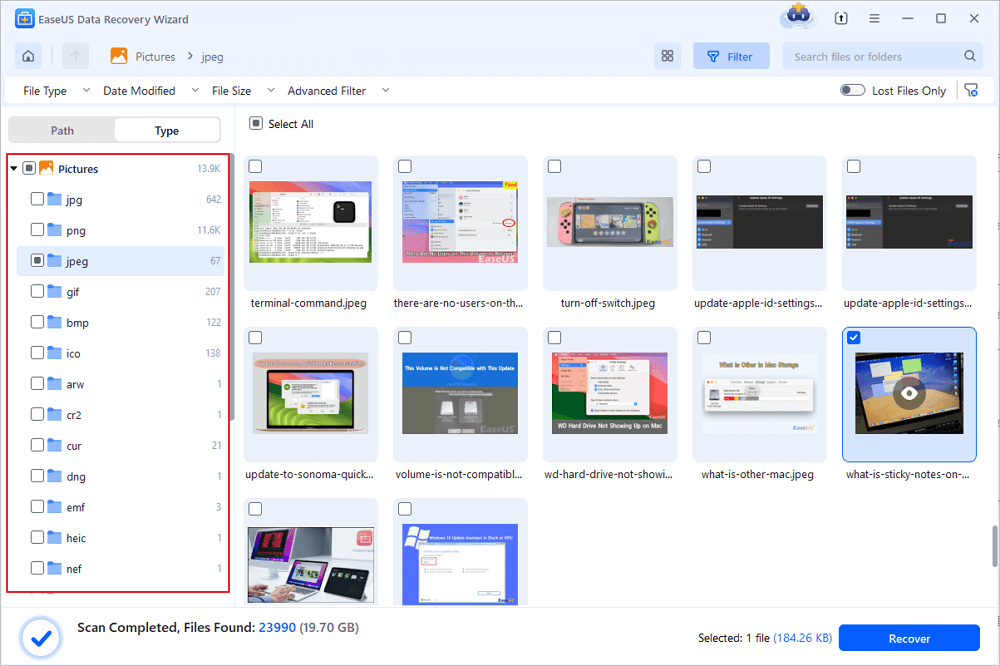
Step 2. Check for scan results
- Wait for the scanning process to complete.
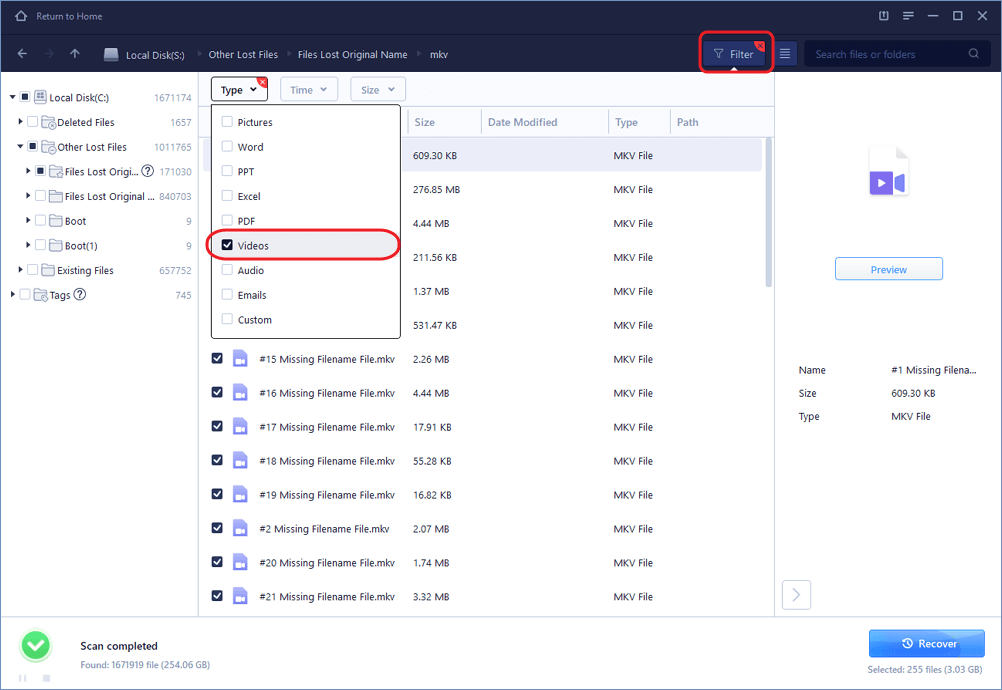
- Specify one or several file types to show up, like Pictures or Videos.
- Click "Preview" to check if they are the wanted files.
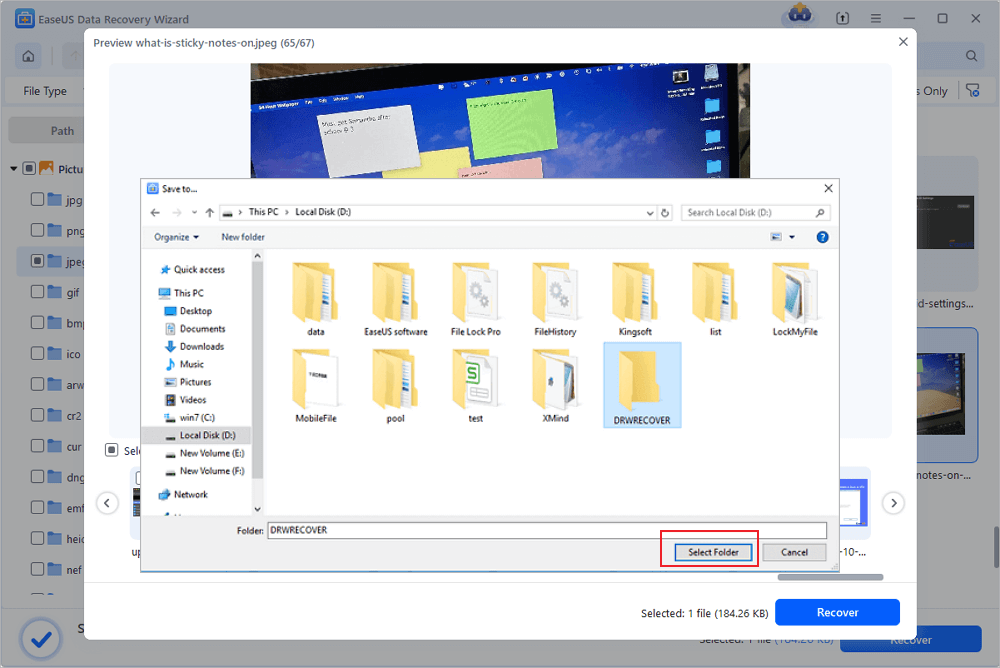
Step 3. Recover SD card data
- Preview the recovered files and click "Recover".
- Choose a different location to save the recovered files instead of the original SD card.
💡Want to know more about SD card data recovery? For example, what is the best SD card data recovery software? How to recover a damaged SD card? How to recover data from an unreadable SD card...Go for SD Card Data Recovery FAQs and restore your precious lost files.

Method 2. Use CHKDSK After Data Recovery (Repair Only)
Can CHKDSK Help? CHKDSK is a repair tool, not a recovery tool. Therefore, it works but only after recovery.
- Warning
- Only use this method after you have successfully recovered your files using software or imaging. CHKDSK with repair flags modifies the file system and can permanently delete data.
If you've already recovered your files and want to attempt to repair the SD card for continued use, CHKDSK can help:
Step 1. Open Command Prompt as Administrator.
Step 2. Type: chkdsk X: /f /r - replace "X:" with your SD card's drive letter, such as "F:" or "E:".
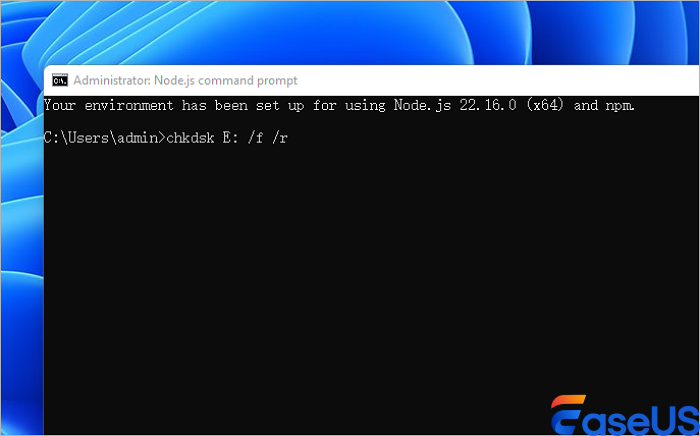
The "/f" flag fixes file system errors, and "/r" locates bad sectors and attempts to recover readable information from them.
Step 3. Press Enter and wait for the scan to complete.
CHKDSK will scan the entire card, mark bad sectors as unusable, and attempt to move readable data from damaged sectors to healthy ones. The process can take hours.
Method 3. Professional Data Recovery Service (Last Resort)
When to go data recovery services:
- Card makes clicking/buzzing sounds
- Not detected by any computer
- DIY tools fail after multiple tries
- Data is irreplaceable (wedding photos, legal files)
Consult with EaseUS data recovery experts for one-on-one manual recovery service. We could offer the following services after a FREE diagnosis
- Repair corrupted RAID structure, unbootable Windows OS, and corrupted virtual disk files
- Recover/repair lost partitions and re-partitioned drives
- Unformat hard drives and repair RAW drives(BitLocker encrypted drives)
- Fix disks that become GPT-protected partitions
Frequently Asked Questions
Can I recover photos from an SD card with bad sectors?
Yes. Photos are among the most recoverable file types from damaged SD cards because they tend to be stored in contiguous blocks. Recovery software can often retrieve complete JPEG, RAW, and PNG files even when some sectors are damaged.
For heavily used camera SD cards, tools with fragmentation recovery features (like EaseUS Data Recovery Wizard's SSR Engine) show particular strength with photo and video formats, including CR2, NEF, ARW, DNG, MP4, and MOV.
Will formatting fix bad sectors?
Formatting marks bad sectors as unusable but does not physically repair them. More importantly, formatting erases your data. Format an SD card only after you have successfully recovered all important files. Formatting may allow the card to be used again, but any new data written to it should be considered less secure than on a healthy card.
Why does my SD card keep disconnecting when I try to recover files?
Frequent disconnections during recovery attempts are a classic sign of an unstable SD card. The card's controller may be failing, or the card reader/USB connection may be marginal. The solution is to create a sector-by-sector disk image using a tool like DDRescue before attempting file recovery. Imaging limits disk access and works even on cards that cause file explorers to freeze.
Can CHKDSK recover files from bad sectors?
CHKDSK's primary purpose is to repair file systems, not to recover user files. While the "/r" parameter attempts to recover readable information from bad sectors, any data that cannot be read is permanently lost. CHKDSK is a repair tool, not a recovery tool. Always use dedicated data recovery software first.
Conclusion
Recovering files from an SD card with bad sectors is often possible - if you act correctly and avoid common mistakes. Bad sectors are damaged storage areas, but many files (especially photos) remain recoverable using professional software like EaseUS Data Recovery Wizard. Never format the card or run CHKDSK with repair flags before recovery, as these actions can permanently erase your data.
For irreplaceable files or physical damage (clicking sounds, unrecognized card), professional lab recovery is your best option. After successful recovery, replace the SD card - bad sectors tend to multiply - and implement the 3‑2‑1 backup rule to prevent future data loss. The key is simple: recover first, repair later, and always save your files to a different drive.
Was this page helpful?

 Why Trust EaseUS
 Editor Reviews

20+
Years of experience

160+
Countries and regions

72 Million+
Downloads

4.9 +
Trustpilot Score





