
-
![]()
-
![]() How to Fix Memory Card Locked Error Without Losing Data
How to Fix Memory Card Locked Error Without Losing Data September 22,2026
 6 min read
 -
![]()
-
![]() RSV File Recovery: Recover & Repair Corrupted Sony VideosSeptember 22,20266 min read
RSV File Recovery: Recover & Repair Corrupted Sony VideosSeptember 22,20266 min read -
![]()
-
![]() How to Recover Lost Videos from Insta360: A Complete GuideSeptember 22,20266 min read
How to Recover Lost Videos from Insta360: A Complete GuideSeptember 22,20266 min read -
![]()
-
![]() New EaseUS Report: Majority of SD Card Data Loss Cases (72%) Are Highly RecoverableSeptember 22,20266 min read
New EaseUS Report: Majority of SD Card Data Loss Cases (72%) Are Highly RecoverableSeptember 22,20266 min read -
![]() How to Recover Deleted Photos from SD Card on Android PhoneSeptember 22,20266 min read
How to Recover Deleted Photos from SD Card on Android PhoneSeptember 22,20266 min read -
![]() DJI Action 5 Pro Video Recovery: Restore Deleted Footage EasilySeptember 22,20266 min read
DJI Action 5 Pro Video Recovery: Restore Deleted Footage EasilySeptember 22,20266 min read
Page Table of Contents
The SD card not initialized error occurs on your digital camera, dashcam Android phone, or drone, which means your device cannot read this memory card. This error may be caused by bad sectors or file system corruption. It's not recommended to format the card immediately to remove this issue if you have important data saved on this card.
PAGE CONTENT:
What Is SD Card Not Initialized
I just got a new SD cars for my FujiFilm Finepix S4830, but I keep getting the message "SD Card not initialized". What can I do to fix it? I also have a Mac in case inserting it onto a computer is part of the trouble shooting process. - from Reddit
Your SD card becomes uninitialized when it is either not formatted or has been formatted in another device, resulting in the error "SD card not initialized." This error will likely cause you to lose your pictures and videos. Here are some potential causes of this sd card or disk not initialized issue:
- ⚠️ File system corruption: The FAT32, exFAT, or NTFS file systems may be corrupted by abrupt removal, interrupted transfers, or other SD card issues.
- 🧩 Damaged or missing partition table: The system cannot identify accessible storage space and classifies the card as uninitialized if the partition information is damaged.
- 💥 Power interruption during write operations: The logical structure may be disrupted if the card is removed while taking pictures, transferring files, or recording movies.
- 🦠 Virus or malware attacks: Malicious software can destroy directory structures, conceal partitions, or change file allocation data.
- 📉 Physical wear or bad sectors: Aging flash memory, manufacturing defects, or heavy usage can gradually lead to unreadable sectors and initialization failures.
Until it's fixed, the "SD Card Uninitialized" message prevents you from using your card. To prevent further data loss, you should recover the data from the SD card to the PC with professional SD card recovery software.
How to Recover Data from SD Card Not Initialized
The camera or PC often detects an SD card fault and initialization, such as an I/O error. The inability to identify the SD card can be resolved by formatting it to a generally compatible file system, such as FAT32, but make sure you have first recovered your data from the card. For the SD card not initialized issue, some professional data recovery software can help you access data on the SD card, such as EaseUS Data Recovery Wizard.
When an SD card shows as not initialized, formatting or repartitioning without backup can permanently erase valuable photos, videos, and project files. It is best to recover data from the SD card before formatting it because formatting removes all files from the card. Follow the steps below to recover data from an unreadable SD card:
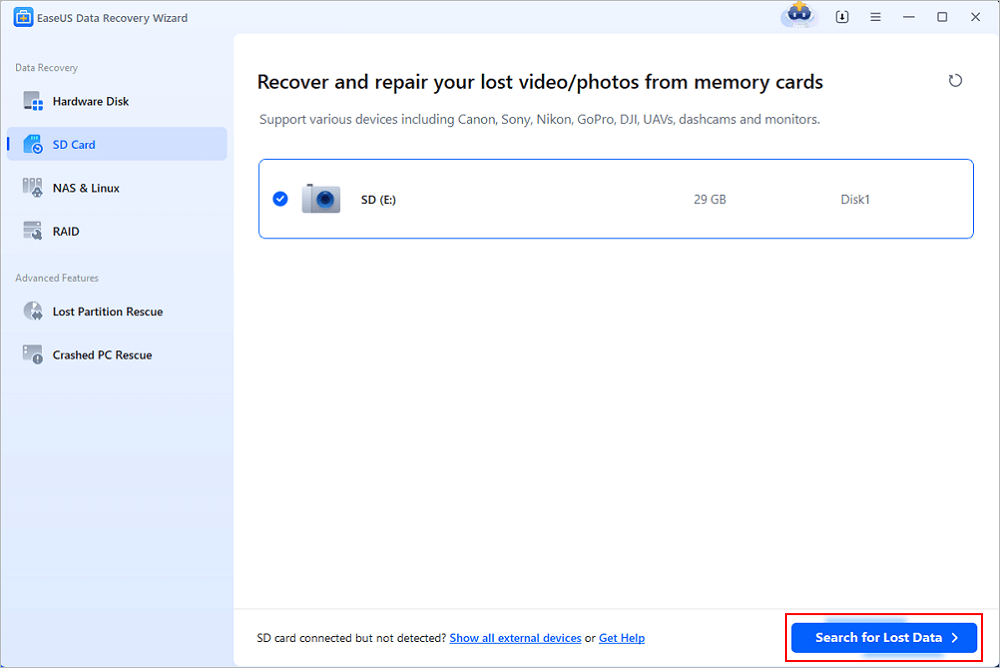
Step 1. Connect the USB drive to your computer. Launch EaseUS Data Recovery Wizard. Select the formatted SD card, USB flash drive, or Pen drive from which you what to restore lost files and then click "Search for Lost Data".
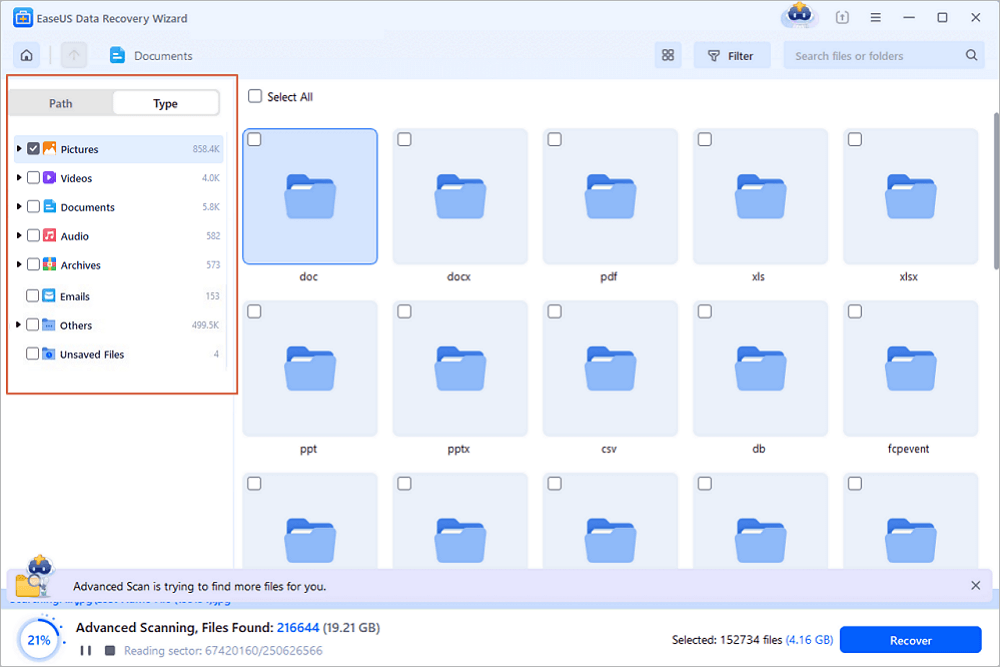
Step 2. After the scan completed, all scan results will be displayed on the screen. Use the "Filter" or "File Type" feature to find your target files. If you remember the file name, you can also search in the search box, which is the fastest way to find the target file.
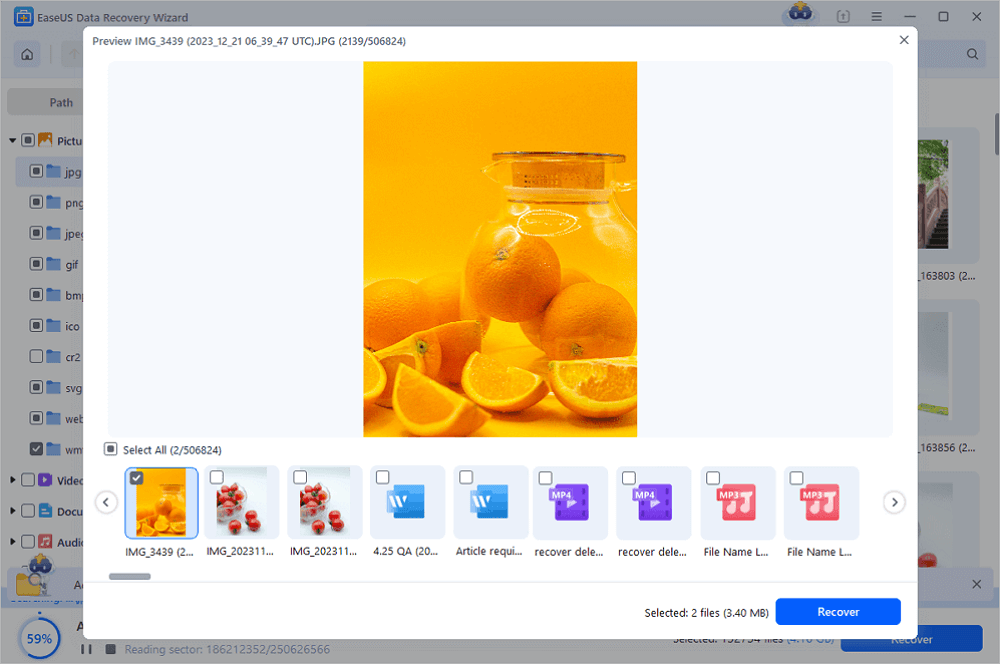
Step 3. Choose the files you want to recover from your formatted external drive and click "Recover". A new window will appear, you need to choose a local storage or Cloud drive to store the files. Then, click "OK" to confirm.
💡Want to know more about SD card data recovery? For example, what is the best SD card data recovery software? How to recover a damaged SD card? How to recover data from an unreadable SD card...Go for SD Card Data Recovery FAQs and restore your precious lost files.
Check the following user experience to learn more about the EaseUS SD card recovery tool:
📝EaseUS Data Recovery Wizard Professional 19.0 has saved my data several times when my camera's memory card became unreadable due to an error. I was able to recover almost all of my photos quickly and easily. The software is simple to use and very reliable. I highly recommend it to anyone who needs to recover data from memory cards or other storage devices. - from Trustpilot
Let's learn four different ways to fix the "card not initialized Fujifilm" issue. Before that, remember to mark this passage by sharing it on Facebook, Twitter, or SNS.

How to Fix SD Card Not Initialized - Top 5 Ways
The SD card not initialized problem indicates that you cannot access the data on your SD card because your device is not recognizing it. Now that the SD card not initialized error has been fixed, you can attempt the following fixes:
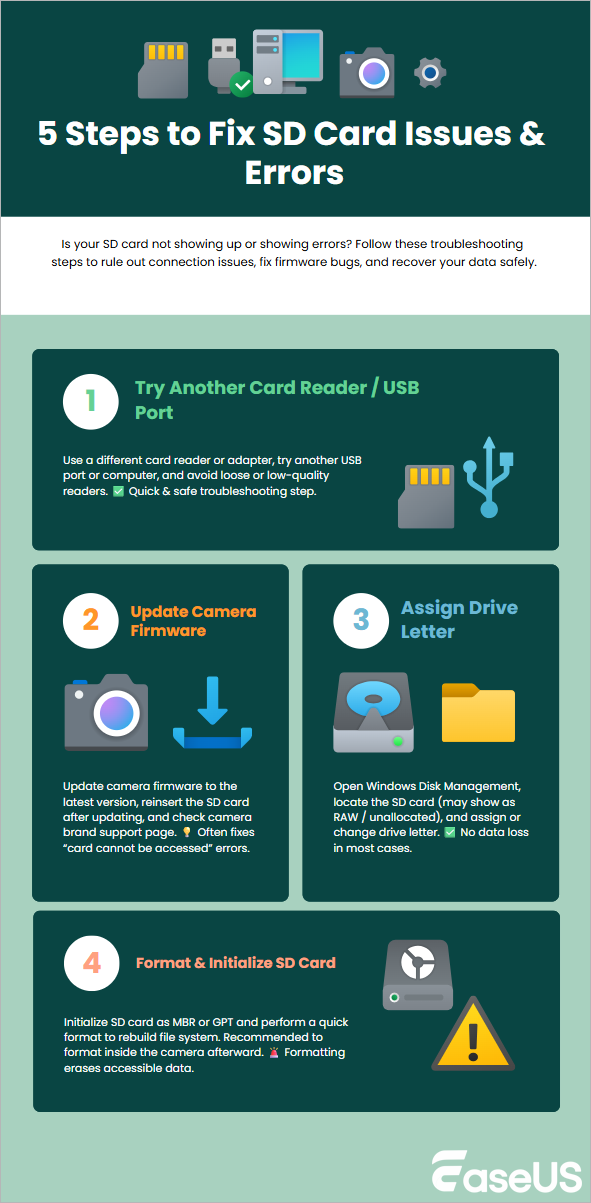
Fix 1. Check SD Card Not Initialized on Another Device or Card Reader
First, remove the SD card from your current device.
Next, insert the SD card into a different device. This could be another camera, a computer with an SD card slot, or a card reader.
If the card works on the other device, the problem may be with your camera, not the card itself. However, if the same issue persists, this is a clear indication that the problem lies with the SD card, not your camera.
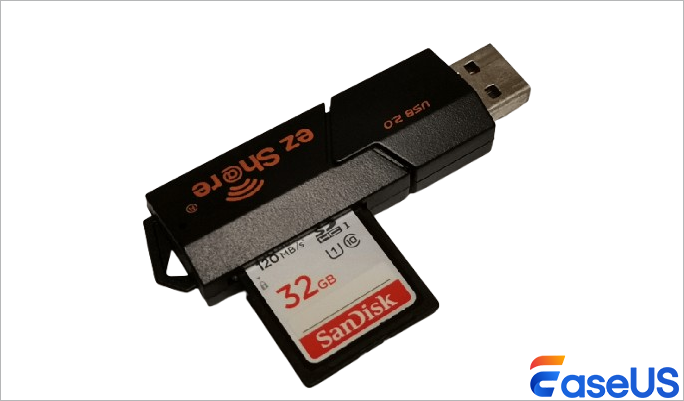
If the card is still unreadable, follow the fixes below to repair your SD card without losing data.
Fix 2. Update Camera Firmware to Fix SD Card Not Initialized Error
An outdated firmware on your Fujifilm camera may cause problems with SD card compatibility. For this reason, you need to update the firmware of your camera. Here's how to update a Fujifilm camera's firmware:
Step 1. First, go to Fujifilm's official website and find the latest firmware for your specific camera model.
Step 2. Download the firmware and save it to your computer.
Step 3. Copy the downloaded firmware file to the SD card.
Step 4. Disconnect the SD card from the computer and put it back into your camera.
Step 5. Turn on the camera while holding the "Display/Back" button to start the firmware update process.
Step 6. Follow the on-screen prompts to complete the firmware update.
Fix 3. Assign a Drive Letter to Resolve SD Card Not Initialized in Windows
A drive letter is an alphabetic character used to identify a physical computer disk or drive partition. Windows automatically assigns any storage device an accessible drive letter. By assigning a new drive letter, you can fix the SD card problem.
Step 1. Connect your SD card to your computer, press "Windows + X," and choose "Disk Management."
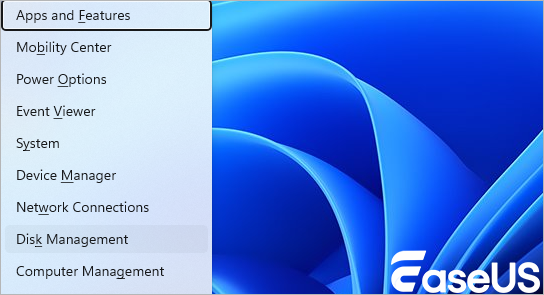
Step 2. Find your SD card in the list (it will usually show as a "Removable" drive).
Step 3. Right-click on the SD card and choose "Change Drive Letter and Paths...".
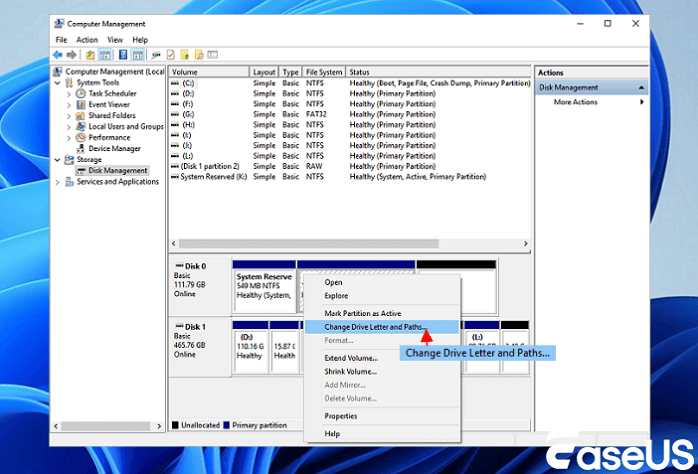
Step 4. Click "Change" and choose a new drive letter from the dropdown menu.
Step 5. Click "OK" and "Yes" on the warning dialog.
After this, your SD card should appear with the new drive letter in "My Computer" or "This PC."
Fix 4. Format SD Card to Repair the Not Initialized Error (After Backup)
The SD card can now be formatted so that your PC can read it once more. Before you format it, you should scan and recover data from the SD card with EaseUS SD card recovery software. Here's how to use the "Disk Management" tool to format an SD card.
Step 1. After inserting the SD card into your computer, right-click "This PC" to select "Manage" from the context menu.
Step 2. Select "Format" by right-clicking the memory card under "Disk Management".
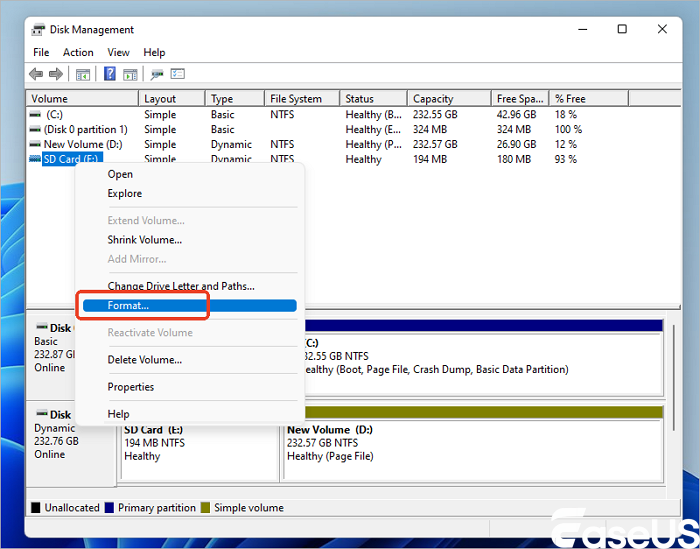
Step 3. Click "OK" after selecting NTFS or FAT32 as the SD card file system.

You can also format the problematic SD card on the camera. To format an SD card on a Fujifilm camera, follow these steps:
Step 1. Place your memory card into the camera and turn it off.
Step 2. Hit the MENU/OK button and switch on the camera.
Step 3. Click the Format option after selecting the wrench tab and User Setting.
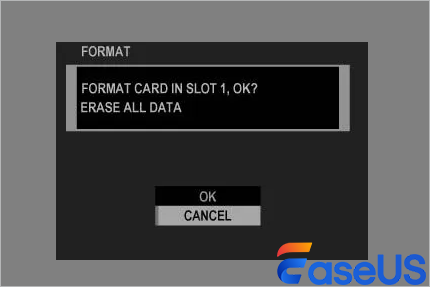
Fix 5. Recover Data from an SD Card Not Initialized Using Data Recovery Services
Send your SD card for manual repair if none of the above fixes resolve the card not initialized Fujifilm problem. You can try EaseUS data recovery services:
Consult with EaseUS data recovery experts for one-on-one manual recovery service. We could offer the following services after a FREE diagnosis
- Repair corrupted RAID structure, unbootable Windows OS, and corrupted virtual disk files
- Recover/repair lost partitions and re-partitioned drives
- Unformat memory card and repair RAW SD cards
- Fix disks that become GPT-protected partitions
Not Initialized vs Card Error vs Needs Formatting
When something goes wrong on your SD card, like the SD card not being initialized without a warning, or the card needing to be formatted with a warning.
Not Initialized: When the system cannot identify a valid partition table, this error often appears in Windows Disk Management. The SD card may appear to have no file system, be unallocated, or be unknown. This frequently happens as a result of abrupt power outages, damaged partitions, or incorrect ejection. SD card data recovery is advised first since initializing the card can restore usefulness, but may erase partition information.
Card Error: This warning typically indicates file system irregularities, firmware incompatibilities, or damaged sectors. The device can still identify the card, but it cannot read or write data correctly. Without formatting, the issue could be fixed by reinstalling the card, upgrading the device's firmware, or resolving file system issues.
Needs Formatting: This occurs when the file system is RAW or severely corrupted. The device recognizes the SD card but cannot interpret the stored data. While formatting quickly restores access, it removes directory structures, making prior recovery the safest step before proceeding.
You can share this information on social media to help more readers learn the differences between these errors.
To Sum Up
The SD card not initialized error with the Fujifilm camera can frequently be resolved by formatting the SD card. To resolve the problem, attempt a few simple workarounds on this page before formatting the card.
Specialized data recovery software makes recovering erased files from an SD card much more likely. By utilizing accessible data, software such as EaseUS Data Recovery Wizard can discover recoverable files through storage scanning and recreate them.
In that case, you can attempt EaseUS Data Recovery Wizard to retrieve as many files as possible from your problematic device, even though we advise you to do so when data loss occurs after the issue.
Card Not Initialized FAQs
If you still have some questions about the card not initialized, check the quick answers below to help yourself out:
1. What does card not initialized mean on Fujifilm camera?
This error usually means that the camera cannot read the SD card due to a problem with the card itself or the camera's card reader. The SD card might not be formatted correctly, it might be physically damaged, or it may not be properly inserted into the camera.
2. How do I initialize my SD card for my Fujifilm camera?
Please note that initializing (or formatting) an SD card erases all data on it. If you have essential data on the card, back it up first.
Here are the steps to initialize an SD card on most Fujifilm cameras:
- Insert the SD card into your Fujifilm camera.
- Turn on the camera.
- Press the "Menu" button to bring up the settings options.
- Use the directional buttons or dial to navigate to the "Set-Up" menu, often represented by a wrench icon.
- In the "Set-Up" menu, navigate to "User Setting".
- Inside the "User Setting" menu, you should find an option that says "Format" or "Initialize". Highlight it and press the "OK" or "Menu/OK" button.
3. How can I initialize an SD card?
If you have baught a new SD card, it needs to be initialized first before using it. You can initialize an SD card on Windows in Disk Management and Disk Utility on macOS. Enter these utility and format your SD card to a proper file system.
Was this page helpful?


 Why Trust EaseUS
 Editor Reviews

20+
Years of experience

160+
Countries and regions

72 Million+
Downloads

4.9 +
Trustpilot Score