







Content
Page Table of Contents
About the Author
Hot Topics
If your laptop constantly warns you about low space, you might wonder how to add laptop storage without adding a new SSD. The good news is that there are several effective ways to increase laptop storage without opening up your device or buying a new internal drive.
Whether you want to free up space for laptop files, free up space for apps and updates, or manage your storage more efficiently, the solutions below will help you reclaim or expand space.
Why Laptop Storage Fills Up So Quickly
Laptop storage can run out faster than you expect and not always for the reasons you think. Here are common causes backed by real storage behavior and system mechanics:
- Operating System Updates and System Files: Windows and other systems download big updates that often keep old files around (e.g., Windows.old). These update remnants and restore files can occupy tens of gigabytes over time.
- Large Applications and Games: Modern software, especially games and creative apps, can install massive libraries of data. Hundreds of gigabytes can disappear simply by adding a couple of titles.
- Temporary Files & Caches: Everyday use creates temporary files: browser caches, install files, and other junk that often isn't auto-deleted, quietly consuming space.
- Media Files (Photos, Videos, Music): High-resolution media files quickly add up, especially if you shoot or download many videos or raw photos.
- System Restore Points & Hidden Files: Restore points, hibernation files, and hidden system folders (like WinSxS) take up space without showing up in normal file views.
- Duplicate Files and Old Backups: Old backups and duplicate copies of files tangled across folders use space unnecessarily—sometimes hundreds of gigabytes.
Method 1. Use EaseUS Partition Master
A lesser-known but powerful way to increase laptop storage is to redistribute the space on your SSD. EaseUS Partition Master enables you to resize and merge partitions, expand your system drive (usually C:) using unused space, optimize how your existing storage is used. If your laptop has free space in one partition that isn't used much, this tool can add more storage to the laptop system space without installing new hardware.
Step 1. Locate the Target Partition.
Go to Partition Manager, locate the target partition and select "Resize/Move".
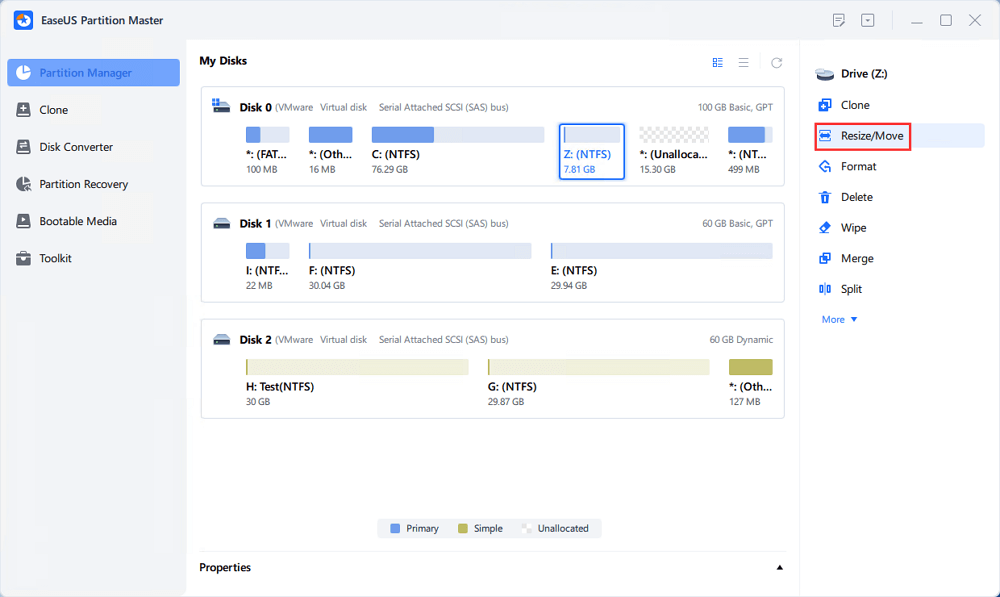
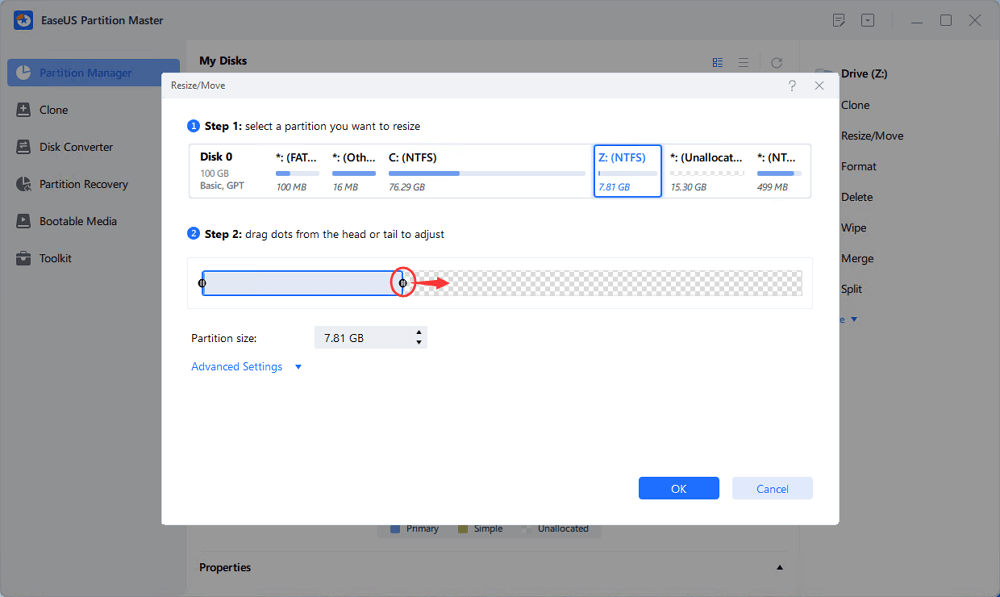
Step 2. Extend the Target Partition.
Drag the partition panel rightward or leftward to add the unallocated space into your current partition, or you can click click "fill in all unallocated" to allocate all space to the target partition. Then, click "OK" to confirm.
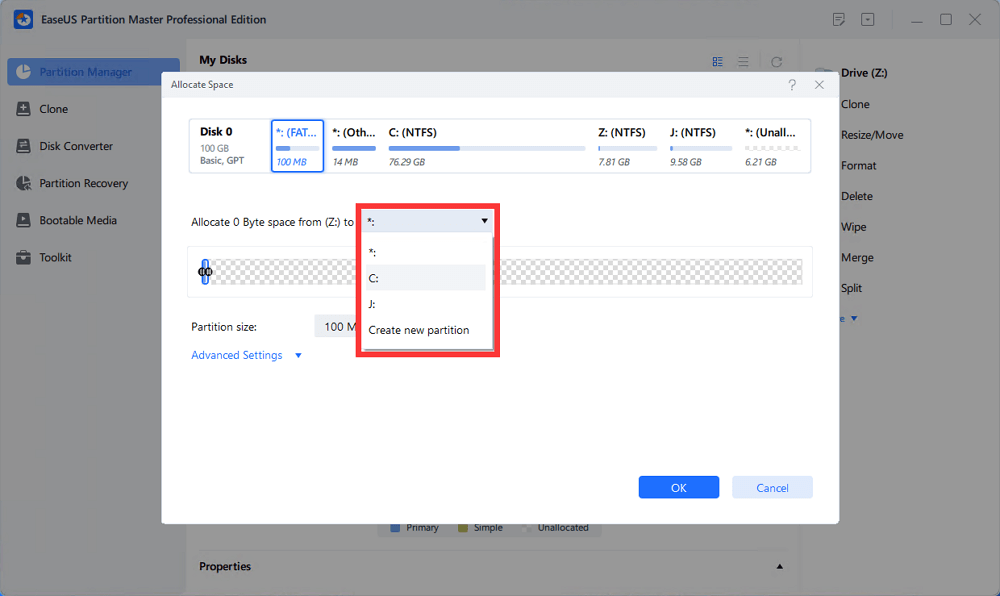
Extra Option: Get Space from Another Drive
If there is not enough unallocated space on your disk, right-click on a big partition with enough free space, select "Allocate space".
Then select the target partition that you want to extend at the allocate space to column.
Step 3. Execute Operations to Extend Partition.
Drag the dots of the target partition into the unallocated space and click "OK".
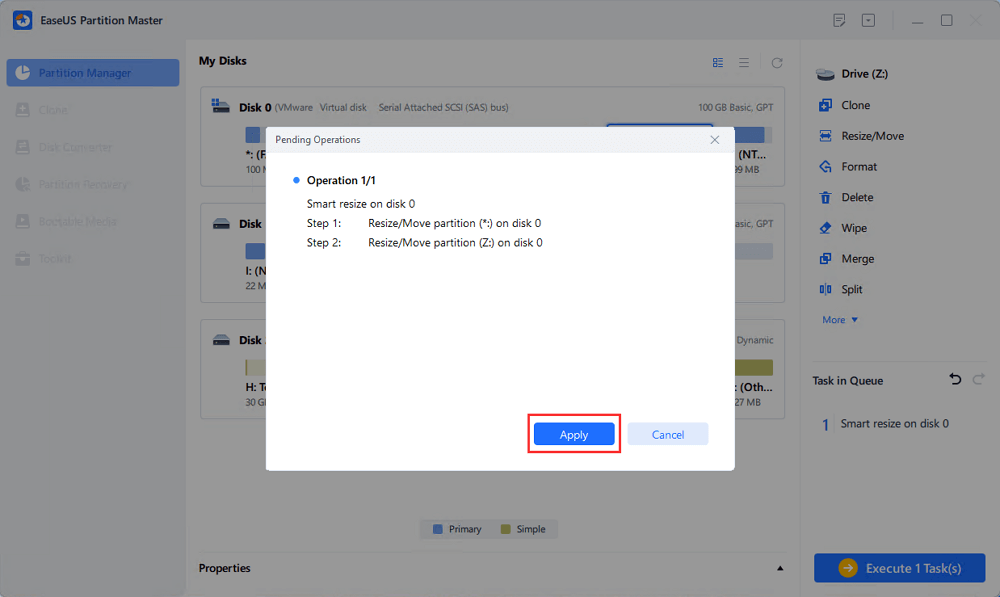
Then Click the "Execute Task" button and click "Apply" to keep all the changes.
Method 2. Reorganize and Clean Existing Storage
This step is essential for anyone looking for how to get more storage for laptop without spending on hardware.
- Disk Cleanup & Storage Sense: Use Windows' built-in utilities to remove temporary files and clutter.
- Uninstall Programs: Remove unused apps and games to regain disk space.
- Delete or Move Large Files: Videos, old downloads, and installers often take up a lot of space.
Method 3. Add External Storage to Your Laptop
External storage devices are among the most practical ways to add capacity without modifying the internal hardware. External devices provide extra storage for laptop files and are perfect for large video libraries, backups, and seldom-used content.
- USB Flash Drives: Quick and portable
- External SSD/HDD: Large capacity for backups and media
- USB Card Readers with SD cards: Especially useful if your laptop lacks internal expansion
Method 4. Use Cloud Storage to Free Up Local Space
Cloud services let you store files online and access them from anywhere. They're especially helpful when you want to increase storage on laptop without physical devices.
- Offload large files to services like OneDrive, Google Drive, or Dropbox
- Use features like Files On-Demand to keep files visible but not stored locally
- Access synced files across devices
- Cloud storage can act as virtual storage, freeing up significant local space when managed well
Final Thoughts
If you're searching for how to increase storage on a laptop, installing a new SSD is not your only choice. External drives, cloud storage, smart file management, and tools like EaseUS Partition Master make it possible to reclaim or expand storage safely and affordably.
Whether you want extra storage for a laptop, better space management, or a long-term solution, these methods help you stay productive without replacing hardware.
How Can We Help You
About the Author

Sherly joined EaseUS in 2022 and she has always loved writing articles and enjoys the fun they bring. She receives professional training here, focusing on product performance and other relative knowledge. She has written over 200 articles to help people overcome computing issues.

Cici is the junior editor of the writing team of EaseUS. She accepted the systematic training on computers at EaseUS for over one year. Now, she wrote a lot of professional articles to help people resolve the issues of hard drive corruption, computer boot errors, and disk partition problems.
Product Reviews
-
I love that the changes you make with EaseUS Partition Master Free aren't immediately applied to the disks. It makes it way easier to play out what will happen after you've made all the changes. I also think the overall look and feel of EaseUS Partition Master Free makes whatever you're doing with your computer's partitions easy.
Read More -
Partition Master Free can Resize, Move, Merge, Migrate, and Copy disks or partitions; convert to local, change label, defragment, check and explore partition; and much more. A premium upgrade adds free tech support and the ability to resize dynamic volumes.
Read More -
It won't hot image your drives or align them, but since it's coupled with a partition manager, it allows you do perform many tasks at once, instead of just cloning drives. You can move partitions around, resize them, defragment, and more, along with the other tools you'd expect from a cloning tool.
Read More
Related Articles
-
How to Partition Hard Drive without Formatting in Windows
![author icon]() Jean/2026/09/21
Jean/2026/09/21 -
Get EaseUS Partition Master Key (v18.2) in 2026 | No Cracking
![author icon]() Tracy King/2026/09/27
Tracy King/2026/09/27 -
How to Transfer Data from Mac to External Hard Drive | 6 Ways
![author icon]() Sherly/2026/09/28
Sherly/2026/09/28 -
"The Disk Check Could Not Be Performed" Solutions
![author icon]() Tracy King/2026/09/22
Tracy King/2026/09/22
 Jean/2026/09/21
  Tracy King/2026/09/27









