







Content
Page Table of Contents
About the Author
Hot Topics
This guide explains how to create a Windows password reset disk on Windows 11, when you should create one, and what to do if you're already locked out of your computer. Many people are asking for help creating a password reset USB:
|
Is it still possible to create a Windows 11 password reset (USB) if I forgot the password? Windows 11 keeps asking me to change the password every three months, and I forgot to save the recent one. Can I make a password reset USB on another PC and use it to reset the password of my locked Windows 11 computer? - From Microsoft |
|
How do I create a password reset disk for an another PC? (WIN10) I need to reset my dad's user's password, since he forgot it. - From Reddit |
Continue reading this post and learn how to password reset disk before and after you forget the login passwords.
What Is a Windows Password Reset Disk
So what is a Windows password reset disk? A Windows password reset disk is a small recovery tool stored on a USB drive that allows you to reset a forgotten Windows login password without reinstalling the operating system. If you ever get locked out of your computer, the disk can help you create a new password and regain access quickly.
There are a few important characteristics to understand:
- The disk works only with local accounts, not Microsoft accounts.
- Each user account requires its own reset disk.
- The disk stores a password recovery key, not your actual password.
- Once created, it remains valid even if the password changes later.
Because the file is very small, almost any USB drive can be used to store it.
When You Should Create a Password Reset Disk
Many users begin searching for solutions after they forget their Windows password, but the built-in reset disk feature must be created while the account is still accessible. In other words, the safest time to create a password reset disk is before you are locked out of Windows.
You should consider creating one if:
- You are worried about forgetting your Windows login password.
- Your computer has only one administrator account.
- You want to avoid reinstalling Windows if login problems occur.
- You want to protect important files from accidental lockout.
Preparing a reset disk only takes a few minutes, but it can prevent a much bigger recovery process later.
However, if you have already forgotten the password and are locked out of Windows, the built-in tool will no longer work. In that situation, you typically need a third-party USB password reset tool - EaseUS Partition Master. It allows you to create a password reset USB on one computer and use it to unlock another locked Windows PC.
How to Create a Password Reset USB on Windows
Windows provides a simple built-in wizard for creating a password reset disk. The process only requires a USB drive and a few minutes of setup.
Before starting, remember that this method only works if you can still log in to the computer normally. If the system is already locked, you'll need a third-party bootable password reset tool.
| Features | EaseUS Partition Master | Windows Built-in Password Reset Tool |
|---|---|---|
| Creation Timing | Can create a password reset USB even after the target computer is locked | Must be created before the password is forgotten |
| Create Disk for Another PC | Yes, you can create a reset USB on one computer and use it on another locked PC | No. The disk is tied to the same computer and account |
| Bootable Environment | Yes. Creates a bootable password reset USB that loads before Windows | No bootable environment |
| Use After System Lockout | Yes | No |
| Easy to Use | 👍👍👍👍👍 | 👍👍👍👍👍 |
Below are two different scenarios depending on your situation.
Option 1. Create a Password Reset USB for the Current PC
This method is used when the computer is not locked, and you simply want to prepare a recovery disk in case you forget the password in the future.
Because the process creates a recovery key linked to the current account, you must be logged in to the system before starting.
1️⃣Steps to Create a Password Reset Disk
Make sure you're signed in with your local account. This option isn't available for Microsoft accounts. (You can get more details from the Microsoft page)
- Plug a USB flash drive into your device.
- In the search box on the taskbar, type Control Panel, and then choose it from the list of results.
- In the Control Panel search box, type create password reset.
- Select Create a password reset disk, and follow the remaining instructions.
- When you're finished, remove the USB flash drive and keep it in a safe place.
Although the file on the USB drive is very small, it can reset your password, so storing it securely is important.
2️⃣Steps to Use a Password Reset USB
If you forget your Windows password later, you can use the reset disk directly from the login screen.
- Insert the password reset USB into the locked computer.
- Enter an incorrect password on the login screen.
- Click Reset password when the option appears.
- Follow the Password Reset Wizard.
- Create a new password and hint.
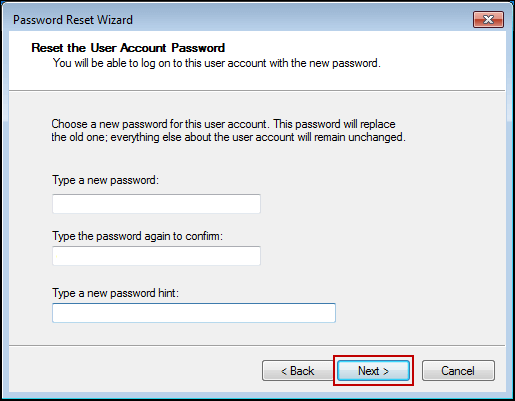
- After the process is complete, you can log in using the new password.
If you found this guide helpful, consider sharing it with colleagues or friends who may want to prepare a password reset disk before a lockout happens.

Option 2. Create a Password Reset USB for a Locked PC
If the computer is already locked and no reset disk was created in advance, the built-in Windows method will no longer help. In that situation, a specialized recovery tool can create a bootable password reset USB from another computer. EaseUS Partition Master includes a Password Reset feature and allows users to create a Windows password reset USB using a USB drive, CD, or DVD from any working computer.
The reset disk created by the tool can be used on any Windows computer, which makes the recovery process significantly easier when dealing with a locked system. It supports Windows 11, Windows 10, Windows 8, Windows 7, Vista, and XP, and simplifies the password reset process through a guided interface.
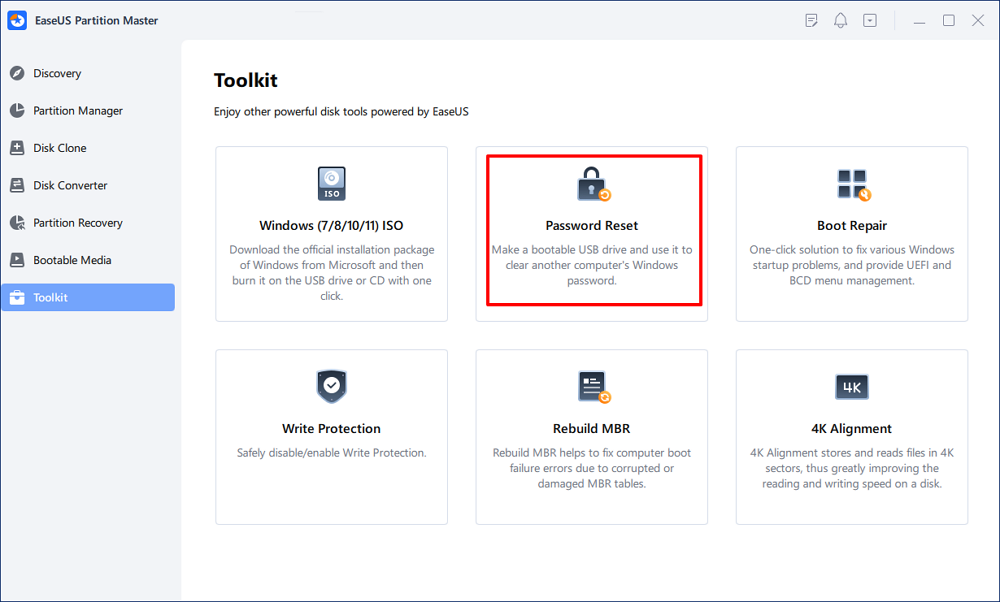
Step 1. Insert the target USB disk into the computer, download and run EaseUS Partition Master, and click "Toolkit" > "Password Reset."
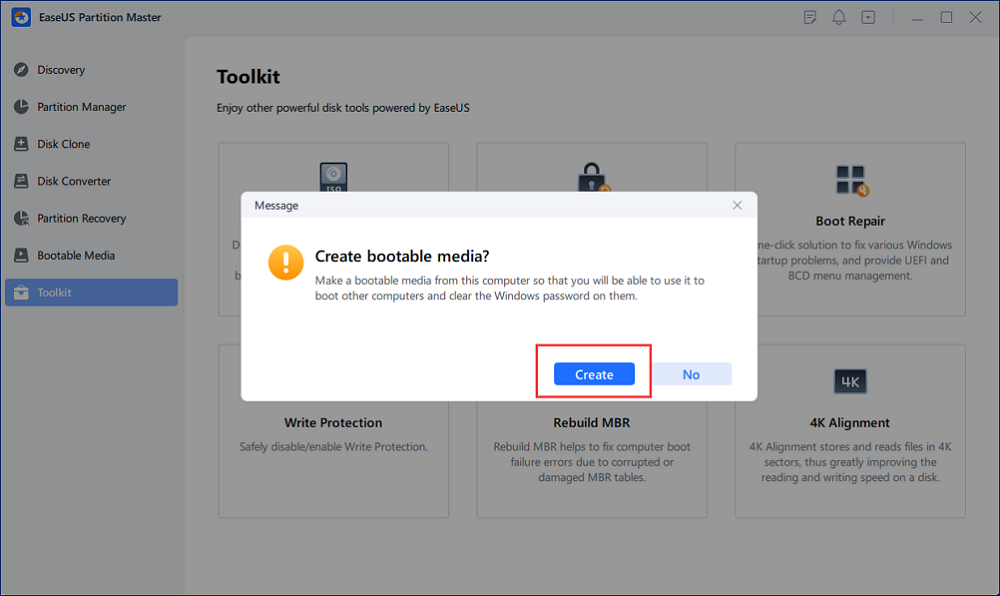
Step 2. A small window will pop up. After reading it carefully, click "Create".
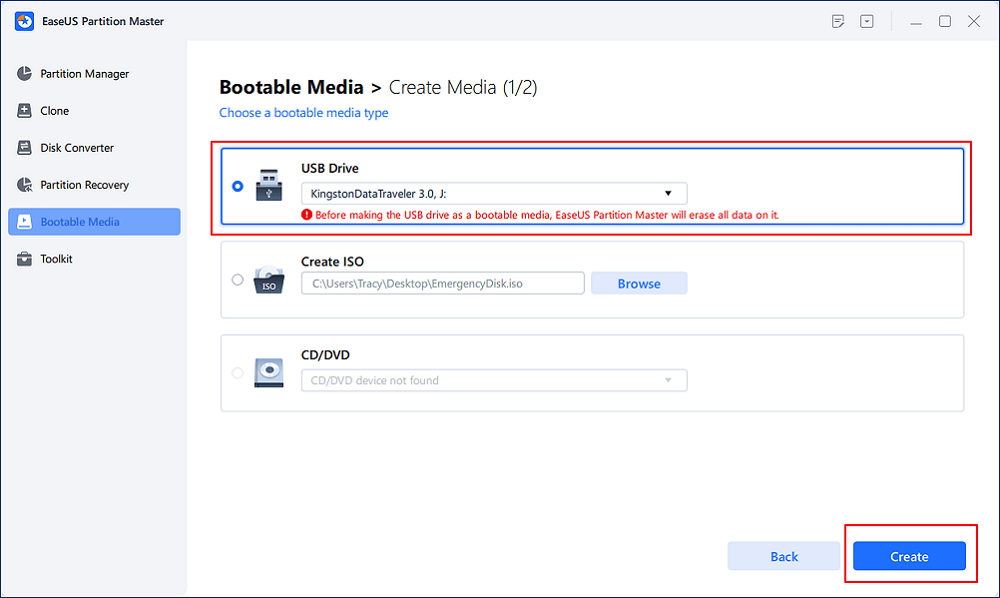
Step 3. Select the correct USB flash drive or external mobile hard disk and click "Create" again. Wait patiently. After the password reset USB flash drive is created, click "Finish."
Step 4. Remove the password reset USB, insert it into the locked PC, and restart. You will be asked to change the boot drive to boot the PC from USB. Once completed, the system will automatically boot from USB.
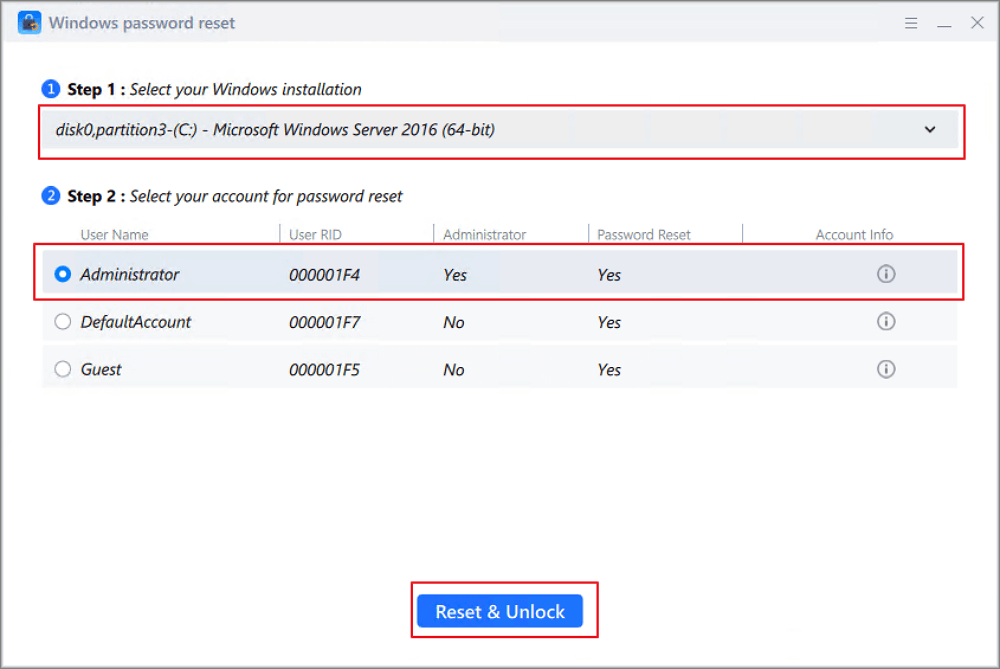
Step 5. After restarting, find EaseUS Partition Master again and go to "Password Reset." All accounts on the PC will be displayed in the interface; click on the target account and check "Reset & Unlock."
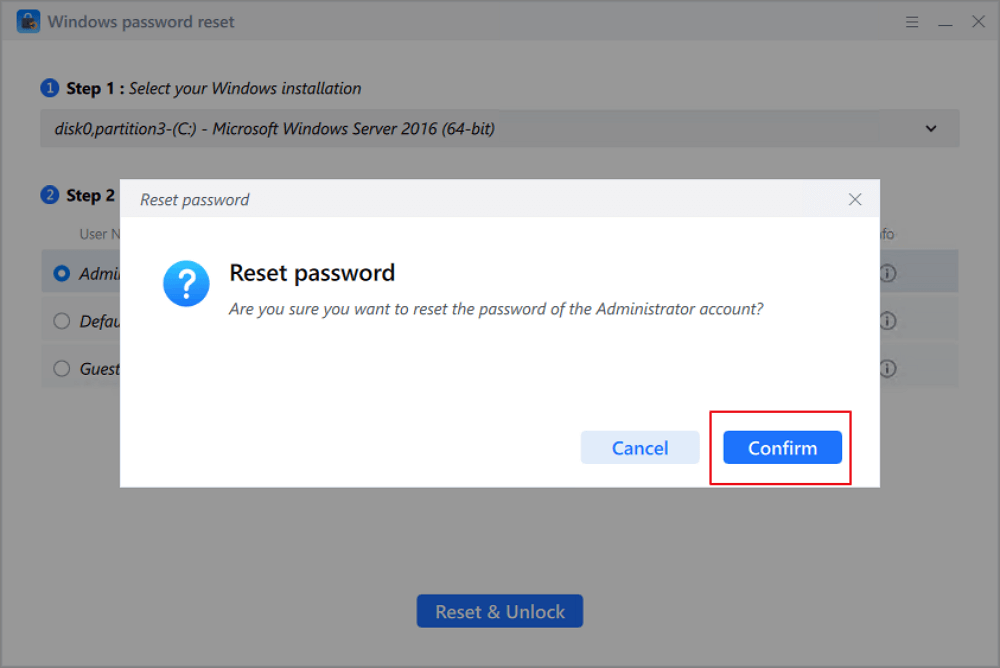
Step 6. When you receive this prompt, click "Confirm" to continue. Your password will be erased.
Tips to Prevent Future Windows Password Lockouts
Password lockouts are surprisingly common, but a few simple precautions can make them much easier to recover from.
- First, create a password reset disk in advance. Even if you never use it, having one prepared can save significant time during an emergency.
- Consider using a password manager to store important credentials securely. This reduces the chance of forgetting complex passwords.
- You can also link your computer to a Microsoft account, which allows password recovery through Microsoft's online account system.
- Finally, enabling Windows Hello PIN, fingerprint, or facial recognition can provide alternative login methods while keeping the system secure.
Conclusion
A Windows password reset disk is one of the simplest ways to prepare for a forgotten login password. By storing a small recovery key on a USB drive, you can reset your password without reinstalling Windows or losing access to your files. The key is preparation. Creating the disk while you still have access to the account takes only a few minutes, but can prevent major inconvenience later.
If the computer is already locked and no reset disk exists, a bootable password reset USB created with a recovery tool may still help restore access.
FAQs About How to Make a Windows Password Reset USB
1. Can I create a password reset disk after forgetting my Windows password?
No. The built-in Windows tool requires the disk to be created while you can still access the account. If you're already locked out, you typically need a bootable password reset tool created from another computer.
2. Does a password reset disk work with Microsoft accounts?
No. Windows password reset disks work only with local user accounts. If you use a Microsoft account to sign in, you must reset the password through Microsoft's online account recovery system.
3. Can one reset disk be used for multiple accounts?
No. Each Windows user account requires its own password reset disk because the recovery key is tied specifically to that account.
4. What kind of USB drive is required to make a password reset USB?
Almost any USB flash drive works. The reset file is extremely small, so storage capacity is not important. Even older or low-capacity USB drives are sufficient.
5. Is a Windows password reset disk safe to keep?
Yes, but it should be stored securely. Anyone with access to the reset disk could potentially reset the password for that account, so it's best to keep it in a safe or private location.
How Can We Help You
About the Author

Sherly joined EaseUS in 2022 and she has always loved writing articles and enjoys the fun they bring. She receives professional training here, focusing on product performance and other relative knowledge. She has written over 200 articles to help people overcome computing issues.
Product Reviews
-
I love that the changes you make with EaseUS Partition Master Free aren't immediately applied to the disks. It makes it way easier to play out what will happen after you've made all the changes. I also think the overall look and feel of EaseUS Partition Master Free makes whatever you're doing with your computer's partitions easy.
Read More -
Partition Master Free can Resize, Move, Merge, Migrate, and Copy disks or partitions; convert to local, change label, defragment, check and explore partition; and much more. A premium upgrade adds free tech support and the ability to resize dynamic volumes.
Read More -
It won't hot image your drives or align them, but since it's coupled with a partition manager, it allows you do perform many tasks at once, instead of just cloning drives. You can move partitions around, resize them, defragment, and more, along with the other tools you'd expect from a cloning tool.
Read More
Related Articles
-
How to Format SSD with Windows on It? [Windows 11/10]
![author icon]() Cici/2026/07/24
Cici/2026/07/24 -
How to Bypass Admin Password Windows 10 | 2026 Guideline
![author icon]() Cici/2026/06/30
Cici/2026/06/30 -
Surface Pro Stuck on Windows Logo - Reasons & Fixes
![author icon]() Sherly/2026/08/13
Sherly/2026/08/13 -
How-to: Create USB Bootable Partition Manager to Manage Partitions Safely
![author icon]() Daisy/2026/08/13
Daisy/2026/08/13
 Cici/2026/07/24
  Daisy/2026/08/13









