- Data Recovery
Data Recovery WizardPC data recoveryData Recovery Wizard for MacMac Data RecoveryMobiSaver (iOS & Android)Recover data from mobilePartition RecoveryLost partition recoveryFixo AI-PoweredRepair Videos, Photos and Files
More Recovery Products
Data Recovery ServicesExpert data recovery servicesExchange RecoveryEDB file restore & repairEmail RecoveryOutlook email recoveryMS SQL RecoveryMS SQL database recovery- for iOS
- Data Recovery Free
- Data Recovery Pro
- for Android
- Data Recovery Free
- Data Recovery Pro
- Data Recovery App
- Desktop Version
- Video Repair
- Photo Repair
- File Repair
- Online Tools
- Online Video Repair
- Online Photo Repair
- Online File Repair
-
Partition Manager
- Backup & Restore
Todo Backup PersonalPersonal backup solutionsTodo Backup EnterpriseWorkstation and Server backup solutionsTodo Backup TechnicianBusiness backup solutionsEdition ComparisonTodo Backup version comparison
Centralized Solutions
Central ManagementCentralized backup strategySystem DeploySmart Windows deploymentMSPs Service
MSP ServiceEaseUS Todo Backup White Label Service - Multimedia
Screen Capture
RecExpertsRecord video/audio/webcamOnline Screen RecorderRecord screen online freeVideo & Audio Tools
Video EditorEasy video editing softwareVideo DownloaderDownload online video/audioEaseUS VoiceWaveChange voice in real-timeAI Tools
Vocal Remover (Online)Remove vocals online for freeEaseMate AIAll-in-one AI AssistantLoopaAI Agents For Everyone- for Desktop
- Video Downloader for Windows
- Video Downloader for Mac
- for Online
- Video Downloader (Online)
- Utilities
Transfer Products PDF Solutions iPhone Utilities More Products
Transfer Products
Todo PCTransTransfer data between PCsMobiMoverTransfer iPhone dataChatTransEasy WhatsApp Transfer SoftwareOS2GoWindows To Go creatorPDF Solutions
PDF EditorCreate, edit or convert PDFPDF ConverterConvert PDF filesChatPDFChat with PDFs via Free PDF AI - Support














 Supported Operating Systems:
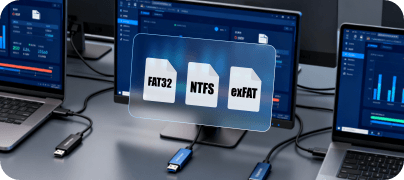
 Supported File Systems:
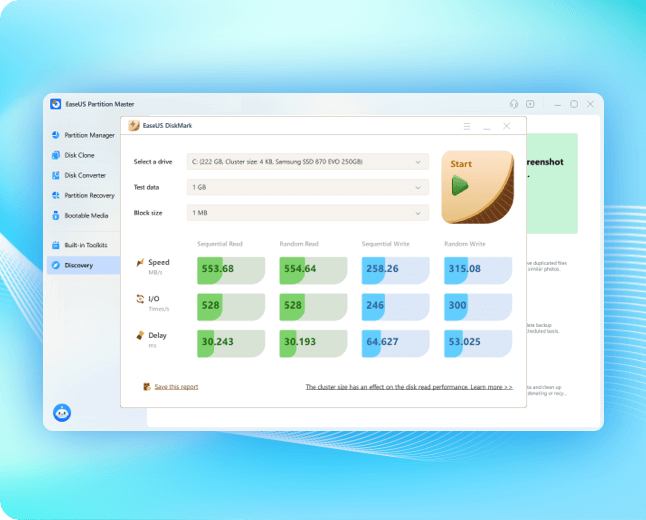
 Supported Disk Type:
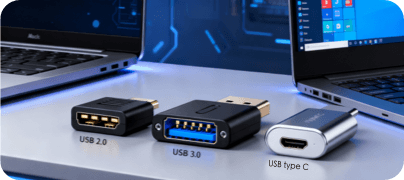
 Supported Storage Devices:


