





 About the Author
 Reviews and Awards
 Mac SD Card Recovery
- Before You Start: Protect Your Data with EaseUS Data Recovery Wizard for Mac
- Fix 1. Check the Physical Connection to Fix SSD Not Showing Up on macOS 27
- Fix 2. Check Finder and Disk Utility Display Settings to Fix SSD Not Showing Up on macOS 27
- Fix 3. Run First Aid in Disk Utility to Fix SSD Not Showing Up on macOS 27
If your external SSD isn't showing up on macOS 27, don't panic; it's a common issue with several possible fixes. The most important first step is protecting your data before attempting any repairs. Here's what to do, based on the guide from EaseUS.
Before You Start: Protect Your Data with EaseUS Data Recovery Wizard for Mac
When an SSD doesn't appear in Disk Utility, avoid reformatting or running repairs until you've attempted to recover any important files. EaseUS Data Recovery Wizard for Mac is designed for exactly this situation: it can scan an external SSD that isn't showing up in Disk Utility and let you preview and recover files through a user-friendly interface.
It also handles related cases such as a SanDisk SSD not detected on a Mac, a WD hard drive not showing up in Disk Utility, or a SanDisk Extreme Portable SSD not mounting. To recover data from an undetected SSD on Mac:
Step 1. Search for lost files
Select the disk location to search for lost files (it can be an internal HDD/SSD or a removable storage device) on macOS Sierra, High Sierra, Mojave, Catalina, Big Sur, Monterey, Ventura, and the latest Sonoma. Click the "Search for lost files" button.
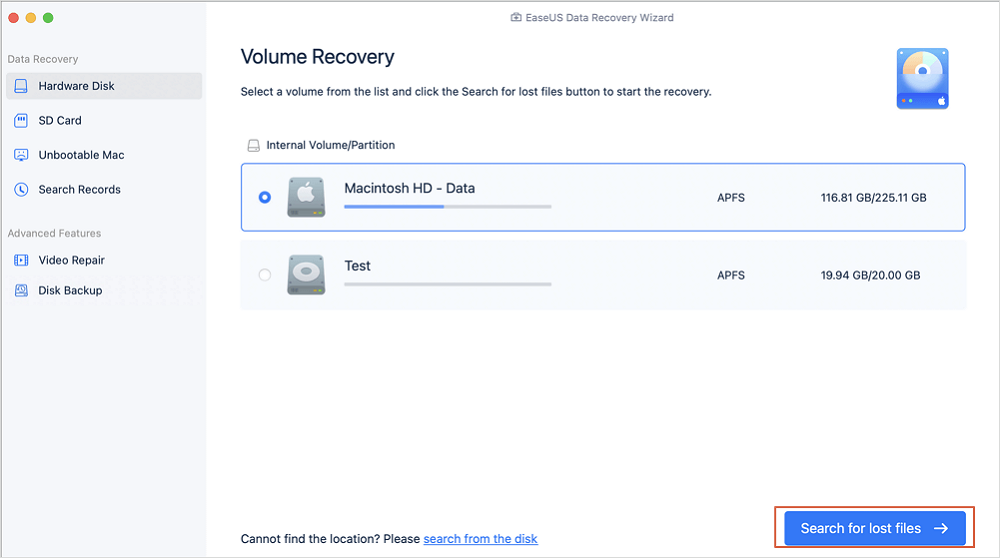
Step 2. Go through the scanning results
EaseUS Data Recovery Wizard for Mac will immediately scan your selected disk volume and display the scanning results.
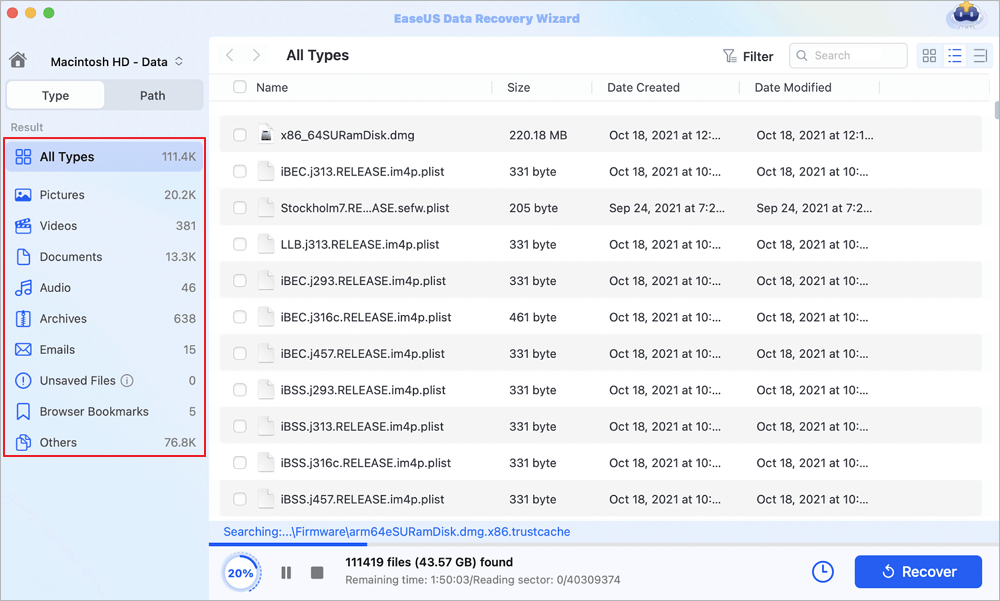
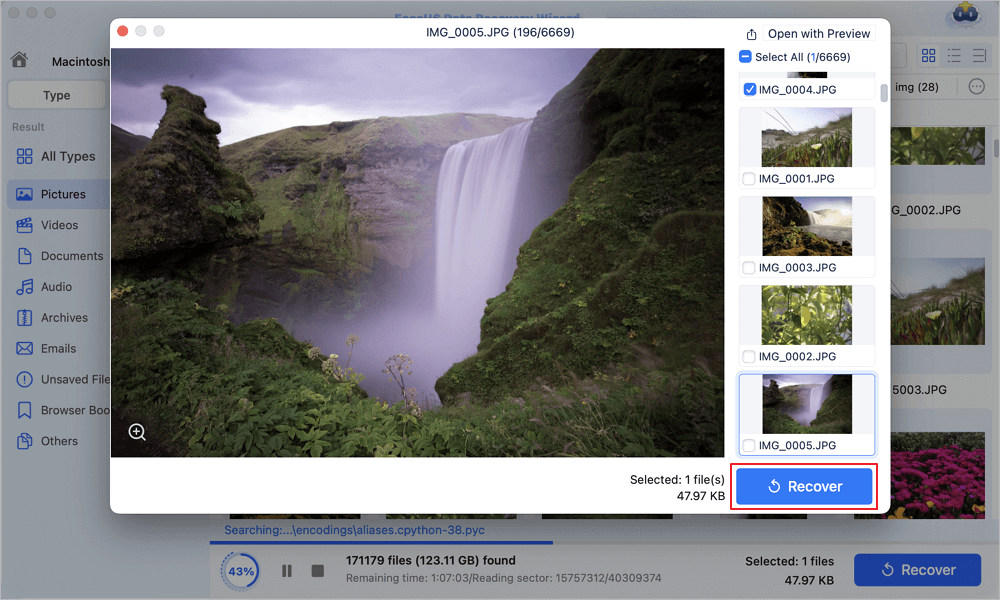
Step 3. Select the file(s) and recover
In the scan results, select the file(s) to preview and click the "Recover" button to have them back.
Fix 1. Check the Physical Connection to Fix SSD Not Showing Up on macOS 27
The most common cause of an SSD not showing up is a connection problem. Try these steps:
Step 1. Clean the USB port to remove dust or debris.
Step 2. Reseat or replace the USB cable, and try a different port.
Step 3. Inspect the SSD for physical damage.
Reconnect the drive and check whether it appears.
Fix 2. Check Finder and Disk Utility Display Settings to Fix SSD Not Showing Up on macOS 27
Sometimes the drive is connected fine but hidden from view.
- In Finder: Open Finder, go to Finder > Settings, and tick External disks under the General tab.
- In Disk Utility: Open Disk Utility (Applications > Utilities > Disk Utility) and click View > Show All Devices. Your SSD should now appear in the left sidebar.
Fix 3. Run First Aid in Disk Utility to Fix SSD Not Showing Up on macOS 27
First Aid checks for and repairs disk errors:
Step 1. Open Disk Utility.
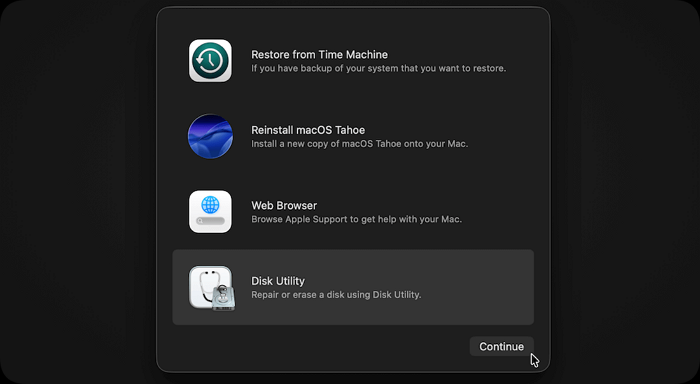
Step 2. Click View > Show All Devices.
Step 3. Select the SSD, click First Aid, then Run to confirm.
If First Aid reports corruption, click Repair. If it can't fix the errors, move on to the next fix.
Why Does This Happen
The usual suspects are loose, worn, or damaged cables, unmounting errors (such as com.apple.DiskManagement.disenter error -119930868), or an incompatible file system. Working through the fixes in order — connection first, reformatting last — covers the most likely causes without risking your data unnecessarily.
Conclusion
An external SSD not showing up in Disk Utility on macOS 27 is usually fixable without losing data. The golden rule is to recover first, repair second: use EaseUS Data Recovery Wizard for Mac to rescue stored files before you run First Aid, Terminal repairs, or a reformat. Then work through the fixes in order — connection check, display settings, First Aid, Terminal verification, and reformatting as a last resort. In most cases, one of the first four steps gets the drive recognized again. If the SSD still fails to appear after all five fixes, the hardware itself may be faulty and professional diagnostics are advisable.
FAQs on SSD Not Showing Up on macOS 27
Here are some frequently asked questions you may be curious about:
1. Why is my SSD not showing up in Disk Utility on my Mac?
The most common reason is a connection problem — the SSD's cable may be loose, worn, or damaged. Unmounting errors such as com.apple.DiskManagement.disenter error -119930868 can also prevent the drive from appearing, as can an incompatible file system or physical damage to the drive.
2. How do I recover data from an SSD that isn't showing in Disk Utility?
Use EaseUS Data Recovery Wizard for Mac: connect the SSD, launch the tool, and select the drive. Click Search for lost files to scan it, select the files you want, click Recover, and save them to a safe location on your Mac — not back to the affected SSD.
3. Will reformatting fix the problem, and is it safe?
Reformatting can fix detection issues caused by an incompatible file system, but it erases all data on the drive. Back up your files first — or recover them with EaseUS Data Recovery Wizard for Mac if the drive is undetectable, and only reformat as a last resort after the other fixes fail.
Was This Page Helpful?

Finley is interested in reading and writing articles about technical knowledge. Her articles mainly focus on file repair and data recovery.
-
EaseUS Data Recovery Wizard is a powerful system recovery software, designed to enable you to recover files you’ve deleted accidentally, potentially lost to malware or an entire hard drive partition.
Read More -
EaseUS Data Recovery Wizard is the best we have seen. It's far from perfect, partly because today's advanced disk technology makes data-recovery more difficult than it was with the simpler technology of the past.
Read More -
EaseUS Data Recovery Wizard Pro has a reputation as one of the best data recovery software programs on the market. It comes with a selection of advanced features, including partition recovery, formatted drive restoration, and corrupted file repair.
Read More
Related Articles
-
How to Recover Deleted DNG Files on Mac and How to Open Them
![Jaden]() Jaden/Oct 29, 2026
Jaden/Oct 29, 2026 -
How to Fix First Aid Could Not Unmount the Volume for Repair
![Jaden]() Jaden/Oct 29, 2026
Jaden/Oct 29, 2026 -
Why Can't I Erase My Mac | Causes & Fixes
![Finley]() Finley/Oct 29, 2026
Finley/Oct 29, 2026 -
Downloads Folder on Mac Dock Disappeared? How to Add
![Dany]() Dany/Oct 29, 2026
Dany/Oct 29, 2026
 Jaden/Oct 29, 2026
  Dany/Oct 29, 2026

