





 About the Author
 Reviews and Awards
 Mac SD Card Recovery
Attempting to remove millions of small files, data locked by background processes, or objects that were initially put on an external disk are common causes of a delayed or frozen Mac Trash. To expedite the process, try unlocking the items and force-quit the apps.
Why Is Emptying Trash So Slow on Mac
Ever tried emptying the Trash on your Mac, only to sit there watching "Preparing to Empty the Trash" drag on forever? Sometimes it just hangs, and it feels like your whole Mac freezes up. You're definitely not alone; plenty of Mac users run into this problem, whether they're on a macOS version or something older.
It happens with all sorts of files. Delete a bunch of little ones, a few giant videos, or even try to clean up an external drive; something always seems to slow things down.
Before jumping in with a fix, it actually helps to know why this happens in the first place. If you're dealing with a lot of files or certain file types, this cleanup takes more time than you might think. Here are some possible causes:
| Cause | Explanation |
| Thousands of Small Files | macOS must process and permanently remove each file individually, so deleting folders containing thousands of small files can take much longer than expected. |
| Large Files | Deleting large videos, virtual machines, backups, or disk images requires more time because macOS needs to free significant storage space and update file system metadata. |
| Locked Files | Files marked as locked or protected require additional permission checks before deletion, which can slow down or prevent the Trash from emptying. |
| External Drives | Files stored on USB flash drives, external HDDs, or network drives may delete more slowly due to lower transfer speeds or connection issues. |
| Disk Errors | File system corruption or directory errors can interfere with normal deletion operations, causing the Trash to become stuck or extremely slow. |
| Finder Glitches | If Finder becomes unresponsive or encounters a temporary bug, it may remain on "Preparing to Empty the Trash" for an extended period. |
| Outdated macOS | An older version of macOS may contain Finder or APFS bugs that affect file deletion performance. Installing the latest updates can often resolve these issues. |
How to Fix Mac Emptying Trash Slow
If your Mac Trash seems frozen and won't empty after a few minutes, don't rush to force shut down your Mac. There are better ways to solve this, starting with the easy stuff before diving into more advanced fixes. Usually, one of these steps gets things back to normal.
Fix 1. Empty Trash Using Terminal
When Finder gives you trouble emptying the Trash, freezing up, getting stuck, or just refusing to cooperate, Terminal can force emptying the Trash on Mac. Terminal skips all the visual stuff and goes straight to deleting the files. Just a heads-up: anything you delete this way is gone for good. Double-check before you hit Enter.
Here's what you do:
Step 1. Open Terminal (look for it in Applications > Utilities).
Step 2. Type in: sudo rm -rf ~/.Trash/*
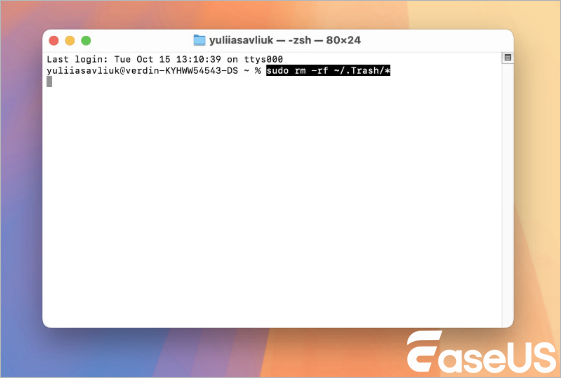
Step 3. Hit Return.
Step 4. Type your administrator password when it asks.
Step 5. Let Terminal finish cleaning out the Trash.
Step 6. Open Finder and make sure your Trash is empty.
Usually, this clears out stubborn files much faster. If you see errors, some files might have permission problems or be locked.
Fix 2. Delete Locked Files
Locked files can slow down or block the Trash from emptying. macOS won't let you delete them until you turn off their protection.
Here's what you can do:
Step 1. Open your Trash.
Step 2. Find the file that won't delete.
Step 3. Right-click it and pick "Get Info."
Step 4. Look for the "Locked" checkbox in the info window.
Step 5. If it's checked, click to uncheck it.
Step 6. Close the window.
Step 7. Try emptying the Trash again.
Got more than one locked file? You'll need to repeat those steps for each one. Once you unlock them, they should delete just fine in Finder.
Still can't delete the files because of permission issues? You might have to change who owns the file or use that Terminal command we talked about before.
Fix 3. Repair Disk with Disk Utility
File system errors can really mess with deleting files. If your startup disk has directory issues or a bit of corruption, macOS might have a hard time emptying the Trash.
Here's where Disk Utility's First Aid comes in handy. It scans your drive and takes care of a lot of the usual file system hiccups for you.
Step 1. Start by opening Disk Utility. Just head to Applications, then Utilities, and you'll see Disk Utility there.
Step 2. Look at the left sidebar and select your startup disk, which is usually called Macintosh HD.
Step 3. At the top, click First Aid. When you get the prompt, hit "Run".
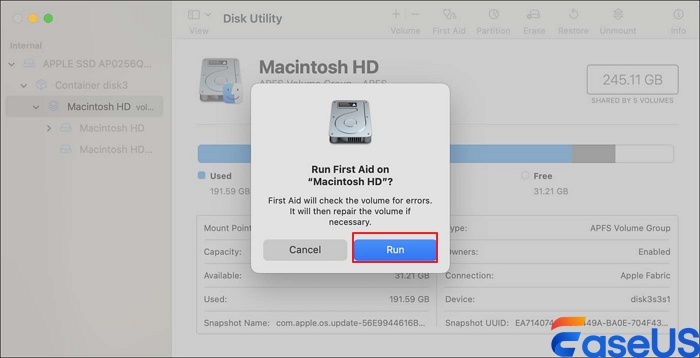
Step 4. Now just wait a bit; depending on how big your disk is, it might take a few minutes for macOS to finish checking and repairing everything.
Step 5. Once it's done, restart your Mac.
When your computer boots back up, try emptying the Trash again.
Running First Aid every so often isn't a bad idea; it helps keep your system stable and stops these kinds of issues before they start.
Fix 4. Update macOS
Apple puts out updates all the time to make Finder more stable, squash APFS bugs, and keep storage management running smoothly. If you haven't updated your Mac in a while, installing the latest macOS could clear up those stubborn Trash problems.
Here's what you do:
Step 1. Open System Settings.
Step 2. Go to General.
Step 3. Click "Software Update".
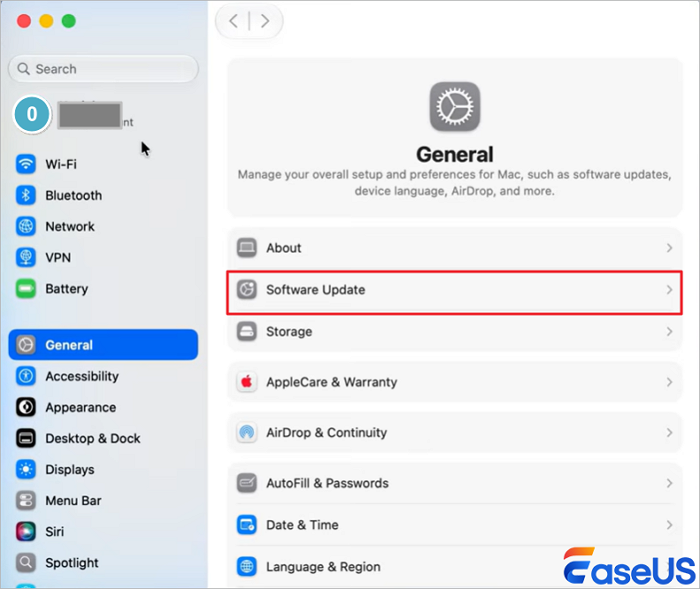
Step 4. Let your Mac check for updates.
Step 5. Download and install anything that pops up.
Step 6. Once the update's done, restart your Mac.
Step 7. Try emptying the Trash again.
Keeping your Mac up to date doesn't just fix bugs; it helps your system work better with external drives and the latest storage tech, too.
How to Recover Accidentally Emptying the Trash
When the Trash on your Mac is running slow, it's easy to get frustrated and click "Empty Trash" too quickly or punch in a Terminal command, only to realize afterward that you just deleted some important files. Once they're gone from the Trash, you can't find them in Finder anymore, and getting them back suddenly feels like a headache.
Here's the most important thing: stop using that drive right away. If you keep saving new stuff, you make it much harder to recover what you lost because you risk overwriting your deleted files.
One of the simplest ways to get those files back is with EaseUS Data Recovery Wizard for Mac. It scans APFS and HFS+ drives and looks for those deleted files, even if they're not showing up anywhere, not even in the Trash.
Step 1. Select the location and scan
Launch EaseUS Data Recovery Wizard for Mac and choose the disk where you lost data. Then, click "Search for lost files" to start scanning.
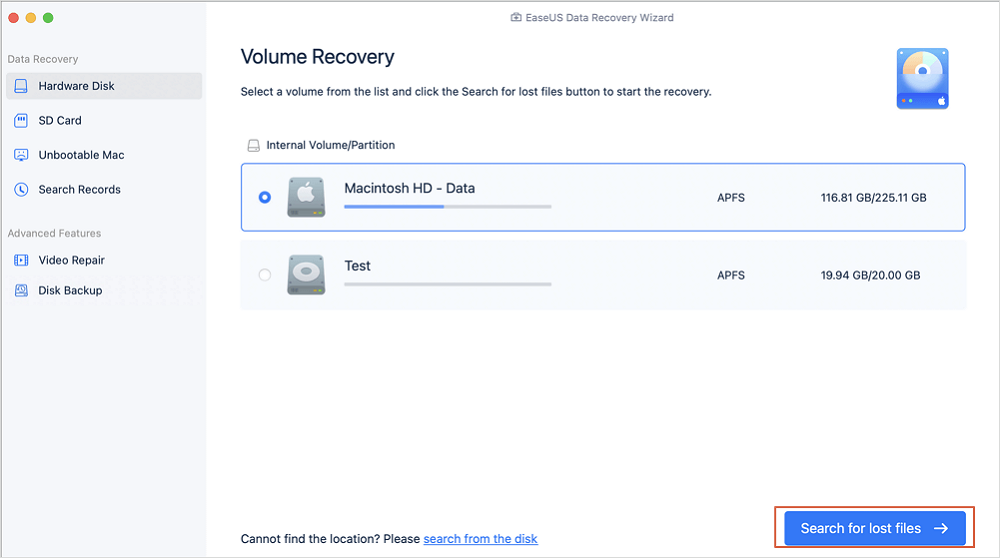
Step 2. Filter and preview lost files
After the scan, use the file format filter on the left or upper right corner to find the deleted files you need.
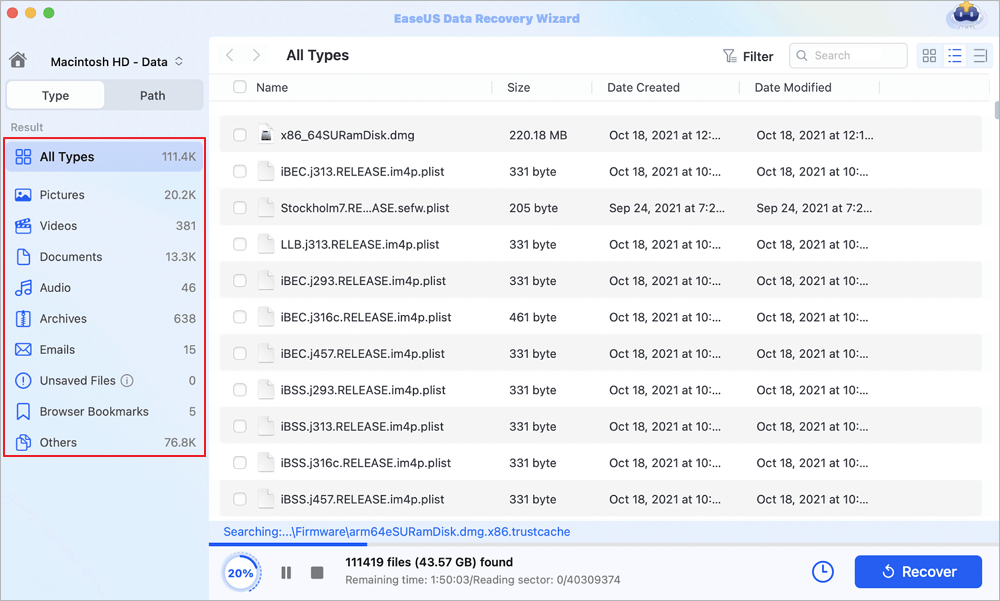
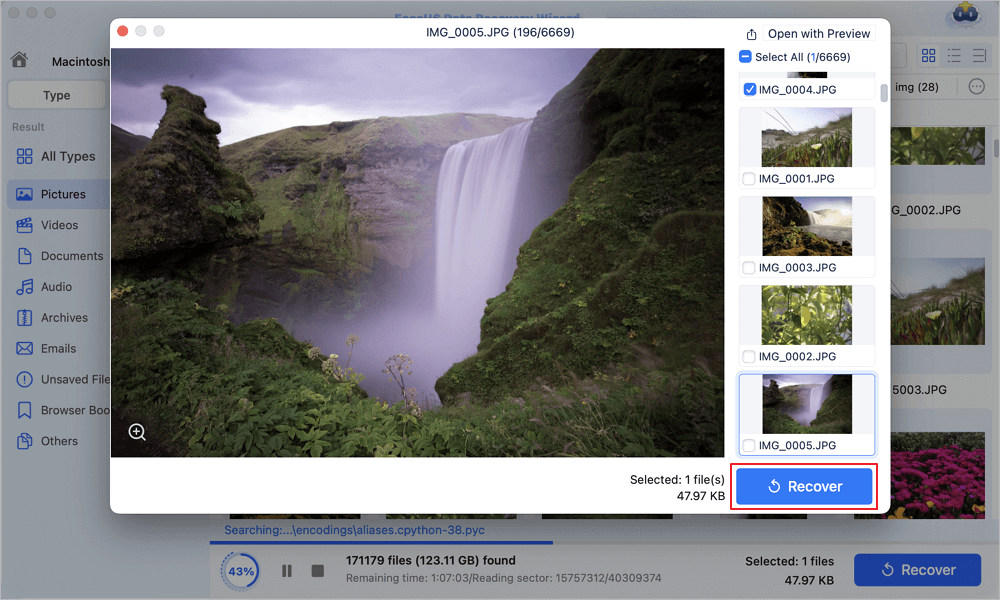
Step 3. Recover lost data or files
You can double-click a file to preview its content, or choose multiple files to recover them at once. Click "Recover" to restore the lost data to a local or cloud drive.
After recovering accidentally deleted files from Mac Trash, you can share this recovery guide on social media to help more friends!

Summary
When your Mac takes forever to empty the Trash, it's usually because you're dealing with tons of files, locked items, disk problems, Finder acting up, or an operating system that's behind on updates. The good news? You can fix most of these issues on your own.
To avoid running into this hassle again, empty your Trash regularly, keep plenty of free space on your drive, and stay current with your macOS updates.
Mac Empty Trash Slow FAQs
1. Why is my Mac stuck on "Preparing to Empty the Trash"?
This usually happens when your Trash is overflowing, maybe it's packed with thousands of files, huge files, or items that are locked or messed up in the file system. Sometimes, Finder just hangs for a bit while it tries to clear everything out.
2. Is it normal for Mac Trash to take several minutes to empty?
Honestly, yes. If you're tossing out lots of small files or massive folders, your Mac has to handle each file one at a time, so it might take a few minutes. But if you're watching the spinning wheel for hours, something's not right. That could point to a problem with your disk or file permissions.
3. Can I force empty the Trash on Mac?
You can. Either use Finder's "Empty Trash," or if that doesn't work, open Terminal and run sudo rm -rf ~/.Trash/* (just make sure you know what you're doing). There's no turning back, once you delete from the Trash this way, those files are gone for good.
Was This Page Helpful?

Dany is an editor of EaseUS who lives and works in Chengdu, China. She focuses on writing articles about data recovery on Mac devices and PCs. She is devoted to improving her writing skills and enriching her professional knowledge. Dany also enjoys reading detective novels in her spare time.
-
EaseUS Data Recovery Wizard is a powerful system recovery software, designed to enable you to recover files you’ve deleted accidentally, potentially lost to malware or an entire hard drive partition.
Read More -
EaseUS Data Recovery Wizard is the best we have seen. It's far from perfect, partly because today's advanced disk technology makes data-recovery more difficult than it was with the simpler technology of the past.
Read More -
EaseUS Data Recovery Wizard Pro has a reputation as one of the best data recovery software programs on the market. It comes with a selection of advanced features, including partition recovery, formatted drive restoration, and corrupted file repair.
Read More
Related Articles
-
Trash Not Working Mac? Here to Avoid Bypassing Mac Trash
![Jaden]() Jaden/Oct 29, 2026
Jaden/Oct 29, 2026 -
Why Your Mac is Running Slow and How to Fix It
![Jean]() Jean/Sep 20, 2026
Jean/Sep 20, 2026 -
Mac Deleted Files Not in Trash, Recover Now!
![Dany]() Dany/Oct 29, 2026
Dany/Oct 29, 2026 -
Recover Emptied Trash on Mac in 3 Easy Steps
![Brithny]() Brithny/Oct 29, 2026
Brithny/Oct 29, 2026
 Jaden/Oct 29, 2026
  Jean/Sep 20, 2026
  Brithny/Oct 29, 2026

