





 About the Author
 Reviews and Awards
 Mac SD Card Recovery
Many Mac users will encounter the issue of their Trash automatically emptying Mac files right away. Thus, users could easily misplace important Mac data. Consequently, it is possible to prevent Mac from deleting files instantly. However, you should first use Mac data recovery software to quickly retrieve your files!
As this apple link states, files remain in your trash bin forever or until you empty the bin. However, if files are added to the trash bin from iCloud, those files are auto-deleted after thirty days. How can I prevent this? from Reddit
Does Trash on Mac Automatically Delete
No, the Trash on a Mac does not automatically delete files. Your deleted files will typically remain in the Trash until you manually remove them. There are two options if you are unable to locate the deleted files in the trash.
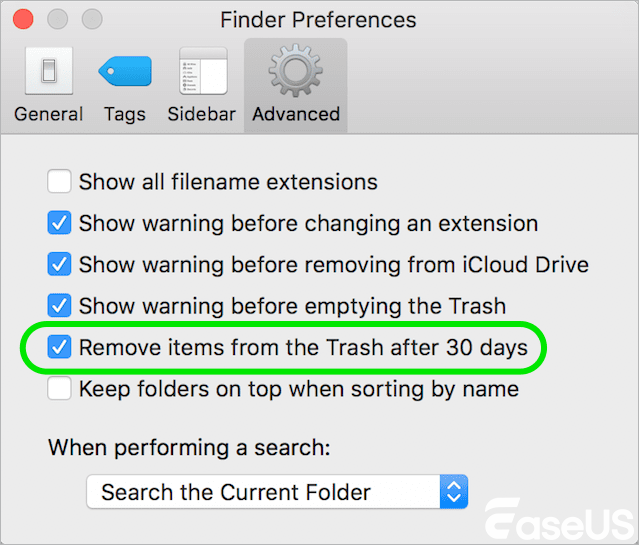
- You modified your Mac's Trash settings, enabling items to be automatically deleted after 30 days.
- To remove those files from your Mac without moving them to the Trash, you either used the Delete Immediately function from the Finder's File menu or hit Option + Command + Delete. This leads you to believe that these files are automatically removed from the trash.

How to Recover Permanently Deleted Files Mac
This article shows you the complete ways to recover permanently deleted files on Mac. You can use EaseUS Data Recovery Wizard Mac to restore files on all Mac devices. Read more >>
How to Turn Off Empty Trash Automatically on Mac
You can easily control the Trash deletion feature through Finder settings. This is the simplest and safest way to disable auto-empty Trash on your Mac. Here is how to do it:
- Open "Finder" from your Dock or by clicking the desktop.
- Click "Finder" in the menu bar at the top of the screen.
- Select "Settings" (or "Preferences" in older macOS versions) from the dropdown menu.
- Go to the "Advanced tab" in the Settings window.
- "Uncheck" the box next to "Remove items from the Trash after 30 days".
- Close the window to save your changes.
On a Mac, Safe Mode is a diagnostic mode that isolates third-party programs and loads only the startup files needed to boot the Mac. Rebuilding the system cache files is another feature of macOS Safe Boot.
You can determine whether a particular third-party application or a malfunctioning system cache is to blame for the automatic emptying of the trash can by using Safe Mode.
- Restart your Mac, and while it restarts, hold down the power button until "Loading startup options" appears.
- Select your startup disk.
- Press down the Shift key and then click Continue to enter Safe Mode.
- You'll see Safe Boot in the menu bar

How to Recover Empty Trash on Mac
Don't worry if you can't quickly retrieve deleted data from your Mac's trash because the files were erased right away without going to the trash. EaseUS Mac data recovery software makes it simple to recover emptied trash on a Mac.
EaseUS Data Recovery Wizard for Mac is a useful data recovery tool that can help you quickly scan and locate lost files, whether you used the keyboard shortcut "Option + Command + Delete" or the "Delete Immediately" option in Finder's File menu.
Here are the steps:
Step 1. Select the location and scan
Launch EaseUS Data Recovery Wizard for Mac and choose the disk where you lost data. Then, click "Search for lost files" to start scanning.
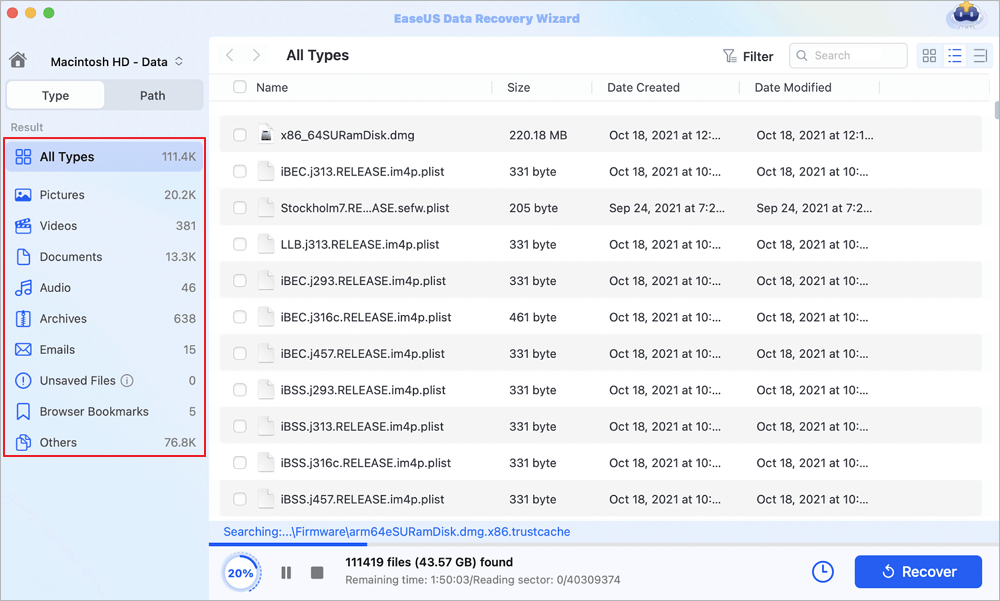
Step 2. Filter and preview lost files
After the scan, use the file format filter on the left or upper right corner to find the deleted files you need.
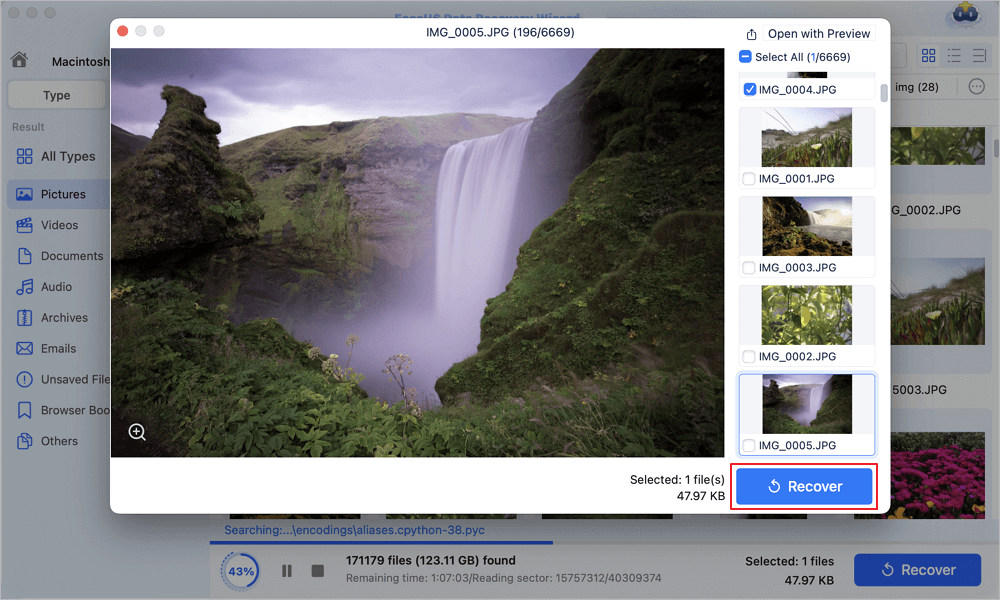
Step 3. Recover lost data or files
You can double-click a file to preview its content, or choose multiple files to recover them at once. Click "Recover" to restore the lost data to a local or cloud drive.
Conclusion
Mac Trash does not automatically delete by default. You need to enable the feature through Finder settings to have items removed after 30 days. The only exception is iCloud Drive files, which auto-delete after 30 days regardless of your settings.
Enabling Trash auto-deletion is a convenient way to manage storage space and avoid accumulating unnecessary files. Just remember that auto-deleted items are permanently removed, so ensure you do not need any files in Trash before they are automatically deleted.
If you frequently work with important files, consider creating regular backups to prevent permanent data loss due to accidental or automatic deletion.
FAQ About Mac Trash Auto-Deletion
If you still have some questions about Mac trash recovery, check the quick answers below to help yourself out:
1. Is Trash auto-deletion enabled by default on Mac?
No, Trash auto-deletion is disabled by default. You need to enable it manually in Finder settings.
2. Can I change the 30-day auto-deletion period?
No, Apple does not provide an option to adjust the 30-day period. It is a fixed setting in macOS.
3. What happens to files in Trash if I disable auto-deletion?
If you disable auto-deletion, files will remain in Trash until you manually empty it or move them back to their original location.
Was This Page Helpful?

Jaden is one of the editors of EaseUS, who focuses on topics concerning PCs and Mac data recovery. Jaden is committed to enhancing professional IT knowledge and writing abilities. She is always keen on new and intelligent products.
-
EaseUS Data Recovery Wizard is a powerful system recovery software, designed to enable you to recover files you’ve deleted accidentally, potentially lost to malware or an entire hard drive partition.
Read More -
EaseUS Data Recovery Wizard is the best we have seen. It's far from perfect, partly because today's advanced disk technology makes data-recovery more difficult than it was with the simpler technology of the past.
Read More -
EaseUS Data Recovery Wizard Pro has a reputation as one of the best data recovery software programs on the market. It comes with a selection of advanced features, including partition recovery, formatted drive restoration, and corrupted file repair.
Read More
Related Articles
-
Mac Deleted Files Not in Trash, Recover Now!
![author icon]() Dany/Sep 20, 2026
Dany/Sep 20, 2026 -
Where Is My Documents Folder Mac: Restore Folder Missing
![author icon]() Brithny/Sep 20, 2026
Brithny/Sep 20, 2026 -
How to Recover Deleted or Disappeared Notes on Mac (2026 Guide)
![author icon]() Tracy King/Sep 20, 2026
Tracy King/Sep 20, 2026 -
![author icon]() Dany/Sep 14, 2026
Dany/Sep 14, 2026
 Dany/Sep 20, 2026
  Brithny/Sep 20, 2026
  Tracy King/Sep 20, 2026

