Page Table of Contents

Rescuezilla and Foxclone are both Linux-based, bootable disk cloning software designed to help users clone drives, create disk images, and restore systems without relying entirely on the operating system installed on the computer.
At first glance, they seem quite similar. Both provide graphical interfaces instead of requiring users to work entirely from the command line, and both can be useful for disk migration, backup, and recovery.
However, they are designed with slightly different priorities. Rescuezilla is a broader backup and recovery environment with strong Clonezilla compatibility, while Foxclone focuses more directly on disk imaging, restoration, and cloning.
So, which one should you choose? This guide compares Rescuezilla vs Foxclone based on ease of use, cloning capabilities, smaller-disk cloning, recovery features, and overall workflow. We will also look at EaseUS Disk Copy as an alternative for Windows users who want to clone disks without working from a Linux-based boot environment.
Rescuezilla vs Foxclone: Quick Comparison
| Rescuezilla | Foxclone | |
| Free and open source | ✅ | |
| Graphical interface | ✅ | |
| Bootable environment | ✅ | |
| Disk cloning | ✅ | |
| Disk imaging | ✅ | |
| Backup and restore | ✅ | |
| Windows disk support | ✅ | |
| Linux disk support | ✅ | |
| File recovery tools | ✅ | |
| Clonezilla compatibility | ✅ | ❌ |
| Smaller-disk cloning | Requires additional partition resizing | Possible in supported scenarios |
| Best suited for | Backup, cloning, and recovery | |
The biggest difference is therefore not whether these tools can clone a disk; they both can, but how much functionality you want around the cloning process.
What Is Rescuezilla?
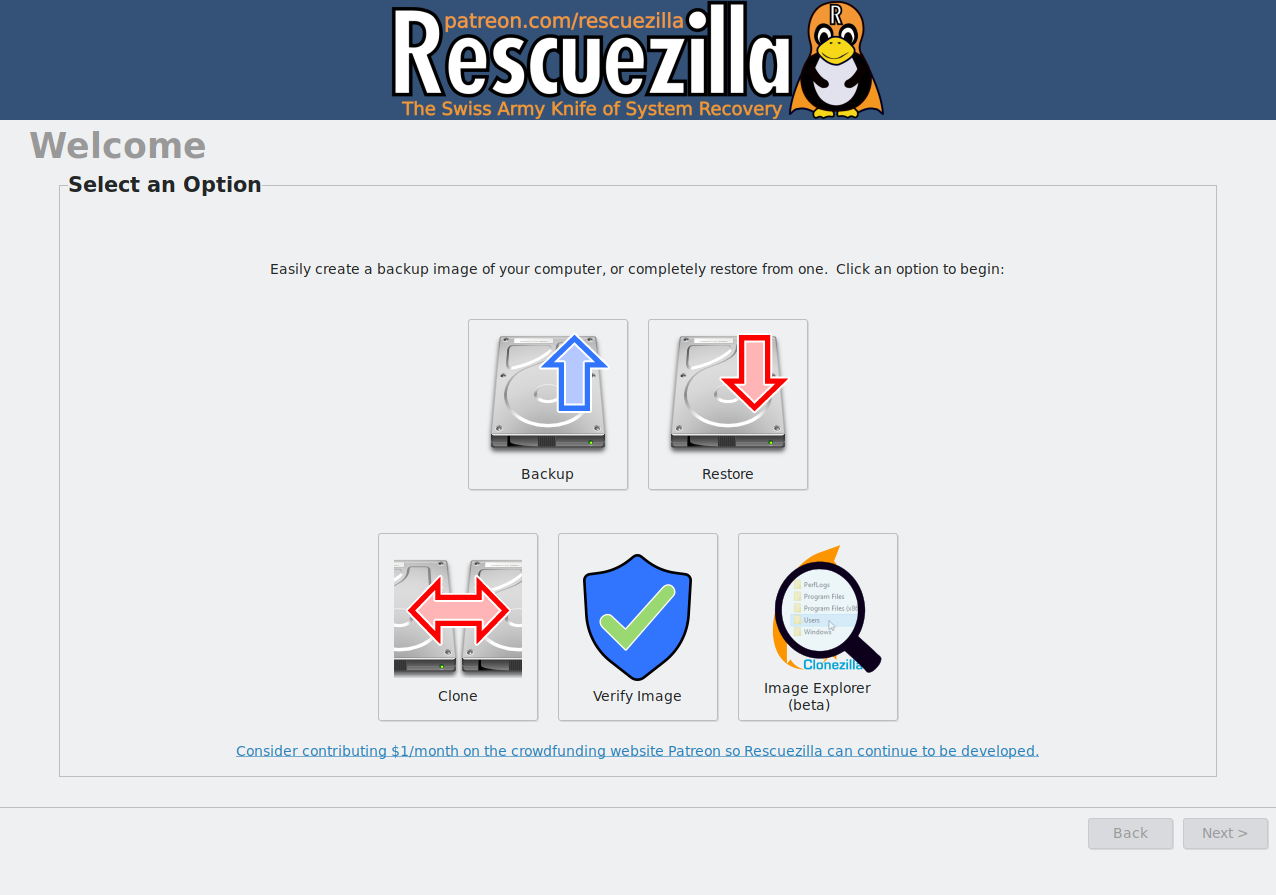
Rescuezilla is an open-source disk cloning, imaging, backup, and recovery application designed to provide a graphical alternative to more complicated disk imaging tools. It runs as a bootable live environment rather than as a conventional Windows application. Download the Rescuezilla ISO, create a bootable USB drive, and restart the computer from that USB. This allows Rescuezilla to operate even when the installed operating system cannot boot.
One of Rescuezilla's biggest advantages is its compatibility with Clonezilla. Rescuezilla describes itself as a Clonezilla GUI and supports interoperability with Clonezilla backup images. It can also work with several virtual machine image formats, including VDI, VMDK, VHDX, QCOW2, and raw disk images.
Rescuezilla also provides more than basic cloning. Its live environment includes tools for accessing files, editing partitions, recovering deleted files, browsing the web, and performing other recovery-related tasks.
This makes Rescuezilla particularly attractive if you want one bootable toolkit for disk cloning, backup, and system recovery.
You may be interested:
What Is Foxclone?
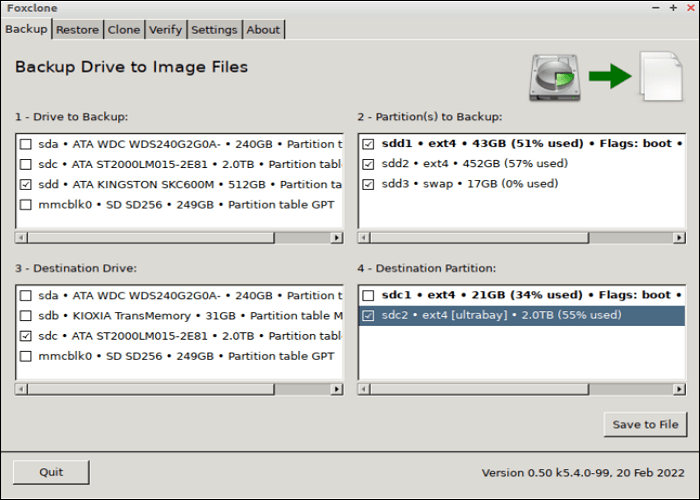
Foxclone is another Linux-based disk imaging and cloning utility that uses a graphical interface to simplify common disk operations.
Its primary purpose is more focused: creating disk images, restoring them, and cloning drives. Instead of requiring users to work through a complex command-line interface, Foxclone provides a point-and-click workflow for common cloning and imaging tasks.
For users who simply want a lightweight tool for copying or backing up a drive, this focused approach can be an advantage. You do not necessarily need the broader collection of recovery utilities included in Rescuezilla.
However, Foxclone is still a bootable Linux-based solution. That means Windows users need to create bootable media and restart the computer before beginning the cloning process.
This distinction is important when comparing these tools with Windows-based disk cloning software.
Rescuezilla vs Foxclone: Key Differences
1. Ease of Use
Both Rescuezilla and Foxclone provide graphical interfaces, which makes them considerably easier to use than command-line-oriented cloning utilities.
Rescuezilla, however, offers a more comprehensive graphical recovery environment. Its live system includes file management, partition editing, network access, file recovery, and other utilities in addition to disk imaging and cloning.
Foxclone takes a more focused approach. If your goal is simply to clone or image a disk, a narrower feature set can make the workflow easier to understand.
👍Recommendation: Rescuezilla for versatility; Foxclone for a focused workflow.
2. Disk Cloning
Both applications can perform direct disk-to-disk cloning.
Rescuezilla supports device-to-device cloning without requiring an intermediate image file. It can therefore be used when upgrading a hard drive, migrating OS to an SSD, or creating a duplicate drive. Rescuezilla also benefits from its broader compatibility with disk imaging formats and Clonezilla.
Foxclone is similarly appropriate for straightforward drive cloning and disk imaging.
If your main requirement is simply clone one disk to another, either tool can be considered. The more important question is what you need before and after the cloning process.
3. Cloning to a Smaller Drive
This is one of the most important differences when upgrading from an HDD to an SSD. Suppose you have a 1TB HDD but only 500GB of data on it, and you want to migrate the system to a 500GB SSD. The source drive's total capacity is larger than the destination, but the actual data may fit.
With Rescuezilla, restoring or cloning to a smaller disk currently requires an additional workaround: the source partitions must be resized so they fit on the smaller destination. Rescuezilla's documentation specifically notes that automatic smaller-disk restoration is not currently available.
This means users need to understand partition layouts and carefully resize the source before proceeding. For users who frequently perform large HDD to smaller SSD migrations, this extra step can be an important consideration.
Read also: How to Clone 1TB HDD to 500GB SSD Without Losing Data
4. Clonezilla Compatibility
Rescuezilla has a major advantage here. It is designed to be interoperable with Clonezilla, meaning backup images created with Clonezilla can be restored using Rescuezilla, and Rescuezilla images can be used with Clonezilla.
This is especially useful for users who already have Clonezilla-based backup workflows or need compatibility with existing disk images. If you are moving between different open-source disk imaging tools, Rescuezilla is therefore the more flexible choice.
5. Recovery and Extra Tools
Rescuezilla is more than a cloning application. Its bootable environment includes tools for accessing files when the normal operating system cannot start, editing partitions, recovering deleted files, and accessing the Internet. This makes it useful in troubleshooting situations.
For example, if a Windows computer fails to boot, you can start Rescuezilla from a USB drive and access files on the internal disk before attempting a backup or recovery operation. Foxclone is more focused on the core imaging and cloning workflow.
Therefore, if you want a multi-purpose rescue environment, Rescuezilla has the advantage.
6. Bootable Workflow
Both Rescuezilla and Foxclone require users to work in a bootable environment rather than simply launching the application from Windows. For Rescuezilla, the official workflow involves downloading the ISO, writing it to a USB drive, and restarting the computer from the USB device. This approach has a major advantage: the cloning environment is independent of the operating system installed on the internal drive.
However, it also introduces additional steps. You need to:
- Download the ISO.
- Create bootable media.
- Enter the computer's boot menu or change the boot order.
- Boot into the cloning environment.
- Select the correct source and destination disks.
For experienced users, this is usually manageable. For ordinary Windows users, however, a Windows-based cloning application can provide a more familiar workflow.
Share the post on social media to help others make a wise decision.

Rescuezilla vs Foxclone: Which One Should You Choose?
There is no universal winner. The right choice depends on what you are trying to accomplish.
➡️Choose Rescuezilla if:
- You want a free and open-source cloning solution.
- You need Clonezilla compatibility.
- You want disk imaging and cloning in the same environment.
- You need additional recovery and partition-management tools.
- You want to access files when Windows or another operating system cannot boot.
- You are comfortable creating and booting from a USB drive.
➡️Choose Foxclone if:
- You want a focused disk imaging and cloning utility.
- You prefer a graphical interface over command-line tools.
- You primarily need basic disk backup, restoration, or cloning.
- You are comfortable working from a Linux-based boot environment.
➡️Choose EaseUS Disk Copy if:
- You primarily use Windows.
- You want to clone a disk directly from Windows.
- You need to migrate Windows to a new SSD.
- You need to resize partitions during the cloning process.
- You want an easier workflow for HDD-to-SSD migration.
- You need local, network, or batch disk cloning.
Easier Alternative for Windows Users: EaseUS Disk Copy
Rescuezilla and Foxclone are useful choices for users who are comfortable with bootable Linux environments. But if your primary goal is to upgrade or migrate a Windows PC, you may prefer a disk cloning tool that works within a Windows-based workflow.
EaseUS Disk Copy is designed specifically for disk and partition cloning on Windows. It supports disk cloning, partition cloning, OS migration, disk layout adjustment, sector-by-sector copying, and SSD optimization.
 Free Download
Windows 11/10/8/7
- Clone a Disk Directly from Windows - Instead of creating a Linux live USB and restarting the computer, you can launch EaseUS Disk Copy from Windows and select the source and destination disks.
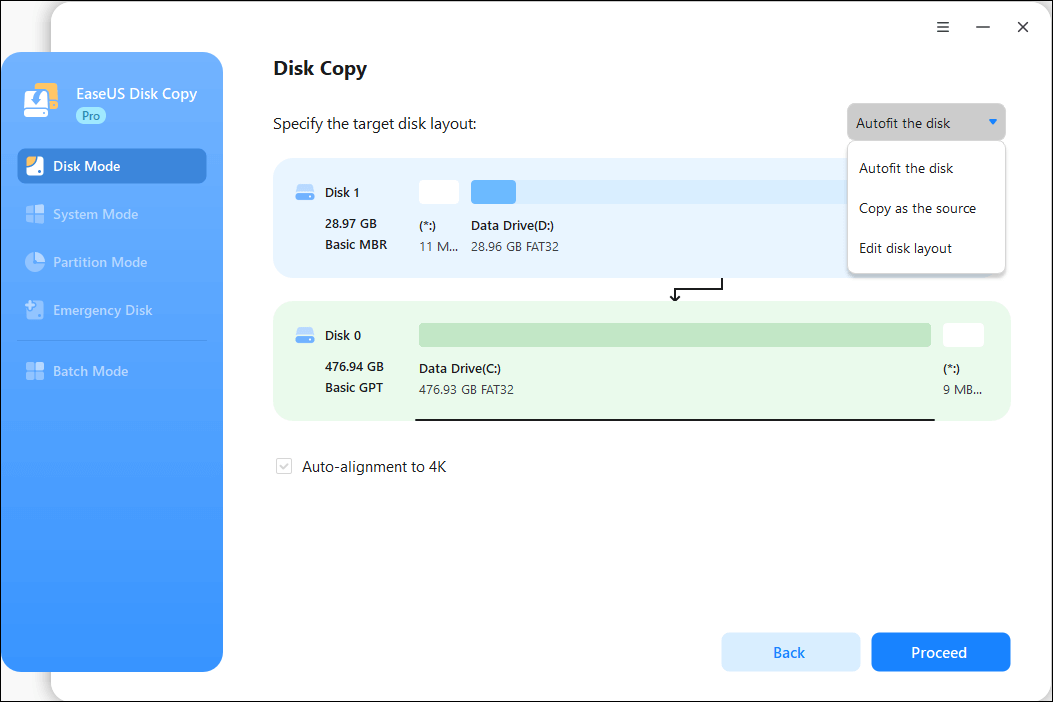
- Resize Partitions During Cloning - One common problem when migrating to a different-size drive is partition layout. EaseUS Disk Copy provides three destination-layout options: Autofit the disk, Copy as the source, and Edit disk layout. The Edit disk layout option allows you to manually resize or move partitions on the destination drive.
- Migrate Windows to a New SSD - EaseUS Disk Copy provides an OS migration mode that can copy the system and boot partitions to a new drive.
- Create Bootable Media When Windows Cannot Start - EaseUS Disk Copy also supports creating WinPE bootable media for situations where the computer cannot boot normally.
- Clone Over a Network or to Multiple Devices - EaseUS Disk Copy supports Network Disk Copy and Batch Disk Copy, allowing disks to be cloned over a network or to multiple devices simultaneously, depending on the edition and use case.
Final Verdict: Rescuezilla vs Foxclone vs EaseUS Disk Copy
So, which disk cloning software should you choose?
Rescuezilla is the stronger choice if you want an open-source rescue environment with a broad range of backup, recovery, partition-management, and cloning capabilities. Its Clonezilla interoperability is another major advantage.
Foxclone is worth considering if you prefer a more focused Linux-based tool for disk imaging and cloning and do not need Rescuezilla's broader recovery toolkit.
EaseUS Disk Copy is a better fit for Windows users who want a guided disk cloning workflow without making a bootable Linux environment part of every migration. It is particularly useful for common scenarios such as upgrading an HDD to an SSD, migrating Windows, resizing partitions during cloning, and deploying disks across multiple computers.
Ultimately, the best disk cloning software depends less on which tool has the most features and more on how you plan to clone your drive. If you are comfortable with bootable open-source tools, Rescuezilla and Foxclone are useful options. If you want a more familiar Windows-based migration experience, EaseUS Disk Copy provides a practical alternative.
FAQs About Rescuezilla vs Foxclone
1. Is Rescuezilla better than Foxclone?
It depends on your requirements. Rescuezilla offers a broader recovery environment and strong Clonezilla compatibility, while Foxclone focuses more directly on disk imaging and cloning. Rescuezilla is generally more versatile, but Foxclone may be sufficient for straightforward cloning tasks.
2. Is Foxclone good for disk cloning?
Yes. Foxclone is designed for disk imaging, restoration, and cloning. It can be a useful choice for users who prefer a free, Linux-based graphical cloning tool.
3. Can Rescuezilla clone a hard drive to an SSD?
Yes. Rescuezilla supports direct device-to-device cloning. However, cloning or restoring to a smaller destination disk may require resizing the source partitions first.
4. Can Rescuezilla clone a larger drive to a smaller SSD?
Not automatically in the general case. Rescuezilla's documentation states that restoring to a smaller disk requires first resizing the source disk's partitions, such as with GParted.
5. Does Rescuezilla work with Windows?
Yes. Rescuezilla can be used to back up and restore Windows systems, but it runs from a bootable USB environment rather than directly inside Windows.
Share the post on social media to help others make a wise decision.
-
Updated by
![]()
Larissa
Larissa has rich experience in writing technical articles and is now a professional editor at EaseUS. She is good at writing articles about data recovery, disk cloning, disk partitioning, data backup, and other related knowledge. Her detailed and ultimate guides help users find effective solutions to their problems. She is fond of traveling, reading, and riding in her spare time.…Read full bio