





-
![]()
-
![]() How to Recover Files After Factory Reset Laptop/PC [Solved]
How to Recover Files After Factory Reset Laptop/PC [Solved] February 08,2026
 6 min read
 -
![]() How to Fix Location Is Not Available, Access Is Denied Error in Windows 10/8/7February 12,20266 min read
How to Fix Location Is Not Available, Access Is Denied Error in Windows 10/8/7February 12,20266 min read -
![]()
-
![]() Recovered Deleted Files from an External Hard Drive - Fast PlanJanuary 19,20266 min read
Recovered Deleted Files from an External Hard Drive - Fast PlanJanuary 19,20266 min read -
![]()
-
![]() Where Are Screenshots Saved Windows 11 | Screenshots Default LocationFebruary 12,20266 min read
Where Are Screenshots Saved Windows 11 | Screenshots Default LocationFebruary 12,20266 min read -
![]() How to Fix Corrupted Video on Windows 10/Android/SD Card - 3 WaysFebruary 08,20266 min read
How to Fix Corrupted Video on Windows 10/Android/SD Card - 3 WaysFebruary 08,20266 min read -
![]() Call of Duty Mobile Account & Data Recovery [2026 Troubleshooting]February 15,20266 min read
Call of Duty Mobile Account & Data Recovery [2026 Troubleshooting]February 15,20266 min read -
![]()
Page Table of Contents
PAGE CONTENT:
How to recover SD card data after partition loss? Losing a partition on your SD card can be alarming. One moment, your files are there, and the next, the card shows as "Unallocated," "Invalid," or asks you to insert a disk. Fortunately, recovering data from an SD card after partition loss is possible because the actual file data often remains on the card until it is overwritten.
This guide explains how to recover your data in three simple steps, using EaseUS Data Recovery Wizard as a primary solution. The structure follows the proven method used for formatted SD card recovery, adapted specifically for partition loss scenarios.
In summary, the SD card partition recovery solution is divided into 3 sections:
- 1️⃣Stop Using the SD Card Immediately
- 2️⃣Connect the SD Card to a Computer
- 3️⃣Use Partition Recovery Software to Scan and Restore Data
Is It Possible to Recover Data from an SD Card with a Lost Partition
"My 64GB SD card suddenly shows as 'Unallocated' in Disk Management. I didn't format it; the partition just disappeared. Can I still recover my photos and videos?"
Yes, you can likely recover your data.
When a partition is lost, the file system information (the "table of contents") is either corrupted or deleted. However, the actual files (photos, videos, documents) usually remain intact in the storage space. The operating system can no longer see how to access them, which is why the card appears empty or unallocated.
Recovery is possible if:
-
You stop using the card immediately.
-
You use a recovery tool that can perform a "partition recovery" or "lost partition scan" - software that scans the raw storage space for recognizable file signatures, not just an existing file system.
Can a physically damaged card be recovered?
If the card is physically broken (cracked, bent, or the controller is fried), software cannot fix it. You would need professional data recovery services. However, for logical partition loss (corruption, accidental deletion during partitioning, virus, or unsafe removal), software like EaseUS Data Recovery Wizard is the standard solution.
Preparation Before Recovering an SD Card with a Lost Partition
Your immediate actions are critical for a successful recovery.
-
Stop using the SD card immediately. Remove it from your phone, camera, or computer. Do not attempt to create a new partition or format it. Formatting or creating a new volume will write new file system data onto the card, potentially overwriting the files you want to recover.
-
Insert the card into your computer. Use a dedicated SD card reader connected directly to a USB port. Avoid using the camera or phone as a go-between, as these connections can be less stable and may not provide the low-level access required for recovery software.
-
Prepare a save location. Ensure your computer's hard drive or an external drive has enough free space to save the recovered files. Do not save the recovered files back onto the same SD card.
How to Recover SD Card Data After Partition Loss in 3 Steps
A straightforward data recovery tool named EaseUS Data Recovery Wizard enables you to recover lost files from an SD card with a deleted or lost partition, memory stick, USB, or internal/external hard drive.
This SD card recovery tool from EaseUS has a broad technical foundation in data recovery and has been trusted by billions of users since 2005. It features specific algorithms for scanning lost or deleted partitions and raw data recovery, making it ideal for this scenario.
- Specific for Partition Loss: Unlike standard scans, this software can detect and scan drives that show as "Unallocated" or have completely lost their partition structure.
- Comprehensive File Support: Recovers photos, videos, audio files, documents, and more from various SD card file systems (FAT32, exFAT, NTFS).
- Versatile Recovery: Also applies to accidental deletion, formatted drives, RAW drives, virus attacks, and corrupted devices.
Here is the complete process of how to recover files from an SD card with a lost partition using the EaseUS Data Recovery Wizard:
Step 1. Connect the SD Card and Select the "Lost" Device
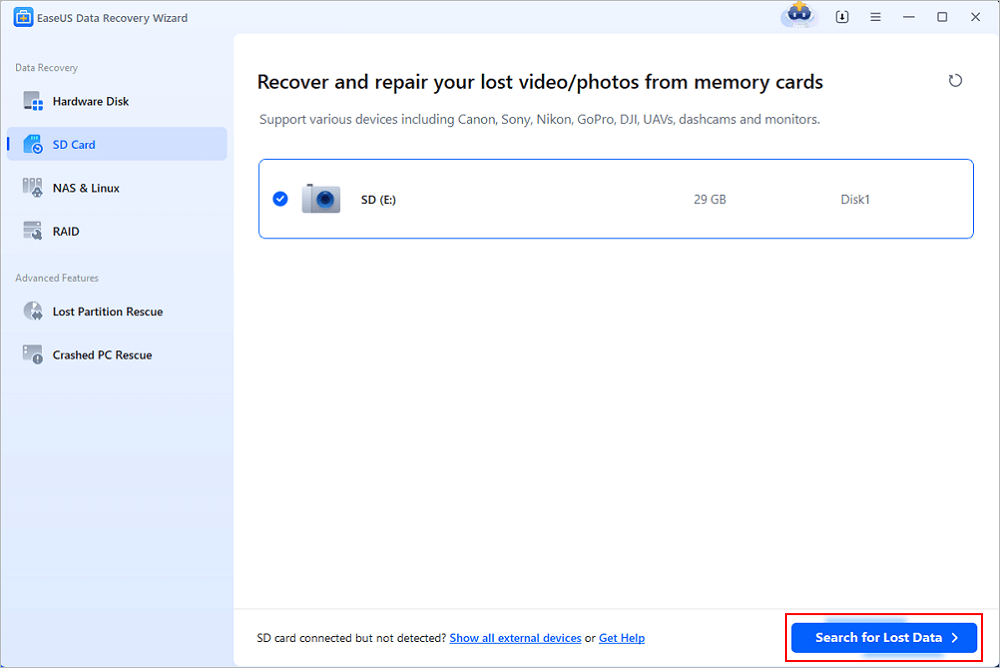
Connect your SD card to the computer via a card reader. Launch EaseUS Data Recovery Wizard. You will see your computer's drives listed. Look for your SD card. It may appear as "Unallocated," "Removable Disk" with no size, or "External Drive" . Select this specific device/card and click "Search for Lost Data".
Step 2. Scan for Lost Partitions and Files
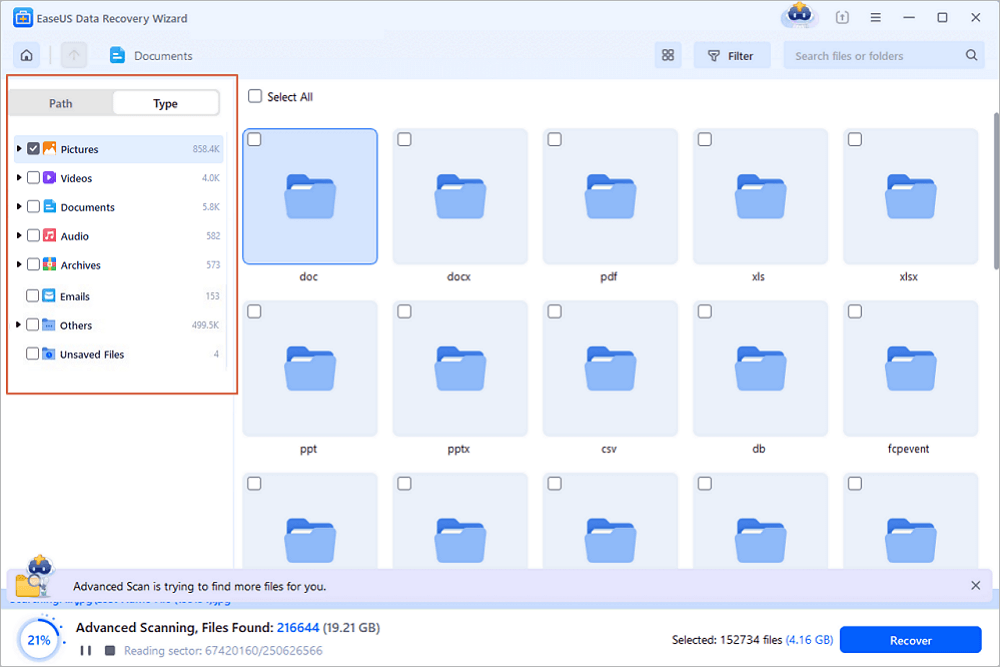
The software will first attempt to locate the lost partition. It will then perform a deep scan of that found partition space, searching for every recoverable file. This process can take from a few minutes to half an hour, depending on the card's capacity. You can pause the scan if you find the files you need early.
During the scan, use the "Filter" feature (e.g., Pictures, Videos, Documents) or the search box to quickly locate specific files by name or format.
Step 3. Preview and Recover Data to a Safe Location
Once the scan is complete, go through the results. You can preview files, especially photos and documents, to verify they are intact. Select the files you want to recover and click the "Recover" button.
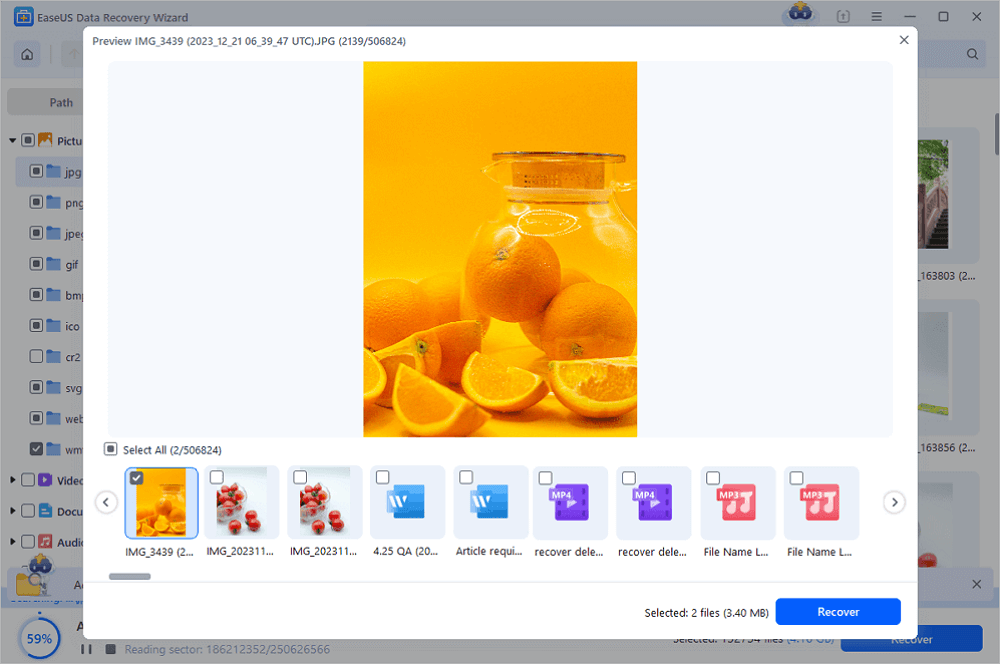
Crucial: Choose a save location on your computer's internal hard drive or another external drive. Do not save the files back to the same SD card. Click "OK" to restore your data.
✅ Pro Tip: If the above steps do not find your partition, EaseUS also includes a dedicated "Partition Recovery" tool. You can access this from the main menu to perform a deeper, sector-by-sector scan specifically for rebuilding lost partition structures before extracting the data.
How to Avoid Partition Loss and Data Loss on SD Cards in the Future
While data recovery is effective, prevention is always better. Here are key tips to prevent partition loss and protect your SD card data:
⭐Tip 1. Always Eject the SD Card Properly
Directly unplugging the card from a computer or removing the battery from a camera while it's writing data is a primary cause of file system corruption and partition loss. Always use the "Safely Remove Hardware" feature on Windows or "Eject" on Mac.
⭐Tip 2. Create a Full Backup of Your SD Card Regularly
Don't wait until data is lost.
-
Manually: Periodically copy the entire contents of your SD card to your computer's hard drive.
-
Automatically: Use backup software like EaseUS Todo Backup (Free) to schedule automatic backups of your SD card to your PC or cloud storage.
⭐Tip 3. Use High-Quality Cards and Readers
Cheap, counterfeit SD cards or faulty card readers are unstable and can cause corruption. Purchase cards from reputable brands and known sellers. Replace cards that are several years old or show signs of wear.
⭐Tip 4. Scan for Viruses
Malware can corrupt the partition table, making the card unreadable. Keep your antivirus software active and scan your SD card occasionally, especially if used in multiple public devices (like printers or photo kiosks).
The Bottom Line
Losing a partition on an SD card is a stressful but often solvable problem. The file system's "map" is gone, but your photos, videos, and documents are usually still hidden on the card.
Being 100% secure, virus-free, and efficient, EaseUS Data Recovery Wizard is a top choice for this specific recovery scenario. After successfully recovering your data, remember to format the SD card to restore its partition and file system before reusing it, and implement regular backups to avoid future data loss.
FAQs on How to Recover SD Card Data After Partition Loss
1. What does it mean when an SD card partition is lost?
When an SD card partition is lost, the file system structure that tells your device how to access the data becomes corrupted, deleted, or damaged. The SD card may appear as "Unallocated," "Raw," or empty, even though the data likely still exists on the card.
2. Can I recover data from an SD card after a partition loss?
Yes, in most cases, data recovery is possible. The actual files (photos, videos, documents) usually remain on the card until they are overwritten by new data. Using specialized recovery software like EaseUS Data Recovery Wizard, you can scan the card and rebuild the lost partition or extract the files.
3. How does partition loss happen on an SD card?
- Partition loss can occur due to several reasons:
- Improper ejection: Removing the card while a device is writing or reading data.
- File system corruption: Often caused by viruses, bad sectors, or power failures.
- Accidental deletion: Deleting the partition during disk management.
- Device errors: Using the card across different operating systems (e.g., switching between Android, Windows, and Cameras) without proper formatting.
Was this page helpful?

 Why Trust EaseUS
 Editor Reviews

20+
Years of experience

160+
Countries and regions

72 Million+
Downloads

4.9 +
Trustpilot Score





Free Data
Recovery Software
Recover data up to 2GB for free!


