





Table of Contents
 About the Author
 Related Posts
If you encounter the video cannot be played notification, use this rapid checklist to identify the quick fix for your environment:
- ➡️For Web Browsers: Clear your browser cache and cookies, disable hardware acceleration in settings, or turn off conflicting browser extensions.
- ➡️For Corrupted Local Files: Use dedicated desktop file repair software like EaseUS Fixo Video Repair to reconstruct damaged headers and fix corrupted video files that cannot be played.
- ➡️For iPhone and Android: Clear application data, update system firmware, or convert raw video files into universally compatible formats.
The "video cannot be played" error occurs across various platforms and stems from a range of underlying causes, including broken internet connections, browser cache glitches, missing video codecs, and severe file header corruption. Here are the fixes for various scenarios:
This comprehensive guide covers strategies to fix video cannot be played errors across web browsers, desktop operating systems, and mobile devices.
Fixing Video Cannot Be Played Errors on Web Browsers
When media streaming platforms like YouTube, Vimeo, or embedded website players fail to load media, the browser usually displays a black screen accompanied by an error message such as invalid media source or video cannot be played unsupported format. Web streaming issues are rarely caused by the actual video file itself. Instead, they stem from local environment settings, browser extension conflicts, or network transmission bottlenecks.
1. Clear Browser Cache, Cookies, and Browsing History
Web browsers store temporary files, scripts, and media snippets in a local memory cache to speed up website loading times. Over time, these cached files can become corrupted or conflict with updated website code. When a browser attempts to load a video stream using outdated cached scripts, the connection breaks and produces playback errors.
- Open your web browser settings menu located in the top right corner.
- Navigate to the privacy and security section.
- Select the option to clear browsing data.
- Set the time range to all time.
- Check the boxes for cached images and files along with cookies and other site data.
- Click the "Clear Data" button, restart your browser, and try playing the video stream again.
2. Disable Hardware Acceleration
Hardware acceleration is a browser setting that offloads graphics-intensive processing tasks from your central processing unit to your graphics processing unit. While this feature improves rendering speed under normal conditions, driver incompatibilities between your graphics processor and the browser engine frequently result in a black screen playback error.
- Access your browser settings and navigate to the system or advanced section.
- Locate the toggle labeled use hardware acceleration when available.
- Switch the toggle off to force the browser to process video rendering through software mode.
- Relaunch the browser and test the video player.
3. Disable Browser Extensions and Incognito Mode
Third-party browser extensions, particularly ad blockers, virtual private network tools, and script blockers, regularly intercept network requests necessary to establish an invalid media source connection. Testing the playback in a private window helps isolate whether an extension is responsible.
- Open a new incognito or private window in your browser to bypass active extensions.
- Paste the video URL into the private window address bar.
- If the video plays normally in private mode, open your standard browser extension manager.
- Disable your extensions one by one until you identify the specific add on blocking video playback.
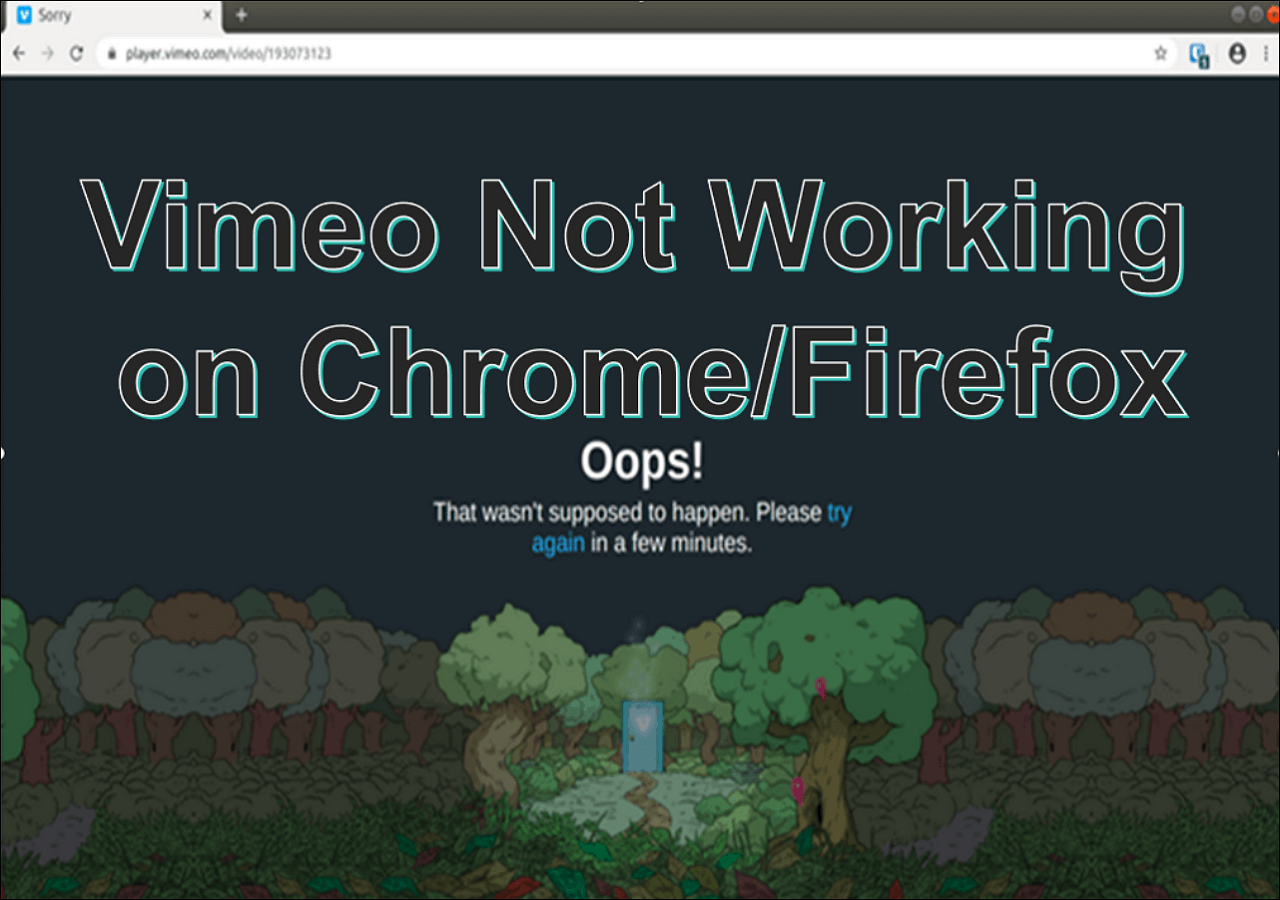
Fix Vimeo Not Working on Chrome/Firefox/Internet Explorer
To identify the problem, try turning off each running extension once if you're experiencing issues. For evaluation purposes, you may also view the video in an encrypted or incognito window of your Chrome or Firefox browser. Read more >>
Fixing Corrupted Local Video Files Cannot Play on PC
If you have downloaded a video file to your local hard drive or transferred clips from a camera SD card, encountering a video cannot be played alert points directly to missing software codecs, container incompatibility, or file structure corruption. Local files require specialized local tools to repair corrupted video.
Power outages during camera recording, sudden system crashes, improper SD card ejection, and incomplete file downloads are common triggers of MP4 corruption and MOV repair needs. In these scenarios, changing players or updating codecs will not resolve the issue because the file structure itself is broken.
To repair severely damaged media files, using a specialized software tool like EaseUS Fixo Video Repair provides an efficient and reliable recovery path.
Step by Step Instructions to Repair Damaged Videos Using EaseUS Fixo Video Repair:
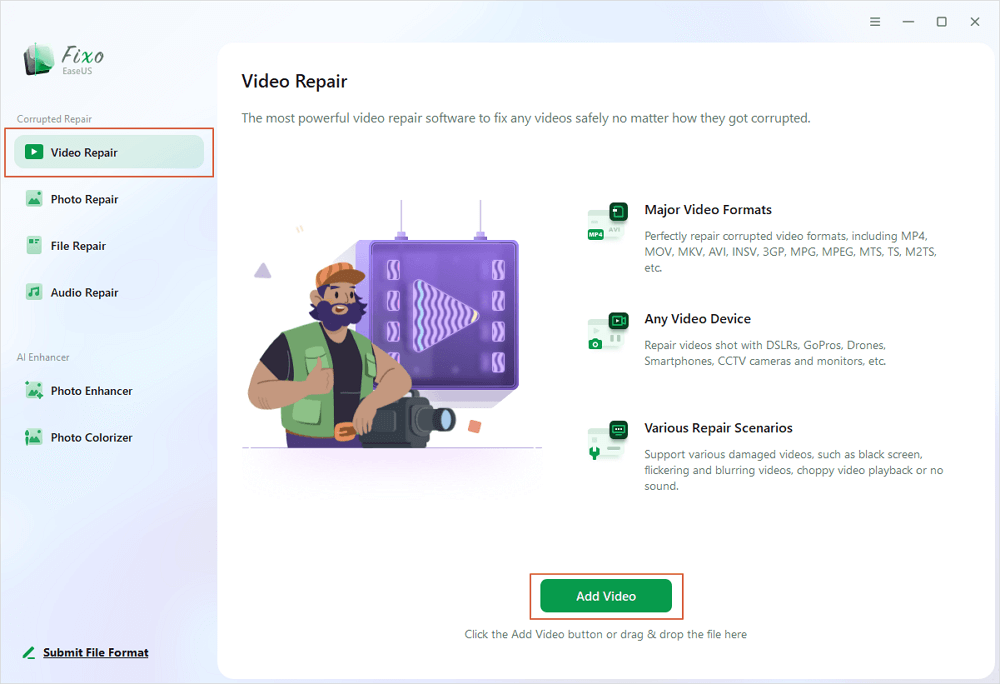
Step 1. Open Fixo on your local PC. Click "Video Repair" and add the corrupted MP4/MOV/AVI/MKV/3GP/FLV/MKV/WMV video files by clicking "Add Videos".
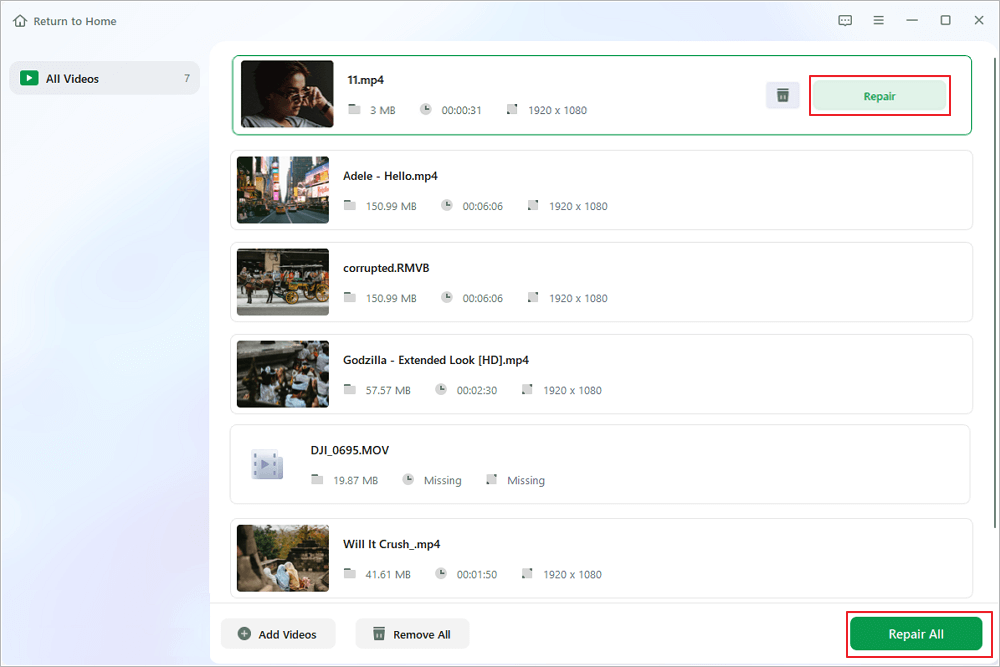
Step 2. Move the pointer to a video and click the "Repair" button to start the single video repairing process. If you want to repair all the videos, click "Repair All".
Step 3. Wait a few minutes, and the corrupted videos will be repaired. Click the play icon to preview the videos. You can save a single video by clicking the "Save" button next to the play icon. If you want to save all the repaired videos, choose "Save All".
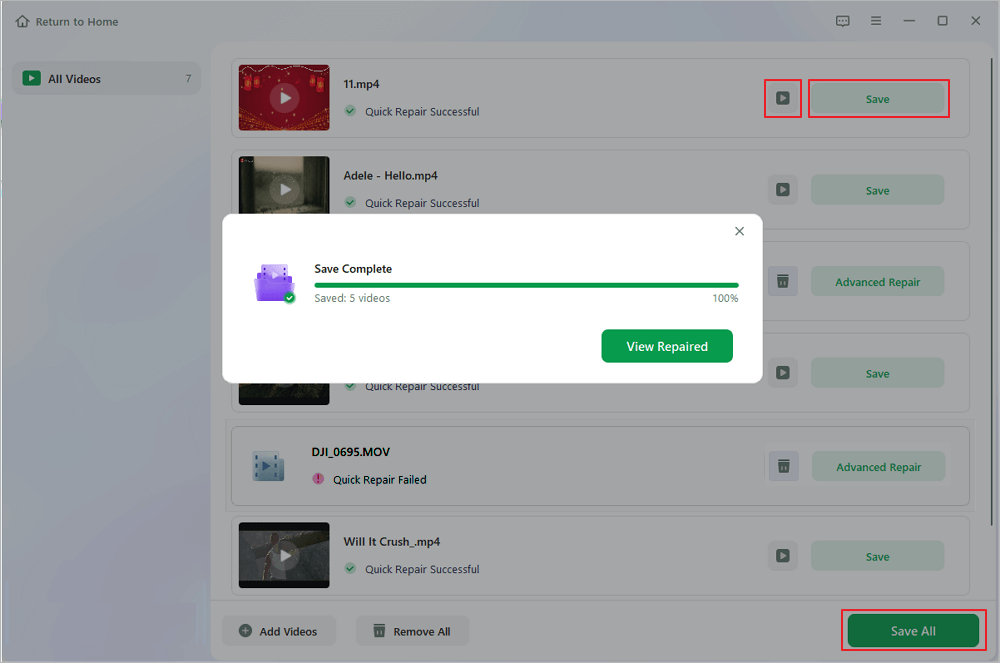
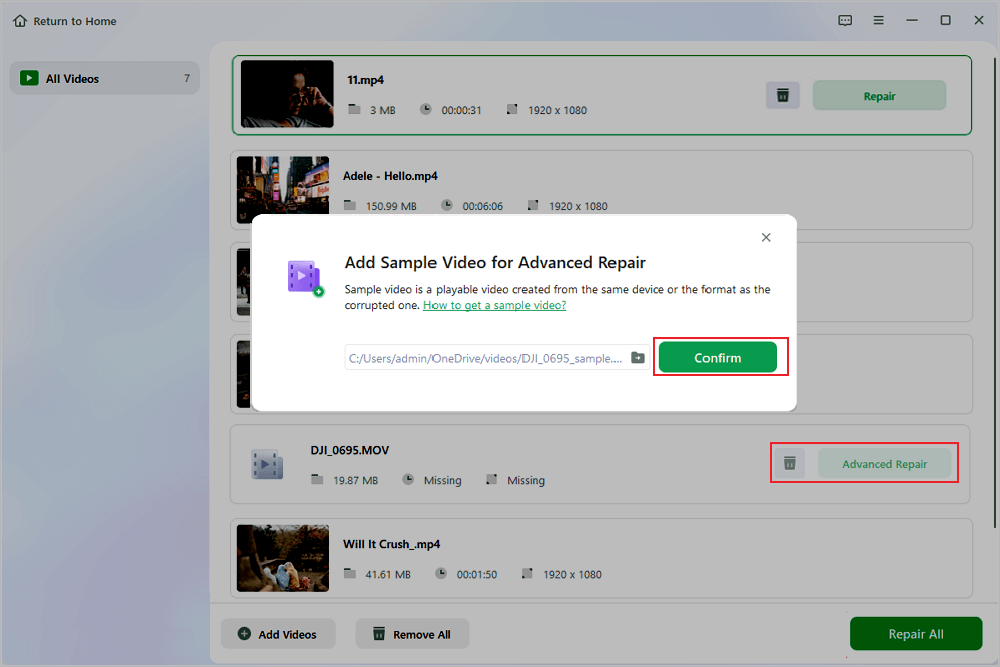
Step 4. If the quick repair fails, you should utilize the advanced repair mode. Click "Advanced Repair" and add a sample video. Choose "Confirm" to ensure.
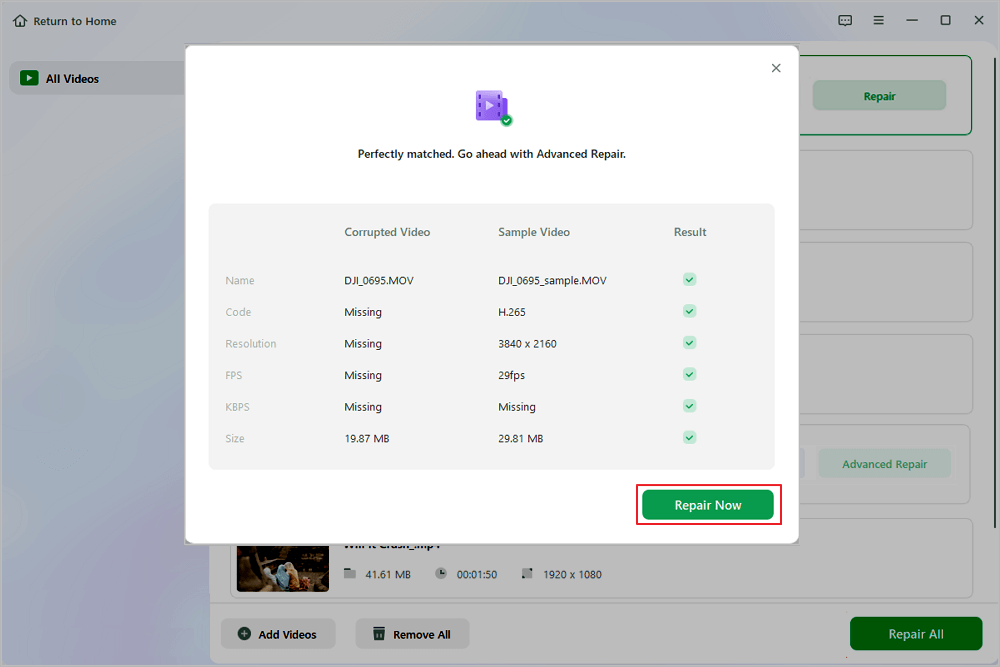
Step 5. A list of detailed information on corrupted and sample videos will show up. Click "Repair Now" to start the advanced video repair process. When the repair is complete, you can view the videos and click the "Save" button to save the repaired video files to an appropriate destination.
Fixing Video Cannot Be Played Issues on Mobile Devices
Mobile platforms like iOS and Android encounter video playback failures due to restrictive app permissions, cached app data errors, low available system memory, or media format restrictions enforced by mobile operating systems. Below are the standard procedures to resolve mobile playback issues.
- Force Close and Relaunch the Application: Swipe up from the bottom of your mobile screen to open the app switcher, swipe away the media player app or browser, and reopen it to refresh memory allocation.
- Clear App Cache on Android: Navigate to System Settings, select Apps, choose the affected media player or browser, tap Storage and Cache, and tap Clear Cache to remove corrupted temporary data.
- Update Mobile Operating System: System updates contain essential system codec enhancements and security patches. Ensure your device is running the latest version of iOS or Android.
- Convert Video Formats for Mobile Compatibility: Mobile devices often struggle to render heavy raw video containers or obsolete video codec profiles. Use a file converter to convert problematic video files into standard H.264 MP4 format before transferring them to your device.
- Check Network and Data Saver Settings: High resolution video streams require consistent bandwidth. Turn off data saver mode in your mobile settings to allow full network performance for media streaming.
Conclusion
Encountering the video cannot be played error can stem from software conflicts, network bottlenecks, or actual physical file damage. By systematically diagnosing the problem based on where the error occurs, you can resolve the issue effectively. Web browser errors respond well to clearing cache files and adjusting acceleration settings. Missing codec errors are easily bypassed by switching to versatile tools like VLC Media Player. Finally, when dealing with actual corrupted media files, utilizing powerful desktop repair tools like EaseUS Fixo Video Repair ensures you can recover valuable video footage safely and efficiently.
Video Cannot Be Played Error Frequently Asked Questions
If you still have some questions about video repair, check the quick answers below to help yourself out:
1. Why does my computer say video cannot be played unsupported format?
This message occurs when your media player software lacks the appropriate video codec required to decompress and read the video stream inside the container file. To resolve this, you can switch your default application to VLC Media Player which natively supports almost all video codecs, or convert the target file into a standard format such as MP4 encoded with H.264.
2. What is an invalid media source error during online video streaming?
An invalid media source error indicates that your web browser is unable to fetch, process, or render the media stream provided by the website server. This is commonly caused by outdated browser cache, restrictive ad blocker extensions, broken streaming links on the host server, or network connection drops.
3. How can I fix a corrupted video file that cannot be played on my hard drive?
To fix a corrupted video file, you need specialized video repair software capable of repairing damaged headers and index data. Software like EaseUS Fixo Video Repair scans the file structure, identifies corrupted metadata or missing frames, and rebuilds the media container so it can be read by standard media players again.
Was This Page Helpful?
About the Author

Jaden is one of the editors of EaseUS, who focuses on topics concerning PCs and Mac data recovery. Jaden is committed to enhancing professional IT knowledge and writing abilities. She is always keen on new and intelligent products.


