





Table of Contents
 About the Author
 Related Posts
FLV files, short for Flash Video, have long been a staple for online video streaming, local video storage, and content sharing. They offer efficient compression and broad compatibility, making them a go-to choice for both casual users and content creators. However, these files are far from immune to corruption issues that can render them unplayable or inaccessible.
If you're currently facing the frustration of a corrupted FLV file, you're not alone. Corruption can strike unexpectedly due to a range of factors:
- Interrupted downloads
- Faulty storage devices
- Software crashes
- Virus infections
The impact is equally distressing: you might find yourself unable to play the video, facing constant playback freezes, audio-video desync, or error messages that the file is damaged or unreadable.
What Causes FLV File Corruption
Understanding the root causes of FLV file corruption is the first step toward effective repair. Several common scenarios can damage these video files, and identifying the cause can help you avoid future issues and choose the right repair approach:
1. Interrupted Download or Transfer Processes
One of the most prevalent causes of FLV corruption is an incomplete download or transfer. If you're downloading an FLV file from the internet and the connection drops suddenly, the file is not saved completely.
2. Storage Device Malfunctions
FLV files are often stored on external hard drives, USB flash drives, SD cards, or memory sticks. Any issues with these storage devices can directly impact the integrity of the FLV files stored on them.
3. Software Crashes and Conflicts
Playing or editing an FLV file with buggy or outdated media players, video editors, or conversion software can corrupt the file. If the software crashes unexpectedly while processing the FLV file, the video file is corrupted.
4. Virus and Malware Infections
Malicious software can infiltrate your device and target video files, including FLVs. Viruses, trojans, or ransomware can modify the file's code, delete critical data segments, or alter the file's header information, making it unplayable.
5. Improper File Conversion or Editing
Converting an FLV file to another format using unreliable conversion tools or editing it with incompatible software can corrupt the file. Incorrect codec usage, mismatched resolution settings, or incomplete conversion processes can all damage the FLV file's structure.
How to Repair Corrupted FLV File
Repairing a corrupted FLV file depends on the severity of the corruption and the underlying cause. We have categorized the repair methods into three tiers: free built-in tools for minor corruption, reliable third-party software for moderate-to-severe corruption, and manual fixes for specific issues. All methods are designed to be user-friendly, even for those with limited technical knowledge.
Method 1. Use Free Built-in Tools for Basic Repair
For minor corruption issues, such as playback freezes or audio desync, you can use the built-in free tools to repair the FLV file. These tools are readily available and require no additional downloads.
VLC Media Player is a popular open-source media player known for playing almost all video and audio formats. Beyond playback, VLC offers a useful feature that can help repair minor FLV corruption by re-encoding the file. This process can fix minor frame errors and audio-video desync issues.
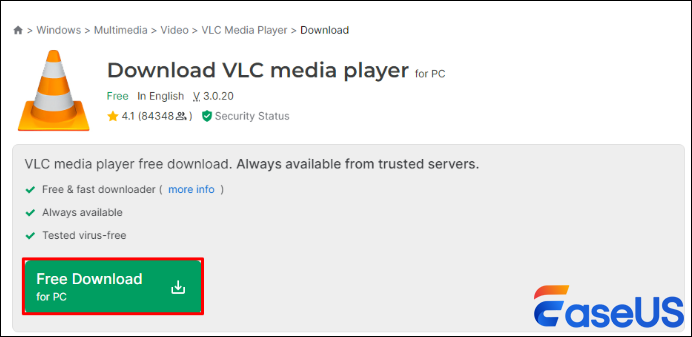
- Download and install VLC Media Player from the official website if you don't have it already.
- Launch VLC Media Player and click on the "Media" tab in the top menu.
- Select "Convert/Save" from the dropdown menu.
- In the "File" tab, click "Add" and select the corrupted FLV file.
- Click "Convert/Save" to proceed to the conversion settings.
- In the "Profile" dropdown menu, select "Video - FLV" to ensure the output format remains FLV.
- Click "Browse" to choose a save location for the repaired file and give it a new name to avoid overwriting the original.
- Click "Start" to begin the conversion and repair process. VLC will re-encode the file, fixing minor corruption issues in the process.
Method 2. Professional FLV Repair Software for Severe Corruption
If the built-in tools fail to repair the corrupted FLV file, it indicates severe corruption, such as a damaged file header, missing data frames, or a completely broken file structure. In such cases, professional FLV repair software is the best solution. These tools are designed to scan the corrupted file, identify damaged segments, and reconstruct the file's structure to restore playability.
EaseUS Fixo Video Repair is a leading professional tool that specializes in repairing corrupted video files, regardless of the cause of corruption. It supports all FLV versions and can handle severe corruption from interrupted downloads, storage device failures, software crashes, and more. The software features a user-friendly interface, making it accessible to all users, and offers high success rates in restoring playable FLV files.
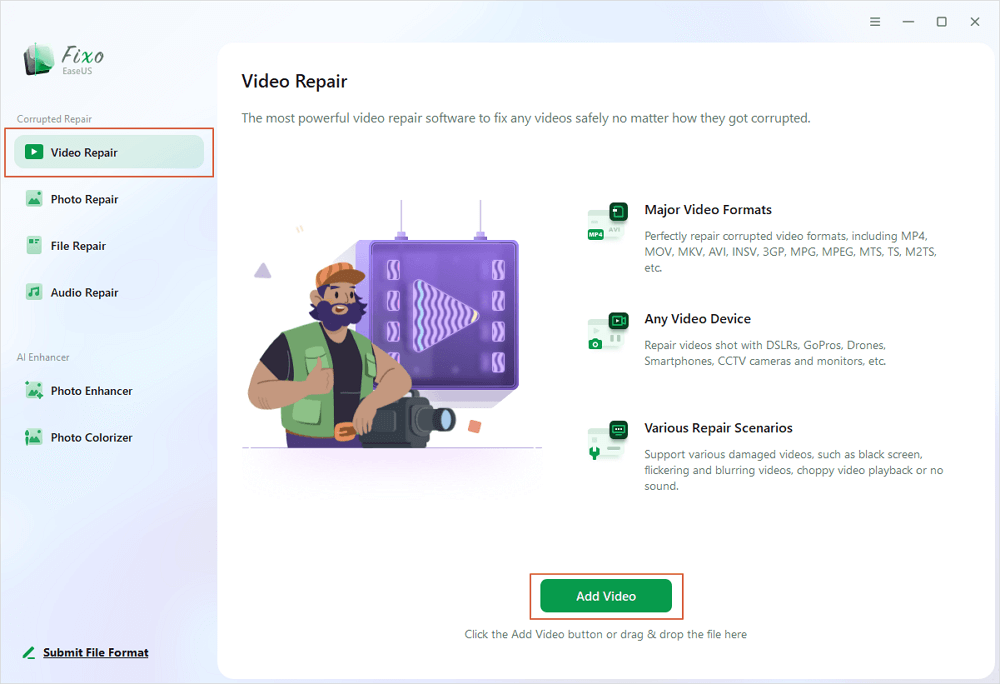
Step 1. Open Fixo on your local PC. Click "Video Repair" and add the corrupted MP4/MOV/AVI/MKV/3GP/FLV/MKV/WMV video files by clicking "Add Videos".
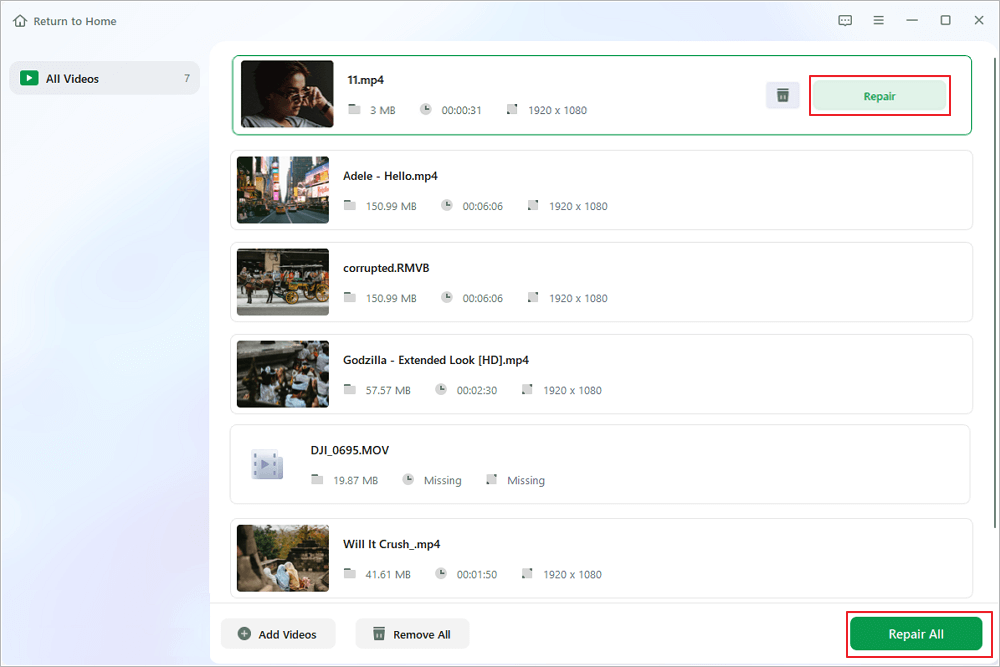
Step 2. Move the pointer to a video and click the "Repair" button to start the single video repairing process. If you want to repair all the videos, click "Repair All".
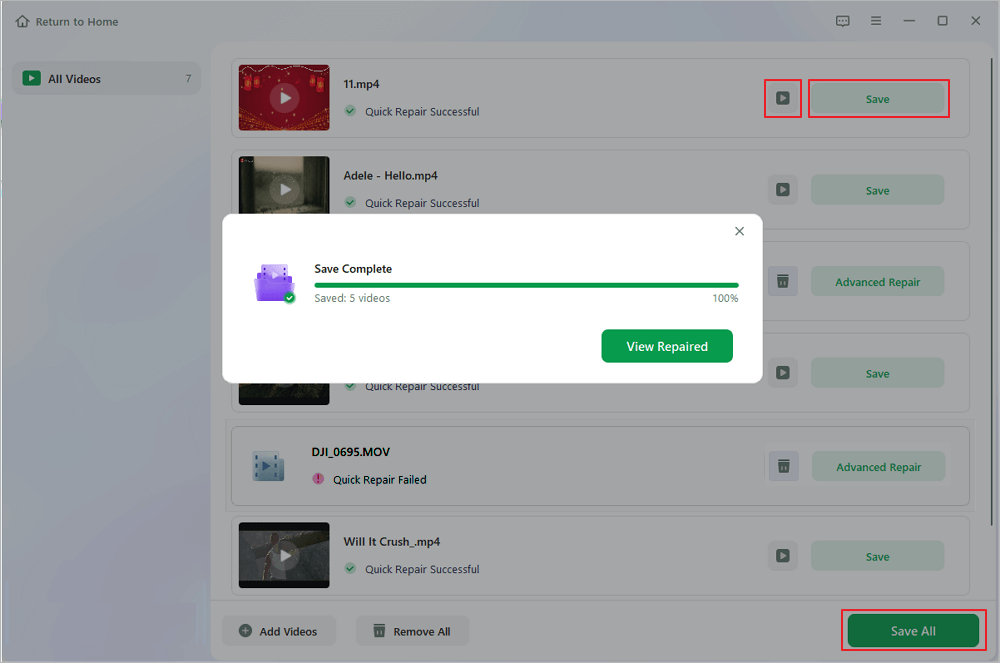
Step 3. Wait a few minutes, and the corrupted videos will be repaired. Click the play icon to preview the videos. You can save a single video by clicking the "Save" button next to the play icon. If you want to save all the repaired videos, choose "Save All".
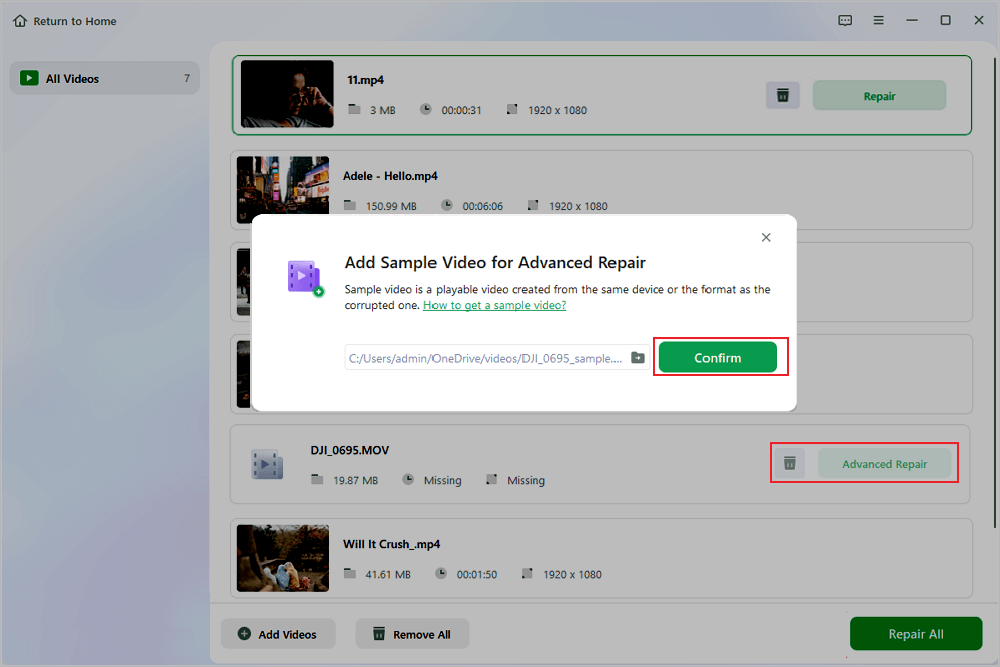
Step 4. If the quick repair fails, you should utilize the advanced repair mode. Click "Advanced Repair" and add a sample video. Choose "Confirm" to ensure.
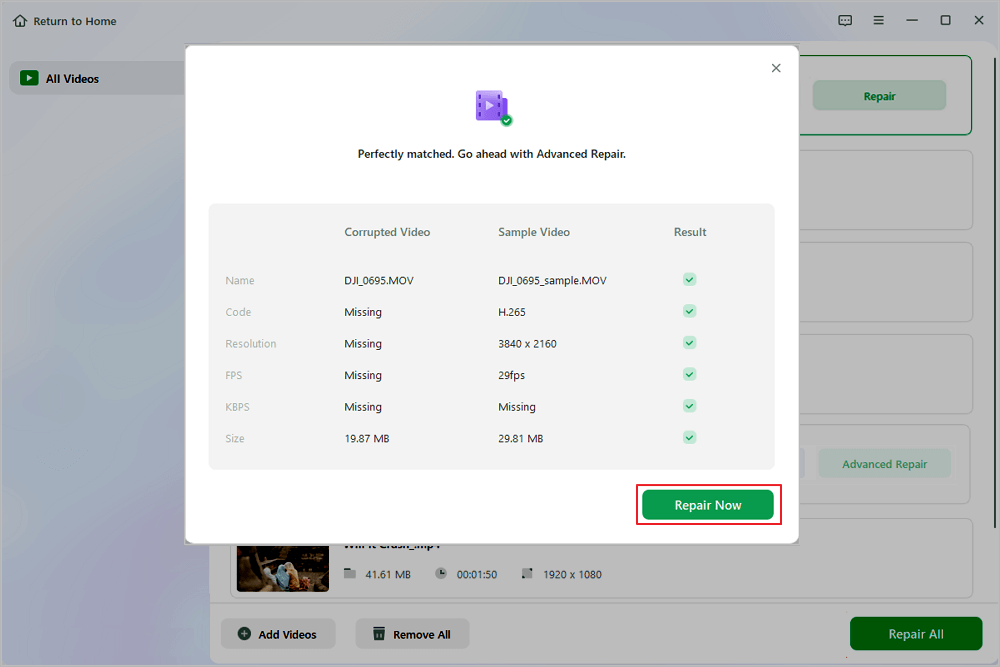
Step 5. A list of detailed information on corrupted and sample videos will show up. Click "Repair Now" to start the advanced video repair process. When the repair is complete, you can view the videos and click the "Save" button to save the repaired video files to an appropriate destination.
If you find this information helpful, please share it with others on social media to assist them in overcoming this common challenge.
Method 3. Manual Fixes for Specific Corruption Scenarios
In some cases, the corruption of the FLV file is caused by specific issues that can be resolved with manual fixes. These methods are targeted and can be effective if the corruption is limited to a specific part of the file or its associated components.
FLV files rely on specific codecs to be played correctly. If the codecs installed on your device are outdated, missing, or corrupted, the FLV file may fail to play. Reinstalling the appropriate codecs can resolve this issue.
- Identify the codecs required for FLV playback. Common codecs for FLV files include H.263, H.264, and AAC.
- Uninstall any existing codec packs from your device using the Control Panel (Windows) or Terminal (Mac).
- Download the latest version of the required codecs from the official developer's website.
- Install the codecs and restart your device. Then, try playing the FLV file again to see if the issue is resolved.
Conclusion
Corrupted FLV files can be a major source of frustration, but with the right knowledge and tools, they can be effectively repaired. The key is to first identify the cause of the corruption, then choose the appropriate repair method based on the severity of the issue.
Was This Page Helpful?
About the Author

Jaden is one of the editors of EaseUS, who focuses on topics concerning PCs and Mac data recovery. Jaden is committed to enhancing professional IT knowledge and writing abilities. She is always keen on new and intelligent products.


