



Table of Contents
 About the Author
 Related Posts
What Is an NEV File and Why Does It Get Corrupted
An NEV file is Nikon's proprietary RAW video format, most notably introduced with high-end mirrorless cameras like the Nikon Z9 and Z8 (often referred to as N-RAW). Unlike standard compressed MP4 or MOV files, an NEV file captures uncompressed or lightly compressed sensor data directly from the camera, preserving massive amounts of dynamic range, color depth, and exposure latitude for professional color grading. Because these files record 8K or 4K video at high frame rates, a single clip can easily reach tens of gigabytes in size.
Because of their massive file sizes and continuous high-speed write requirements, NEV files are especially sensitive to interruptions.
Common Signs of a Corrupted NEV File
How can you tell whether your Nikon NEV file is corrupted? The following symptoms may indicate that your video has been damaged:
- NEV files won't open: You double-click the video, but your media player or editing application cannot recognize or load it.
- Video playback stops unexpectedly: The NEV file starts playing but freezes at a particular point, stutters, or closes the player.
- Black screen during playback: The player opens the file, but the video displays a black screen instead of the original footage.
- Audio and video are out of sync: The audio plays normally, but the video lags behind or stops responding.
- File size appears abnormal: The NEV file is significantly smaller than expected or has a size of 0 KB, which may indicate an interrupted recording or transfer.
How to Repair NEV Files with EaseUS Fixo Video Repair
When a Nikon NEV file becomes corrupted, finding a reliable repair solution is essential, especially if the footage contains important recordings that cannot easily be recreated. Instead of abandoning the damaged video or repeatedly trying different media players, you can try a dedicated video repair tool such as EaseUS Fixo Video Repair.
EaseUS Fixo Video Repair is a video file repair solution designed to fix corrupted videos, photos, and documents. Its video repair function addresses various video corruption scenarios, including damaged recordings, incomplete transfers, and playback problems.
For Nikon users, EaseUS video repair tool offers a convenient way to repair damaged camera footage. It supports video repair from multiple camera brands, including Nikon, as well as videos stored on memory cards, USB drives, and other storage devices.
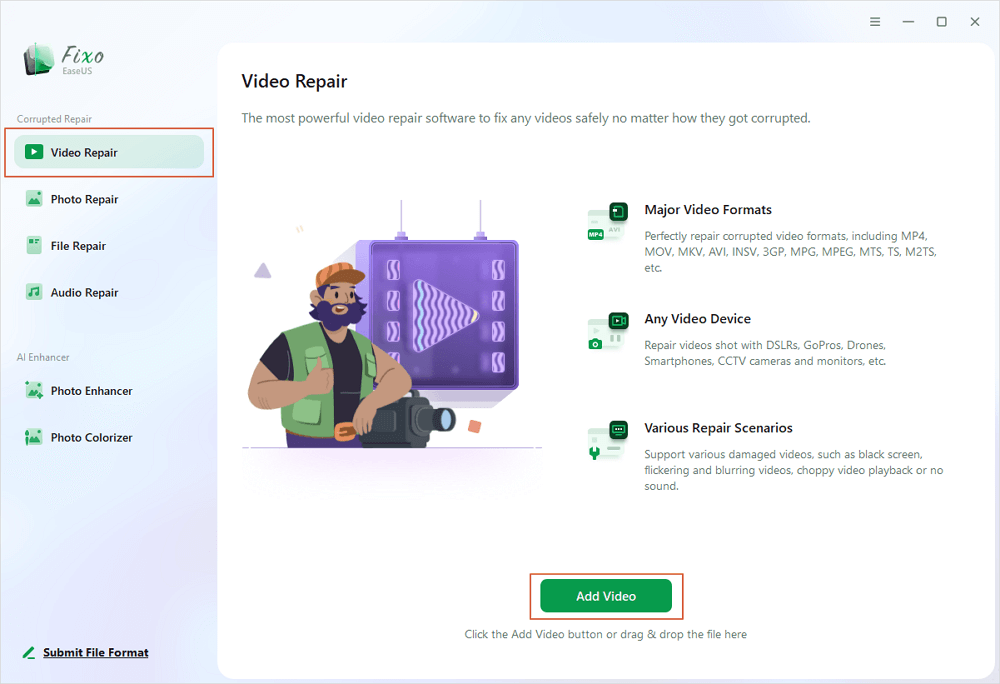
✨Step 1. Download, install, and launch EaseUS Fixo Video Repair
Click the download button or visit Fixo official website to download and install this video repair tool, In the interface, click "Video Repair" > "Add Videos" to upload movies, recordings, or other video files from various storage devices.
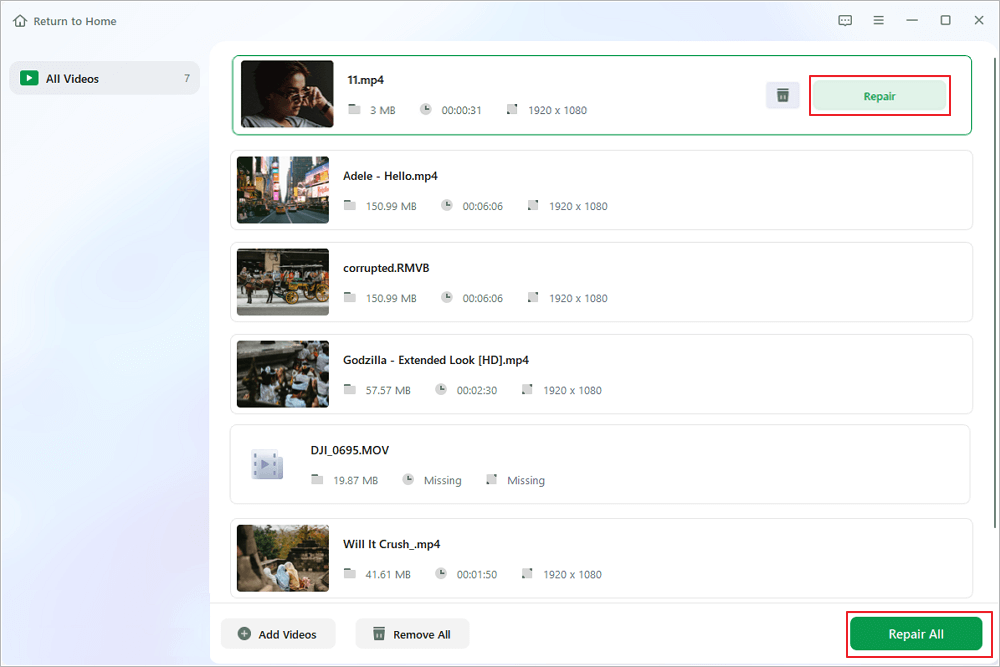
✨Step 2. Start the video repair now
If you don want to repair all the videos at once, you can select a singe one and choose "Repair". Click the trash button to remove the video from the repair list.
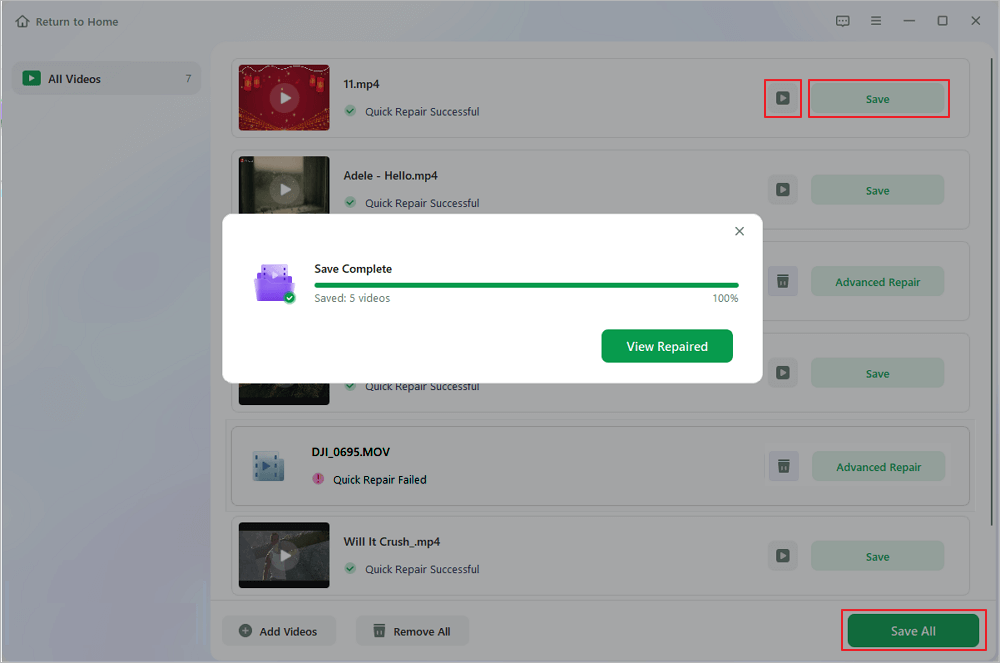
✨Step 3. Preview and save repaired videos
It may takes longer to repair large videos. Click the play icon to preview the repaired videos, and click "Save All" to save these video files. The "View Repaired" button will lead you to the repaired folder directly.
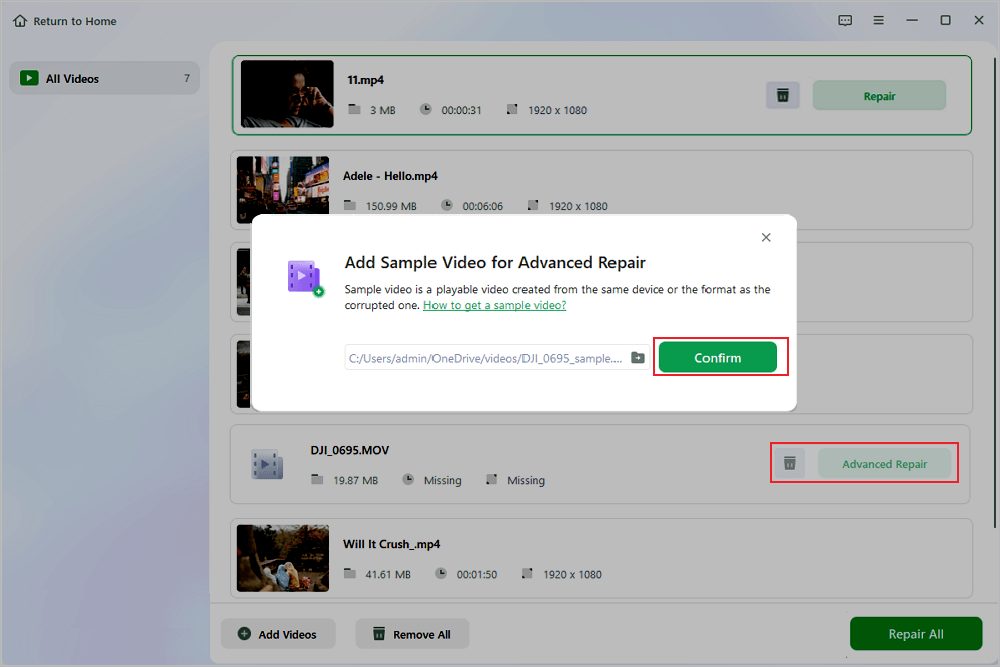
✨Step 4. Apply advanced repair if fails
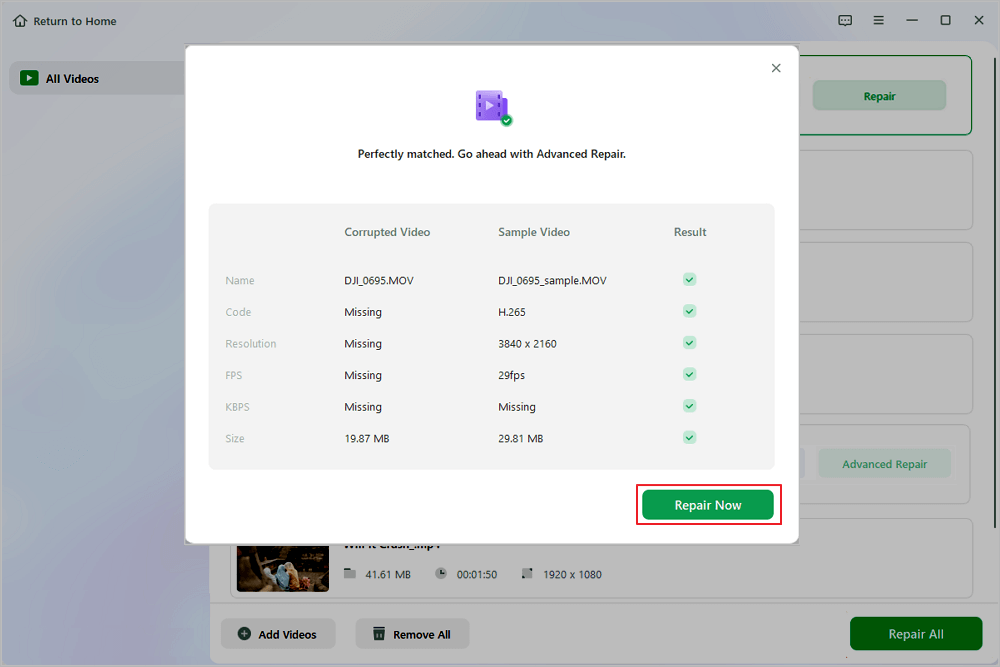
If the video shows "Quick Repair Failed", that means the video is seriously damaged and it's better to utilize the advanced repair mode. Click "Advanced Repair" > the folder icon > "Confirm" to add a sample video.
✨Step 5. Check the match result
You'll know whether the sample video can help repair the corrupted videos or not in the pop-up window. A list of detailed information on corrupted and sample videos will show up. Click "Repair Now" to start the advanced video repair process.
You can share this Nikon RAW video repair guide on social media to help more users!

How to Prevent Nikon NEV Files from Getting Corrupted
Preventing NEV file corruption is easier than repairing damaged footage. Follow these practical tips to protect your Nikon N-RAW recordings:
- Keep Your Camera Battery Charged: Ensure sufficient battery power before recording long videos. Sudden shutdowns may prevent NEV files from being saved properly.
- Use a Reliable Memory Card: Choose a high-quality SD or CFexpress card that meets your Nikon camera's recording speed requirements. Replace cards that frequently cause errors.
- Avoid Interrupting File Transfers: Never remove a memory card or disconnect a card reader while files are being copied. Wait until the transfer is complete.
- Back Up Important Footage: Keep copies of your NEV recordings on an external SSD, hard drive, or cloud storage to avoid relying on a single storage device.
- Safely Eject Storage Devices: Use the safe removal option before disconnecting memory cards, USB drives, or external hard drives.
- Format Memory Cards Properly: After backing up your footage, format the memory card in your Nikon camera when necessary to maintain a suitable file system.
Summary
Corrupted Nikon NEV files are usually caused by interrupted write cycles, whether from a dead battery on set, premature card removal, or an unstable file transfer. Simple issues can sometimes be resolved by updating your Nikon N-RAW codecs, running CHKDSK on a damaged card, or re-wrapping the stream in VLC, but severe header and frame corruption requires dedicated reconstruction. Using a specialized tool like EaseUS Fixo Video Repair, especially with its sample-file matching capability, gives you the highest chance of restoring unplayable N-RAW clips without risking your original files.
Nikon NEV File Repair FAQs
1. Why won't Premiere Pro or DaVinci Resolve open my NEV file?
First, verify whether your software version supports Nikon N-RAW. DaVinci Resolve (version 17.4.6 and later) and newer builds of Adobe Premiere Pro support .nev files natively, though you may need to install Nikon's official NEV Codec and update your GPU drivers. If your software is fully up to date and the file still fails to import, the file header is likely corrupted and requires video repair software.
2. Does repairing an NEV file reduce the original RAW video quality?
No, dedicated repair tools like EaseUS Fixo Video Repair rebuild the container structure, index tables, and frame synchronization without re-encoding the underlying sensor data. As long as the raw video stream itself wasn't overwritten, your repaired NEV file retains its original resolution, frame rate, and color grading latitude.
3. Can EaseUS Fixo Repair Nikon NEV Files?
EaseUS Fixo Video Repair supports video repair for footage from various camera brands, including Nikon, and handles multiple common video formats.
However, Nikon NEV is a specialized N-RAW format, and its exact compatibility should be confirmed with the current software version.
Was This Page Helpful?
About the Author

Dany is an editor of EaseUS who lives and works in Chengdu, China. She focuses on writing articles about data recovery on Mac devices and PCs. She is devoted to improving her writing skills and enriching her professional knowledge. Dany also enjoys reading detective novels in her spare time.


