





-
![]() Fix Error Code 43 USB Error | Recover Data from USB Drive
Fix Error Code 43 USB Error | Recover Data from USB Drive October 22,2026
 6 min read
 -
![]() What Does Formatting a USB Do | Does Formatting USB Wipe ItOctober 22,20266 min read
What Does Formatting a USB Do | Does Formatting USB Wipe ItOctober 22,20266 min read -
![]() How to Recover Data from a Dead USB Drive: 5 Easy MethodsOctober 22,20266 min read
How to Recover Data from a Dead USB Drive: 5 Easy MethodsOctober 22,20266 min read -
![]() How to Fix USB Not Formatted Error and Recover Files SuccessfullyOctober 22,20266 min read
How to Fix USB Not Formatted Error and Recover Files SuccessfullyOctober 22,20266 min read -
![]()
-
![]()
-
![]()
-
![]() The Disk Is Write Protected: How to Remove Write Protection HDDOctober 22,20266 min read
The Disk Is Write Protected: How to Remove Write Protection HDDOctober 22,20266 min read -
![]() USB Over Current Status Detected Error [Fixed in 5 Ways]October 22,20266 min read
USB Over Current Status Detected Error [Fixed in 5 Ways]October 22,20266 min read -
![]()
Page Table of Contents
PAGE CONTENT:
Why Does My USB Randomly Disconnect on Windows 11
USB devices need both solid hardware and reliable software to stay connected. If something goes wrong on either end, Windows can drop the connection without warning.
| Cause | Description |
| USB Selective Suspend | Windows automatically turns off idle USB devices to save power. |
| Outdated or Corrupted USB Drivers | Driver conflicts after Windows updates may interrupt USB communication. |
| Faulty USB Port or Cable | Loose, damaged, or worn-out hardware can cause intermittent disconnects. |
| Corrupted USB File System | File system errors may cause Windows to lose access to the drive. |
| Outdated Chipset Drivers | Communication problems between the motherboard and the USB controller. |
| Failing USB Drive | Flash memory or controller hardware is wearing out and becoming unstable. |
Usually, it's not just one thing causing this USB trouble. For example, an aging external hard drive connected through a damaged cable may disconnect more frequently if Windows also enables aggressive USB power-saving settings.
Before starting to repair USB problems, it's important to perform USB recovery first. Keep reading to learn how to recover data from the USB before troubleshooting.
Recover Data from the USB Before Troubleshooting
When your USB drive suddenly disconnects during file transfers, shows up as RAW, becomes unreachable, or Windows prompts you to format it, don't rush to fix or format it right away. Hold off on repairs until you've rescued your important files first.
Jumping straight to repairs, especially formatting or running repair utilities over and over, often makes it harder to get your data back later.
One of the simplest tools out there for recovering files from buggy or damaged USB drives is EaseUS Data Recovery Wizard. It works with all kinds of removable devices, including USB sticks, portable hard drives, SSDs, and memory cards, so you're covered no matter what you're using.
When you lose important files because of a sudden USB disconnect, the EaseUS USB data recovery tool can be a good choice to recover missing files from your USB. Check the following steps to recover deleted files from the USB drive:
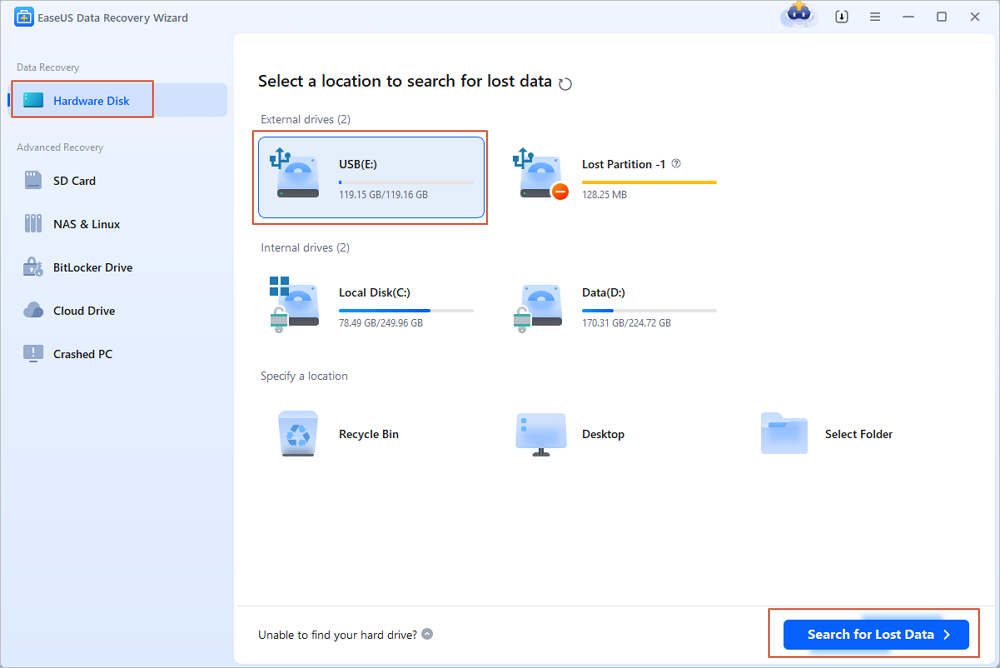
Step 1. Run USB Data Recovery Software
Connect the USB drive or pen drive to your computer and launch EaseUS USB data recovery software on your PC. Select the drive which is labeled as a External drives, and click "Scan for lost data" to start looking for lost files.
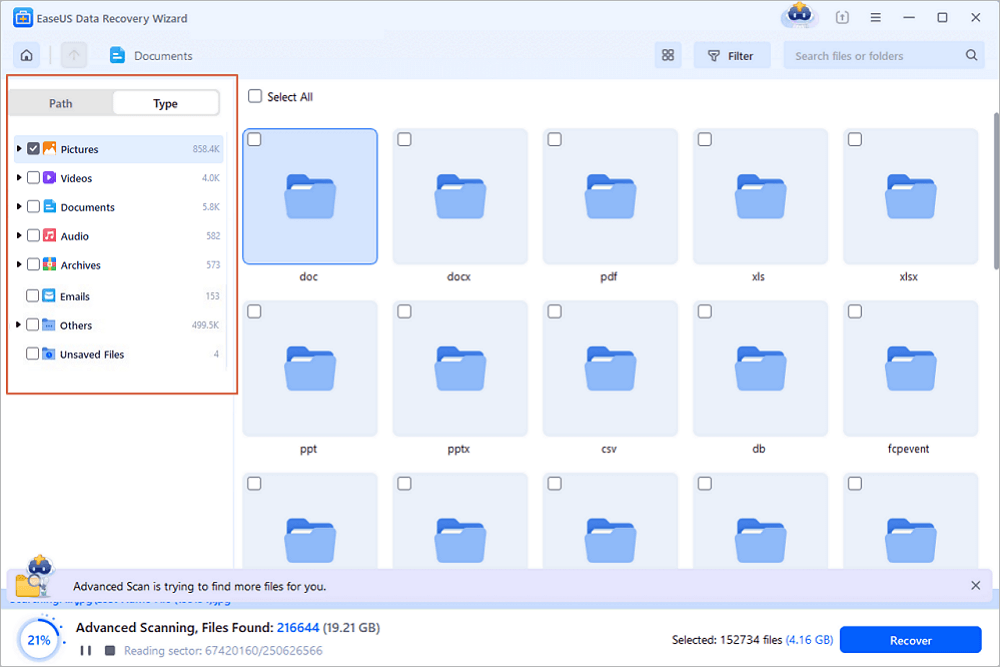
Step 2. Scan and Search Lost Files on a USB Drive
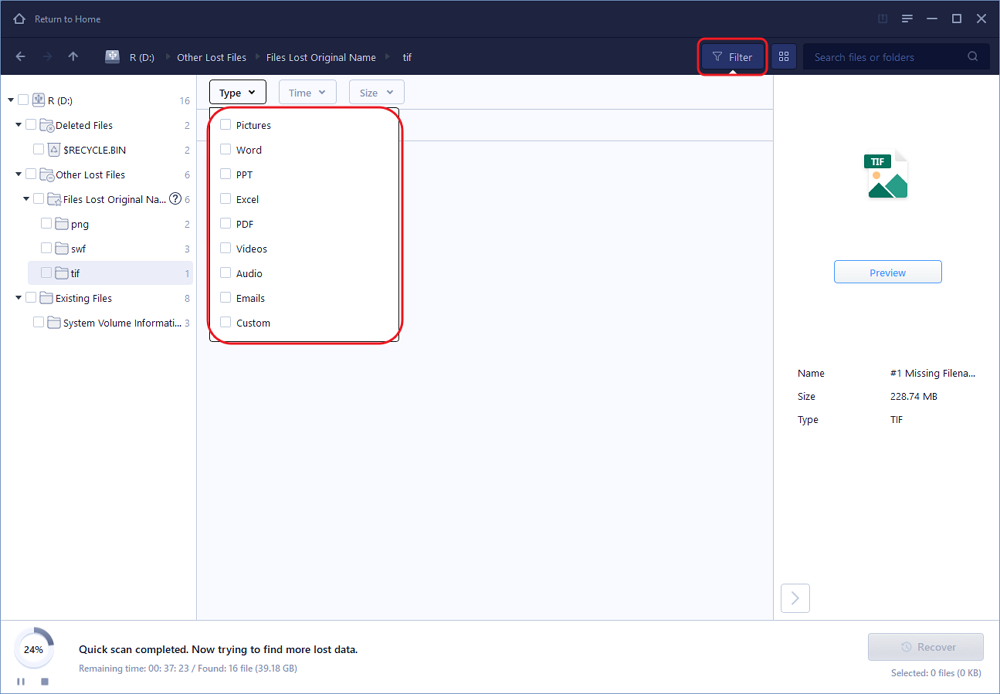
EaseUS Data Recovery Wizard will thoroughly scan your USB flash drive/pen drive and find all your lost data on it. When the scan process completes, use the Filter feature to find wanted files.
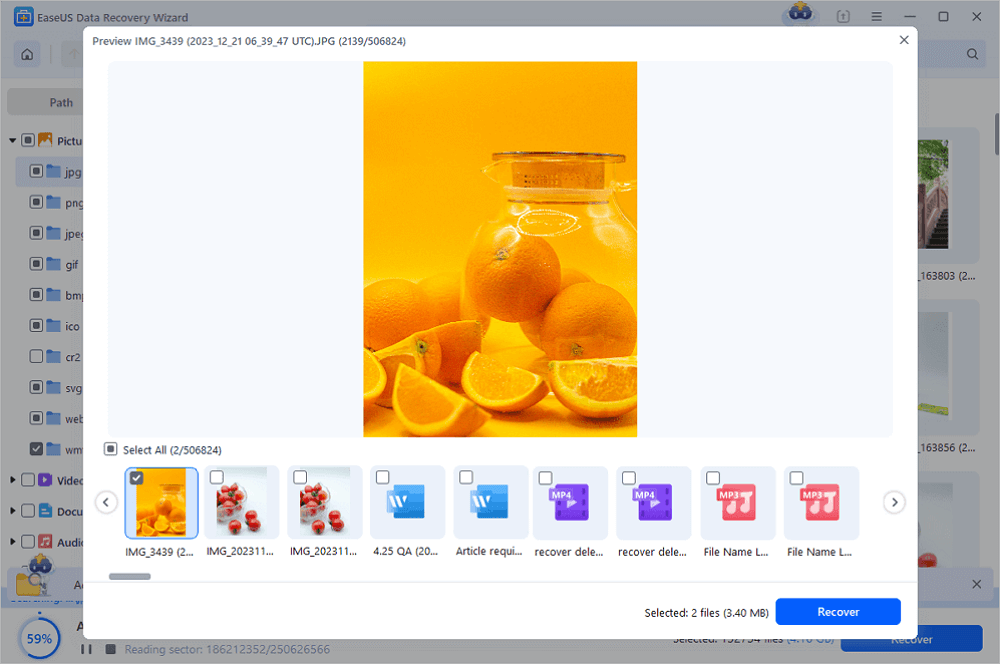
Step 3. Restore All Lost Files from USB
A double-click will allow you to preview the files. Select the target files to restore and click "Recover" to save them to a secure location on your PC or other external storage devices.
Share this USB recovery guide with more friends on social media!

How to Fix USB Randomly Disconnecting on Windows 11
Start with the easy fixes before jumping into complicated troubleshooting steps. Most Windows 11 USB disconnect issues get solved with one of these six solutions.
Fix 1. Check the USB Port and Cable
First, unplug your USB device and try plugging it into a different port. On a desktop, the USB ports on the back (right on the motherboard) usually deliver steadier power than the flimsy ones up front.
Using an external hard drive or portable SSD? Swap out the cable for a good-quality one. Cheap or damaged cables mess up both power and data, causing all sorts of problems.
You should also avoid inexpensive USB hubs or adapters, as they may not provide sufficient power for external storage devices.
If everything starts working after you switch ports or cables, well, now you know what caused the trouble.
Fix 2. Disable USB Selective Suspend
Windows 11 tries to save power by using a feature called USB Selective Suspend. Basically, it pauses your USB devices when it thinks they're not being used. Sounds smart, but sometimes this backfires and storage devices disconnect out of nowhere.
Here's how:
Step 1. Go to the Control Panel and open Power Options.
Step 2. Next to your current plan, click "Change plan settings".
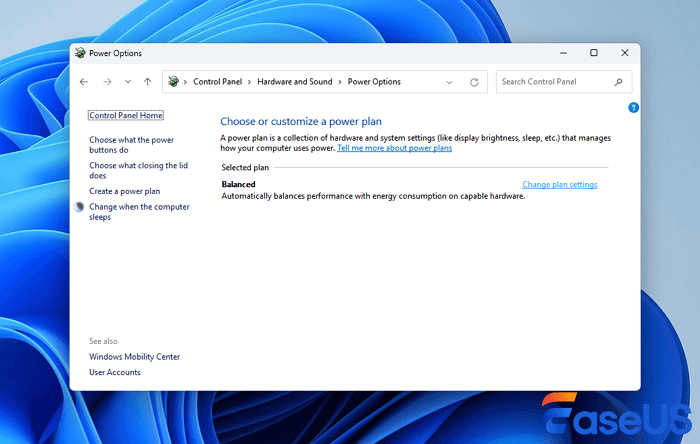
Step 3. Click "Change advanced power" settings.
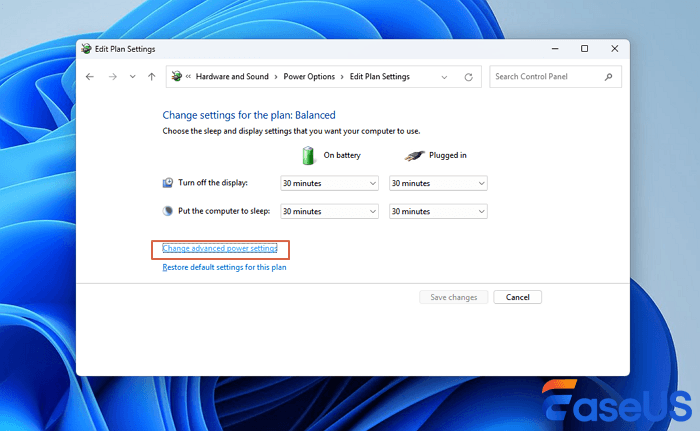
Step 4. Find USB Settings and expand it.
Step 5. Set USB Selective Suspend Setting to Disabled.
Step 6. Hit Apply and restart your PC.
People usually see their USB problems clear up right after doing this.
Fix 3. Prevent Windows from Turning Off USB Devices
Windows likes to turn off USB Root Hub devices to save even more power, but this can lead to external drives randomly disconnecting, especially on laptops.
Here's what you can do:
Step 1. Search in the Windows search box and open Device Manager.
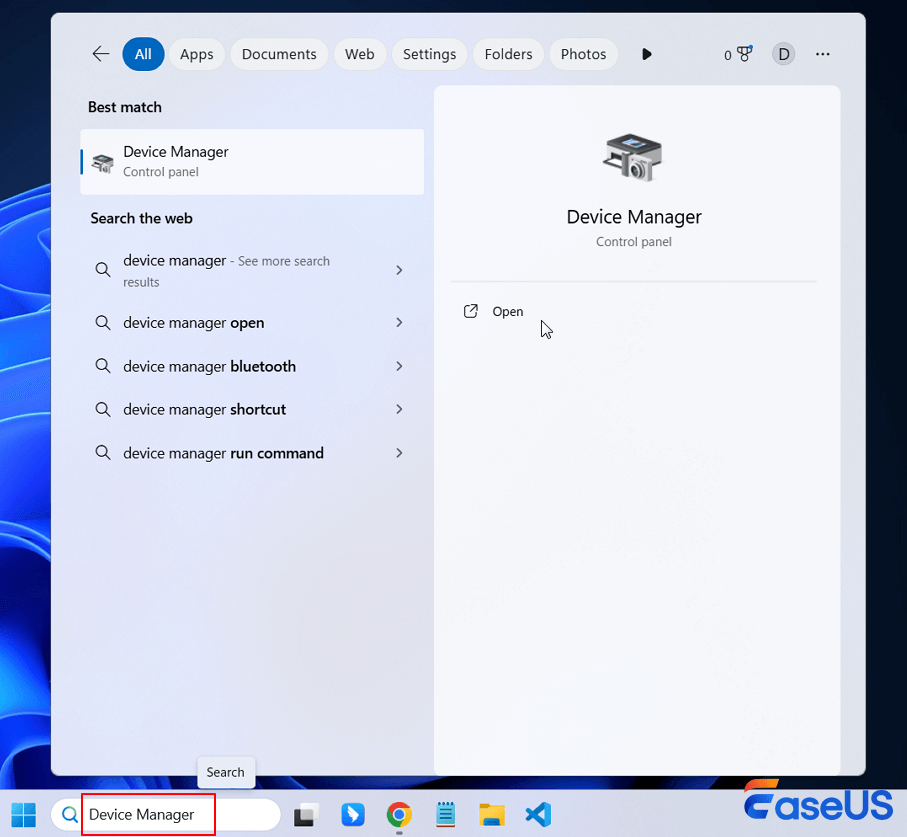
Step 2. Expand universal serial bus controllers.
Step 3. Double-click each USB Root Hub entry.
Step 4. Go to the Power Management tab.
Step 5. Uncheck Allow the computer to turn off this device to save power.
Step 6. Do this for every USB root hub on the list.
Restart your computer to make sure the changes stick.
Fix 4. Update or Reinstall USB Drivers
Driver issues often pop up after big Windows updates or when you change your motherboard drivers.
Here's how you update your USB drivers:
Step 1. Open Device Manager.
Step 2. Go to Universal Serial Bus controllers.
Step 3. Right-click on your USB controller, then pick Update driver.
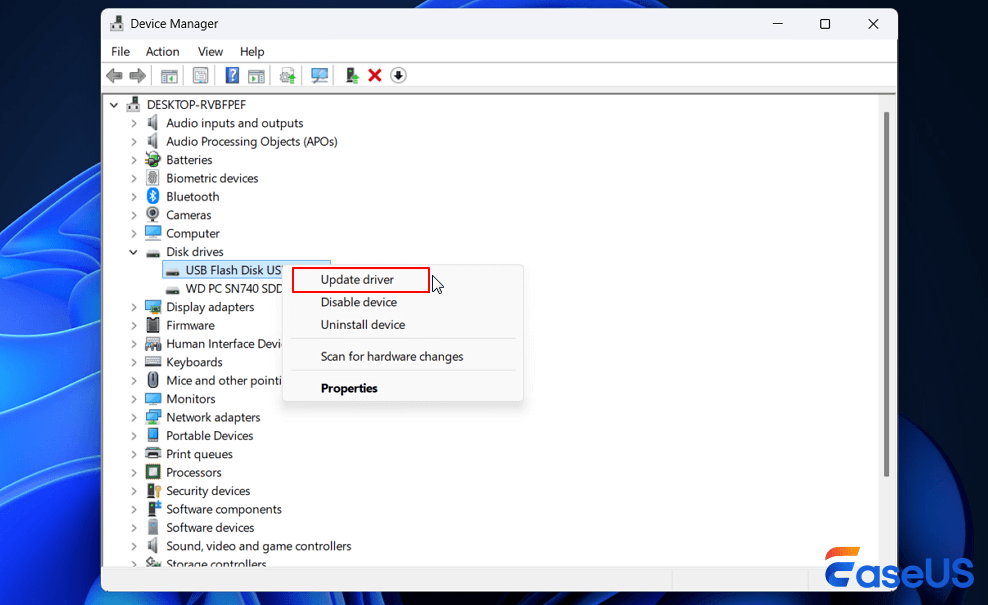
If Windows says you already have the best driver but things still aren't working, just uninstall the USB controller and restart your PC. Windows will put the driver back when you boot up again.
Fix 5. Repair USB File System Errors
If your USB keeps disconnecting whenever you try to open certain folders or files, there's a good chance the file system is corrupted.
Windows has a built-in tool for this - CHKDSK. Here's what to do:
Open Command Prompt as Administrator and enter: chkdsk C: /f /r /x
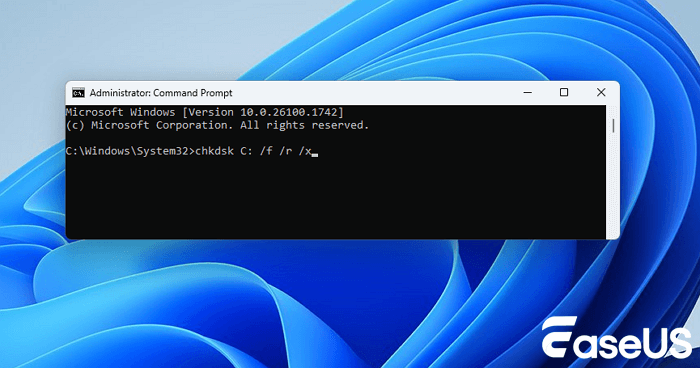
Swap out C for the letter of your USB drive. This checks the file system, fixes errors, and tries to recover readable data from damaged areas.
One thing to remember: if your USB drive holds important files and the USB is detected but not accessible, or shows up as "RAW," recover your files first. Use something like EaseUS Data Recovery Wizard before running CHKDSK. Repairing the drive can make data recovery harder if it is severely damaged.
Fix 6. Test the USB Drive on Another Computer
If you've tried everything and nothing works, plug the USB drive into another Windows PC.
This is an easy way to see if the problem's with the drive or your own computer.
If it works fine on the other machine, then the issue probably comes from your Windows setup, your drivers, or your ports. But if the USB keeps failing on other computers too, the drive itself is likely on its last legs.
Other signs the drive is dying include:
- Super slow file transfers
- Loads of CRC errors
- Files just vanishing
- The type of the file system is RAW
- The drive is showing the wrong size
- Windows is asking you to format the drive over and over
If you're seeing any of these, grab your important files right away and get a new USB drive.
Conclusion
USB keeps disconnecting from your computer in Windows 11 or other operating systems is a common issue, and it can be fixed easily sometimes by reconnecting your USB or changing the USB port.
Before fixing this problem, it's better to apply EaseUS Data Recovery Wizard to recover data from your USB drive.
USB Randomly Disconnecting and Reconnecting FAQs
1. How do I stop Windows 11 from turning off my USB ports?
Open Device Manager, locate your USB Root Hub, open Power Management, and uncheck Allow the computer to turn off this device to save power. You can also disable USB Selective Suspend in Power Options.
2. Can a faulty USB cable cause random disconnects?
Yes. Damaged or low-quality USB cables can interrupt both power delivery and data transmission, especially when using external HDDs or SSDs.
3. Should I run CHKDSK on a USB drive that keeps disconnecting?
CHKDSK can repair logical file system errors. However, if the drive contains important files or has become inaccessible, recover your data first before running the repair command.
Was this page helpful?
-
Jane is an experienced editor for EaseUS focused on tech blog writing. Familiar with all kinds of video editing and screen recording software on the market, she specializes in composing posts about recording and editing videos. All the topics she chooses are aimed at providing more instructive information to users.…
-
Dany is an editor of EaseUS who lives and works in Chengdu, China. She focuses on writing articles about data recovery on Mac devices and PCs. She is devoted to improving her writing skills and enriching her professional knowledge. Dany also enjoys reading detective novels in her spare time. …
 Why Trust EaseUS
 Editor Reviews

20+
Years of experience

160+
Countries and regions

72 Million+
Downloads

4.9 +
Trustpilot Score





