





-
![]()
-
![]()
-
![]() How to Show Hidden Files on USB Drive (4 Proven Methods)
How to Show Hidden Files on USB Drive (4 Proven Methods) October 20,2026
 6 min read
 -
![]()
-
![]() How to Fix USB Not Formatted Error and Recover Files SuccessfullyOctober 20,20266 min read
How to Fix USB Not Formatted Error and Recover Files SuccessfullyOctober 20,20266 min read -
![]()
-
![]() How to Recover Data from Corrupted USB Drive [Pen Drive]October 20,20266 min read
How to Recover Data from Corrupted USB Drive [Pen Drive]October 20,20266 min read -
![]()
-
![]()
-
![]() [SOLVED] Unknown USB Device (Device Descriptor Request Failed)October 20,20266 min read
[SOLVED] Unknown USB Device (Device Descriptor Request Failed)October 20,20266 min read
Page Table of Contents
PAGE CONTENT:
Can You Recover Files from a Formatted USB Drive
Formatting your USB drive can set your nerves on edge, especially if it was full of photos, work documents, or videos you can't afford to lose. The good news is, formatting doesn't always wipe everything out right away, at least not with a quick format. Mostly, it just resets the file system. The actual bits and pieces of your files usually stick around until something new overwrites them.
In most situations, you can recover files from a formatted USB, especially if you haven't used it since the format. With a quick format, Windows rebuilds some file-system info but usually leaves your old data untouched (at least at first). USB data recovery software digs through the messy remains and tries to reconstruct your files.
You have a shot at getting your lost files back if:
- You formatted the wrong USB drive.
- You realized your mistake right after a quick format.
- You changed formats (like NTFS to FAT32).
- You wiped the USB before moving your photos off.
- Windows prompted you to format an inaccessible USB, and you hit OK by accident.
- You formatted a drive full of docs, videos, or personal pics.
- The flash drive shows 0 bytes, but you haven't touched it since.
What to Do Immediately After Formatting a USB Drive
What you do at this moment really matters. Follow these tips now:
⭐1. Disconnect the Drive
The second you realize you've formatted the drive, unplug it. Don't use it for storage, don't move files around, don't even open it if you can help it.
⭐2. Don't Format It Again
Resist the urge to "fix" things by formatting again. You're not helping yourself. Multiple formats just scramble the puzzle further and make recovery harder.
⭐3. Don't Install Recovery Software on the USB
If you're about to try USB recovery software, install it on your computer's internal drive or another storage device, not the formatted USB.
⭐4. Prepare Another Place to Save Recovered Files
You need space to stash any files you manage to rescue; use your computer's hard drive, another USB, or an external disk.
Don't send your "recovered" files back to the formatted USB. You'll just overwrite other stuff waiting to be recovered.
⭐5. Look for Backups First
Before going further with recovery tools, check if you have backups somewhere:
- Windows Backup or File History
- OneDrive or other cloud storage
- An external drive
- Another computer
- Old copies of the USB's contents
If you find a backup, restore from that. It's safer and quicker.
How to Recover Files from a Formatted USB Drive
If you've got no backup, give trustworthy recovery software a shot. EaseUS Data Recovery Wizard is a solid option. It handles USB drives that are formatted, deleted, inaccessible, or just generally messed up. It scans, filters, and lets you preview files before restoring them.
A formatted USB drive may contain many different types of files, and you may not remember exactly where each file was stored. Instead of manually searching through the drive, EaseUS can identify recoverable data by file type.
Check the following guide to recover files from a USB drive with the EaseUS recovery tool:
Step 1. Run USB Data Recovery Software
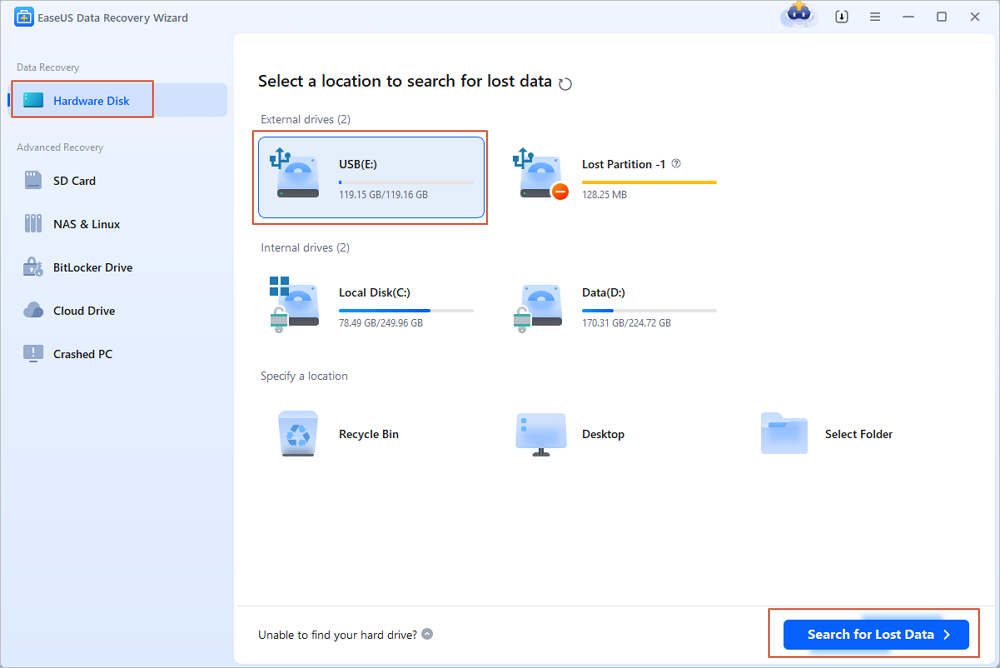
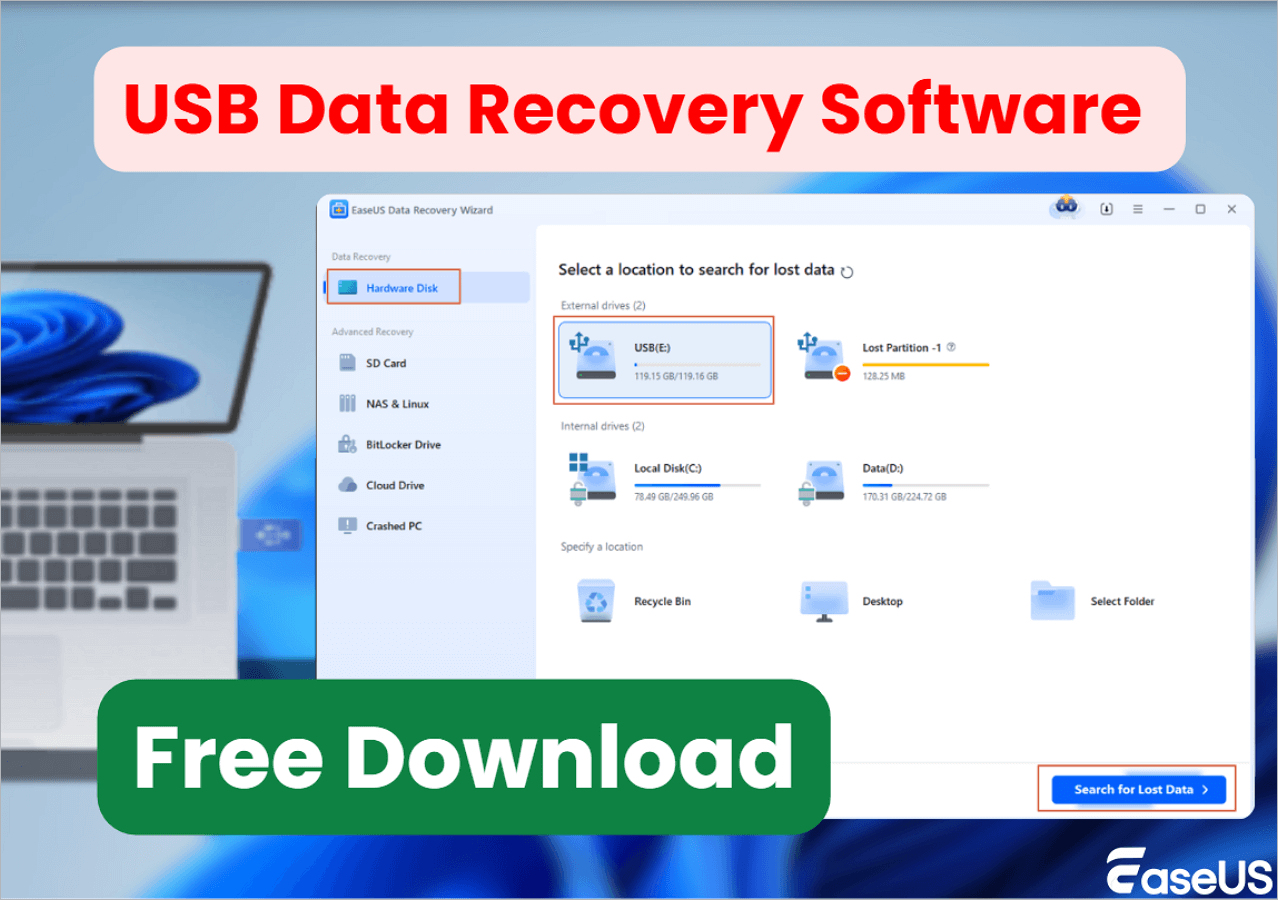
Connect the USB drive or pen drive to your computer and launch EaseUS USB data recovery software on your PC. Select the drive which is labeled as a External drives, and click "Scan for lost data" to start looking for lost files.
Step 2. Scan and Search Lost Files on a USB Drive
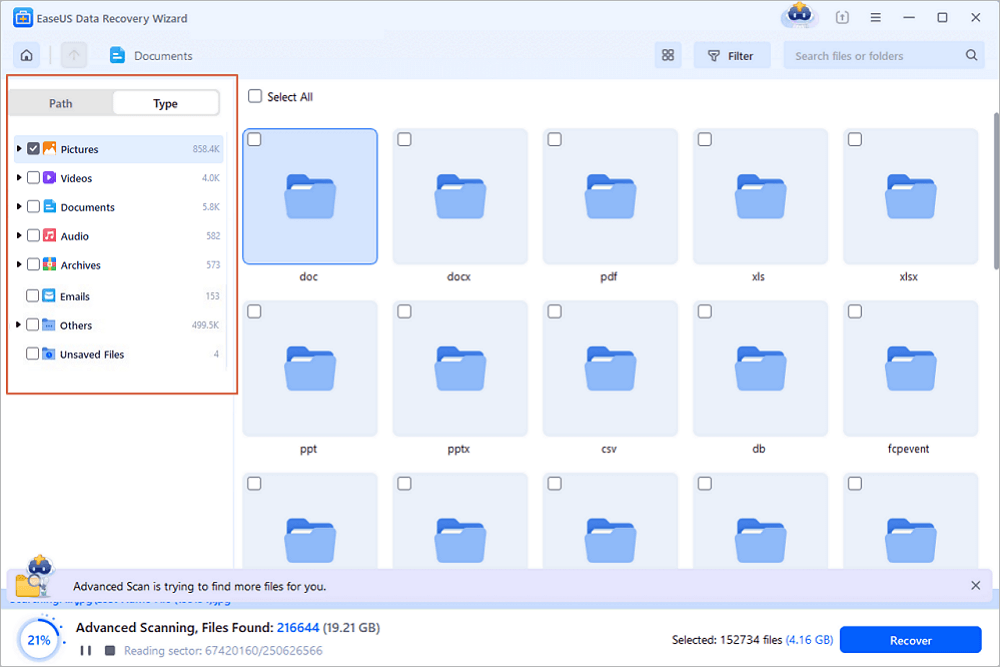
EaseUS Data Recovery Wizard will thoroughly scan your USB flash drive/pen drive and find all your lost data on it. When the scan process completes, use the Filter feature to find wanted files.
Step 3. Restore All Lost Files from USB
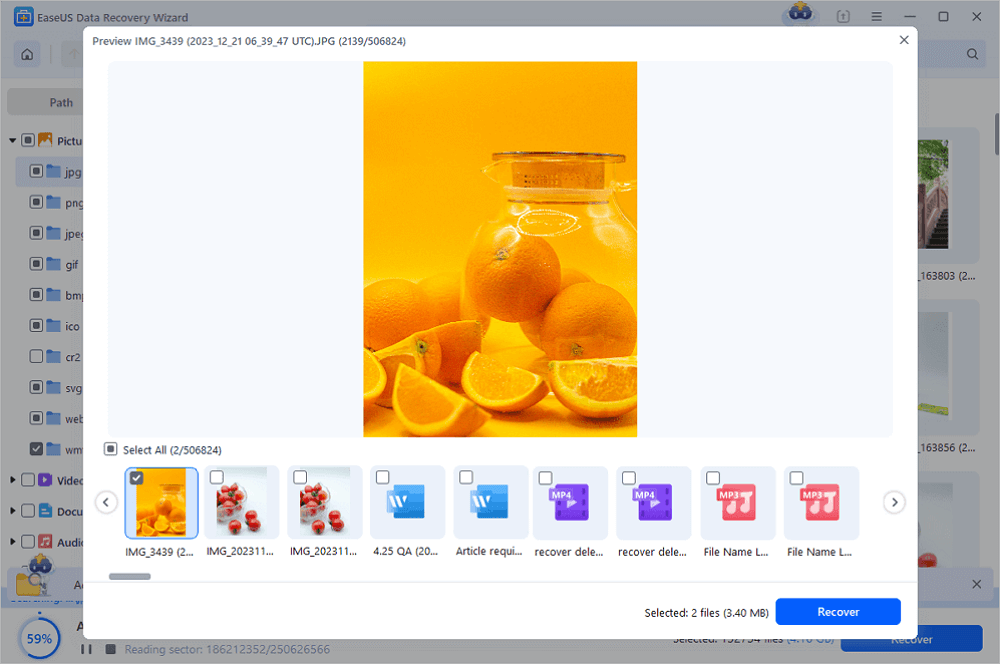
A double-click will allow you to preview the files. Select the target files to restore and click "Recover" to save them to a secure location on your PC or other external storage devices.
After recovering data from your emptied USB drive, share this recovery guide on social media to help more users!

Why Can't I Recover Files from a Formatted USB Drive
Sometimes, despite your best efforts, formatted USB data recovery falls flat. Here's why:
Overwritten Data
If you kept using the USB after formatting, chances are new files have wiped out the old ones. Recovery software might find fragments, but the files might be broken or incomplete.
Fully Erased Drives
A "full format" or secure erase really cleans things out. Once the storage space is overwritten, there's not much left for software to recover.
Physical Damage
If your USB is fried, has a busted controller, or got zapped, recovery software probably won't even recognize it. You might need professional help.
Severe File System Corruption
If the drive shows up as RAW, can't be opened, or throws weird errors, the file system's seriously messed up. Recovery software like EaseUS can help, but there's no guarantee if you use other software that cannot read a RAW file system.
Pre-Existing Corruption
Formatting doesn't fix broken files. If your USB had file system errors or bad sectors before formatting, you might recover damaged files that can't really be opened.
Undetected Drives
If your computer won't recognize the USB and the USB drive isn't showing up at all, check cables and ports, and try other machines. If it still won't show up, something's wrong with the hardware.
Quick Format vs. Full Format: Which Is Better for USB Recovery
Quick formats are faster and don't touch the whole drive, just rebuild the file system. This means your real data hangs around underneath, which is safer for recovery.
Full formats are slower and usually overwrite more stuff, making recovery tougher or impossible.
| Feature | Quick Format | Full Format |
| Formatting speed | Faster | Slower |
| Creates a new file system | Yes | Yes |
| Recreates file system information | Yes | Yes |
| Immediately overwrites the entire volume | No | Depends on OS/process |
| USB data recovery possibility | Generally better | Potentially lower |
| Effect of writing new files afterward | Can overwrite old data | Can further reduce recovery chances |
| Recommended after accidental formatting | Stop using the drive | Stop using the drive |
Conclusion
Formatting isn't always the end of your files. If you acted quickly and didn't write anything new, chances are pretty good you'll get something back, especially after a quick format.
The number one rule? Stop using the USB immediately. Don't save new files or install anything on it. If you have a backup, use that first. Otherwise, try your luck with EaseUS Data Recovery Wizard.
Just remember: no recovery is guaranteed. Overwritten data, hardware damage, and severe corruption can mean your files are truly gone. The sooner you try, the better your odds.
Formatted USB Flash Drive Recovery FAQs
1. Can I recover files after a full format?
It depends. If the full format overwrote everything, recovery is not possible. If it just recreated the file system, there's a slim chance.
2. How do I recover files from a formatted USB without a backup?
Download data recovery software (like EaseUS), scan your USB, preview the results, and restore files to another drive.
3. What should I do if my USB looks empty after formatting?
Leave it alone. Don't add anything. An "empty" USB probably still has hidden data. Scan it with recovery software.
Was this page helpful?
-
Dany is an editor of EaseUS who lives and works in Chengdu, China. She focuses on writing articles about data recovery on Mac devices and PCs. She is devoted to improving her writing skills and enriching her professional knowledge. Dany also enjoys reading detective novels in her spare time. …

 Why Trust EaseUS
 Editor Reviews

20+
Years of experience

160+
Countries and regions

72 Million+
Downloads

4.9 +
Trustpilot Score





